How to move from VS Code to WebStorm
In this section, you’ll find some tips on how to migrate from VS Code to WebStorm.
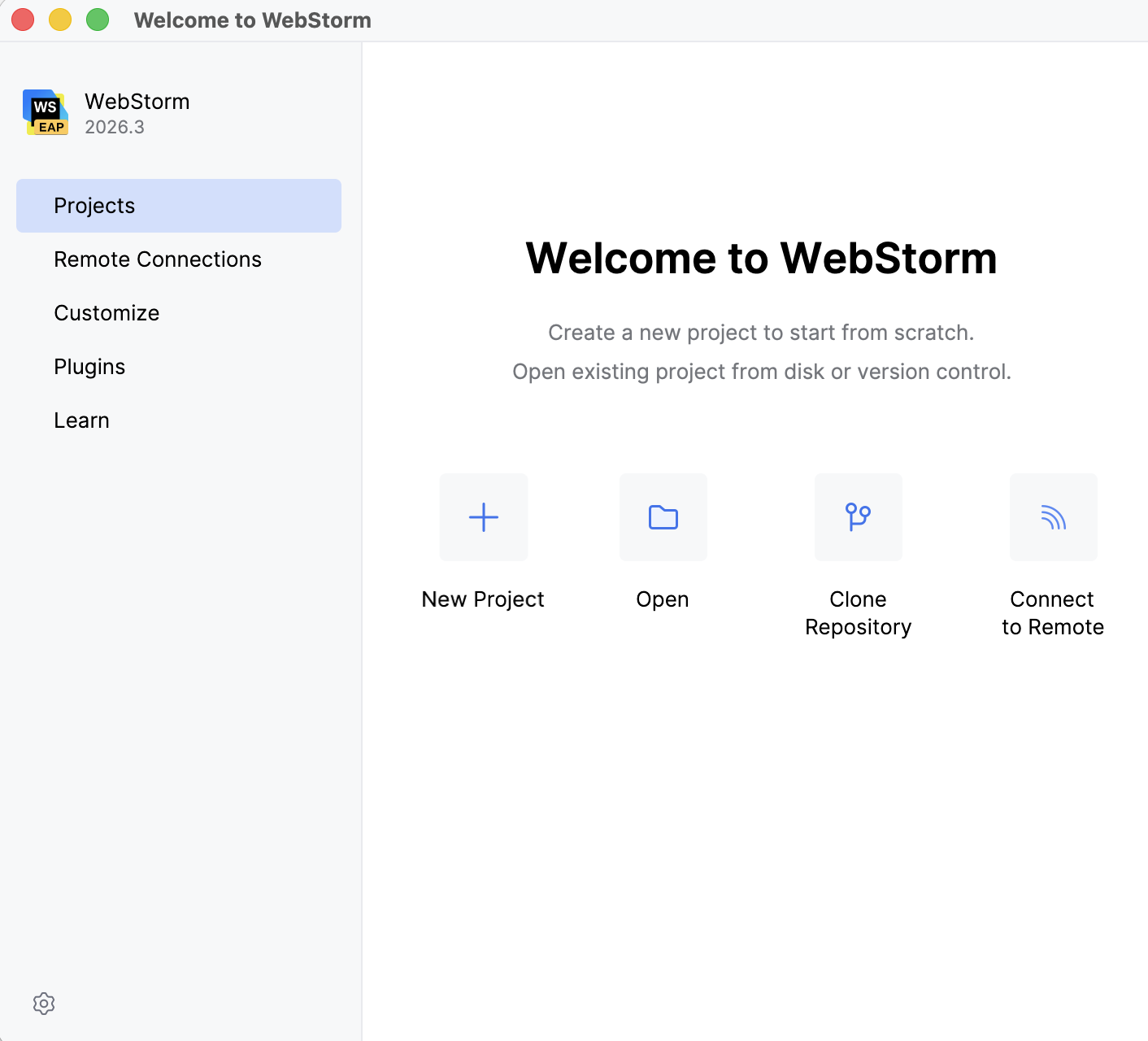
Open or create your first project
One of the first things that you’ll notice after you download and install WebStorm is that you need a project to get started. The project-first approach helps WebStorm understand the context of what you will be working on better and provide you with more advanced coding assistance.
You have several options to choose from for starting your project:
Clone Repository – Get an existing project from Git or GitHub.
New Project – Create an empty project or generate a project from an existing template, like ones for React, Angular, or Vue.
Open – Open a project stored on your machine.
You can also start with our playground project to get a quick tour of some of the key features – go to New Project | New Project and check the Generate a playground project with onboarding tips box.
Configure shortcuts
If you’ve never used WebStorm or other JetBrains IDEs before, getting used to new shortcuts can be challenging. Here are a few tips that can help you with that.
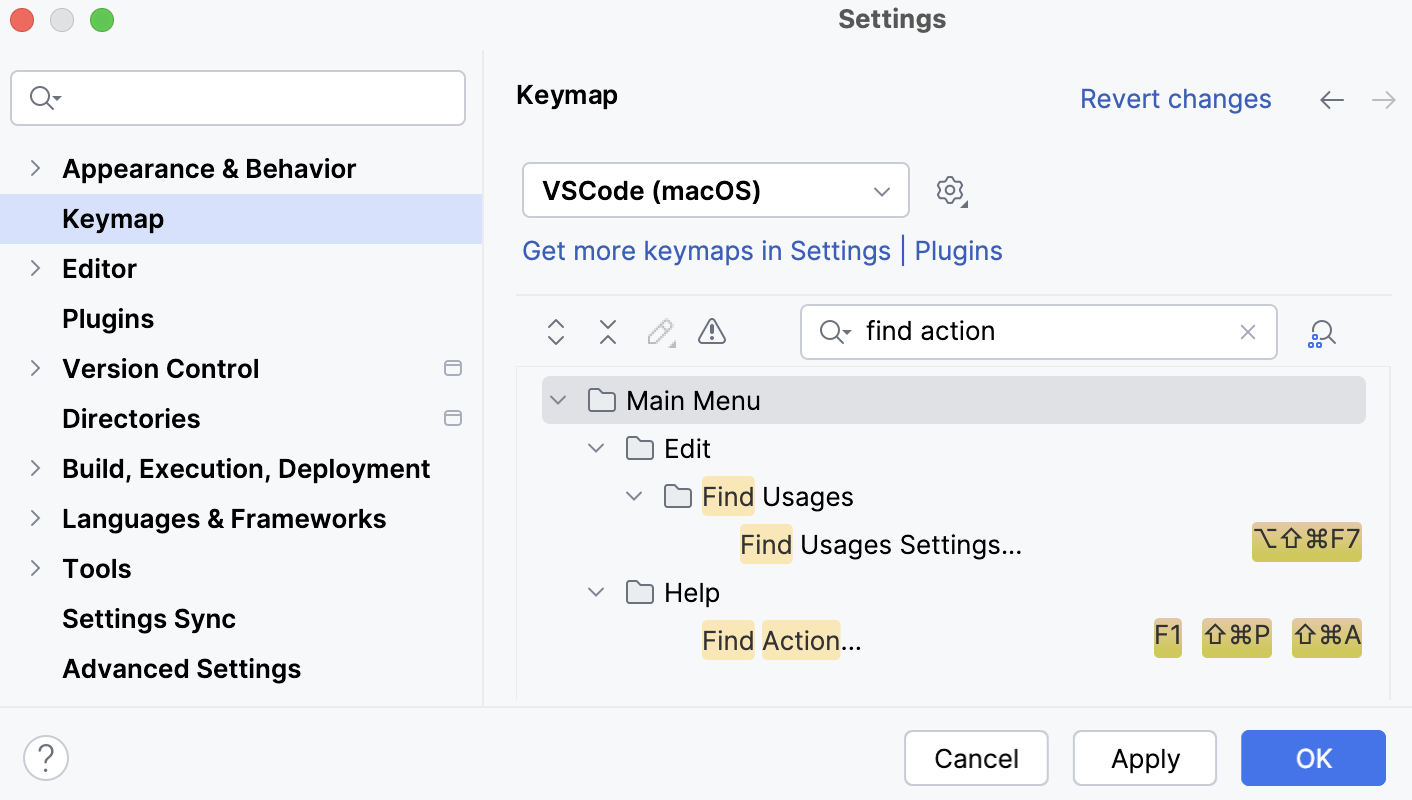
Switch to the VS Code keymap
If you aren’t ready to say goodbye to VS Code shortcuts just yet, you can switch to the VS Code keymap. To do so, go to Settings | Keymap, set VSCode or VSCode (macOS) as your default keymap, and save the changes.
Learn WebStorm shortcuts
Learning WebStorm shortcuts will come in handy even if you decide to switch to another JetBrains IDE later on – the shortcuts are the same in almost all of them. Here’s what can help you learn them faster:
Memorize WebStorm’s most universal shortcut – Shift + Shift, or Search Everywhere. You can use it to find any file, action, class, or symbol, and see all the matches in one place.
Install Key Promoter X – This extension helps you learn essential shortcuts while working. When you use the mouse on a button inside the IDE, Key Promoter X shows you the shortcut you could have used instead.
Use the WebStorm shortcut cheat sheet – You can download the default WebStorm keymap reference for macOS or Windows and Linux.
WebStorm suggests a predefined keymap based on your environment. You can find this keymap in Settings | Keymap. If you change the shortcut for an action, WebStorm will store those changes in a copy of the predefined keymap and use that copy by default moving forward.
Set up your work environment
One of the key differences between WebStorm and VS Code is that you don’t need to install and configure a lot of extensions to make WebStorm powerful. Most of the time, everything will work out of the box, so you can go straight to coding.
Check out these videos to learn how to get started quickly. For a general overview of the features WebStorm offers, see this page.
Customize WebStorm
WebStorm’s UI might look overwhelming at first. You can customize it and turn off anything you don’t need. Here are some general customization tips.
Extensions
In JetBrains IDEs, we refer to extensions as plugins. They work pretty much the same way extensions do in VS Code, allowing you to extend the built-in functionality and customize your IDE. To explore the available plugins, go to .
UI themes
WebStorm comes with only a few predefined themes, but there’s a variety of custom options to choose from. To explore them, go to Settings | Plugins and search for theme.
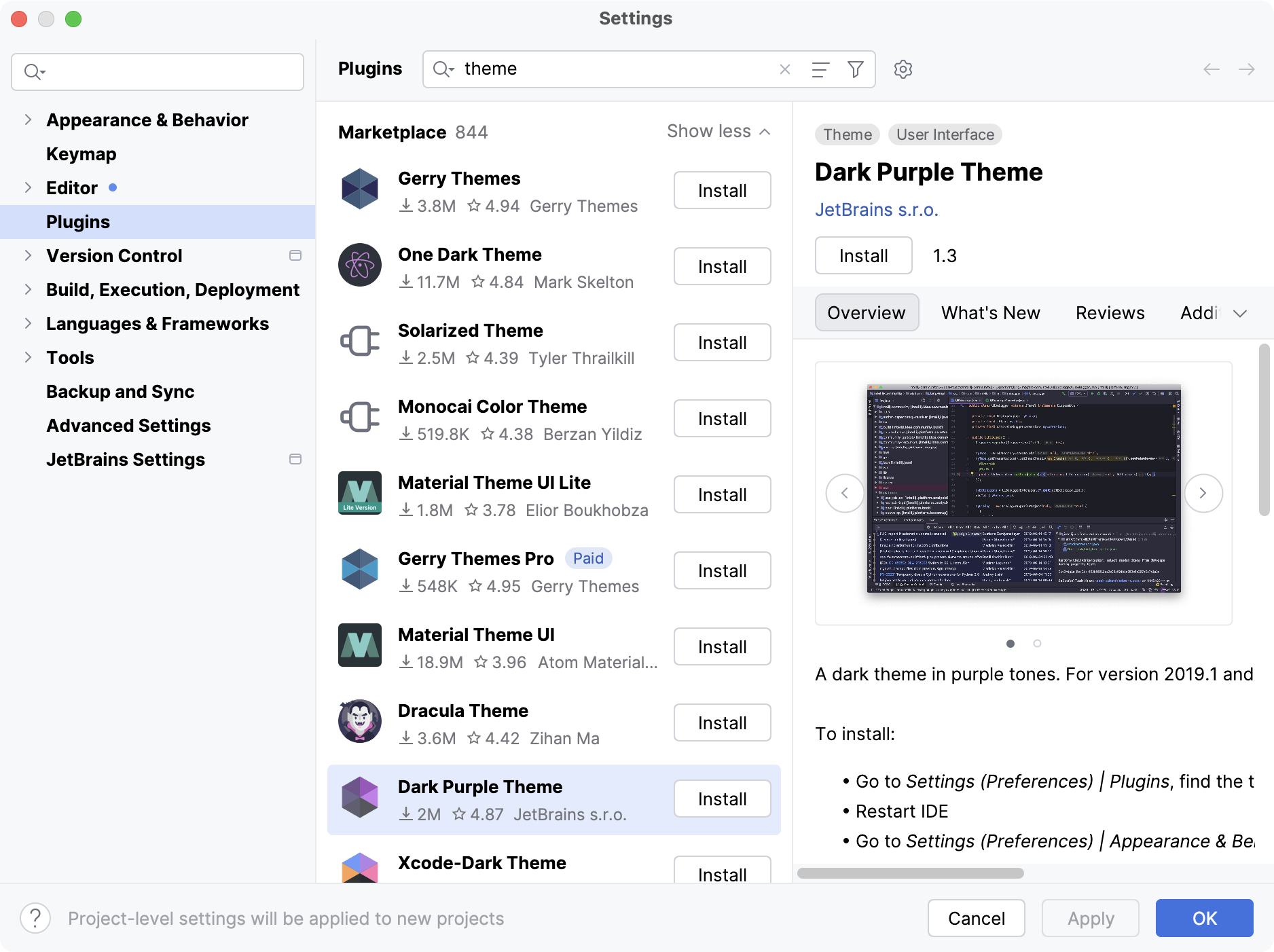
You can then go back to the editor and check how the themes you’ve installed look. Choose View | Quick Switch Scheme from the main menu or press Ctrl+` and select Theme. From there, you’ll be able to preview the available themes all in one go.
Zen mode
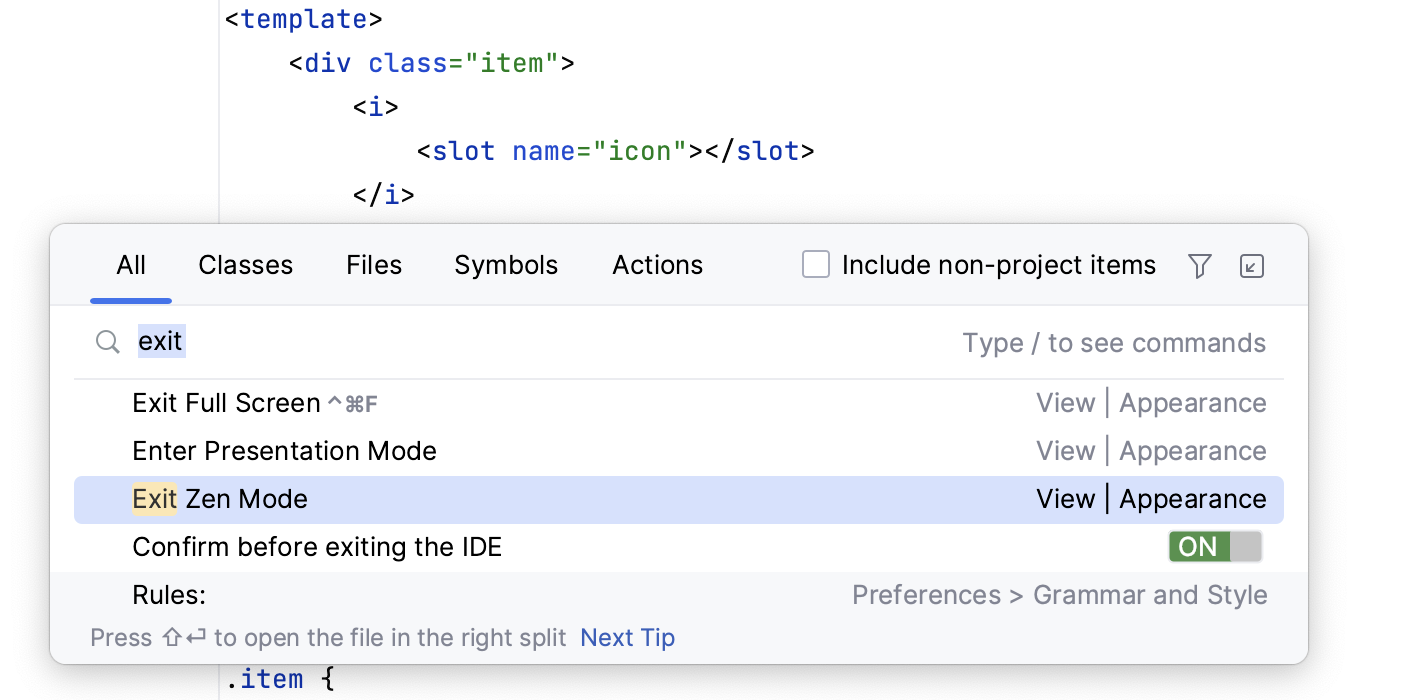
Like in VS Code, you can switch to Zen mode whenever you want to focus on coding. In the main menu, select Navigate | Search Everywhere and type in “enter zen mode”. Do the same but select Exit Zen Mode when you’re done.

Replicate common VS Code workflows
Let’s see how you can set up a few things to work like they do in VS Code.
Command Palette
Search Everywhere is your replacement for VS Code’s Command Palette. You can use it to find any file, action, class, or symbol, and see all of the matches in one place. To open Search Everywhere, press Shift + Shift or use the default Command Palette shortcut (if you’re on the VS Code keymap).
Search and replace
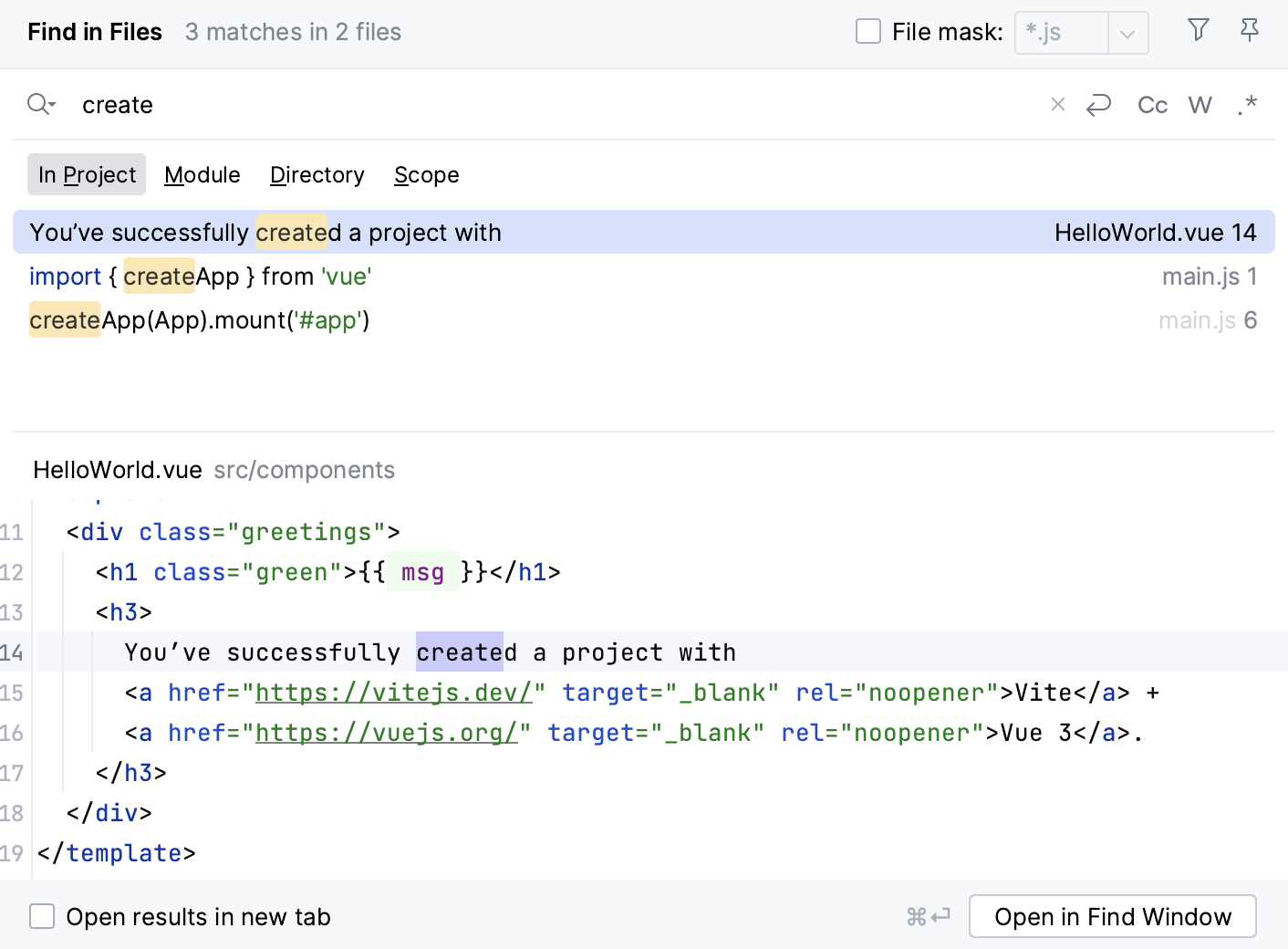
Although WebStorm’s search and replace workflow is slightly different from the one in VS Code, the principles are the same. WebStorm lets you find and replace text strings within both specific files and entire projects.
To get started, in the main menu go to Edit | Find and select Find (for specific files) or Find in Files (for entire projects). To replace a text string, select Replace or Replace in Files under the same submenu instead.
AI features
If you’d like to enhance your workflow in WebStorm with AI-powered capabilities, you can use JetBrains Air, which is natively integrated into the IDE.
 JetBrains Air is a workspace for coding agents. It brings coding agents into WebStorm and helps you manage their sessions and work. JetBrains Air works with agents, subscriptions, and WebStorm setup you already have. Key capabilities include:
- Agents you already have installed
JetBrains Air detects the coding agents installed on your machine, such as Codex or Junie, the same way the IDE detects SDKs and build tools. A detected agent keeps the configuration it already uses.
- Your existing subscriptions
Use the provider accounts and subscriptions you already have, or configure a provider in JetBrains Air. A JetBrains AI subscription is supported but not required.
- WebStorm tools for agent changes
Use code insight, refactorings, the debugger, and version control on the code an agent produces, and review, edit, or revert each change before you keep it.
- Presets for different tasks
Save an agent, model, and operation mode as a named preset and reuse it instead of configuring each session. For example, keep one preset for small changes and another for larger, multi-step work.
Before you start, make sure the Air bundled plugin is enabled in the settings. Press Ctrl+Alt+S to open settings and then select . In the search field, type Air. For more information about plugins, refer to Managing plugins.
 Junie can perform tasks independently or work alongside a developer. Routine tasks can be fully delegated to Junie, while it can also help with more complex work:
Performs tasks using project context and structure.
Analyzes and searches code to find relevant information.
Makes code edits using IDE inspections and checks.
Runs code and tests to reduce warnings and errors.
Verifies project state and test results after changes.
Supports collaboration on complex tasks with change review and guidance.
and more.
You can also use GitHub Copilot, Tabnine, and other AI tools in WebStorm – search for the corresponding plugin in . Note that those plugins aren’t maintained by JetBrains.
Project view settings
WebStorm has its own Explorer, the Project view, and it works a bit differently. For instance, you need to double-click a file to open it in the editor. Here’s how you can change the default setup to match what you were used to in VS Code:
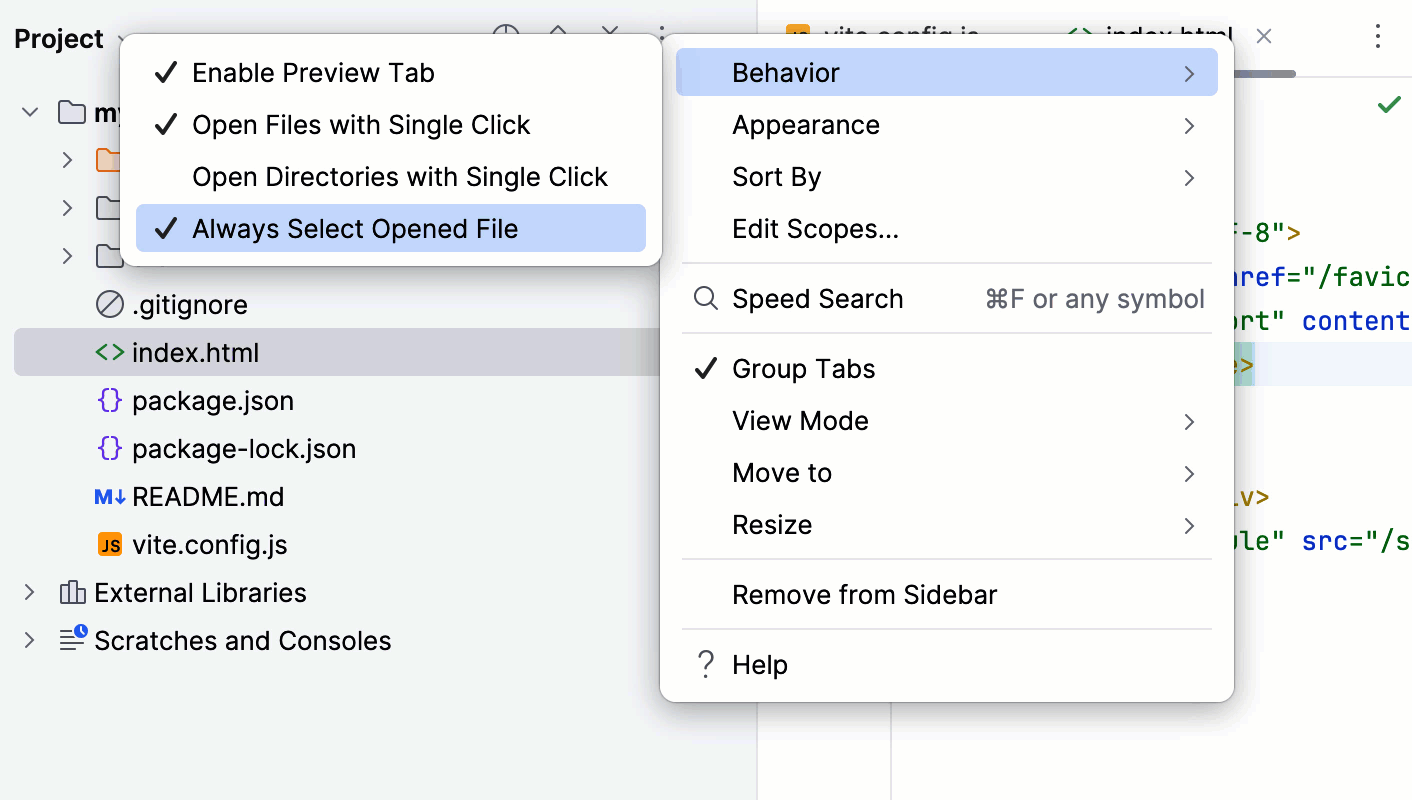
You can go to the Project view settings and select any or all of these options under Behavior:
Enable Preview Tab – Preview files you have selected in the Project tool window in the editor.
Open Files / Directories with Single Click – Open files or directories in the editor with one click.
Always Select Opened File – Auto-select the file that’s currently open in the Project tool window.
Actions on save
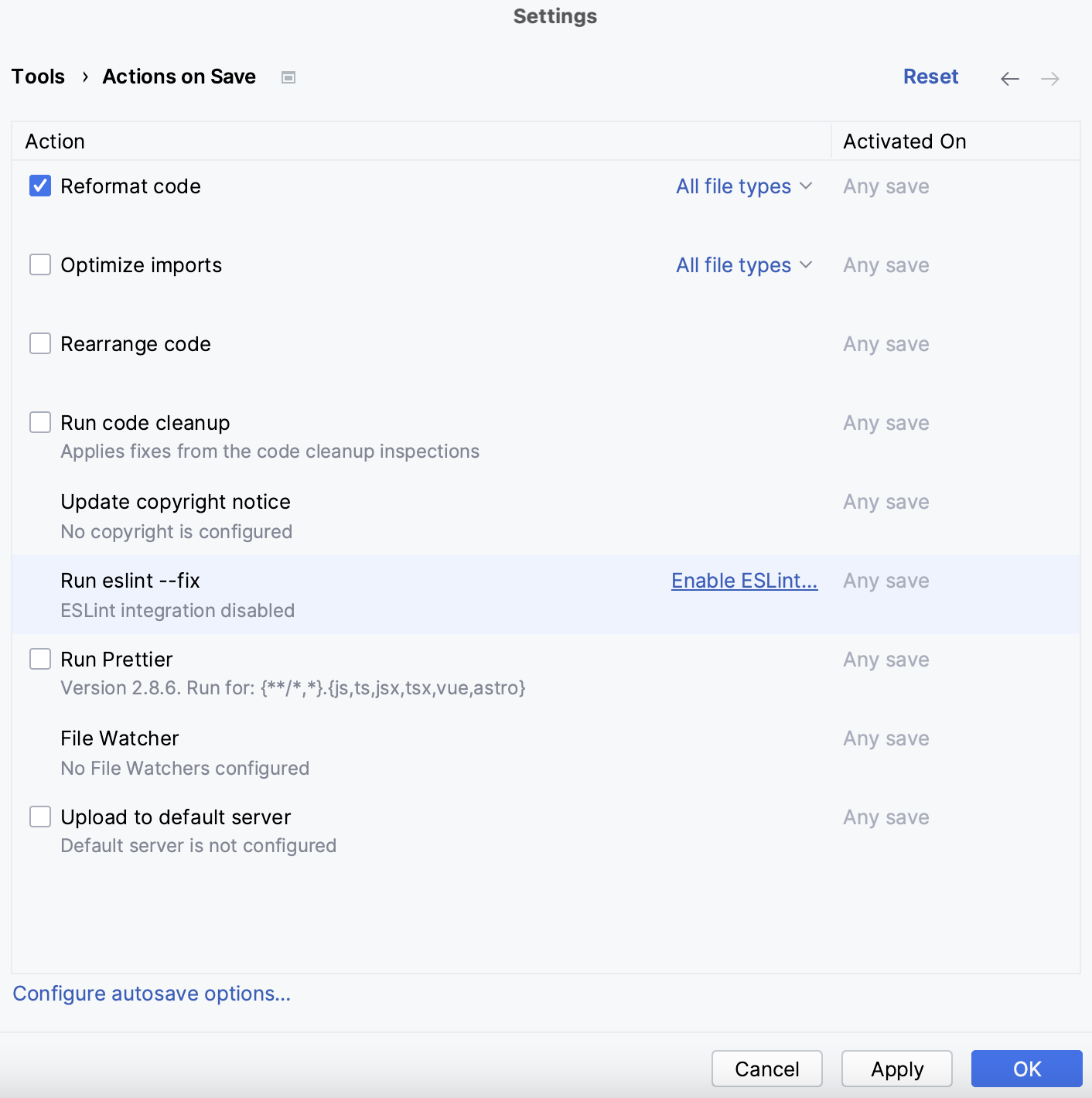
You can configure WebStorm to perform a specific action or run a tool like Prettier or ESLint every time you save a file after modifying it. To do this, go to Settings | Tools | Actions on Save and check the necessary boxes there. To learn more about performing actions on save, see this section of our documentation.
How to get support
You can check out our community forum to find answers to many common questions and ask other WebStorm users for help.
To report a bug or ask for a new feature, please create a new issue here.