Tutorial: deploy your application to a minikube cluster
Running Kubernetes locally is especially useful for prototyping, testing deployments, and learning Kubernetes workflows. Using the Docker and Kubernetes support available in WebStorm, you will be able to start the cluster, deploy resources, and inspect your application without leaving the IDE.
Before you start
Before you start, make sure that you have the following installed and configured:
Docker Desktop running
Enable required plugins
The functionality used in this tutorial relies on the following plugin:
The plugin is bundled and enabled in WebStorm by default. If the relevant feature is not available, make sure that you did not disable the plugin.
Press Ctrl+Alt+S to open settings and then select .
On the Installed tab, make sure the checkbox next to the Kubernetes plugin is selected.
Create a sample project
Let us start with a simple Node.js Express application. Let this application consist of a hello_express.js file that returns Hello World! and outputs Example app listening on port 3000! in the console.
Create an empty project with Node.js
Click New Project on the Welcome screen or select from the main menu.
In the dialog that opens, select Node.js in the left-hand pane.
Specify the location of the application and its name, for example,
hello_world_docker.Specify the local Node.js runtime to use. Accept the suggested installation or select another one from the list, or even click Download if you do not have Node.js on your machine yet. Learn more from Create a new Node.js application.
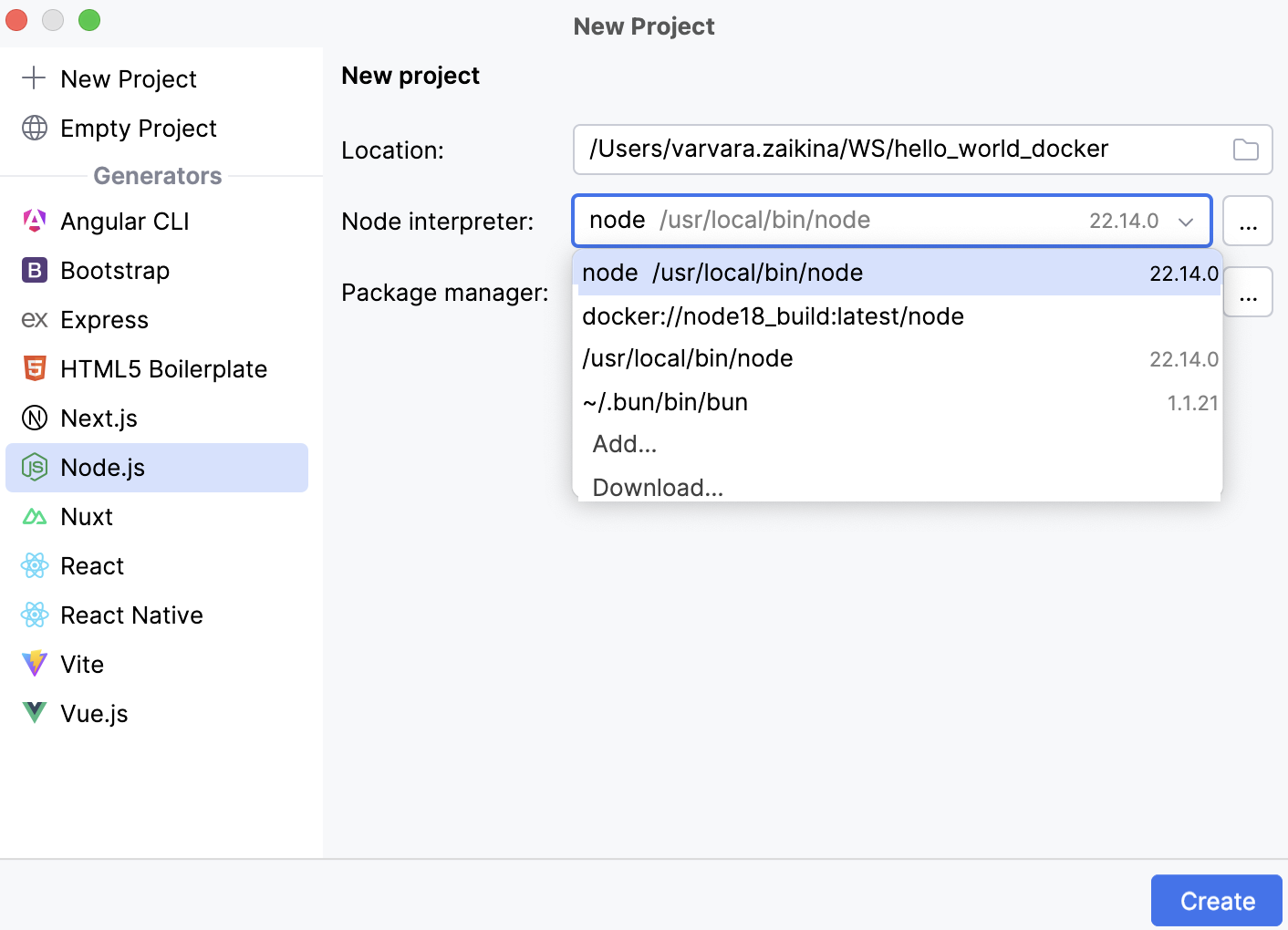
Click Create.
Populate the application
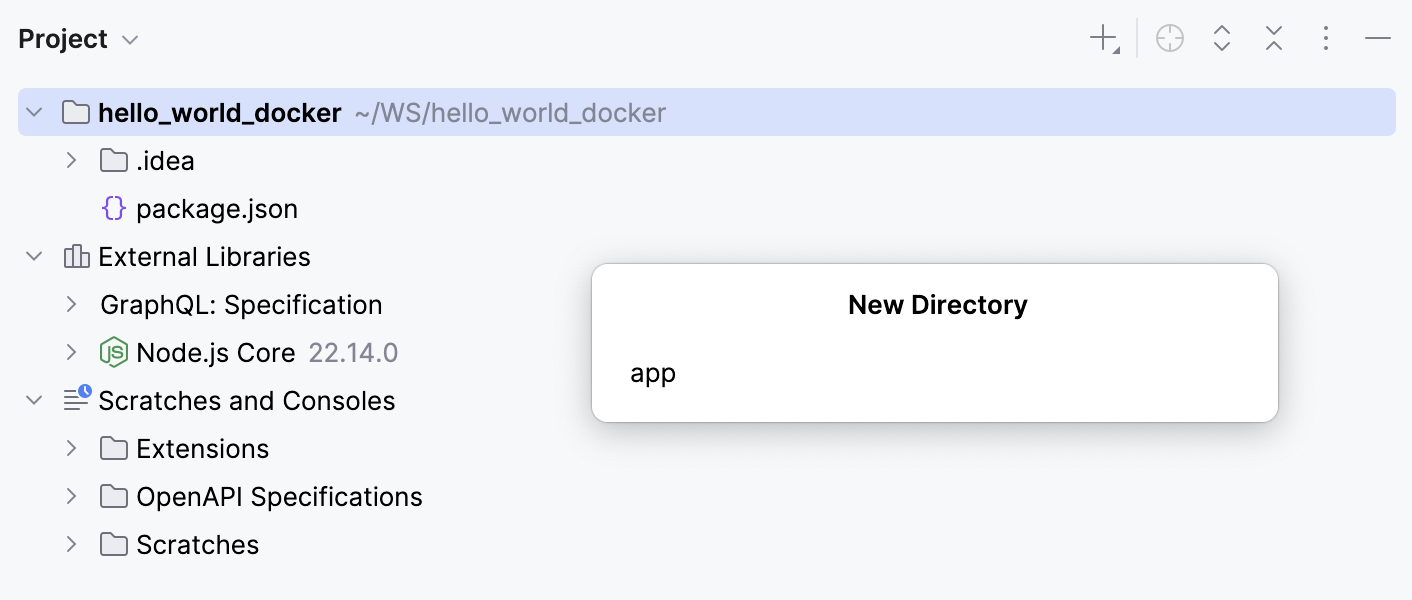
Let us create a separate folder for our application, this will help us later map local folders to folders in the container.
To do that, open the Project tool window Alt+1, right-click the project folder, select from the context menu, and then select . In the popup dialog that appears, specify the name of the folder, for example, app.
Now it is time to create a JavaScript file to place the code of our application in.
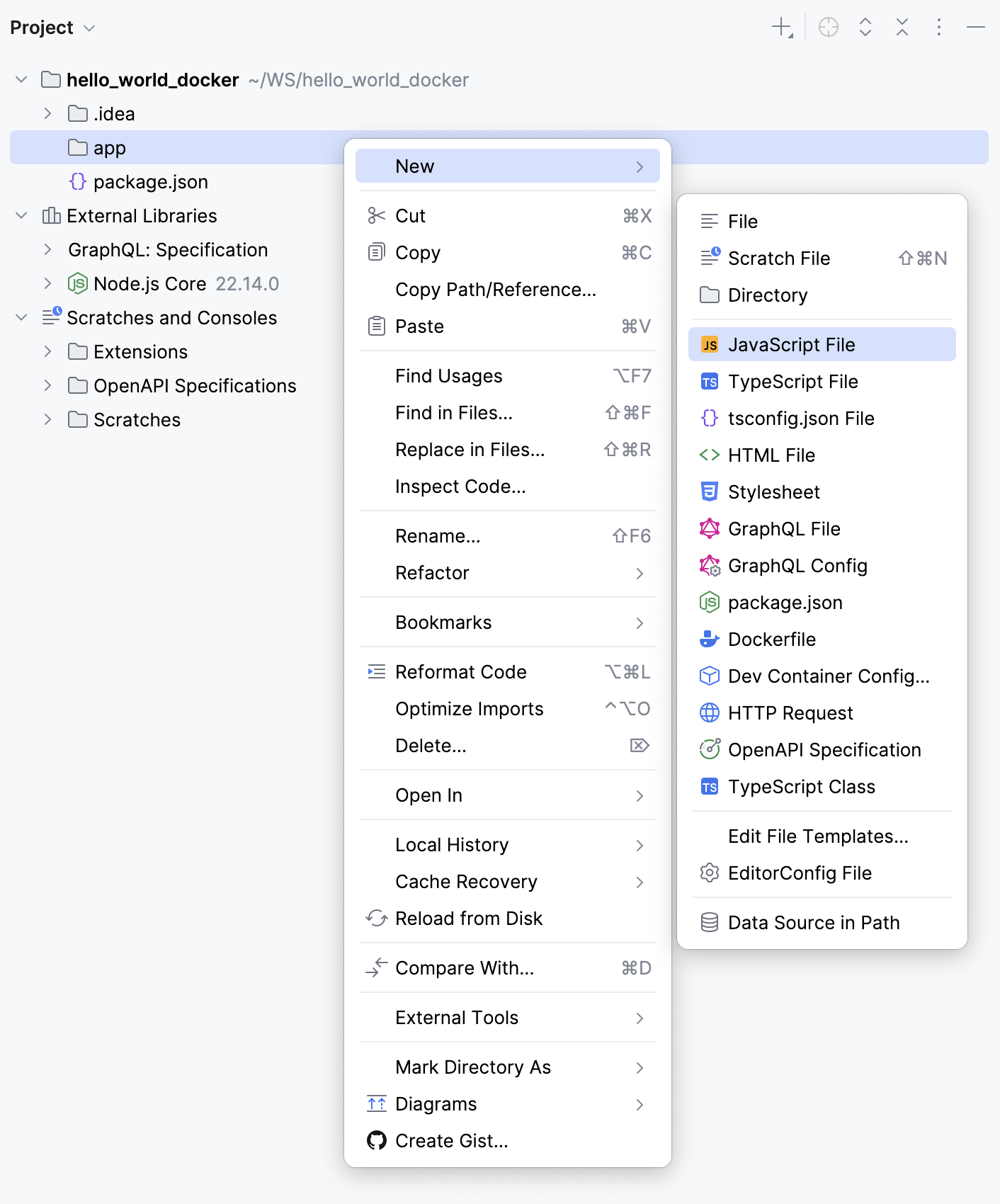
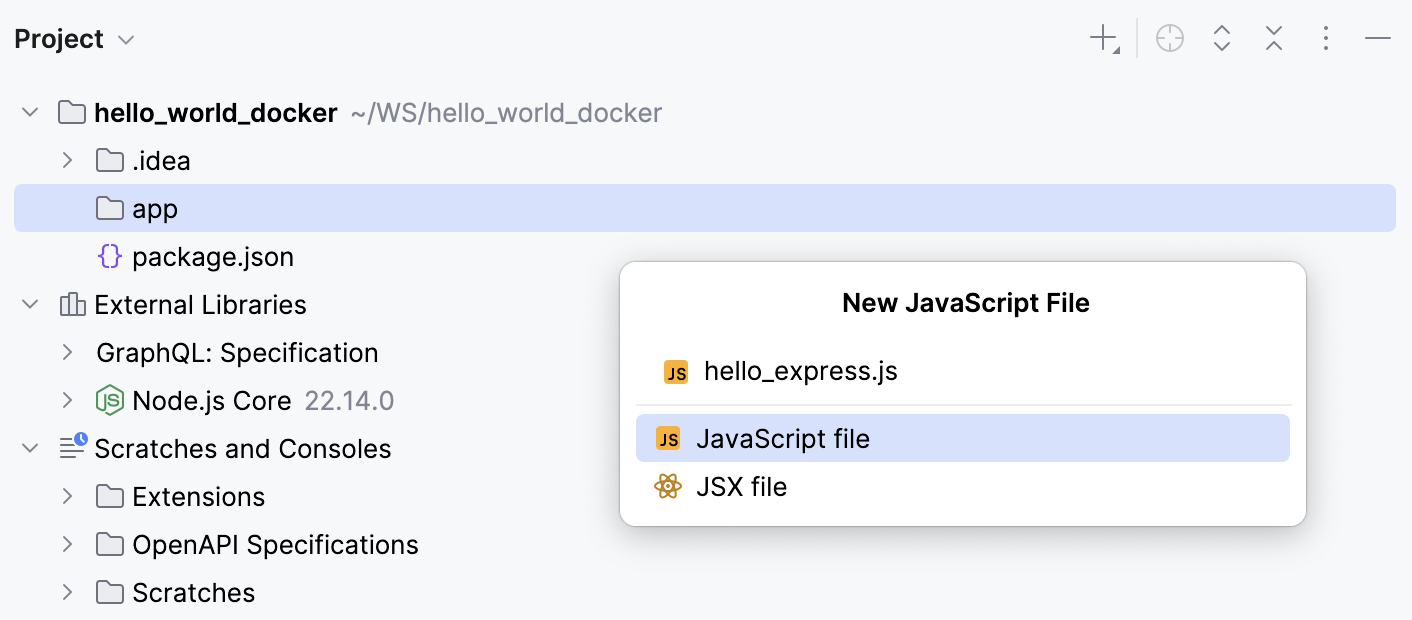
In the popup dialog that appears, specify the name of the file, for example, hello_express.js.
Open the newly created hello_express.js file in the editor and type the following code:
const express = require('express'); const app = express(); app.get('/', function(req, res) { res.send('Hello World!') }); app.listen(3000,function() { console.log('Example app listening on port 3000!') });As you might have expected, the
expressreference is not resolved and highlighted as an error. However, WebStorm suggests a quick-fix as you hover over the reference: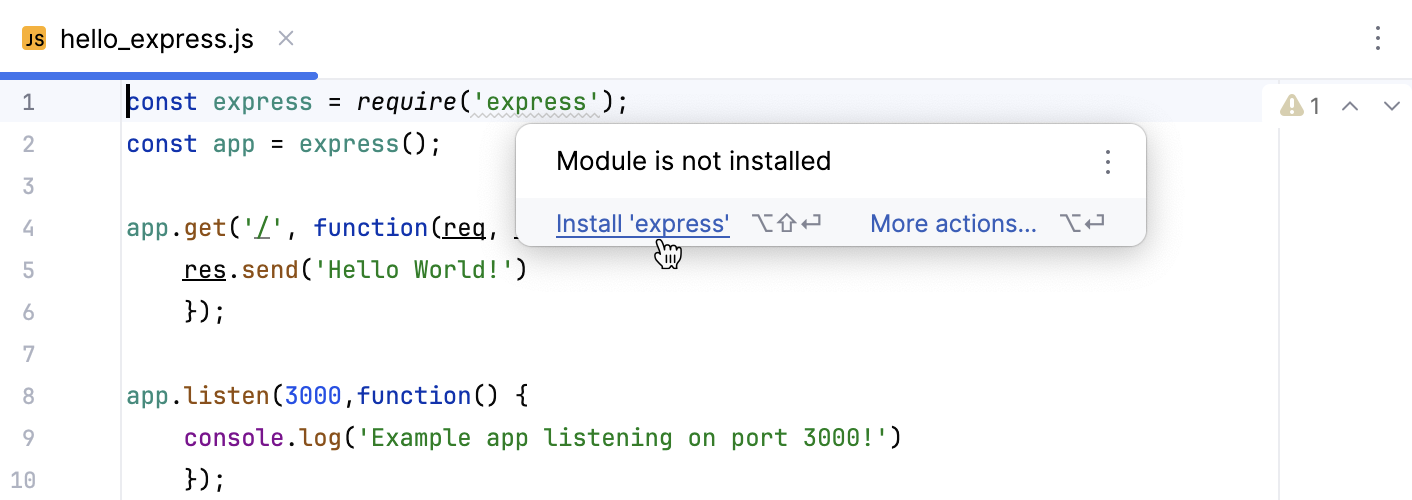
When you click the Install 'express' link,
expressis added to the package.json file and installed.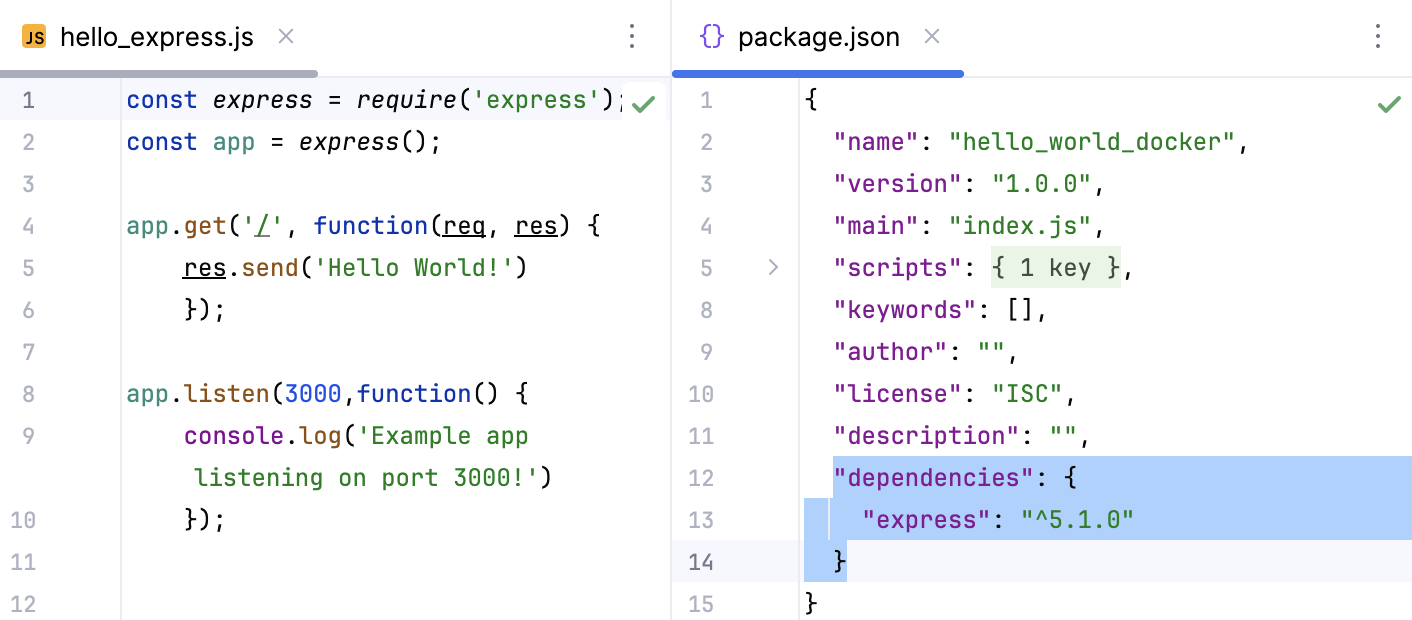
Run the application locally
Let us run our application locally to make sure it works as expected.
Open the hello_express.js file, right-click anywhere in the editor tab, and select from the context menu.
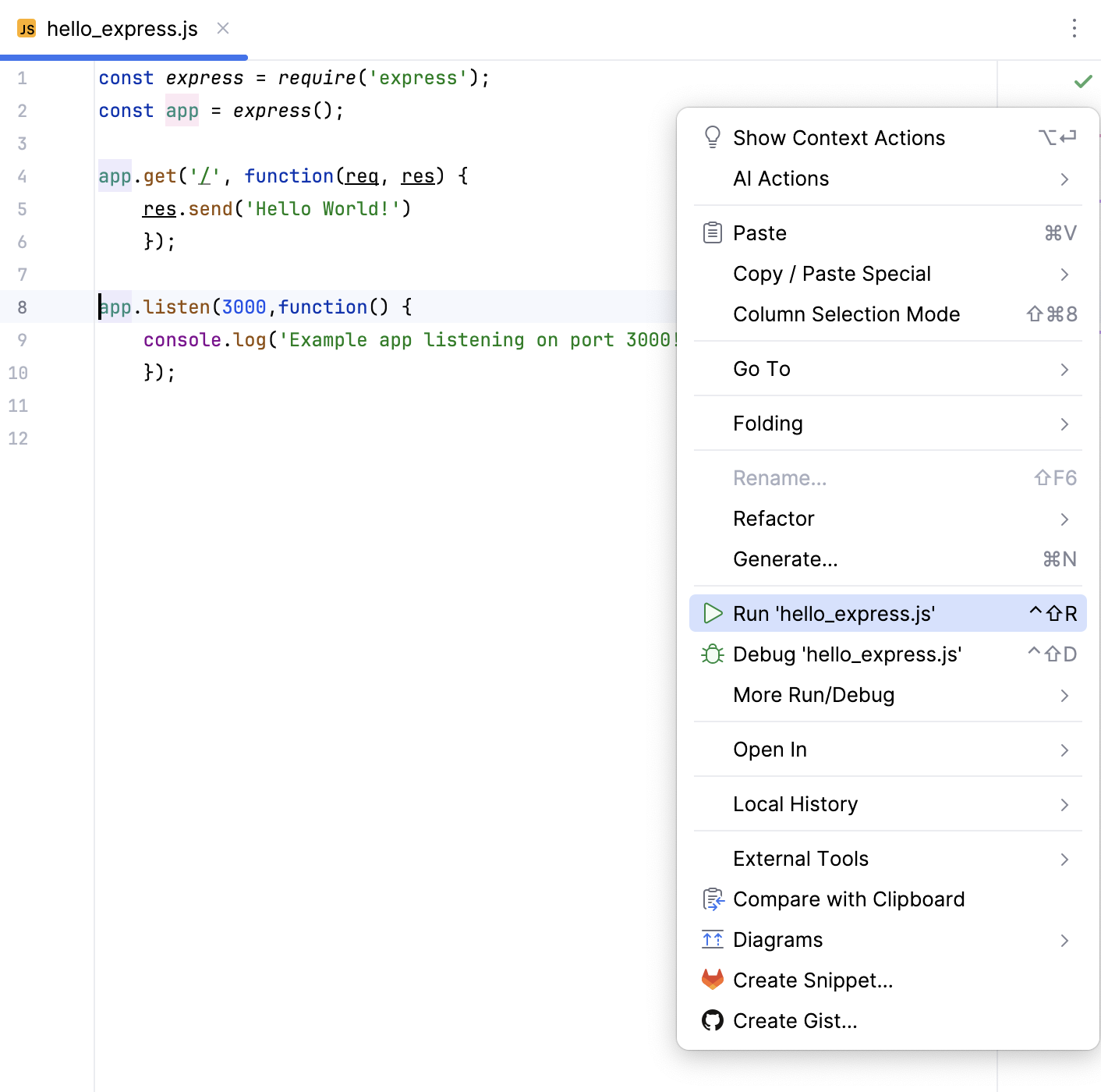
The Run tool window opens showing
Example app listening on port 3000!.If you open the browser at
http://localhost:3000, you will see that the page shows Hello World!, as expected.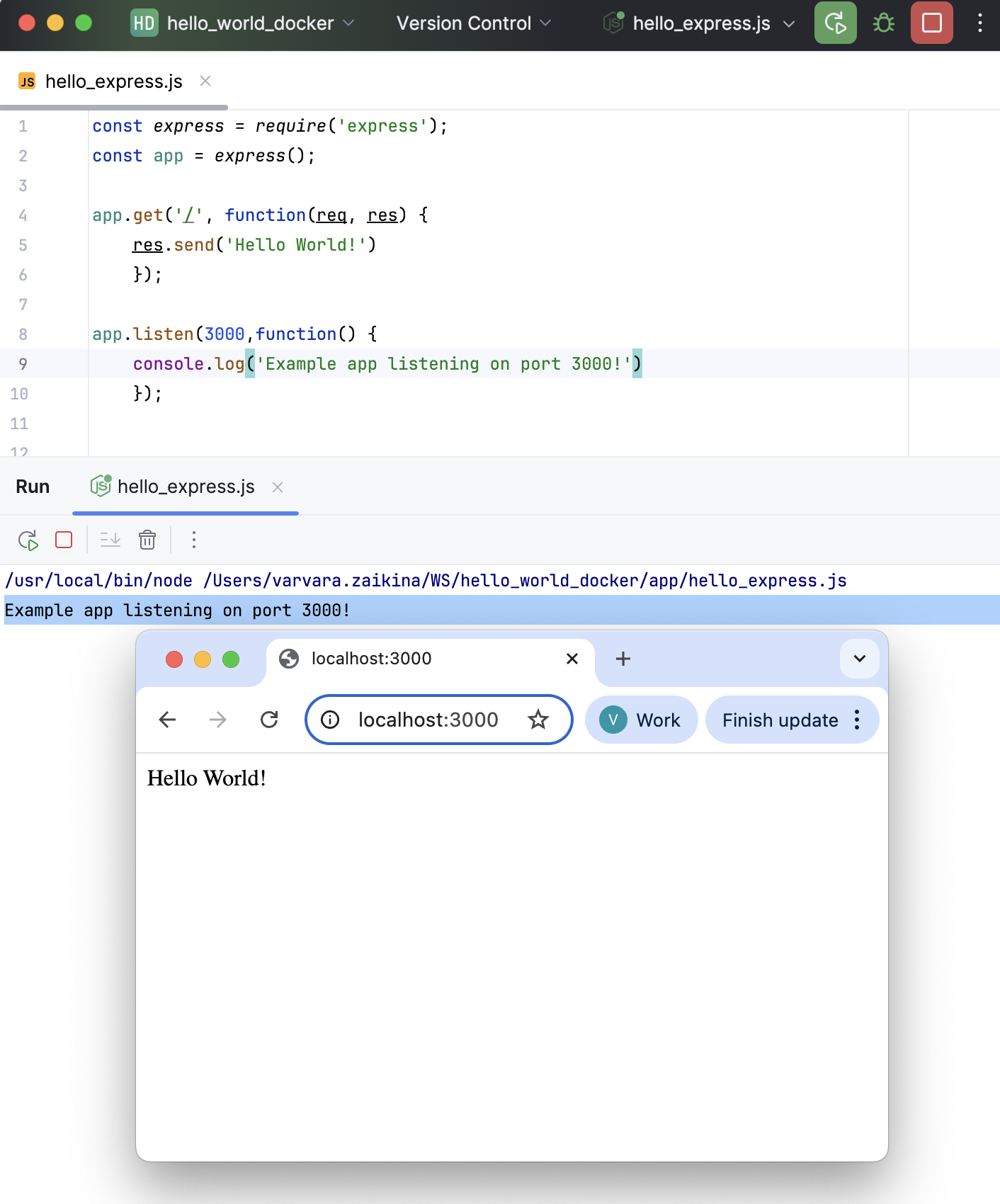
Containerize the application
In this step, you will package the application into a Docker image. Kubernetes will run this image later as a container in a pod.
Create a Dockerfile
From the context menu of the project folder, select from the context menu, and then select .
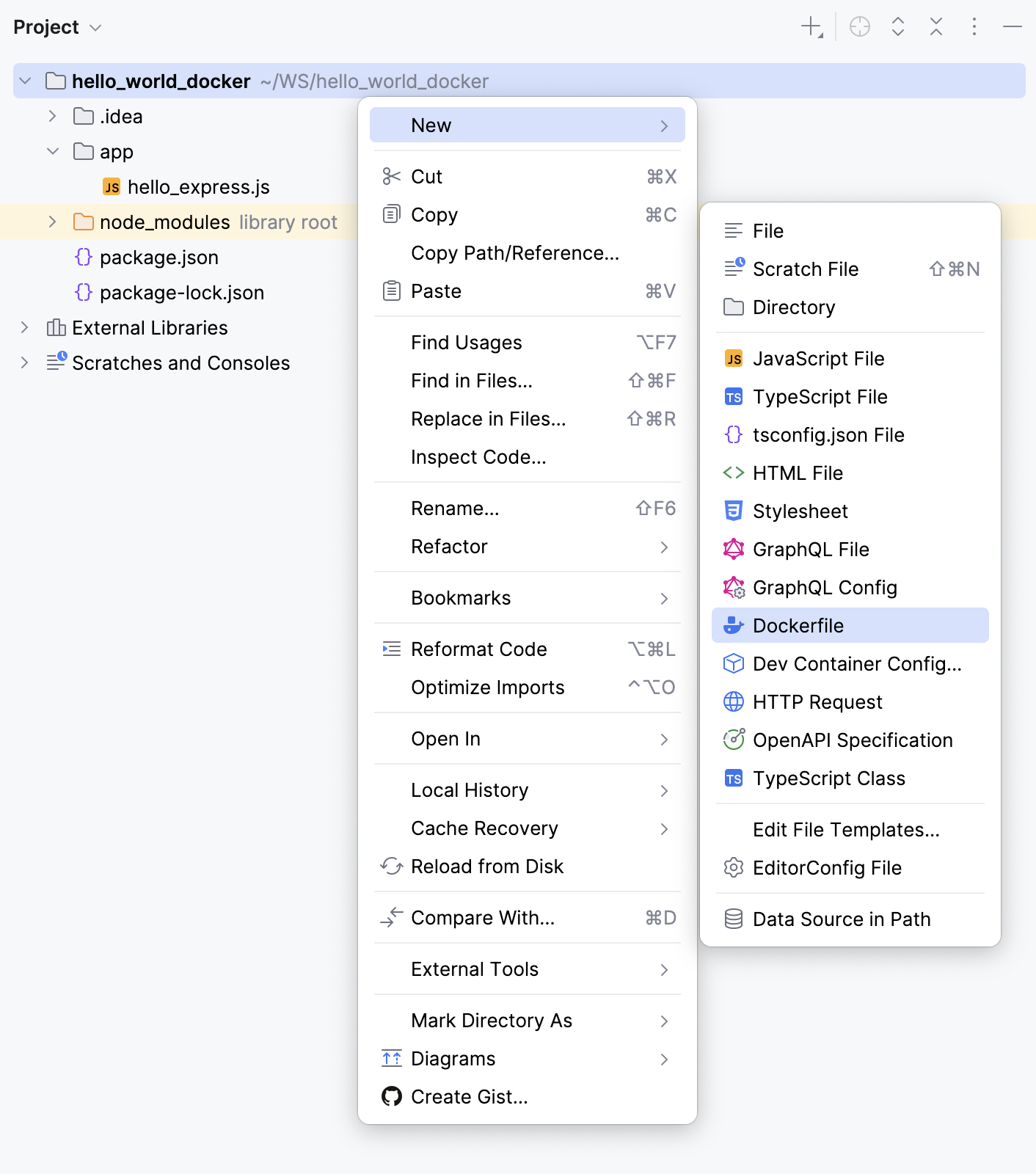
Open the newly created Dockerfile and type the following code:
FROM node:22-alpine WORKDIR /tmp COPY package*.json . RUN npm ci --omit=dev COPY ./app/ ./app/ CMD ["node","./app/hello_express.js"]This Dockerfile contains instructions for building an image based on the
node:22image from Docker Hub.When you run a container from this image, Docker sets copies the contents of the /app/ directory to the /tmp/app/ directory in the container (in our case, the /app/ directory contains the hello_express.js file). The package.json file is copied to /tmp/.
Then Docker sets the current working directory to /tmp and runs
node ./app/hello_express.js. As a result, the container log should showExample app listening on port 3000!.
Build the Docker image
Form the Project view, open Dockerfile in the editor.
Edit the file:
Change
ENV RAILS_ENV="production" \ BUNDLE_DEPLOYMENT="1" \ BUNDLE_PATH="/usr/local/bundle" \ BUNDLE_WITHOUT="development"to
ENV RAILS_ENV="development" \ BUNDLE_PATH="/usr/local/bundle"Change
EXPOSE 80 CMD ["./bin/thrust", "./bin/rails", "server"]to
EXPOSE 3000 CMD ["./bin/rails", "server", "-b", "0.0.0.0", "-p", "3000"]
In the gutter inside the Dockerfile, click
 and select New Run Configuration.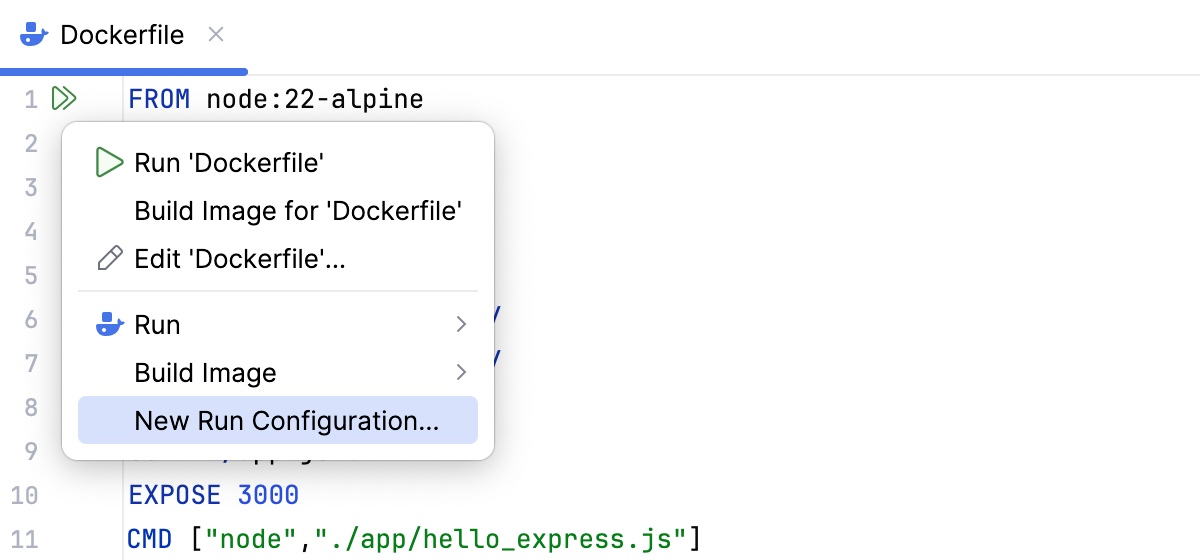
In the Edit Run Configuration dialog, specify
hello-world-docker-appin the Image tag field andhello-world-dockerin the Container name field. Then, click Run.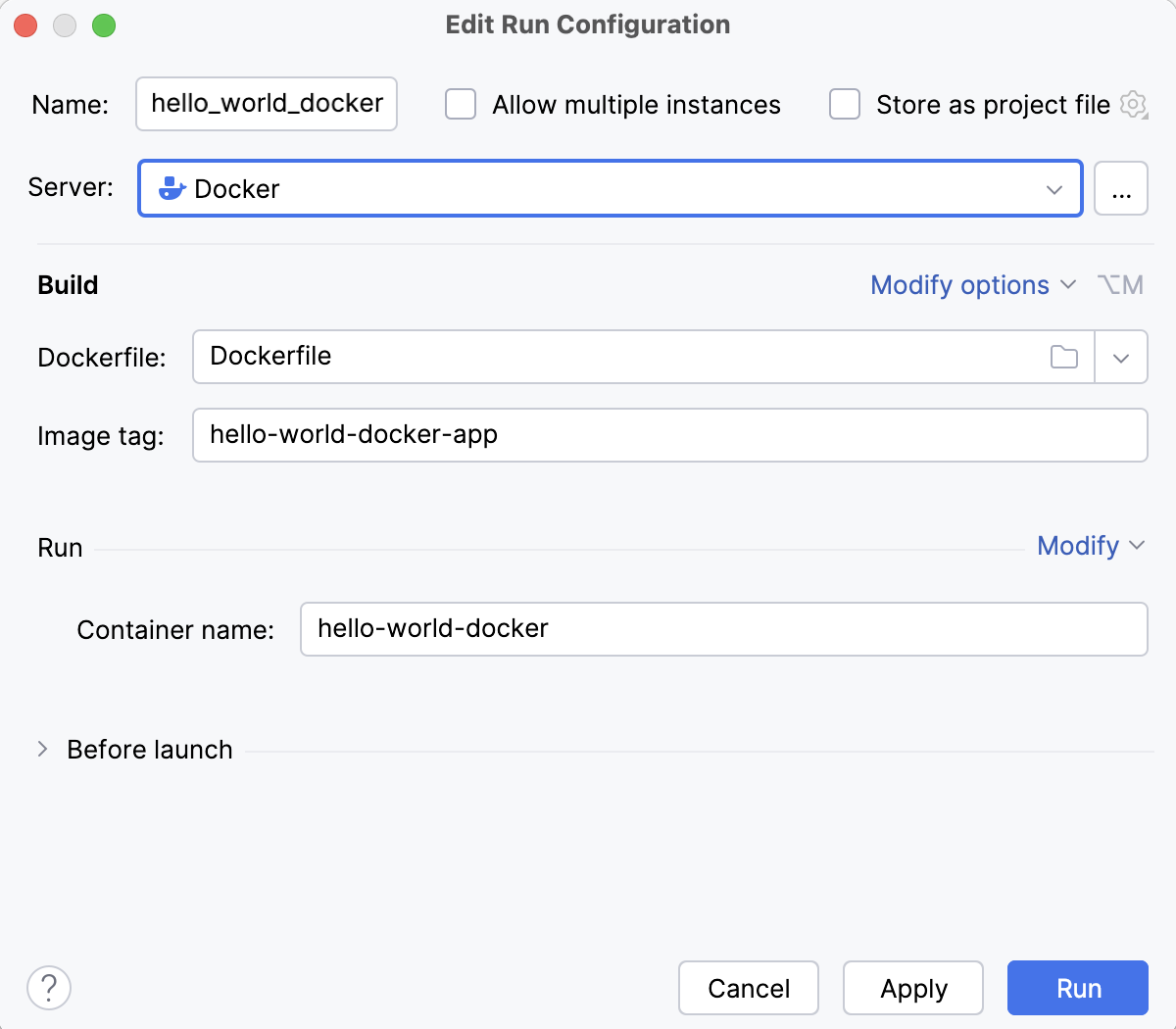
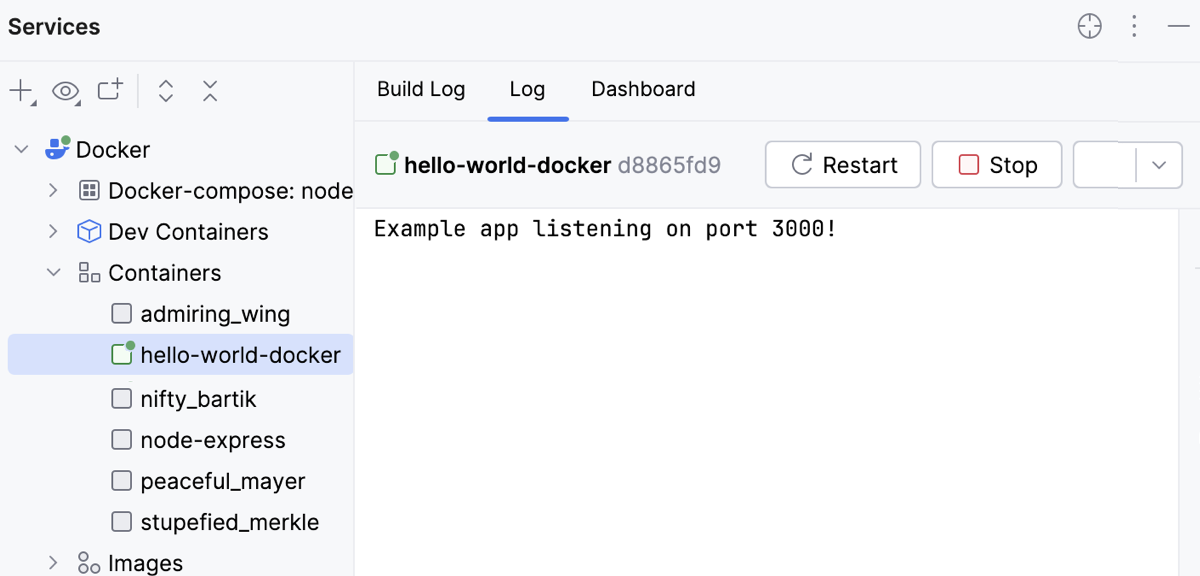
WebStorm creates a Dockerfile run configuration, which builds an image from the Dockerfile and then runs a container based on that image. To follow the whole process, open the Build Log tab in the Services tool window.
Connect to minikube
Now that you have a Docker image with your application, you need to start a local Kubernetes cluster to deploy it to. We will use minikube to run a local, single-node Kubernetes cluster directly from WebStorm.
Start minikube with the Docker driver
Open the Terminal tool window: go to or press Alt+F12.
Run the following command to start a local Kubernetes cluster and instruct minikube to use Docker as the virtualization driver:
minikube start --driver=dockerVerify that your cluster is up and running by using the command:
minikube status
Using the Docker driver runs the minikube cluster inside Docker containers, providing a lightweight environment well suited for local development.
Add the minikube cluster to WebStorm
Open the Services tool window: go to or press Alt+8.
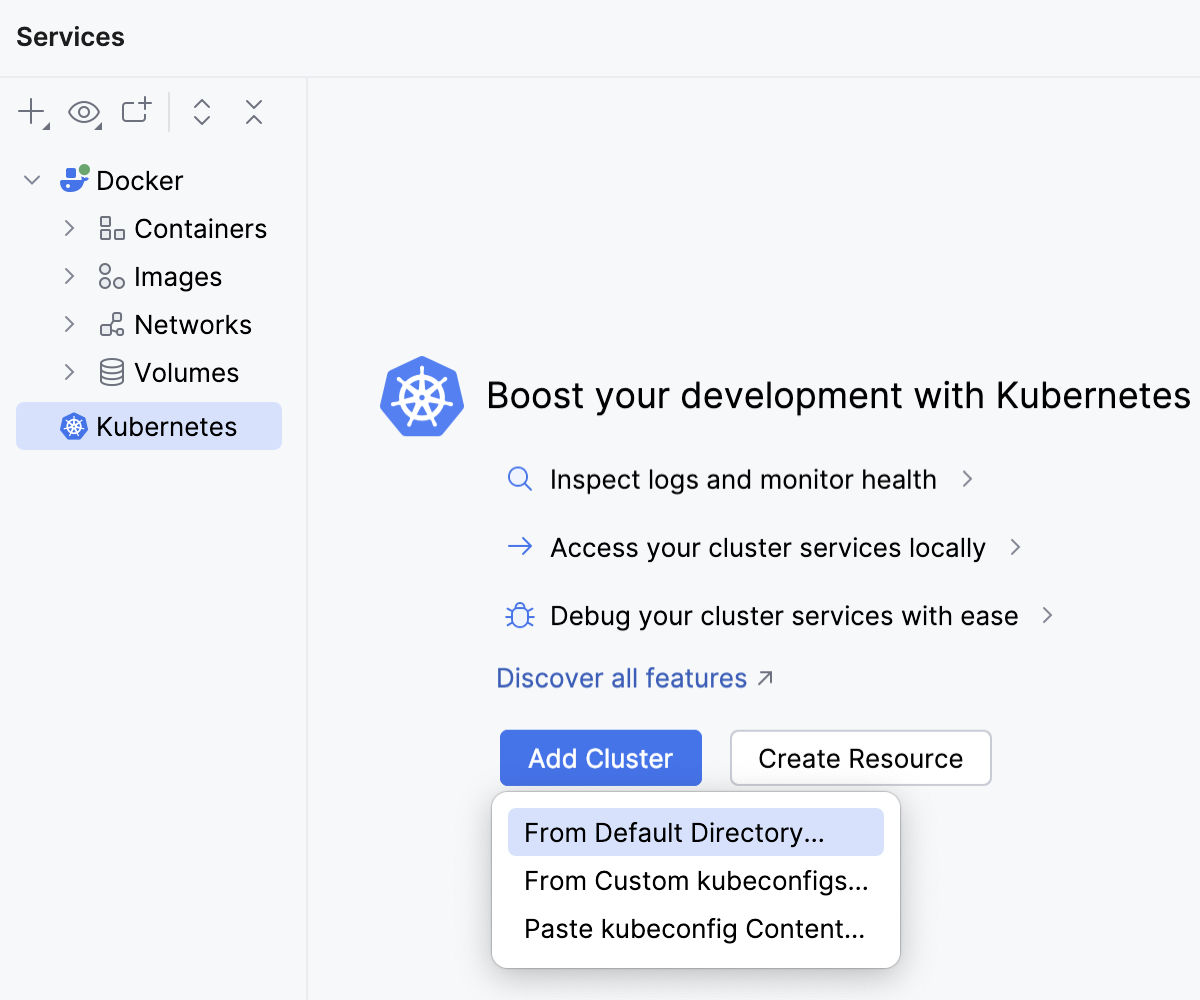
Select the Kubernetes node, click the Add Cluster button, and then select From Default Directory from the context menu.
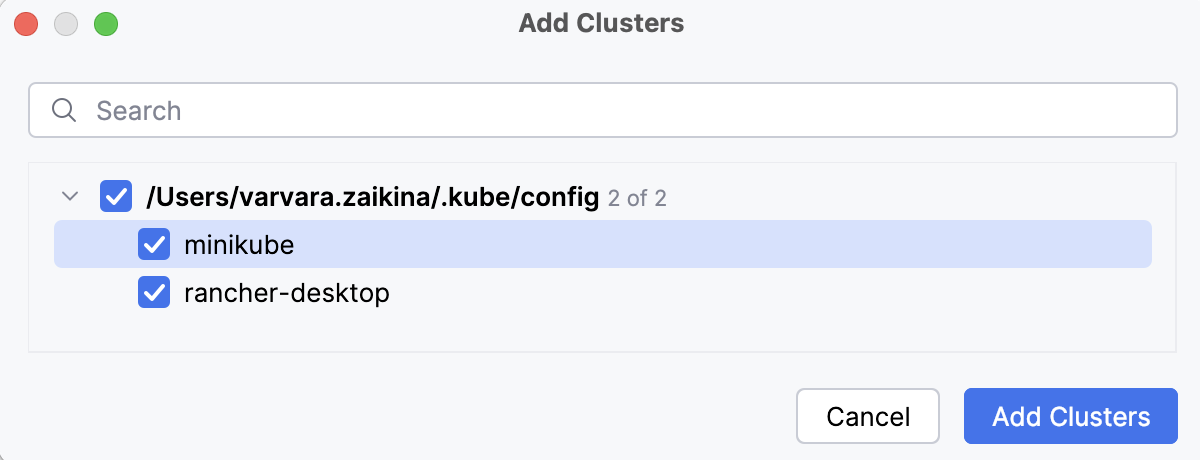
In the Add Clusters dialog, select minikube and click Add Clusters.
The added cluster will become available in the Services tool window.
In the Services tool window, right-click the minikube cluster and select Connect Cluster.
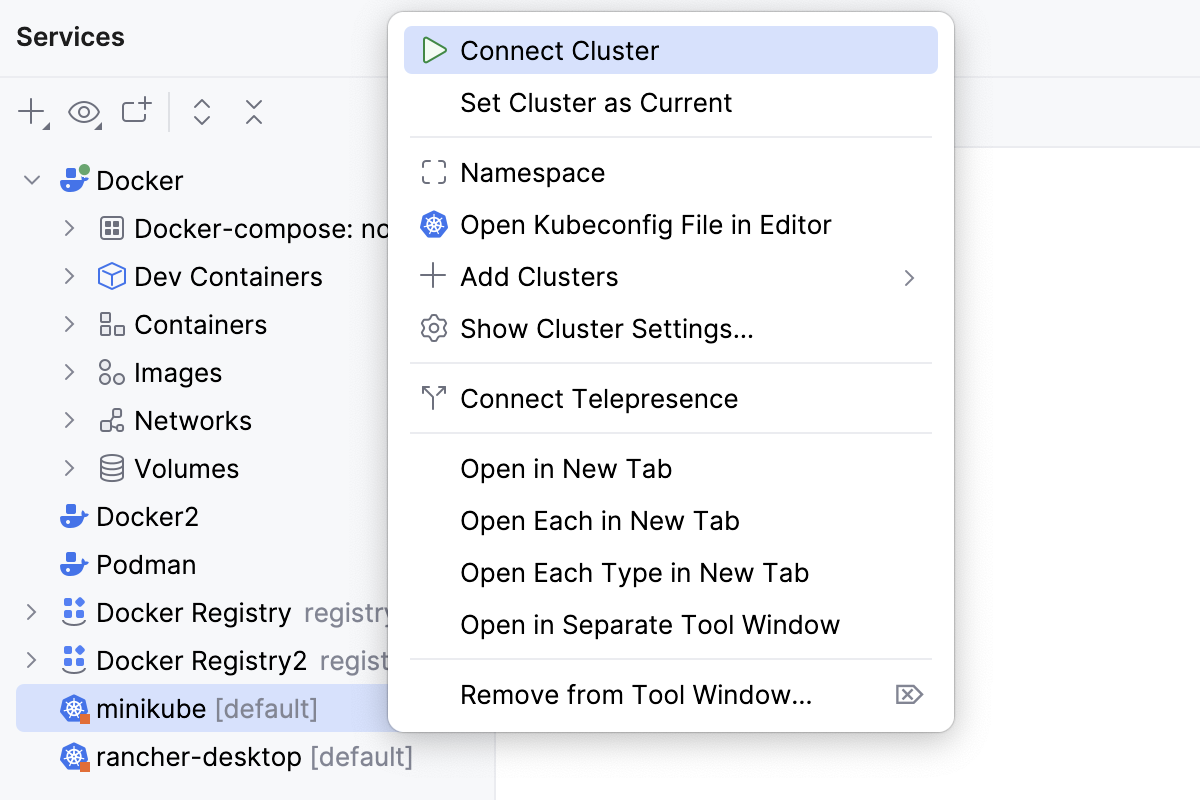
At this point, WebStorm is connected to the running minikube cluster and can display its Kubernetes resources. You can explore namespaces, nodes, and other cluster objects directly from the Services tool window.
Deploy the application
Earlier in the tutorial, you already built the application image locally. However, the minikube cluster cannot automatically access images from your local Docker daemon. You need to load the image into minikube to make it available.
Load the Docker image into minikube
Open the Terminal tool window: go to or press Alt+F12.
Run the following command to build the container image in minikube:
minikube image load <image tag>where <image tag> is the value specified in the Run/Debug configuration as described above. In our example it should be:
minikube image load hello-world-docker-appValidate that the
hello-world-docker-appimage is available in your cluster by running:minikube image ls | grep hello-world-docker-appYou should see
docker.io/library/hello-world-docker-app:latestin the output.
Now that the image is available in minikube, the next step is to describe how Kubernetes will run it. Let us create two Kubernetes manifests:
Deployment, which helps you run your container in a pod
Service, which exposes your app so that you can access it from your machine
Create a Deployment manifest
In the Project tool window (Alt+1) , right-click the project name and select .
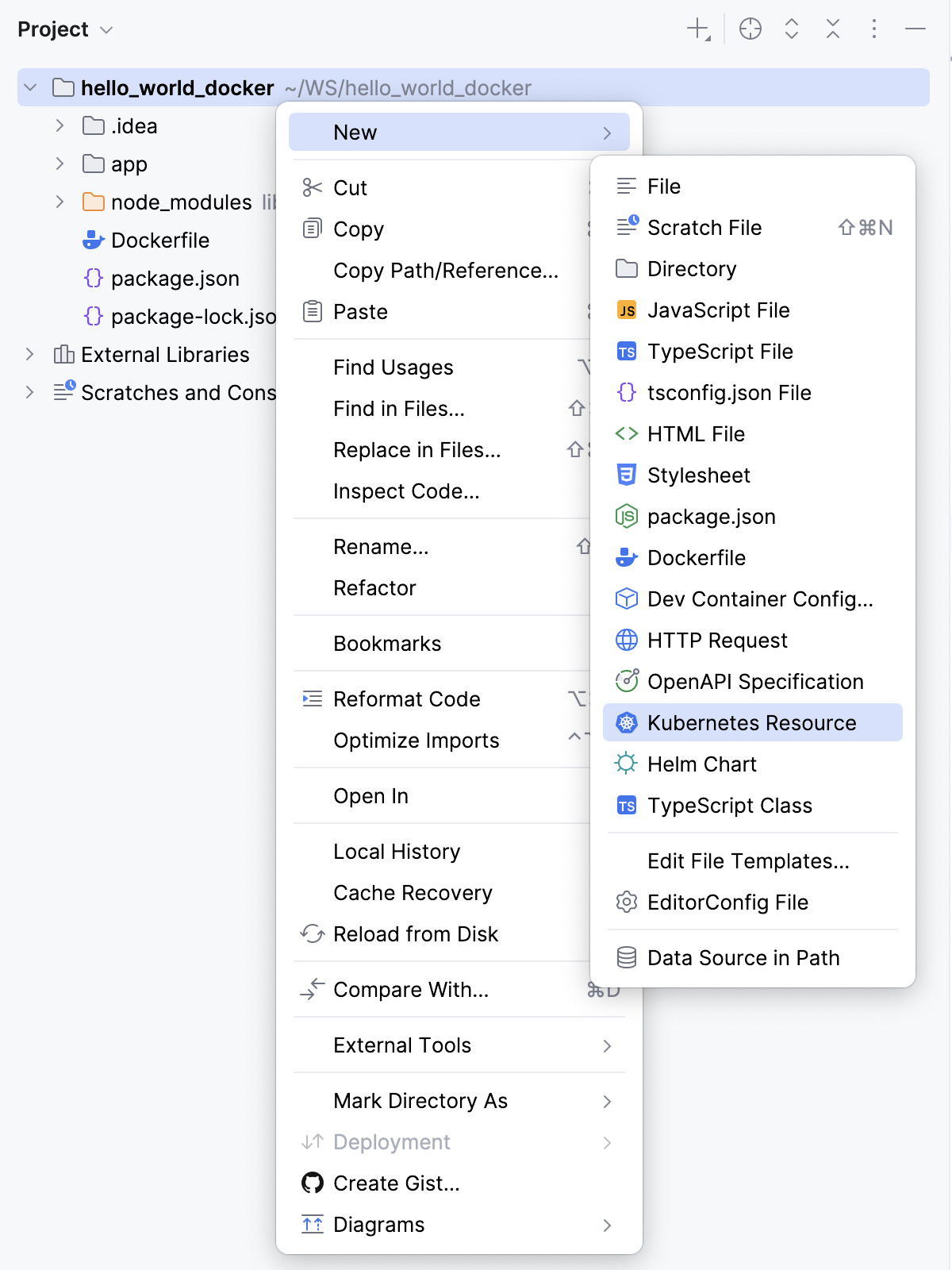
In the New Kubernetes Resource dialog, select the Deployment file type, specify
hello-world-docker-deploymentas the manifest name, and press Enter.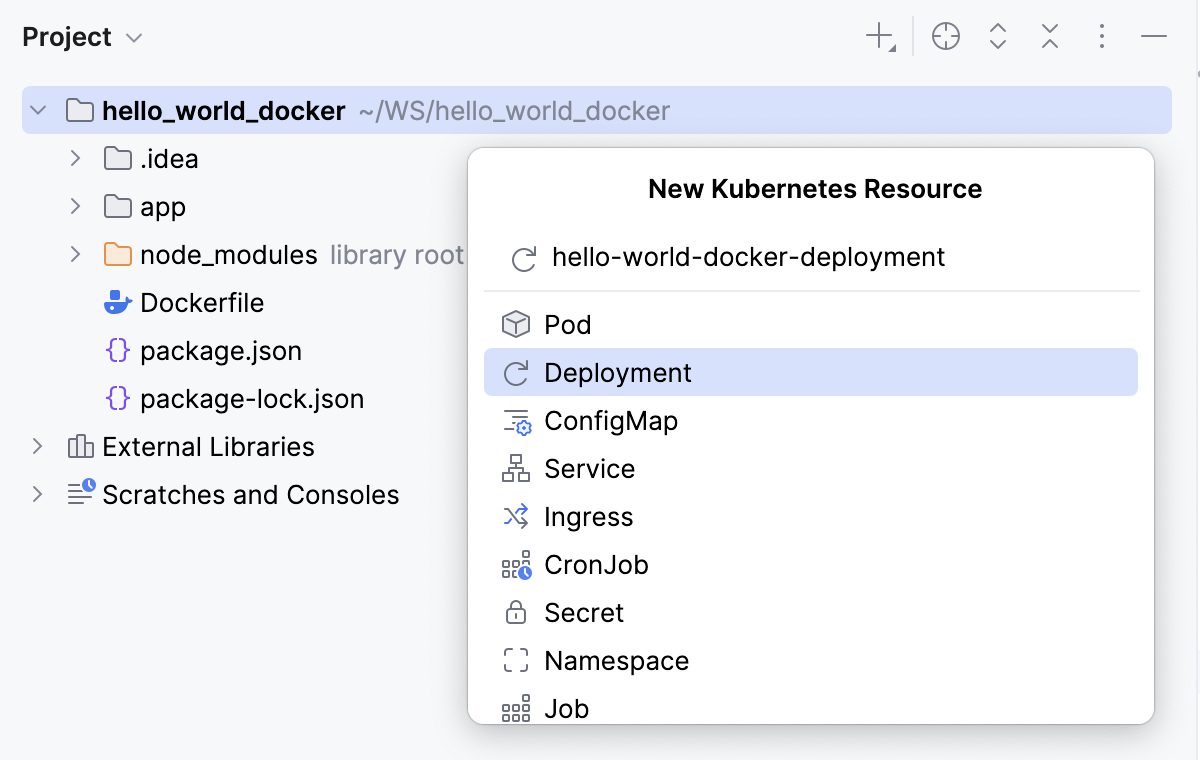
If prompted, agree to add the file to Git.
Replace the content of the resulting file with the following code:
apiVersion: apps/v1 kind: Deployment metadata: name: hello-world-docker labels: app: hello-world-docker spec: replicas: 1 selector: matchLabels: app: hello-world-docker template: metadata: name: hello-world-docker labels: app: hello-world-docker spec: containers: - name: hello-world-docker image: hello-world-docker-app imagePullPolicy: IfNotPresent ports: - containerPort: 3000 protocol: TCP restartPolicy: AlwaysOn the floating toolbar, select the current cluster and namespace, then click
 Apply to deliver the changes to the local cluster.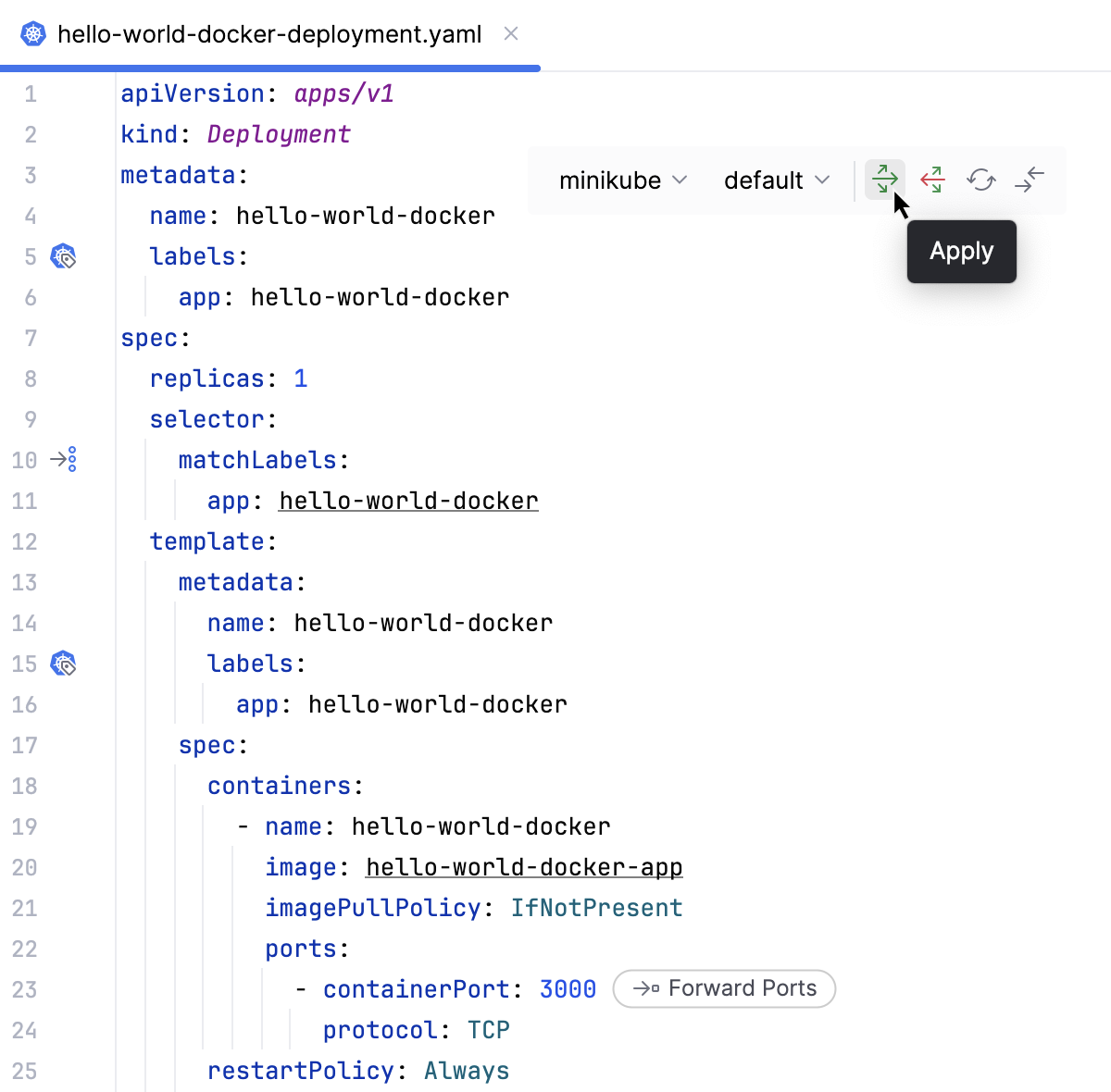
Create a Service manifest
In the Project tool window (Alt+1) , right-click the project name and select .
In the New Kubernetes Resource dialog, select the Service file type, specify
hello-world-docker-serviceas the manifest name, and press Enter.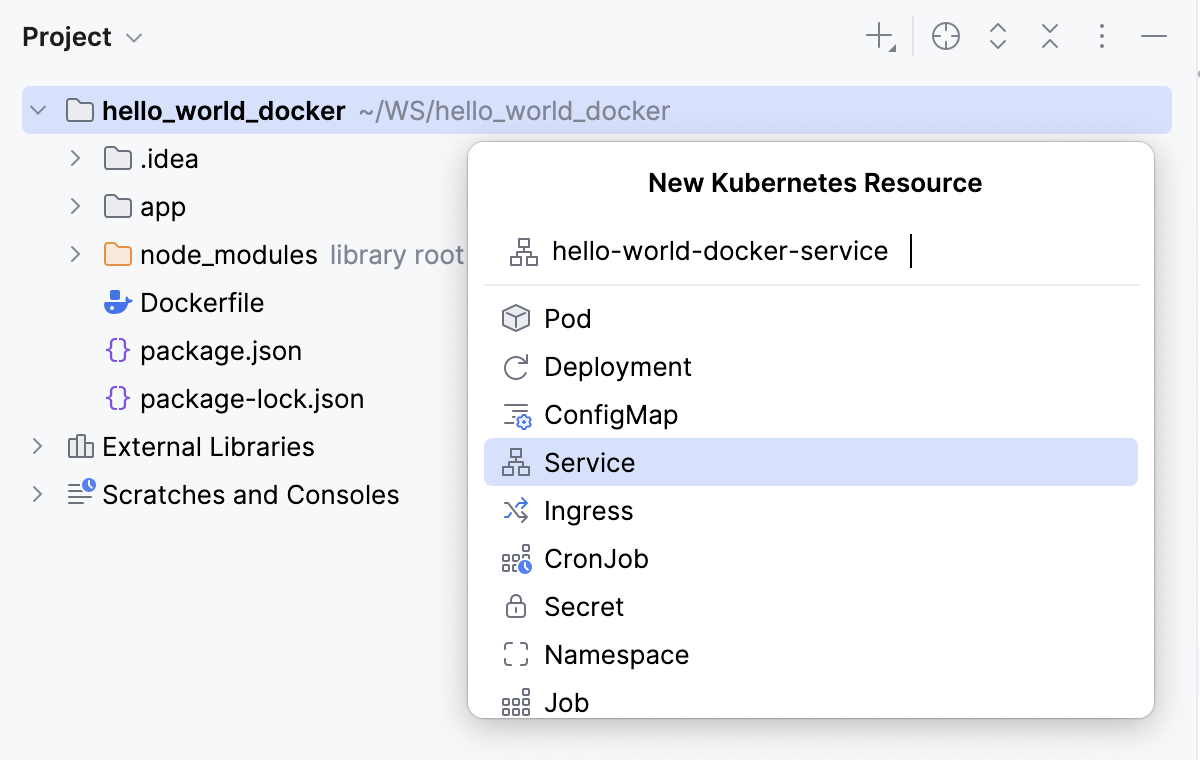
If prompted, agree to add the file to Git.
Replace the content of the resulting file with the following code:
apiVersion: v1 kind: Service metadata: name: hello-world-docker spec: selector: app: hello-world-docker ports: - protocol: TCP port: 3000 targetPort: 3000 type: NodePortOn the floating toolbar, select the current cluster and namespace, then click
Apply to deliver the changes to the local cluster.
Access the application
Open the hello-world-docker-deployment.yaml file in the editor.
Click the Forward Ports inlay hint next to the
- containerPort: 3000property.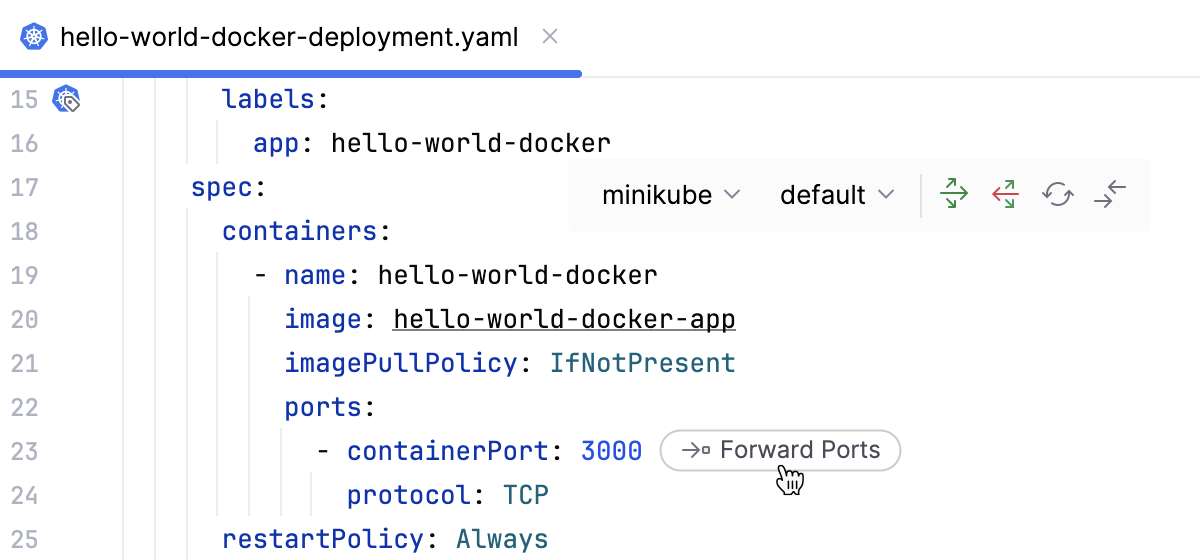
In the Forward Ports dialog, leave the default values and click Forward.
In the hello-world-docker-deployment.yaml file, click the Open in Browser inlay hint.
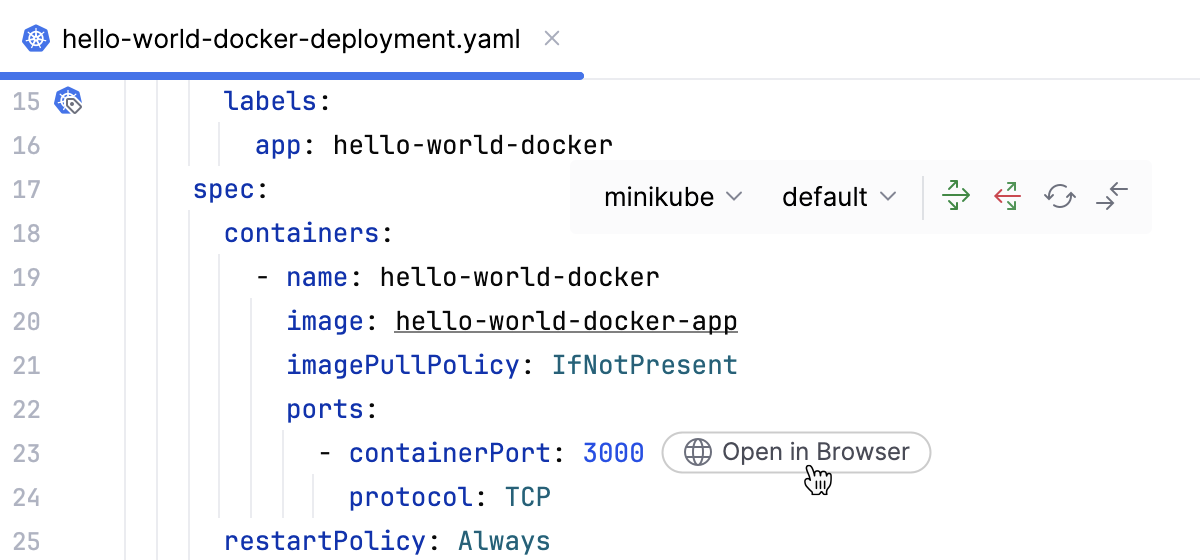
WebStorm redirects you to your default browser, where you can check your application that is just deployed in your local minikube cluster.
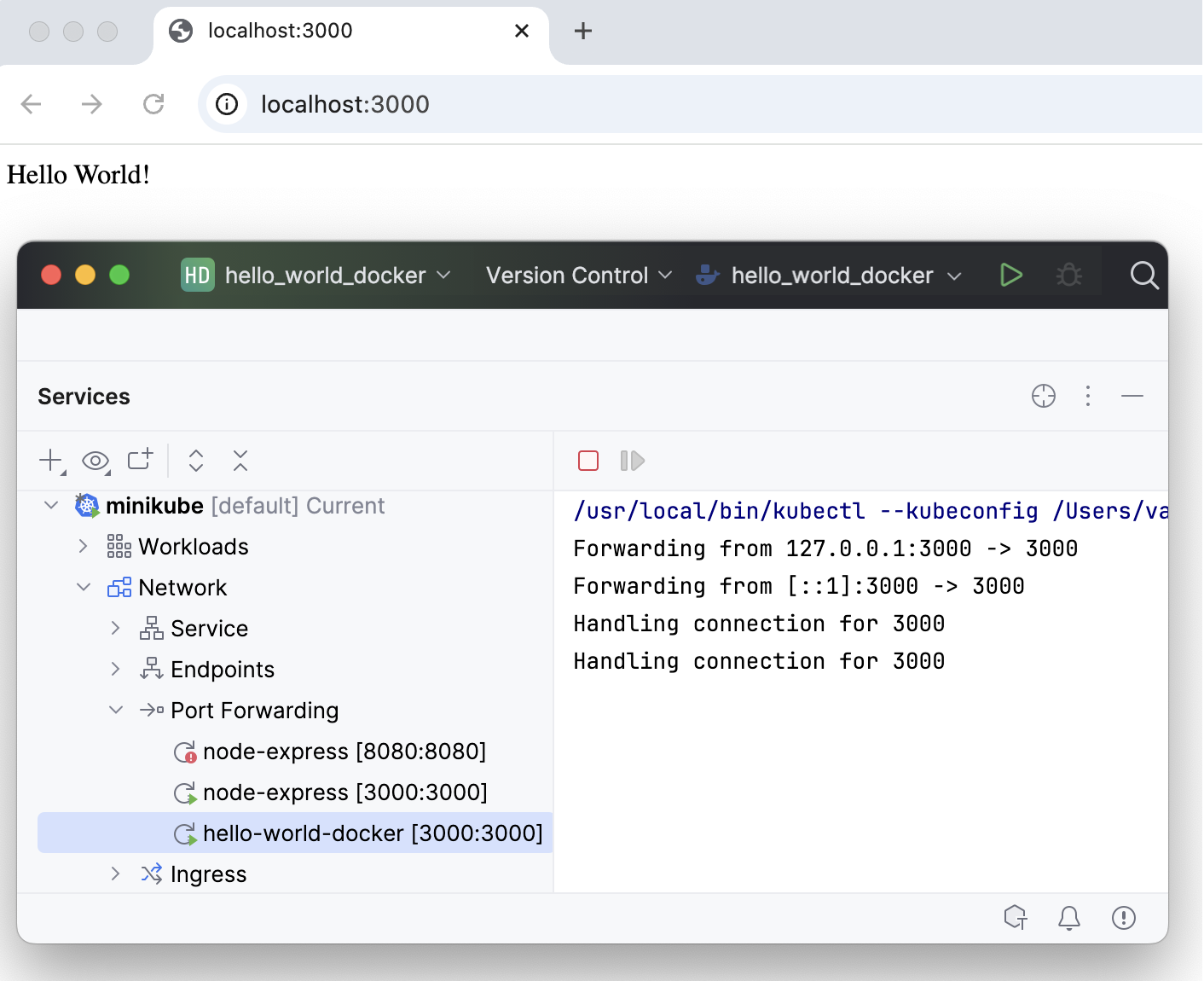
You have learned how to deploy a Node.js Express application to a local Kubernetes cluster using minikube and WebStorm. This approach enables quick local testing and experimentation with Kubernetes without requiring a remote cluster.
Next steps
Learn how to work with Kubernetes from these topics: