File navigation
WebStorm provides tools and actions that let you quickly locate and open your project files.
Navigate with the Select In popup
You can automatically locate a file in the Project
If a file is opened in the editor, press Alt+F1 to open the Select In popup.
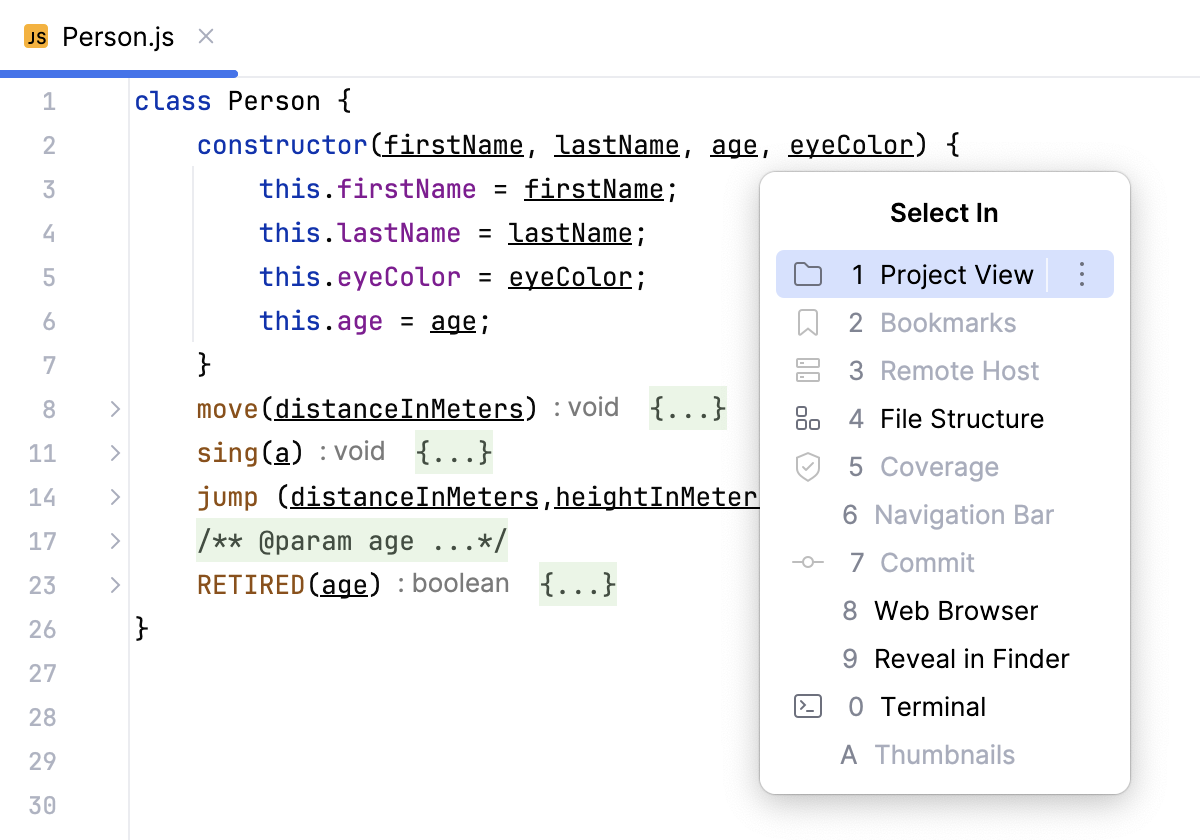
In the popup, select Project View and press Enter. WebStorm locates your target in the Project tool window .
Navigate to a file with the Navigation bar
Use the Navigation bar as a handy tool to find your way across the project.
Press Alt+Home to activate the Navigation bar.
Use the arrow keys or the mouse pointer to locate the desired file.
Double-click the selected file, or press Enter to open it in the editor.

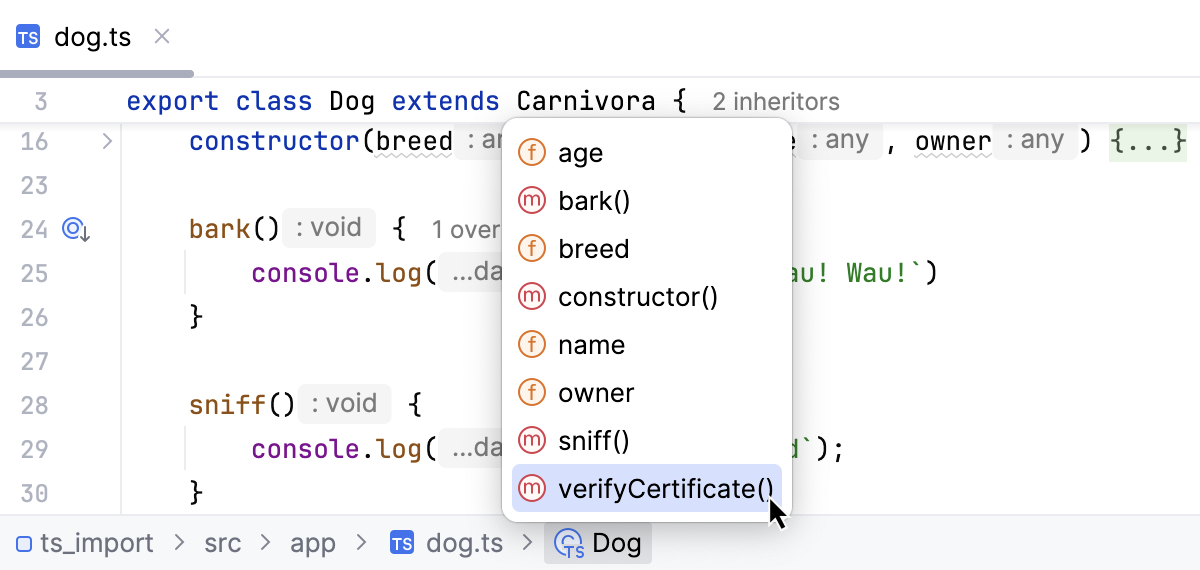
You can click a class or an interface in the navigation bar to see the list of methods and fields. Click one of the listed methods and fields to quickly navigate to it in the editor.
Access a file location
You can quickly navigate to the location of a file you are currently editing.
Press Ctrl+Alt+F12 or right-click anywhere in the editor and select .
Browse a file path
You can access any directory from the path to a file you are currently editing.
Press Ctrl+Alt+F12 or right-click anywhere in the editor and select from the context menu.
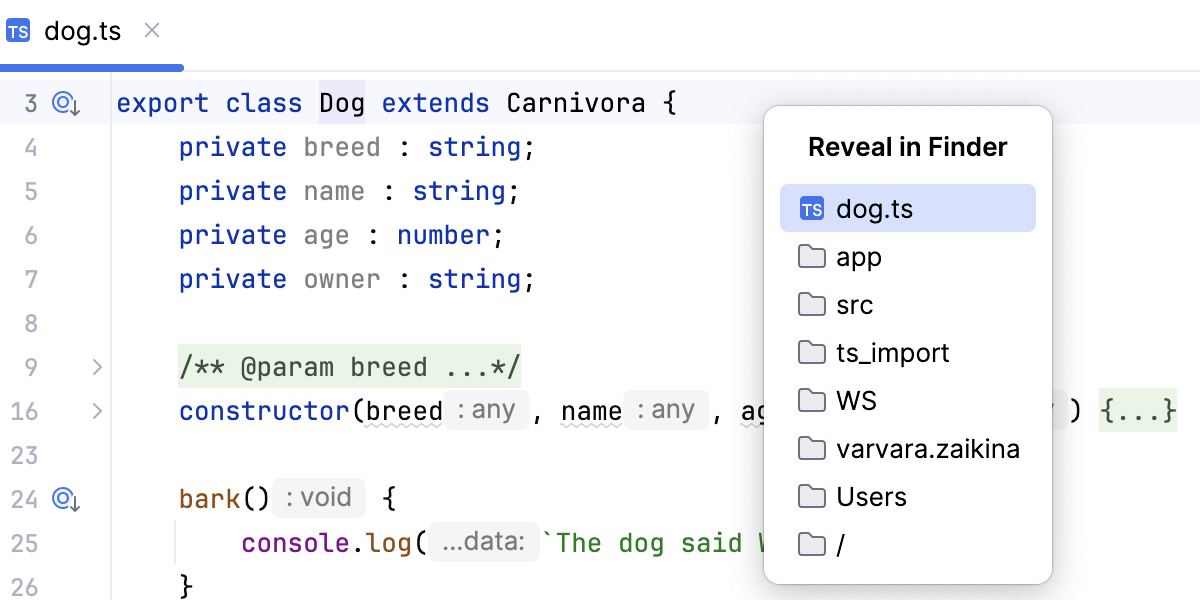
In the Reveal in Finder popup, select where to navigate and press Enter.