Data Editor and Viewer
The settings on this page define how table data is shown and modified in your query consoles, data editors, and so on.
Limitations
Option | Description |
|---|---|
Limit page size to | Number of table rows that are shown on one page. If you do not want to limit the number of rows displayed simultaneously, clear the checkbox. Also, you can change the page size by clicking the Change page size list of the pagination toolbar. Consider the following example where Limit page size to is set to 2: 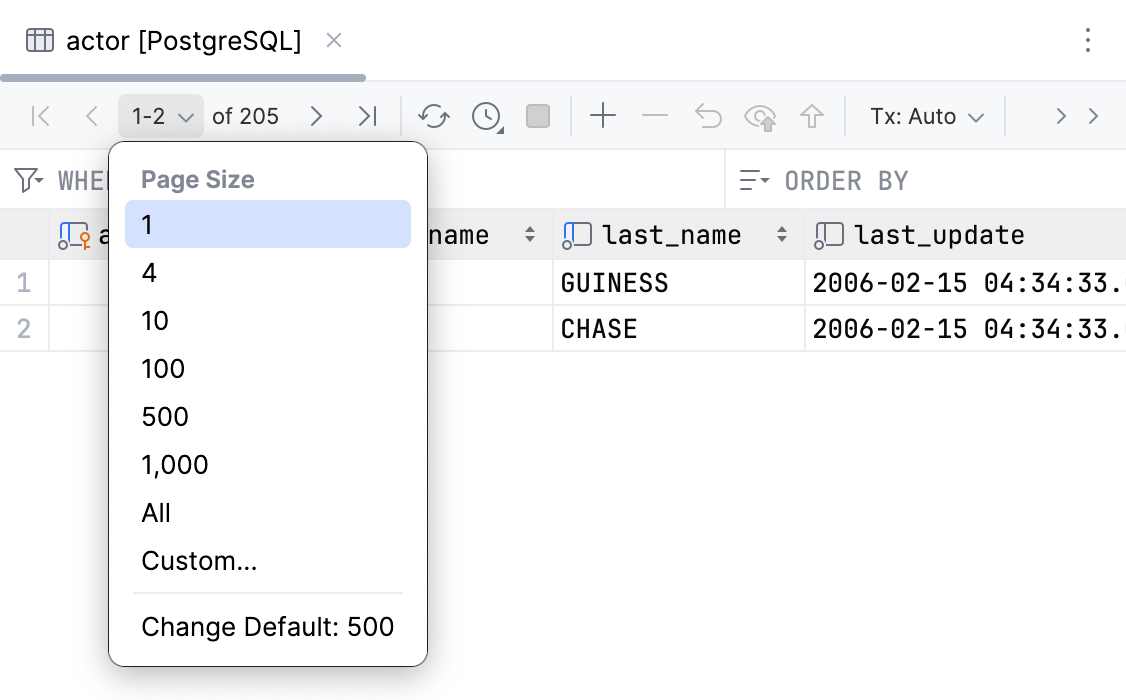 |
Result set prefetch size | Number of rows from a database that is retrieved in one chunk. A bigger number means less round trips between IDE and a database but more memory for storing a chunk. |
Filter history size | Number of recently-used filtering conditions that are saved for a table in a data editor. Consider the following example where Filter history size is set to 2. The filter history box contains only two conditions. To open the filter history in the editor, click the WHERE or ORDER BY field and press Alt+Down. 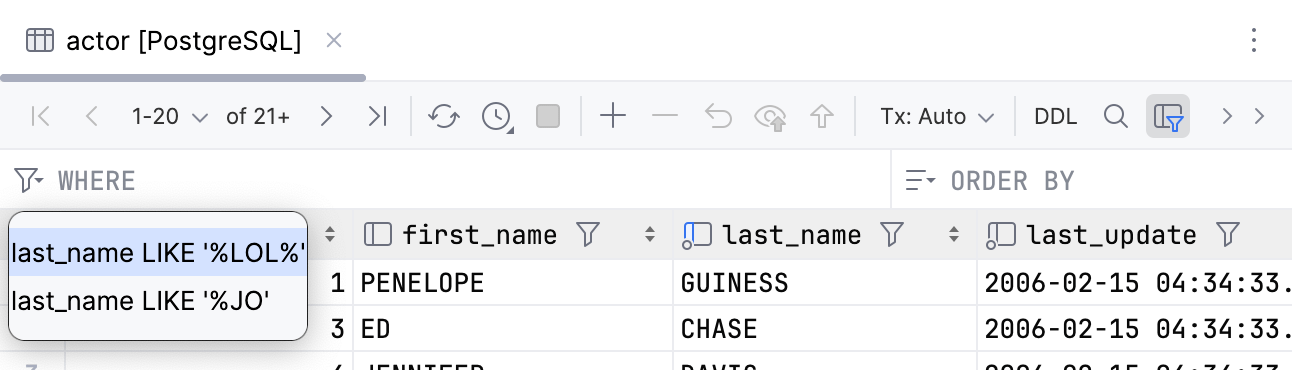 |
Maximum number of bytes loaded per value | Maximum size of a binary large object to be loaded in bytes. |
Show first N data rows in preview | Limit number of rows for a quick documentation popup. To see quick documentation, press Ctrl+Q. |
Data Presentation
Option | Description |
|---|---|
Automatically transpose tables | Configure when you want to transpose tables and views when you open them in the data editor. In a transposed view, columns and rows are interchanged. Note that this setting does not transpose query results.
|
Automatically detect binary values | Enables the default display type for binary values. |
Enable local filter by default | Enables the locally run data filter that runs locally for each newly opened grid. For more information about local filter, refer to Use the local filter. |
Enable immediate completion in grid text cells | Enables the local automatic value completion. The completion variants are based on the current column’s other values. |
Show geometry values as hex strings | Enables displaying geometry data as WKT or hexadecimal strings. Data editor transforms WKT into a hex string before saving it. |
Edit array values as text | Enables editing array values as plain text instead of using the dedicated grid in the Value editor. |
Display temporal data in time zone | Set the time zone to display the date and time data in. |
Controls Customization
Option | Description |
|---|---|
Enable paging in in-editor results by default | Enables the pagination control for each newly opened in-editor results grid. |
Position of the grid pagination control | Defines the location of grid pagination control for database objects data and query result sets.
|
Show quick actions popup toolbar for grid cells | Toggles the quick actions popup toolbar of a grid cell. For more information about the toolbar, refer to Quick actions popup toolbar. |
Enable customization of the quick actions popup toolbar | Enables an option of customizing the set of actions displayed on the quick actions popup toolbar of a grid cell. For more information about changing the set of actions in the toolbar, refer to Customize the toolbar. |
Custom Number Formats
Option | Description |
|---|---|
Decimal separator | Sets a symbol to be used as a decimal separator. Default: |
Grouping separator | Sets a symbol to be used as a grouping separator. |
Infinity | Defines the way infinity will be rendered. |
NaN | Defines the way NaN will be rendered. |
Number pattern | Enables and sets number patterns. |
Data Sorting
For more information about data sorting, refer to the Sort data topic.
Option | Description |
|---|---|
Sort via ORDER BY | Enables the default sorting method as sorting by sending the |
Sort tables by numeric primary key | Configures how to sort table records by the numeric primary key. Two options are available: Ascending or Descending. |
Add columns to sorting | Select what action to use when you want to add columns to stacked sorting. The default is Alt and a click. When you click the column name, the column data is sorted. The column sorting is not stacked by default. It means that if you click a column name to sort data by, the sorting based on other columns will be cleared. If you prefer to use the stacked sorting, click a column name while pressing Alt. |
Data Modification
Option | Description |
|---|---|
Submit changes immediately | Submit changes instantly. For more information about submitting your changes to a database, refer to Submit changes to a database. |
Custom Date/Time Formats
For the available date patterns, click Date patterns.
Option | Description |
|---|---|
Datetime/timestamp | Select and set a custom datetime or timestamp format. |
Datetime/timestamp with time zone | Select and set a custom datetime or timestamp format with time zone. |
Time | Select and set a custom time format. |
Time with time zone | Select and set a custom time format with time zone. |
Date | Select and set a custom date format. |
Time zone | Select the time zone in which the datetime value should be displayed. |