Tutorial: Dockerize a Node.js Express app with a Redis database
You can use WebStorm to run and debug a Node.js Express application running in multiple Docker containers under Docker Compose.
This tutorial describes how to run two Docker Compose services inside containers in the same virtual network: a simple Node.js Express application and a Redis database.
In this tutorial, we will:
Create a Node.js Express application that implements a counter of HTTP requests and increments the counter in the database.
Write a Dockerfile for this application.
Create a DockerCompose file to connect two services - the counter application and a Redis database.
Build, deploy, and run an image of our application and a Redis image in docker containers.
Access the application in the browser and check that the counter actually increments on refreshing the page.
Before you start
Make sure the JavaScript Debugger, Node.js, Node.js Remote Interpreter, and Docker required plugins are enabled on the Settings | Plugins page, tab Installed. For more information, refer to Managing plugins.
Download, install, and configure Docker as described in Docker.
Create a Node.js application
Click New Project on the Welcome screen or select from the main menu.
In the dialog that opens, select Node.js in the left-hand pane.
Specify the location of the application and its name, for example,
counter.Specify the local Node.js runtime to use. Accept the suggested installation or select another one from the list, or even click Download if you do not have Node.js on your machine yet. Learn more from Create a new Node.js application.
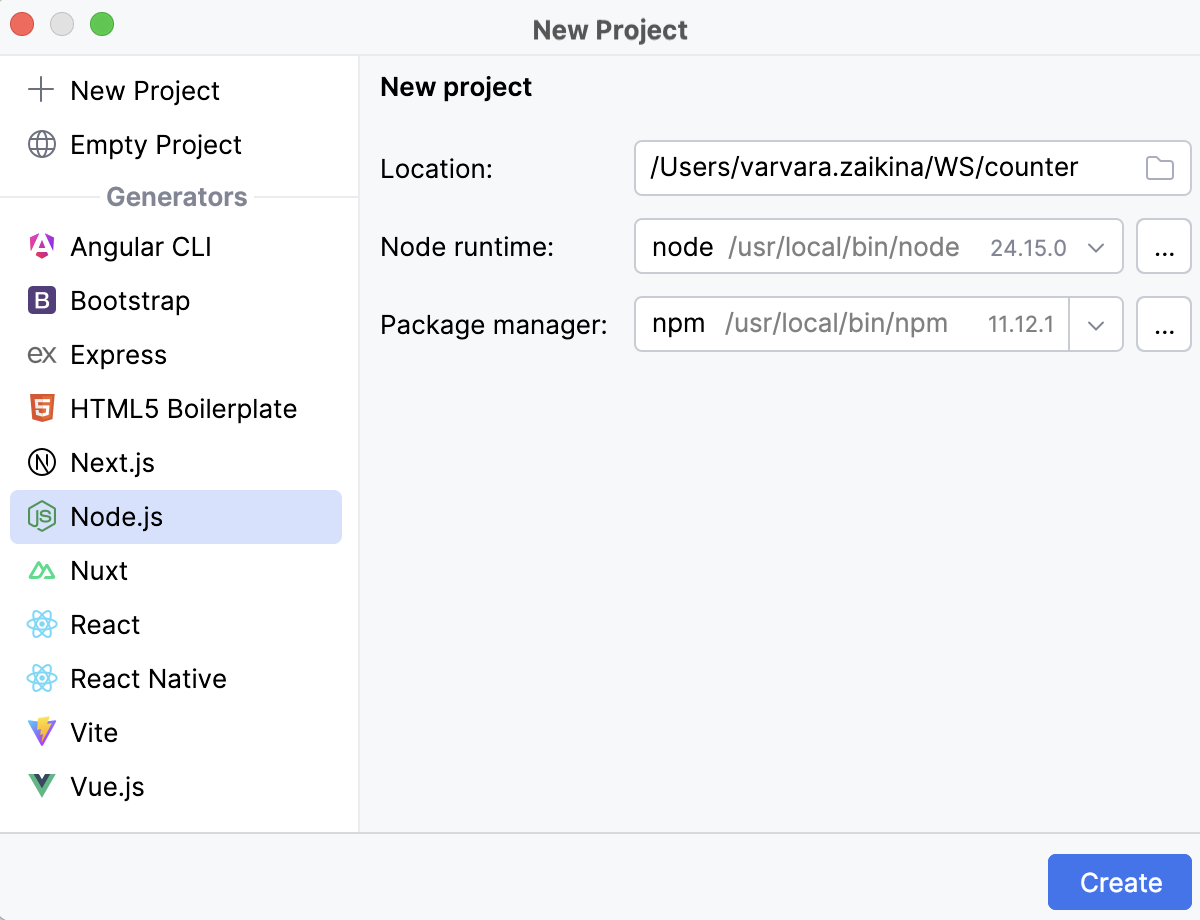
Click Create.
WebStorm generates a project stub and opens it in the editor.
Populate the application
Our application will consist of one JavaScript file index.js.
Open the Project tool window Alt+1, right-click the project folder, select from the context menu, and then select .
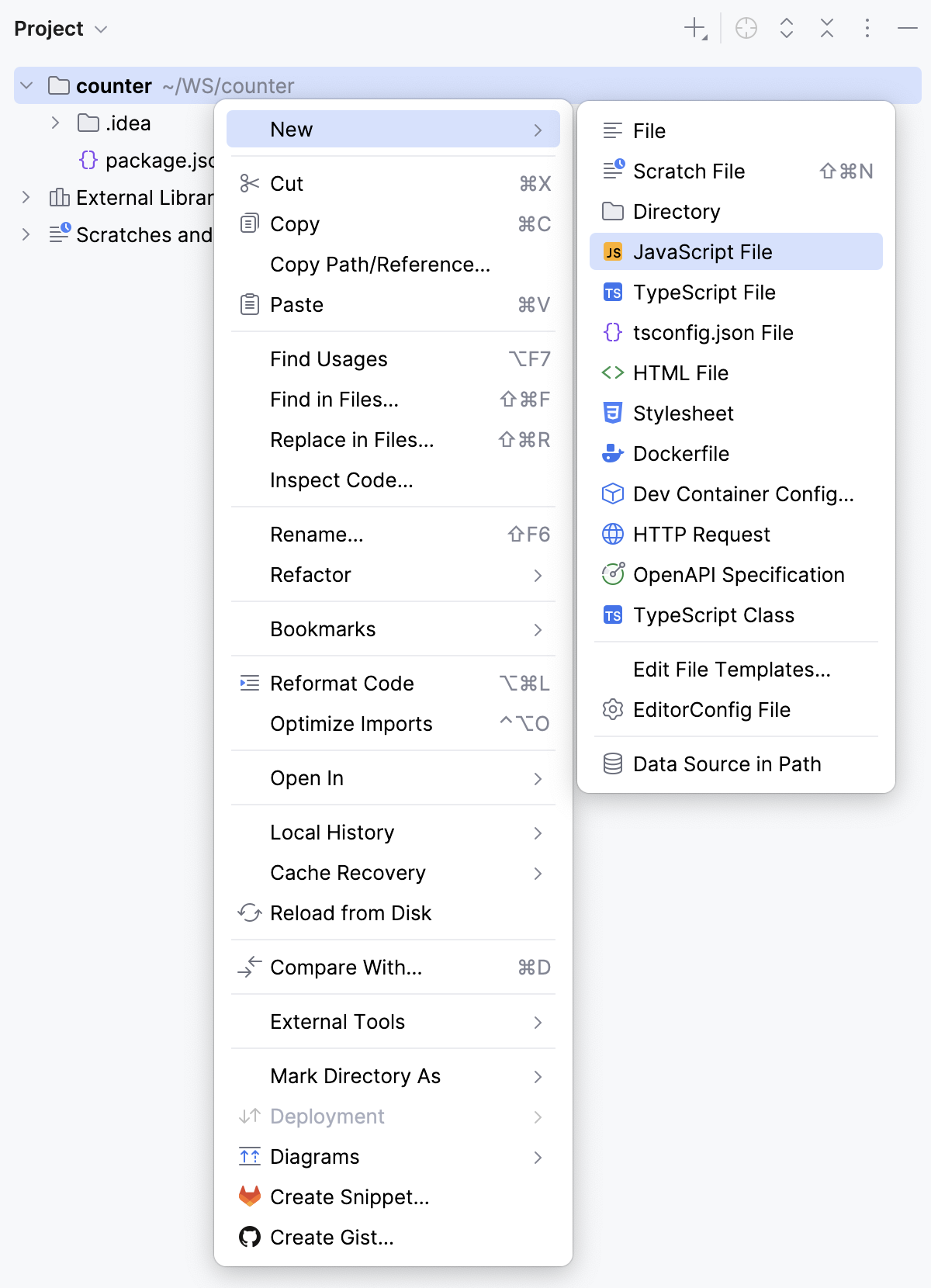
In the popup dialog that appears, specify the name of the file, for example, index.js.
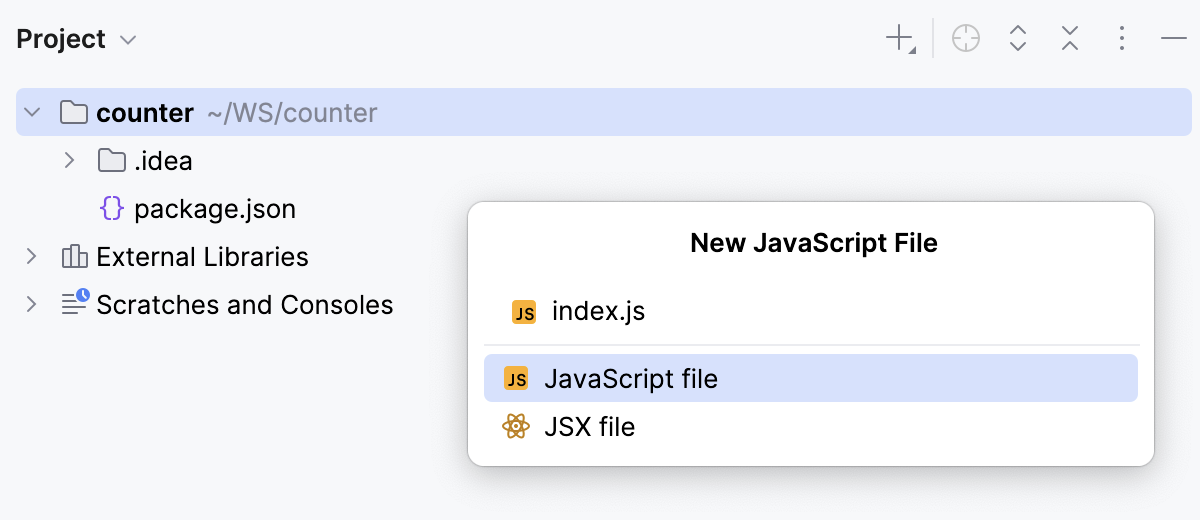
WebStorm creates a file index.js and opens it in the editor.
In the index.js file, enter the following code:
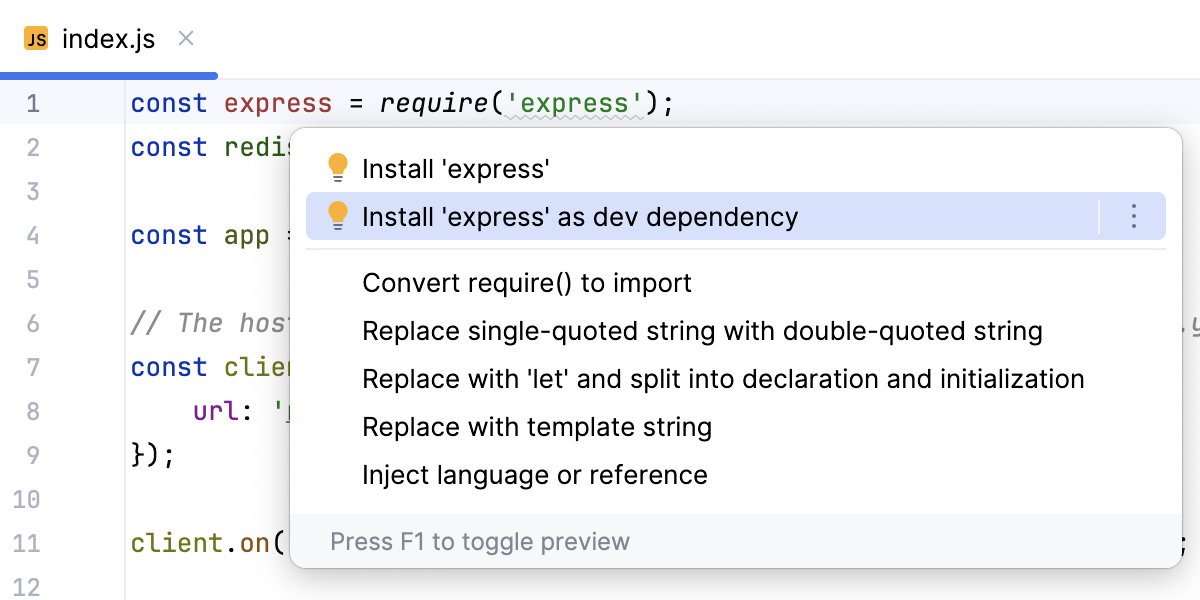
const express = require('express'); const redis = require('redis'); const app = express(); // The host name 'redis-server' will be specified in docker-compose.yml const client = redis.createClient({ url: 'redis://redis-server:6379' }); client.on('error', (err) => console.log('Redis Client Error', err)); app.get('/', async (req, res) => { try { // The `incr` command atomically increments the value stored at the key by 1. // If the key does not exist, it is created with the value 0 before the increment. const visits = await client.incr('visits'); res.send(`The number of visits is ${visits}`); } catch (err) { res.status(500).send('Error while accessing Redis'); } }); // First we connect to Redis, and then we run the server app.listen(3000, async () => { await client.connect(); console.log('Server running at port 3000'); });WebStorm detects that the Express framework and the client to work with Redis are missing and highlights the references to them as unresolved.
Place the cursor at an unresolved reference, press Alt+Enter, and then select or .
Containerize the application
For Redis, we will use a ready image while for the Web part of our application we need to write a Dockerfile.
Create a Dockerfile
From the context menu of the project folder, select , and then select .
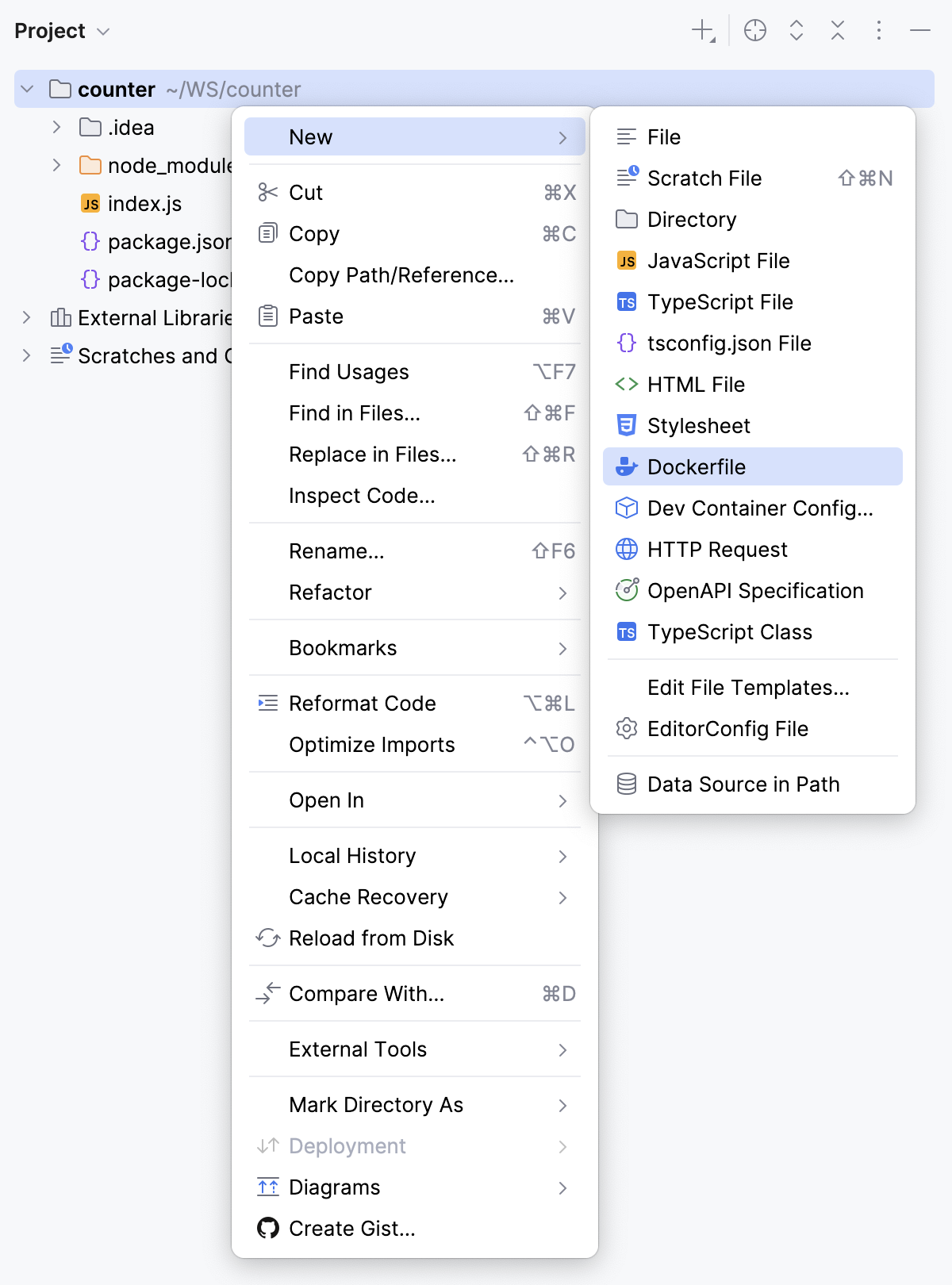
Open the newly created Dockerfile and type the following code:
# Specify a light-weight Node.js image FROM node:22-alpine # Specify the working directory inside the container WORKDIR /usr/src/app COPY package*.json ./ RUN npm install --production COPY . . # Expose the container's port EXPOSE 3000 # Specify the command to launch application CMD ["node", "index.js"]
Now we have to bind two parts of our application via a docker-compose.yml file.
Create a docker-compose.yml file
From the context menu of the project folder, select and then select .
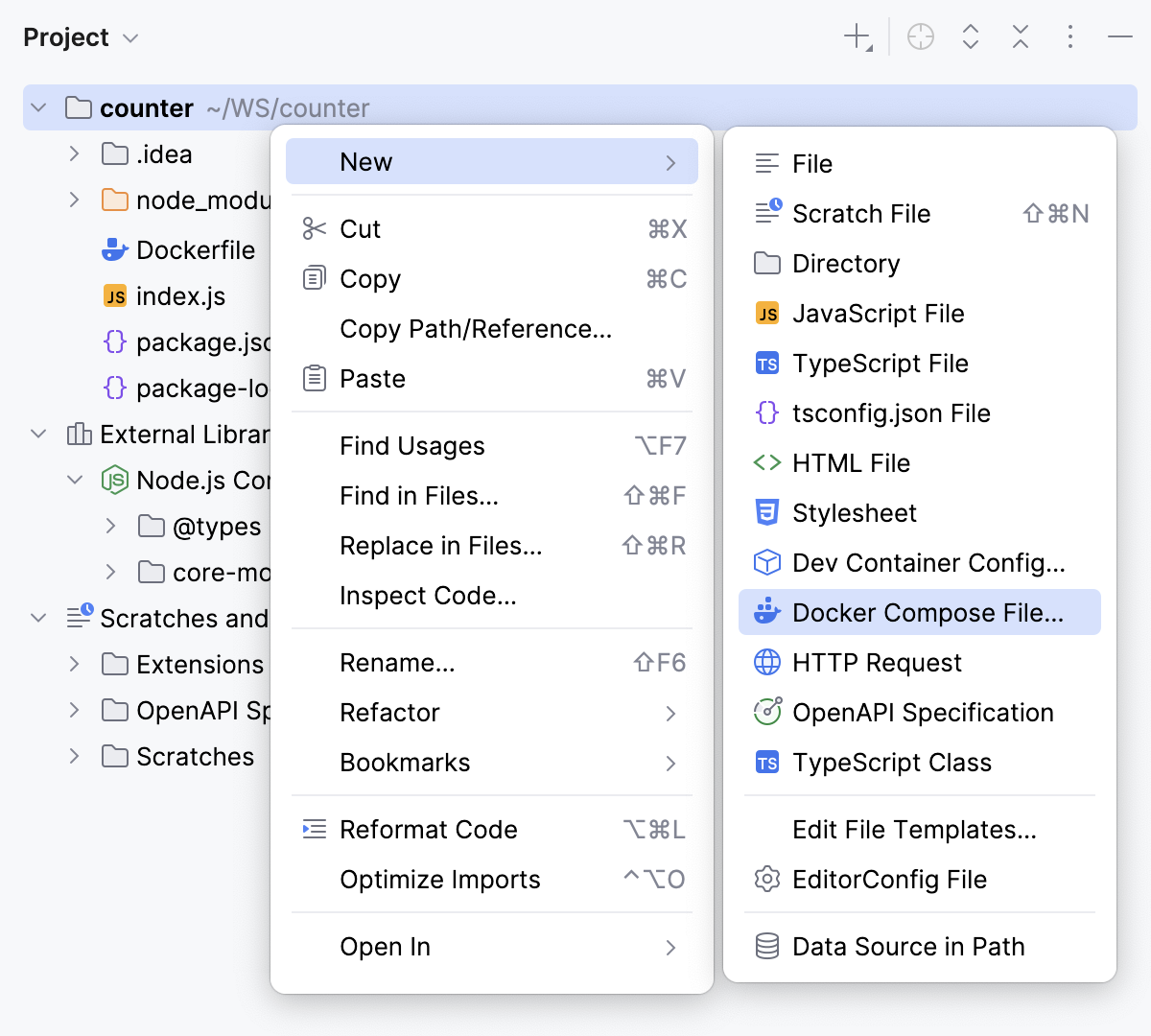
In the popup that opens, accept the default Docker Compose file name or specify a custom one and press Enter.
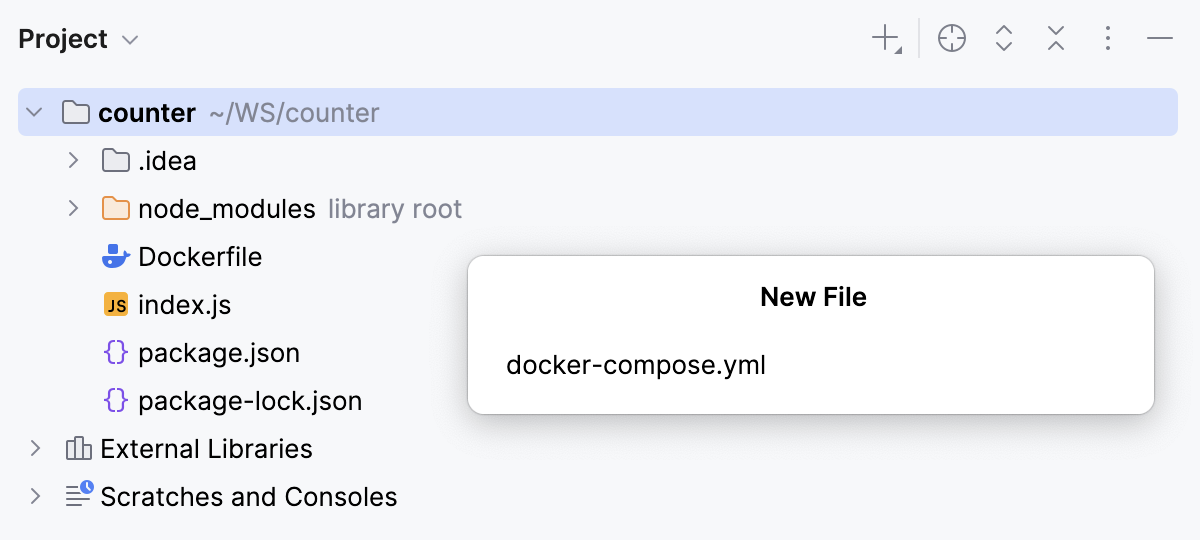
Open the newly created docker-compose.yml and type the following code:
services: redis-server: image: redis:alpine web: # The build directive instructs Docker Compose to build # an image of our application based on the Dockerfile # from the current folder build: . # Bind the local port with port inside the container ports: - "3000:3000" # The depends_on directive ensures that # the container starts after the redis-server depends_on: - redis-server
Run the application
In the docker-compose.yml, click
 next to
 servicesand select from the context menu to run thedocker compose up -dcommand.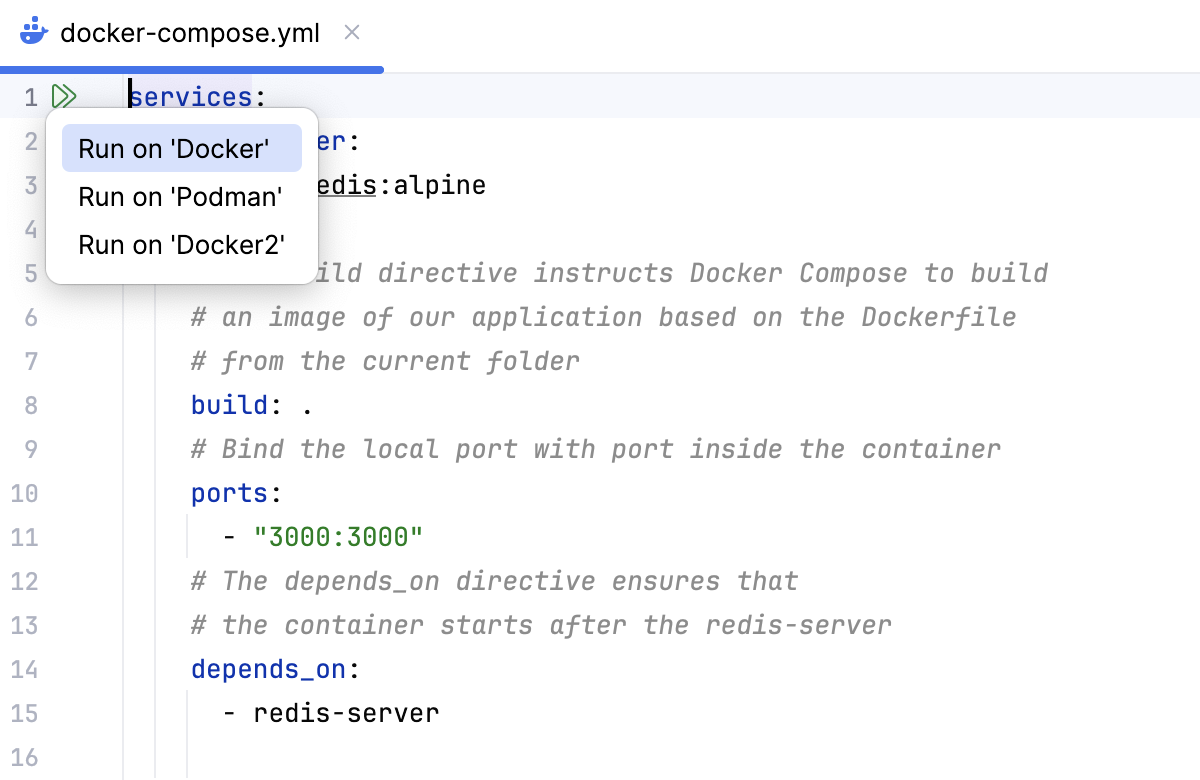
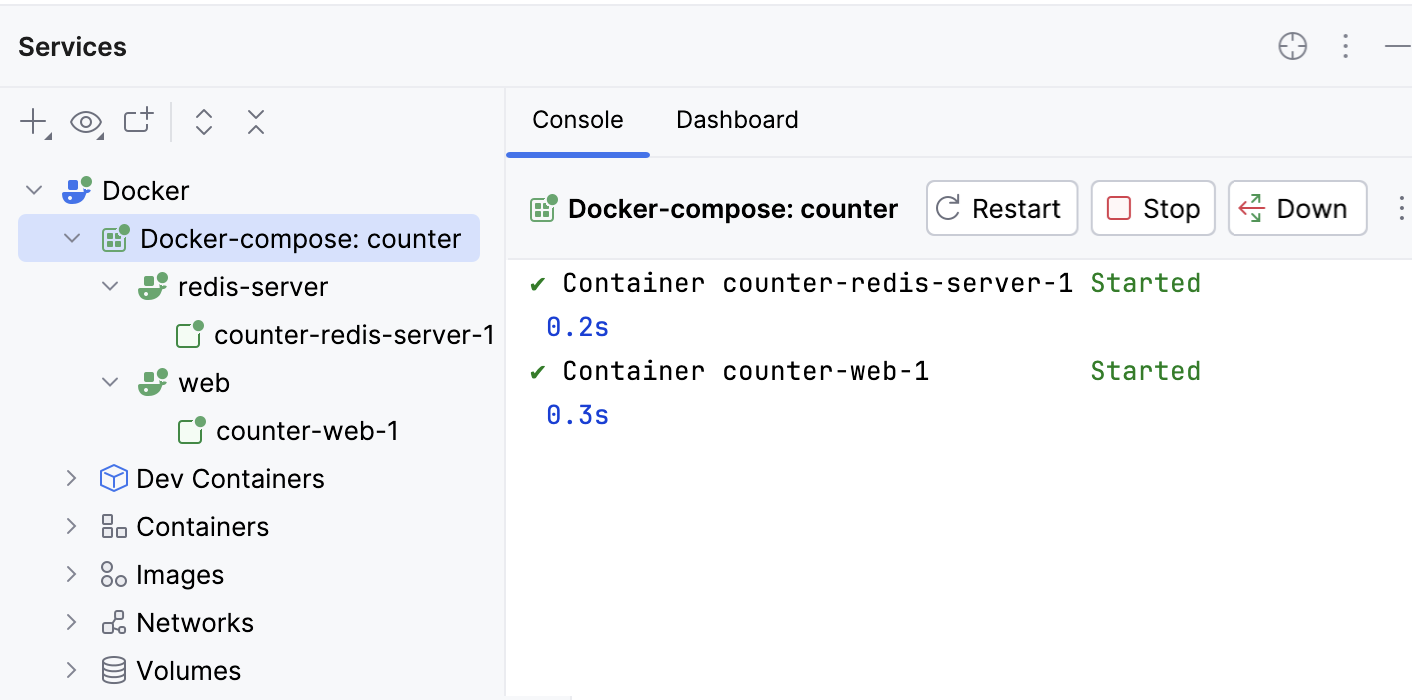
WebStorm first starts the redis-server Docker Compose service and makes sure that the database is healthy. Then it starts the web service. If everything is correct, you should see the following in the Services tool window:
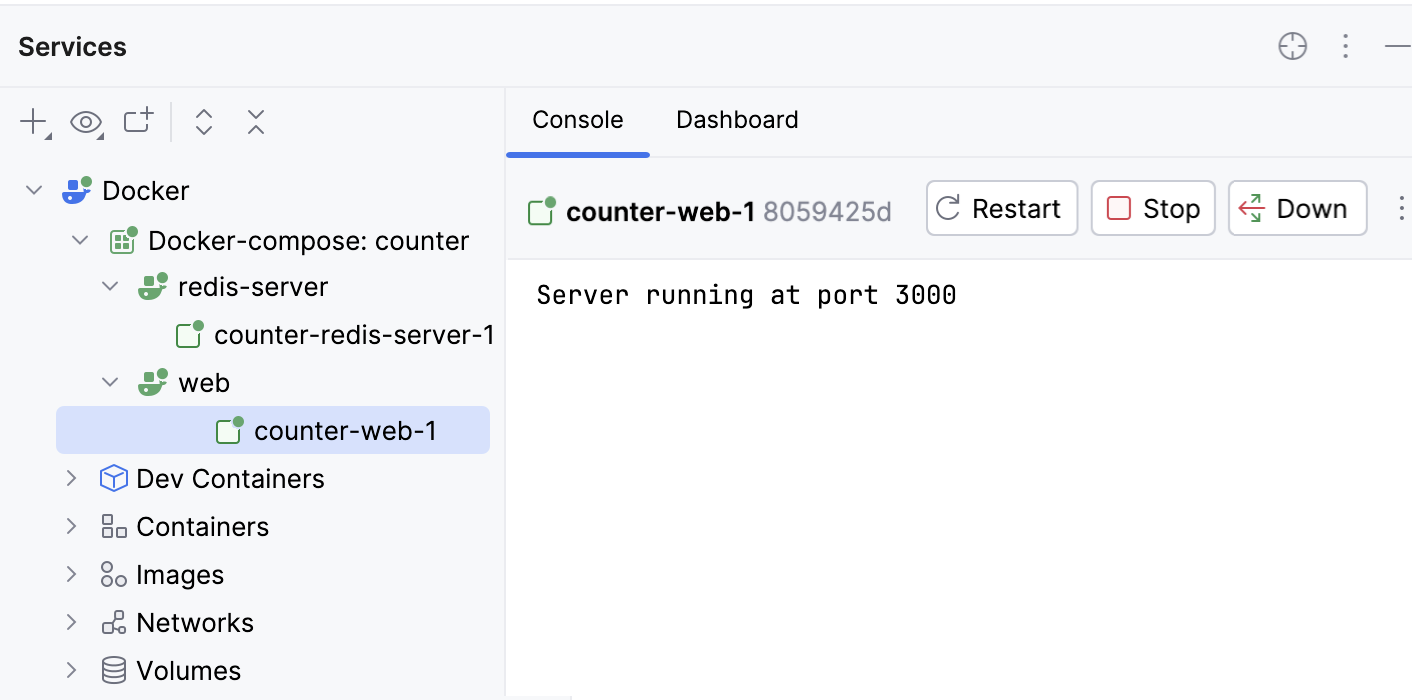
If you click counter-web-1 under the web node, you will see the Server running at port 3000 output:
Check whether the application works as expected
Open the browser at
http://localhost:3000. The page opens showingThe number of visits is 1.Refresh the page several times to see that the counter increments.