# Add topics
In Writerside, you can create a new topic from scratch or use a template to help you get started. You can also [import Markdown files as topics](import-markdown.html#add-markdown-files-as-topics) or [reuse existing topics](table-of-contents.html#link-topics-to-toc).
Procedure: Create an empty topic
1. Right-click an existing topic in the [TOC](table-of-contents.html) and select New Topic to add a sibling or New Child Topic to add a child topic.
2. Select Empty MD Topic or Empty XML Topic.
For more information, see [Topic formats](topics.html#topic_formats).
3. In the New Topic dialog, specify the topic title and the filename.
Writerside uses the filename to automatically generate a topic ID, which must be unique within your project. Also, make sure that the filename is meaningful and properly reflects the content.
Procedure: Create a topic from template
1. Right-click an existing topic in the [TOC](table-of-contents.html) and select New Topic to add a sibling or New Child Topic to add a child topic.
2. Click Topic from Template.
3. In the Create Topic from Template dialog, select a template. You can preview the template on the right side of the window the way Writerside will build and render it with your current settings.
Writerside has the following built-in templates: Starter, How to, Overview, Reference, Tutorial, and Section starting page.
For information about adding your own custom templates, see [Save topic as template](save-as-template.html).
You can also choose a template from [The Good Docs Project](https://www.thegooddocsproject.dev/), which is a large open-source repository of documentation templates. This is a great choice if you are not sure how some specific type of content is usually structured and want to start with a generic template of this type instead of a blank page.
4. Specify the topic title and file name. If necessary, select the format: Markdown or semantic XML. For more information, see [Topic formats](topics.html#topic_formats).
5. Click Create.
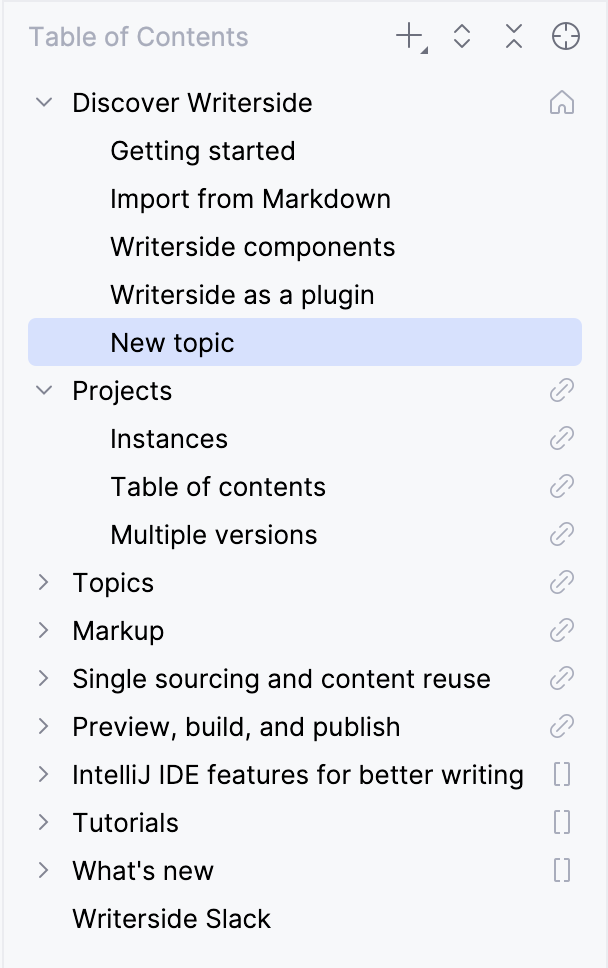
The new topic will appear in the TOC view and open in the editor.
For instructions on how to move a topic around the TOC, see [Change topic order and hierarchy](table-of-contents.html#manage-order).