# Getting started
Writerside is a plugin for [IntelliJ IDEA](https://www.jetbrains.com/idea/) and other JetBrains IDEs based on the IntelliJ platform. Use it to author, build, test, and publish technical documentation.
Procedure: Install Writerside
1. If you do not have a JetBrains IDE, [download](https://www.jetbrains.com/idea/download/#section=mac) and install IntelliJ IDEA (the free Community Edition is enough).
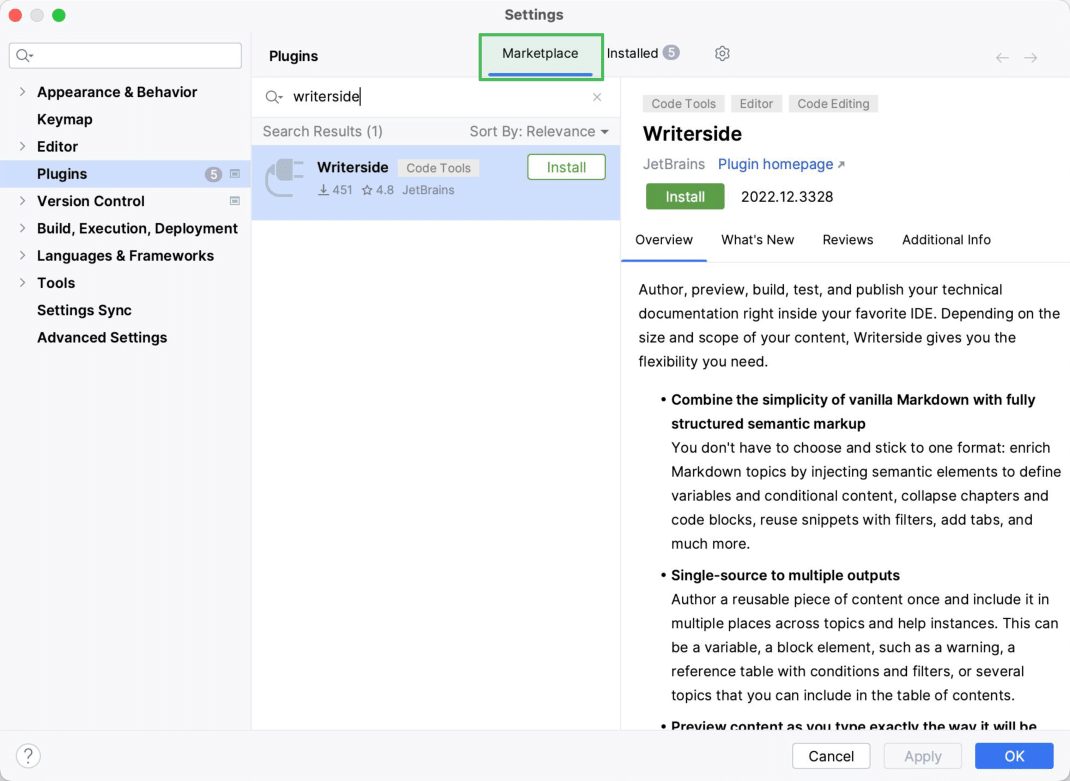
2. Open the IDE settings and select Plugins.
3. Switch to the Marketplace tab, search for `Writerside`, select the plugin, and click Install.
Watch this short video for an overview of the Writerside UI and main features:
[Video](https://www.youtube.com/v/wjGPVFF1oHw)
Writerside allows you to create a dedicated documentation project or add your documentation sources to your development project.
> **Note:**
> There is a known issue with Rider and DataGrip that prevents creating a new project. You can still use Writerside in these IDEs for working with existing documentation projects. However, to create a new project, install Writerside in another IDE.
Procedure: Create new documentation project
1. From the main menu, select `File | New | Project`.
2. In the New Project wizard, select Writerside on the left, then select Starter Project, and then click Next.
3. Specify the name and location for your new project and click Create.
Procedure: Add documentation to existing project
1. Open your existing development project.
2. In the Writerside tool window , click Add documentation, select To Current Project, and then click New.
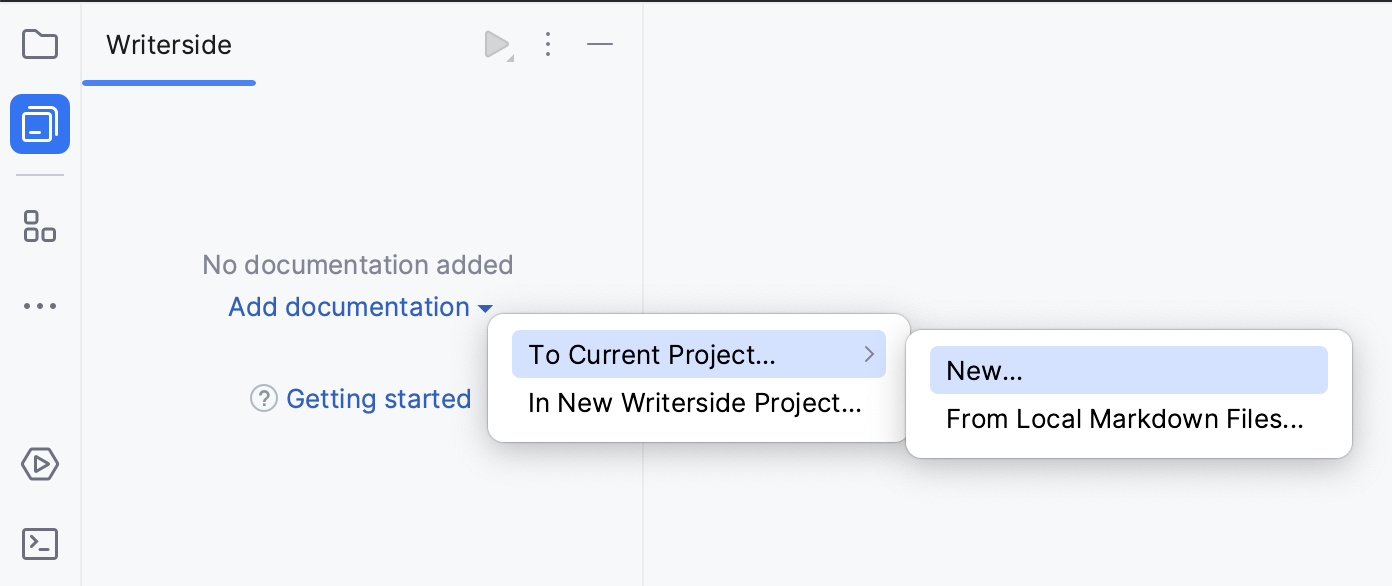
3. Specify a name for the first [help instance](instances.html) and click OK.
> **Tip:**
> If you want to import a project from existing Markdown sources, see [Import from Markdown](import-markdown.html).
Once you have a [documentation project](projects.html) with a [help instance](instances.html), you can add [topics](topics.html) to it and start writing content. Click  in the left-side tool window bar to open the Writerside tool window and start adding content.
## Create topics
Procedure: Create a topic from scratch
1. In the Table of Contents pane of the Writerside tool window, click  and select Empty MD Topic to add a Markdown topic or Empty XML Topic to add a semantic markup topic.
For more information about topics, see [Topic formats](topics.html#topic_formats).
2. Specify a title and filename for the topic.
Procedure: Create a topic from template
Writerside includes built-in templates for different types of content that contain some boilerplate structure to give you something to get started with.
1. In the Table of Contents pane of the Writerside tool window, click  and select a template under Topic from Template.
2. Specify a title and filename for the topic.
## Preview topics
Use the Writerside Preview tool window to preview the topic you are working on exactly the way it will be published.
Procedure: Open the Writerside Preview tool window
Writerside opens the Writerside Preview tool window the first time you open any topic in the editor. If you close the preview and want to open it again, do one of the following:
* Click the Writerside Preview tool window button .
* From the main menu, select `View | Tool Windows | Writerside Preview` .
* Right-click any topic in the Table of Contents and select Preview Topic.
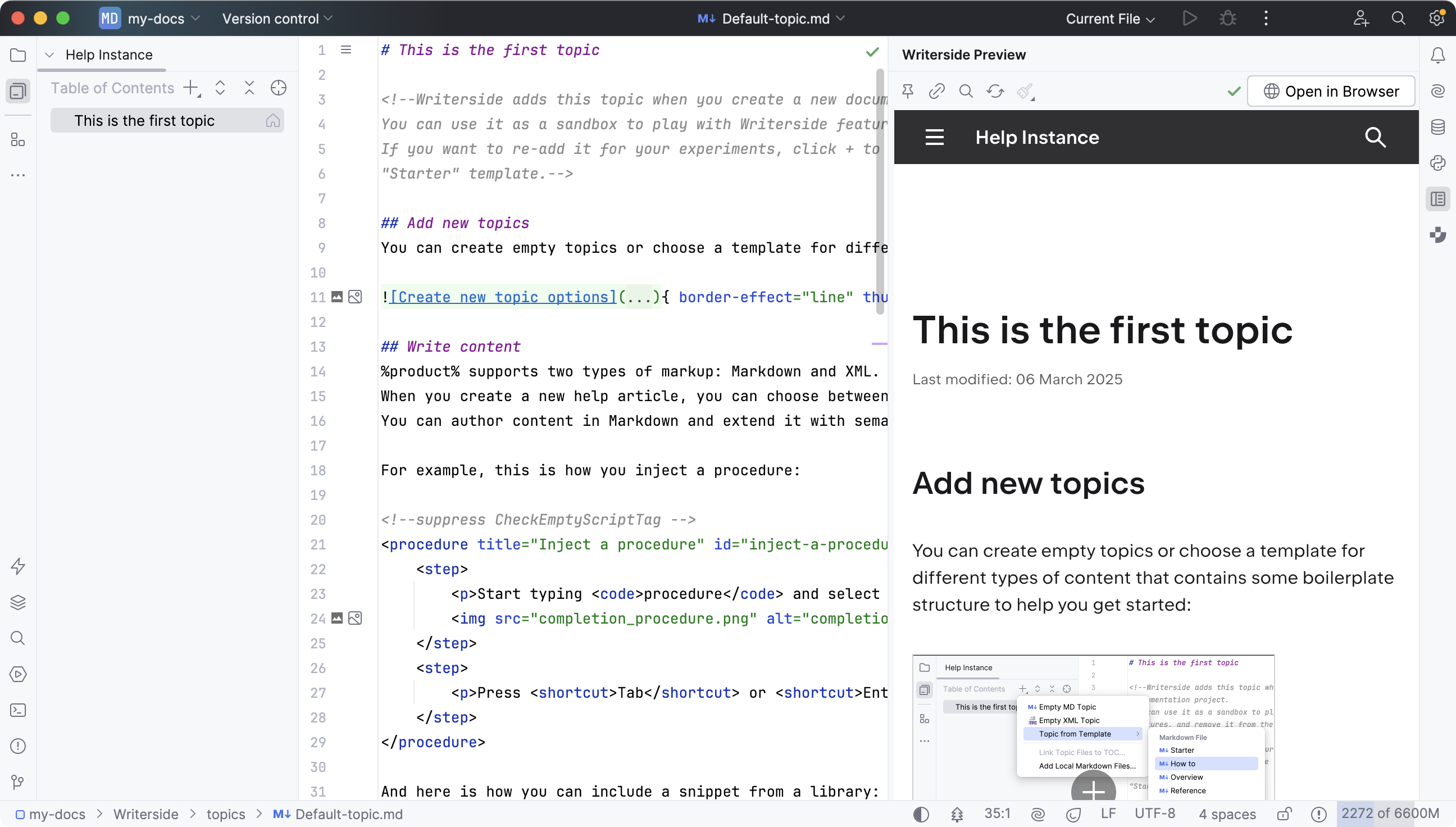
For more information, see [Preview topics](preview-topics.html).
## Change the table of contents
Procedure:
* In the Table of Contents pane of the Writerside tool window, drag topics around to change their order and hierarchy.
You can also edit the `.tree` file to change the TOC. For this, right-click the help instance and select Open TOC File.
For more information, see [Table of contents](table-of-contents.html).
## Build your help instance
Procedure:
* In the Writerside tool window , select an instance, click  Export To , and then click Web Archive.
For more information, see [Build locally](local-build.html).
If you want to build and publish documentation using CI/CD, we have instructions for [GitHub](deploy-docs-to-github-pages.html), [GitLab](deploy-docs-to-gitlab-pages.html), and [TeamCity Cloud](build-on-teamcity.html).
If you want to use another CI/CD to build documentation, drop us a message at [writerside@jetbrains.com](mailto:writerside@jetbrains.com) , and we will provide you with a Docker image.
## Feedback and support
Procedure: Report an issue
* Report any issues, usability improvements, or feature requests to our [YouTrack project](https://youtrack.jetbrains.com/newIssue?project=WRS) (you will need to register).
Procedure: Get support and share feedback
* Join the [JetBrains Writerside Slack workspace](https://jb.gg/Writerside_Slack) .
Before you do, read our [code of conduct](writerside-code-of-conduct.html). We assume that you have read and acknowledged it before joining.
You can also email us at [writerside@jetbrains.com](mailto:writerside@jetbrains.com) .
## See also
### Related topics
[Projects](projects.html) [Topics](topics.html) [Add topics](add-a-topic.html) [Table of contents](table-of-contents.html) [Markup](markup-reference.html)