# Keyboard shortcuts
> **TL;DR**
> Explore and configure: `Settings | Keymap`
>
>
>
> Print and keep on your desk for reference: [PDF keymap card](https://resources.jetbrains.com/storage/products/writerside/WritersideKeymapReference.pdf)
As an IDE-based product, Writerside has keyboard shortcuts for most of its actions related to editing, navigation, refactorings, and other tasks. This topic describes some of the most useful and commonly used shortcuts to get you started.
## Search Everywhere
The most important shortcut to remember is `Shift,Shift` (Windows), `⇧,⇧` (macOS), `Shift,Shift` (IntelliJ IDEA Classic (macOS)), `Shift,Shift` (macOS System Shortcuts), `Shift,Shift` (XWin), `Shift,Shift` (GNOME), `Shift,Shift` (KDE), `Shift,Shift` (Emacs), `Shift,Shift` (Sublime Text), `Shift,Shift` (Sublime Text (macOS)), `Shift,Shift` (NetBeans), `Shift,Shift` (Visual Studio), `Shift,Shift` (Visual Studio (macOS)), `Shift,Shift` (Eclipse), `Shift,Shift` (Eclipse (macOS)) that opens the Search Everywhere popup. Use it to find, open, configure, and run almost anything.
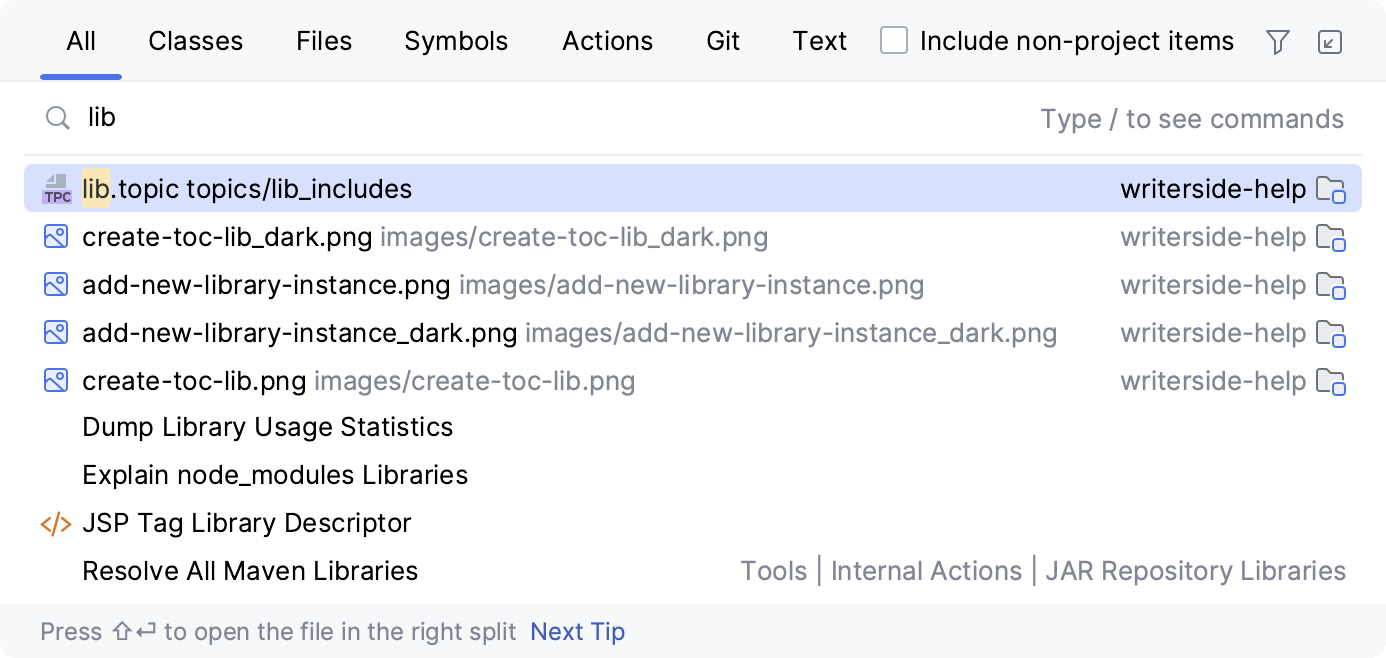
Start typing to find any file, action, setting, or commit message among many other things. Depending on what it is you are looking for, you can filter the results by switching to the corresponding tab either by pressing `Tab` (Windows), `⇥` (macOS), `⇥` (IntelliJ IDEA Classic (macOS)), `⇥` (macOS System Shortcuts), `Tab` (XWin), `Tab` (GNOME), `Tab` (KDE), `Tab` (Emacs), `Tab` (Sublime Text), `⇥` (Sublime Text (macOS)), `Tab` (NetBeans), `Tab` (Visual Studio), `⇥` (Visual Studio (macOS)), `Tab` (Eclipse), `⇥` (Eclipse (macOS)) or using a dedicated shortcut:
Go To File
: `Ctrl+Shift+N` (Windows), `⌘ ⇧ O` (macOS), `⌘ ⇧ N` (IntelliJ IDEA Classic (macOS)), `⌘ ⇧ O` (macOS System Shortcuts), `Ctrl+Shift+N` (XWin), `Ctrl+Shift+N` (GNOME), `Ctrl+Shift+N` (KDE), `Ctrl+X, Ctrl+F` (Emacs), `Ctrl+P` (Sublime Text), `⌘ P` (Sublime Text (macOS)), `Alt+Shift+O` (NetBeans), `Ctrl+Shift+T` (Visual Studio), `⌘ ⇧ T` (Visual Studio (macOS)), `Ctrl+Shift+R` (Eclipse), `⌘ ⇧ R` (Eclipse (macOS))
Find Action
: `Ctrl+Shift+A` (Windows), `⌘ ⇧ A` (macOS), `⌘ ⇧ A` (IntelliJ IDEA Classic (macOS)), `⌘ ⇧ P` (macOS System Shortcuts), `Ctrl+Shift+A` (XWin), `Ctrl+Shift+A` (GNOME), `Ctrl+Shift+A` (KDE), `Escape, X` (Emacs), `Ctrl+Shift+P` (Sublime Text), `⌘ ⇧ P` (Sublime Text (macOS)), `Ctrl+I` (NetBeans), `Ctrl+Shift+A` (Visual Studio), `⌘ ⇧ A` (Visual Studio (macOS)), `Ctrl+Shift+A` (Eclipse), `⌘ 3` (Eclipse (macOS))
Text Search
: `Ctrl+Alt+Shift+E` (Windows), `⌘ ⌥ ⇧ E` (macOS), `⌘ ⌥ ⇧ E` (IntelliJ IDEA Classic (macOS)), `⌃ ⌥ ⇧ E` (macOS System Shortcuts), `Ctrl+Alt+Shift+E` (XWin), `Ctrl+Alt+Shift+E` (GNOME), `Ctrl+Alt+Shift+E` (KDE), `Ctrl+Alt+Shift+E` (Emacs), `Ctrl+Alt+Shift+E` (Sublime Text), `⌘ ⌥ ⇧ E` (Sublime Text (macOS)), `Ctrl+Alt+Shift+E` (NetBeans), `Ctrl+Alt+Shift+E` (Visual Studio), `⌘ ⌥ ⇧ E` (Visual Studio (macOS)), `Ctrl+Alt+Shift+E` (Eclipse), `⌘ ⌥ ⇧ E` (Eclipse (macOS))
For a true full-text search experience, use Find in Files `Ctrl+Shift+F` (Windows), `⌘ ⇧ F` (macOS), `⌃ ⇧ F` (IntelliJ IDEA Classic (macOS)), `⌘ ⇧ F` (macOS System Shortcuts), `Ctrl+Shift+F` (XWin), `Ctrl+Shift+F` (GNOME), `Ctrl+Shift+F` (KDE), `Ctrl+Shift+F` (Emacs), `Ctrl+Shift+F` (Sublime Text), `⌘ ⇧ F` (Sublime Text (macOS)), `Ctrl+Shift+F` (NetBeans), `Ctrl+Shift+F` (Visual Studio), `⌘ ⇧ F` (Visual Studio (macOS)), `Ctrl+H` (Eclipse), `⌃ H` (Eclipse (macOS)).
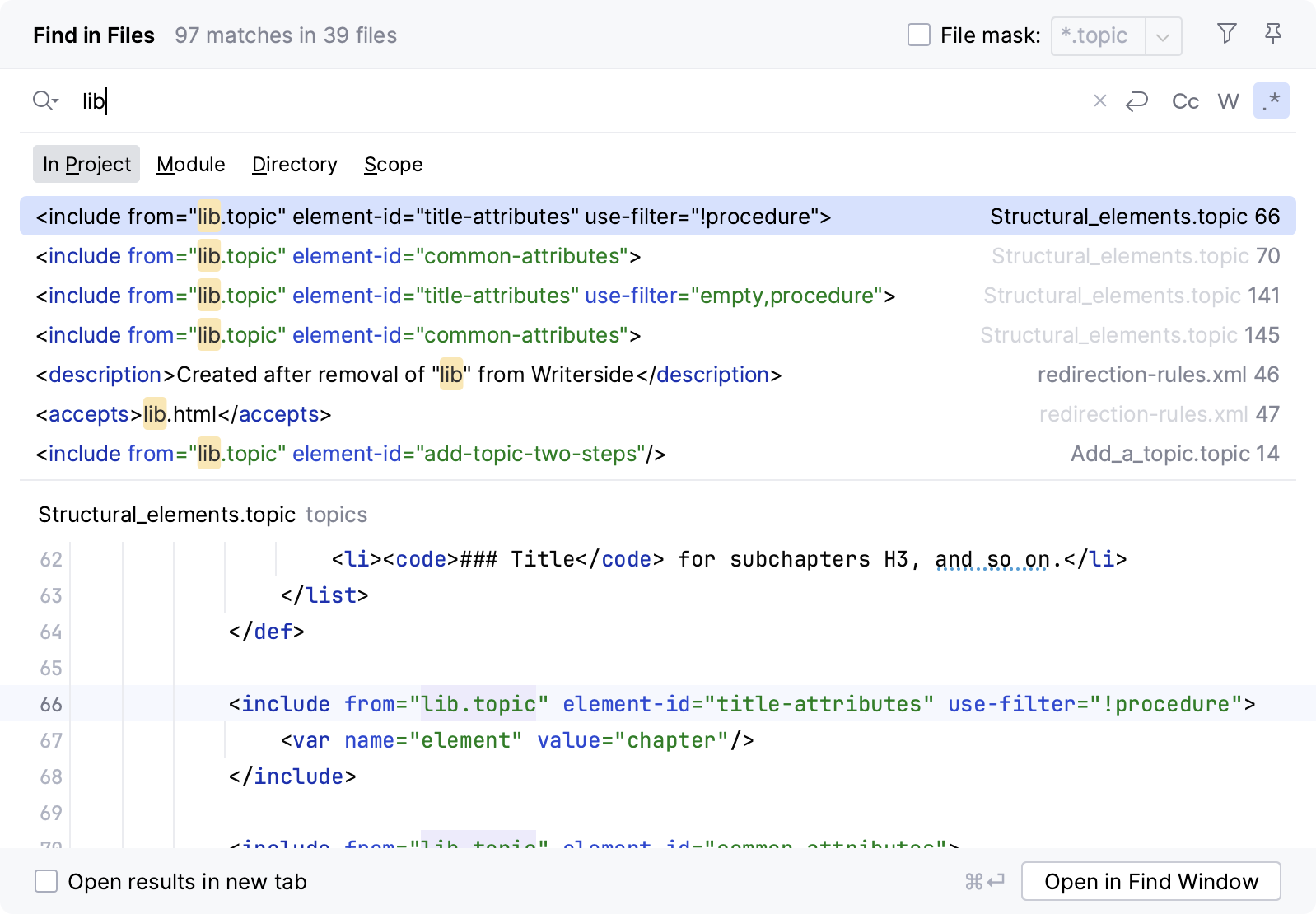
In this dialog, you can search for raw strings or regular expressions in your plain-text files as well as filter the scope of the search.
## Show Context Actions
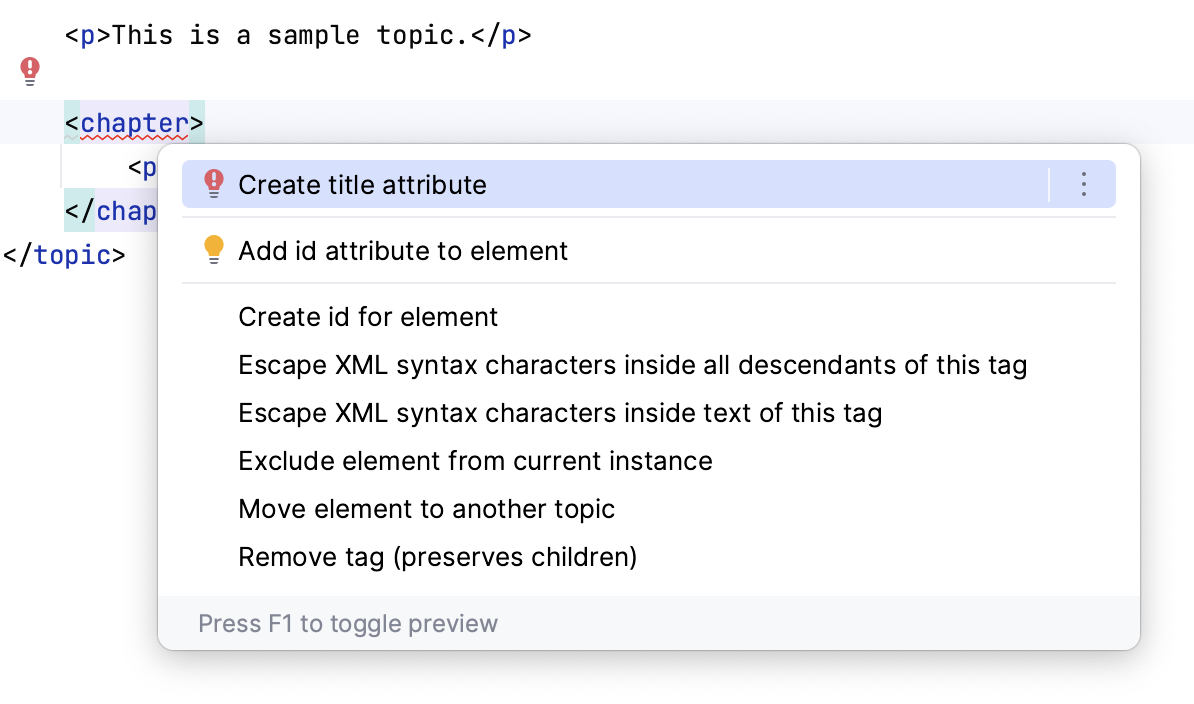
Press `Alt+Enter` (Windows), `⌥ ⏎` (macOS), `⌥ ⏎` (IntelliJ IDEA Classic (macOS)), `⌥ ⏎` (macOS System Shortcuts), `Alt+Enter` (XWin), `Alt+Enter` (GNOME), `Alt+Enter` (KDE), `Alt+Enter` (Emacs), `Alt+Enter` (Sublime Text), `⌥ ⏎` (Sublime Text (macOS)), `Alt+Enter` (NetBeans), `Alt+Enter` (Visual Studio), `⌥ ⏎` (Visual Studio (macOS)), `Ctrl+1` (Eclipse), `⌘ 1` (Eclipse (macOS)) to show actions for the current context. For example, if the caret is on an error or warning, Writerside will likely suggest a quick-fix. Even without an error, it will probably suggest actions for improving, optimizing, or converting something.
## Editing
Use the following actions to assist you when writing and editing content:
Generate
: `Alt+Insert` (Windows), `⌘ N` (macOS), `⌃ N` (IntelliJ IDEA Classic (macOS)), `⌘ N` (macOS System Shortcuts), `Alt+Insert` (XWin), `Alt+Insert` (GNOME), `Alt+Insert` (KDE), `Alt+Insert` (Emacs), `Alt+Insert` (Sublime Text), `⌘ N` (Sublime Text (macOS)), `Alt+Insert` (NetBeans), `Alt+Insert` (Visual Studio), `⌘ ⌃ N` (Visual Studio (macOS)), `Alt+Insert` (Eclipse), `⌘ N` (Eclipse (macOS))
Insert Live Template
: `Ctrl+J` (Windows), `⌘ J` (macOS), `⌘ J` (IntelliJ IDEA Classic (macOS)), `⌘ J` (macOS System Shortcuts), `Ctrl+J` (XWin), `Ctrl+J` (GNOME), `Ctrl+J` (KDE), `Ctrl+J` (Emacs), `Ctrl+J` (Sublime Text), `Ctrl+J` (Sublime Text (macOS)), `Ctrl+J` (NetBeans), `Ctrl+K, X` (Visual Studio), `⌘ E, L` (Visual Studio (macOS)), `Ctrl+Alt+Shift+J` (Eclipse), `Ctrl+J` (Eclipse (macOS))
Basic Completion
: `Ctrl+Space` (Windows), `⌃ Space` (macOS), `⌃ Space` (IntelliJ IDEA Classic (macOS)), `⌃ Space` (macOS System Shortcuts), `Ctrl+Space` (XWin), `Ctrl+Space` (GNOME), `Ctrl+Space` (KDE), `Alt+/` (Emacs), `Ctrl+Space` (Sublime Text), `⌃ Space` (Sublime Text (macOS)), `Ctrl+Space` (NetBeans), `Ctrl+Space` (Visual Studio), `⌃ Space` (Visual Studio (macOS)), `Ctrl+Space` (Eclipse), `⌃ Space` (Eclipse (macOS))
Complete Current Statement
: `Ctrl+Shift+Enter` (Windows), `⌘ ⇧ ⏎` (macOS), `⌘ ⇧ ⏎` (IntelliJ IDEA Classic (macOS)), `⌘ ⇧ ⏎` (macOS System Shortcuts), `Ctrl+Shift+Enter` (XWin), `Ctrl+Shift+Enter` (GNOME), `Ctrl+Shift+Enter` (KDE), `Ctrl+Shift+Enter` (Emacs), `Ctrl+Shift+Enter` (Sublime Text), `Ctrl+Shift+Enter` (Sublime Text (macOS)), `Ctrl+Shift+Enter` (NetBeans), `Ctrl+Shift+Enter` (Visual Studio), `⌘ ⇧ ⏎` (Visual Studio (macOS)), `Ctrl+Shift+Enter` (Eclipse), `⌘ ⇧ ⏎` (Eclipse (macOS))
Extend Selection
: `Ctrl+W` (Windows), `⌥ ↑` (macOS), `⌘ W` (IntelliJ IDEA Classic (macOS)), `⌥ ↑` (macOS System Shortcuts), `Ctrl+W` (XWin), `Ctrl+W` (GNOME), `Ctrl+W` (KDE), `Ctrl+Alt+W` (Emacs), `Ctrl+Shift+Space` (Sublime Text), `⌘ ⇧ A` (Sublime Text (macOS)), `Alt+Shift+.` (NetBeans), `Alt+Shift+=` (Visual Studio), `⌘ ⌥ →` (Visual Studio (macOS)), `Alt+Shift+Up` (Eclipse), `⌃ ⇧ ↑` (Eclipse (macOS))
Shrink Selection
: `Ctrl+Shift+W` (Windows), `⌥ ↓` (macOS), `⌘ ⇧ W` (IntelliJ IDEA Classic (macOS)), `⌥ ↓` (macOS System Shortcuts), `Ctrl+Shift+W` (XWin), `Ctrl+Shift+W` (GNOME), `Ctrl+Shift+W` (KDE), `Ctrl+Shift+W` (Emacs), `Ctrl+Shift+W` (Sublime Text), `Ctrl+Shift+W` (Sublime Text (macOS)), `Alt+Shift+Comma` (NetBeans), `Alt+Shift+Minus` (Visual Studio), `⌘ ⌥ ←` (Visual Studio (macOS)), `Alt+Shift+Down` (Eclipse), `⌃ ⇧ ↓` (Eclipse (macOS))
Move Statement Up
: `Ctrl+Shift+Up` (Windows), `⌘ ⇧ ↑` (macOS), `⌘ ⇧ ↑` (IntelliJ IDEA Classic (macOS)), `⌃ ⇧ ↑` (macOS System Shortcuts), `Ctrl+Shift+Up` (XWin), `Ctrl+Shift+Up` (GNOME), `Ctrl+Shift+Up` (KDE), `Ctrl+Shift+Up` (Emacs), `Ctrl+Shift+Up` (Sublime Text), `⌘ ⇧ ↑` (Sublime Text (macOS)), `Alt+Shift+Page Up` (NetBeans), `Ctrl+Alt+Shift+Up` (Visual Studio), `⌃ ⌥ ⇧ ↑` (Visual Studio (macOS)), `Alt+Up` (Eclipse), `⌥ ↑` (Eclipse (macOS))
Move Statement Down
: `Ctrl+Shift+Down` (Windows), `⌘ ⇧ ↓` (macOS), `⌘ ⇧ ↓` (IntelliJ IDEA Classic (macOS)), `⌃ ⇧ ↓` (macOS System Shortcuts), `Ctrl+Shift+Down` (XWin), `Ctrl+Shift+Down` (GNOME), `Ctrl+Shift+Down` (KDE), `Ctrl+Shift+Down` (Emacs), `Ctrl+Shift+Down` (Sublime Text), `⌘ ⇧ ↓` (Sublime Text (macOS)), `Alt+Shift+Page Down` (NetBeans), `Ctrl+Alt+Shift+Down` (Visual Studio), `⌃ ⌥ ⇧ ↓` (Visual Studio (macOS)), `Alt+Down` (Eclipse), `⌥ ↓` (Eclipse (macOS))
Duplicate Line or Selection
: `Ctrl+D` (Windows), `⌘ D` (macOS), `⌘ D` (IntelliJ IDEA Classic (macOS)), `⌘ D` (macOS System Shortcuts), `Ctrl+D` (XWin), `Ctrl+D` (GNOME), `Ctrl+D` (KDE), `Meta+D` (Emacs), `Ctrl+Shift+D` (Sublime Text), `⌘ ⇧ D` (Sublime Text (macOS)), `Ctrl+D` (NetBeans), `Ctrl+D` (Visual Studio), `⌘ D` (Visual Studio (macOS)), `Ctrl+D` (Eclipse), `Ctrl+D` (Eclipse (macOS))
Surround with Live Template
: `Ctrl+Alt+J` (Windows), `⌘ ⌥ J` (macOS), `⌘ ⌥ J` (IntelliJ IDEA Classic (macOS)), `⌘ ⌥ J` (macOS System Shortcuts), `Ctrl+Alt+J` (XWin), `Ctrl+Alt+J` (GNOME), `Ctrl+Alt+J` (KDE), `Ctrl+Alt+J` (Emacs), `Ctrl+Alt+J` (Sublime Text), `⌘ ⌥ J` (Sublime Text (macOS)), `Ctrl+Alt+J` (NetBeans), `Ctrl+E, U` (Visual Studio), `⌘ E, U` (Visual Studio (macOS)), `Ctrl+Alt+J` (Eclipse), `⌘ ⌥ J` (Eclipse (macOS))
Unwrap/Remove
: `Ctrl+Shift+Delete` (Windows), `⌘ ⇧ ⌦` (macOS), `⌘ ⇧ ⌦` (IntelliJ IDEA Classic (macOS)), `⌘ ⇧ ⌦` (macOS System Shortcuts), `Ctrl+Shift+Delete` (XWin), `Ctrl+Shift+Delete` (GNOME), `Ctrl+Shift+Delete` (KDE), `Ctrl+Shift+Delete` (Emacs), `Ctrl+Shift+Delete` (Sublime Text), `⌘ ⇧ ⌦` (Sublime Text (macOS)), `Ctrl+Shift+Delete` (NetBeans), `Ctrl+Shift+Delete` (Visual Studio), `⌘ ⇧ ⌦` (Visual Studio (macOS)), `Alt+R` (Eclipse), `Ctrl+Shift+Delete` (Eclipse (macOS))
## Navigation
Use the following actions to navigate within a file and between files:
Recent Files
: `Ctrl+E` (Windows), `⌘ E` (macOS), `⌘ E` (IntelliJ IDEA Classic (macOS)), `⌘ E` (macOS System Shortcuts), `Ctrl+E` (XWin), `Ctrl+E` (GNOME), `Ctrl+E` (KDE), `Ctrl+E` (Emacs), `Ctrl+E` (Sublime Text), `⌘ E` (Sublime Text (macOS)), `Shift+F4` (NetBeans), `Ctrl+Comma` (Visual Studio), `⌃ Comma` (Visual Studio (macOS)), `Ctrl+E` (Eclipse), `⌘ E` (Eclipse (macOS))
Recent Locations
: `Ctrl+Shift+E` (Windows), `⌘ ⇧ E` (macOS), `⌘ ⇧ E` (IntelliJ IDEA Classic (macOS)), `⌘ ⇧ E` (macOS System Shortcuts), `Ctrl+Shift+E` (XWin), `Ctrl+Shift+E` (GNOME), `Ctrl+Shift+E` (KDE), `Ctrl+Shift+E` (Emacs), `Ctrl+Shift+E` (Sublime Text), `⌘ ⇧ E` (Sublime Text (macOS)), `Ctrl+Shift+E` (NetBeans), `Ctrl+Shift+E` (Visual Studio), `Ctrl+Shift+E` (Visual Studio (macOS)), `Ctrl+Shift+E` (Eclipse), `⌘ ⇧ E` (Eclipse (macOS))
Back
: `Ctrl+Alt+Left` (Windows), `⌘ [` (macOS), `⌘ ⌥ ←` (IntelliJ IDEA Classic (macOS)), `⌘ [` (macOS System Shortcuts), `Ctrl+Alt+Left` (XWin), `Alt+Shift+Left` (GNOME), `Ctrl+Alt+Left` (KDE), `Ctrl+Alt+Left` (Emacs), `Alt+NumPad -` (Sublime Text), `⌃ NumPad -` (Sublime Text (macOS)), `Alt+Left` (NetBeans), `Ctrl+Minus` (Visual Studio), `⌘ Minus` (Visual Studio (macOS)), `Alt+Left` (Eclipse), `⌘ [` (Eclipse (macOS))
Forward
: `Ctrl+Alt+Right` (Windows), `⌘ ]` (macOS), `⌘ ⌥ →` (IntelliJ IDEA Classic (macOS)), `⌘ ]` (macOS System Shortcuts), `Ctrl+Alt+Right` (XWin), `Alt+Shift+Right` (GNOME), `Ctrl+Alt+Right` (KDE), `Ctrl+Alt+Right` (Emacs), `Alt+Shift+NumPad -` (Sublime Text), `⌃ ⇧ NumPad -` (Sublime Text (macOS)), `Alt+Right` (NetBeans), `Ctrl+Shift+Minus` (Visual Studio), `⌘ ⇧ Minus` (Visual Studio (macOS)), `Alt+Right` (Eclipse), `⌘ ]` (Eclipse (macOS))
Go To Line:Column
: `Ctrl+G` (Windows), `⌘ L` (macOS), `⌘ G` (IntelliJ IDEA Classic (macOS)), `⌘ L` (macOS System Shortcuts), `Ctrl+G` (XWin), `Ctrl+G` (GNOME), `Ctrl+G` (KDE), `Alt+G` (Emacs), `Ctrl+G` (Sublime Text), `⌃ G` (Sublime Text (macOS)), `Ctrl+G` (NetBeans), `Ctrl+G` (Visual Studio), `⌘ G` (Visual Studio (macOS)), `Ctrl+L` (Eclipse), `⌘ L` (Eclipse (macOS))
## Usages
Use the following actions to find and navigate to usages of various elements:
Go To Declaration or Usages
: `Ctrl+B` (Windows), `⌘ B` (macOS), `⌘ B` (IntelliJ IDEA Classic (macOS)), `⌘ B` (macOS System Shortcuts), `Ctrl+B` (XWin), `Ctrl+B` (GNOME), `Ctrl+B` (KDE), `Ctrl+Alt+G` (Emacs), `F12` (Sublime Text), `F12` (Sublime Text (macOS)), `Ctrl+B` (NetBeans), `F12` (Visual Studio), `F12` (Visual Studio (macOS)), `F3` (Eclipse), `F3` (Eclipse (macOS))
Find Usages
: `Alt+F7` (Windows), `⌥ F7` (macOS), `⌥ F7` (IntelliJ IDEA Classic (macOS)), `⌃ U` (macOS System Shortcuts), `Alt+F7` (XWin), `Alt+Shift+7` (GNOME), `Alt+Shift+7` (KDE), `Alt+F7` (Emacs), `Alt+F7` (Sublime Text), `⌥ F7` (Sublime Text (macOS)), `Alt+F7` (NetBeans), `Shift+F12` (Visual Studio), `⇧ F12` (Visual Studio (macOS)), `Ctrl+G` (Eclipse), `⌘ ⇧ G` (Eclipse (macOS))
Show Usages
: `Ctrl+Alt+F7` (Windows), `⌘ ⌥ F7` (macOS), `⌘ ⌥ F7` (IntelliJ IDEA Classic (macOS)), `⌃ ⌥ U` (macOS System Shortcuts), `Ctrl+Alt+7` (XWin), `Ctrl+Alt+7` (GNOME), `Ctrl+Alt+7` (KDE), `Ctrl+Alt+F7` (Emacs), `Shift+F12` (Sublime Text), `⇧ F12` (Sublime Text (macOS)), `Ctrl+Alt+F7` (NetBeans), `Alt+Shift+F12` (Visual Studio), `⌥ ⇧ F12` (Visual Studio (macOS)), `Ctrl+Alt+F7` (Eclipse), `⌘ ⌥ F7` (Eclipse (macOS))
Find Usages in File
: `Ctrl+F7` (Windows), `⌘ F7` (macOS), `⌘ F7` (IntelliJ IDEA Classic (macOS)), `⌃ ⇧ U` (macOS System Shortcuts), `Ctrl+F7` (XWin), `Ctrl+F7` (GNOME), `Ctrl+7` (KDE), `Ctrl+F7` (Emacs), `Ctrl+F7` (Sublime Text), `⌘ F7` (Sublime Text (macOS)), `Ctrl+F7` (NetBeans), `Alt+Shift+F11` (Visual Studio), `⌥ ⇧ F11` (Visual Studio (macOS)), `Ctrl+Shift+G` (Eclipse), `⌘ ⇧ U` (Eclipse (macOS))
Next Highlighted Usage
: `Ctrl+Alt+Down` (Windows), `⌘ ⌥ ↓` (macOS), `⌘ ⌥ ↓` (IntelliJ IDEA Classic (macOS)), `⌘ ⌥ ↓` (macOS System Shortcuts), `Ctrl+Alt+Down` (XWin), `Alt+Shift+Down` (GNOME), `Ctrl+Alt+Down` (KDE), `Ctrl+Alt+Down` (Emacs), `Ctrl+Alt+Down` (Sublime Text), `Ctrl+Alt+Down` (Sublime Text (macOS)), `Ctrl+Alt+Down` (NetBeans), `Ctrl+Alt+Down` (Visual Studio), `⌘ ⌥ ↓` (Visual Studio (macOS)), `Ctrl+Alt+Down` (Eclipse), `Ctrl+Alt+Down` (Eclipse (macOS))
Previous Highlighted Usage
: `Ctrl+Alt+Up` (Windows), `⌘ ⌥ ↑` (macOS), `⌘ ⌥ ↑` (IntelliJ IDEA Classic (macOS)), `⌘ ⌥ ↑` (macOS System Shortcuts), `Ctrl+Alt+Up` (XWin), `Alt+Shift+Up` (GNOME), `Ctrl+Alt+Up` (KDE), `Ctrl+Alt+Up` (Emacs), `Ctrl+Alt+Up` (Sublime Text), `Ctrl+Alt+Up` (Sublime Text (macOS)), `Ctrl+Alt+Up` (NetBeans), `Ctrl+Alt+Up` (Visual Studio), `⌘ ⌥ ↑` (Visual Studio (macOS)), `Ctrl+Alt+Up` (Eclipse), `Ctrl+Alt+Up` (Eclipse (macOS))
## Refactorings
Rename
: `Shift+F6` (Windows), `⇧ F6` (macOS), `⇧ F6` (IntelliJ IDEA Classic (macOS)), `⌘ ⌥ R` (macOS System Shortcuts), `Shift+F6` (XWin), `Shift+F6` (GNOME), `Shift+F6` (KDE), `Shift+F6` (Emacs), `Shift+F6` (Sublime Text), `⇧ F6` (Sublime Text (macOS)), `Ctrl+R` (NetBeans), `Ctrl+R, R` (Visual Studio), `⌘ R, R` (Visual Studio (macOS)), `Alt+Shift+R` (Eclipse), `⇧ F6` (Eclipse (macOS))
Safe Delete
: `Alt+Delete` (Windows), `⌘ ⌦` (macOS), `⌘ ⌦` (IntelliJ IDEA Classic (macOS)), `⌘ ⌦` (macOS System Shortcuts), `Alt+Delete` (XWin), `Alt+Delete` (GNOME), `Alt+Delete` (KDE), `Alt+Delete` (Emacs), `Alt+Delete` (Sublime Text), `⌘ ⌦` (Sublime Text (macOS)), `Alt+Delete` (NetBeans), `Ctrl+R, D` (Visual Studio), `⌘ R, D` (Visual Studio (macOS)), `Alt+Delete` (Eclipse), `Alt+Delete` (Eclipse (macOS))
## Productivity tip: Key Promoter X
[Key Promoter X](https://plugins.jetbrains.com/plugin/9792-key-promoter-x) is a plugin that shows a popup notification with the corresponding keyboard shortcut whenever you execute a command or action with the mouse. This promotes using the keyboard, which will definitely improve your productivity. It also suggests creating a shortcut for actions that you frequently use.