# Preview topics
Use the
Writerside Preview
tool window
to preview the topic you are working on exactly the way it will be published.
Procedure: Open the Writerside Preview tool window
Writerside opens the Writerside Preview tool window the first time you open any topic in the editor. If you close the preview and want to open it again, do one of the following:
* Click the Writerside Preview tool window button .
* From the main menu, select `View | Tool Windows | Writerside Preview` .
* Right-click any topic in the Table of Contents and select Preview Topic.
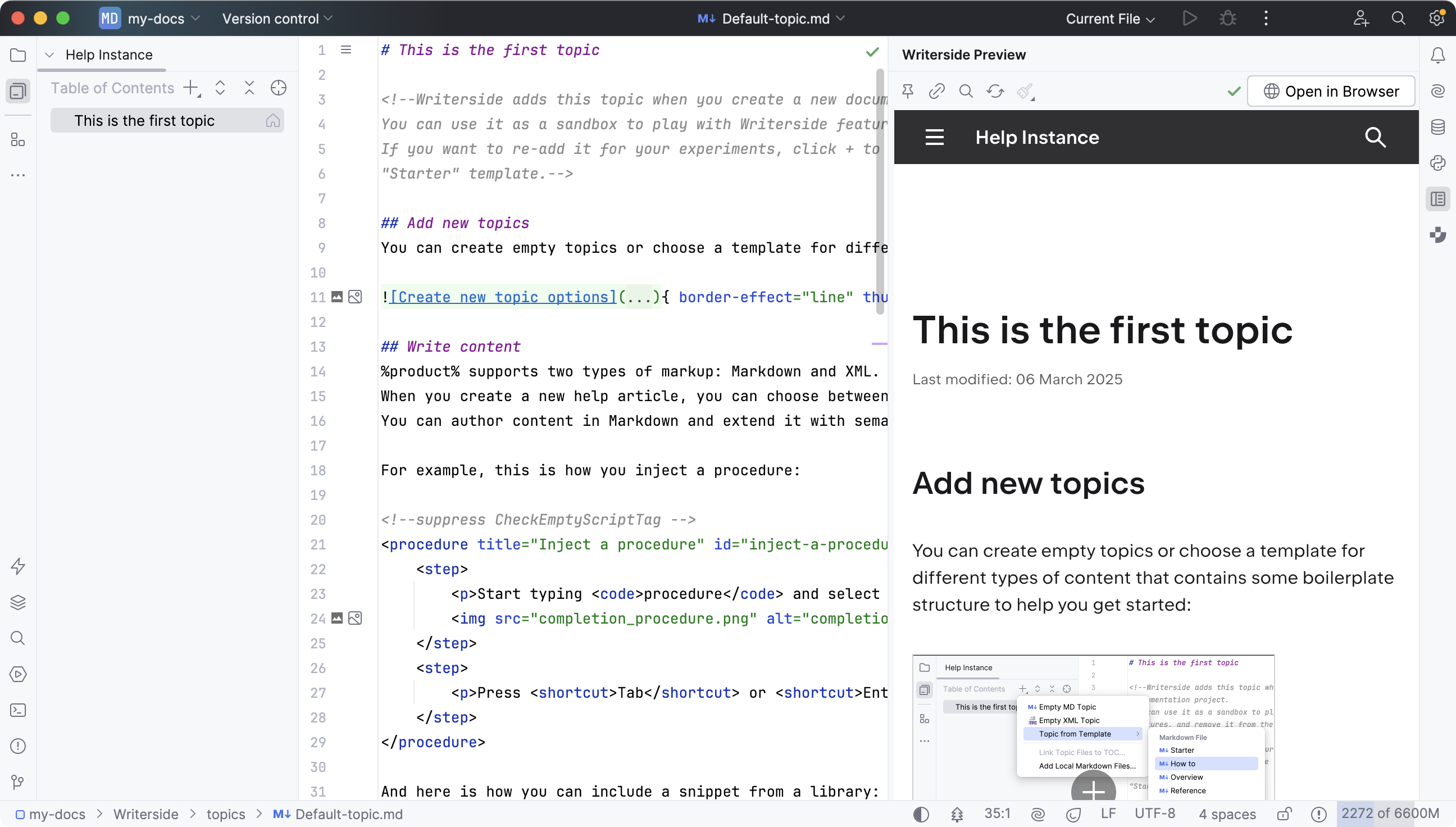
By default, the preview shows the topic that is currently open in the editor, [syncs](#sync_scroll) the position in the preview to the position of the cursor in the editor, and instantly updates when you make changes to the content. If you are editing a topic file not in the current [instance](instances.html), a [library file](reuse-pieces-of-content.html#make-snippet-reusable), a [tree file](instances.html#tree-file), or any other file that cannot be previewed, the Writerside Preview tool window will show the previous topic that it was able to render.
Click  to pin the current topic in the preview. In this pinned mode, you can edit other topic files without the preview switching from the pinned topic. You can click the name of the pinned topic in the Writerside Preview tool window toolbar to open it in the editor.
Click  copy the link to the local preview if you want to share with someone who has access to the built-in web server on your machine. For more information, see [Share preview link](preview-and-test-docs.html#share_preview).
Click  to search for words in the previewed topic. This can be useful when you include some content in a topic and need to make sure that it is in the output.
Click  to refresh the preview. Usually, the preview should update automatically on every change in the previewed topic, but this button allows you to force an update in case it does not work.
Click  to open `[buildprofiles.xml](buildprofiles-xml.html)` and customize the appearance of your documentation website. For more information, see [Customize output](customize-the-look.html).
To open the current topic and preview the whole help in your web browser, click  Open in Browser.
> **Tip: Soft wraps**
> If the Writerside Preview tool window covers part of the source file content, you can enable soft wraps to prevent horizontal scrolling in the editor.
>
>
>
> Right-click the left gutter with line numbers and select Soft-Wrap to enable soft wraps only for the current file. Alternatively, select Configure Soft Wraps, enable Soft-wrap these files, and configure the file name patterns where you always want to have soft wraps, such as `*.topic` and `*.md`.
Procedure: Sync scroll
By default, the preview scrolls together with the editor so that you can see what you are editing. However, if you want to edit one part of a topic and view a different part in the preview, you can disable scroll synchronization.
* Click Options in the Writerside Preview tool window toolbar and disable the Sync Scroll option.