# Use live templates for markup elements
> **TL;DR**
> To use a live template, type the corresponding template abbreviation and press `Tab` (Windows), `⇥` (macOS), `⇥` (IntelliJ IDEA Classic (macOS)), `⇥` (macOS System Shortcuts), `Tab` (XWin), `Tab` (GNOME), `Tab` (KDE), `Tab` (Emacs), `Tab` (Sublime Text), `⇥` (Sublime Text (macOS)), `Tab` (NetBeans), `Tab` (Visual Studio), `⇥` (Visual Studio (macOS)), `Tab` (Eclipse), `⇥` (Eclipse (macOS)).
Writerside already has a bunch of built-in live templates for frequently used markup fragments, like tabs, tables, lists, procedures, and more. They made you write some more complex markup fragments quicker. They work in both `.md` and `.topic` files.
We provide two types of templates:
* live templates: use them to create a markup element with predefined structure, for example, a 3x3 table.
* emmets: use them to specify a number of list elements or table rows and columns at the time of creation.
To check all available templates and customize them for your needs, go to `Settings/Preferences | Editor | Live Templates | Writerside`.
To restore a modified one to the default view, go to the `Settings / Preferences` dialog, right-click the template which you want to restore and click Restore default.
To use a live template, type the corresponding template abbreviation and press `Tab` (Windows), `⇥` (macOS), `⇥` (IntelliJ IDEA Classic (macOS)), `⇥` (macOS System Shortcuts), `Tab` (XWin), `Tab` (GNOME), `Tab` (KDE), `Tab` (Emacs), `Tab` (Sublime Text), `⇥` (Sublime Text (macOS)), `Tab` (NetBeans), `Tab` (Visual Studio), `⇥` (Visual Studio (macOS)), `Tab` (Eclipse), `⇥` (Eclipse (macOS)). Keep pressing `Tab` (Windows), `⇥` (macOS), `⇥` (IntelliJ IDEA Classic (macOS)), `⇥` (macOS System Shortcuts), `Tab` (XWin), `Tab` (GNOME), `Tab` (KDE), `Tab` (Emacs), `Tab` (Sublime Text), `⇥` (Sublime Text (macOS)), `Tab` (NetBeans), `Tab` (Visual Studio), `⇥` (Visual Studio (macOS)), `Tab` (Eclipse), `⇥` (Eclipse (macOS)) to jump from one [variable](https://www.jetbrains.com/help/idea/template-variables.html) in the template to the next one. Press `Shift+Tab` (Windows), `⇧ ⇥` (macOS), `⇧ ⇥` (IntelliJ IDEA Classic (macOS)), `⇧ ⇥` (macOS System Shortcuts), `Shift+Tab` (XWin), `Shift+Tab` (GNOME), `Shift+Tab` (KDE), `Shift+Tab` (Emacs), `Ctrl+[` (Sublime Text), `⌘ [` (Sublime Text (macOS)), `Alt+Shift+Left` (NetBeans), `Shift+Tab` (Visual Studio), `⇧ ⇥` (Visual Studio (macOS)), `Shift+Tab` (Eclipse), `⇧ ⇥` (Eclipse (macOS)) to move to the previous variable.
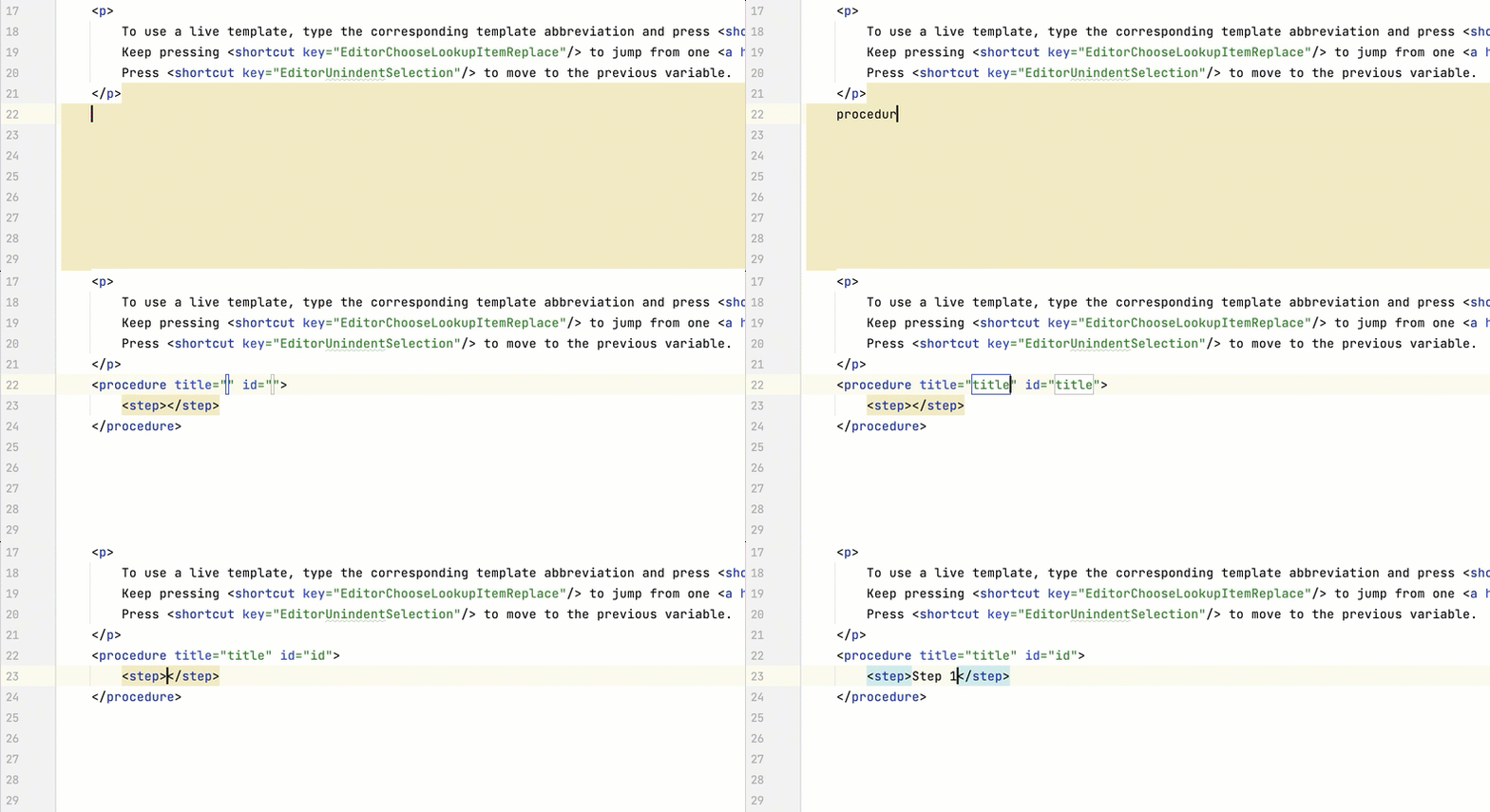
Read how to create your own live templates for frequently used markup fragments in this [tutorial](live-templates.html).