Clone a Role
The Clone action lets you create a role that is similar but not identical to an existing role. Use this action to create a new role with a set of permissions that is identical to an existing role, then add or remove permissions as desired.
To clone a role:
From the main navigation menu, select
 .
.Select the name of the role that you want to clone in the Roles list. Use the following information in the Roles list to help you decide which role to clone:
Check the number of permissions that are assigned to each role in the Permissions column.
Select a role from the list and view the permissions that are assigned to it in the Details sidebar.
Click the
 button, then select the
  Clone option.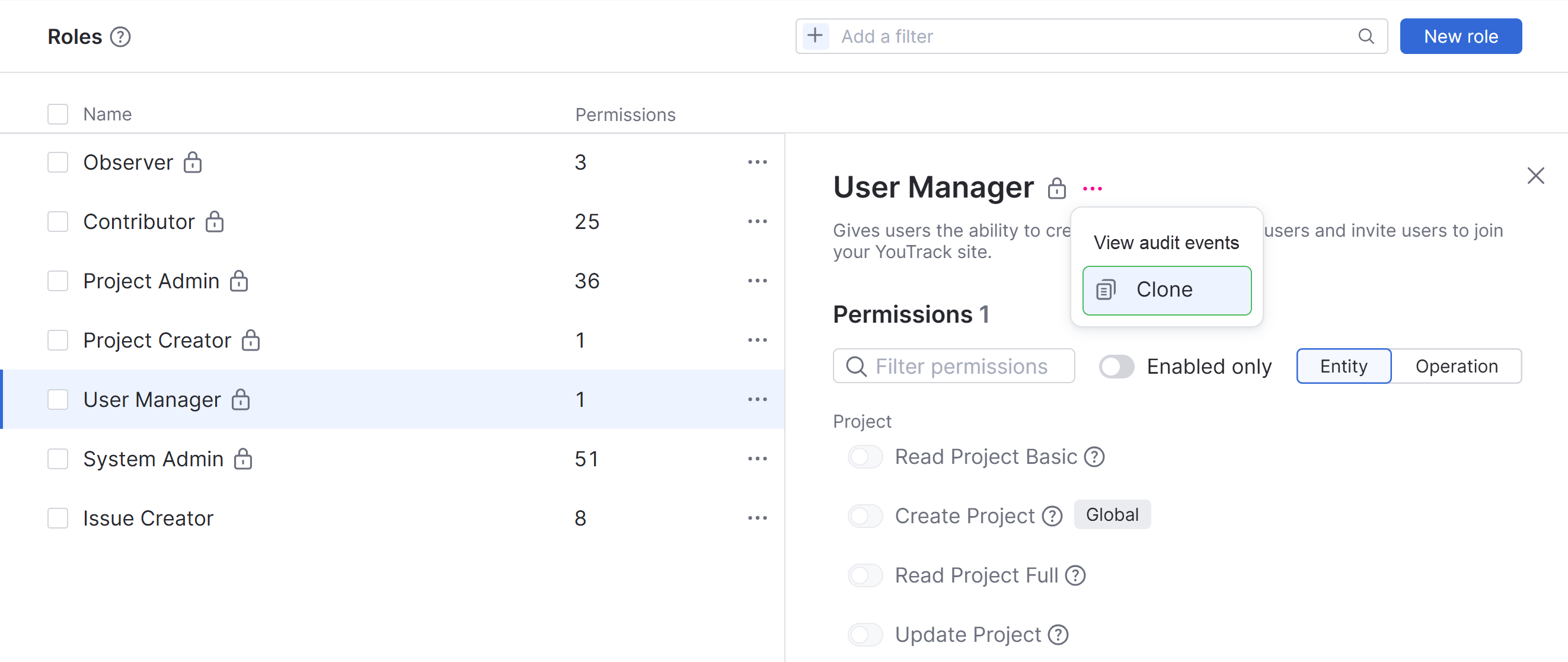
The Clone Role dialog opens.
Edit the Name and Description fields to provide a name and description for the new role, respectively. The Description field is optional.
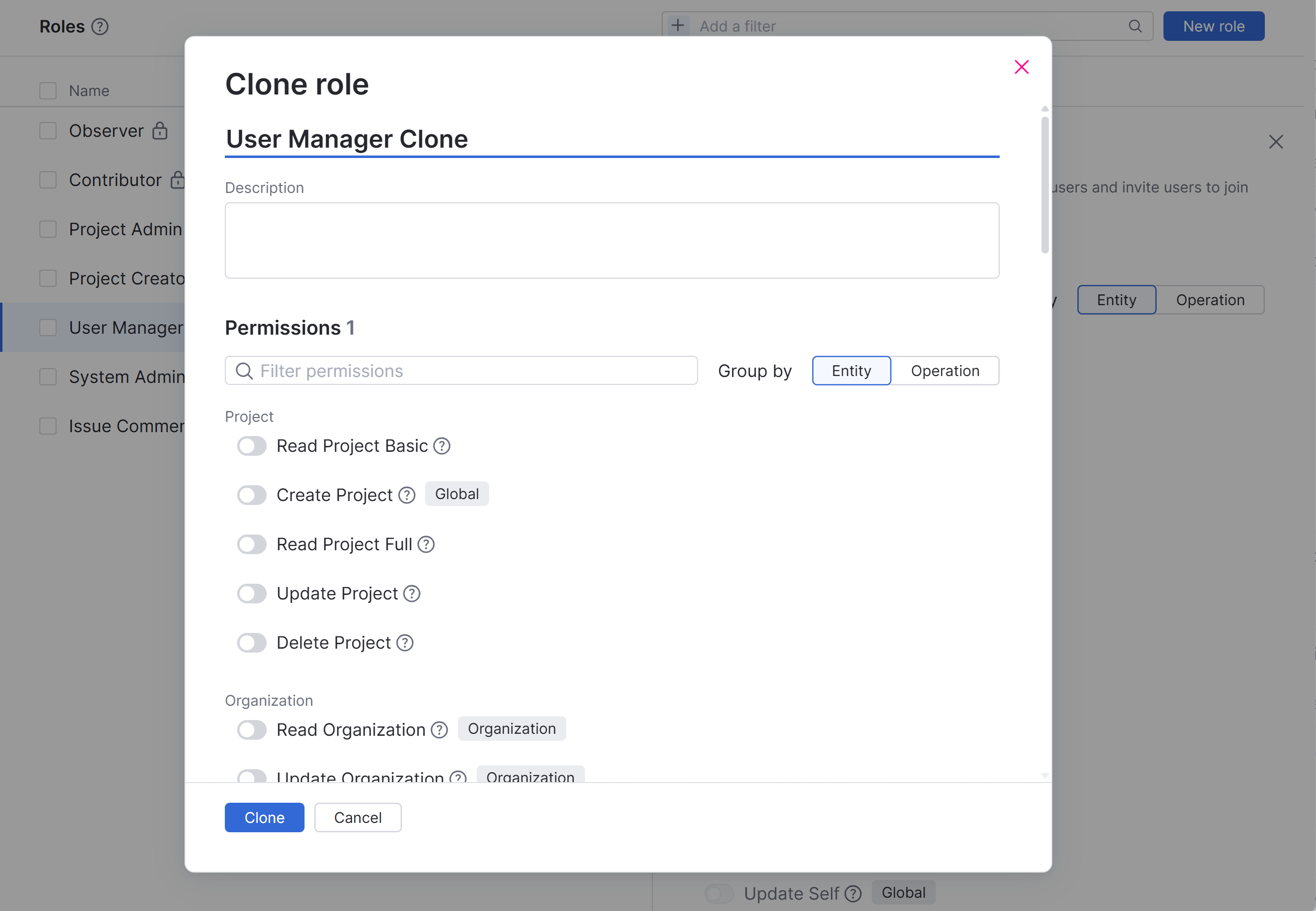
Edit the set of permissions in the Permissions section of the form.
Use the search box to filter the list of permissions by permission name.
Use the Group by option to group the list of permissions by Entity or Operation.
For more information about specific permissions, see Permissions.
Click the Clone button.
The role is added to YouTrack.