Getting Started
If you're new to YouTrack, here are a few tips to help you find your way around.
Main Navigation
When you first log in to YouTrack, you'll find the main navigation on the left side of the page.
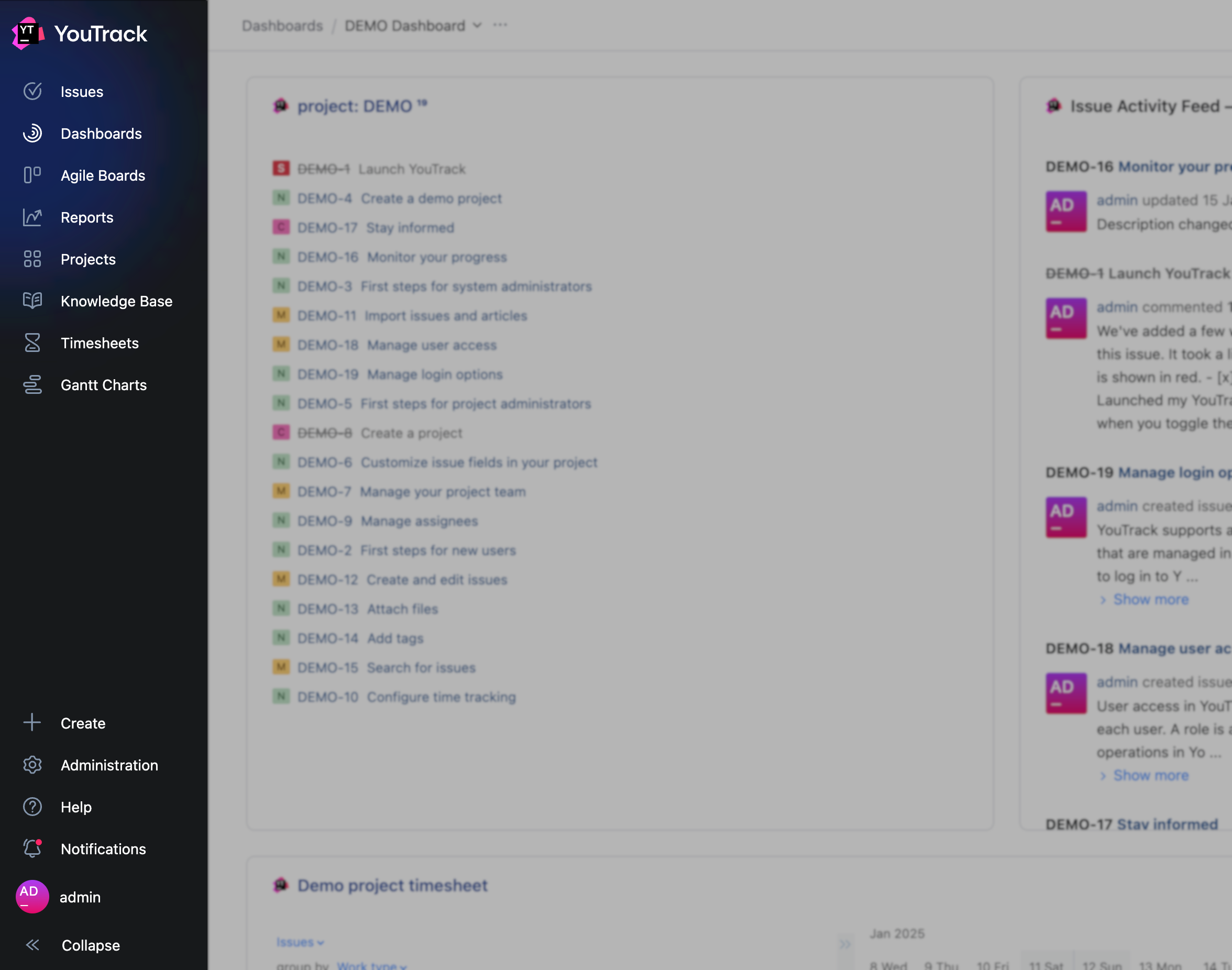
These links and icons help you access different pages in the application. The visibility of links and icons are based on the permissions that are available to your user account. For example, if your account does not have the Read Project permission, you do not see the Projects link in the main navigation. The visibility of options in the  Administration menu is also based on the permissions that are available to your user account.
The navigation panel has two states:
When expanded, the menu shows labels for each menu item. This state can be helpful for users who are unfamiliar with the application
When collapsed, labels are only shown when you move the pointer over the corresponding icon in the menu. This state is usually preferred by users who are familiar with YouTrack or who want to maximize the amount of information shown on the page.
The main navigation also provides access to a Create action that lets you create an issue or article from any page in the application.
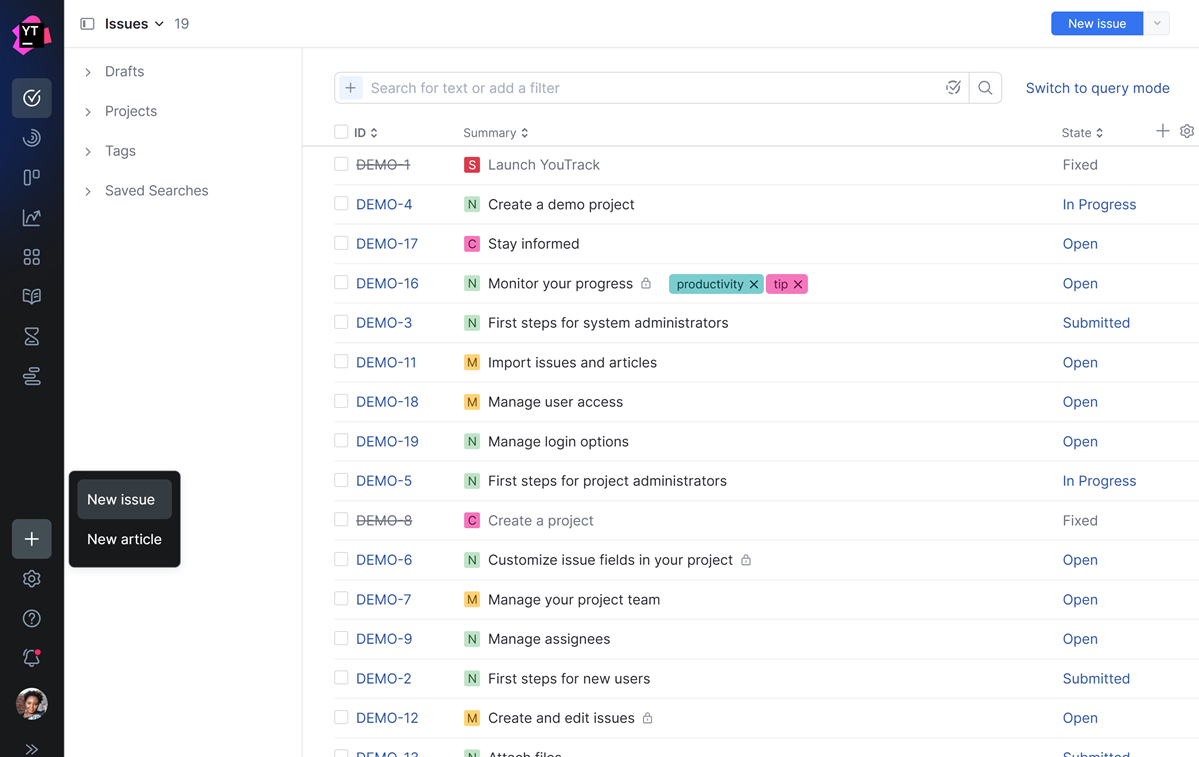
Breadcrumb Navigation
The breadcrumb navigation in the application header is designed to help you stay oriented and easily navigate through different parts of YouTrack. Breadcrumbs provide a visual "trail" that shows your current location within the content hierarchy, making it simple to backtrack to a previous page or parent section without needing to re-navigate through menus. For example, if you’re viewing an issue within a specific project, the breadcrumb trail displays something like this:
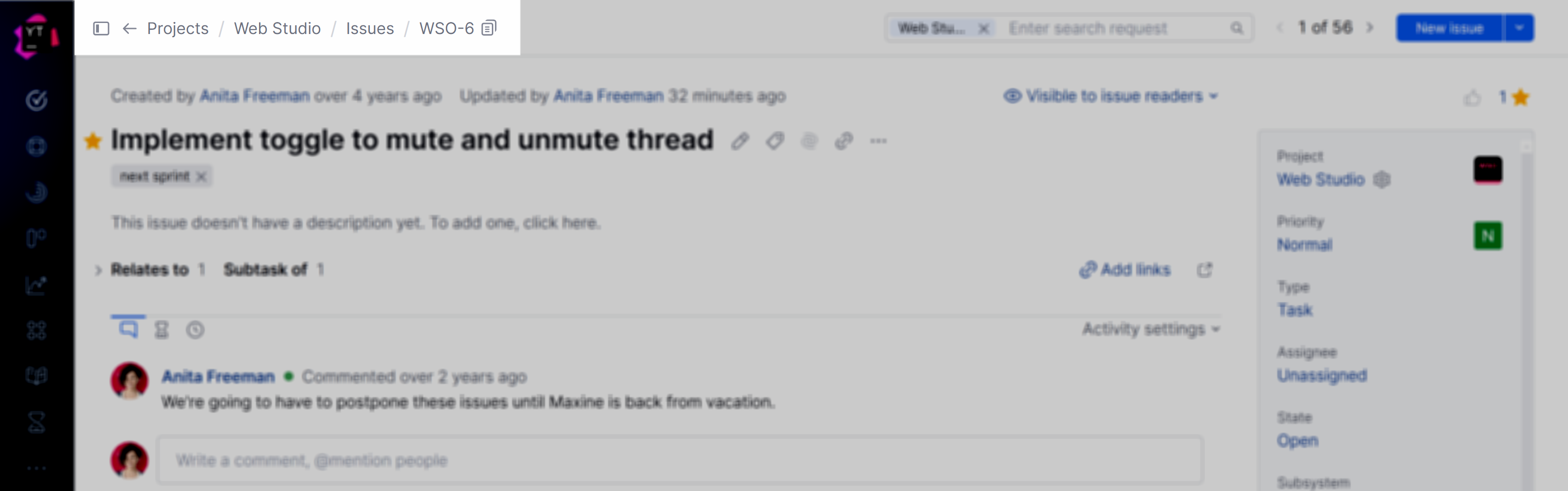
For articles in the knowledge base, you see a similar pattern:
Each item in the breadcrumb trail is clickable, so you can jump directly to higher-level sections with a single click.
Breadcrumbs have also been added to other YouTrack pages, so you always know exactly where you are in the system.
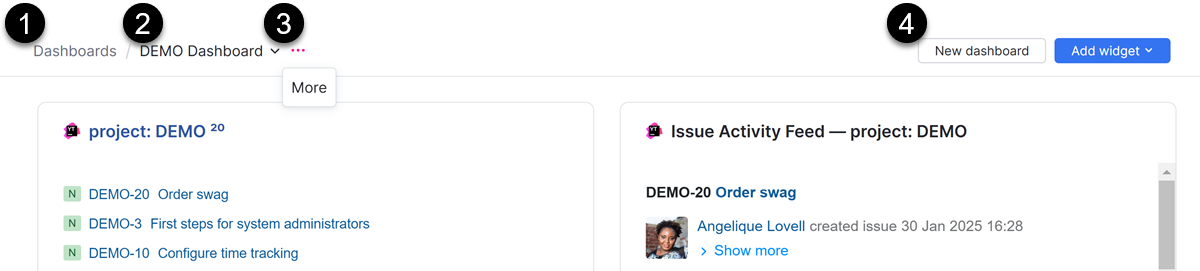
Each page will typically have the following components in the header:
The name of the page in the system.
A selector that lets you choose what to display on the page.
A More menu that contains available options for the current view.
Buttons for primary and secondary actions.
Since most of the navigation-related controls have moved to the header, we were able to eliminate secondary navigation panels and create a consistent experience throughout the application.
Home Page
The default home page for your YouTrack site is Dashboards. This page opens automatically when you log in to YouTrack or click the logo in the main navigation. The Dashboards page is a customizable space designed to provide you with a centralized overview of the most relevant and actionable information in your projects. It lets you stay organized, track progress, and monitor team activity, all from a single location. On this page, you can:
Configure a personal dashboard that lets you stay on top of your own work.
Create a dashboard that helps you monitor activity for your entire team.
Build custom views for sharing information between different parts of your organization.
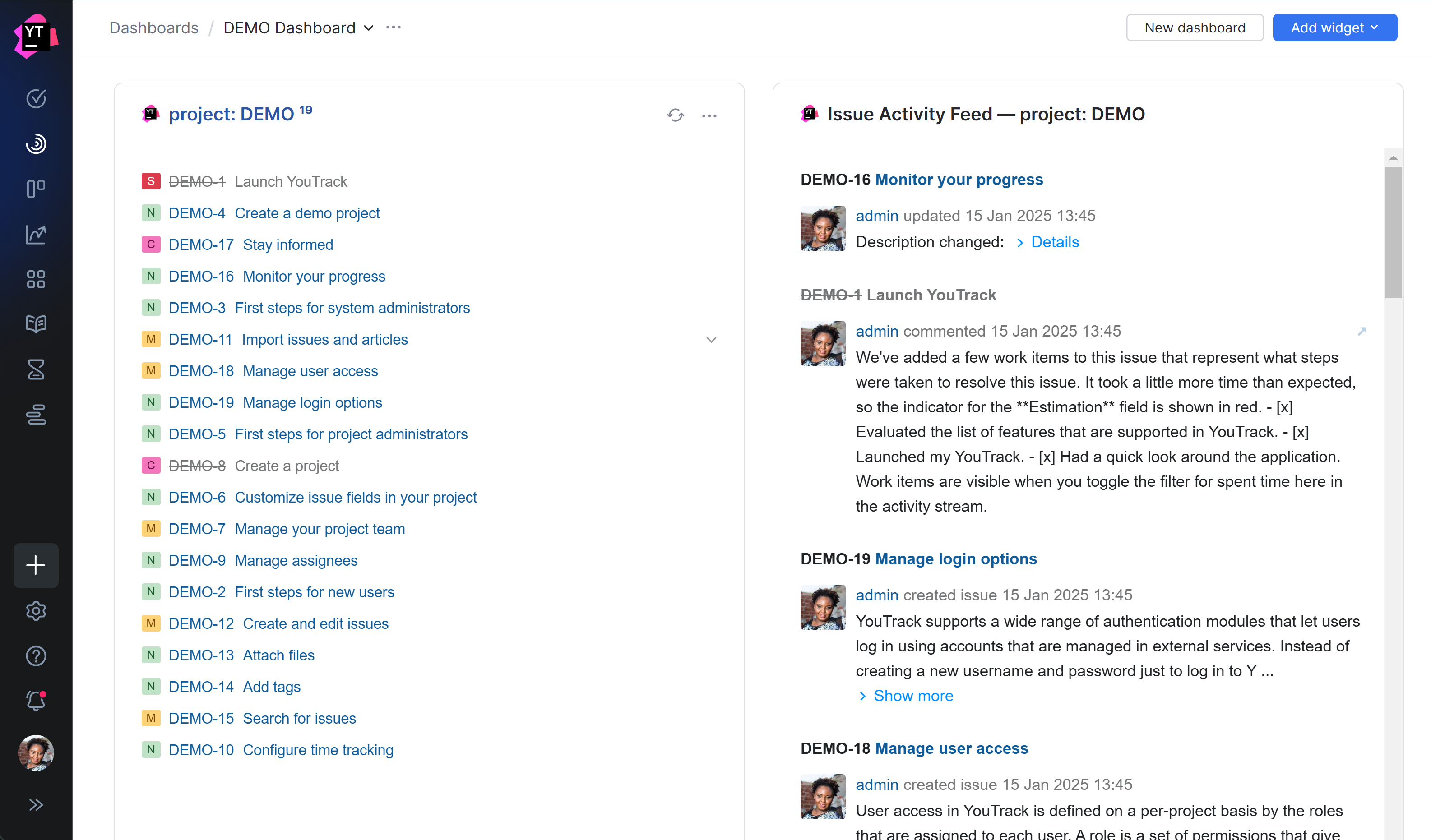
To learn more about this feature, see Dashboards.
Search and Filter Options
When working with issues or helpdesk tickets, you'll notice a set of options that let you search for a specific set of issues or filter the current list.
Use the options in this section of the page to find issues and tickets in YouTrack.
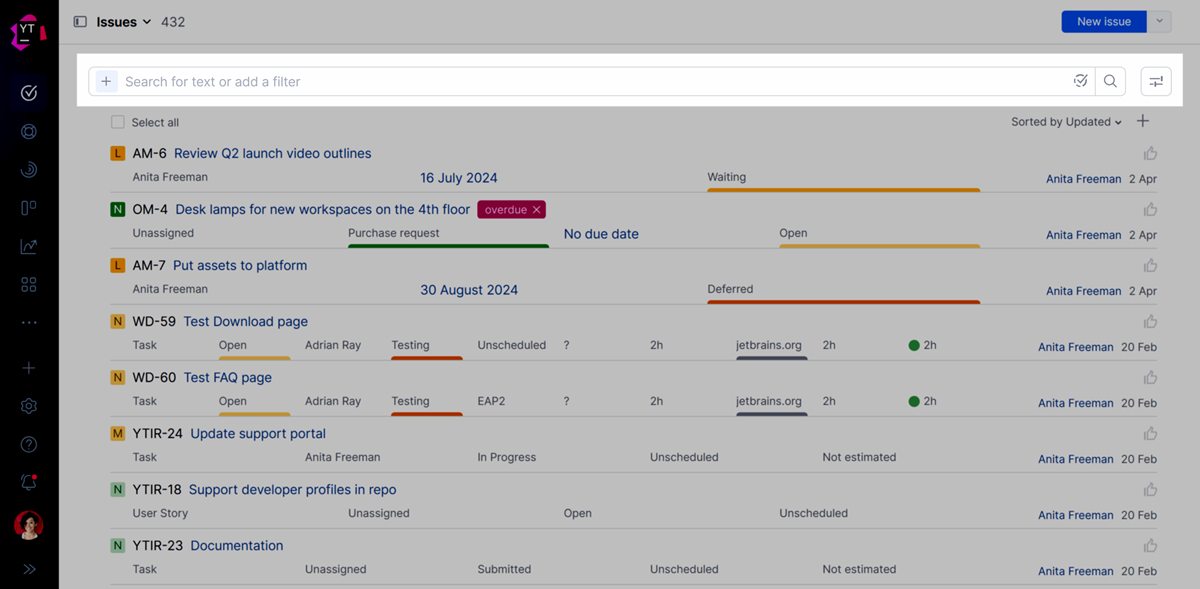
There are two different modes available for finding issues:
Simple search lets you filter the search results to show only issues that contain matching values in one or more custom fields. To learn how to work with filters, see Simple Search.
Advanced search lets you search for issues that contain matching values for specified attributes and arbitrary strings of text. To learn more about search queries in YouTrack, see Search.
To learn how to switch between these two options, see Settings.
The Issues List
When you navigate to the Issues page in the main menu, YouTrack displays a list of issues. All issues that match the current search criteria are shown in this list. When you enter a search query or apply a filter, the list is updated.
The Issues list has a toolbar that lets you apply specific actions to one or more issues. This toolbar appears when you select one or more issues in the list. For example, you can select the checkbox for multiple issues in the list and click the  Add tag button to add a tag to all the selected issues at once.
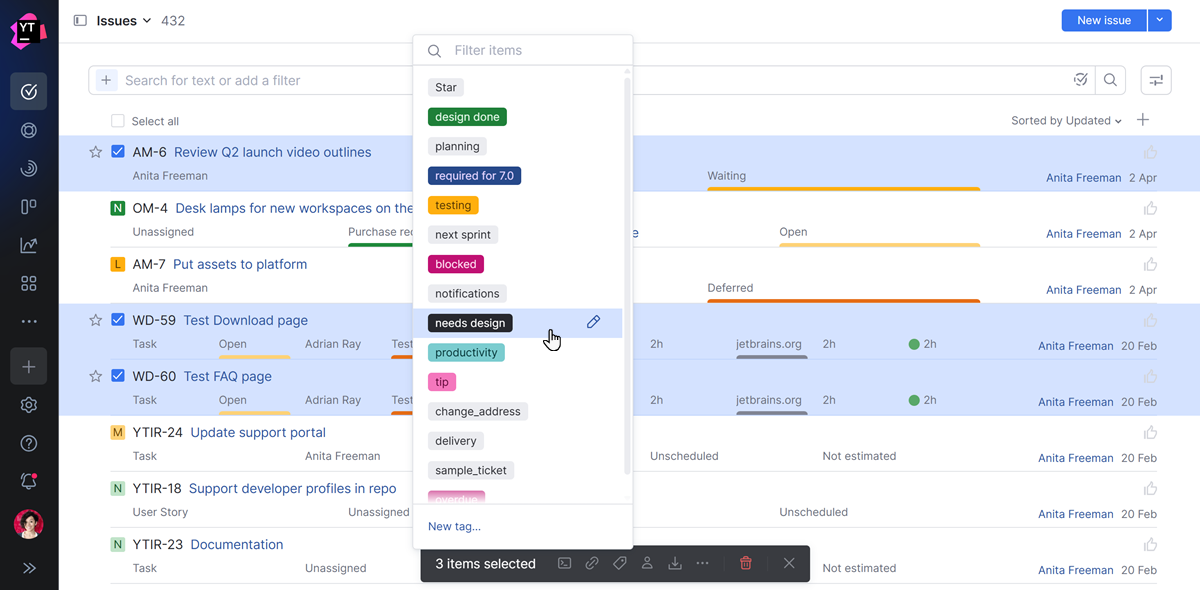
For a detailed overview of the controls that are available in the Issues list, see The Issues List.
To learn more about working with issues in this view, see Issues.
Sidebar
To the left of the issue list, you have a sidebar. This sidebar has two modes:
When expanded, the sidebar is always visible.
When collapsed, the sidebar is only visible when you move the pointer over the
 icon.
icon.
You can switch between these modes by clicking the icon in the header.
The sidebar gives you quick access to issues in your favorite projects and shows issues that match your favorite saved searches and tags. Use the sidebar to store shortcuts for frequently used search criteria and tags that are most relevant to you. To learn how to customize the items that you see in the sidebar, see Issue Sidebar.
This is also where you can find and resume writing any unreported issue drafts. To learn how to work with drafts in YouTrack, see Load Issue Drafts.
Single Issue View
YouTrack provides a view for single issues that shows all the information related to an issue. Use one of the following options to open and display a single issue:
Click the ID or summary link in the Issues list.
Select the checkbox for an issue and press Enter.
To learn more about this view, see Single Issue View.