Merge User Accounts
YouTrack supports merging several user accounts into one. As a result of merging, any roles, group memberships, and assigned issues are transferred to the merged user account.
If any of the merged and removed user accounts has been set as assignee, reporter, or commenter — these values are replaced with the merged user account.
When a user logs in to YouTrack for the first time (for example, with an OpenID account or self-registered account), YouTrack checks if there is an existing account with the same email address. If an existing account is found, YouTrack automatically merges the new account into the existing account. For more information, see Automatic Merge of User Accounts.
Important Notes about Merged User Accounts
We urge you to keep in mind the following key points about the merged accounts:
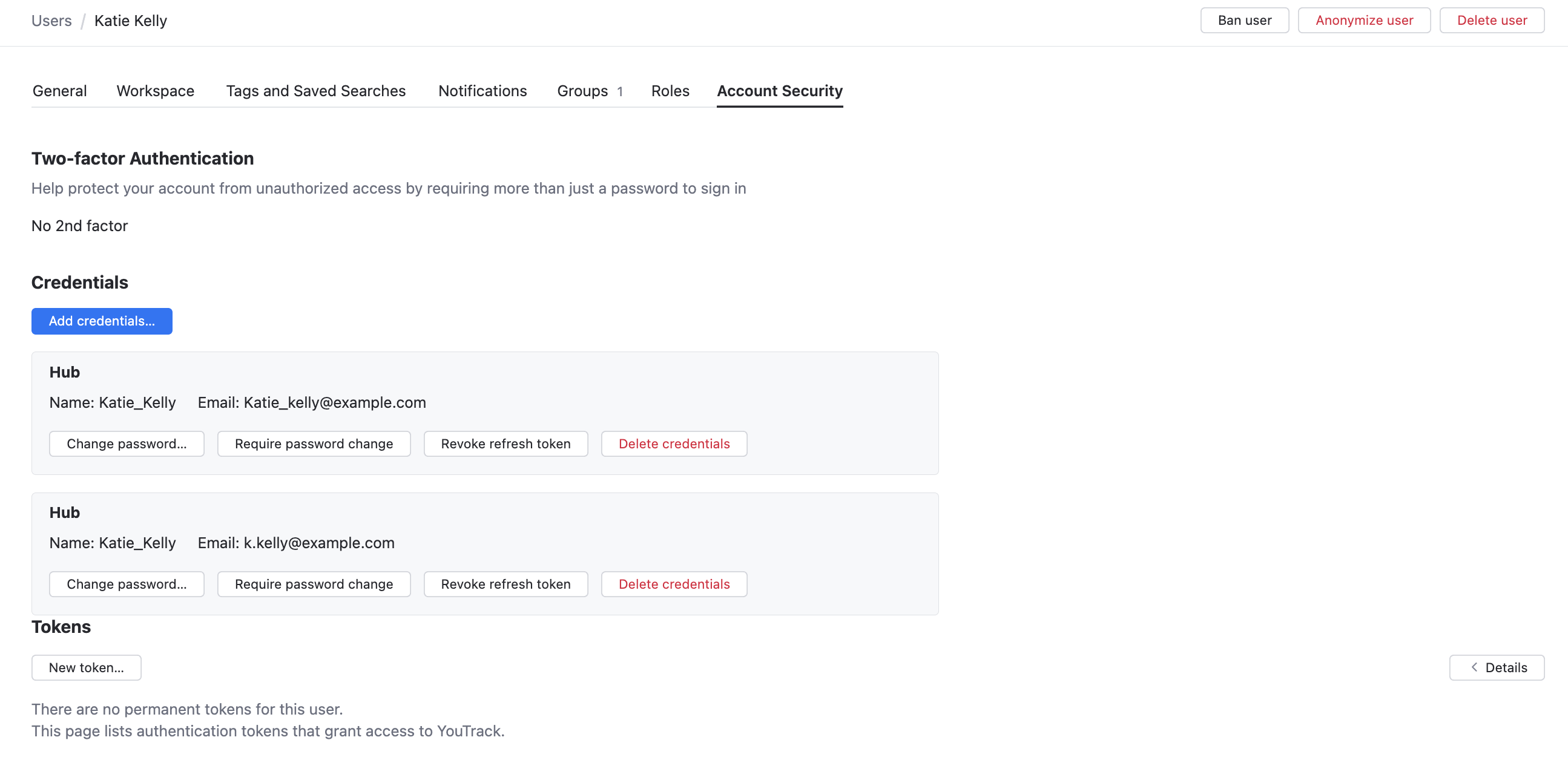
When several accounts are merged, all credentials from the removed accounts are transferred to the resulting account. This means that the users can still use these credentials (username or email and password) to log in to YouTrack.
If you want to prevent a merged user account from logging in to YouTrack, you have the following options:
Manually delete the credentials from the administrator profile of the merged account:
All the role assignments and group memberships of the merged accounts are transferred to the resulting account. When you merge an account with fewer permissions with an account that has more permissions, the merged user account gets the more advanced permissions.
If any of the merged and removed user accounts is assigned a specific role in a project, these values are replaced with the resulting user account. For example, when the user is set as the assignee, reporter, or commenter in a YouTrack project.
Merge Similar User Accounts Manually
When you find two accounts with different credentials for the same user, you can merge them manually.
To merge similar user accounts:
From the main navigation menu, select
 .
.Select two or more duplicate accounts from the list.
Click the Merge button in the header.
The Merge Users dialog opens.
Select the account parameters that you want to preserve: username, full name, and email address.
If you want to ban the merged user account, select the Ban checkbox.
Additional settings for assigning the account status and providing a reason for the ban are enabled. To learn more about banning user accounts, see Ban User Accounts.
Click the Merge button.
Merge User Accounts Automatically
YouTrack merges user accounts automatically. Auto-merge is performed when a user creates an account from auth-module credentials. If an account exists in YouTrack with the same email address associated with an auth module account, the accounts are merged.
Let's illustrate the auto-merge process logic with the example:
In YouTrack, there is a user with the login j.johnson with john.johnson@company.com as the email address. This account was imported from another bug-tracker.
After the account was imported, LDAP integration was enabled and configured for this Hub instance. The user tries to log in to Hub with his LDAP account john.johnson, which has the same email address.
Upon login, Hub scans the user base and finds the existing account.
The new account (john.johnson in LDAP) is automatically merged with the existing account (
j.johnson). Because the accounts are merged automatically, a separate user account (john.johnson) is not created. The credentials used for this account (username and password) in the LDAP directory service are added to the existing account.
As a result, the user can log in using both j.johnson and john.johnson credentials. The original account for j.johnson is shown in the list of available users.