Use Personal Whiteboard
A personal whiteboard in YouTrack provides a dedicated, private space to map out your thoughts, organize tasks, and plan projects just for yourself. Unlike collaborative whiteboards, this is your individual tool to brainstorm ideas, prioritize tasks, or track personal goals within your YouTrack workspace. By using a personal whiteboard, you can visually represent your plans, manage your workload, and keep everything aligned in one place.
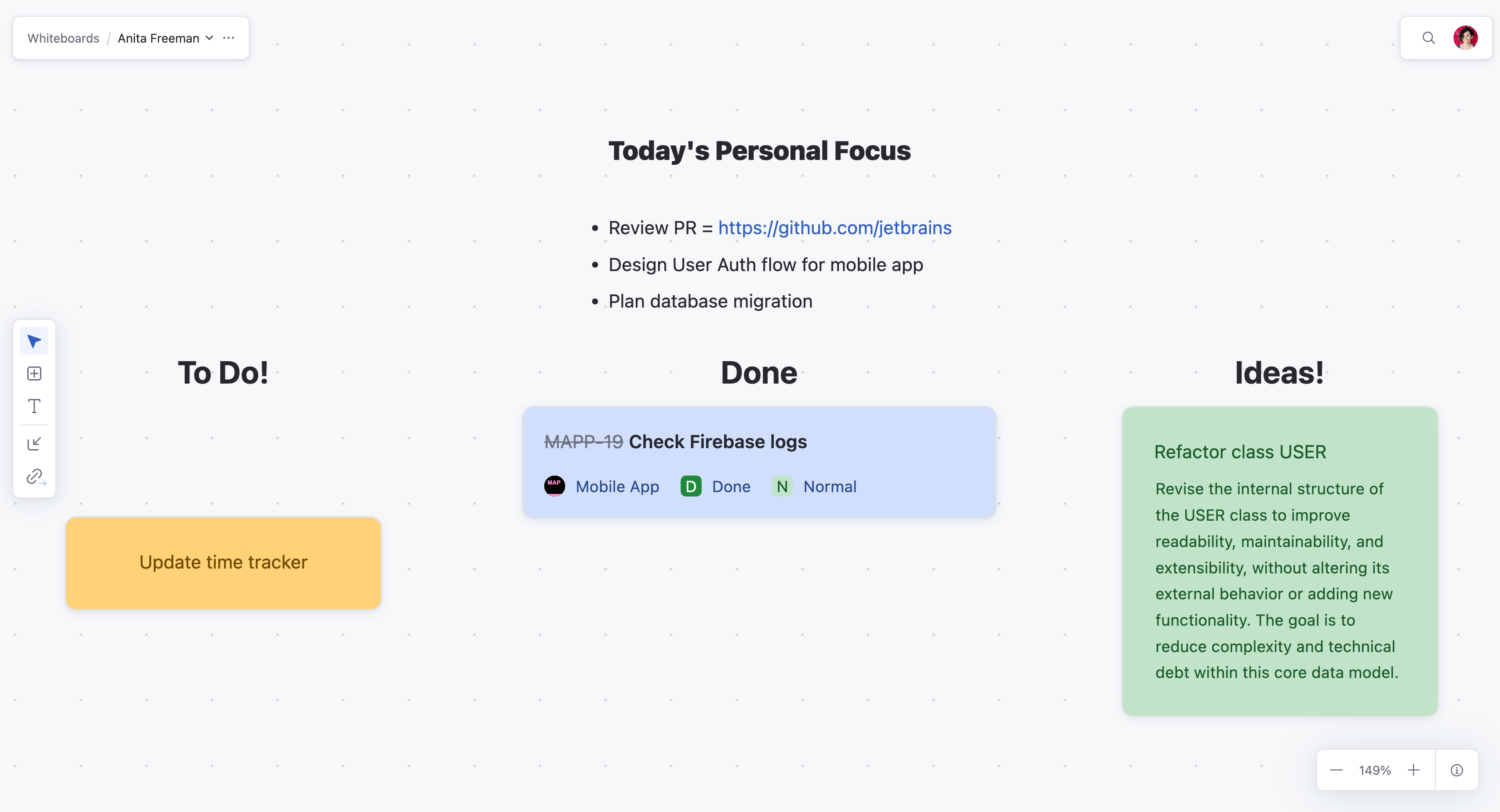
Use a Personal Whiteboard
Personal whiteboards give every user the ability to visually organize their thoughts, tasks, and goals in their YouTrack workspace. They provide a private area where you can create and manage your own structure without influencing or depending on team collaboration. Whether you are using it for brainstorming, weekly task organization, or long-term project planning, a personal whiteboard is flexible to suit your needs.
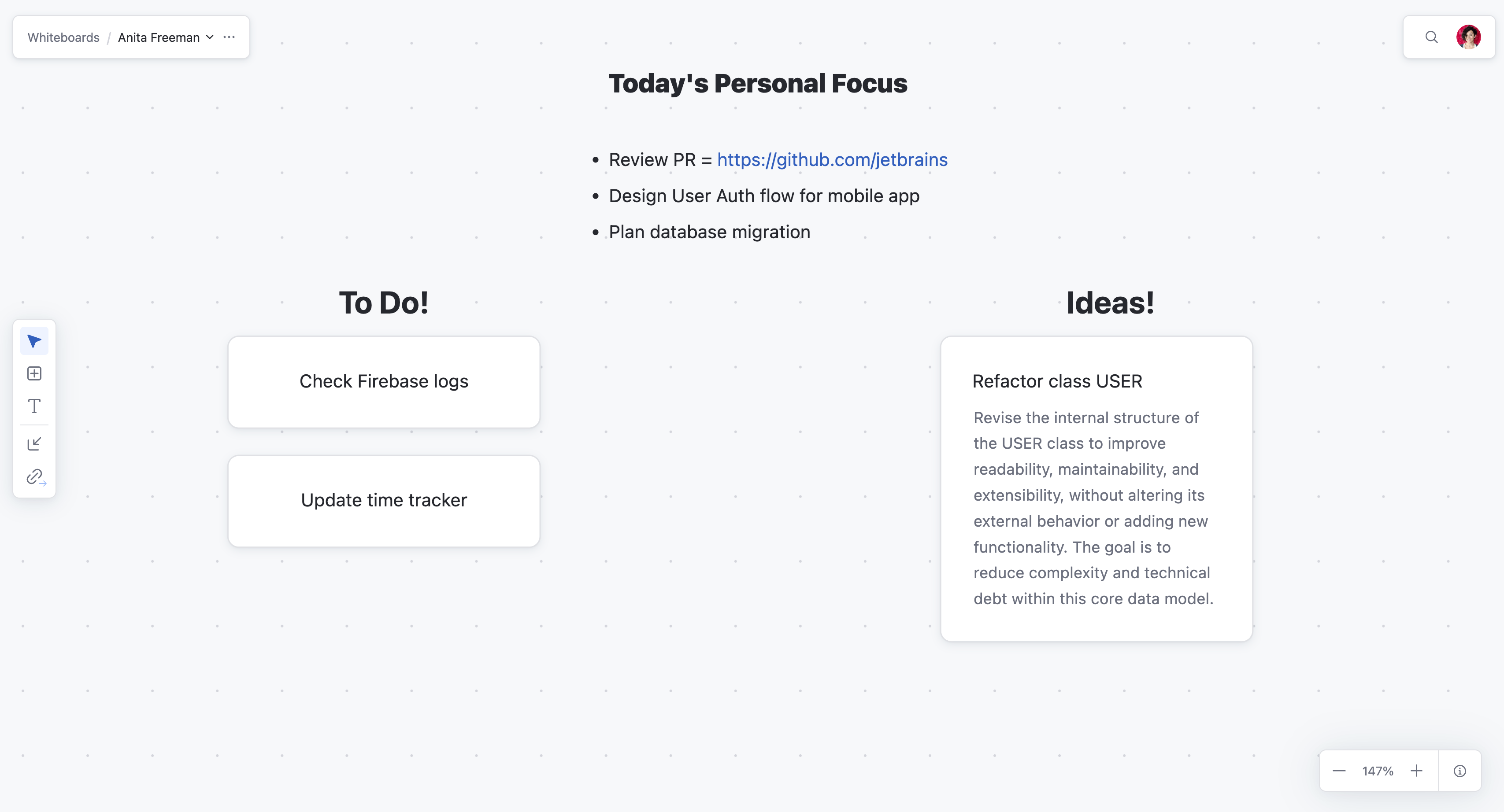
In this example, the personal whiteboard manages a combination of daily tasks, long-term goals, and ideas for an upcoming individual side project.
Create a new whiteboard and label it with something personal, such as "<Your Name>" or "My Weekly Plan"
Use text blocks to structure the space. Add sections like "Today," "This Week," and "Future Goals" to divide your tasks by timeframe.
Add cards for specific tasks, goals, or ideas. Summarize each item and use the description field to include details where necessary.
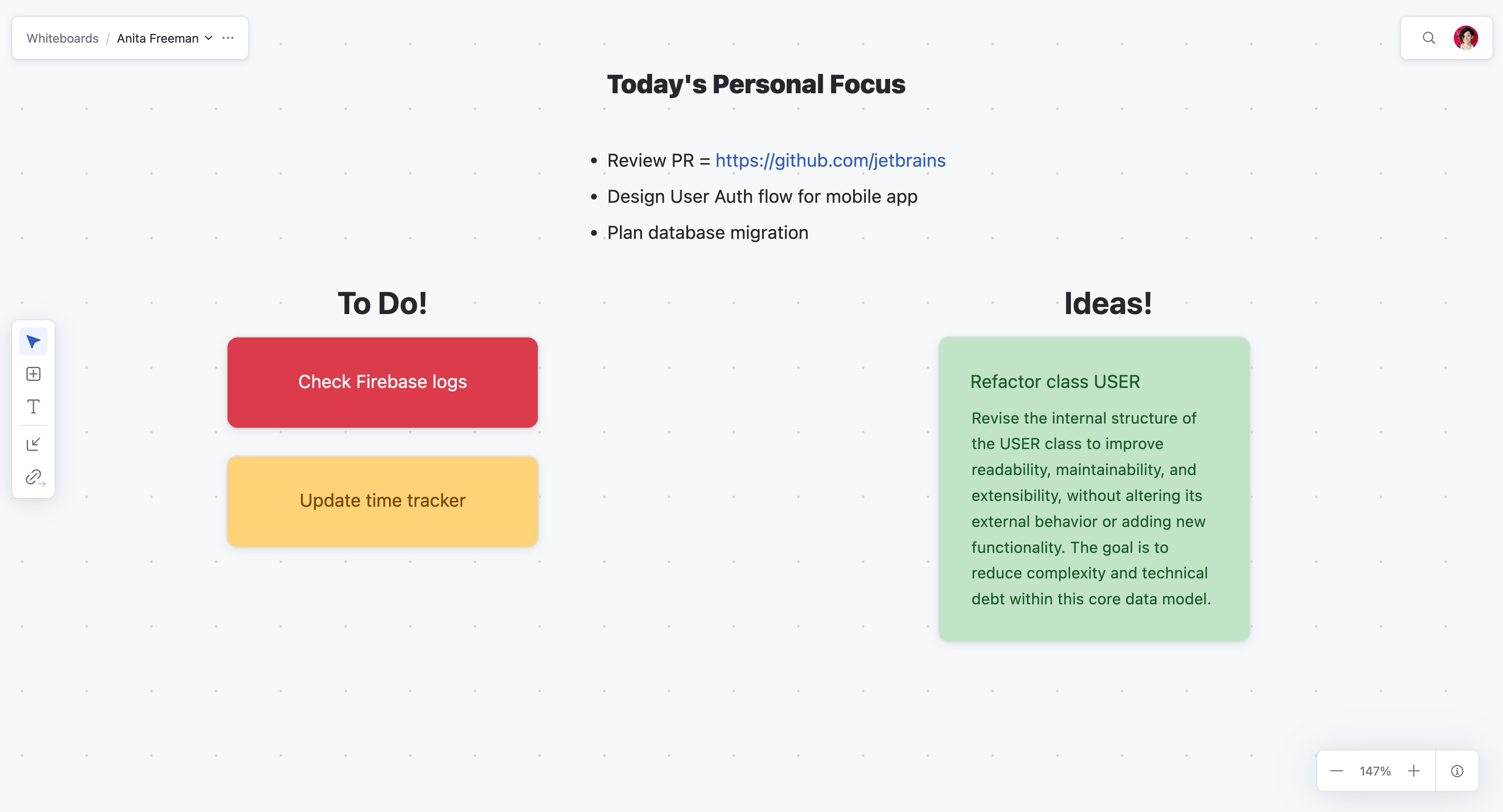
Use card colors to differentiate priority levels. For example, high-priority tasks might be red and lower-priority goals could be green.
Update the whiteboard as you complete tasks or priorities shift by moving cards between sections or changing their status.
If relevant, convert cards into YouTrack issues to track personal work items within a project.
To set up a personal whiteboard like this:
From the main navigation menu, select
 Whiteboards.
Click
 More in the header toolbar. From the drop-down menu, select
  New whiteboard.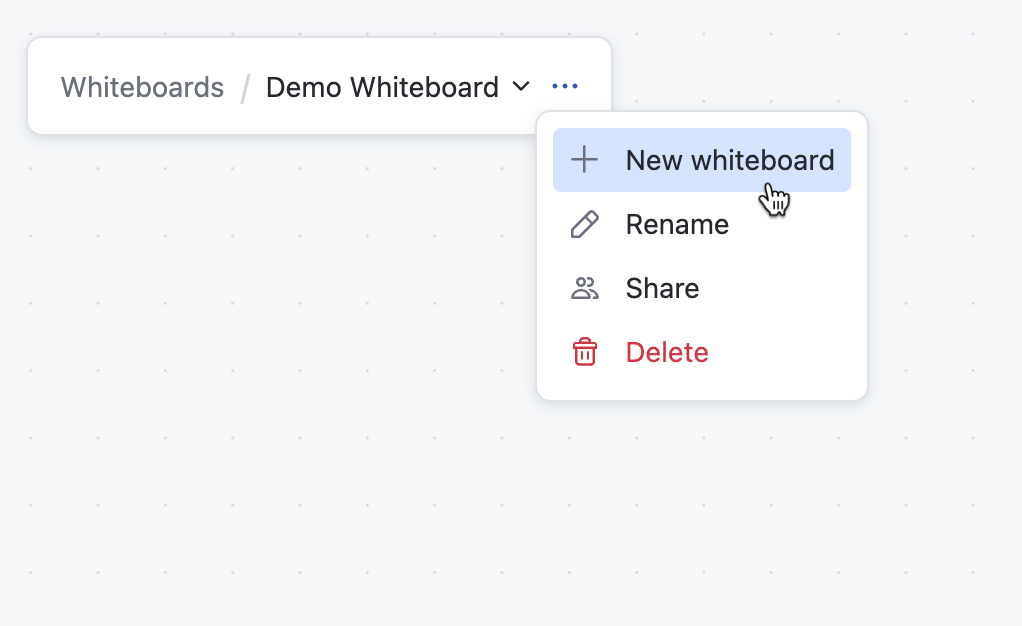
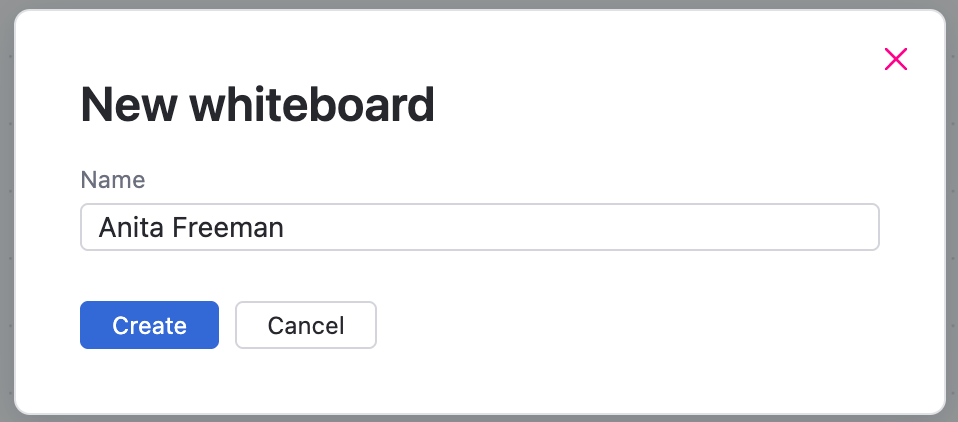
Give the whiteboard a descriptive name like "<Your Name>" or "My Weekly Plan" and click Create.
A new blank whiteboard appears.
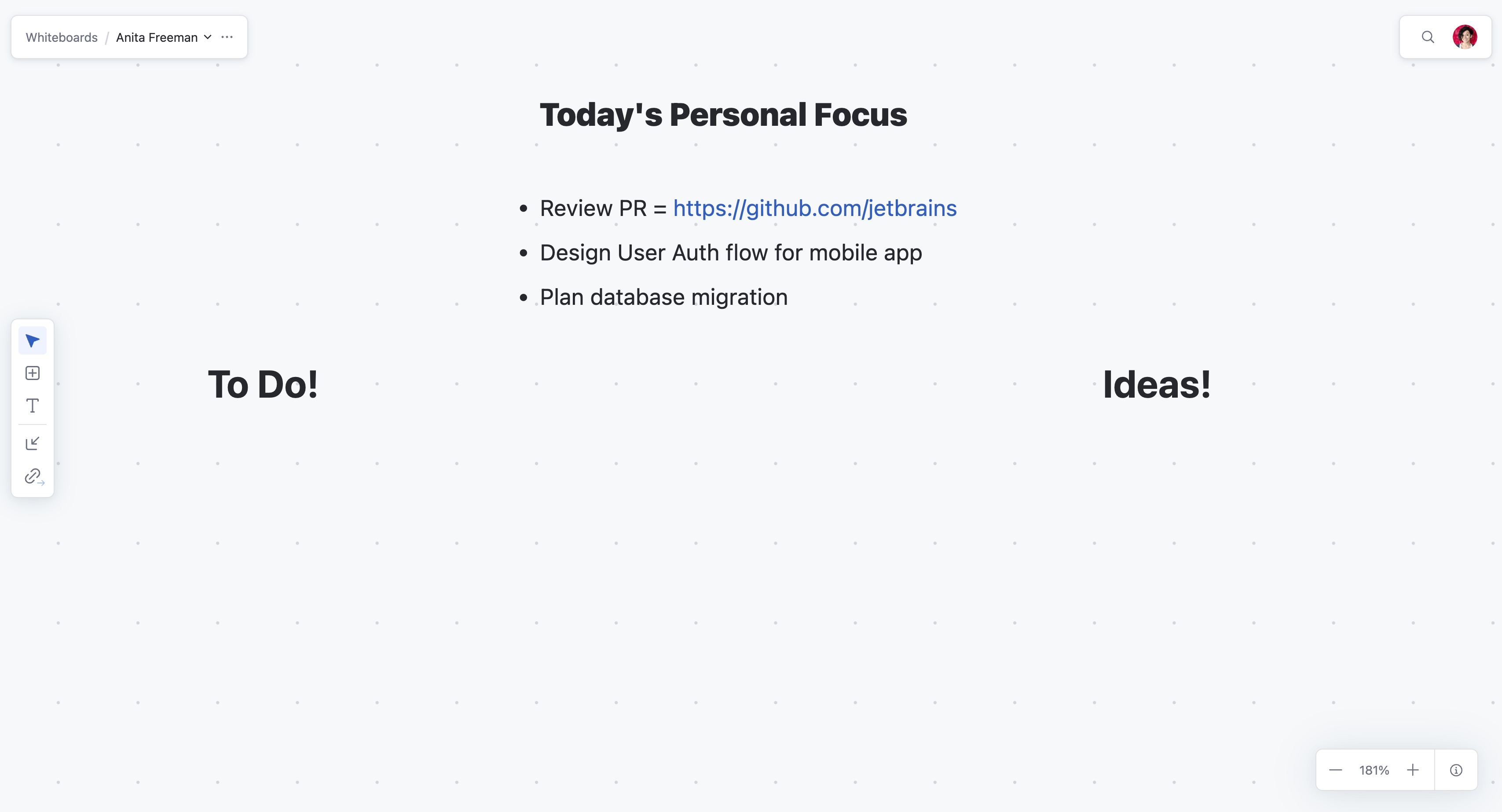
Use
 Text block to create labeled sections on your whiteboard for better organization.
For example, add sections like "Today," "This Week," or "Future Goals" to group your tasks by urgency or category.
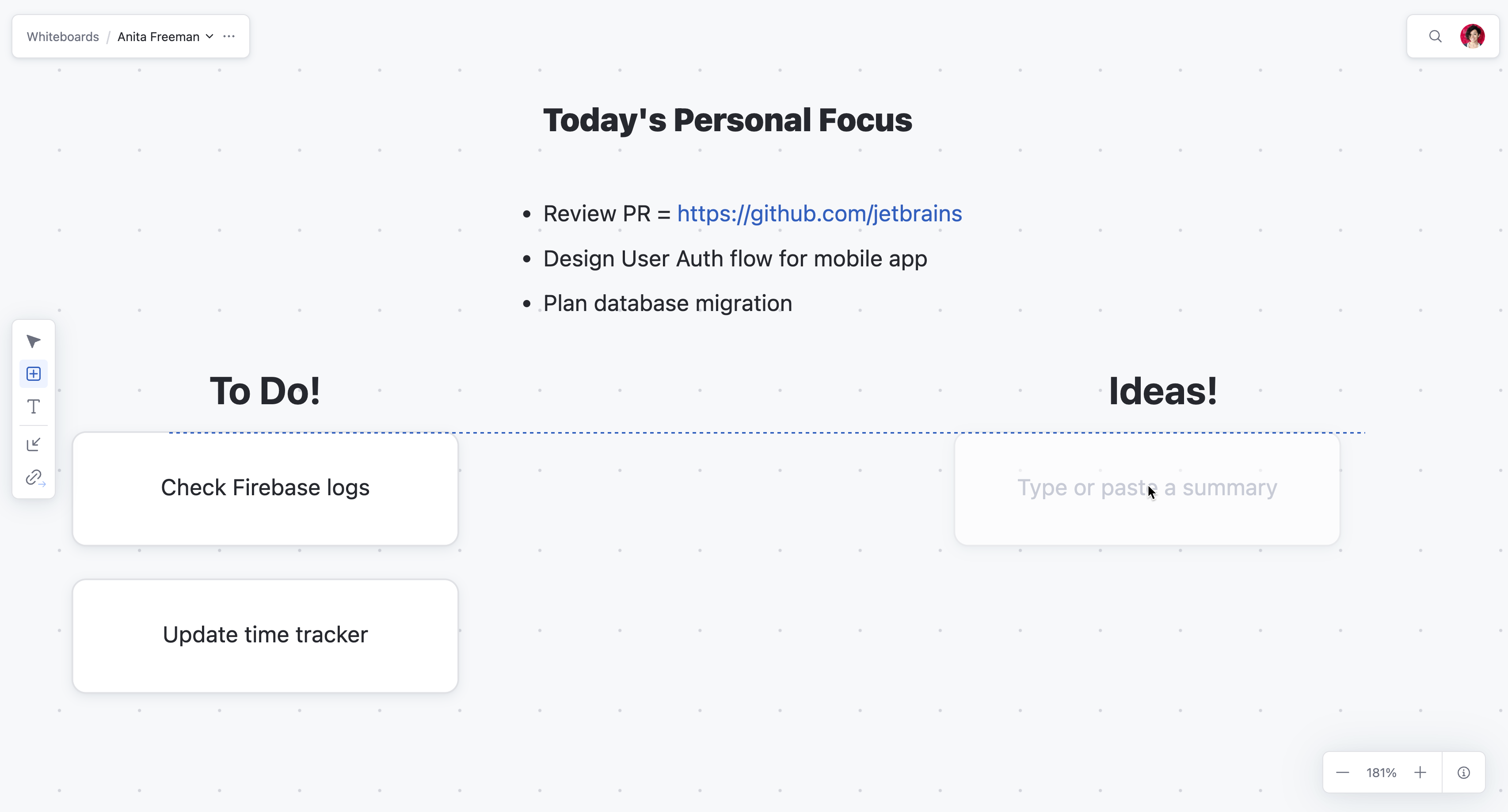
Add cards to capture your tasks or goals:
Use the
 New card option in the toolbar to create cards for tasks or ideas.
Click anywhere on the whiteboard to place the card. Add a summary and use the description field for additional details.
Differentiate tasks and goals using card colors to represent priority levels:
Red for high-priority tasks requiring immediate attention.
Yellow for medium-priority goals that need attention later in the week.
Green for low-priority or optional items.
Convert cards into YouTrack issues for detailed tracking if necessary:
Select the card, then click
 Convert to Issue in the card toolbar. This allows you to track personal work items directly within your YouTrack project.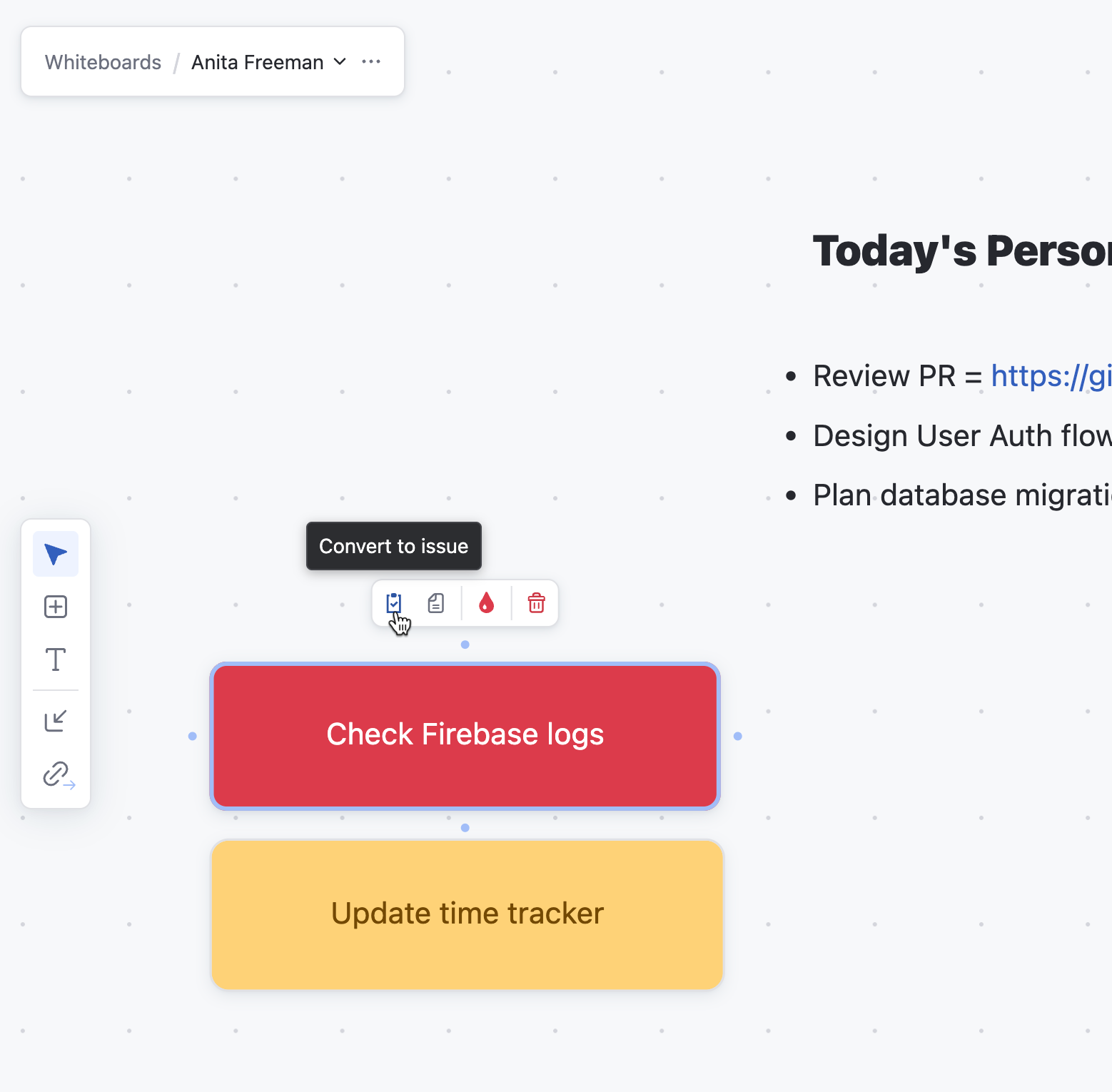
Update the board as tasks progress:
Drag and drop cards between sections, modify their status, or adjust priorities to reflect your progress and changing goals.
Personal whiteboards enable you to stay organized, consistent, and focused on your individual goals. By regularly updating your workspace, you can manage tasks more effectively and ensure clarity in your personal planning processes.