Ask YouTrack
Ask YouTrack is a built-in chat assistant that helps you work with issues, articles, and other content in YouTrack. For example, you can use it to ask questions, find information, and summarize current content.
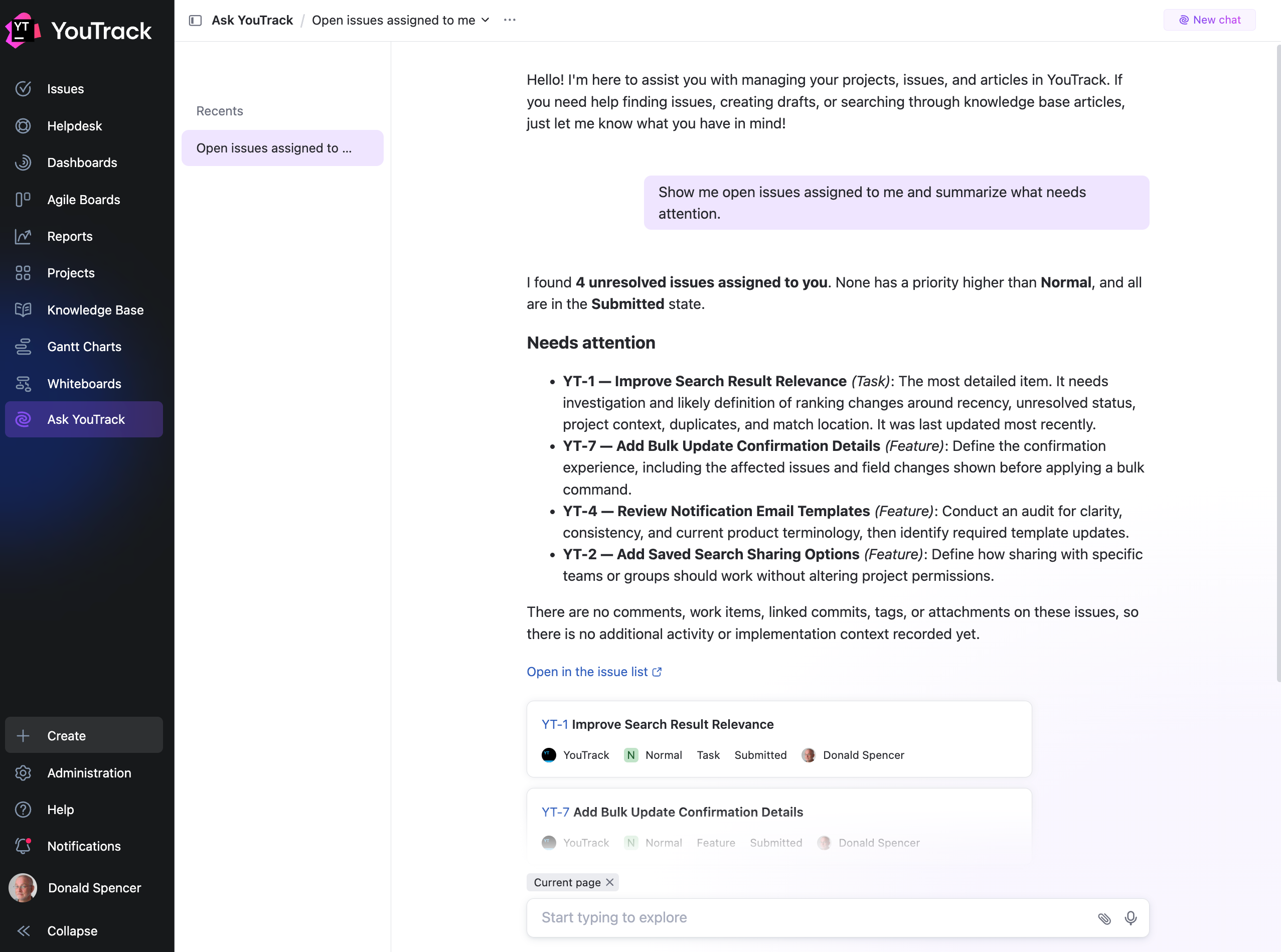
Open Ask YouTrack from the main menu to use the full-page chat view. On supported pages, click the Ask YouTrack button to open the chat in context. On wider screens, this button opens the chat in a docked or floating panel so you can keep working on the current page. On narrow screens, it opens Ask YouTrack in a full-page chat view.
Chat With Ask YouTrack
Ask YouTrack is a conversational assistant for YouTrack related tasks. Enter your request in plain language, the same way you would describe the task to another person who is helping you work in YouTrack.
Use Ask YouTrack to find information, understand existing content, or prepare text that you can use in YouTrack. For example, it can find issues or articles, summarize an issue or article, identify action items, help build a search query, or suggest revised text for issue and article content.
You can also ask questions about how to use YouTrack. For example, Ask YouTrack can help you understand how to log work, configure notifications, set up integrations, write search queries, or troubleshoot why something is not visible or not working as expected.
When Ask YouTrack finds or creates supported items, it shows them as cards in the chat. Click a card to open the corresponding issue, article, ticket, or draft.
For requests that require searching, reading content, or preparing changes, Ask YouTrack shows an activity section with the steps it performed. You can expand this section to see what Ask YouTrack looked up or attempted while preparing its response.
When you open Ask YouTrack from a supported page, the assistant can use that page as context. This means phrases like "this issue", "this article", "this list", or "this whiteboard" refer to the item or page that is open when you start the chat.
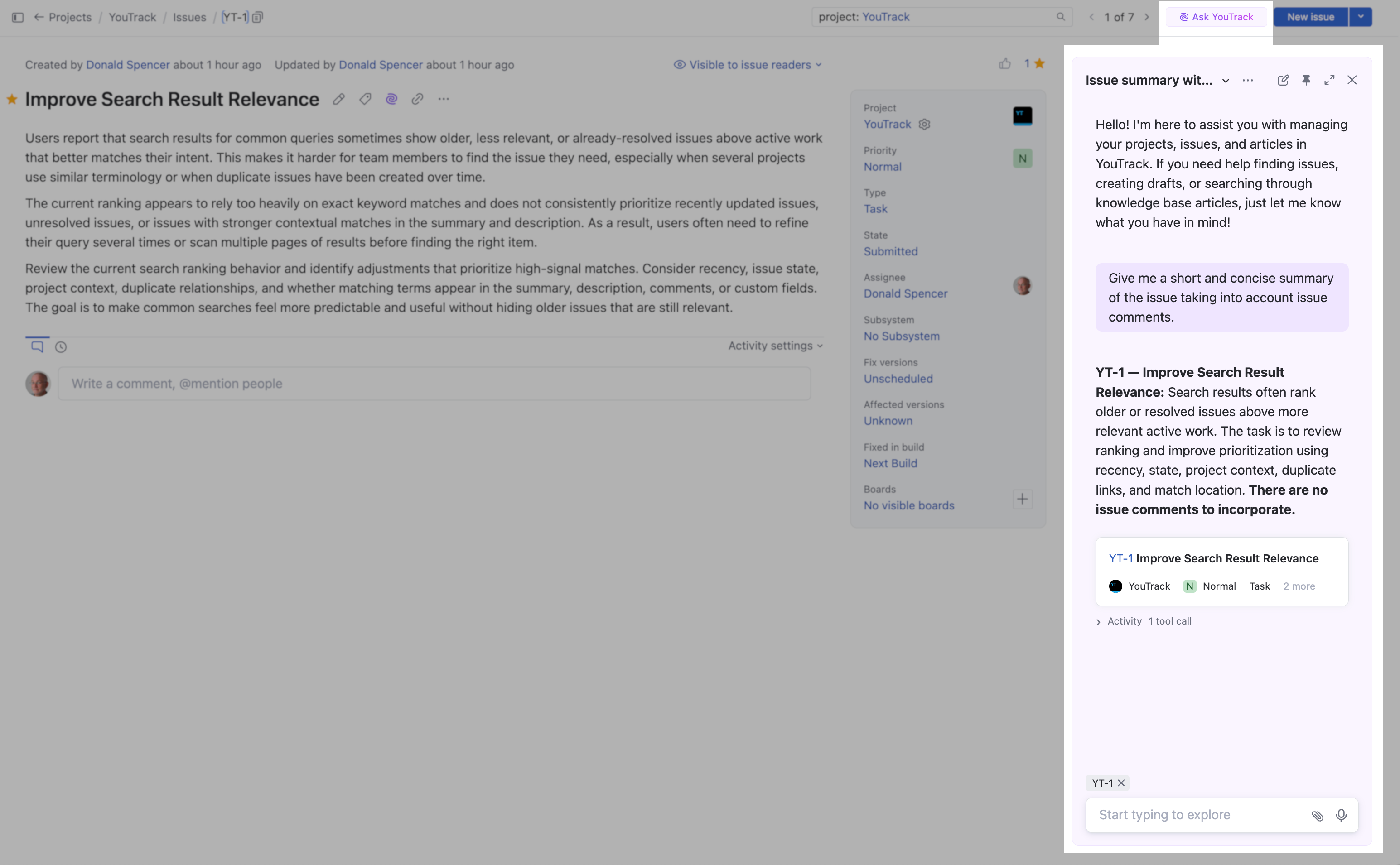
If your request depends on specific criteria, include them in your message. For example, mention the project, issue state, assignee, time period, or type of content you want Ask YouTrack to look for. You can continue the conversation with follow-up messages to narrow the results or ask for a different format.
On some pages, Ask YouTrack shows suggested prompts that match the page you're viewing. You can select one of these prompts or type your own request.
Click the  Attach files icon to add files to your message. If voice input is available in your browser, use
 Start voice input to dictate your message and Stop voice input when you're done.
The following table lists examples of tasks you can do with Ask YouTrack. These examples don't limit what you can ask in the chat.
Where you are | Examples |
|---|---|
Issues | Summarize the issue, find action items in the description, or suggest a clearer issue summary. |
Issue list | Create a new issue or help build a search query. When a search query, saved search, tag, project, or starred view is open, Ask YouTrack can use that list as context. |
Helpdesk | Help build a search query for tickets. |
Knowledge Base | Summarize the article, find action items in the content, or propose updated title and content based on the article and its comments. |
Dashboards | Create a new issue or article, or search for issues and articles. |
Whiteboards | Find related issues or articles, inspect issue details, or help organize follow-up work. |
Review and Apply Changes
Use Ask YouTrack to prepare changes to YouTrack content, such as creating issues, tickets, articles, and drafts, updating issue fields, adding comments, linking issues, logging work, or revising article content.
Ask YouTrack can create and update issue drafts without asking for approval. For actions that create published content or modify existing YouTrack data, such as publishing a draft, updating issue fields, adding comments, linking issues, logging work, or revising article content, Ask YouTrack asks you to review and approve the proposed change before it applies the update. Review the details carefully before you confirm the action.
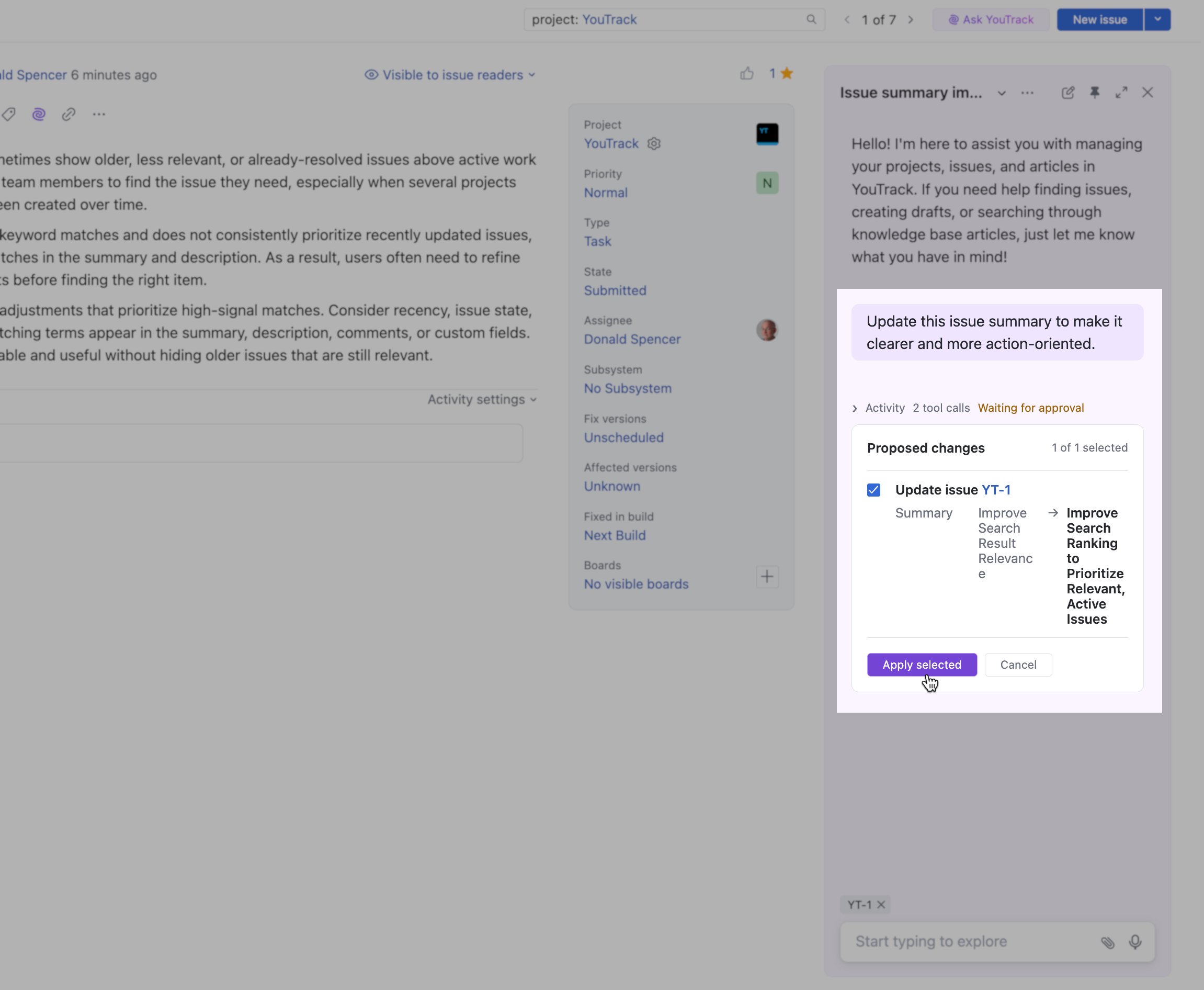
After Ask YouTrack applies a change, open the updated issue, article, or result card to verify that the content was updated as expected.
Manage Chats
Ask YouTrack saves your chat sessions so you can return to previous conversations. In the full-page chat view, the sidebar shows recent chats and chats that you have added to favorites. Select a chat in the sidebar to return to the conversation.
The header shows the name of the current chat. Open the drop-down menu next to the chat name to search and switch between favorite and recent chats. Use the  More menu in the header to manage the chat.
Action | Description |
|---|---|
| Adds the chat to the list of favorites. |
| Removes the chat from the list of favorites. |
| Updates the name of the chat. |
| Exports the chat as a JSON file. |
| Deletes the chat. |


In a docked or floating chat panel, the panel header shows the name of the current chat. Open the drop-down menu next to the chat name to switch between favorite and recent chats. The panel More menu contains the same chat management options as the full-page chat view.
In the full-page chat view, click the New chat button to start a separate conversation. In a docked or floating chat panel, use the  Start a new chat icon in the panel header. This option is available after you enter at least one prompt in the current chat.
Change the Chat Layout
When Ask YouTrack opens in a panel, you can switch between docked, floating, and full-screen modes. In docked mode, the chat is attached to the side of the page. In floating mode, the chat appears above the page content and can be moved and resized.
The following layout controls are available in the panel header:
Control | Description |
|---|---|
| Starts a separate chat. This option is available after you enter at least one prompt in the current chat. |
| Switches between docked and floating modes. When you undock the chat, Ask YouTrack opens in a floating window that you can move around the screen. The floating chat remains open when you move to another location in YouTrack, except for administration pages. Dock the chat to move it back to the side panel. |
| Opens the current chat in the full-page chat view, the same view that opens when you select Ask YouTrack from the main navigation menu. |
| Closes the Ask YouTrack panel or floating window without deleting the chat. You can return to the chat later and continue where you left off. |
 /


