Create a Sprint
A sprint is a set period of time during which a team completes a predefined body of work. You can prepare a new agile board for sprint-based planning or add a sprint to an existing board.
Prepare a New Agile Board for Sprints
If you do not already have an agile board for sprint-based planning, create one using a template that supports sprints. After you configure the board and add issues, you can create its first sprint.
To prepare a new agile board for sprints:
From the main navigation menu, select
 Agile Boards.
Click the down arrow next to the New card button and select the Board option.
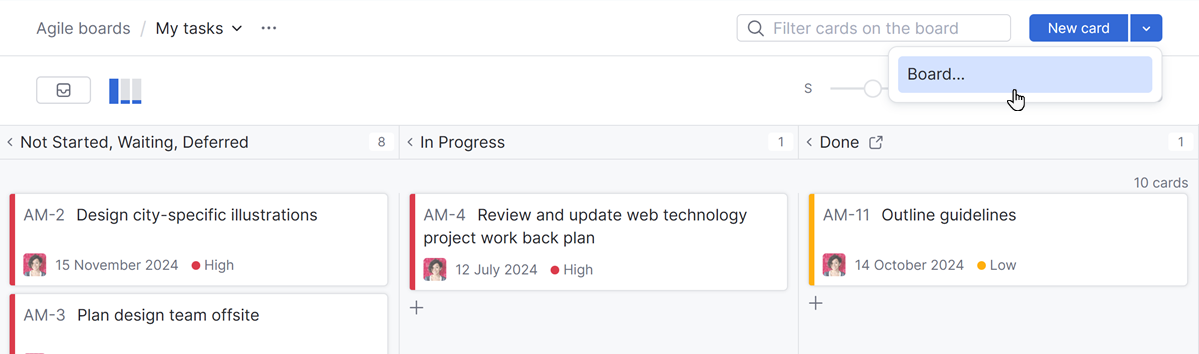
This opens the New Agile Board selection menu.
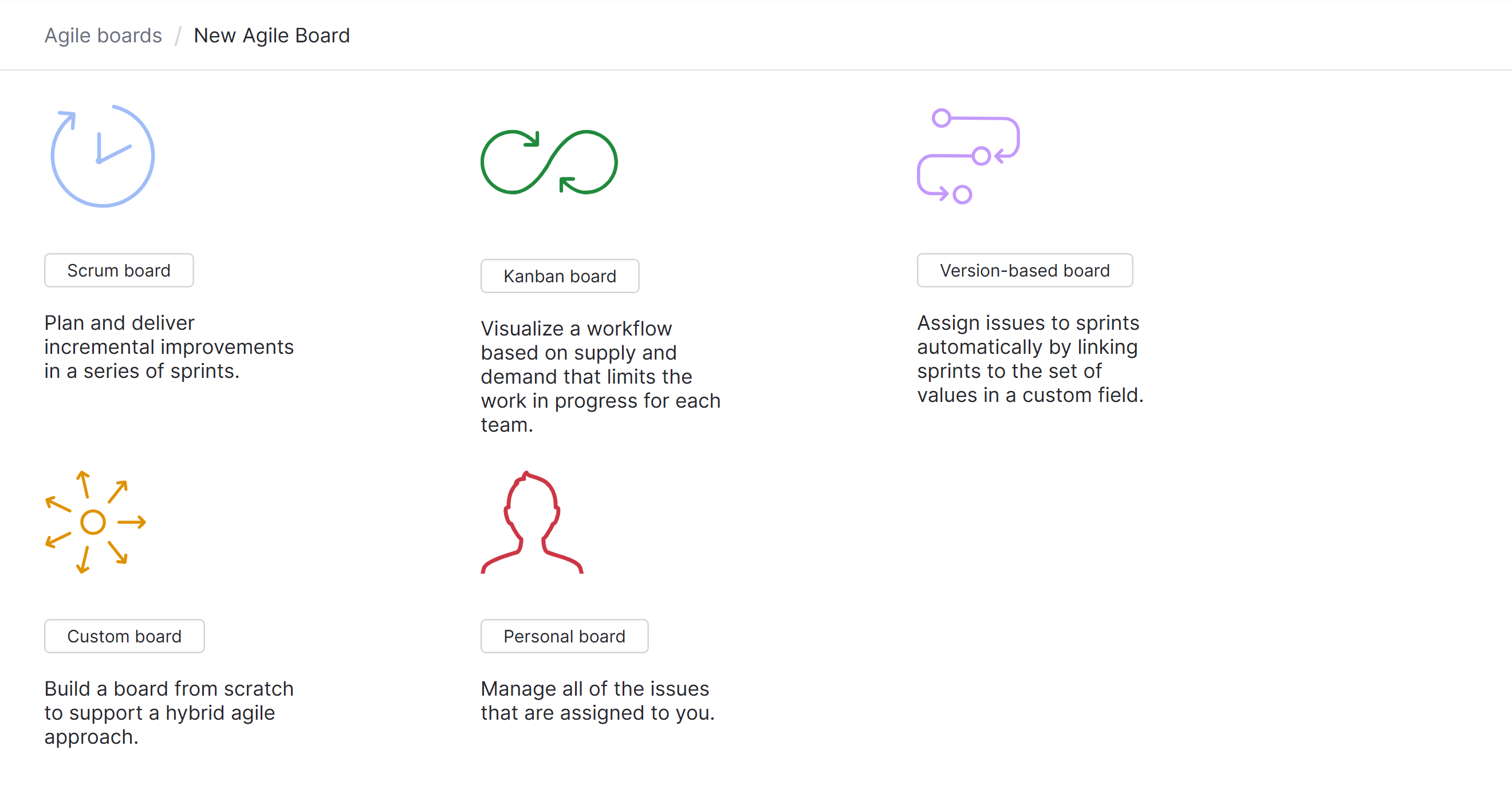
Choose an agile board template.
It is recommended to use one of the following agile board templates with a sprint feature preconfigured:
Scrum board
Version-based board
Custom board
Configure the agile board settings. When complete, click the Create Board button.
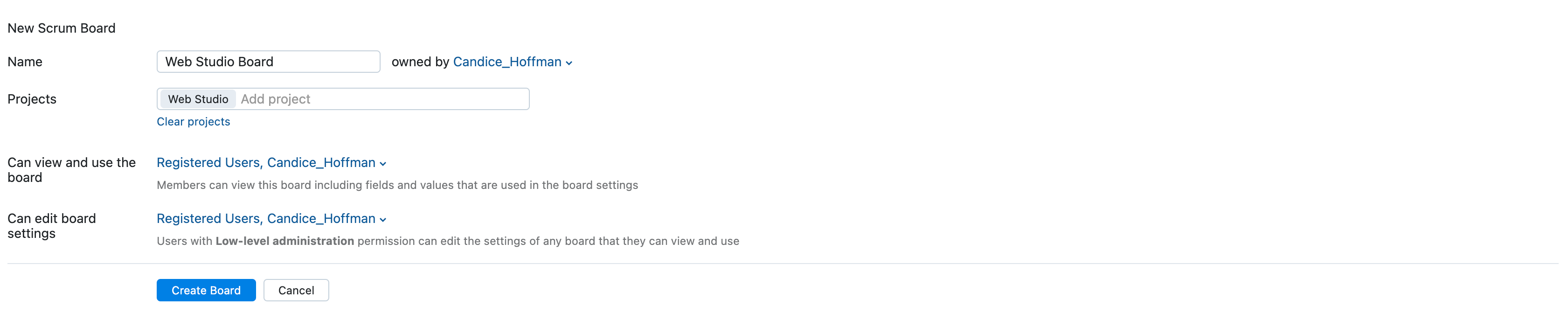
After an agile board has been created, add issues to the board by dragging them from the backlog, or open an issue and select the board in the Fields Panel.
To create the first sprint on the new board, follow the procedure for adding a sprint to an agile board.
Add a Sprint to an Agile Board
Add a sprint to an existing agile board to organize a body of work around a specific goal or schedule. You can create the first sprint for a new board or add the next sprint to a board your team already uses.
To add a sprint to an existing agile board:
From the main navigation menu, select
Agile Boards.Select your project board from the drop-down list.
Open the New Sprint dialogue. You have two options:
Click the Create button in the header and select the Sprint option from the list.

Open the Sprints drop-down list and select the New sprint option.

The New Sprint dialog opens.
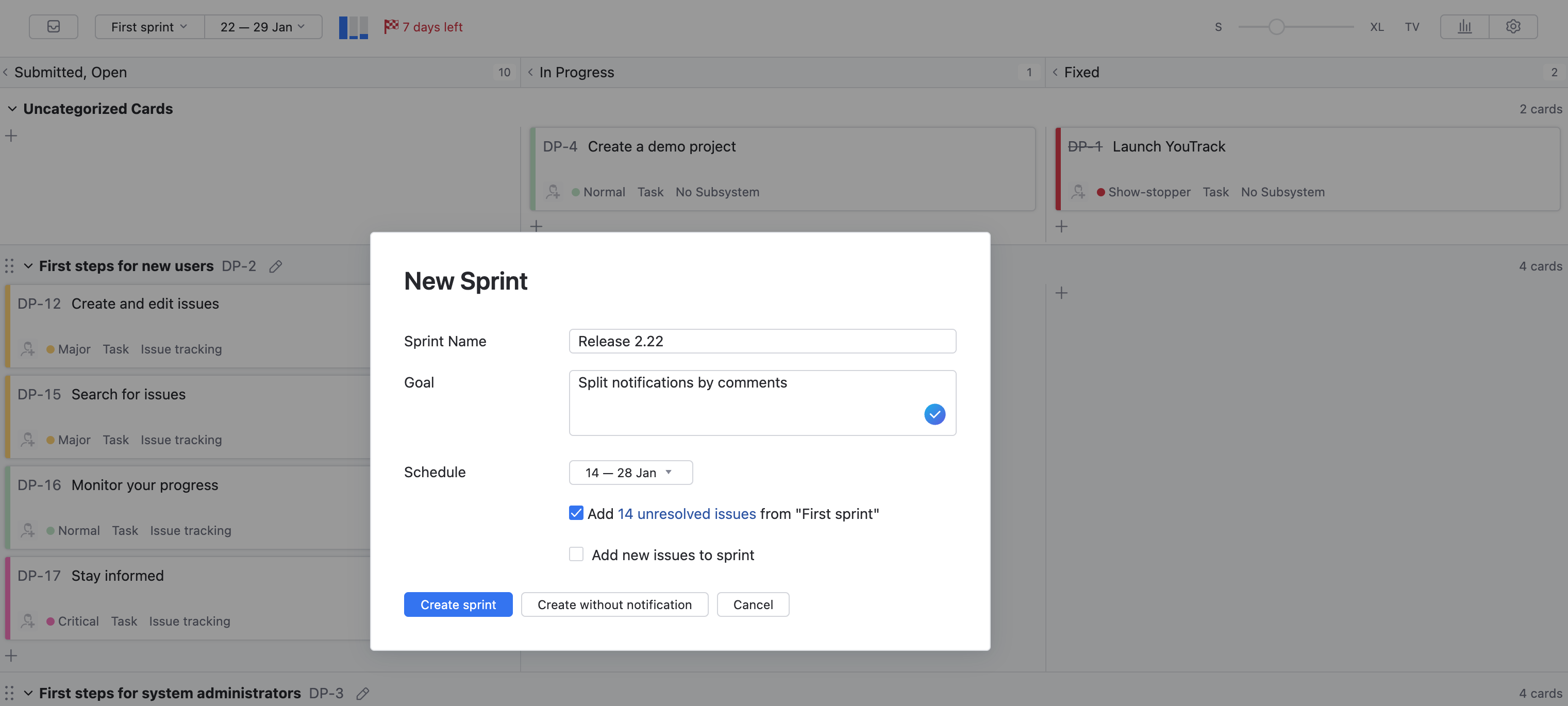
Enter the following settings for the new sprint:
Setting
Description
Name
A name of the sprint
Goal
Optional description of the sprint. A sprint goal is usually a short description of what the team plans to achieve during the sprint.
Schedule
The start/end dates for the sprint. By default, a sprint is unscheduled.
The following options are also available in the New Sprint dialog:
Option
Description
Add unresolved issues from current sprint
When enabled, all the unresolved issues that are assigned to the current sprint are reassigned to the new sprint. This option is only visible when there are unresolved issues in the current sprint.
Add new issues to sprint
Sets the new sprint as the "default" sprint for the board. If you enable this option, all issues that are created in the projects that are managed on the board are automatically assigned to the new sprint. This option is not available for sprints that are linked to the set of values for a custom field. You can also enable this option in the Board behavior setting on the General tab of the board settings.
Click the Create sprint button.
The new sprint is created and shown on the board.