Manage Assignees
Before you can assign an issue to a user, you need to add this user to the list of assignees in the project where the issue was created.
In YouTrack, any issue field is a custom field. The Assignee field is a default custom field with the user[1] type. This field is auto-attached to all projects. This means that:
The Assignee field is available in YouTrack without additional configuration.
The Assignee can be set to a single value (user account), selected from a predefined list of users.
This field is added automatically to any new project.
The list of users is defined by a set of values for the Assignee field.
In a new project, the Assignee field includes all members of the project team by default. To learn how to manage membership for a project team, see Manage Project Members and Access.
You can customize the list of assignees to suit the needs of your project. For more information, see Edit a Set of Values.
The most frequent task is to remove users from the list of assignees. If your project requires it, you can add a user or a group that are not members of the project team to the list of assignees.
When you add a user or a group to the list of assignees, provide this user or group with sufficient permissions to view and edit issues in the project.
Configure Project Assignees
You can add users to or remove users from the list of assignees by editing the values of the Assignee field for this project.
To set the list of assignees for a project:
From the main navigation menu, select
 Projects.
From the project list, select a project.
Within a project, you can add a user or group to the project team. For more information, see Project Team.
From the project navigation menu, select Settings.
In the project settings side panel, select Custom Fields.
In the list of project fields, select the Assignee field.
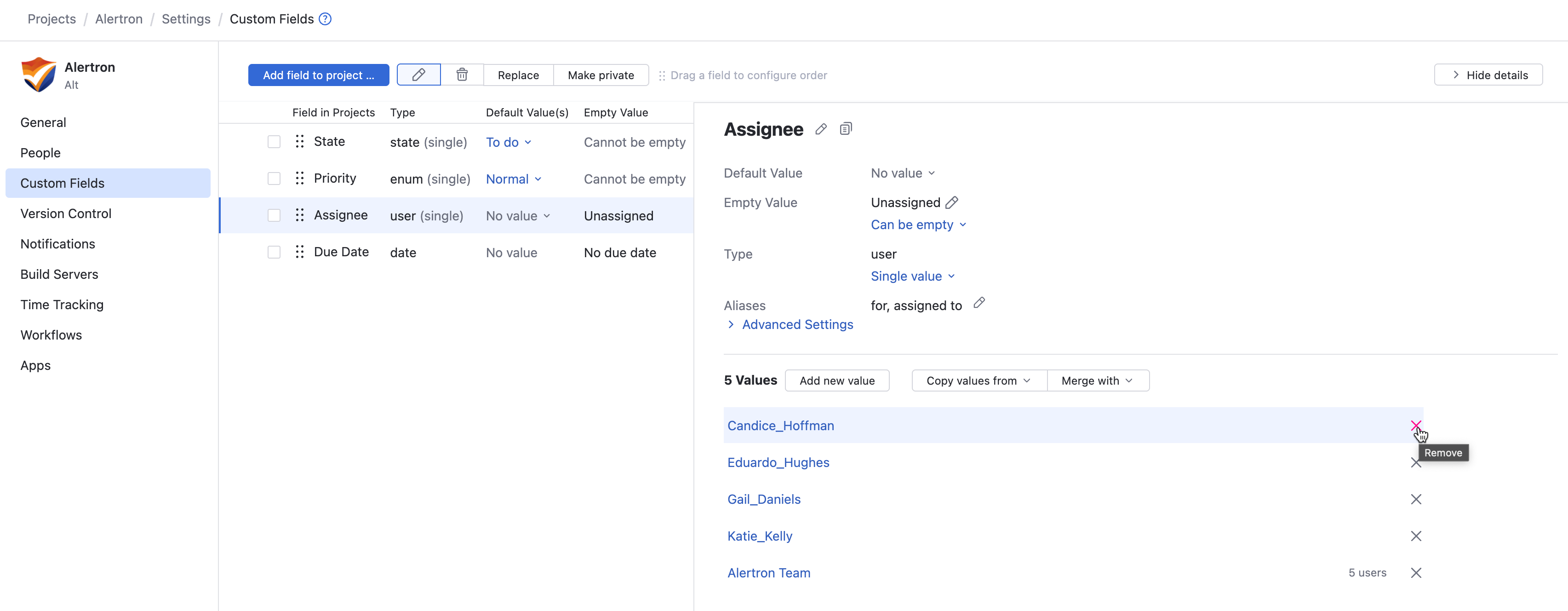
To remove users or groups who should not be assignees in this project, click the
 Remove icon.
Tools for Editing the List of Assignees
The tools described here are applicable to any user or group in the system that is available to you as a project administrator, including users and groups that are not assigned to the project team. When you add a user or a group from outside the project team, provide this user or group with sufficient permissions to view and edit issues in the project.
The following options are available when you select the Assignee field on the Custom Fields page of your project.
To add a group so that all group members are added to the list of project assignees, click the Add value button and select a group in the dialog.
To add an individual user, click the Add value button and select a user account.
To copy a user from the values in the Assignee field of another project, click the Copy values from button and select an existing set of assignees.
To merge the list of assignees with another set of users, click the Merge with button. In this case, you get a single set of users who are assignees in multiple projects.
To replace the list of assignees with the list of assignees in another project, click the Replace button, and select the Assignee field associated with the project that you want to use.
Assign a User to an Issue
In YouTrack, assigning an issue designates the user responsible for completing or resolving it. You can assign issues to existing project members or add new users during the assignment process to ensure clear ownership and accountability.
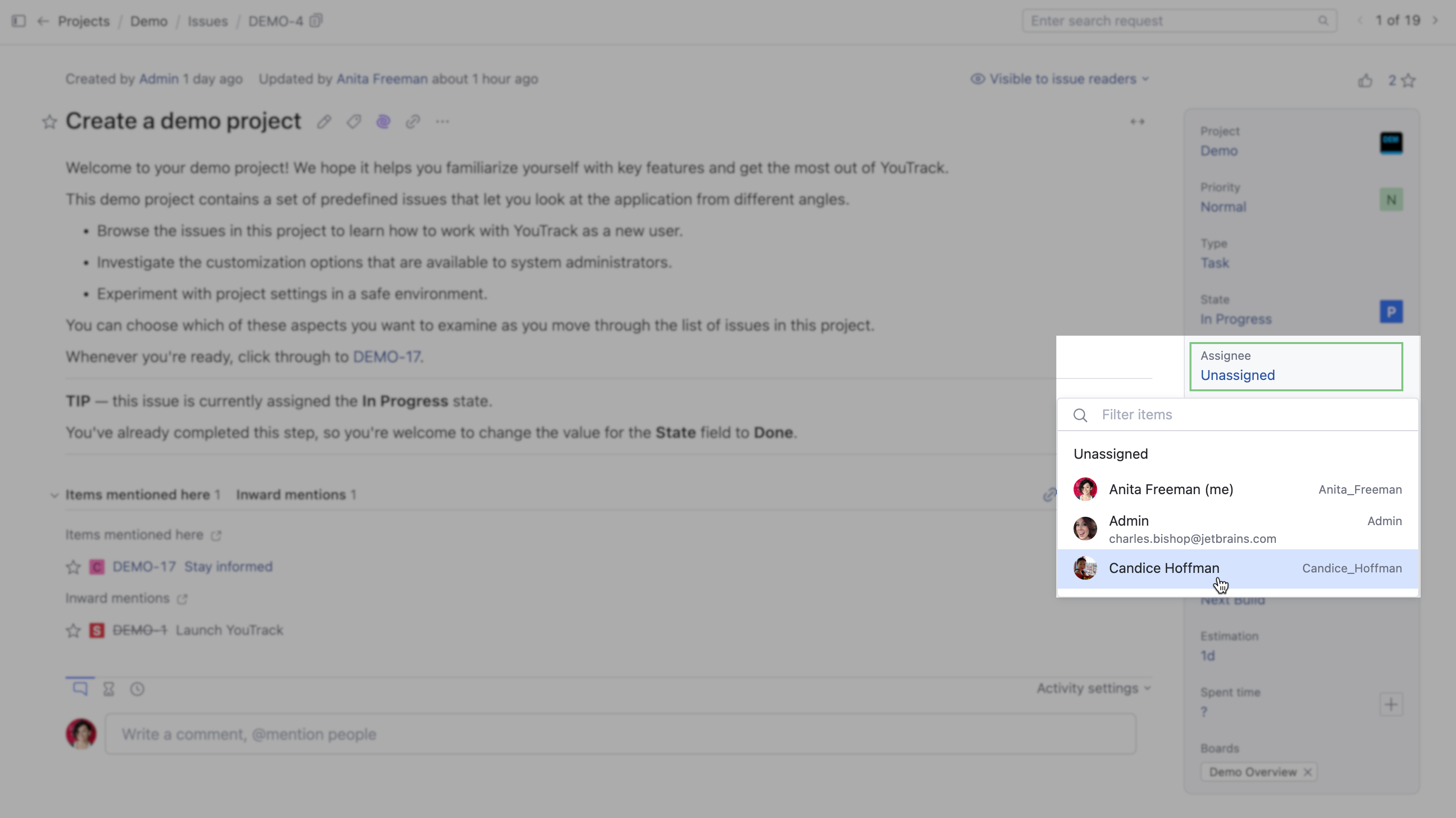
To assign a project team member to an issue:
Create a new issue or open an existing issue in your project.
Select the Assignee custom field.
Select a project team member as the value for the Assignee field.
To assign a non-project team member to an issue:
Create a new issue or open an existing issue in your project.
Select the Assignee custom field.
Select a user under PEOPLE OUTSIDE THIS PROJECT as the value for the Assignee field.
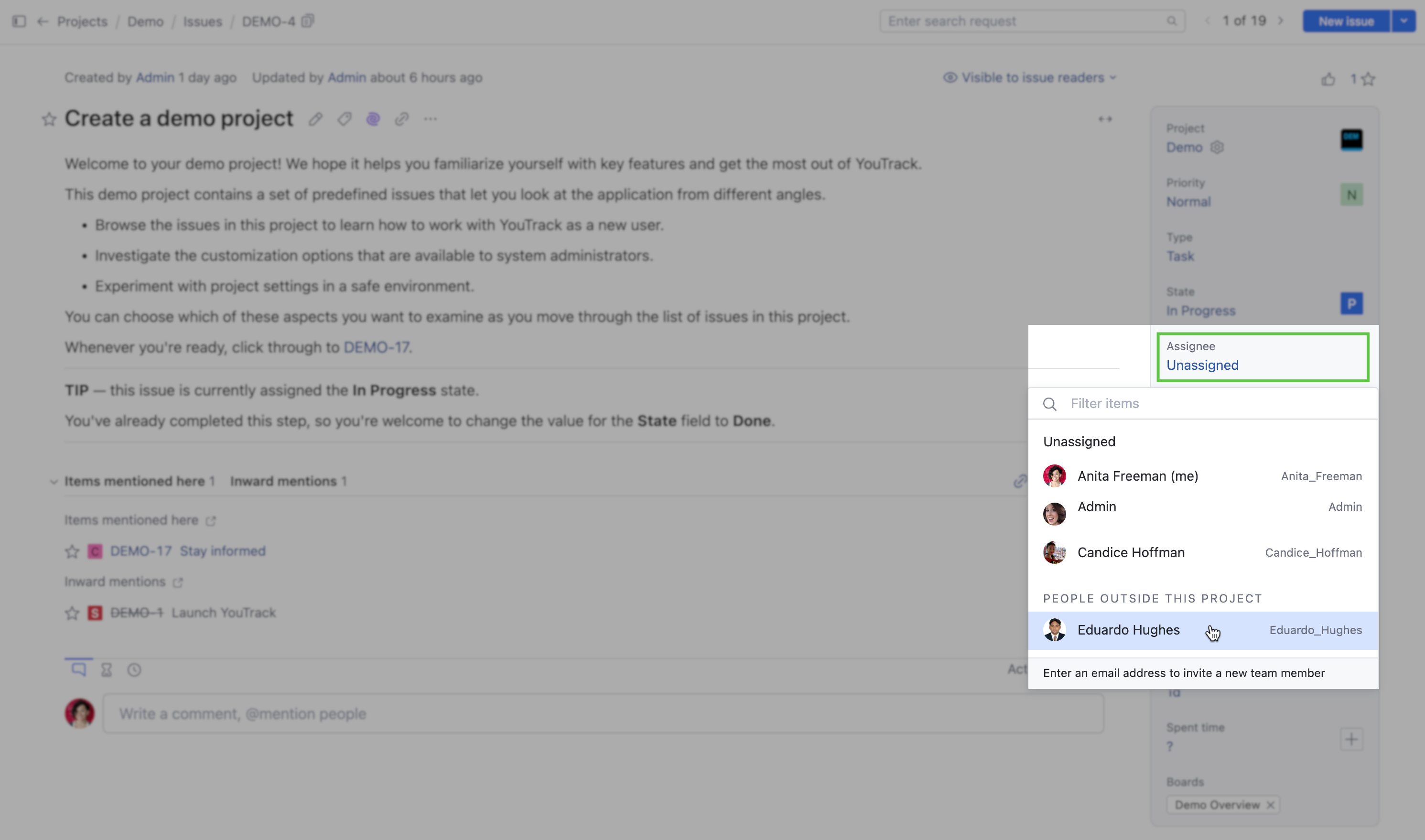
Click Confirm in the dialog box to finish adding the new project team member and assigning them the issue.
To assign a new YouTrack user to an issue:
Create a new issue or open an existing issue in your project.
Select the Assignee custom field.
Enter the new user's email address into the Filter items search.
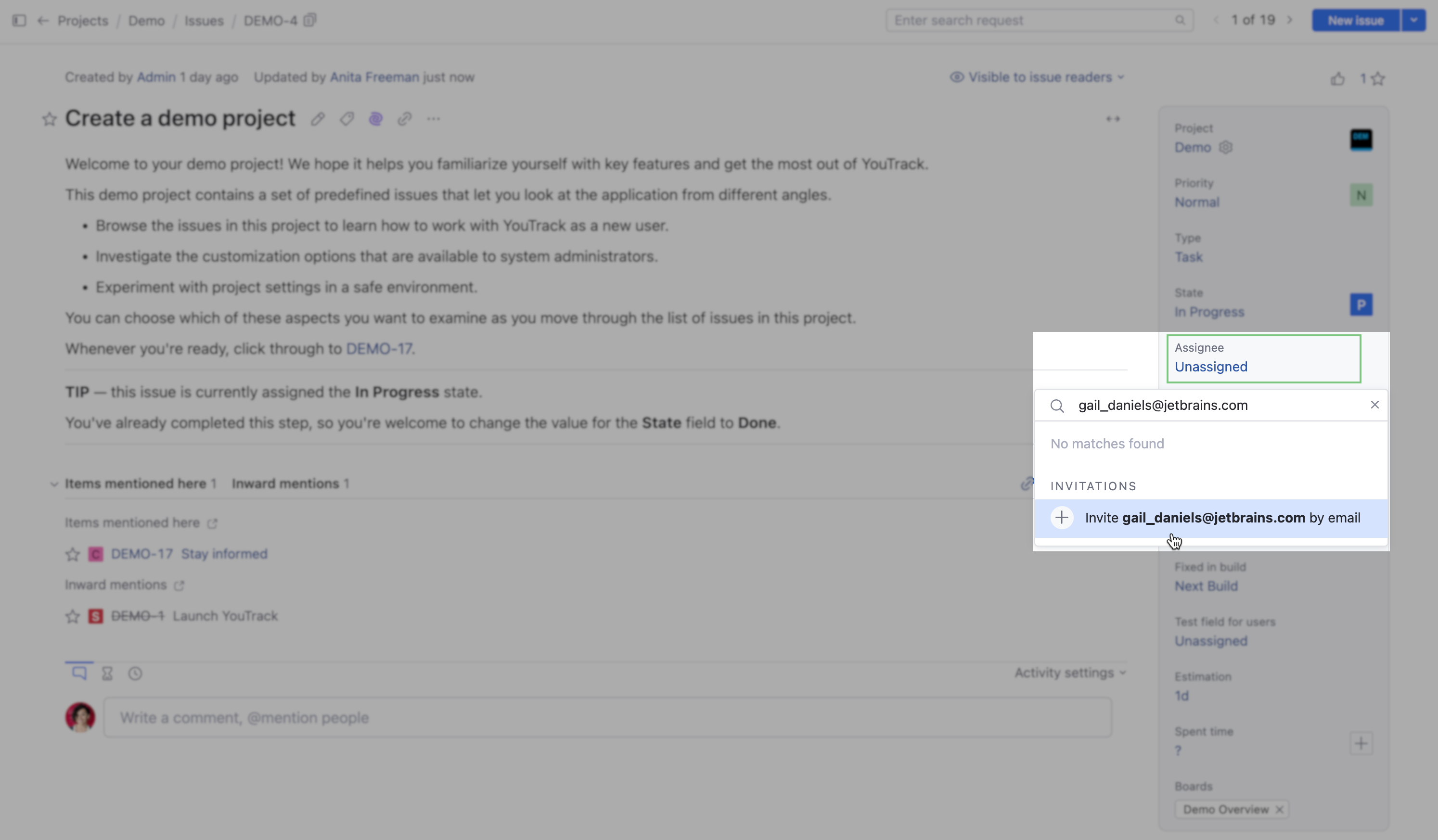
Click Send invitation in the conformation dialog box.
YouTrack immediately creates a new user that is assigned to the issue and project.
A YouTrack invitation is sent to the email address.
After the user accepts the YouTrack invitation, they can log into YouTrack with the default team role and permissions.
Assign Issues to Multiple Assignees
The default Assignee field stores a single value. This means that issues can only be assigned to a single user. If you want to assign issues to multiple users instead, there are several options at your disposal. Use the following guidelines to determine which approach works best for you and your team.
Update the Base Properties of the Assignee Field
One of the base properties of the Assignee field determines whether the field stores single or multiple values. One way to assign issues to multiple users is to enable the Multi-value option for this field.
While this might seem like the simplest solution, there are a number of downsides to this approach:
This property affects all the projects that use this custom field. As the default Assignee field is auto-attached to new projects, the field is generally used in every project in YouTrack. Every project that uses the field will store multiple assignees.
There are a number of default workflows that set or change the value of the Assignee field. These workflows assume that the field stores a single value. If you modify this field to store multiple values, these workflows stop working.
To continue to use workflows with an Assignee field that stores multiple values, you need to re-write all the rules to work with a field that stores a set.
If you can live with these limitations, you might settle for this approach. This solution is most appropriate for smaller organizations that carefully coordinate their project management processes. Larger organizations with a lot of project-specific customizations in the form of workflows can run into trouble.
Editing the base properties of a custom field that is auto-attached to new projects requires the Low-level Administration permission. You will probably require the assistance of a system administrator.
To learn how to edit custom fields, see Create and Edit Custom Fields.
Create an Assignee Field that Stores Multiple Values
In YouTrack, only the combination of field name and field type must be unique. Single-value and multi-value fields are considered to be separate types. This means you can add an Assignee field to your installation that stores multiple values instead of just one at a time.
One advantage of this approach versus updating the base properties of the default Assignee field is that this change can be applied without affecting other projects in the system. This change would also only require that you have the Update Project permission.
The workflow limitations that apply when you change the base property of the default field also apply here. Any workflow that is attached to your project that references the Assignee field must be updated to reference the new field and modified to work with sets.
To learn how to add a field to your project, see Add a New Custom Field.
Store Additional Assignments in a Separate Field
While this may not seem like the most straightforward solution, it is the easiest to implement.
Use the default Assignee field to store the person who has primary responsibility for the issue.
Add a field to your project that allows multiple values and stores a
usertype. Use this field to store the names of additional users who are also working to resolve the issue.
You can also support this use case by adding multiple fields that store a single user in your project. In our YouTrack development project, the developer who is responsible for the changes is set as the Assignee. We use the additional fields Reviewed by and Verified by to store the user who performed these activities.
With this approach, you can continue to use workflows that manage the values for the Assignee field without modification.
If you use any reports to track the current work assignments for your team, you should update the report configuration to include the additional assignments. To learn how to add fields to your project, see Add a New Custom Field.