Keyboard Shortcuts
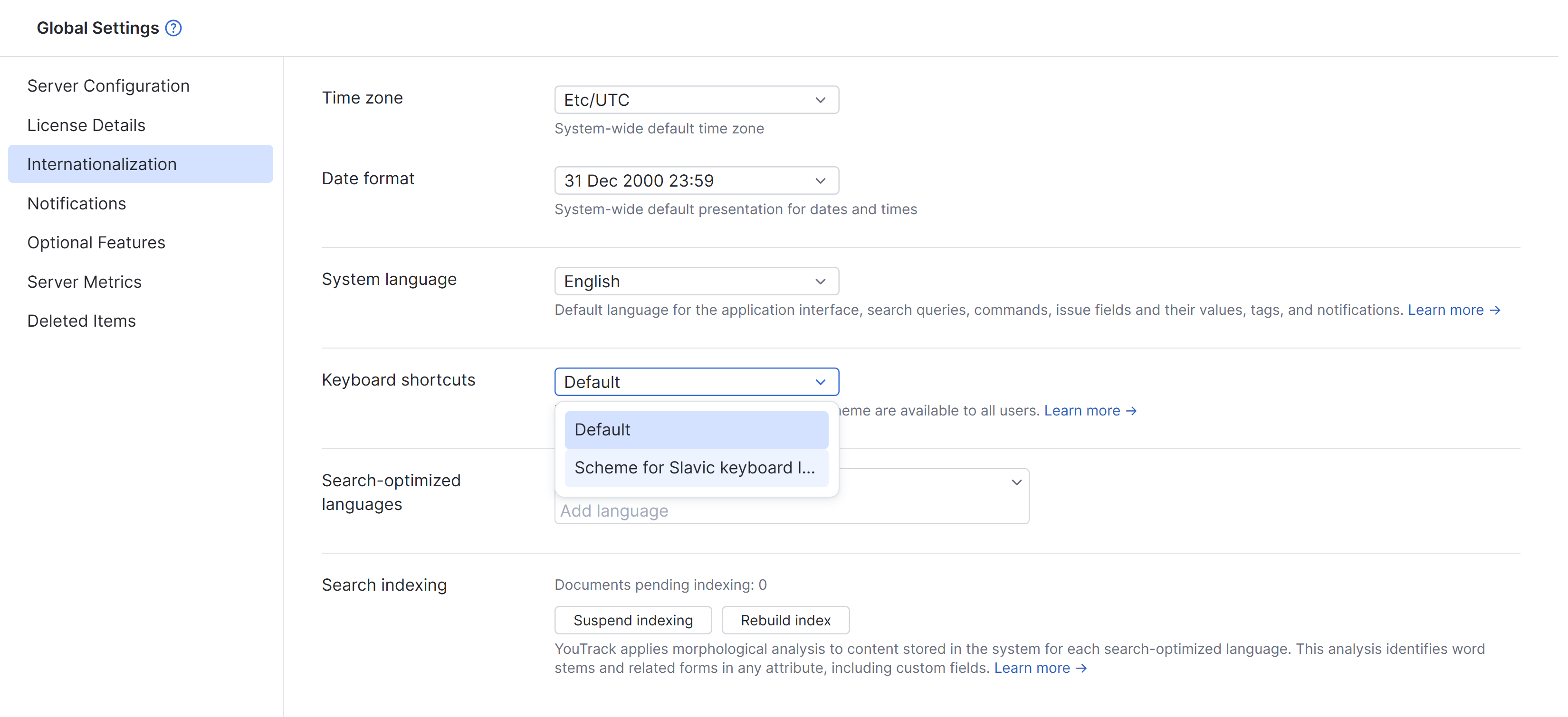
As an administrator, you can define which keyboard shortcut scheme is available to users in your YouTrack installation. The selected scheme applies to all users and determines the key combinations shown in shortcut hints and the in-product shortcut reference. The following shortcut schemes are available:
Shortcut Scheme | Description |
|---|---|
Default | This is the default shortcut scheme for YouTrack. For a list of keyboard shortcuts, see Keyboard Shortcuts. |
Scheme for Slavic keyboard layouts | This is an alternative shortcut scheme for users who work with Slavic keyboard layouts. For a list of shortcuts that are supported by this scheme, see Scheme for Slavic Layouts. |
To change the shortcut scheme:
From the main navigation menu, select
 .
Select Internationalization in the sidebar navigation.
In the Keyboard shortcuts list, select Default or Scheme for Slavic keyboard layouts.
Click the Save button at the bottom of the page.
To discard unsaved changes, click Revert.
Scheme for Slavic Layouts
When Scheme for Slavic keyboard layouts is selected, the following shortcuts are available:
Action | Shortcut | Shortcut | Description | |
|---|---|---|---|---|
Repeat Last Command | Alt + Shift + J | Option + Shift + J | Similar to the shortcut that opens the Apply Command dialog - Ctrl + Alt + J | Similar to the shortcut that opens the Apply Command dialog - Ctrl + Option + J |
Add Comment | Alt + Shift + W | Option + Shift + W | Set focus to the input field for a new comment. | |
Attach Files | Alt + Shift + O | Option + Shift + O | Open a dialog to locate and attach files. |