Manage Permanent Tokens
In YouTrack Cloud, permanent tokens let developers access and perform operations securely using the REST API calls in their scripts and applications without having to implement OAuth 2.0 authentication flows. A permanent token allows access to a service with the permissions that are granted to the user account.
This page covers operations with permanent tokens that are performed in the user profile. For a sample of REST API calls using the permanent token, refer to the Permanent Token Authorization.
Create a Permanent Token
To access a service programmatically with the permissions that are granted to your user account, create your own permanent token. The effective permissions for API requests made with this token cannot exceed the permissions that are granted to your account.
In addition to the permissions that are listed here, you need permission to read the service that you want to access with the token. Access to connected services is managed in Hub. If you work with YouTrack Cloud or a YouTrack Server installation that uses the built-in Hub service, all users have access to YouTrack services.
To generate a new permanent token:
From the main navigation menu, select your avatar, then select Profile.
Select Account Security in the profile navigation.
In the Tokens section of the page, click the New token button.
In the New Permanent Token dialog, enter a name in Name and use Select services to choose the services the token can access. The YouTrack Administration and YouTrack services are selected initially. You can add or remove services from this selection. A name and at least one service are required before Create is enabled.
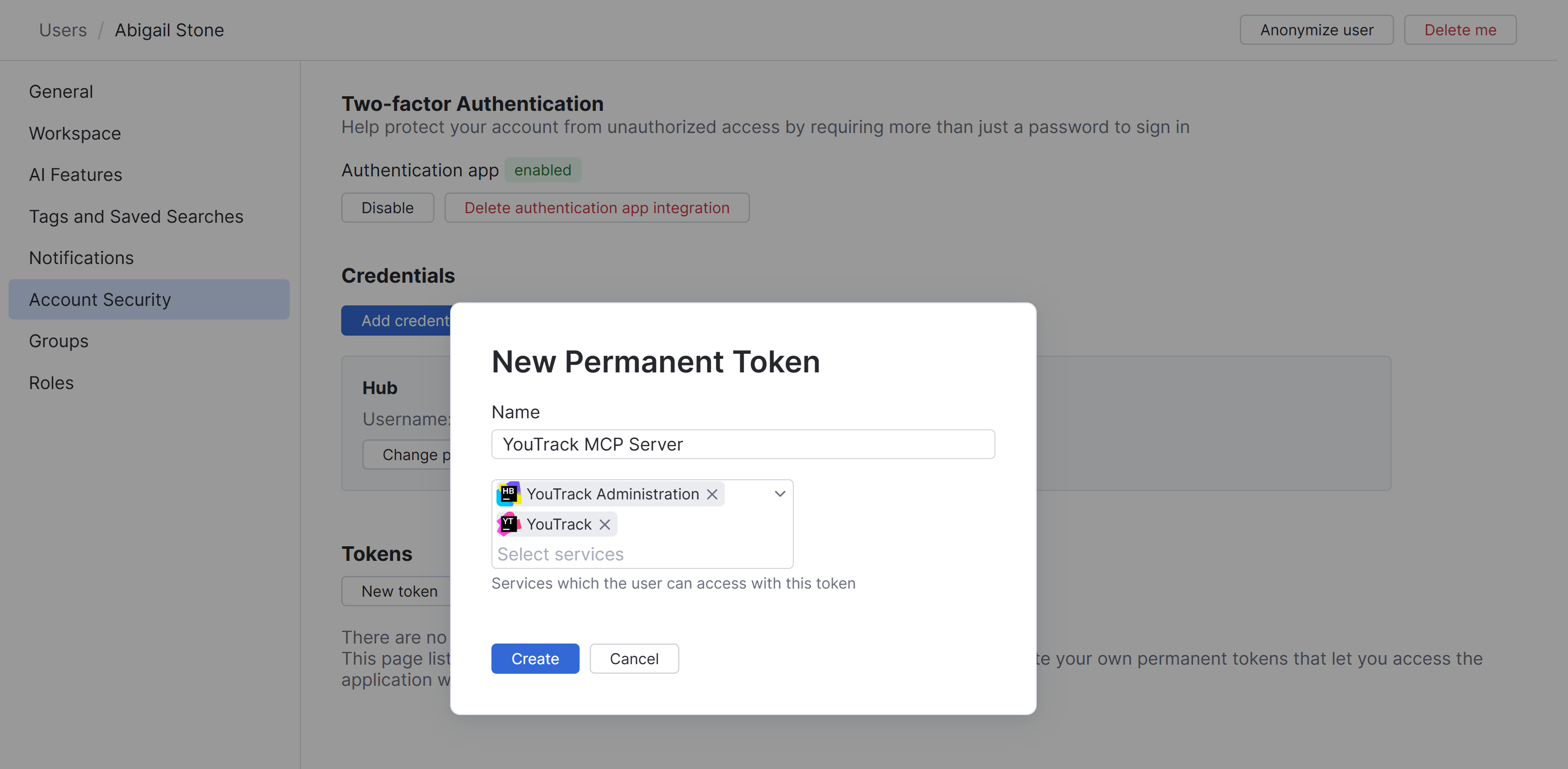
Use the information in the following table to determine which scopes you want to assign the token.
Selecting a service allows the token to access that service within the permissions already granted to your account. It does not grant additional issue-management or administration permissions.
Scope
Description
YouTrack
Allows the token to access issues, tags, commands, agile boards, dashboards, reports, and other operations in YouTrack within your account's permissions.
This scope also gives you the ability to send REST API calls to the following endpoints:
/youtrack/rest/.../youtrack/api/...
YouTrack Administration
Allows the token to access administration services for managing user access and server settings within your account's permissions.
This scope also gives you the ability to send REST API calls to the following endpoints:
/hub/api/.../hub/rest/...
Konnector
Allows the token to access YouTrack's Konnector service for sending information to integrated messaging apps within your account's permissions. This includes the YouTrack App for Slack and the YouTrack bot for Telegram.
YouTrack Mobile
Allows the token to access the service for sending push notifications to the YouTrack Mobile app within your account's permissions.
Click the Create button.
The Permanent Token dialog displays the new token.
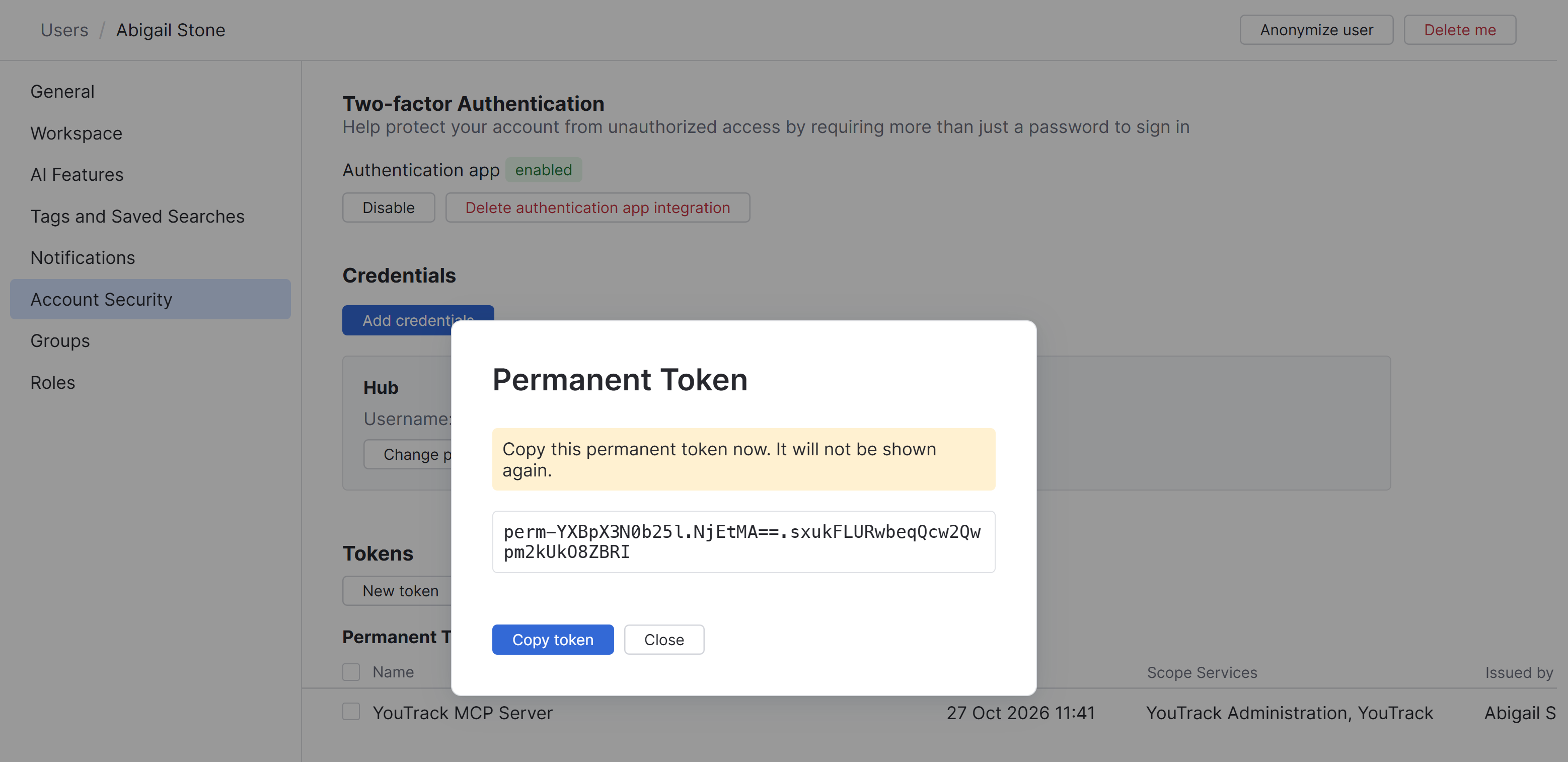
Use either of these two actions to copy the token:
Click the Copy token button. Its label changes to Copied after copying.
Select the token with your pointer and use the standard keyboard shortcut for your operating system to copy the current selection to the clipboard.
After you copy the token, click Close.
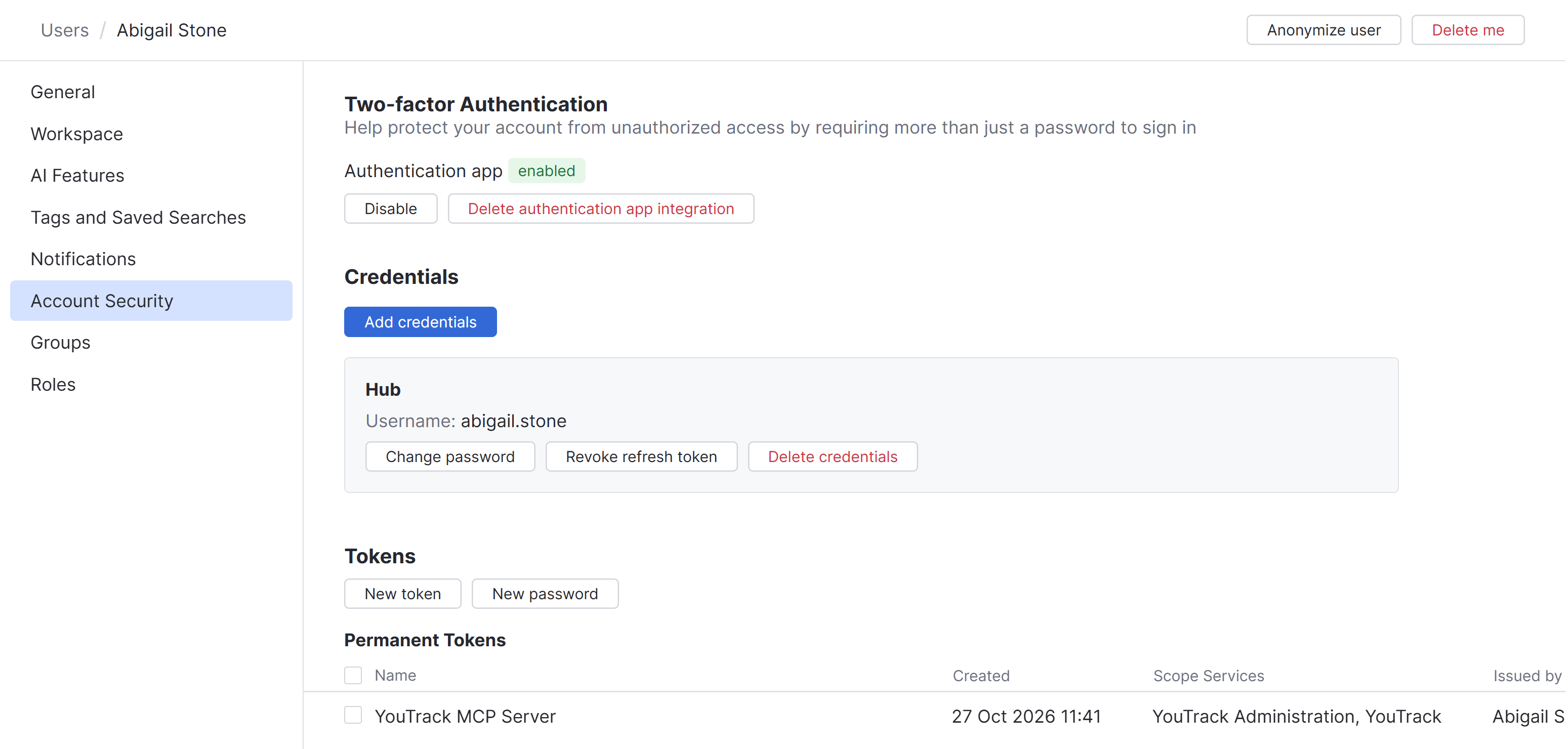
The new token is associated with your user account and is displayed under Permanent Tokens in the Tokens section.
Delete a Permanent Token
A permanent token does not have an expiration date. If you suspect that an authenticated service has been compromised, you can explicitly delete this token in your profile.
To delete a permanent token:
From the main navigation menu, select your avatar, then select Profile.
Select Account Security in the profile navigation.
In the Tokens section, locate the token under Permanent Tokens.
Use the Delete action in the token's row. To delete multiple tokens, select their checkboxes and click Delete in the toolbar.
A confirmation dialog is displayed.
Click the Delete button to confirm the action.
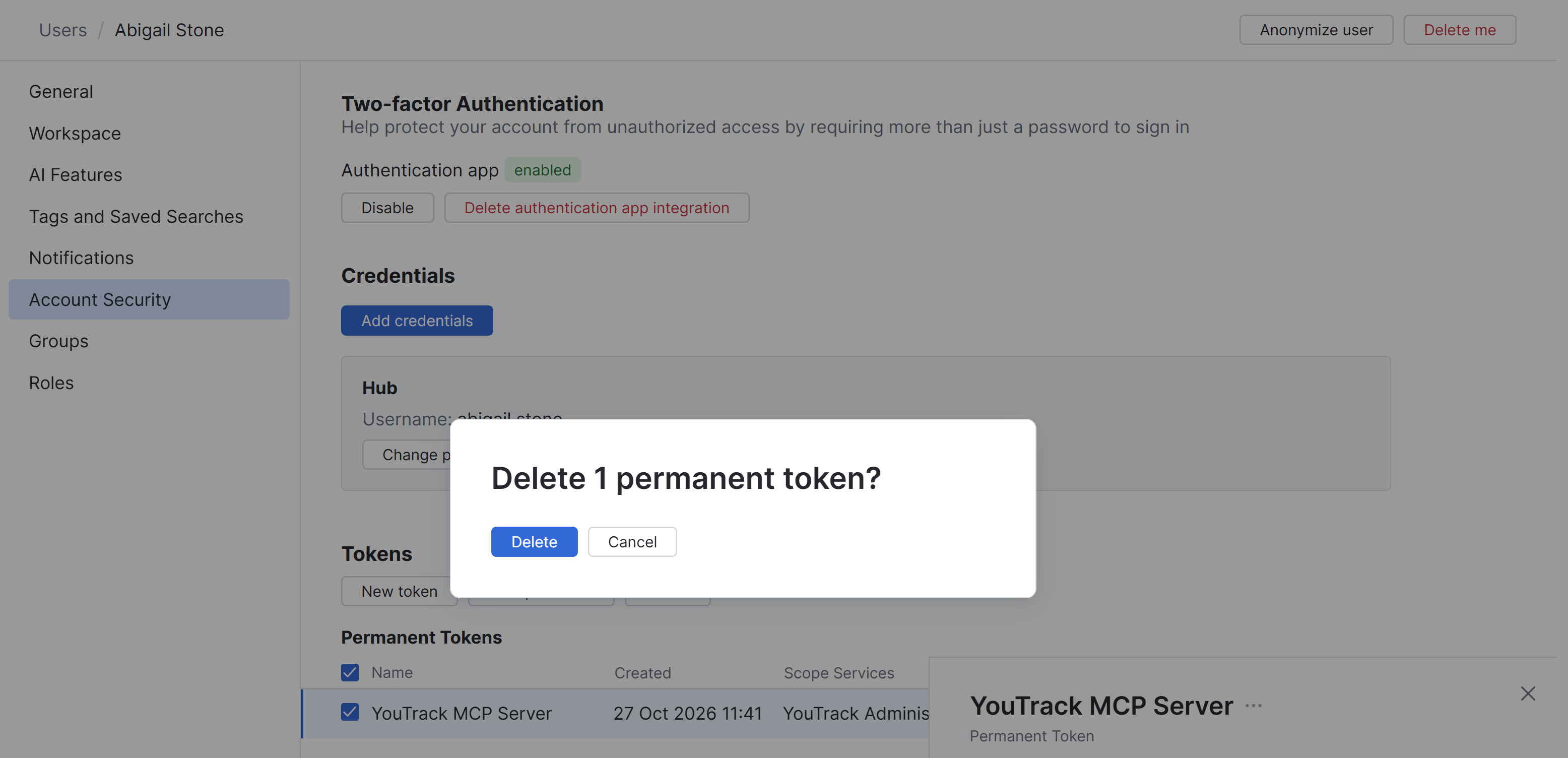
The selected permanent tokens are deleted and removed from the list.