Manage User Access
The Roles tab lets you view and manage the permissions that are available to a single user account. Users are granted permissions based on the roles that they are assigned in one or more projects.
You can also grant users access to a project by adding them directly to the project team. For more information, see Add People to the Project Team.
View Access Permissions
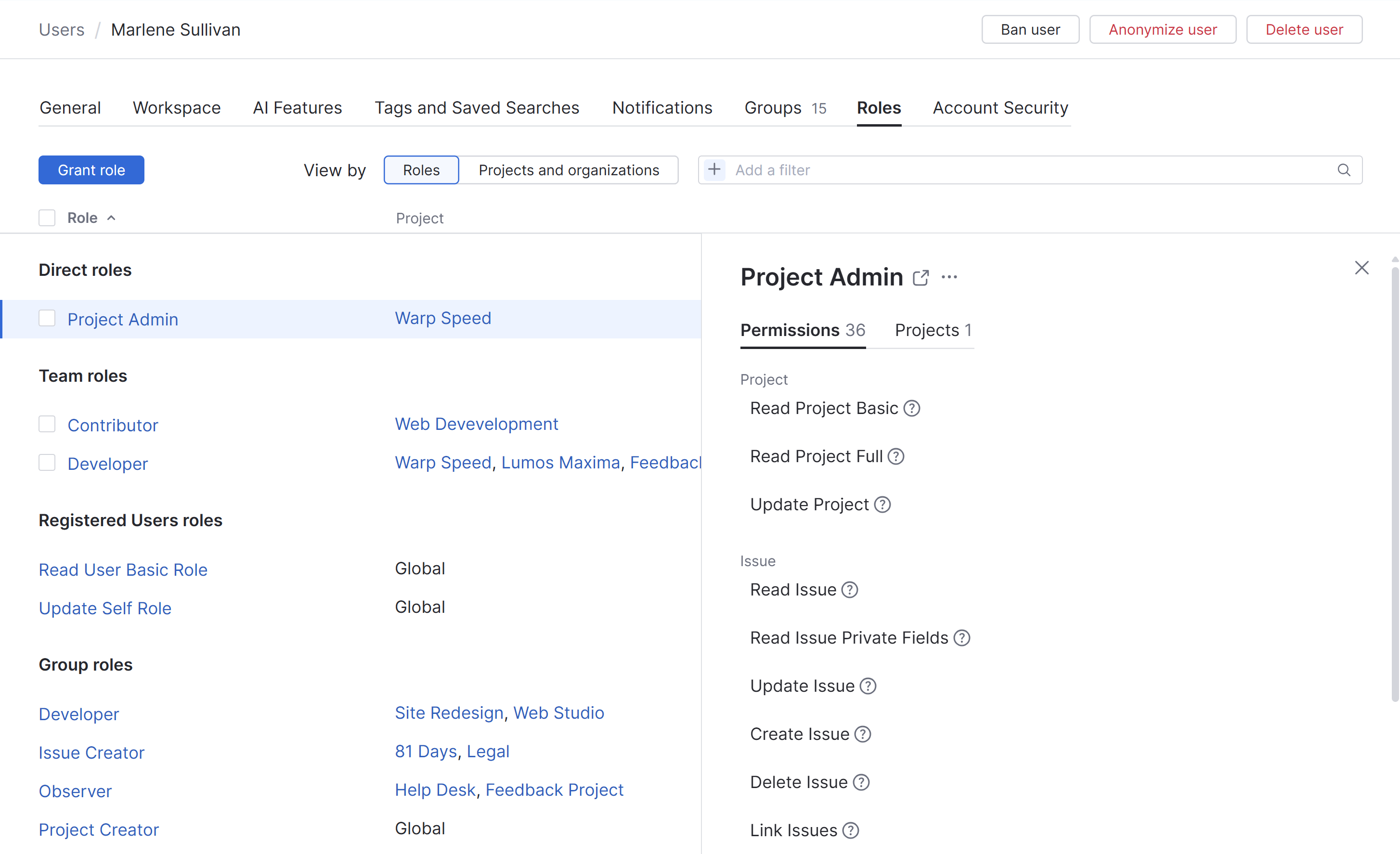
The access permissions for a user account are displayed on the Roles tab of the account profile. Here, you can view which roles and permissions are assigned to the account.
The list displays each role assigned to the user and the name of the projects or organizations where the user is granted this level of access. A Global role is granted at the system level and applies across all projects.
The sidebar displays the set of permissions that are assigned to the selected role.
Role assignments are grouped by how access is granted.
Direct roles are assigned directly to the user for a specific project. These roles are granted individually and are not inherited through team or group membership.
Team roles are received through membership in a project team.
Registered Users roles are assigned to the user as a registered user in the system. These roles usually provide basic permissions and are typically granted with a global scope.
Group roles are inherited through membership in a group. These roles may apply to specific projects or globally, depending on the scope of the permissions assigned to the role.
To view the access rights for a user account:
From the main navigation menu, select
 .
.Open a user profile.
Open the Roles tab of the account profile.
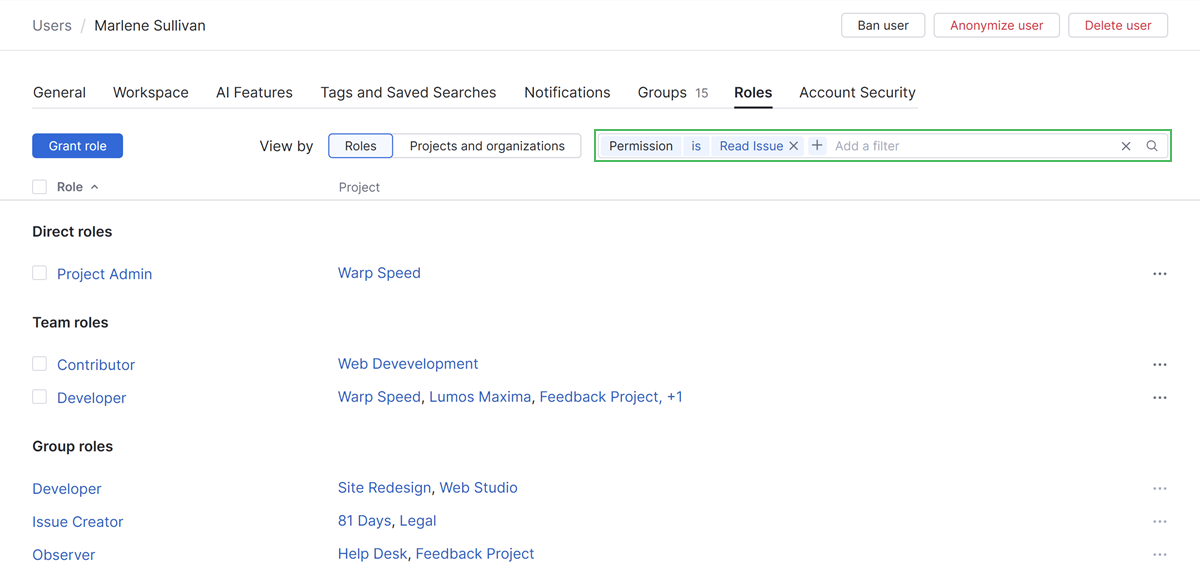
Use the search box to filter the list by permission, role, or scope to find out if the account has the required access to a resource or operation.
Grant a Role to a User Account
If you do not want to assign a role to all members of a group, you can assign the role to a user account directly.
To assign a role to a user directly:
From the main navigation menu, select
.Use the search box to find the desired user account.
Select a user from the list.
Select the Roles tab.
Click the Assign role button.
In the Assign Role dialog, choose a role to assign to the user.
Select one or more organizations or projects where you want to assign the role.
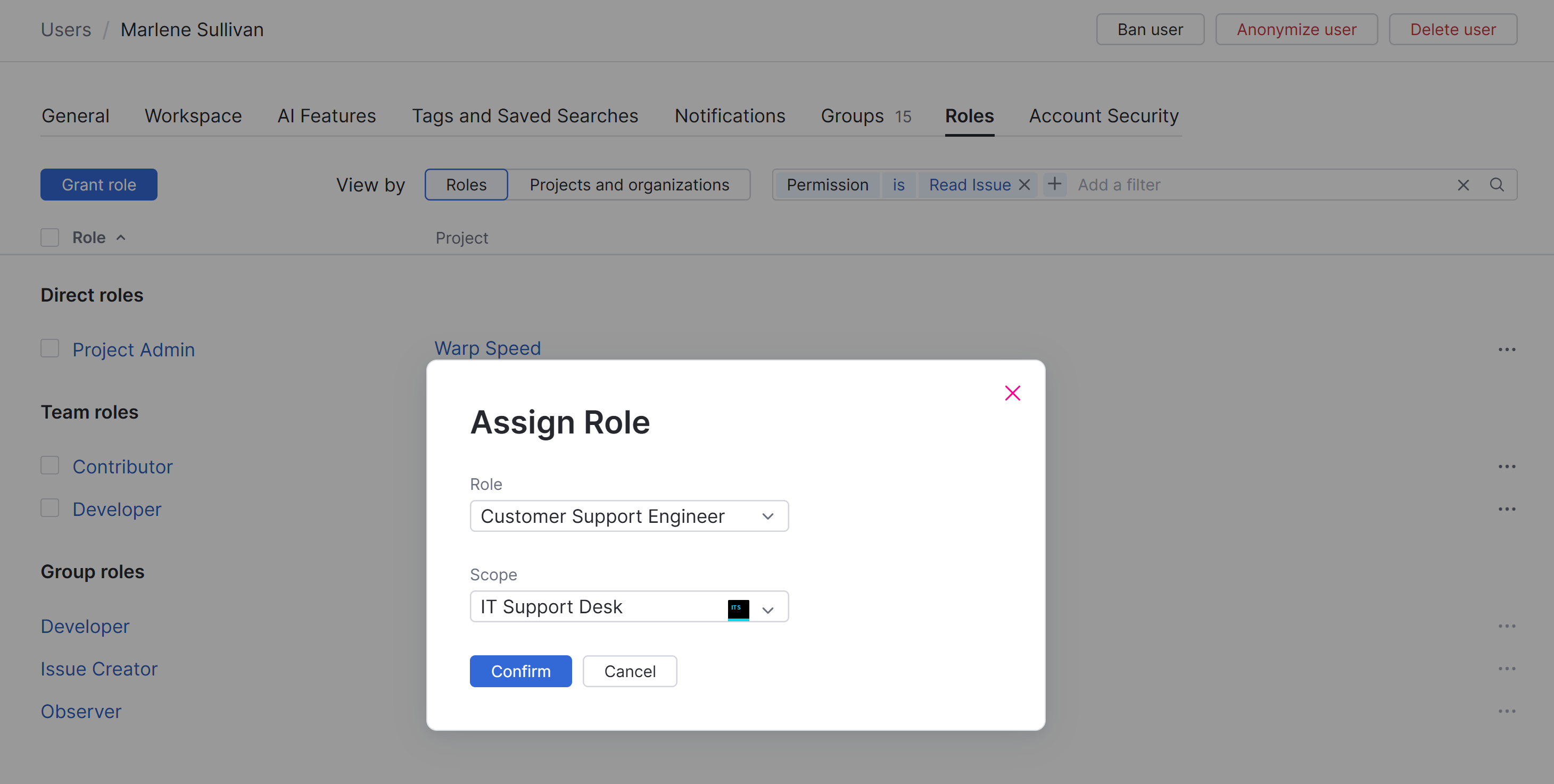
Click the Confirm button.
Revoke a Role from a User
If a user no longer requires access granted by a role, you can revoke the role assignment. This procedure only applies to roles that are assigned directly to a user.
If a role is granted to a user as a member of a group, you can revoke the role assignment by removing the user from the group. For more information, see Remove a User from a Group.
If a role is granted to a user as a member of a project team, you can revoke the role assignment by removing the user from the project team. For more information, see Remove People from the Project Team.
To revoke a role from a user:
From the main navigation menu, select
.Use the search box to find the desired user account.
Select a user from the list.
Select the Roles tab.
Locate the role assignment that you want to remove from the selected user account. Use the search box to locate a role by permission, role, or scope.
Select the role you want to revoke.
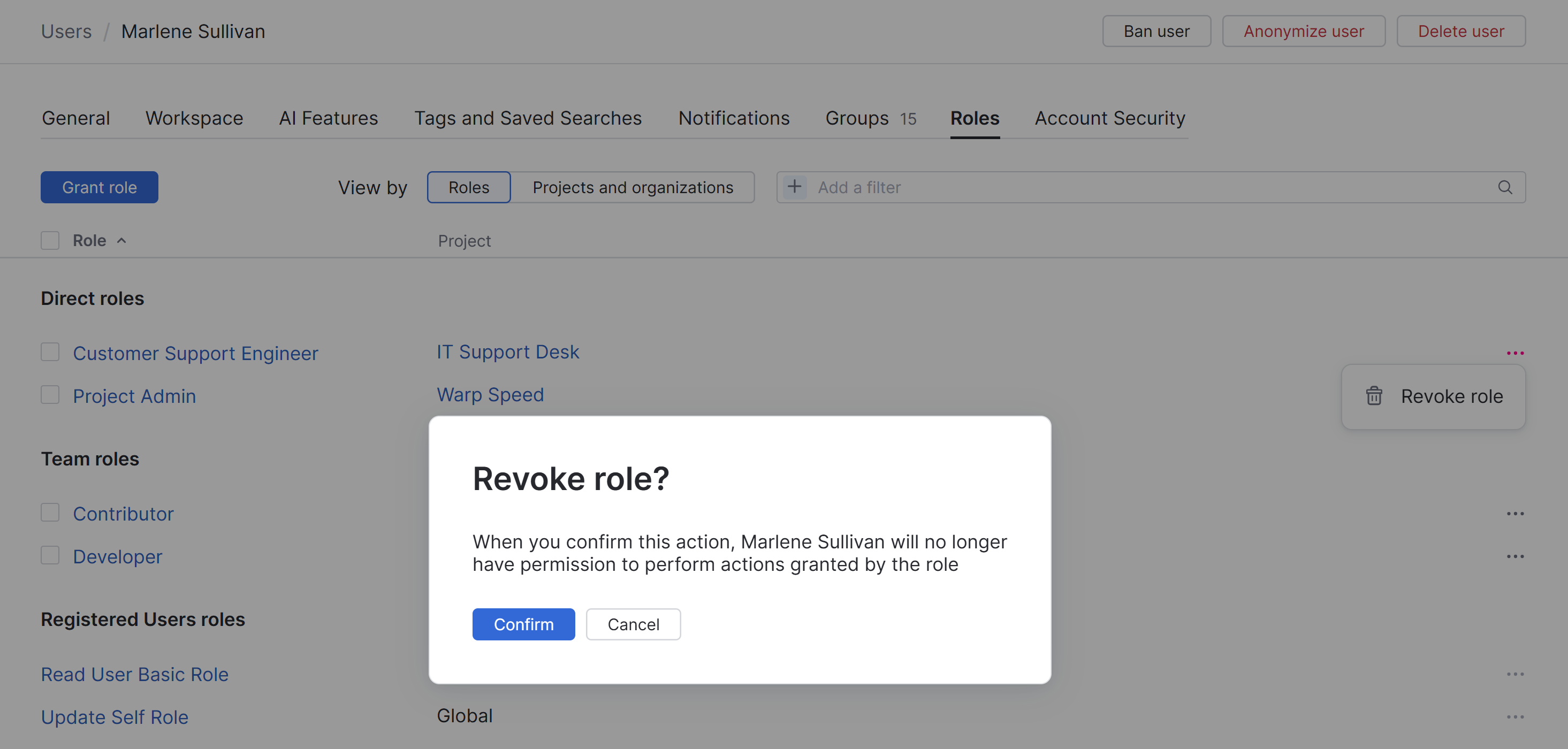
Click the Revoke role button.
Confirm the action in the confirmation dialog.
The role is revoked from the user in the selected organization or project.
The user loses the permissions that are assigned to the role in the organization or project.