Agile Board Tips and Tricks
Here are a few tips and tricks to help you get more out of your agile board in YouTrack.
Pick the Right Template
When you create a new board in YouTrack, you select a template that is used to configure the board. There are templates that are pre-configured for Scrum and Kanban boards. This means that you can create a board and start working with it right away. After you create the board, you can modify the pre-configured settings at any time.
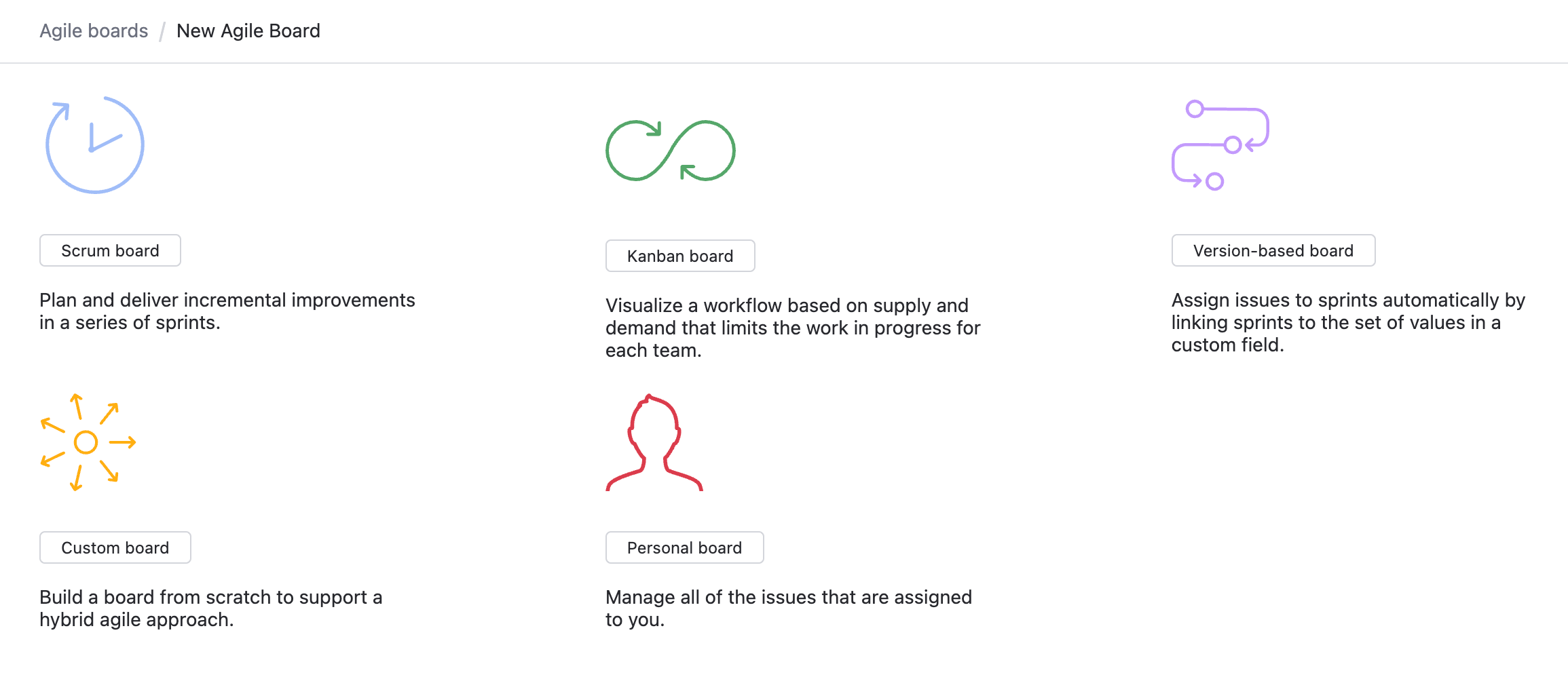
For a detailed description of each template, see Agile Board Templates.
Filter and Focus
If you want to see fewer cards on the board, use search queries to filter what you see. For example:
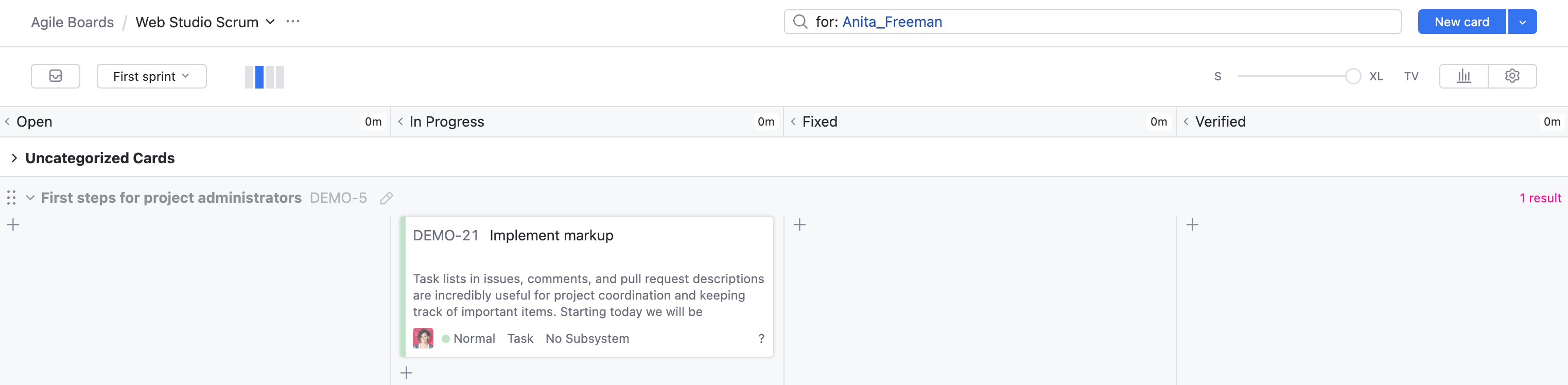
Any search query that works for the Issues list can also be used for an agile board. However, the query only applies to the cards that are currently visible on the board.
To learn more about search queries, see Search Query Reference.
Keep Your Hands on the Keyboard
You can navigate through the issues on the agile board with keyboard shortcuts. To view the list of available shortcuts, press Ctrl + /.
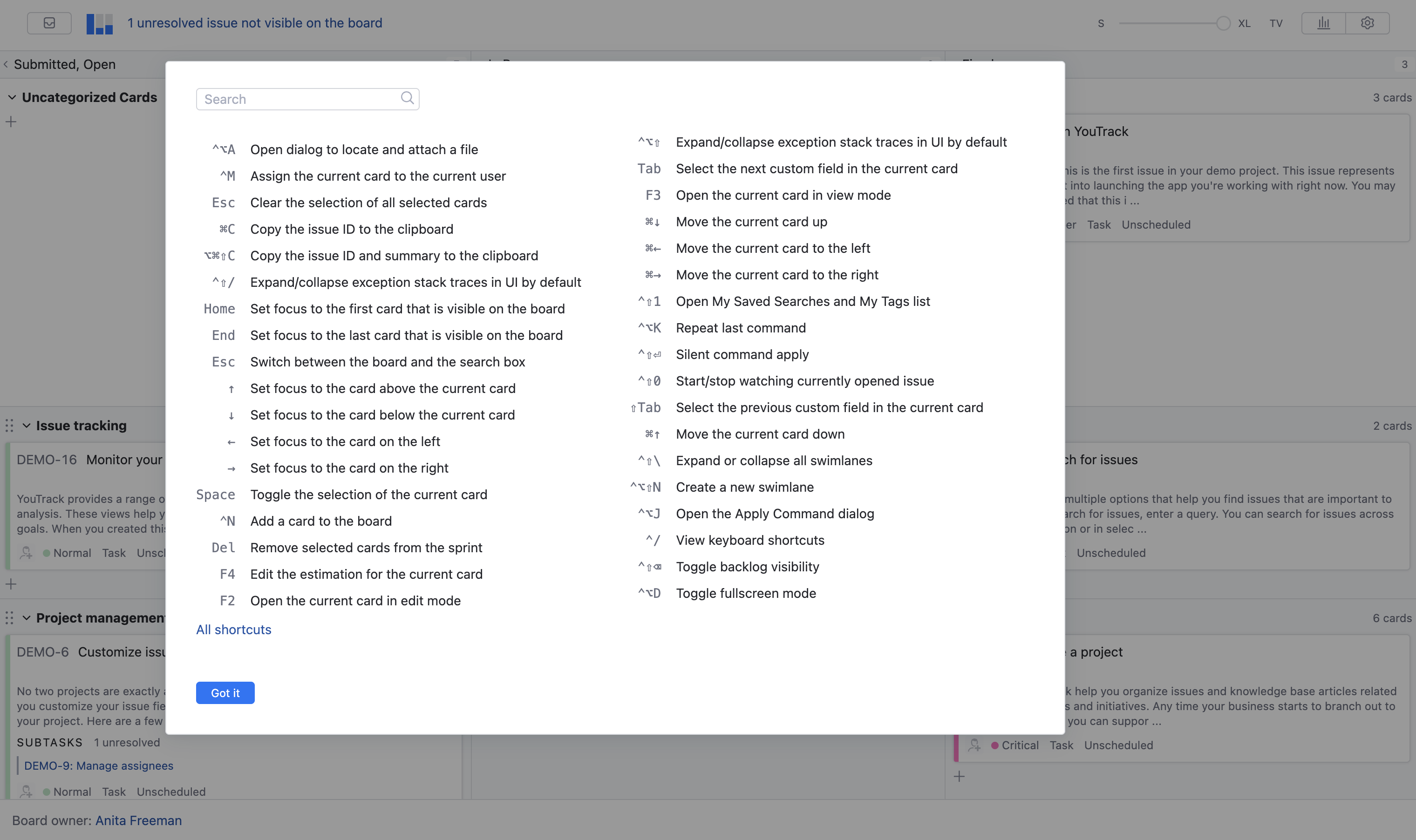
Use the search box at the top of the shortcut window to filter the list of shortcuts.
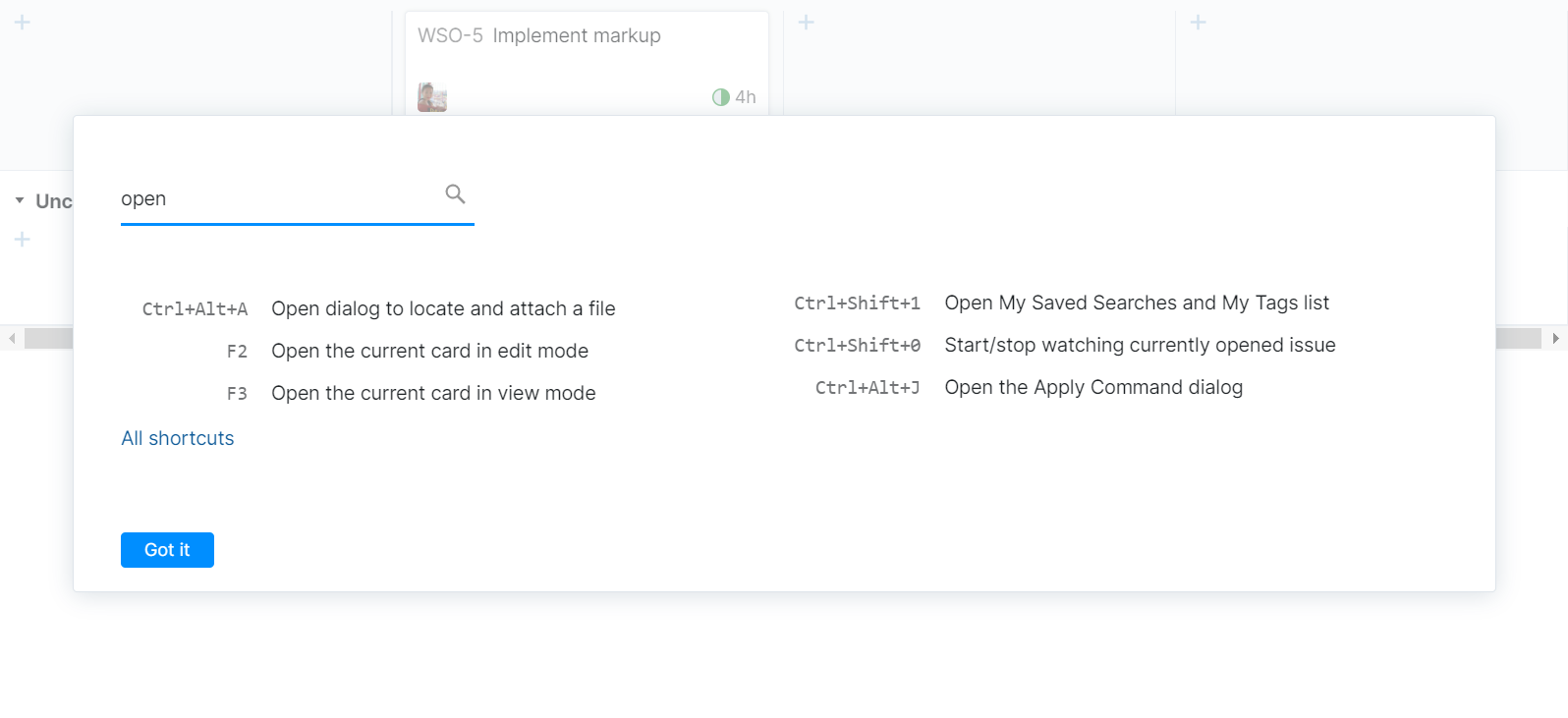
For a complete list, see Agile Board Keyboard Shortcuts.
Conquer Commands
You can apply changes to multiple cards, for example, when you need to assign several tasks to the same assignee or set the same state. To do this quickly, use Space or Ctrl + click to select multiple cards and update them all at once. To enter the command, press Ctrl + Alt + J, or just start typing the command. When you start typing, the Apply Command dialog appears automatically.
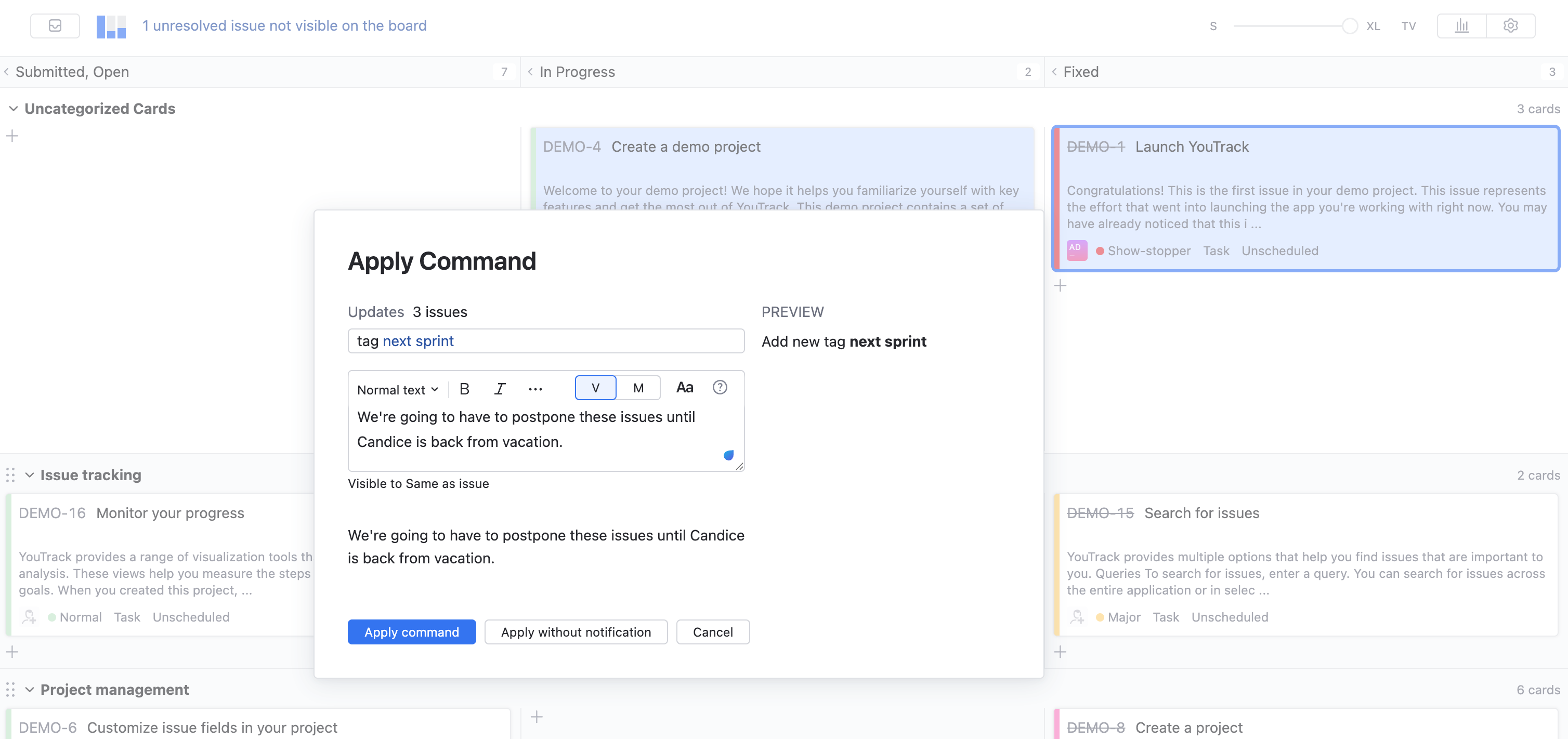
For a complete list of supported commands, see Command Reference.
Make it Personal
Sometimes you want to manage your own tasks, or see a specific set of tasks on an agile board. In this case, you can create a personal board that is available only to you. Select any saved search as a backlog, create your own sprints, and track your progress.
For detailed instructions, see Set up a Personal Board.