Critical Updates for Microsoft Exchange Online over SMTP
Starting from March 1, 2026, Microsoft will start to reject connections to Microsoft Exchange Online mailboxes that use Basic authentication with Client Submission (SMTP AUTH). Instead, the connection must be set up through a client application registered in the Microsoft Azure portal. Additional information about this change is available from the Microsoft Tech Community forum.
If you are currently sending email notifications from YouTrack using Microsoft Exchange Online over an SMTP connection, you must migrate to the new configuration before the end of April 2026. Otherwise, requests to send email messages from the mail server will be blocked.
Before you can enable email notifications using the Microsoft Graph API, you need to register an application in the Microsoft Entra ID platform and configure it to send email. Here's a general overview of the required steps:
Register a Microsoft Entra ID application.
Create a new application in the Microsoft Entra ID Portal.
Generate a client secret for the application.
Note and securely store the Tenant ID, Client ID, and Client Secret.
You will need to provide these values when setting up the connection.
Assign API permissions.
Navigate to the API permissions section of your application.
Add the
Mail.Sendpermission as an Application permission (not Delegated).Grant admin consent for the permission to ensure it is active for the entire tenant.
Designate a user account for sending email. Ensure the user has:
Full membership status (guest accounts are not supported).
An active mailbox.
By completing these steps, you will have met the prerequisites for sending email notifications using the Microsoft Graph API. For detailed instructions, please refer to the official documentation for Microsoft Graph.
Register a Client Application in Microsoft Entra ID
This setup requires that you meet the following prerequisites:
A valid license for Microsoft Exchange Online. This license must also be assigned to the tenant directory that contains the accounts that you want to use for sending and receiving email messages.
The registered application that authenticates the connection with YouTrack must be created in the same tenant directory where the Microsoft Exchange Online license is applied.
The security groups must be configured to grant this application access to the mailboxes that are used to send and receive email messages. To learn how to grant access to an application, please refer to the Microsoft documentation.
Administrative access to Microsoft Entra ID.
To complete the migration, you will need to obtain the following information from the Microsoft platform:
The email address of the mailbox where the integration currently retrieves incoming messages. This mailbox must belong to the same Microsoft Entra ID service where you register the app.
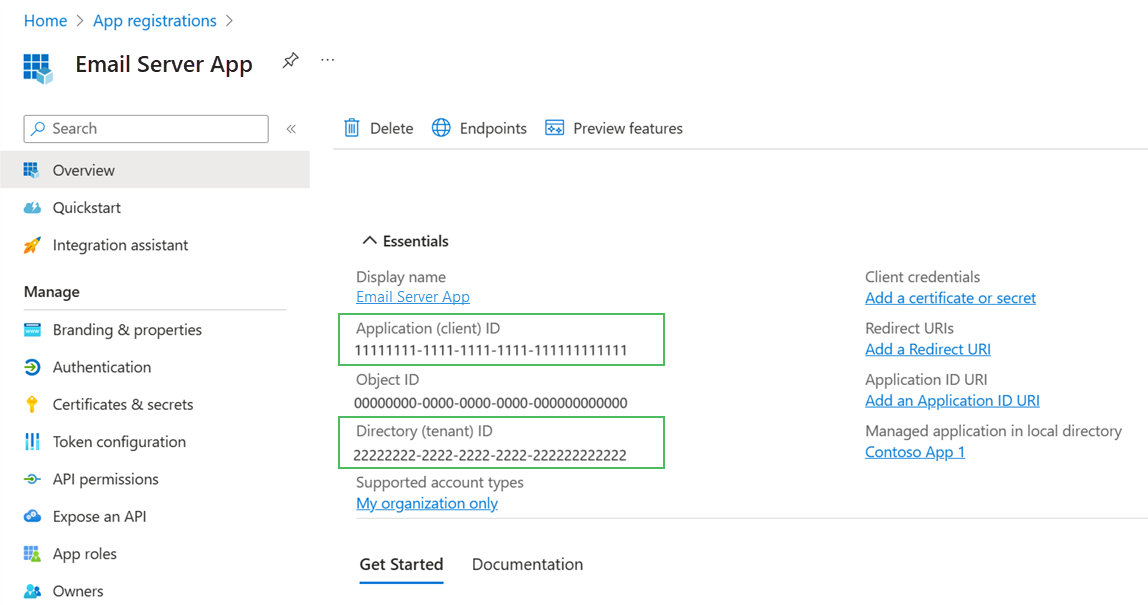
The Application (client) ID of the app that is registered in the Microsoft Entra ID portal.
The Directory (tenant) ID of your Microsoft Entra ID tenant organization.
A client secret that you created for the registered app.
The Application (client) ID and Directory (tenant) ID can be found in the Essentials section of the client application as shown below.
The client secret can be generated from the .
To learn how to perform this setup, please follow the instructions in the product documentation for Microsoft Entra ID.
Add the Required Permissions to the Client App
Next, you need to grant the following API permissions to the app.
To add the required permissions:
Navigate to the API permissions section of your application.
Add the
Mail.Sendpermission as an Application permission (not Delegated).Grant admin consent for the permission to ensure it is active for the entire tenant.
The list of permissions can be found in the API permissions settings of the client app.
To learn how to configure permissions for a client app, please follow the instructions in the product documentation for Microsoft Entra ID.
Update the Email Server Settings in YouTrack
Once you have collected the required information from the Microsoft platform, you can update the configuration for the email server that you use to send notifications in YouTrack.
To migrate from SMTP AUTH to the app-based authentication scheme:
From the main navigation menu, select
 .
.Select the Notifications tab.
For the Mail protocol, select MS 365 Graph API.
Settings specific to this protocol are displayed.
Enter values for the following settings:
Setting
Description
User email
Enter the email address of the user account designed to send email for your Microsoft Entra ID application.
Tenant ID
Enter the Tenant ID assigned to your Microsoft Entra ID application.
Client ID
Enter the Client ID for your Microsoft Entra ID application.
Client secret
Enter the Client secret for your Microsoft Entra ID application.
Reply-to address
Enter an optional address that you want to use for email replies. For more information about email addresses, see From and Reply-to Addresses.
When finished, click the Save button.
Test the connection.
Click the Send test message button.
Enter an email address to which the test message should be sent.
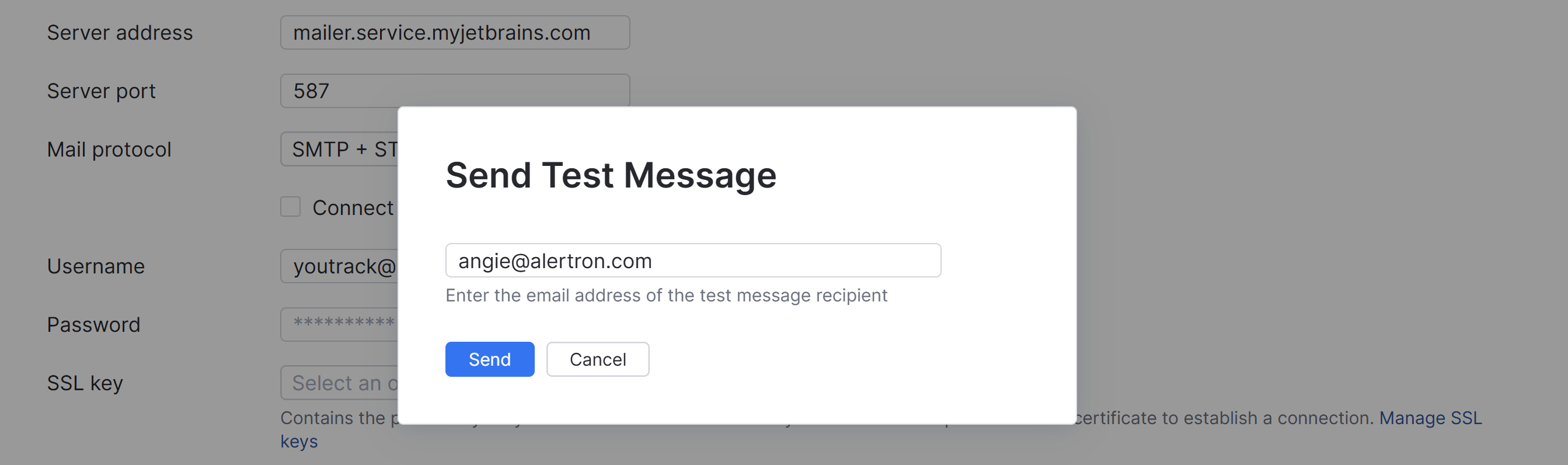
Click the Send button.
Check the email account that you sent the test message to and verify that the message was delivered.
If successful, the connection to your external mail service is configured and ready for use.
If unsuccessful, update your settings and test the connection until the message delivery is successful.