Edit Basic Group Settings
The basic settings of a group are displayed on the Settings tab of the sidebar that opens when you select a group on the Groups page.
Customer groups have the same global settings for members, auto-join, two-factor authentication, and visibility of the group. Role assignment, nesting, project team membership, and audit links are not available for customer groups.
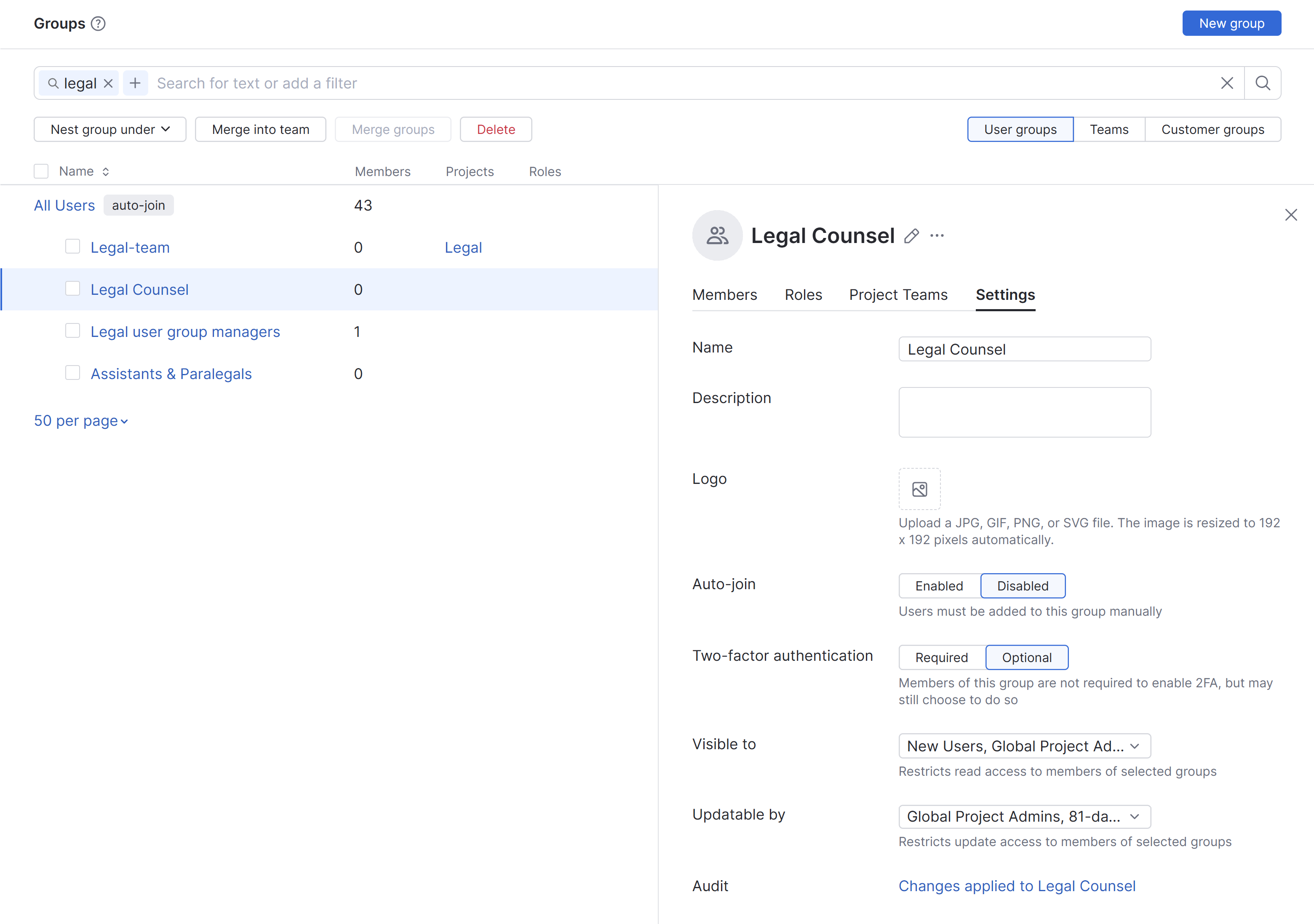
The following settings are available on this tab:
Setting | Description |
|---|---|
Name | Stores the name of the group. The group name must be unique in the system and cannot duplicate the name of a project team. |
Description | Stores a description for the group. Use to help other users who can view or update the group understand its purpose. |
Logo | Stores an image used as the logo for the group. This helps distinguish between different groups in the Groups list. It is also used to decorate avatars in user selection menus. This includes the selectors for issue and comment visibility, suggestions in @mentions and commands, watchers, and assignees. Add icons to groups to help you quickly distinguish between different sets of users. |
Auto-join | Determines whether new users are added to this group automatically. Enable this option when you use this group to provide a standard level of access to all users. For customer groups, auto-join can be used to add users whose email addresses match the configured domain for the group. |
Two-factor authentication | Determines whether members of the group are required to use two factors of authentication to log into YouTrack.
For more information, see Require Two-factor Authentication. |
Visible to | Determines which non-admin users can see this group in YouTrack and view its settings. This setting is only relevant to members of groups where the optional Read Groups feature is active. |
Updatable by | Determines which non-admin users can see this group in YouTrack and edit its settings. Members of groups who are added here can update the settings for this group. This setting does not give users the ability to:
This setting is only relevant to members of groups where the optional Read Groups and Update Groups features are active. |
At the bottom of the tab, you'll find an Audit link. Click this link to access a list of changes that have been applied to the group.
Audit events are only available for user groups. This link is not shown for customer groups and teams.