OAuth Clients
OAuth clients are applications that use OAuth to access YouTrack for user authentication or API access. For user-authorized access, users approve the application request in YouTrack without sharing their credentials or creating a permanent token.
OAuth clients can be used by REST API integrations, MCP clients, and other third-party applications that support OAuth.
To access the list of OAuth clients in YouTrack, select OAuth Clients from the Access Management section of the  Administration menu.
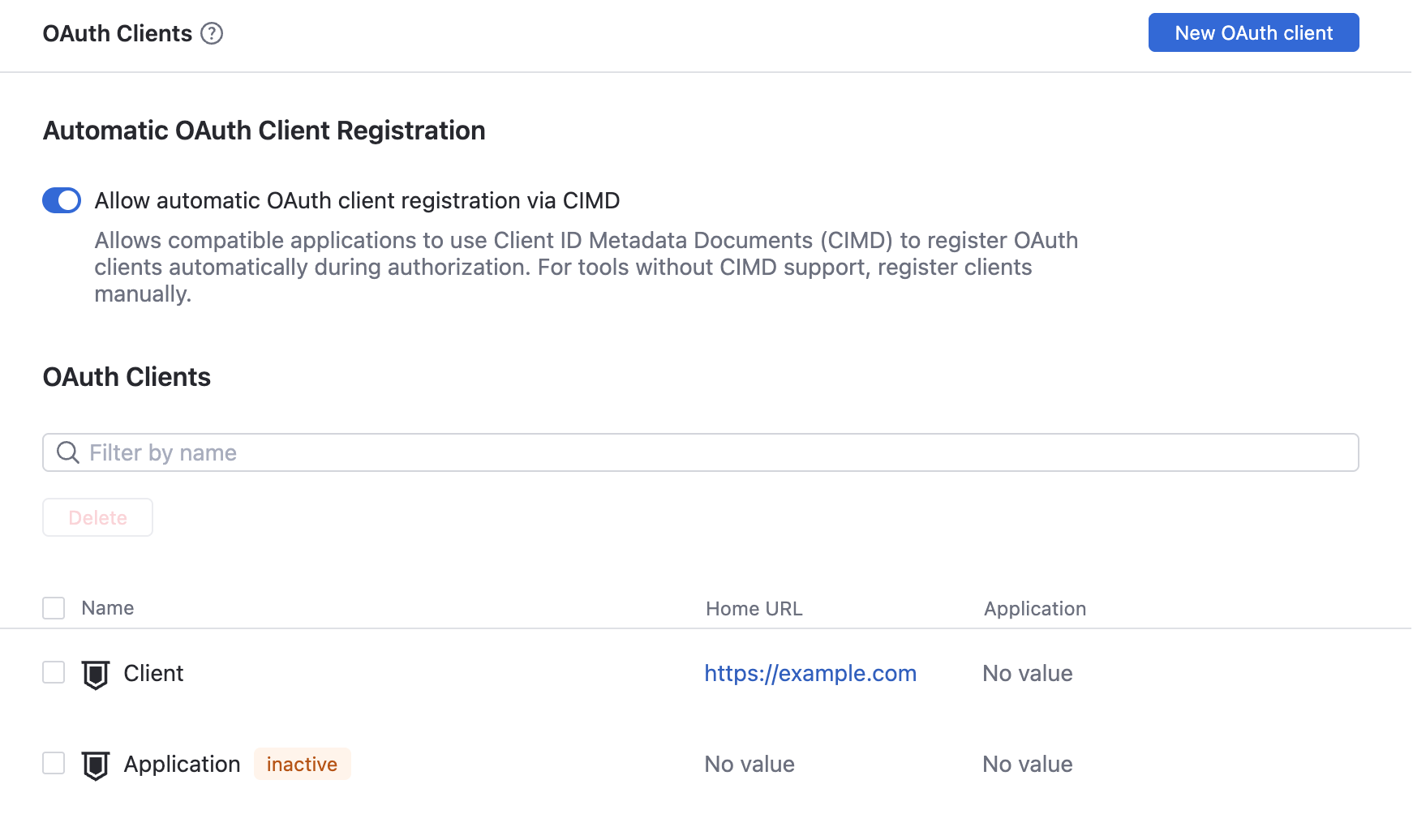
OAuth Clients List
The OAuth Clients section shows manually and automatically registered clients.
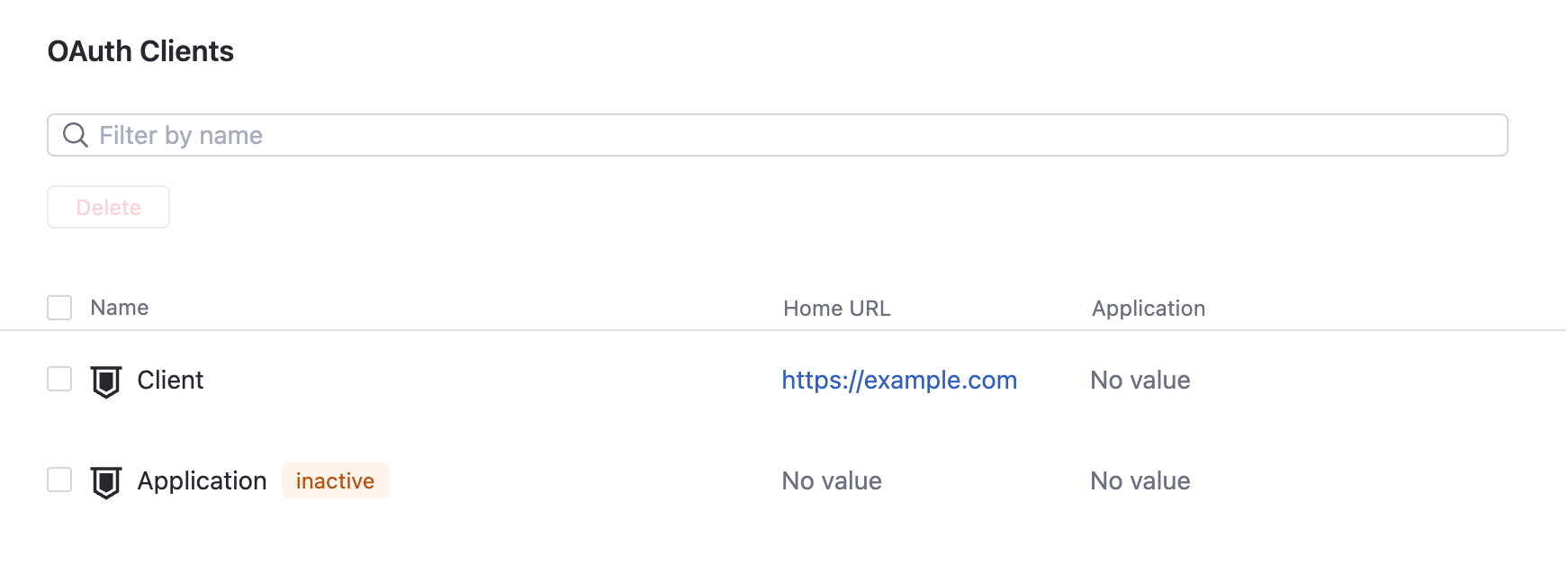
OAuth clients can show the following status badges:
- inactive
No supported authentication flow is active for the client. Enable the flow required by the application.
- auto-registered
The client was registered automatically by a CIMD-compatible application.
To review a registered OAuth client:
Find the client using Filter by name, select it, then verify its application, Home URL, and purpose on the Settings tab.
On the Authentication tab, verify that only the required flows are enabled and that the Base URLs and Redirect URIs belong to the application.
If the client has the auto-registered badge, confirm that it complies with your organization's security policy.
Register an OAuth Client
Choose a setup based on the OAuth capabilities and authorization requirements of the application that you want to connect to YouTrack. Check the application's documentation or ask its owner which registration method, OAuth flow, and redirect URIs it requires.
For an MCP client that supports Client ID Metadata Documents (CIMD), enable automatic registration. If it doesn't support CIMD, register it manually. For the complete connection flow, see Set Up OAuth Client Registration.
For a web, desktop, mobile, or other user-authorized application, register the client manually and use Authorization Code with PKCE when possible.
For a trusted service that accesses YouTrack with its own credentials, use the Client Credentials flow. Use this flow only for applications that can store their client secret securely, such as backend services.
If an integration doesn't support OAuth and runs as a specific YouTrack user, use a permanent token for that account.
Automatic OAuth Client Registration
Applications that support Client ID Metadata Documents (CIMD) can register automatically during authorization.
This option is inactive by default. Enable it only when your organization permits users to connect compatible applications without prior administrator review.
To allow automatic OAuth client registration:
Open
.Enable Allow automatic OAuth client registration via CIMD.
Ask the user to start or repeat authorization, then confirm that the client appears in the list with the auto-registered badge.
To prevent future automatic registrations, disable Allow automatic OAuth client registration via CIMD.
To block a specific automatically registered client while allowing other applications to register automatically, open the client, disable the Authorization Code flow on the Authentication tab, then click Save. This keeps the client in the list with the inactive badge and prevents it from authorizing users. Don't delete the client for this purpose, as the same application can register it again.
Create an OAuth Client Manually
Create a separate OAuth client for each external application. Before you start, check the application's documentation for the settings required to register it in YouTrack.
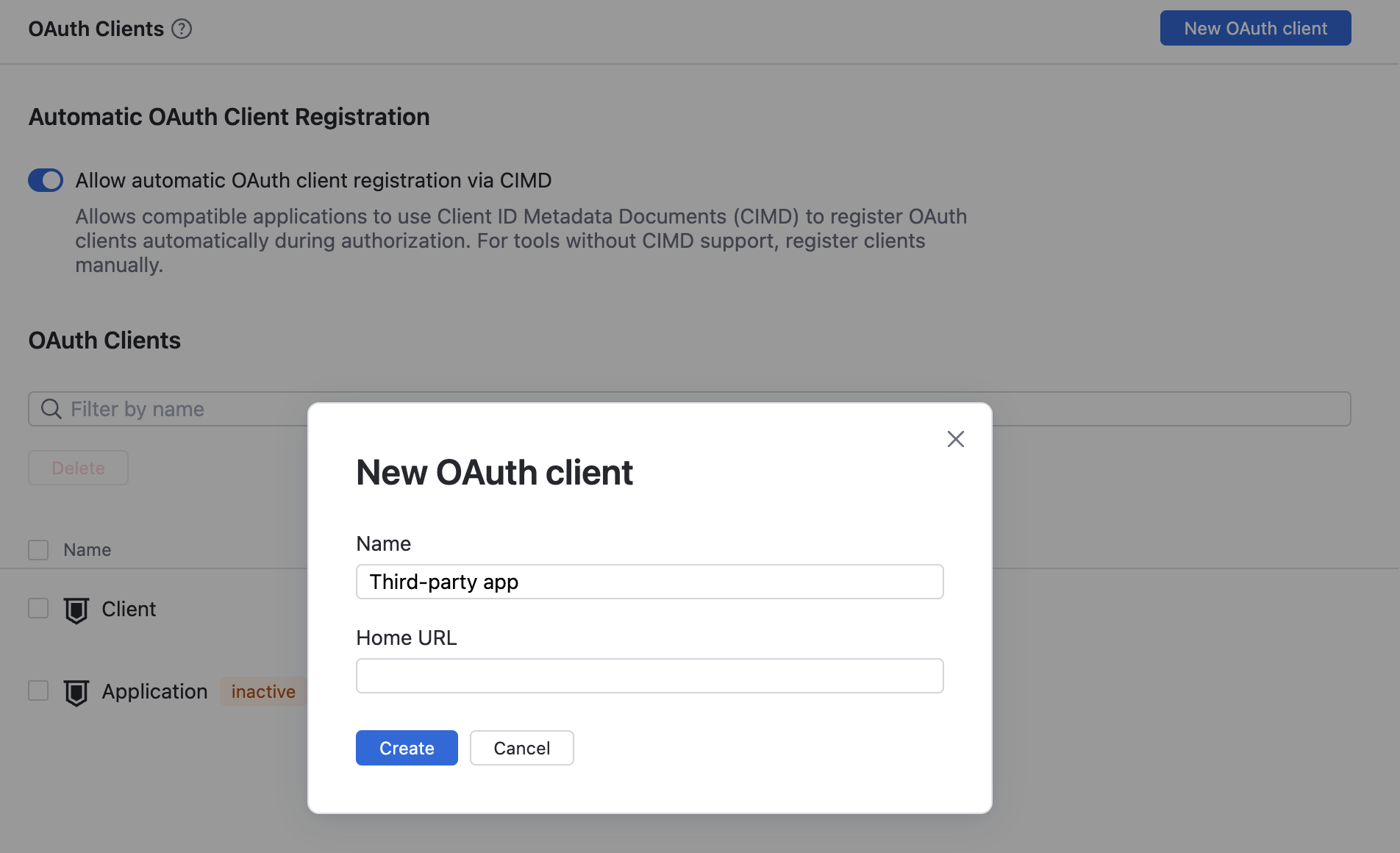
To create an OAuth client:
Open
.Click New OAuth client, enter a name and, when available, the Home URL, then click Create.
On the Authentication tab, select a supported flow and configure the Base URLs, Redirect URIs, and user consent requirement, then click Save.
Copy the generated Client ID to the external application.
If the application is a confidential client that requires a secret, click Change next to Client secret on the Authentication tab and set the secret. Store the secret securely and use it only from trusted server-side code.
On the Settings tab, add a description and configure the Home URL and URI patterns required by the integration. For details about these fields, see General Settings. Click Save.
Complete the setup in the external application and start its authorization flow. Test the connection with a read-only request before allowing it to create or update YouTrack data.
Configure an OAuth Client
Select a client in the list to open its details sidebar. Update settings on the Authentication or Settings tab, then click Save.
Authentication
- Client ID
The identifier that the external application uses in OAuth requests.
- Client secret
A secret used by applications that can store it securely. Public clients that use the Authorization Code flow with PKCE don't need a client secret.
- Client Credentials flow
Allows a trusted service to authenticate with its own credentials without a user. Use this flow only when the application can store its client secret securely.
- Authorization Code flow
Redirects users to YouTrack to log in and authorize access. For new user-authorized integrations, use this flow with PKCE.
- Require PKCE
Requires Proof Key for Code Exchange for the Authorization Code flow. Enable this setting for public clients and whenever the application supports it.
- Implicit flow
Supports legacy browser integrations without PKCE. This flow is deprecated. Use the Authorization Code flow with PKCE for new integrations.
- Require user consent
Requires users to approve access before the client can access YouTrack on their behalf. Keep this setting enabled for third-party applications unless your organization has reviewed the application.
- Base URLs
Trusted base URLs for the external application. YouTrack uses these URLs with the Home URL to resolve relative redirect URIs and validate the intended recipient of an access token.
- Redirect URIs
Locations to which YouTrack can return a user after authorization. A URI must match a registered absolute URI, a registered loopback IP URI, or a relative URI resolved against the Home URL or a Base URL.
Examples include
https://app.example.com/oauth/callback,http://127.0.0.1:8080/oauth/callback, and/oauth/callback.When an authorization request uses an unregistered redirect URI, YouTrack shows the URI below this field. Select Allow access only when you recognize it as an endpoint controlled by the external application. Otherwise, select Ignore.
Settings
- Name
A display name that helps administrators identify the external application.
- Description
An optional description of the application and the purpose of the connection.
- Home URL
The application's absolute base URL, which YouTrack also uses to resolve relative redirect URIs.
- User URI pattern
A URI pattern that references users with
:idor:login, for example,https://app.example.com/users/:login.- Group URI pattern
A URI pattern that references groups with
:idor:name, for example,https://app.example.com/groups/:id.- Application information
Read-only application metadata, such as its name, version, vendor, and release date, when available.
Change an OAuth Client Secret
Only confidential clients that can store credentials securely should use a client secret.
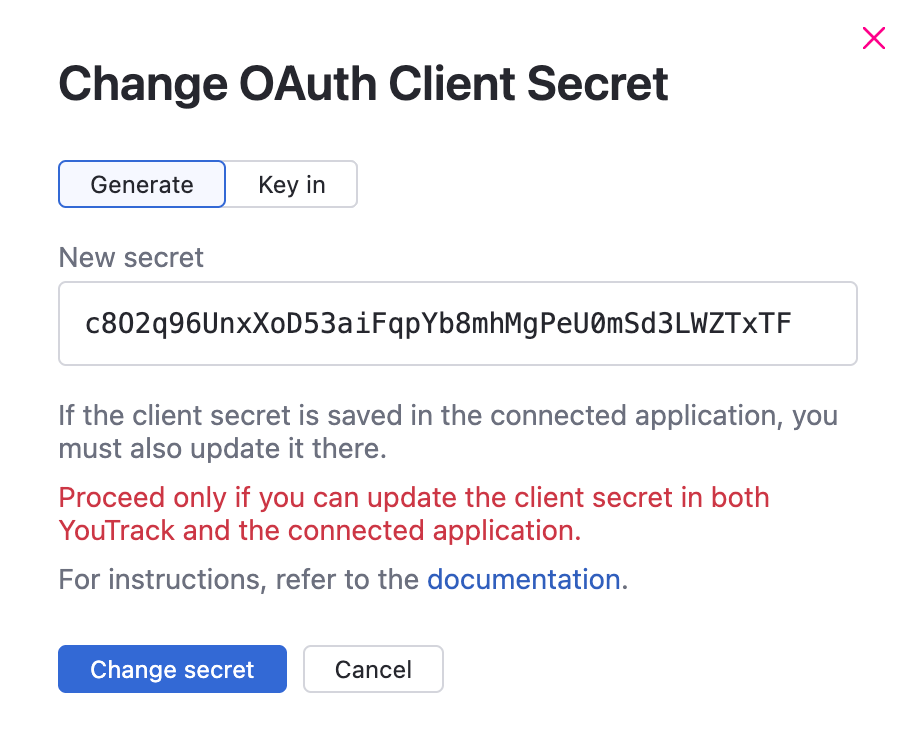
To change the client secret:
Open
and select the client.On the Authentication tab, click Change next to the Client secret.
Choose how to set the new secret:
Select Generate to let YouTrack create a new secret value.
Select Key in to enter and confirm a custom secret value.
Copy and store the new value securely, then click Change secret.
Update the connected application with the new secret.
Test the connection with a read-only request. If you lose the new secret, repeat this procedure to set another value.
Troubleshoot OAuth Clients
Problem | Recommended action |
|---|---|
YouTrack rejects the redirect URI. | On the Authentication tab, compare the URI shown below Redirect URIs with the application's configured callback. Select Allow access only when you recognize the complete URI. Otherwise, select Ignore. |
The application reports an invalid client ID or client secret. | Verify that the credentials belong to the selected OAuth client. If you change the secret, update the connected application immediately. |
The application reports that the grant type isn't supported. | Verify that the required flow is enabled for the client and that the application is requesting the same flow. |
Authorization succeeds, but expected YouTrack data isn't available. | For a user-authorized flow, verify that the authorizing user has permission to access the data. The OAuth client doesn't grant additional YouTrack permissions. |
The OAuth Clients page or an expected flow isn't available. | Check whether the YouTrack Server installation uses an external Hub service. If it does, manage the OAuth client in Hub. |
For OAuth endpoints, request parameters, responses, and error codes, see OAuth 2.0 Authorization in the Developer Portal.
For problems connecting an MCP client, see Remote MCP Client Connections.
Delete an OAuth Client
Delete an OAuth client when the external application is retired, no longer approved, or compromised. Deleting it removes the client configuration for all users and prevents applications from starting new authorization requests with its credentials.
To delete an OAuth client:
Open
.Select one or more clients and click Delete. To delete a single client, you can also select Delete from its Show more menu.
Confirm the deletion.