Workflow Rule Manager
The Workflow Rule Manager app lets you view and manage workflows attached to a project. You can change the order for running on-change rules, review errors, activate, and deactivate rules directly in one place.
Add the Workflow Manager App to a Project
Attach the Workflow Rule Manager app to the project before using it to manage workflow rules. For more details, see Attach an App to a Project.
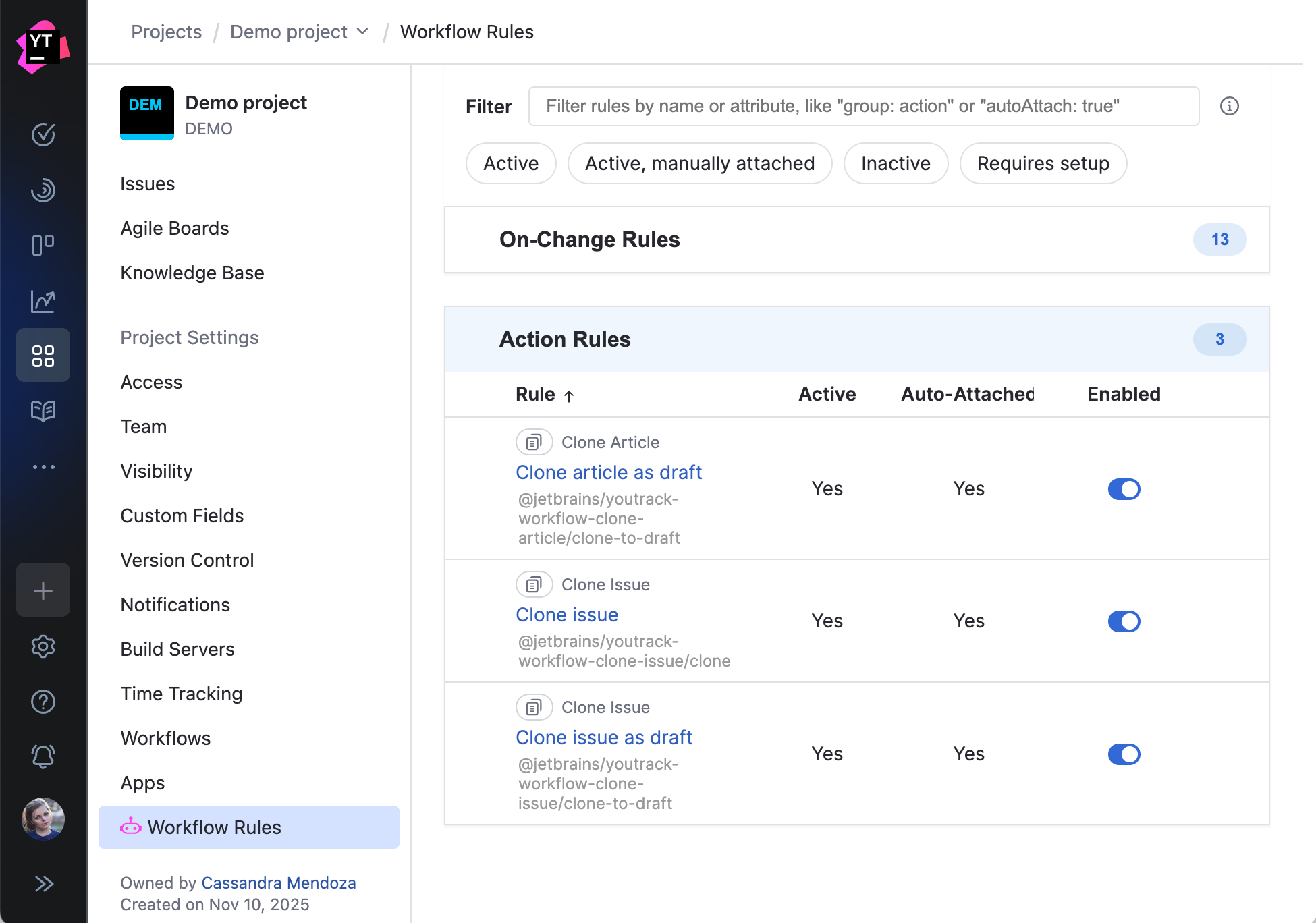
The Workflow Rule Manager app includes a widget for the project overview page. This widget displays all workflow rules attached to the project, organized by type. From this widget, you can filter workflow rules by name or a certain attribute, or use the predefined filters.
Work with the Workflow Rule Manager
The Workflow Rule Manager app shows a table of all workflow rules attached to the project. For each rule, the table shows the following columns:
- Rule
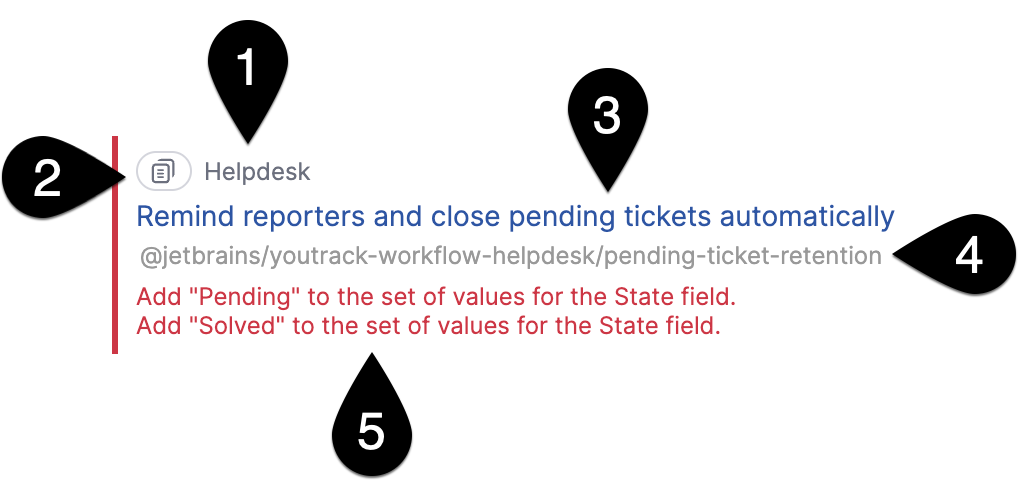
Shows the following basic rule information and options:
The name of the workflow or app package.
The button to copy the full name of the rule script, including the name of the package.
The clickable title of the rule. When you click it, a new tab opens with the JavaScript workflow editor. You can make necessary changes to the rule script there. For more information about the workflow editor, see https://www.jetbrains.com/help/youtrack/devportal/Web-based-Workflow-Editor.html.
The full name of the rule, including the name of the package.
Error messages if there are any.
- Active
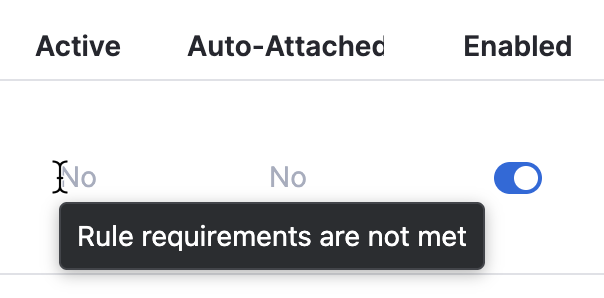
Shows whether the rule is currently active in the project or not. If the value is No, you can hover over it to find out the reason why the rule is inactive.
- Auto-Attached
Shows whether the rule is part of an auto-attached workflow.
- Enabled
A toggle that lets you activate or deactivate the rule in the project.
You can click a column name to sort the rules by the value in this column.
There are several main tasks you can do with the help of the Workflow Rule Manager app:
View Project Workflow Rules Grouped by Rule Type
The Workflow Rule Manager displays project rules grouped by their type: on-change, action, on-schedule, and state-machine. For more information about rule types, see https://www.jetbrains.com/help/youtrack/devportal/Workflow-Rules.html.
You can expand and collapse sections corresponding to particular rule types and view lists of rules for each type. Each section shows the number of rules of this type attached to the project in the upper-right corner.
Filter Project Workflow Rules by Name or by Certain Attributes
You can filter rules by a set of attributes using the set of predefined filters or the filter bar at the top of the page.
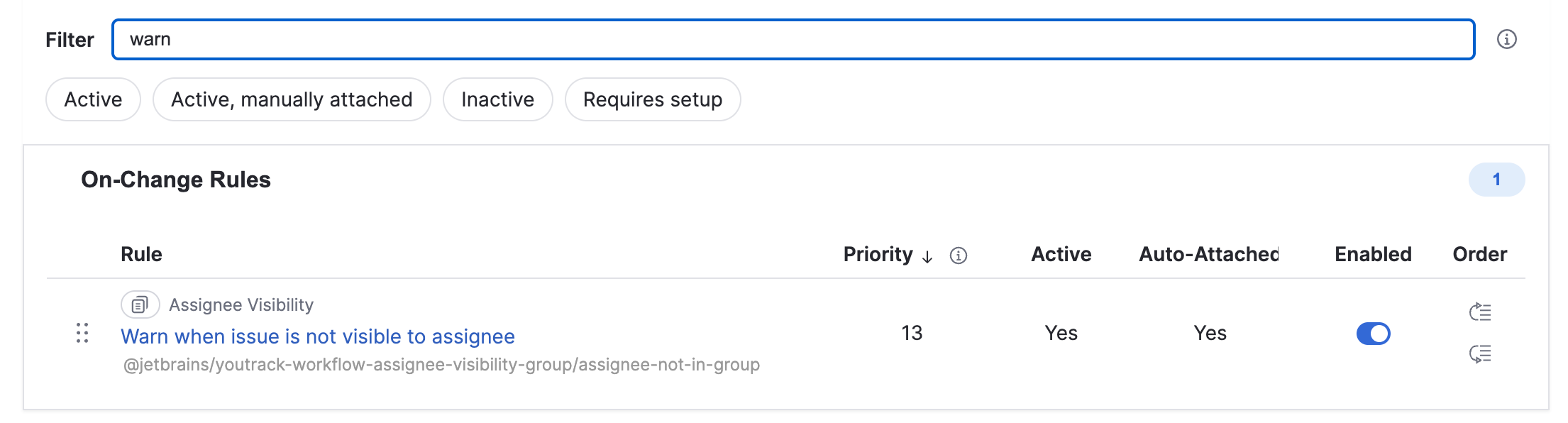
For quick filtering, use the buttons for the predefined filters:
- Active
Shows all active rules. Equals to the
active:truefilter query.- Active, manually attached
Shows all active rules that were attached to the project manually. Equals to the
autoAttach:false and active:truefilter query.- Inactive
Shows all inactive rules. Equals to the
active:falsefilter query.- Requires setup
Shows all rules that require setup. Equals to the
active:false and enabled:truefilter query.
For custom filter queries, you can use the following keywords in the filter bar:
- group
The rule type.
Example:
group: actionorgroup: schedule- rule
The rule title.
Example:
rule: scheduleror-rule: scheduler- app/appname
The title of the workflow or app package.
Example:
app: helpdeskor-app: helpdesk- appid
The ID of the workflow or app package.
Example:
appid: 37-259or-appid: 37-259- id
The ID of the rule script.
Example:
id: 75-566or-id: 75-566- priority
Filters on-change rules according to their position on the priority list.
Example:
priority: 1- enabled
Filters rules enabled by the project or system admin.
Example:
enabled: true- autoAttach
Filters rules that are auto-attached to the project.
Example:
autoAttach: true- active
Filters active rules.
Example:
active: true
Filter queries are case-insensitive.
For building complex queries, use the and and or operators. For excluding certain results, use the - operator.
Activate and Deactivate Rules in the Project
Switch the toggle in the Enabled column for the relevant rule to quickly activate or deactivate it in the project.
Change Priority for the On-Change Rules in the Project
When you have several on-change rules in the project, the order in which they are triggered sometimes matters. You have an option to change the priority of on-change rules from the Workflow Rule Manager.
Drag rules to change their position in the list or use the buttons on the right to move a rule to the top or bottom of the queue.
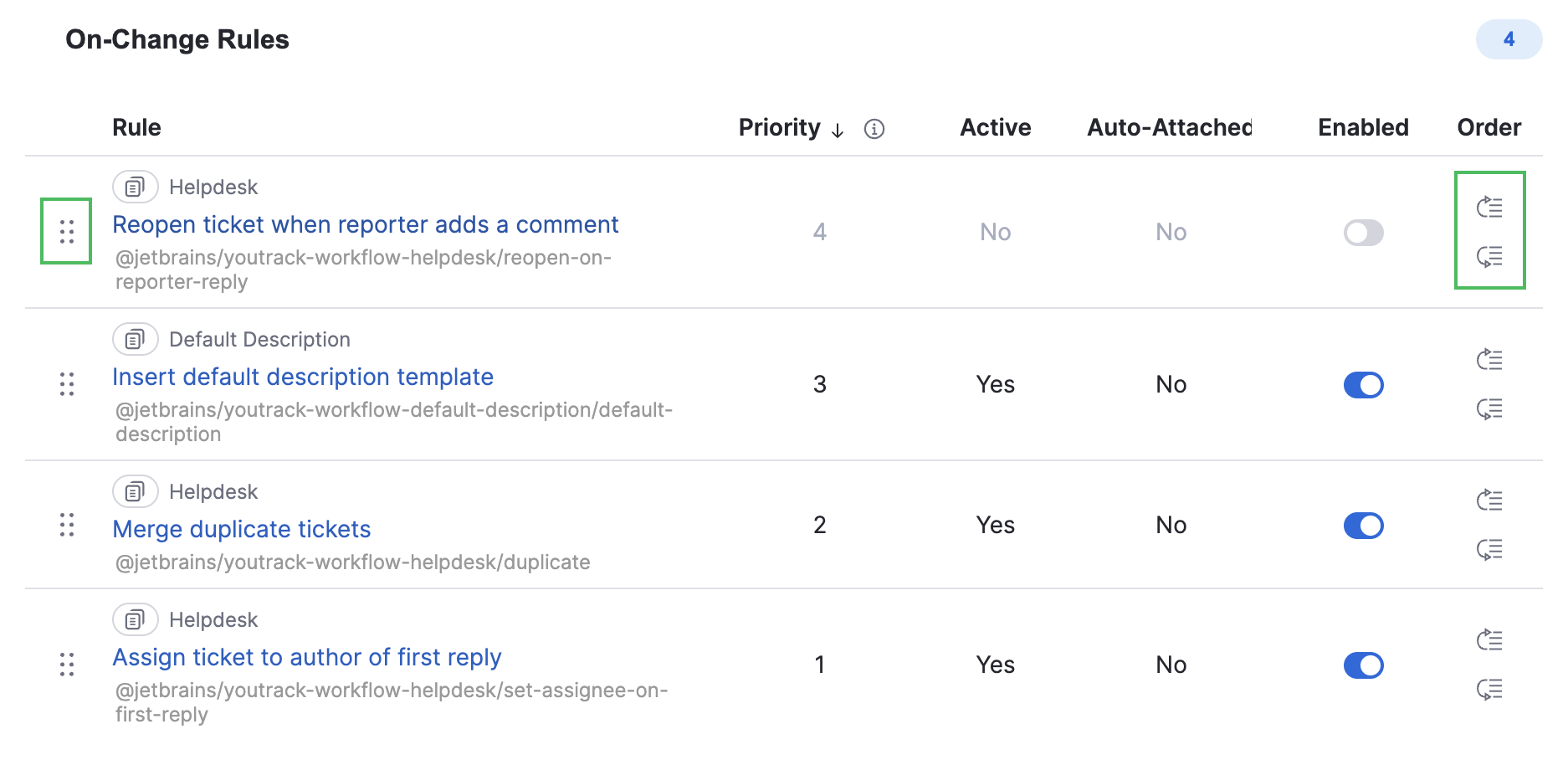
You can click the name of the Priority column to sort the rules in ascending or descending order according to their priority.
Review Errors in the Project Rules
When there are any errors in the rule, you will see red labels with the details under the basic information about the rule.

If any quick fixes are available, you can apply them in the Workflows tab in the project overview.