Building standalone IDEs for your languages
Introduction
The term standalone IDE refers to a stripped-down version of the IDE that only contains those artifacts that are necessary for a given business purpose. Standalone IDEs provide a convenient way to distribute DSLs to the end users, who will be able to use the languages including all the IDE support, refactorings and code analysis prepared by language designers in the comfort of a dedicated IDE. All the distracting language-design-related functionality and unnecessary languages will have been removed.
Once you have designed your languages, MPS can help you build a stripped down version of MPS that only contains those artifacts that are necessary to use these domain-specific languages. Various aspects of MPS can be removed or customized to deliver a custom user experience for a given group of users. This article describes how.
In particular, the following aspects of MPS can be customized:
various icons, slogans, splash screens and images
the help URL
the set of languages available to the users
the set of plugins available in MPS
Process Overview
To build a custom RCP version of MPS, you have to create a solution that contains a so-called build script. A build script is written in MPS' build language, which is optimized for building RCP applications (as well as MPS plugins). When running the generator for this build script, MPS generates an ant file that creates the actual RCP distribution.
Building an example RCP build
In this document we describe the development of an RCP build scripts for the robot Kaja sample that is bundled with MPS distributions. You can open the project in MPS and follow the instructions described here.
Creating the Solution and the Build Script
The wizard way
The preferred way to create the necessary build scripts is to run the Build Solution Wizard on your current project. You start it from the Project View tool window:
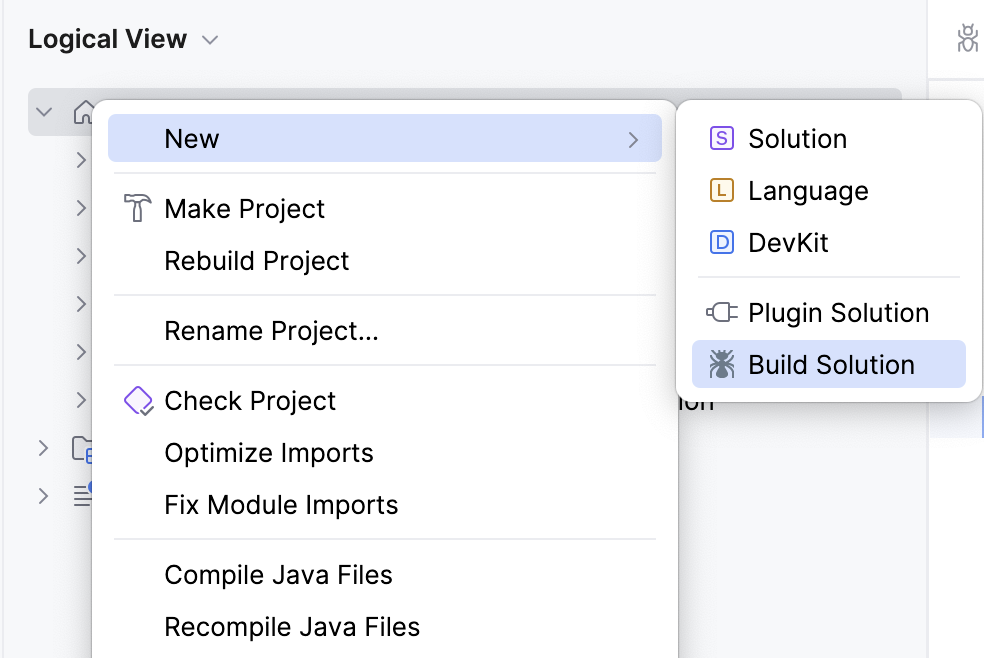
The wizard will create a new solution and a model to hold the scripts and set the necessary imports as well as used languages. You can instruct the wizard to reuse an existing solution or a model, instead of creating new ones.
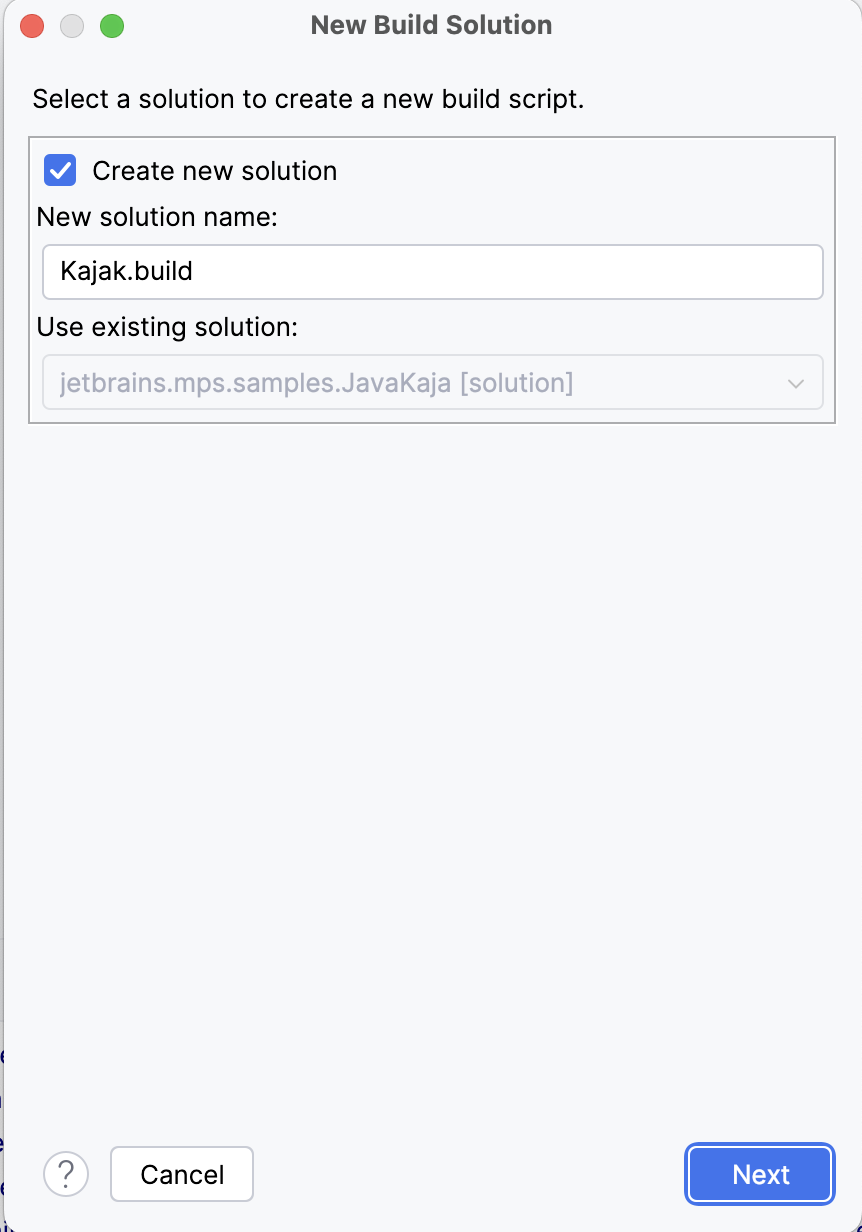
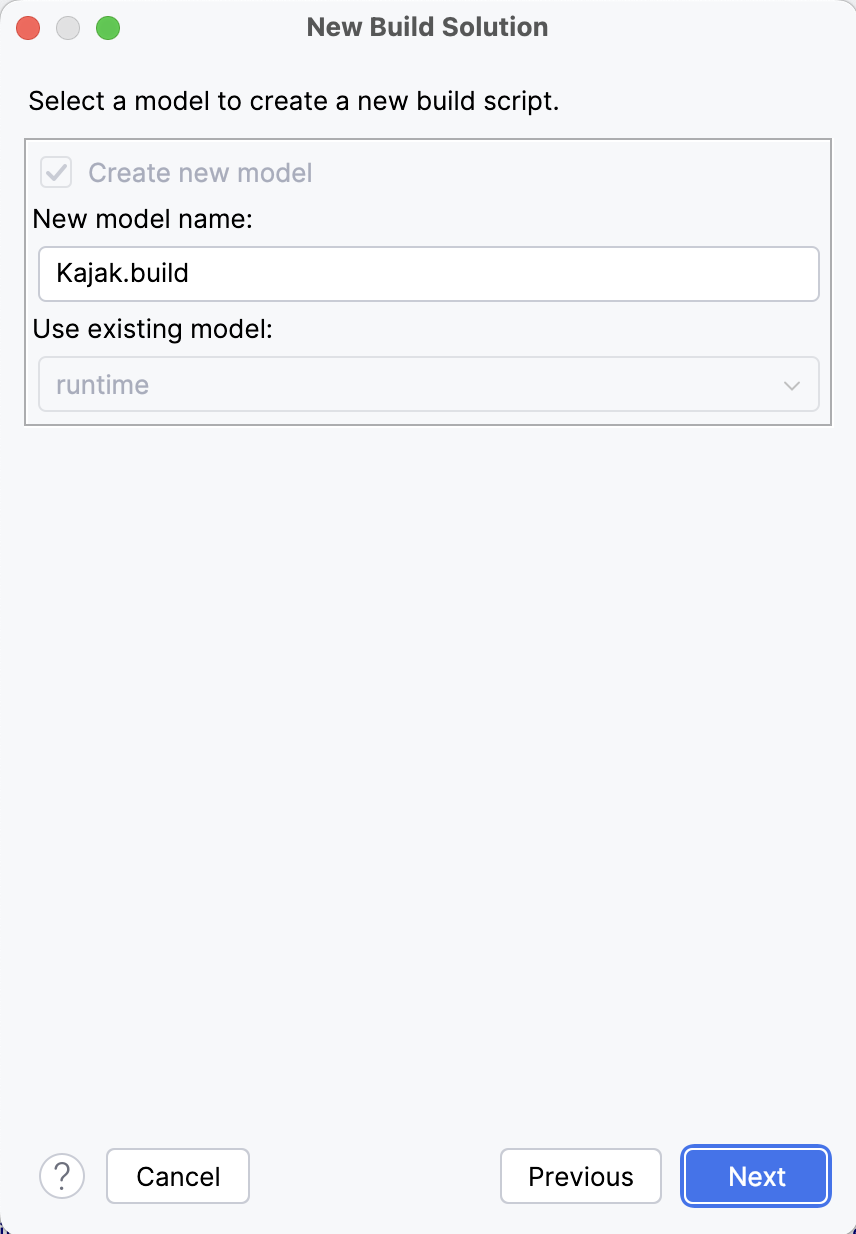
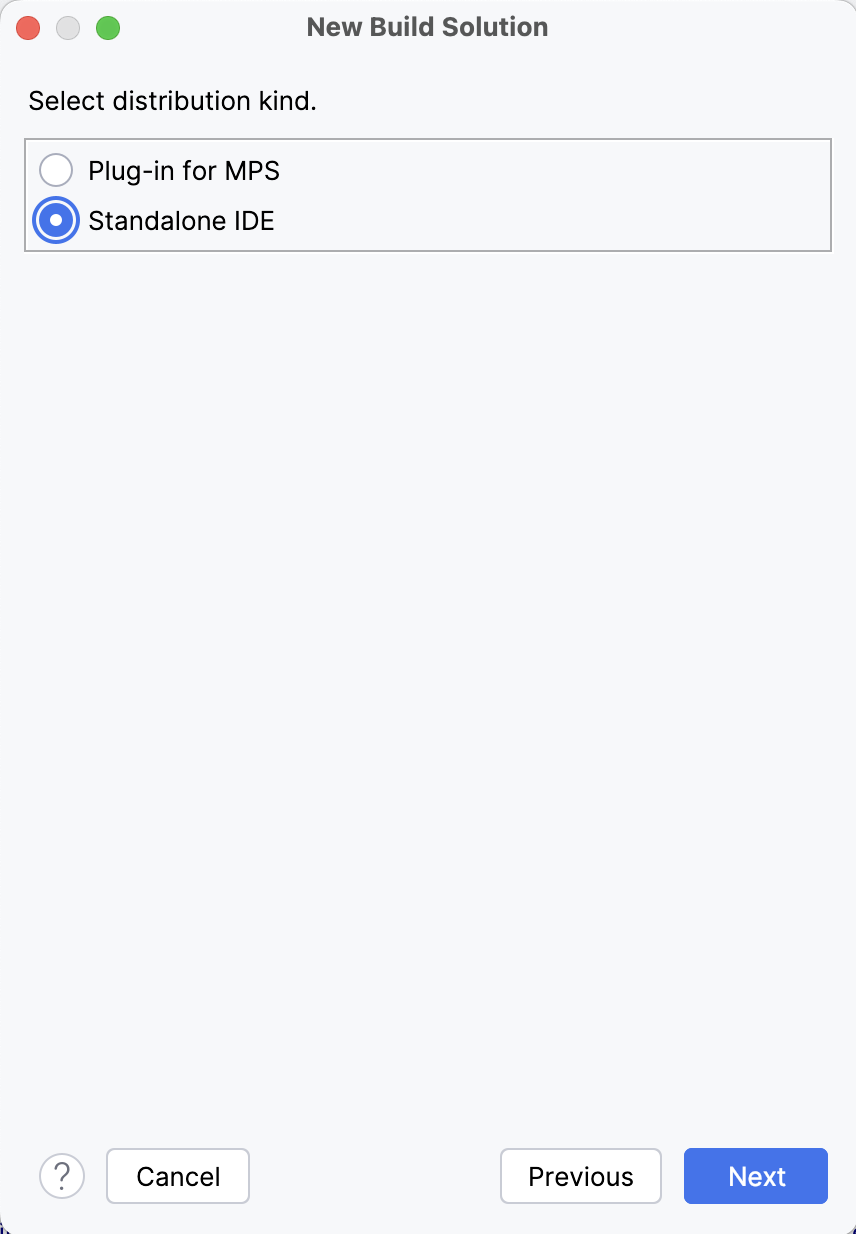
You'll then need to select the Standalone IDE option from the three available options:
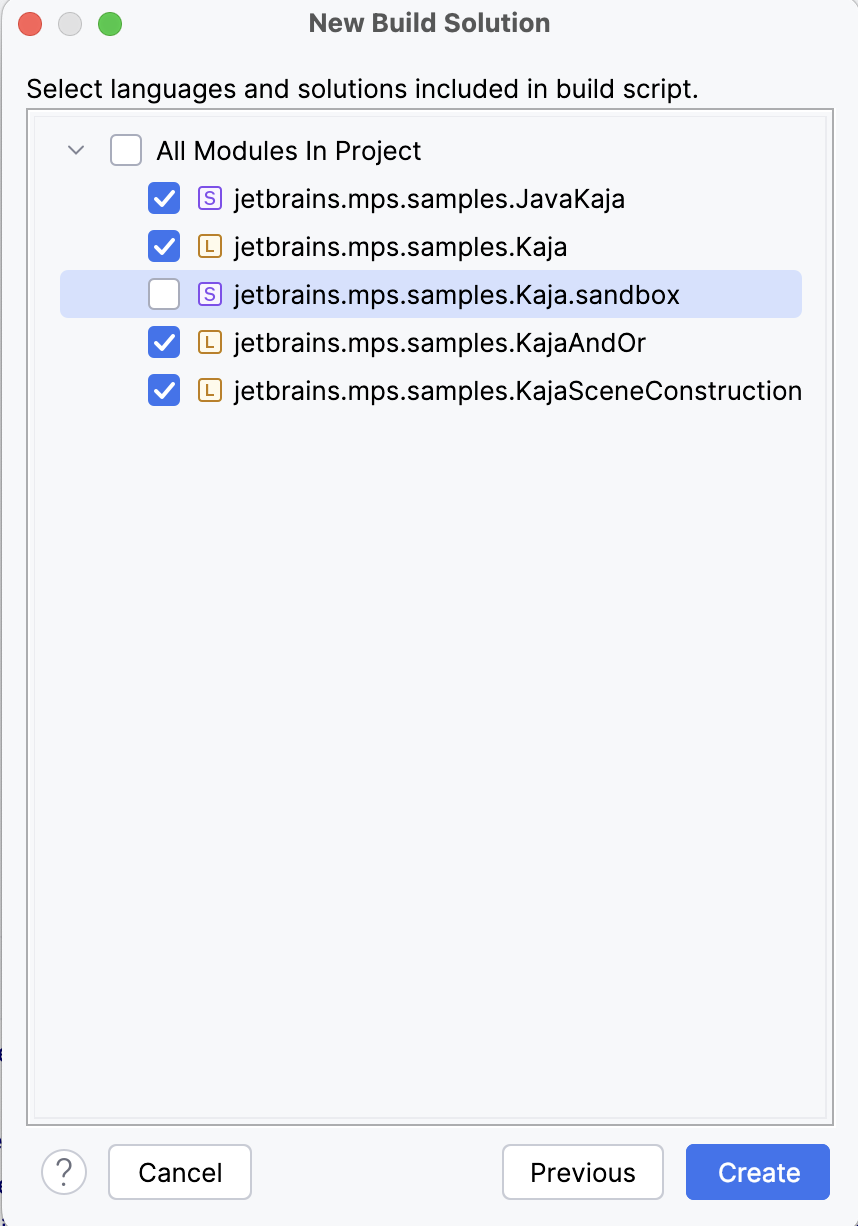
On the last page of the wizard, you de-select the modules that should not be made part of the IDE. Typically, you skip the sandbox modules and keep the languages as well as plugin and runtime solutions.
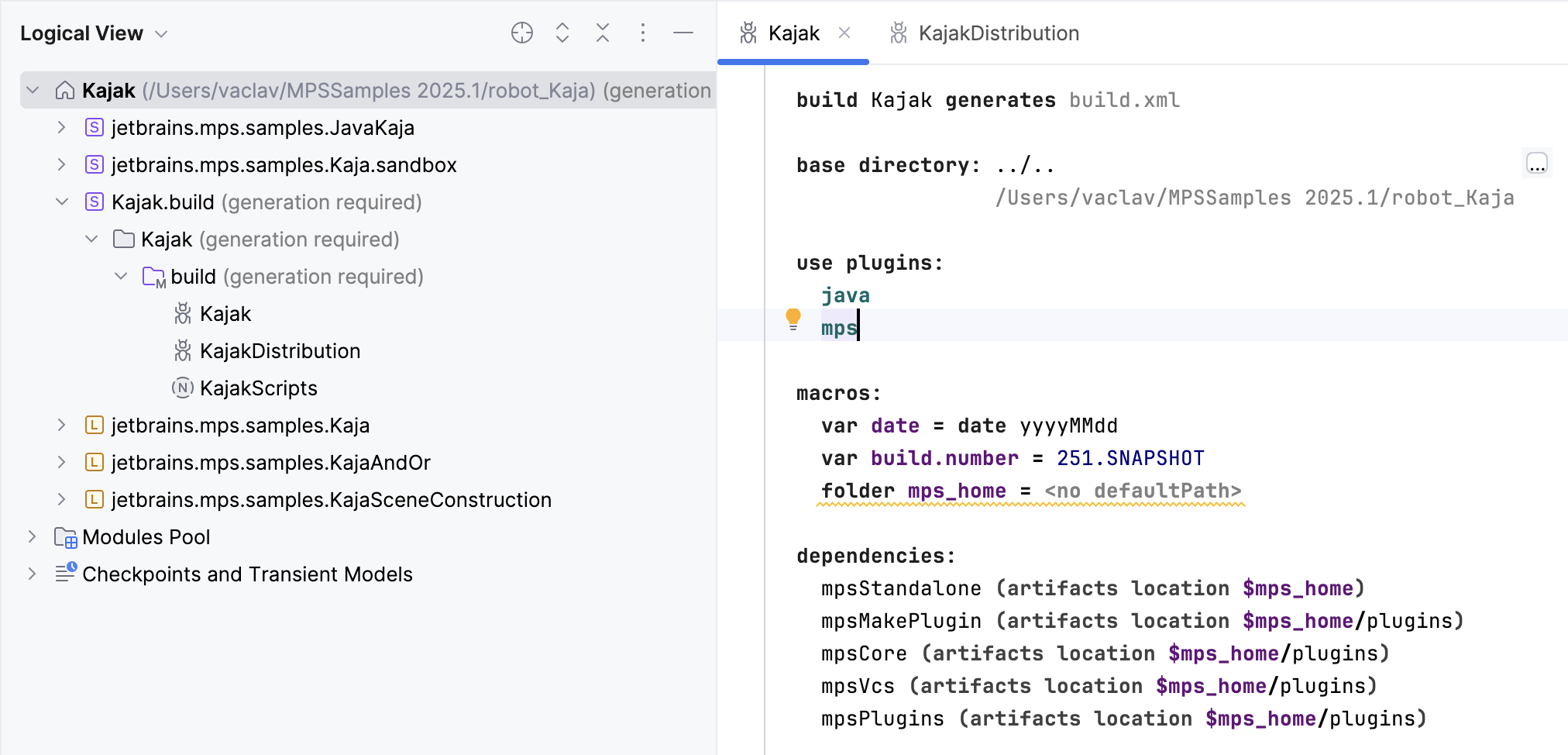
The new solution should now be listed in the Project View and should hold three root nodes, two of which are new build scripts:
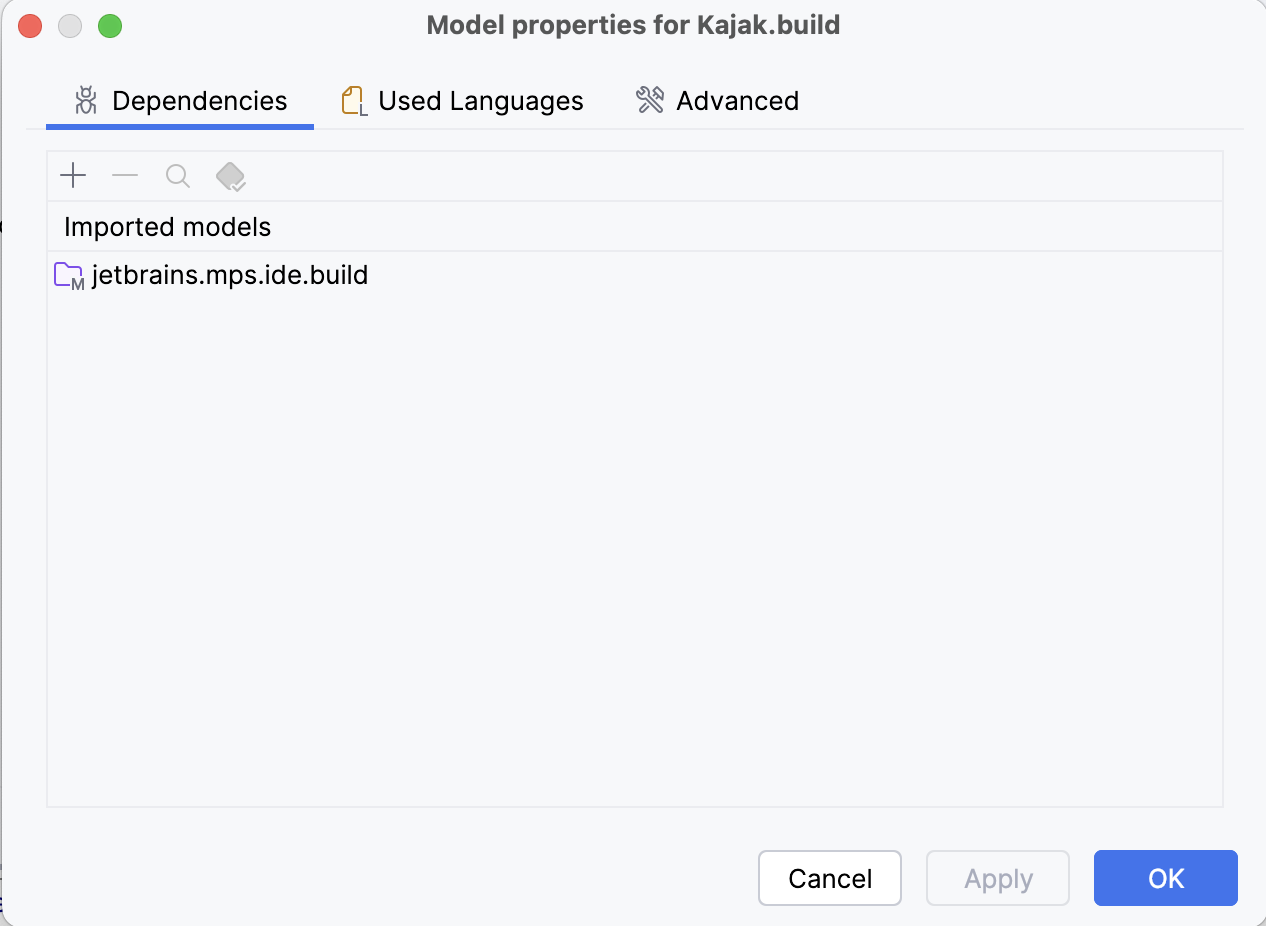
The dependencies have been also set properly:
For the generated builds scripts to work, you have to change a few things. One of them is to download the generic MPS distribution, unzip it on your drive and point both of the generated build scripts' mps_home macro to the folder of the unzipped generic distribution.
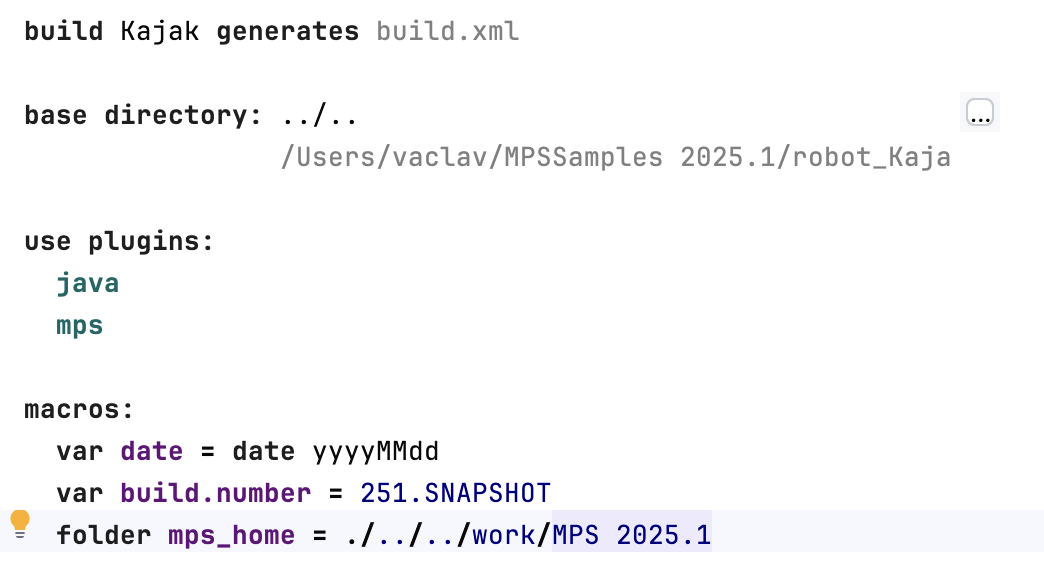
Second, if the editor reports problems like this one:
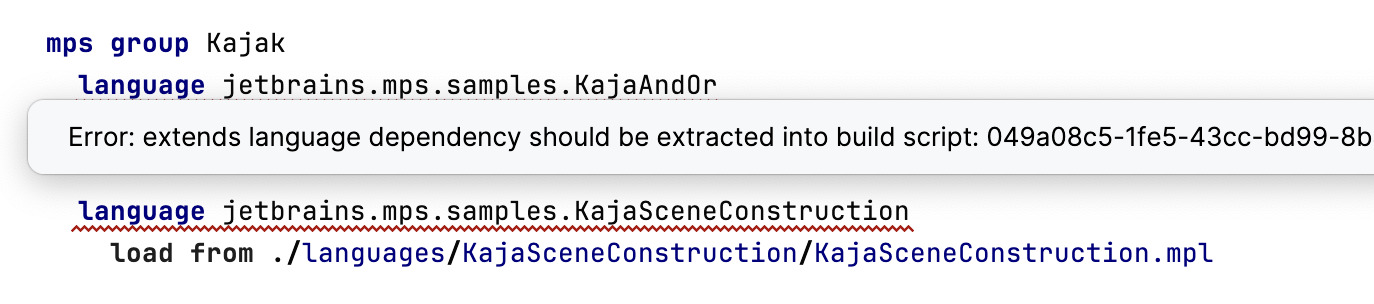
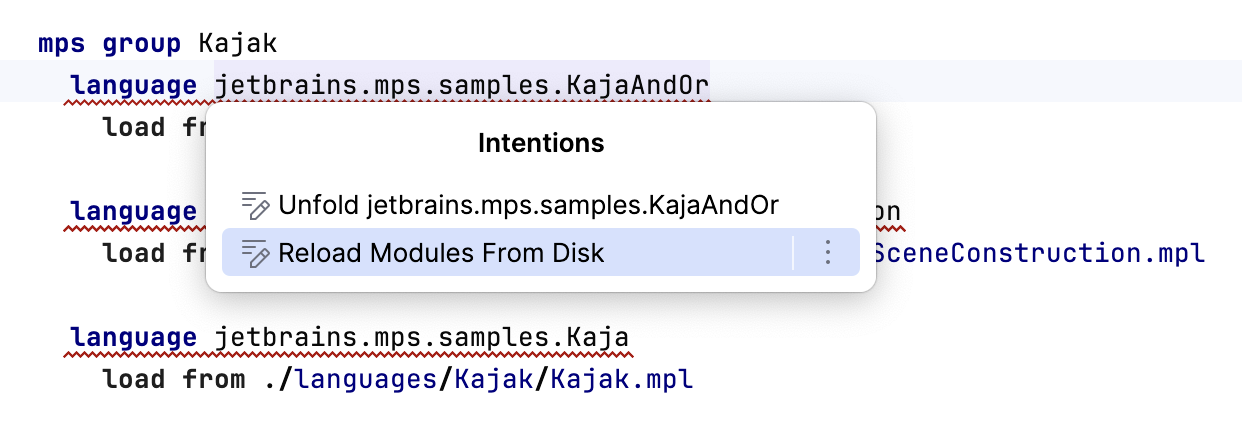
you have to trigger an intention that reloads the actual dependencies and updates the script:
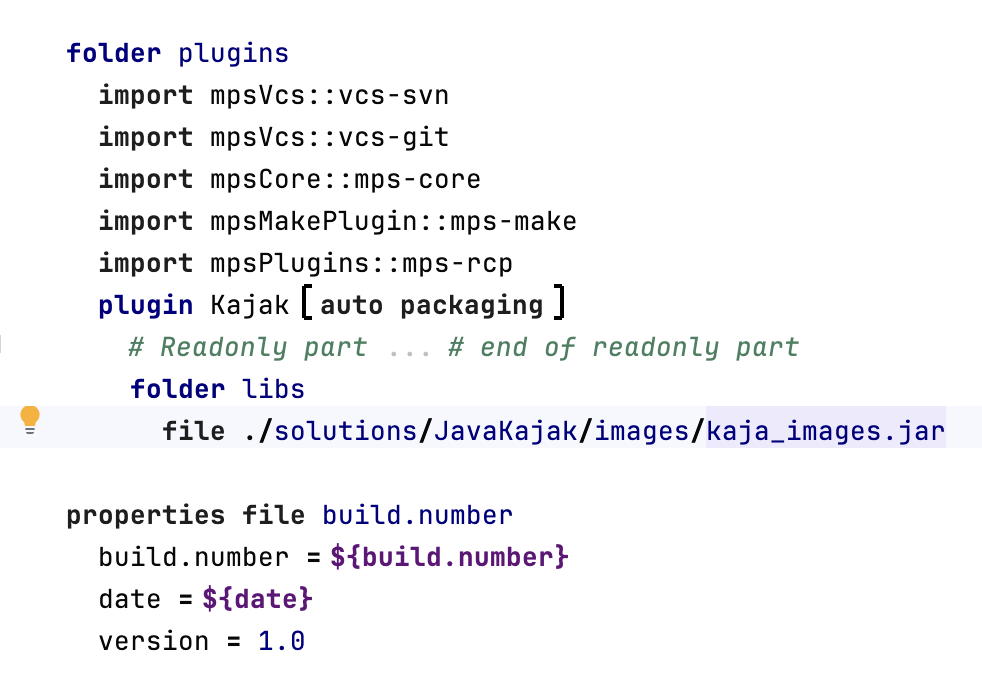
Since the language runtime here comes with images, the images have to be packaged properly into the language plugin that gets created by the build script.
Now you rebuild the build model and may try to run the build scripts, which is further described in a later section.
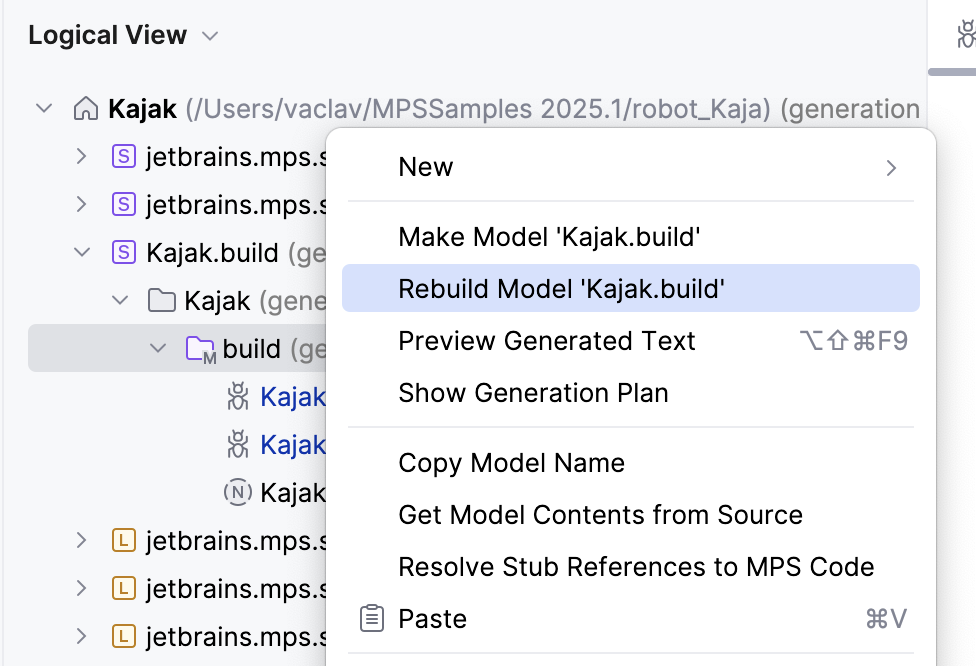
The manual way
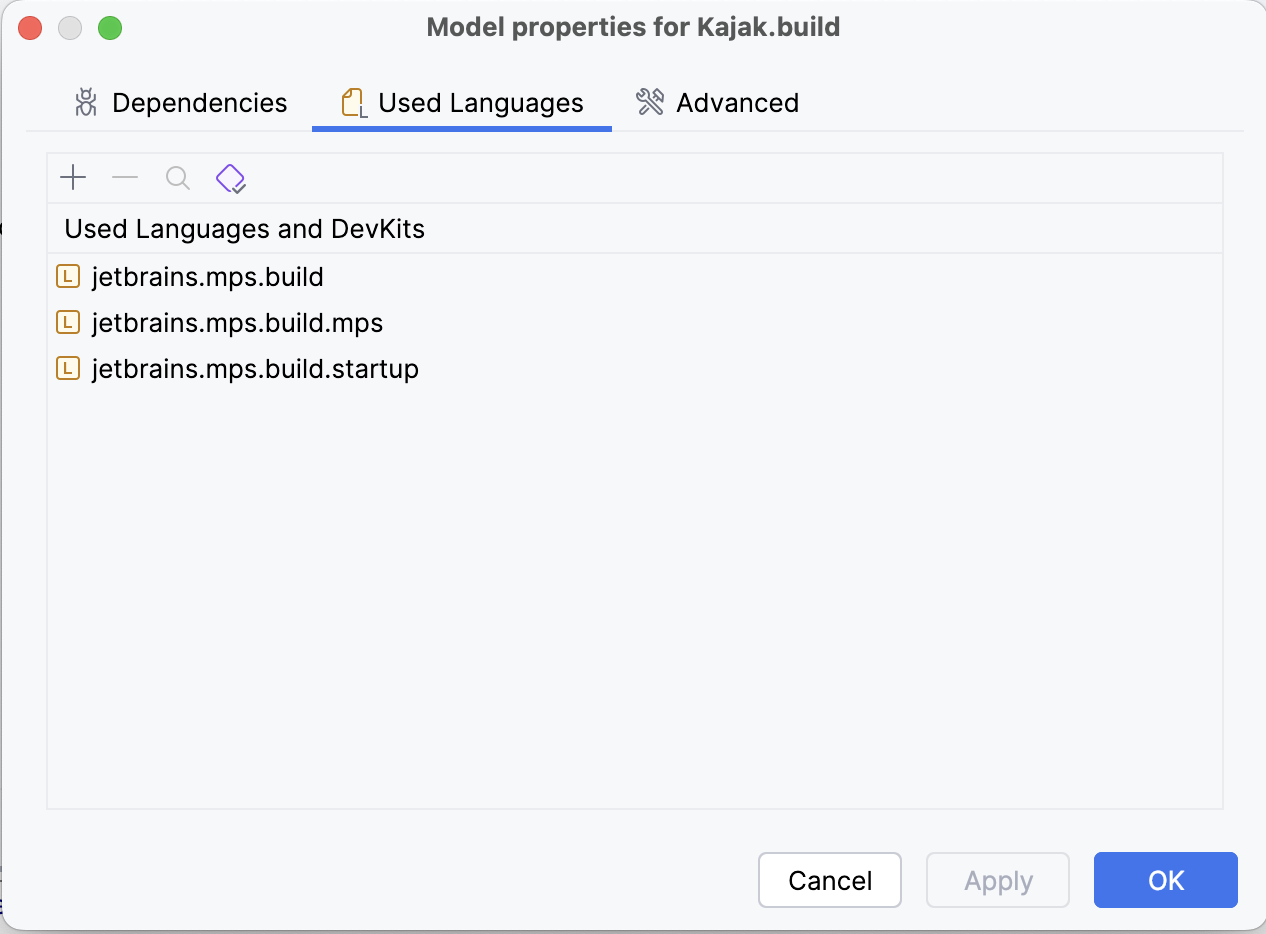
Alternatively, you could create the scripts manually. You'd have to create a new solution with a new model inside. In the model, configure the used languages:
jetbrains.mps.build
jetbrains.mps.build.mps
jetbrains.mps.build.startup
Also import the jetbrains.mps.ide.build model into the dependencies. You can now create a new build project in the model (the name is confusing: it is not actually a new build project, just a build script).
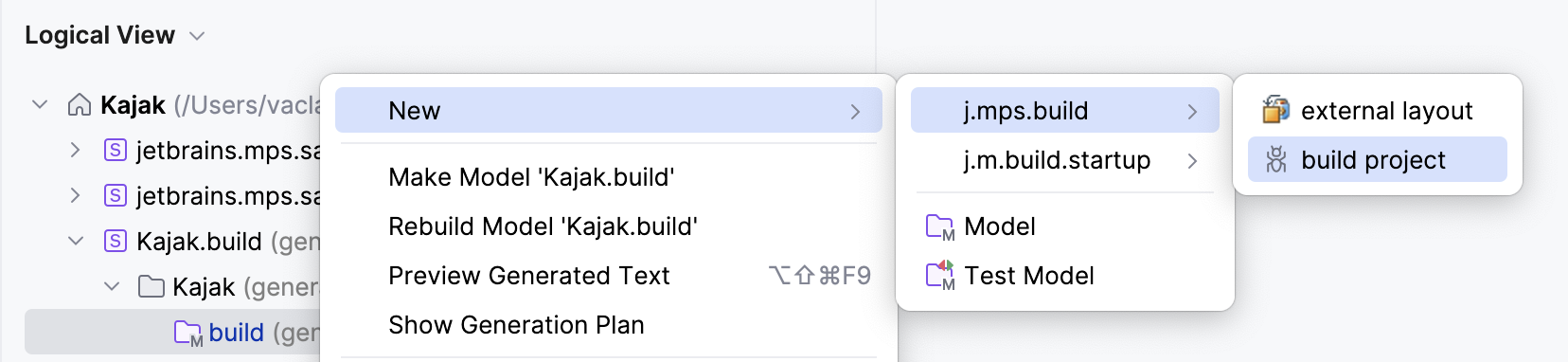
Investigating the build scripts
A build script contains several sections, which we can observe on an empty build script:
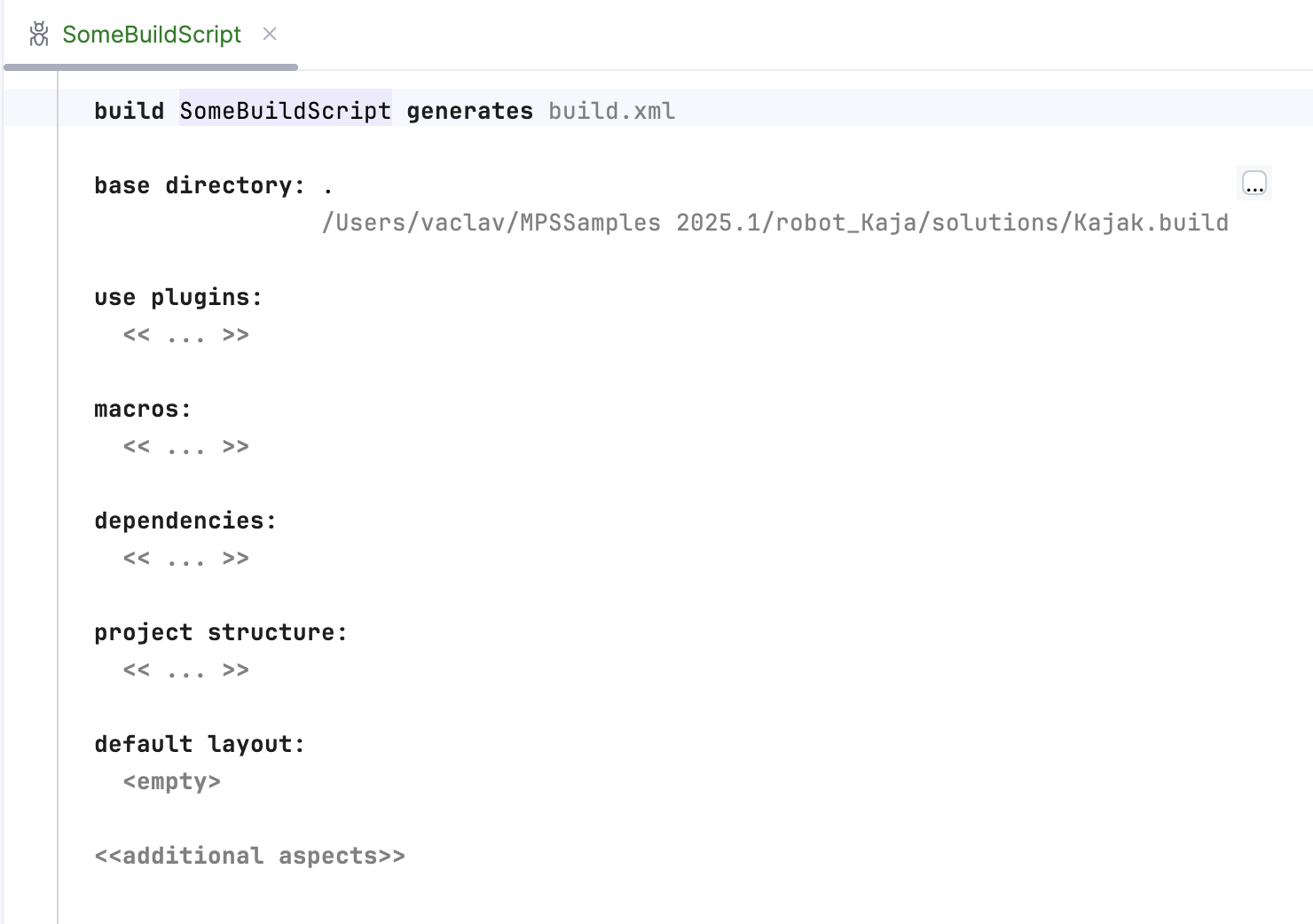
Let's look at the various sections of a build script:
base directory The base directory defines an absolute path relative to which all other paths are specified. By default, this is the directory in which the resulting ant file will be generated, and in which it will be executed. Also, the MPS module descriptor files must be located in this folder or its subfolders to be visible to the build script.
use plugins The build language itself can be extended via build script plugins (Note that these are not the plugins that make up MPS itself; those will be configured later). These plugins contribute additional build language syntax. Typically, the java and mps plugins are required in order to be able to specify Java compilation and MPS generation tasks. We will use syntax contributed by these plugins below. The module-tests plugin, available in jetbrains.mps.build.mps.tests enables tests to be run from a build script.
macros Macros are essentially name-value pairs. In the Macros section, these names are defined and values are assigned. In the remainder of the build script these macro variables will be used. MPS supports two kinds of Macros: var macros are strings and can be assigned any value. folder represents paths relative to the base directory defined above and based on other Macros. Note that MPS provides code completion for the path components in folder macros.
dependencies This section defines dependencies to other build scripts. MPS bundles a set of build scripts (e.g. buildStandalone, buildWorkbench or buildMPS). By establishing a dependency to any one of them, the structures defined in that references build script can be used in the referencing build script. For example, the macros defined in the referenced build scripts can be used.
project structure This section defines the actual contents of the to-be-built RCP application. Such contents may be MPS modules (languages, solutions, devkits), Java libraries, IDEA branding and plugins.
default layout This section defines the files that are output, it creates the directory, file and JAR structure of the new RCP distribution. It references and includes the artifacts defined in the project structure section and in other build scripts this one depends on.
The wizard created two builds scripts, each of which serves a separate purpose:
Kajak - generates the modules, compiles the generated sources and packages them into an IDEA plugin (a plugin for the IntelliJ IDEA platform)
KajakDistribution - creates platform-specific distributions out of the artefacts created by Kajak
Editing the build scripts
Lets focus on the Kajak build script first.
Name of the generated build script
The default name of the ant xml file to generate from each MPS build script is build.xml. It is advisable to change the name so that you avoid clashes between multiple build scripts:
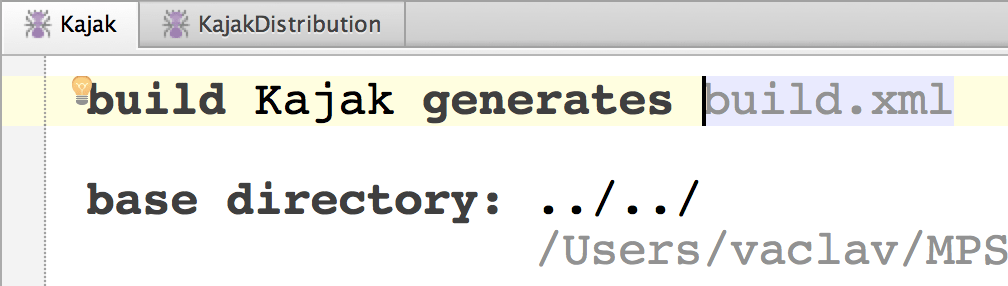
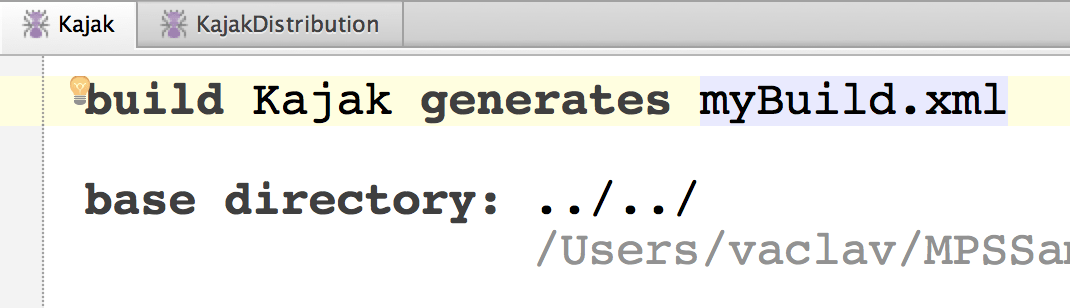
Base directory
Specifies the directory into which the build script will be generated. Defaults to the project's directory.
Use plugins
The build language has packaged its capabilities into plugins. The plugins used in the build script are listed in its use plugins section.
java - contains the capability to compile Java sources
mps - contains the capability to generate MPS models
module-tests - adds capability to run tests in the build script (you need to import the jetbrains.mps.build.mps.tests language)
The wizard has already pre-set java and mps for us.
Macros
We should define a couple of macros to reuse across the script. The first two represent string variables that we will use in the build. The mps_home folder macro points to a directory with unzipped generic distribution of MPS. Note how all of these folders are relative to the base directory.
Note that you can leave a macro undefined (i.e. just specify the name) and then define it either in the MPS Path Variables section of the Project Settings dialog, or when you call ant by using a property definition:
Dependencies
Next, we define the dependencies. Dependencies indicate, on which other build scripts and platforms this script depends.
We need dependencies to mpsStandalone (it represents the minimal set of a standalone MPS installation) and optionally also mpsMakePlugin that enables creating build scripts in the standalone IDE, mpsDebuggerPlugin (because the robot Kaja sample requires debugger and Java execution integration) and mps ExecutionPlugin (because one the robot Kaja sample languages uses the execution framework to run an external executable). Most RCPs will likely just use mpsStandalone.
The artifacts location specifies from where the artifacts will be copied. The build scripts work by copying code from an existing generic MPS installation, so you don't have to check out the MPS sources. The artifacts location should hence be pointing to the MPS home directory.
Project Structure
The build script plugins specified in the use plugins section influence the options available here. With java , mps and module-tests plugins enabled we get the following ones:
generator options - configure the generator
idea branding - configure the visual aspect of standalone IDEs, such as icons, splash-screens, urls, images and other
idea plugin - details the information to hook the generated artefacts into the underlying IntelliJ IDEA platform
Java library - groups jars and classes so they could be referred to as a unit
Java module - groups Java sources so they could be referred to as a unit
Java options - configures the java compiler process
mps group - groups MPS modules (solutions, languages, devkits) so that they could be referred to as a unit
solution - represents a solution
language - represents a language
devkit - represents a devkit
tips & tricks - defines how the descriptions of various tips should be bundled with the new IDE
idea branding
In the project structure, we start with the branding. The idea branding section supports the definition of all kinds of icons, splash screens and the like. It is a good idea to take those from the MPS distribution and modify the pictures to suit your needs, while retaining the sizes and transparency values. Notice that the Version property holds a structured value. You can also specify a help file and an update website.
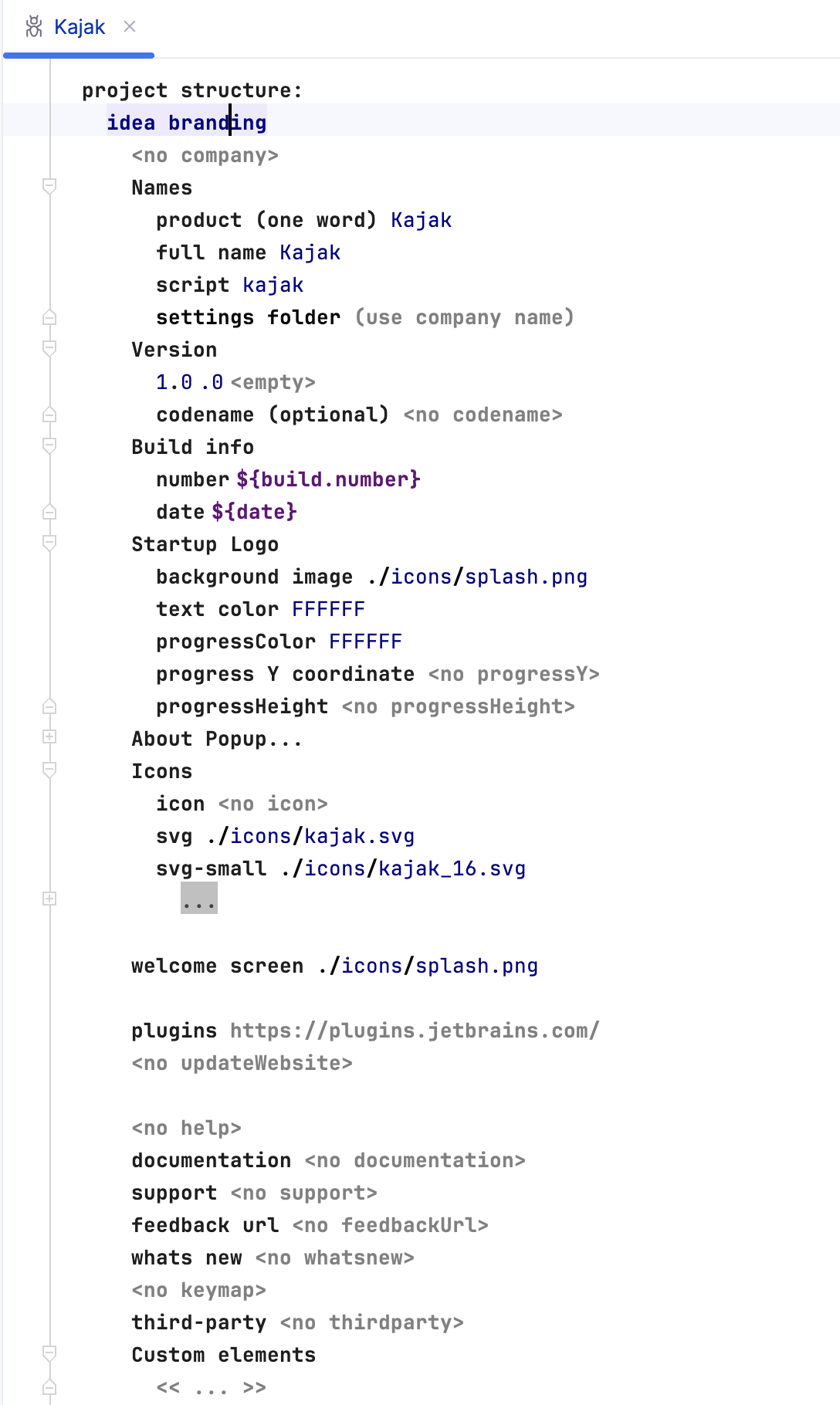
In the Kaja sample project we have copied the MPS icons into the ./icons folder.
idea plugin
Next, we define an idea plugin that contains the languages and solutions to bundle. An idea plugin is a plugin to the IDEA platform on which MPS is built.
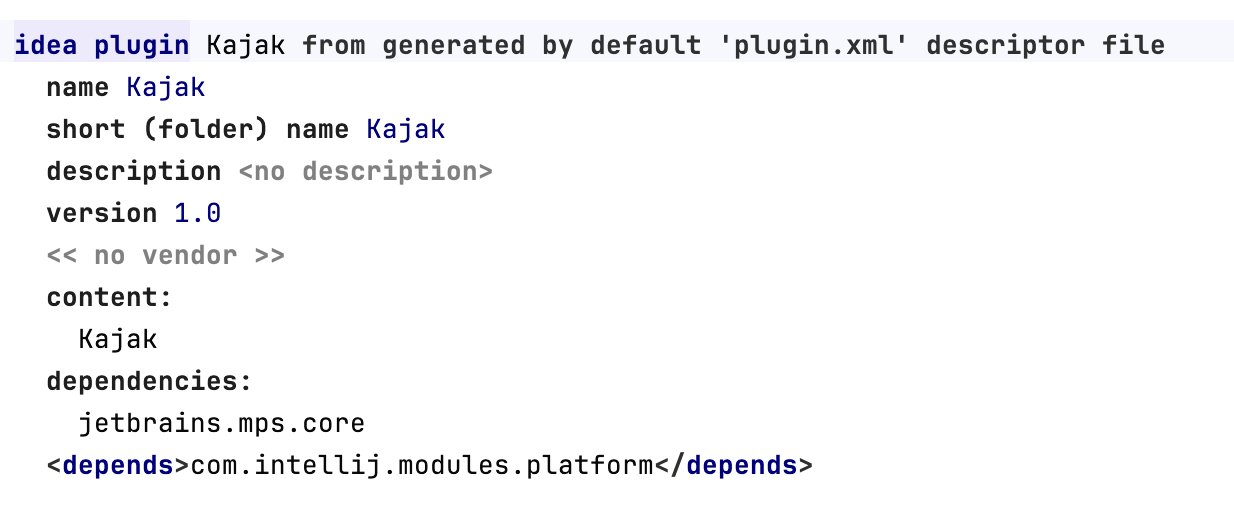
You can define a name and a version, dependencies to other plugins as well as the actual contents. Whenever your RCP contains languages, you will need jetbrains.mps.core because it provides things like BaseConcept or the INamedConcept interface. The Kajak entry in the contents is a reference to an mps group defined below. An mps group is a group of MPS artifacts. Since we have included the mps build script plugin (at the very top of the build script) we can use MPS-specific language constructs. mps groups are an example.
mps group
let's look at the Kajak group. It references a set of languages and solutions. A language reference points to a language defined in an MPS project. A language reference in a group consists of the name (which must be the same as the name of the actual language) and a pointer to the respective mpl file. The simplest way to enter it is to start with the path to the mpl file and then use the load required information from file intention (Alt+Enter) to adjust the name of the reference.
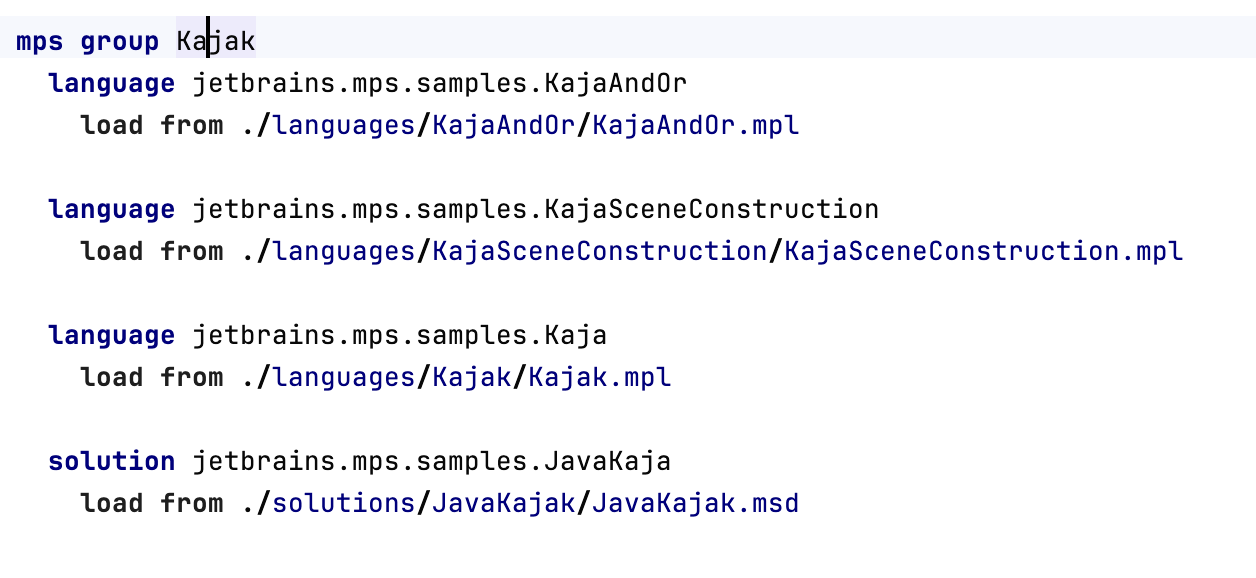
Note that a group has to contain the transitive closure of all languages. For example, if you have a language A which references another language B, then B must also be included in the group. This makes sense because otherwise the resulting RCP application would not run because the dependencies could not be resolved. If a language is missing, then an error will be reported in the build script (red squiggly line). After adding the required languages, you may have to rerun the load required information from file intention (Alt+Enter) on the language with the error to make it "notice" that something has changed.
In addition to languages, you can also reference solutions with the solution construct and devkits with the devkit construct.
Default Layout
The layout constructs the directory and file structure of the RCP distribution. It copies in files from various sources, and in particular from the project structure discussed in the previous section. It also compiles, builds and packages these files if necessary. It can also refer to artifacts defined in other build scripts, on which this script depends.
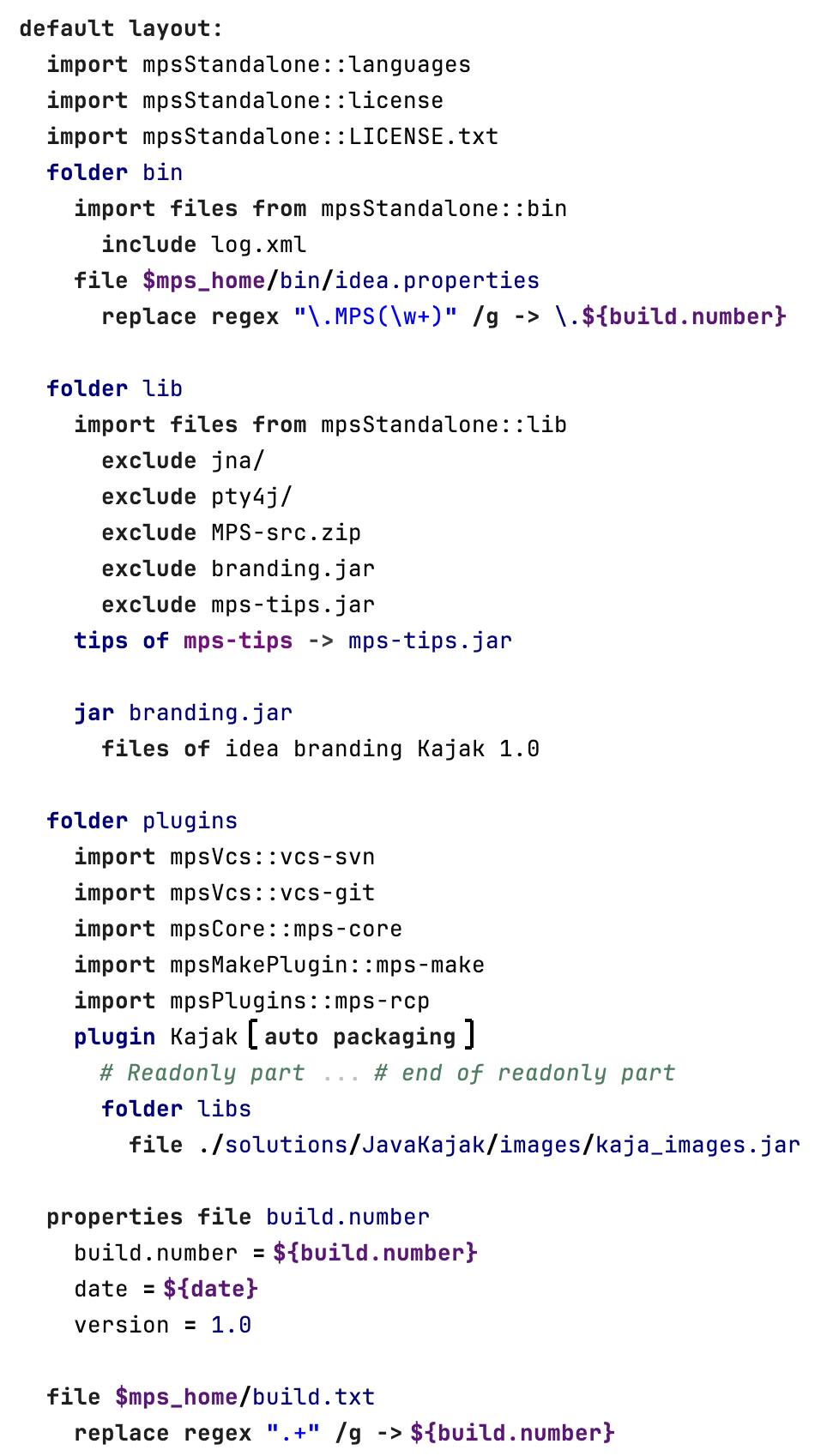
We start out with the following code:
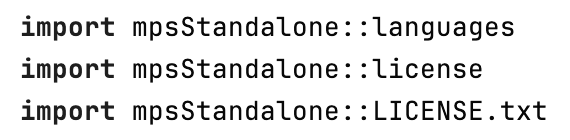
Those three imports are folder and file elements in the referenced mpsStandalone build script. By importing them, the contents of these folders are imported (i.e. copied into) our RCP distribution.
The wizard has added code to create a bin folder and copy common configuration and properties files into it. You may further customise it or leave it untouched.
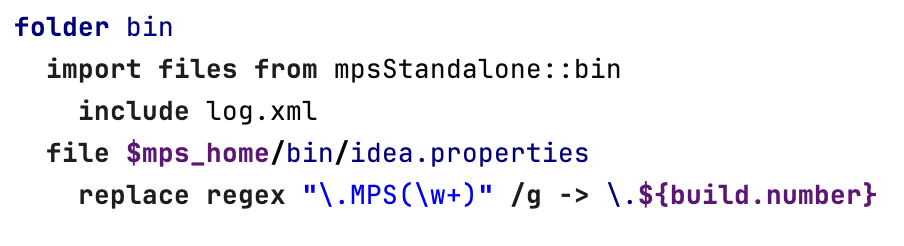
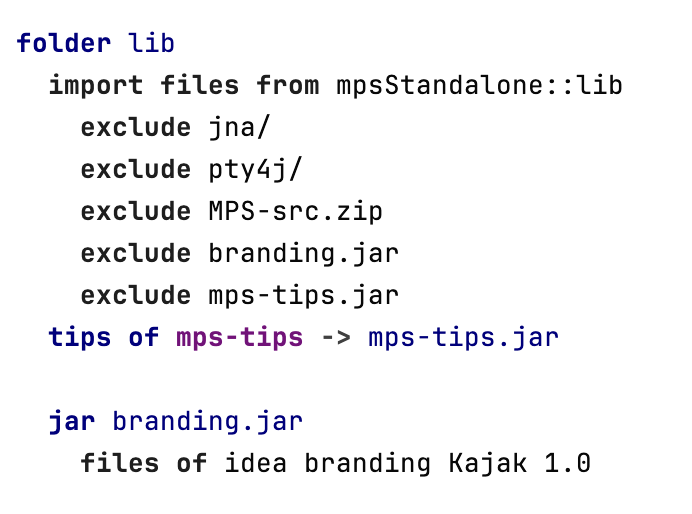
Next up, we create a new folder lib into which we import all the stuff from from mpsStandalone::lib except the MPS sources and the existing branding.jar (which contains the default MPS splash screen etc.). We then create a new jar file branding.jar (it has to have this name to work; the IDEA platform expects it this way) into which we put all the files defined in the branding section of the project structure defined above.
We then create a folder plugins. The mps-core plugin is required in any RCP app, so it needs to be imported in any case. We then import various version control plugins (SVN and git) defined in the mpsStandalone build script. For obvious reasons, a standalone Kaja IDE needs version control support, so it makes sense to import those plugins.
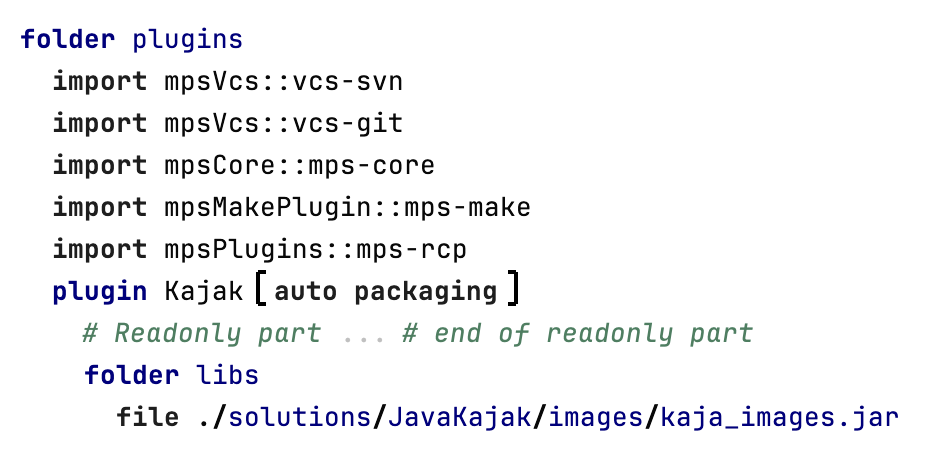
We then integrate the Kajak plugin defined in the project structure earlier. Using the plugin construct we can import the complete definition of the plugin defined earlier.
Now something that the wizard would not do for us automatically - inside the plugin, we define further subdirectories that contain various library jars. These jar files are automatically made visible to the plugin classpath. Using the file construct, we copy various files into the plugin directory, using the macros defined earlier.
Note how this plugin does not just contain the jars we copied in, but also all the language artifacts necessary. That has been accomplished by defining these mps groups and referencing them from the plugin. The fact that we can use these mps groups is thanks to the mps build language plugin. It provides direct support for MPS artifacts, and all the necessary files and metadata are handled automatically.
Property Files
Finally, we create a property file called build.number that contains a bunch of meta data used in the running RCP application. It is required by the underlying IntelliJ platform.
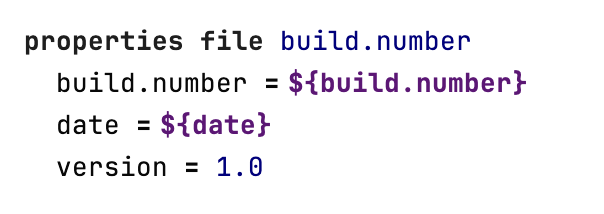
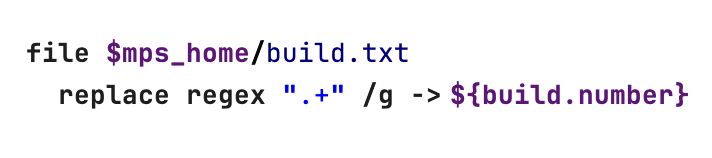
Then the script inserts the build number value into the build.txt file.
Tips & Tricks
All standalone IDEs built on top of MPS can offer their users a Tips & Tricks dialog with useful hints that help the users familiarize with the tool.
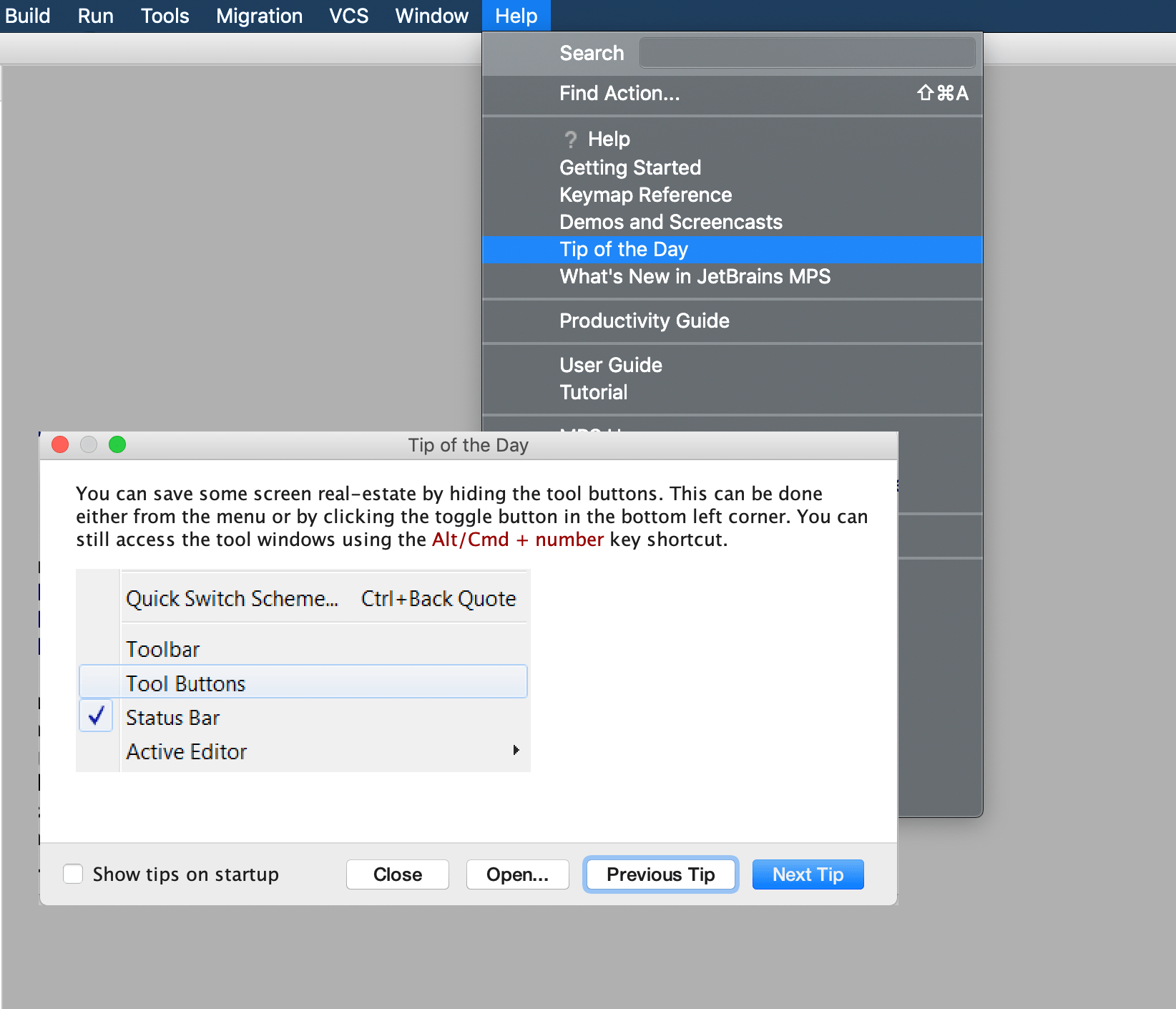
The content of the Tips & Tricks for MPS can be customized. This can be done with the build script tips & tricks concept:
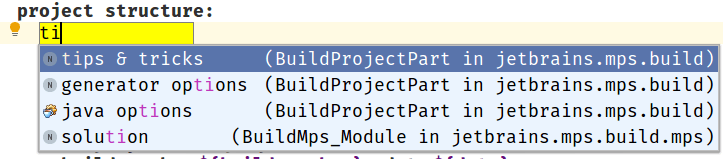
Tips can be either reused from the MPS general distribution, imported from a directory or from a solution:
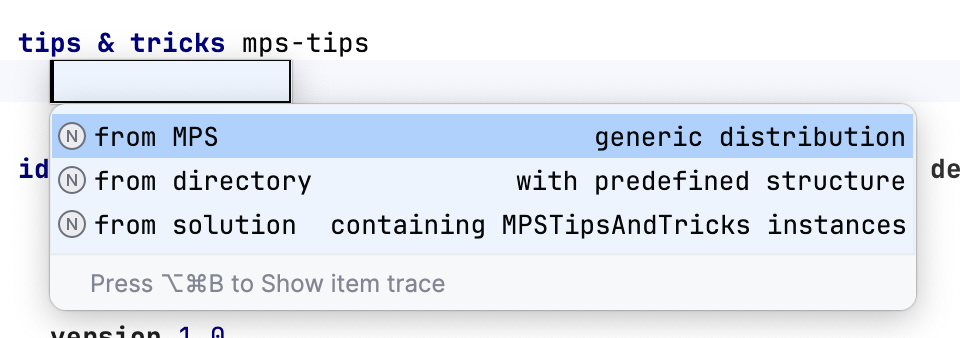
The first option just adds all the MPS tips to the distribution. This is the default option for build scripts generated with the build script wizard.
The second one requires a manually created folder with the correct structure of tips. The desired structure can be obtained from the mps-tips.jar file itself. You need a folder that contains all the html files plus the css and image folders.
The last option allows tips to be defined using the jetbrains.mps.build.tips and jetbrains.mps.core.xml languages in MPS itself.
Finally, the tips must be packaged into the build script layout to the lib folder. In the build script generated with the wizard MPS tips & tricks are packaged to lib folder by default:
The Tips & Tricks language
To import tips & tricks from a solution, create a solution with a model and add languages jetbrains.mps.build.tips and jetbrains.mps.core.xml to the model used languages. Then you can create an instance of the MPSTipsAndTricks concept, where multiple tips can be created. Each tip is an HTML formatted text. One image can be added to each tip:
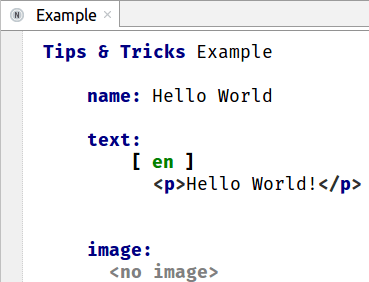
Importing from a solution to a build script tips & tricks is done by pointing to the solution and the generated xml from the MPSTipsAndTricks concept:

Creating the Platform-Specific Distributions
At this point, the generated directory structure constitutes the platform-independent core of a stripped-down MPS distribution that contains all the artifacts you've configured into it, including your custom branding. However, you cannot run it since the platform-specific aspects are still missing.
It is the time to look at the second generated build script - KajakDistribution.
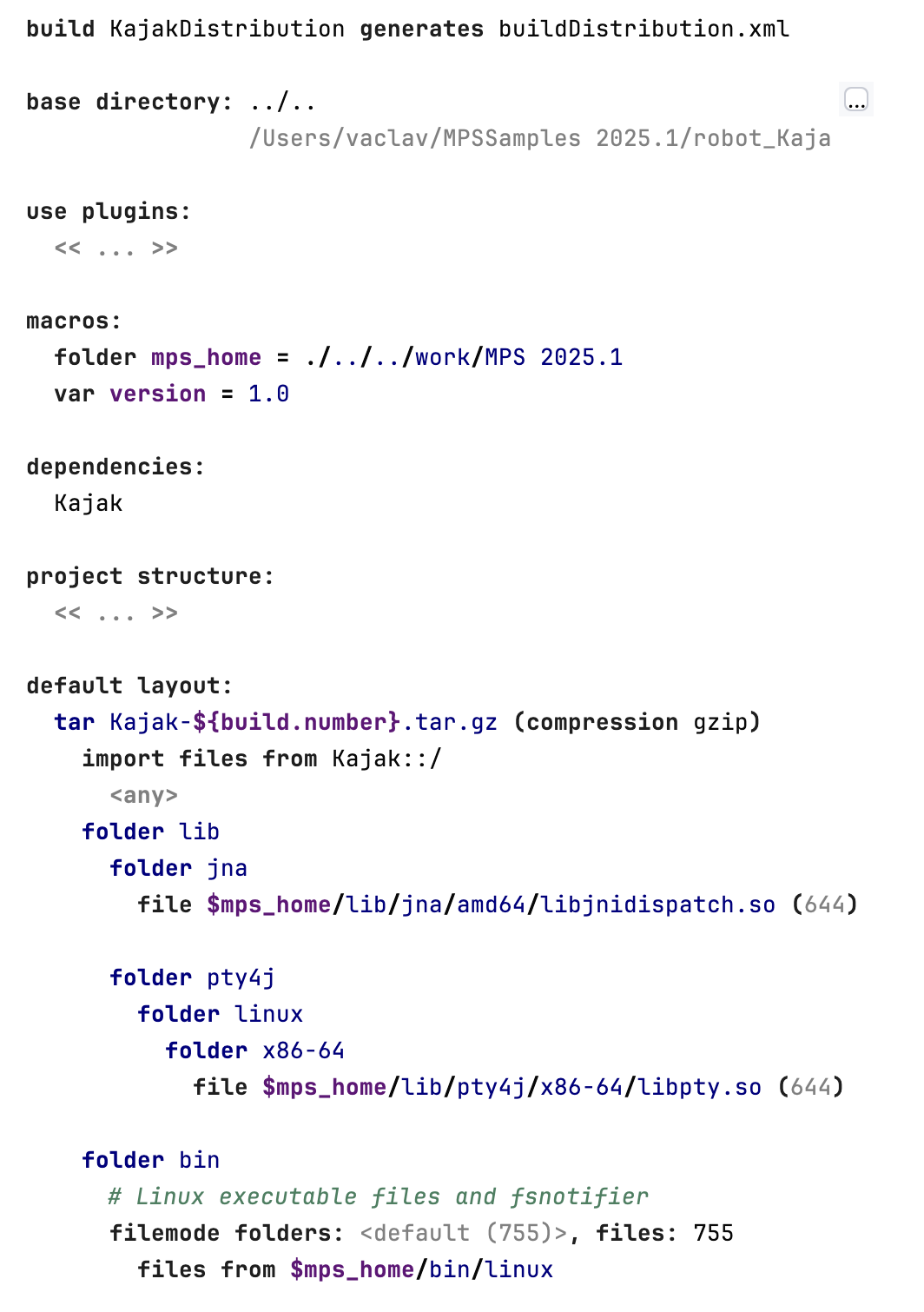
This particular build script depends on the Kajak build script so that it could properly package the platform-neutral artefacts into platform-specific distributions. The mps_home macro points to a generic MPS installation, since the distributions targeting a single platform (macOS, Linux or Windows) might miss artefacts needed by the other platforms. The generic distribution is also available for download from the MPS website.
The generated build script creates and packages distributions for several platforms. MPS includes native binary launchers for Windows, MacOS and Linux. These launchers provide a more robust and convenient way to start MPS than the script-based launchers, for example, by allowing you to pin the application to the taskbar and to the start menu.
Customize icons for native launchers
The build script wizard will create build scripts with properly configured native launchers. The icon specified in the build script will be properly configured too. However, on Windows extra effort is needed in order to customize the icons that will be shown in the Windows File Manager as well as the Task Manager to identify the native launcher of your custom IDE. Otherwise, the standard MPS icon will be shown.
The icon to use in the Windows File Manager and the Task Manager is taken by Windows from the .exe file itself. The same is true for the textual description of a process used by the Task Manager. The rcedit utility can be used to edit the resources in .exe files. Do not forget to re-sign the .exe file after changes made to its resources.
Add native launchers to legacy build scripts
MPS Startup Script
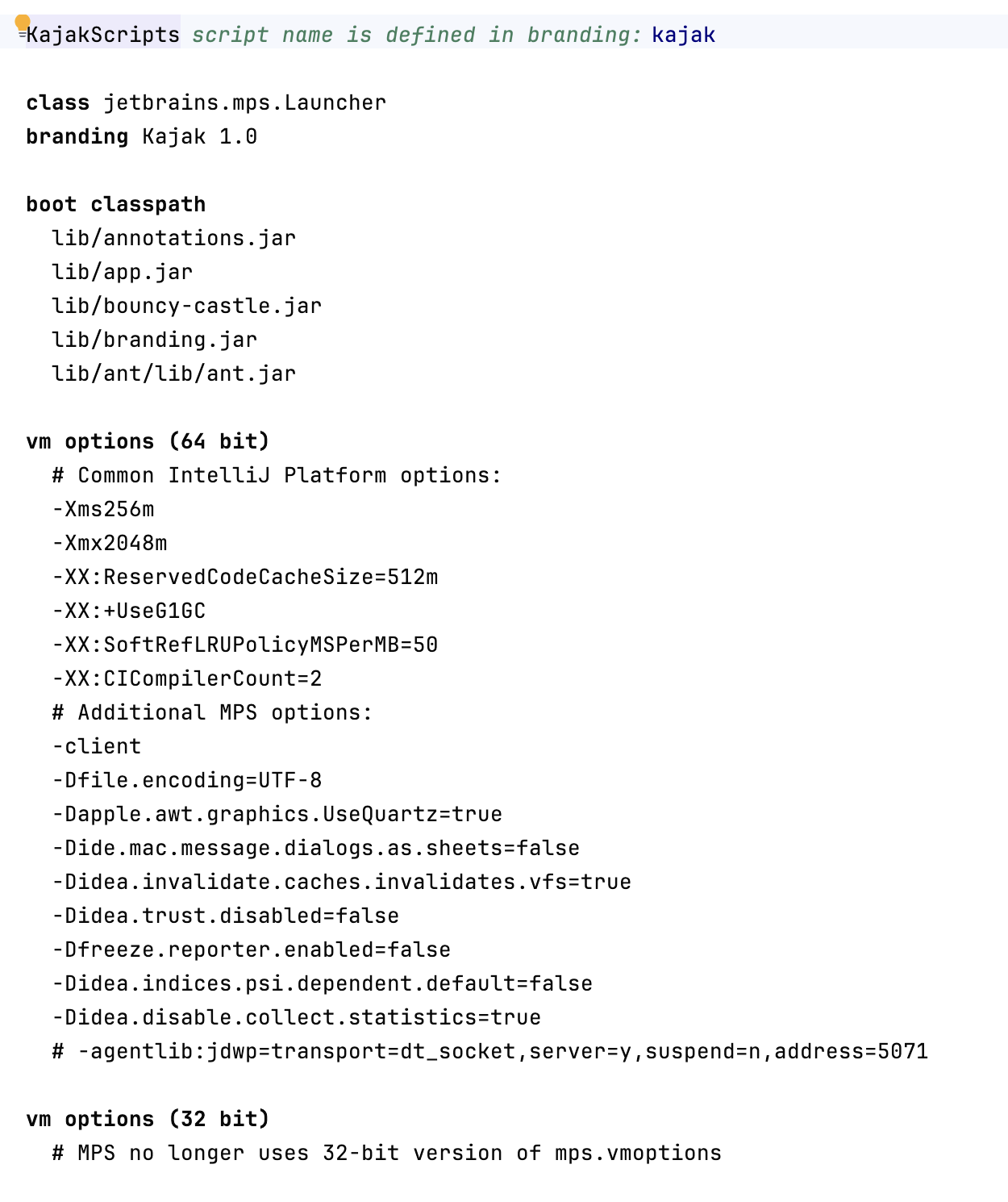
The third build file created by the wizard is an instance of MpsStartupScript. It details how the IDE should be started:
The branding info to use
The booth class path
The vm options
Generating and running the Build Scripts
Assuming your build scripts are free of errors, you can generate them (Rebuild Model or Ctrl-F9). This creates two ant files that have the names set as defined at the top of each of the build scripts:
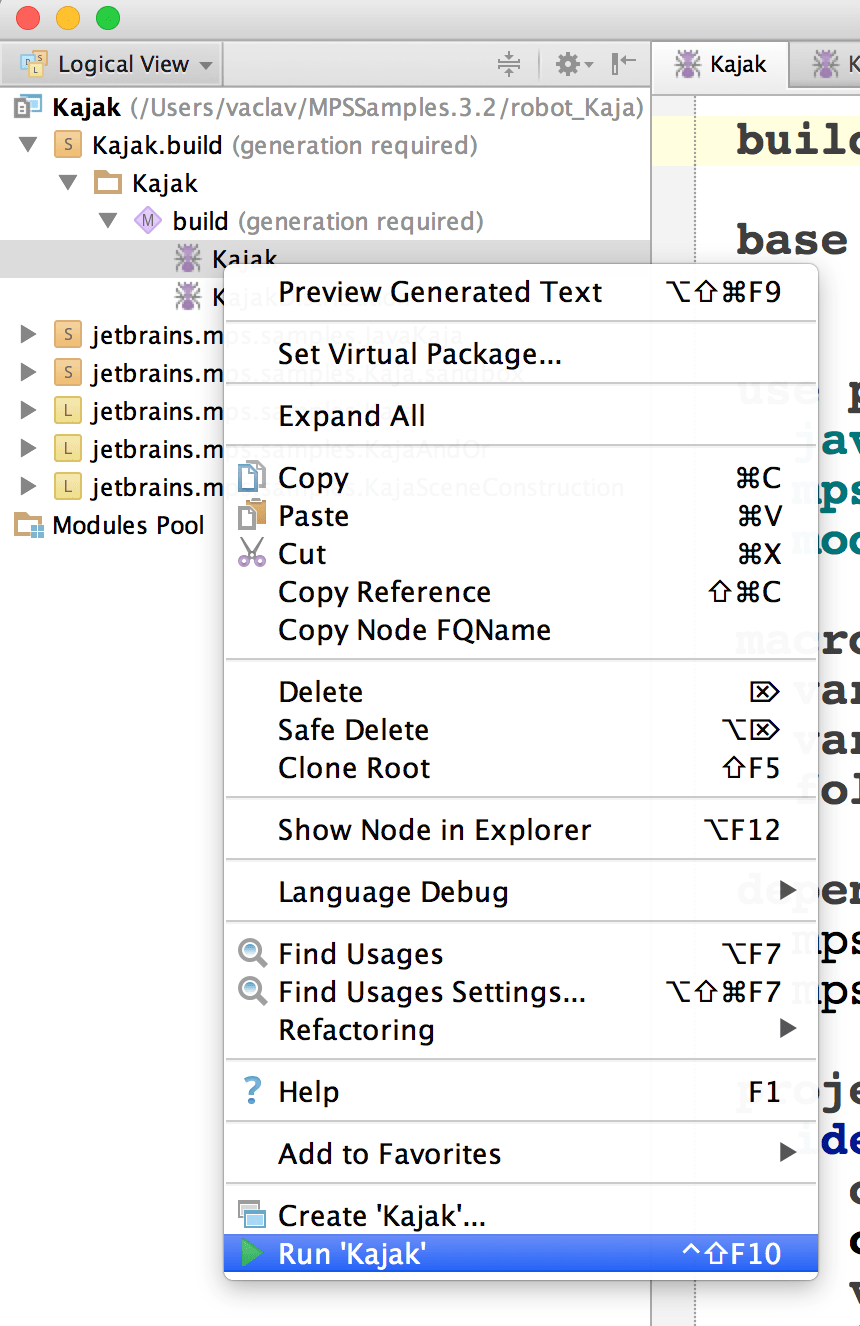
This myBuild.xml (in this case) resides directly in your project directory. You can either run the file from the command line (using ant -buildfile myBuild.xml) or directly from within MPS (via the context menu on the build script in the project explorer).
Inspecting the Generated Directory Structure
Run both build scripts. The figure below shows the project structure after running the build scripts. In particular, inside the build/artifacts directory, the structure defined in the default layout section of the build script has been created.

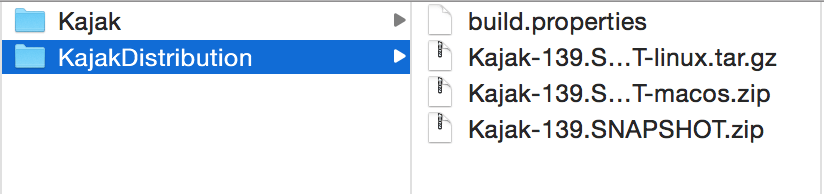
We suggest that you browse through the directory and file structure to connect what you see to the definitions in the build script.
Setting the JDK
In order to run, MPS needs a JDK to be configured to run it. The same holds true for the standalone IDEs. Ideally, they should be run with the JetBrains JDK, that is part of the MPS distribution (not the generic one) and can be found in the $MPS_HOME/jbr folder. You can copy the MPS' jbr to your standalone IDE with your build script or manually, if you want to distribute the JetBrains JDK together with your IDE.
When started, the launcher of your standalone IDE will test the following places in this order for the presence of a JDK. It will then use the first JDK found to run the IDE.
On Windows:
MPS_JDK environment variable
mps64.exe.jdk system property
..\jbr folder assuming a JetBrains JDK is bundled with the IDE
JDK_HOME environment variable
JAVA_HOME environment variable
On Linux:
MPS_JDK environment variable
.../mps.jdk, .../jbr, .../jbr-x86 folders assuming a JetBrains JDK is bundled with the IDE in one of these folders
JDK_HOME environment variable
JAVA_HOME environment variable
"java" in $PATH location of pre-defined Java distribution setup for the system
On MacOS:
"java" in $PATH location of pre-defined Java distribution setup for the system
Trust project dialog in standalone IDEs
To warn users that opening a project in an IntelliJ-based IDE can potentially run harmful code that may be part of the project being opened, a Trust project dialog was added to the platform.
Since MPS 2022.2 an adopted two-button Trust project dialog has been enabled both for MPS and for MPS-based standalone IDEs. The Build script wizard enables this new dialog for standalone IDEs.
To disable the Trust project dialog in a standalone MPS-based IDE use the -Didea.trust .disabled=true vm option in the startup build script or the "vmoptions" configuration file.