TeamCity On-Premises 2026.2 Help

実行の管理

実行は TeamCity でのビルド実行を表します。 teamcity run コマンドグループを使用すると、ビルドの開始、リアルタイムでの監視、ログとテスト結果の表示、アーティファクトの管理、タグ、コメント、ピンによる実行の整理を行うことができます。

実行の一覧表示

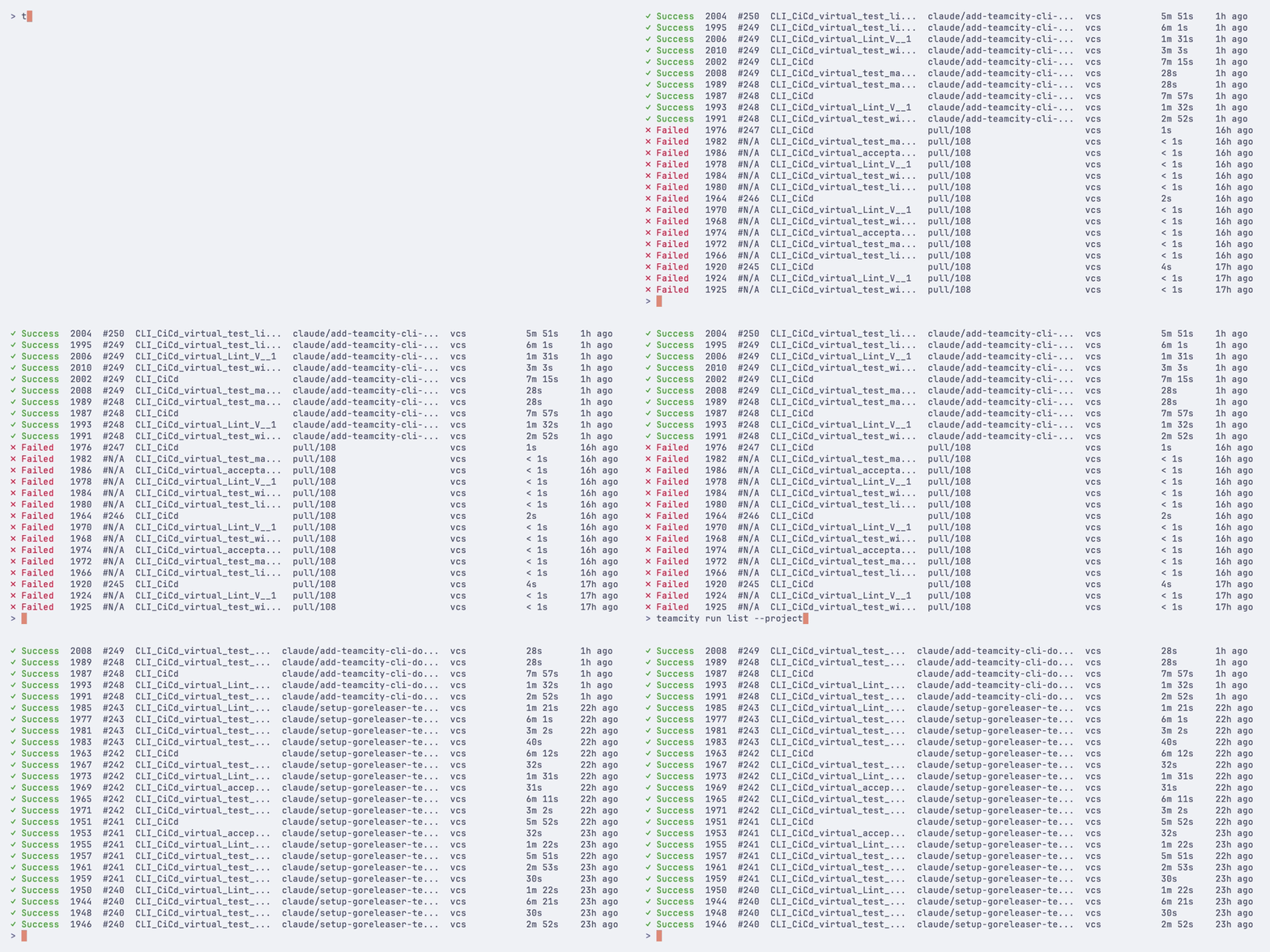
teamcity run list の最近のビルドを表示:

teamcity run list
Listing and filtering runs

お気に入りの実行

teamcity run list --favorites を使用して、現在のユーザーのお気に入りビルドを表示します。手動でスターを付けたビルドと、TeamCity が重要としてマークしたビルドが含まれます:

teamcity run list --favorites teamcity run list --favorites --status failure --limit 10

--favorites は、既存の run list のフィルターおよび出力モードと互換性があります。

フィルター処理

フラグを使用して結果を絞り込みます。

# Builds for a specific job teamcity run list --job MyProject_Build # Filter by project teamcity run list --project MyProject # Filter by branch teamcity run list --branch main # Auto-detect the current git branch teamcity run list --branch @this # Filter by status teamcity run list --status failure # Show only your favorite builds teamcity run list --favorites # Show only your own recent builds teamcity run list --user @me # Show only the latest matching run teamcity run list --user @me --branch @this --limit 1 # Filter by user who triggered the build teamcity run list --user alice teamcity run list --user @me # Combine filters teamcity run list --job MyProject_Build --status failure --branch main

リビジョンでフィルター

--revision を使用して、特定の VCS コミットを含むすべてのビルドを検索します。

# All builds for a commit teamcity run list --revision abc1234 # Scoped to a specific job teamcity run list --revision abc1234 --job MyProject_Build # Auto-detect the current HEAD commit teamcity run list --revision @head

時間ベースのフィルター

--since--until を使用して時間でフィルタリングします。 期間オフセット(24h7d2w1mo4w2d5h )または ISO 日付(2026-01-152026-01-15T12:00:00Z )を受け入れます。

# Builds from the last 24 hours teamcity run list --since 24h # Builds from the last week teamcity run list --since 7d # Builds from a specific date onward teamcity run list --since 2026-01-15 # Builds in a time range teamcity run list --since 2026-01-15 --until 2026-01-20

結果の制限

teamcity run list --limit 20

出力オプション

# JSON output (see Scripting and automation for details) teamcity run list --json teamcity run list --json=id,status,webUrl # Plain text for scripting teamcity run list --plain teamcity run list --plain --no-header

実行リストフラグ

フラグ

説明

-j, --job

ジョブ(ビルド構成)ID でフィルタリング

-p, --project

プロジェクト ID でフィルタリング

-b, --branch

ブランチ名でフィルタリングします。 現在の git を解決するには @this を使用します。

--status

ステータスでフィルタリング: 成功失敗runningqueuedエラー 、または unknown

--favorites

現在のユーザーのお気に入りのビルドを表示します。

-u, --user

ビルドをトリガーしたユーザーでフィルタリングします。 現在のユーザーには @me を使用します。

--revision

VCS リビジョン(コミット SHA)でフィルタリングします。 @head を使用して現在の git HEAD を解決します。

--since

この時間以降に完了したビルドを表示 (たとえば、 24h7d2026-01-21)

--until

この時間より前に完了したビルドを表示

-n, --limit

表示する実行の最大数

--json

JSON として出力します。 使用可能なフィールドを一覧表示するには --json= を使用し、特定のフィールドを表示するには --json=f1,f2 を使用します。

--plain

スクリプト用のタブ区切り出力

--no-header

ヘッダー行を省略 (--plain と併用)

-w, --web

ブラウザーでリストを開く

実行の開始

teamcity run start で新しいビルドをトリガーします:

teamcity run start MyProject_Build

ブランチとリビジョンの指定

# Build a specific branch teamcity run start MyProject_Build --branch feature/login # Build the branch you are currently on teamcity run start MyProject_Build --branch @this # Pin to a specific Git commit teamcity run start MyProject_Build --branch main --revision abc123def # Pin to the current HEAD teamcity run start MyProject_Build --branch @this --revision @head

ビルドパラメーター

カスタムパラメーター、システムプロパティ、環境変数を渡します。

teamcity run start MyProject_Build \ -P version=1.0 \ -S build.number=123 \ -E CI=true

ビルドオプション

# Clean all source files before building teamcity run start MyProject_Build --clean # Rebuild all dependencies teamcity run start MyProject_Build --rebuild-deps # Rebuild only failed dependencies teamcity run start MyProject_Build --rebuild-failed-deps # Reuse existing builds as snapshot dependencies (pin by build ID) teamcity run start MyProject_Build --reuse-deps 6946,6917 # Add to the top of the queue teamcity run start MyProject_Build --top # Run on a specific agent teamcity run start MyProject_Build --agent 5

タグとコメント

teamcity run start MyProject_Build --tag release --tag v2.0 --comment "Release build"

開始してウォッチ

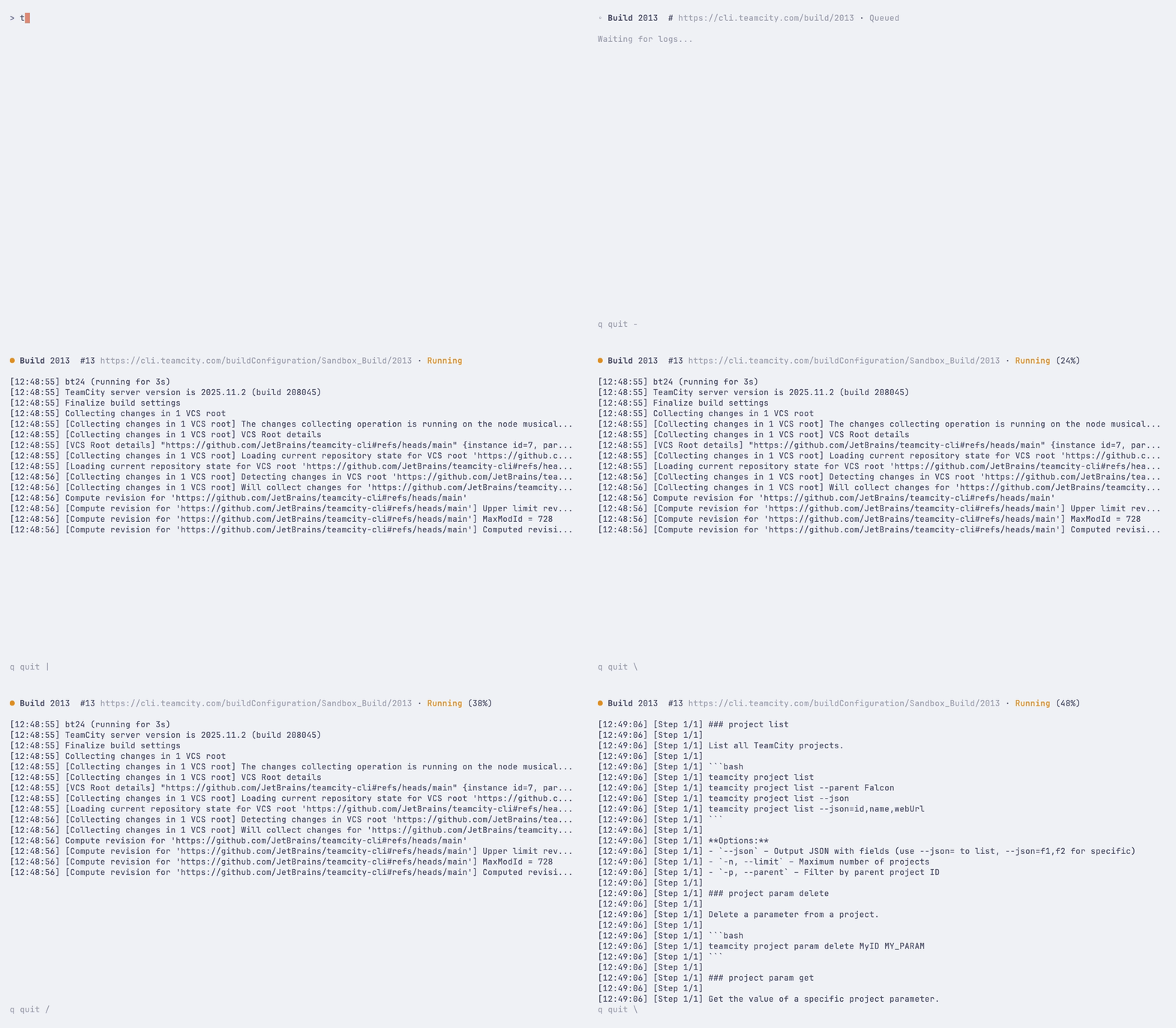
ビルドを開始した後、ビルドを追跡するために --watch を追加します。

teamcity run start MyProject_Build --branch main --watch
Starting a build with --watch

タイムアウトを設定したり、ポーリング間隔を調整したりすることもできます。

teamcity run start MyProject_Build --watch --timeout 30m teamcity run start MyProject_Build --watch --interval 10

個人ビルド

コミットされていないローカルの変更を個人ビルドに含めます。

# Auto-detect changes from Git working directory teamcity run start MyProject_Build --local-changes # From a patch file teamcity run start MyProject_Build --local-changes changes.patch # From stdin git diff | teamcity run start MyProject_Build --local-changes -

デフォルトでは、CLI は個人ビルドを開始する前にブランチをリモートにプッシュします。 これをスキップするには、 --no-push を使用してください。

teamcity run start MyProject_Build --local-changes --no-push

ドライ実行

実際にビルドを開始せずに、何がトリガーされるかをプレビューします。

teamcity run start MyProject_Build --dry-run

実行開始フラグ

フラグ

説明

-b, --branch

ビルドするにはブランチを使用します。 現在の git を解決するには @this を使用します。

--revision

ビルドを特定の Git コミット SHA にピン留めします。 @head を使用して現在の HEAD を解決します。短い SHA はローカルリポジトリから展開されます。

-P, --param

ビルドパラメーターを key=value として (繰り返すことができる)

-S, --system

システムプロパティは key=value です (繰り返すことができる)

-E, --env

環境変数として key=value (繰り返すことができる)

-m, --comment

コメントを作成する

-t, --tag

ビルドタグ (繰り返すことができる)

--personal

個人ビルドとして実行する

-l, --local-changes

ローカルの変更を含めます。 Git (デフォルト)、 - (標準入力)、ファイルパスを受け入れます。

--no-push

ブランチからリモートへの自動プッシュをスキップします

--clean

ビルド前にソースファイルをクリーンアップする

--rebuild-deps

すべての依存関係を再構築します

--rebuild-failed-deps

再構築に失敗した、または不完全な依存関係のみ

--reuse-deps

既存のビルドをスナップショットの依存関係として再利用します。 コンマ区切りのビルド ID リストを受け入れるか、複数回指定できます。 TeamCity は、各ビルドが埋める依存関係スロットをビルド構成に基づいて解決します。

--top

ビルドキューの先頭に追加

--agent

特定のエージェントで実行 (ID による)

--watch

開始後にビルドの様子を参照してください

-i, --interval

視聴時のリフレッシュ間隔(秒)(デフォルト): 3)

--timeout

ウォッチ時のタイムアウト (例: 30m1h); --watch を暗黙的に有効にします

--dry-run

開始せずにプレビューする

--json

JSON 形式で出力

-w, --web

ブラウザーで実行を開く

実行の詳細表示

teamcity run view 12345 teamcity run view 12345 --web teamcity run view 12345 --json

スナップショット依存関係ツリー

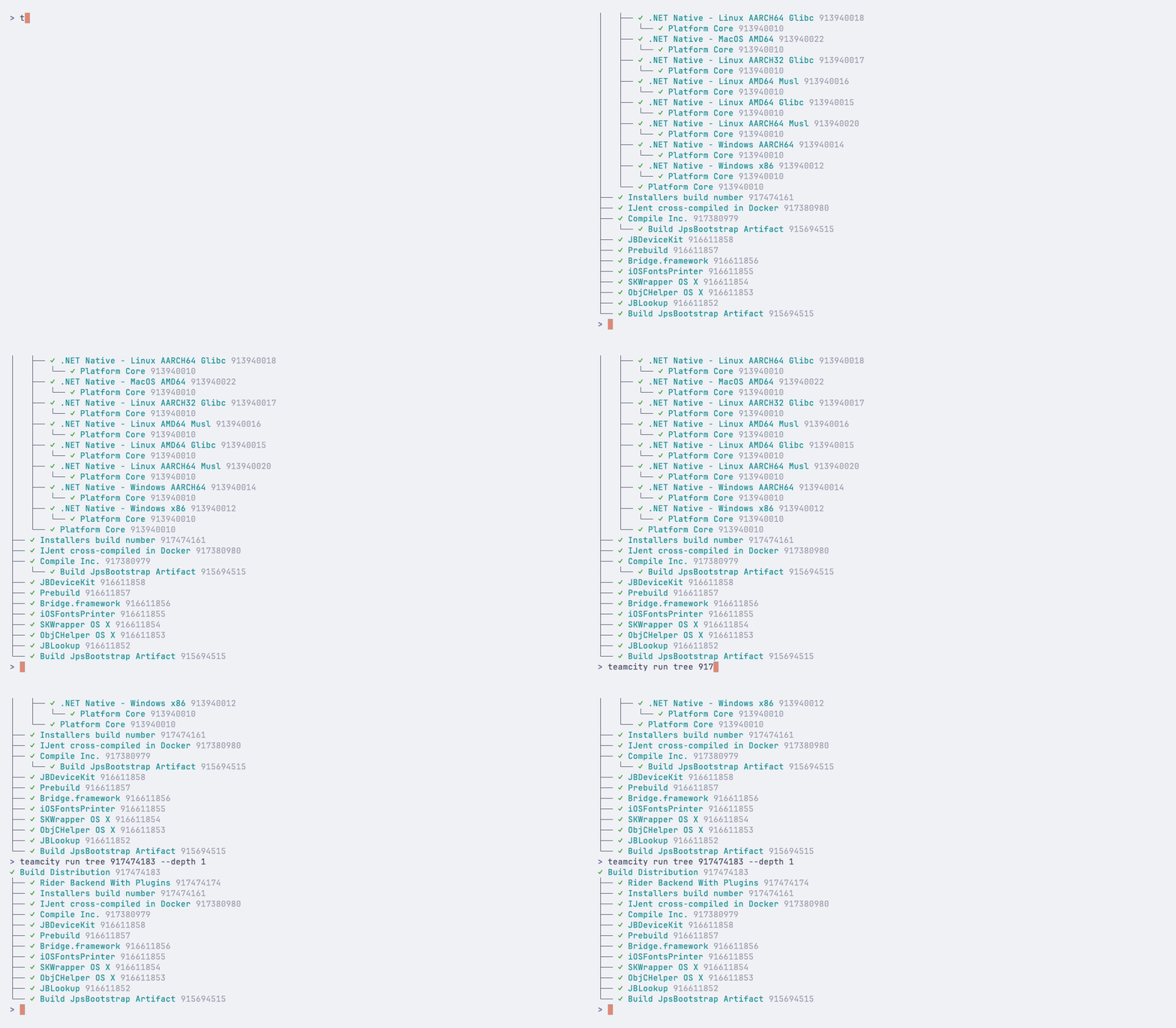
teamcity run tree を使用した実行におけるスナップショット依存関係チェーンを視覚化します。

teamcity run tree 12345
Viewing run snapshot dependency tree

ツリーの深さを制限する:

teamcity run tree 12345 --depth 2

JSON として出力:

teamcity run tree 12345 --json

実行ツリーフラグ

フラグ

説明

-d, --depth

ツリーの深さを制限する (0 = 無制限)

--json

JSON 形式で出力

実行のウォッチ

実行中のビルドをリアルタイム更新で監視する:

teamcity run watch 12345

視聴しながらビルドログをストリーミング配信する:

teamcity run watch 12345 --logs
Watching a build with live log streaming

カスタムリフレッシュ間隔またはタイムアウトを設定します。

teamcity run watch 12345 --interval 10 teamcity run watch 12345 --timeout 30m

状態変化と最終結果のみを表示する最小限の出力には、 --quiet を使用してください。

teamcity run watch 12345 --quiet

--json を使用してビルドの補完を待ち、最終結果を JSON 形式で出力します(スクリプト作成に便利です)。

teamcity run watch 12345 --json

実行ウォッチフラグ

フラグ

説明

-i, --interval

リフレッシュ間隔(秒)

--logs

ストリームビルドログを見ながら

--quiet

最小限の出力 — 状態変化と結果のみ

--json

完了を待って結果を JSON 形式で出力します

--timeout

この時間経過後は視聴を停止してください (たとえば、 30m1h)

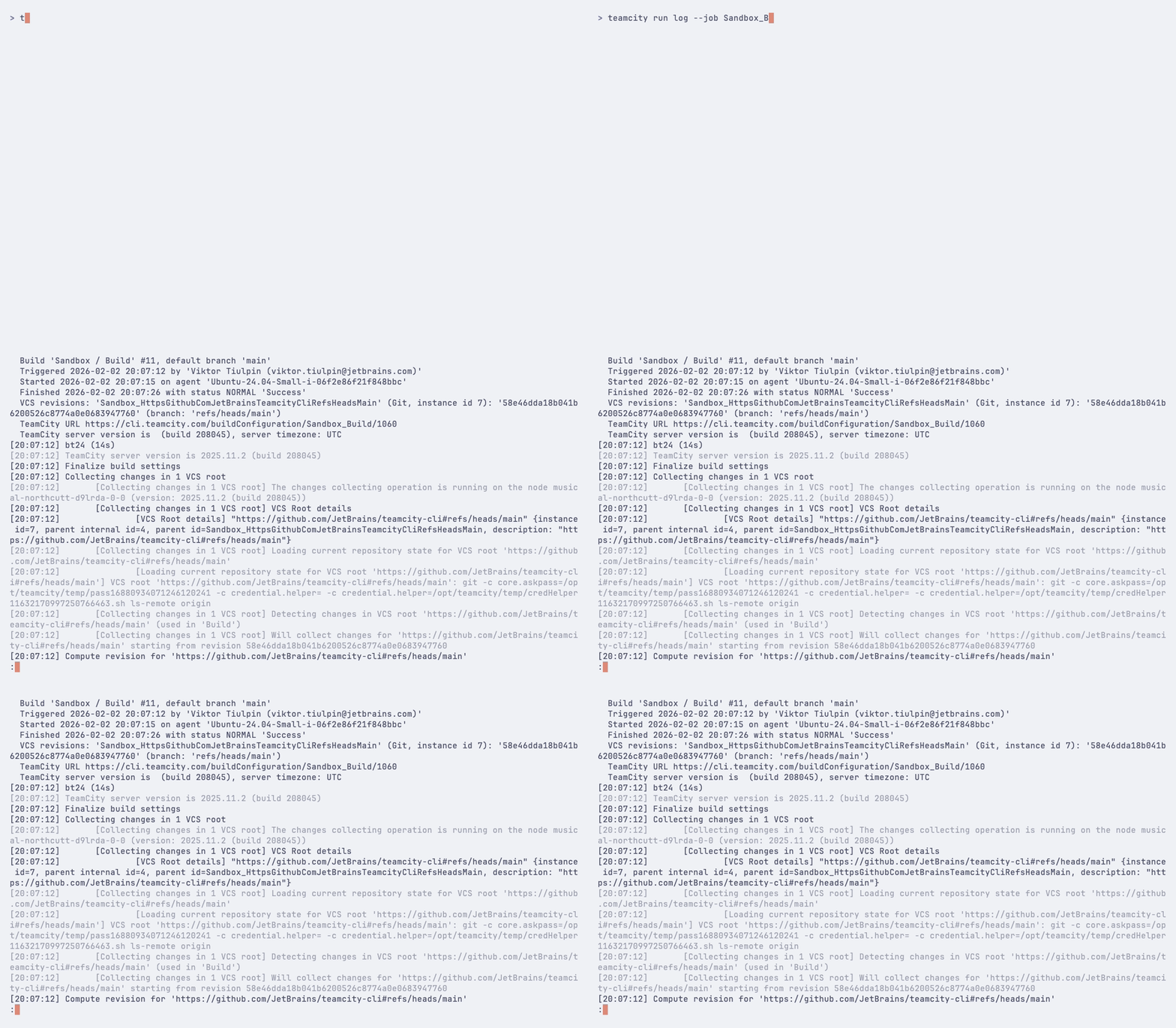
Viewing build logs

実行時のログ出力を表示する:

teamcity run log 12345

特定のジョブの最新の実行ログを表示します。

teamcity run log --job MyProject_Build
Viewing build logs

失敗診断を表示します — ビルドの問題、完全なスタックトレース付きの失敗したテスト、および各失敗が新規か既存か:

teamcity run log 12345 --failed

ページャーをバイパスして、生のテキストを出力する:

teamcity run log 12345 --raw

ビルドが完了するまで、ログをリアルタイムでストリーミング配信します。

teamcity run log 12345 --follow

直近 50 件のログメッセージを表示します。

teamcity run log 12345 --tail 50

ログを JSON 形式で出力します。

teamcity run log 12345 --json

ブラウザーでビルドログを開いてください。

teamcity run log 12345 --web

実行のキャンセル

実行中またはキューに入っているビルドをキャンセルします。

teamcity run cancel 12345 teamcity run cancel 12345 --comment "Canceling for hotfix"

確認プロンプトをスキップするには、 --yes を使用します。

teamcity run cancel 12345 --yes

実行の再実行

同じ設定で実行を再開する:

teamcity run restart 12345 teamcity run restart 12345 --watch teamcity run restart 12345 --timeout 30m teamcity run restart 12345 --web

アーティファクト

アーティファクトの一覧表示

ダウンロードせずに実行結果のアーティファクトを一覧表示する:

teamcity run artifacts 12345 teamcity run artifacts --job MyProject_Build teamcity run artifacts 12345 --path html_reports/coverage teamcity run artifacts 12345 --json

アーティファクトのダウンロード

完了した実行結果からアーティファクトをダウンロードする:

teamcity run download 12345 teamcity run download 12345 --path build/assets teamcity run download 12345 -o ./artifacts teamcity run download 12345 --artifact "*.jar" teamcity run download 12345 --path build/assets -a "*.js" teamcity run download 12345 --timeout 30m
--timeout フラグは、ダウンロード操作全体の最大時間を設定します(デフォルト: 10m)。 大きなアーティファクトセットの場合は、 --timeout 1h などのより長い値を使用してください。

テスト結果

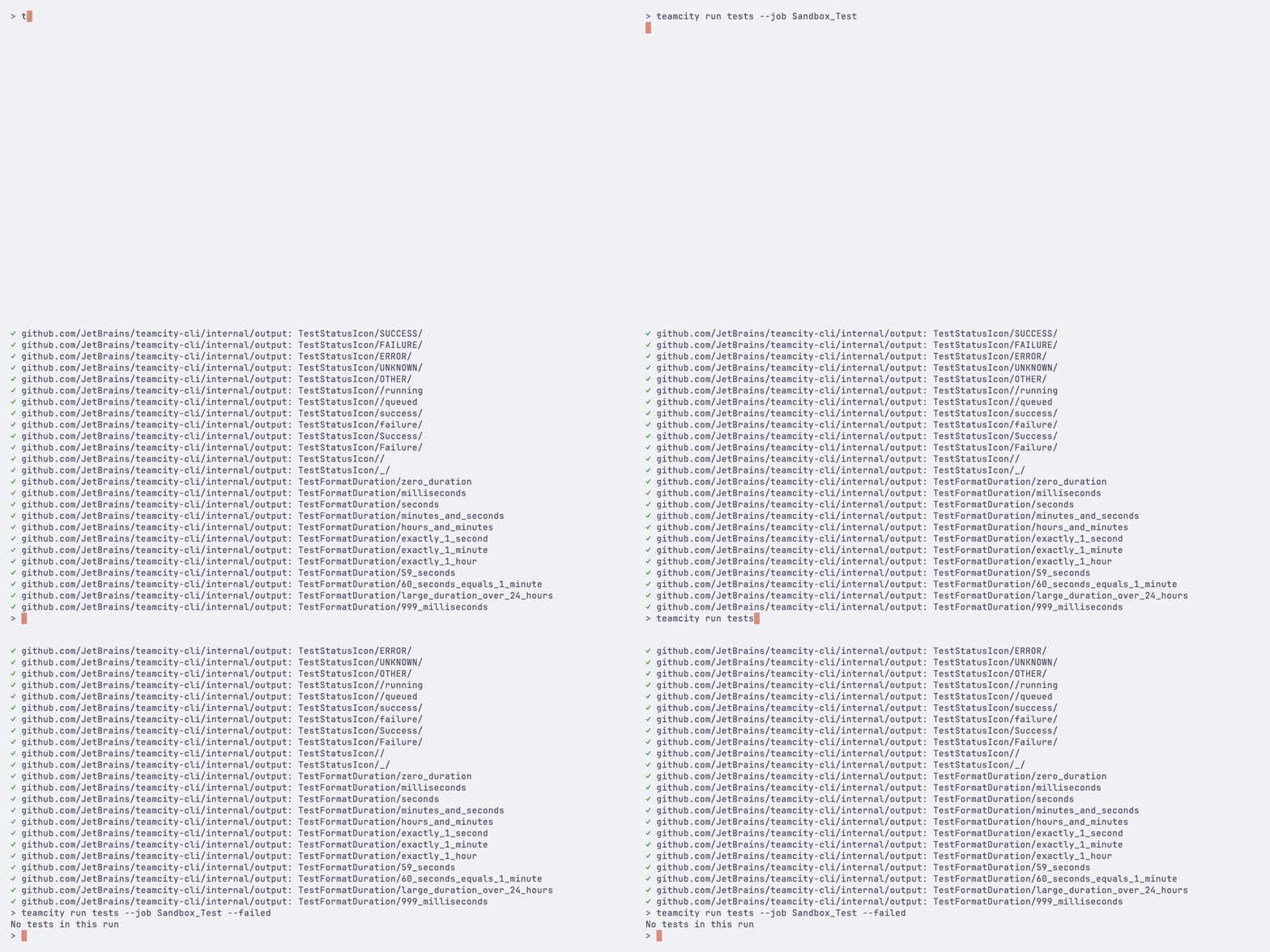
実行したテスト結果を表示します。

teamcity run tests 12345 teamcity run tests --job MyProject_Build

失敗したテストのみを表示し、ミュートされた失敗は除外します。

teamcity run tests 12345 --failed

ミュートされた失敗テストのみを表示する:

teamcity run tests 12345 --muted
Viewing test results

結果の数を制限します:

teamcity run tests 12345 --limit 50 teamcity run tests 12345 --json

VCS の変更

実行に含まれる VCS コミットを表示します。

teamcity run changes 12345

コミットのみを表示する(ファイル一覧は表示しない):

teamcity run changes 12345 --no-files teamcity run changes 12345 --json

実行の比較

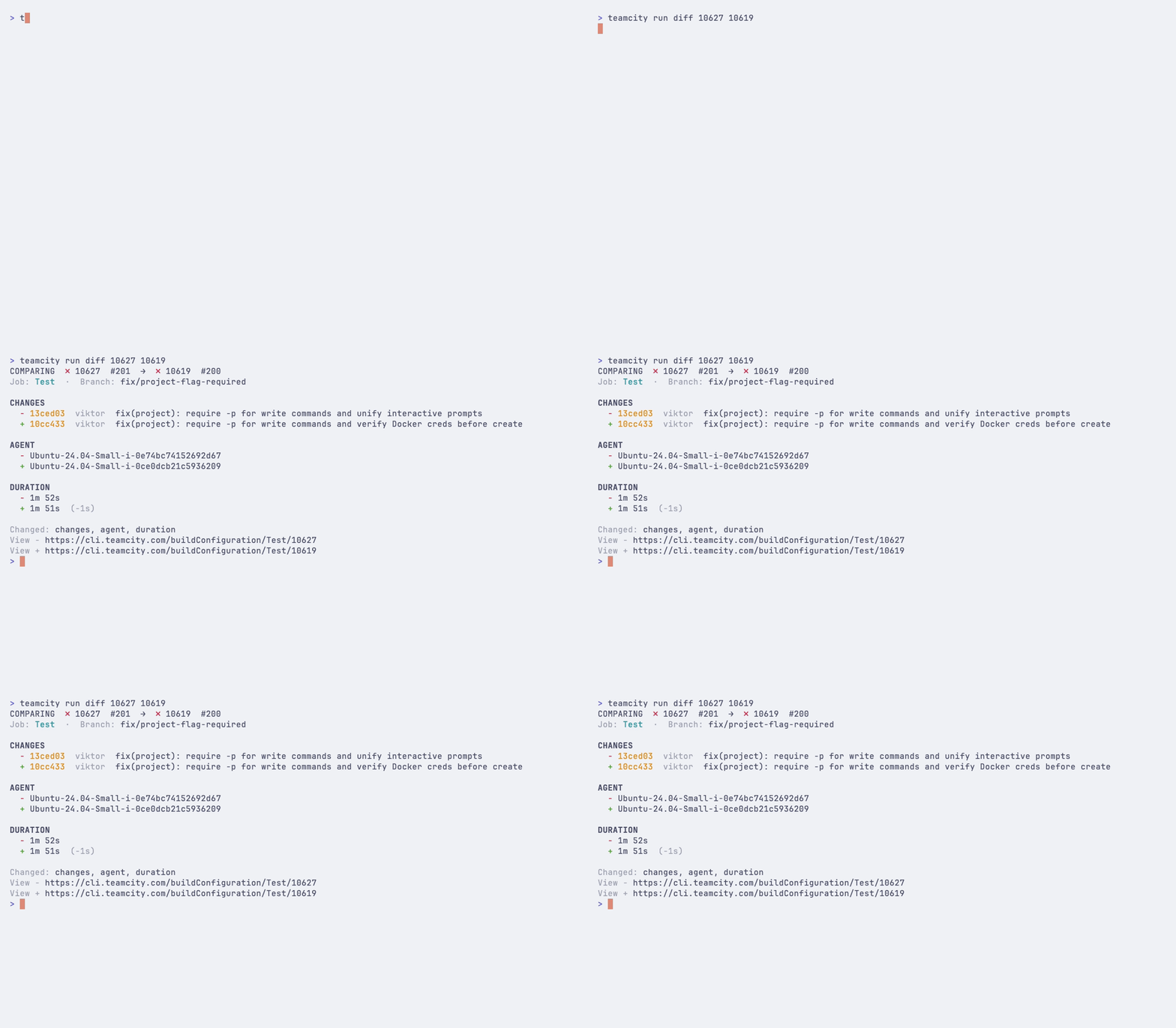
2 つの実行結果を並べて比較し、ステータス、実行時間、エージェント、パラメーター、テスト結果、問題、VCS の変更点など、両者の間で何が変わったかをハイライトします。

teamcity run diff 12345 12346
Comparing two runs

単一の実行 ID が指定された場合、CLI は同じジョブの前回完了した実行と比較します — "前回から何が変わったか?" を確認するのに便利です:

teamcity run diff 12345

ビルドログの差分比較

--log を渡すと、2 つのビルドログが色分けされた統合差分として比較されます。 タイムスタンプ、一時パス、ノイズの多い Git の進捗状況行は正規化され、差分は実際のコンテンツに焦点を当てます。

teamcity run diff 12345 12346 --log teamcity run diff 12345 12346 --log -U5 # 5 lines of context

出力はページャー($PAGER 、デフォルトは less )にパイプされます。 よりリッチなレンダリングのために、色を削除して外部の差分ビューアーにパイプします。

teamcity run diff 12345 12346 --log --no-color | delta teamcity run diff 12345 12346 --log --no-color | diff-so-fancy

その他の形式

両方の実行ファイルをブラウザーで開いてください。

teamcity run diff 12345 12346 --web

スクリプトの機械可読出力:

teamcity run diff 12345 12346 --json

実行のピン留め

実行を固定して、保持ポリシーによってクリーンアップされないようにする:

teamcity run pin 12345 teamcity run pin 12345 --comment "Release candidate"

ピンを取り外します。

teamcity run unpin 12345

実行へのタグ付け

実行結果にタグを追加して、分類やフィルタリングを行います。

teamcity run tag 12345 release teamcity run tag 12345 release v2.0 production

タグの除去:

teamcity run untag 12345 release teamcity run untag 12345 release v2.0

コメント

実行結果にコメントを設定する:

teamcity run comment 12345 "Deployed to production"

現在のコメントを表示:

teamcity run comment 12345

コメントを削除してください:

teamcity run comment 12345 --delete
2026 年 9 月 11 日