Work with any database
for Java and Kotlin app –
right in the IDE
Run queries, connect to databases, browse and export data, and even manage your schemas – all without leaving IntelliJ IDEA.
Your database – supported
IntelliJ IDEA supports MySQL, PostgreSQL, Microsoft SQL Server, SQLite, MariaDB, Oracle, Apache Cassandra, and many others. You can find a complete list of all supported database vendors here.

PostgreSQL

MySQL

Oracle

Microsoft SQL Server

MondoDB

Redis

Azure SQL Database

Amazon Redshift

SQLite

Amazon DynamoDB

IBM Db2
And many more!
Getting started with database tools

Connect to a database
You can add databases via the Database tool window by following the simple setup steps.

Database tool window
In the Database tool window you can set up, group, and filter data sources, configure display options for each data source, and more! All connected data sources are conveniently structured by schemas, tables, and columns.

Data table
IntelliJ IDEA provides an easy-to-use GUI to navigate through data – the data editor. In the data editor you can perform all sorts of actions with results sets, like sorting, editing, and export/import.

Query console
You can execute SQL queries right in the IDE from a dedicated Query console – just type in what you want to execute.
Working with databases

View and edit data
You can freely navigate through the data, sort it, edit cell values, add/remove rows locally, and push changes to live databases – all without writing a single SQL query!

Compare data
Compare the contents of two database objects side by side. IntelliJ IDEA will highlight mismatched and equally valued cells, or even entire rows.

Export and import data
IntelliJ IDEA supports a wide range of data import/export formats – SQL, TXT, CSV, JSON, XML, Markdown, Excel, and other text formats that contain delimiter-separated values.

Filter data
You can specify filtering conditions or use quick filtering options. Filter rows by values in columns, write queries in the WHERE field, and more.
AI-powered features
Leverage AI Assistant’s capabilities for more efficient data querying and handling.
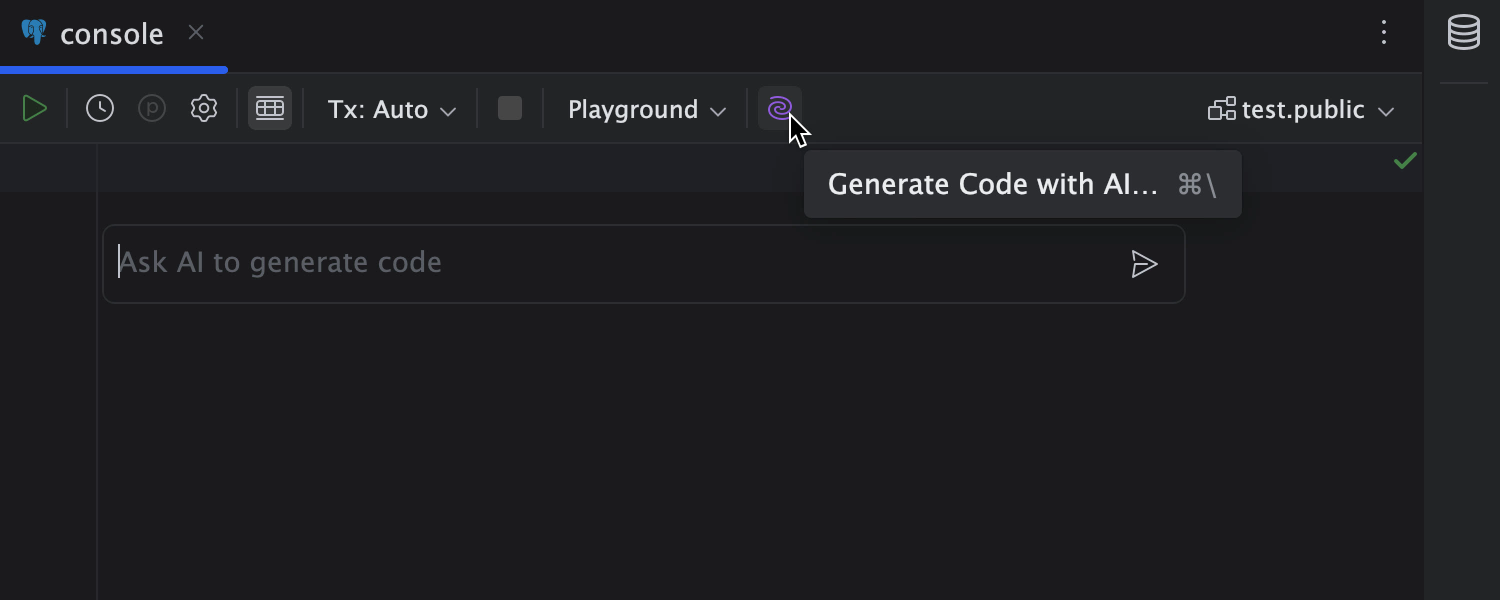
Generate SQL code in the editor
AI Assistant can generate SQL code right in the query console, which is accessible via the Database Tools window.
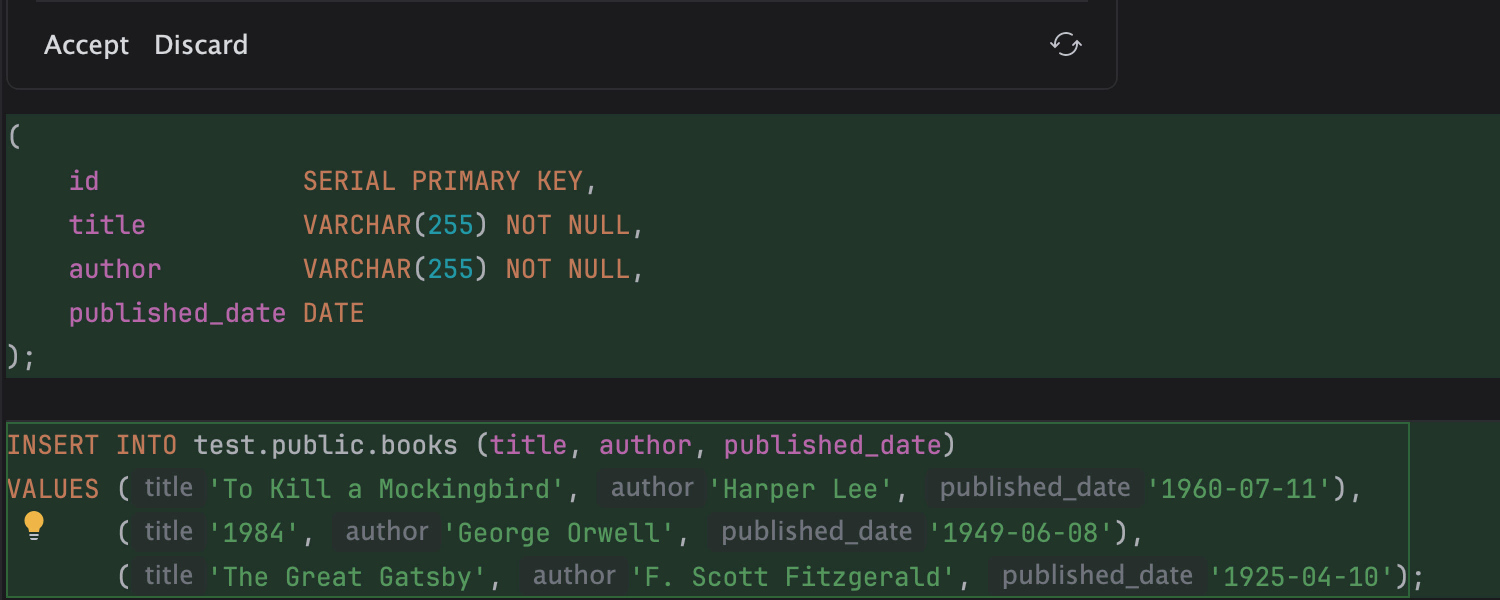
Test data tables
AI Assistant can create tables and populate them with sample data right in the editor.
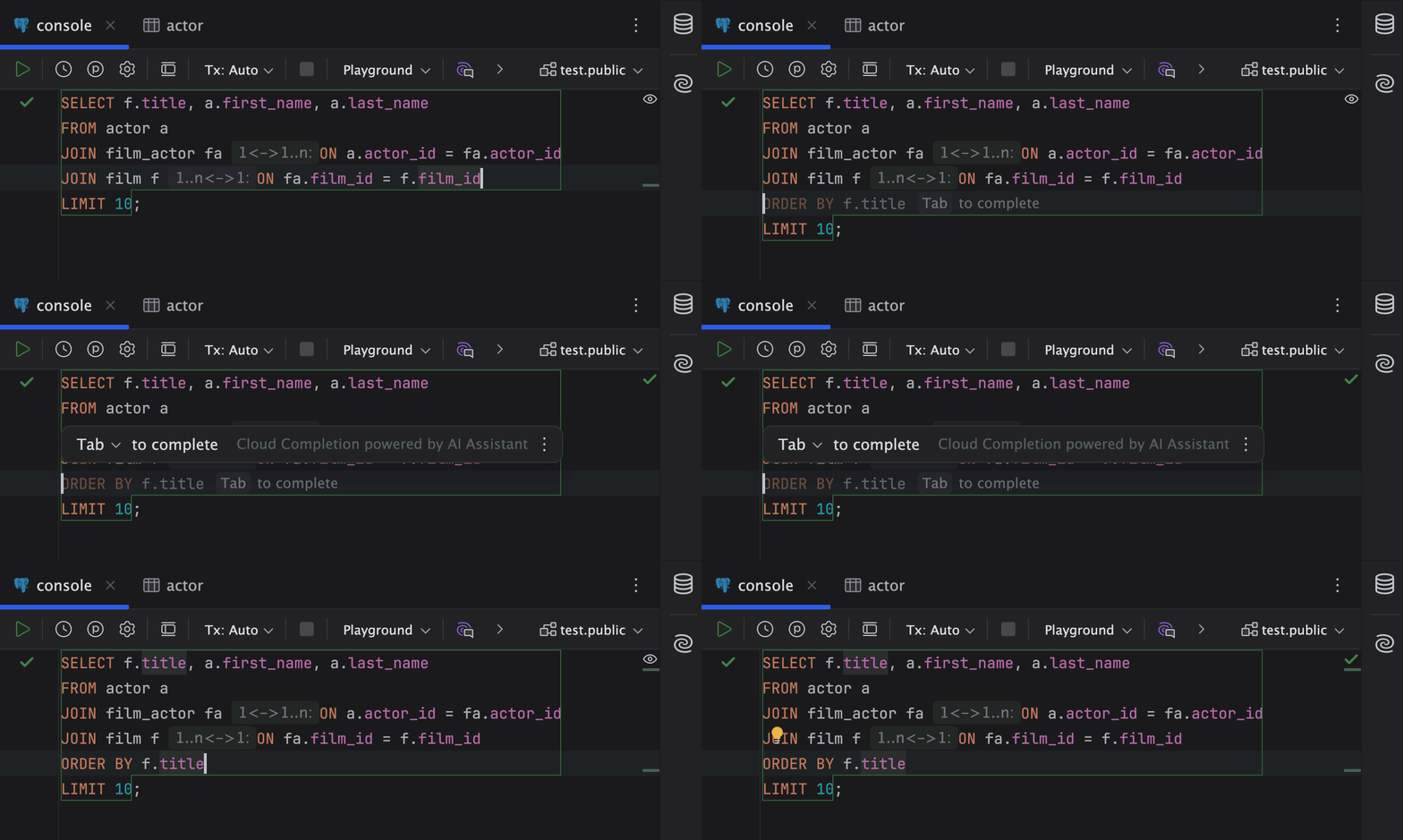
Cloud completion
AI-powered cloud completion autocompletes code in real time based on the context of your SQL query. You don’t need to perform any extra actions to invoke cloud completion in a console, as it’s enabled by default – just keep on querying!
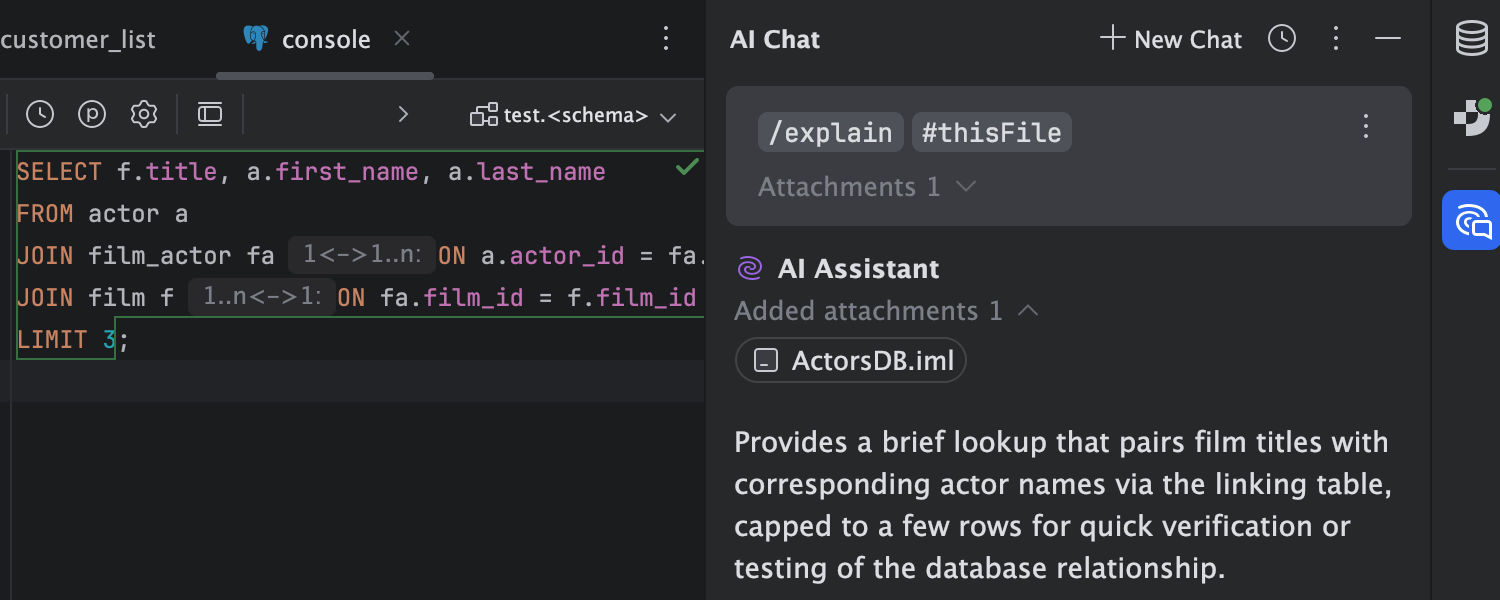
Chat with AI
In the chat, you can ask AI Assistant any database or query-related question, get it to perform actions, and so much more!
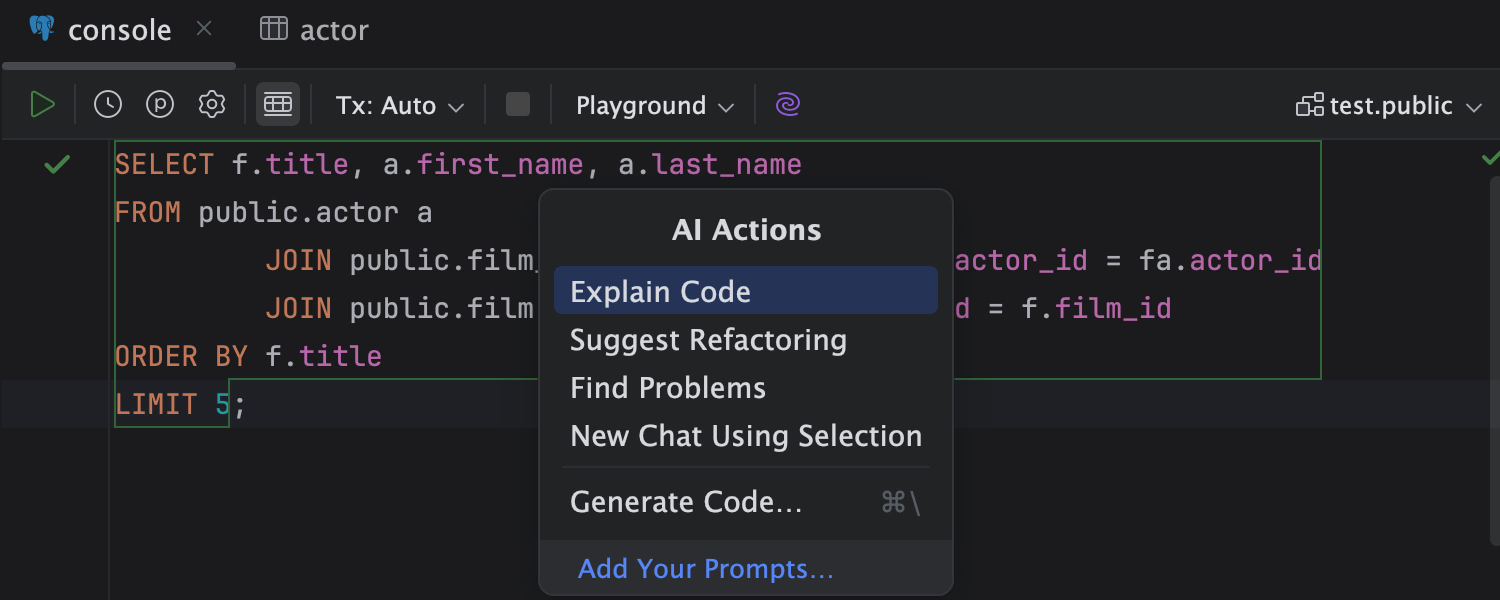
AI prompts
Invoke a list of AI prompts to select AI Actions from the context menu, and choose an action you’d like to perform.
Data visualization

Diagram view
IntelliJ IDEA can generate a diagram that demonstrates the relationships of various objects within the database.

Visualize data with charts
You can use charts to visualize SQL query results in the data editor. Choose from plenty of chart types, like bar, pie, area, line, and many more.
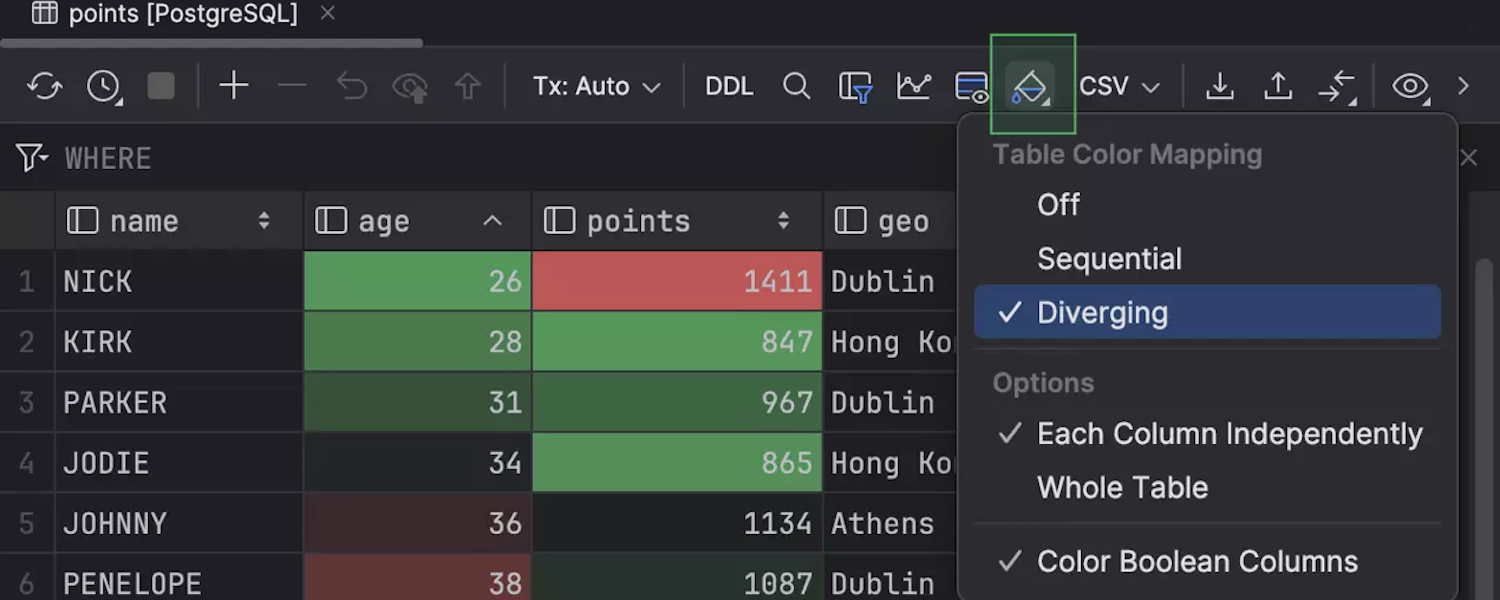
Grid heatmap
IntelliJ IDEA supports grid heatmaps in the data editor, offering two color schemes: Diverging and Sequential.
Apply these schemes to the entire table, individual columns, or just Boolean values to visualize patterns and quickly spot trends and variations in data.
SQL queries

Running SQL queries
Running queries in IntelliJ IDEA is simple – just click on the Query Console icon within the Database tool window, type your query, and click the Execute button.

Viewing query results
You can view and manage query results right in the editor.

Smart code completion
IntelliJ IDEA provides context-sensitive code completion, helping you write SQL queries faster.

On-the-fly analysis and quick-fixes
IntelliJ IDEA detects errors in your queries and suggests fixes on the fly.
Frameworks and databases

Working with Spring data
Connect databases to your Spring Boot application and enjoy full support for data management.

Manage data with persistence frameworks – JPA and Hibernate
IntelliJ IDEA has out-of-the-box support for persistence frameworks, which simplify data management for your Java or Kotlin applications.
Database tutorials

Working with Databases in IntelliJ IDEA
In this demo session, we’ll show you how to write SQL queries and work with data in IntelliJ IDEA, from writing simple queries to more advanced tasks with the help of embedded database management functionality.
Learn more
- Getting started with databases in IntelliJ IDEA
Learn how to perform various tasks like querying data, creating new databases, and managing existing ones – all without leaving your IDE. - Data sources overview
Learn how to set up a database source of your choice.
- Run queries and view results
Explore an in-depth tutorial on how to run queries and SQL files and view query results. - Top 10 Shortcuts for Efficient Data Querying
In this article, we share the top 10 shortcuts for working with Database Tools, which will enhance your productivity while querying data.
All data management features are also available in JetBrains’ standalone database management tool – DataGrip.
