Excluded files and folders
View and manage automatically excluded folders
To improve IDE performance, PhpStorm marks framework-specific generated output, temporary content, logs, caches, and similar folders as Excluded automatically on project startup.
To view and manage the list of automatically excluded folders:
On the Settings (Ctrl+Alt+S) | Directories page, click
 Exclude.
The Configure Framework Exclusions dialog that opens shows the full list of to-be-excluded folders that PhpStorm looks for when opening a project, with the checkboxes selected next to the folders that are excluded in your current project.
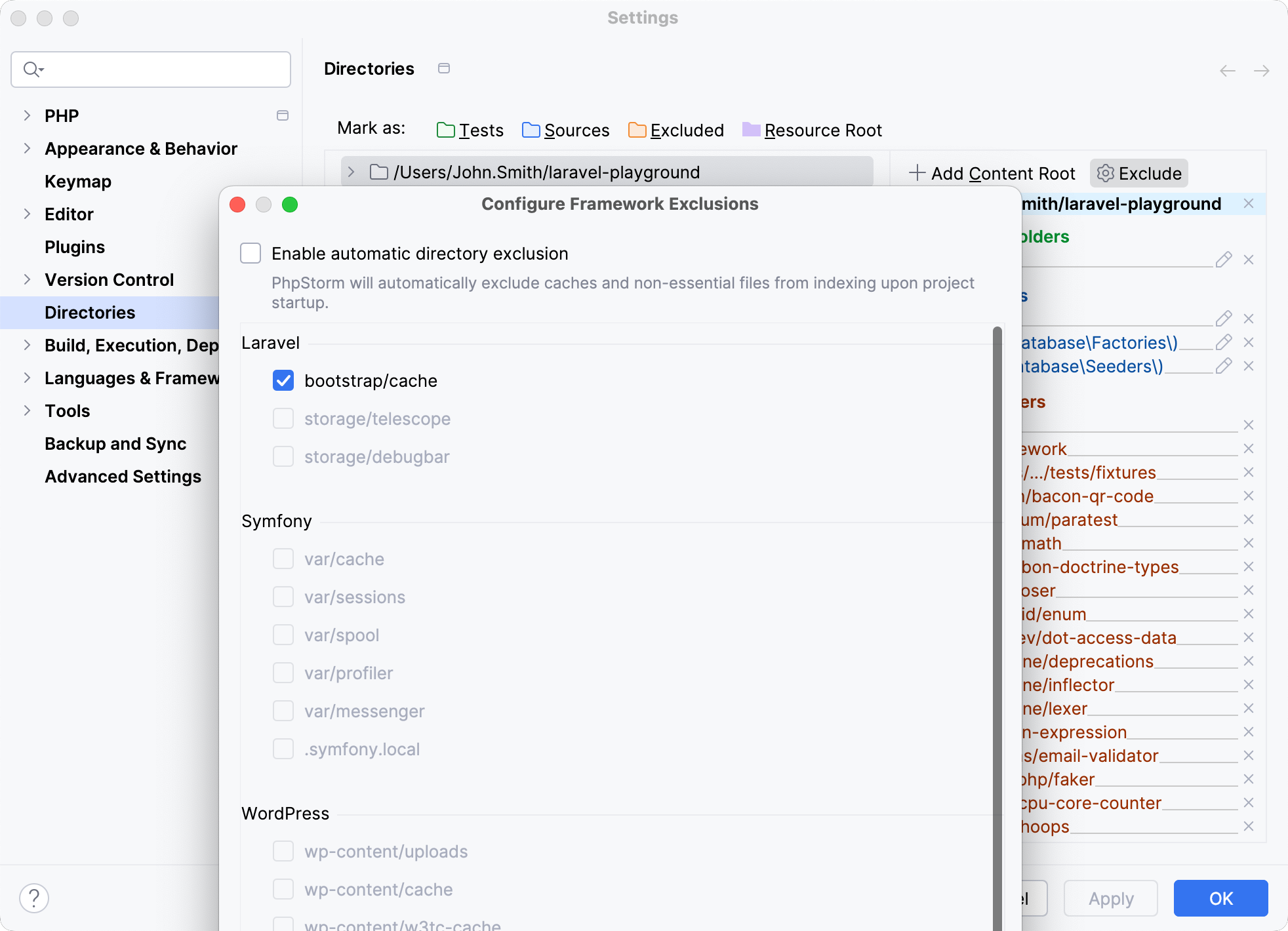
To override the default exclusion for a specific folder and include it in project analysis, unselect the checkbox next to it and click OK.
Exclude single files
Sometimes you might need to exclude a single file from your project, so that it will be ignored by inspections, code completion, and so on. This is done using the Override File Type action.
In the Project tool window, select the desired file.
From the context menu of the selection, select and then select Plain Text from the Choose File Type list.
The reverse action is also available: you can return a file to its original type by using the Mark as <file type> action.
When a file is marked as plain text, PhpStorm does not use it anymore for code completion and navigation. Such file is shown as plain text in the editor, and is marked with a special icon  in the Project tool window.
Mark files and folders as Excluded
In the Settings dialog (Ctrl+Alt+S) , select Directories.
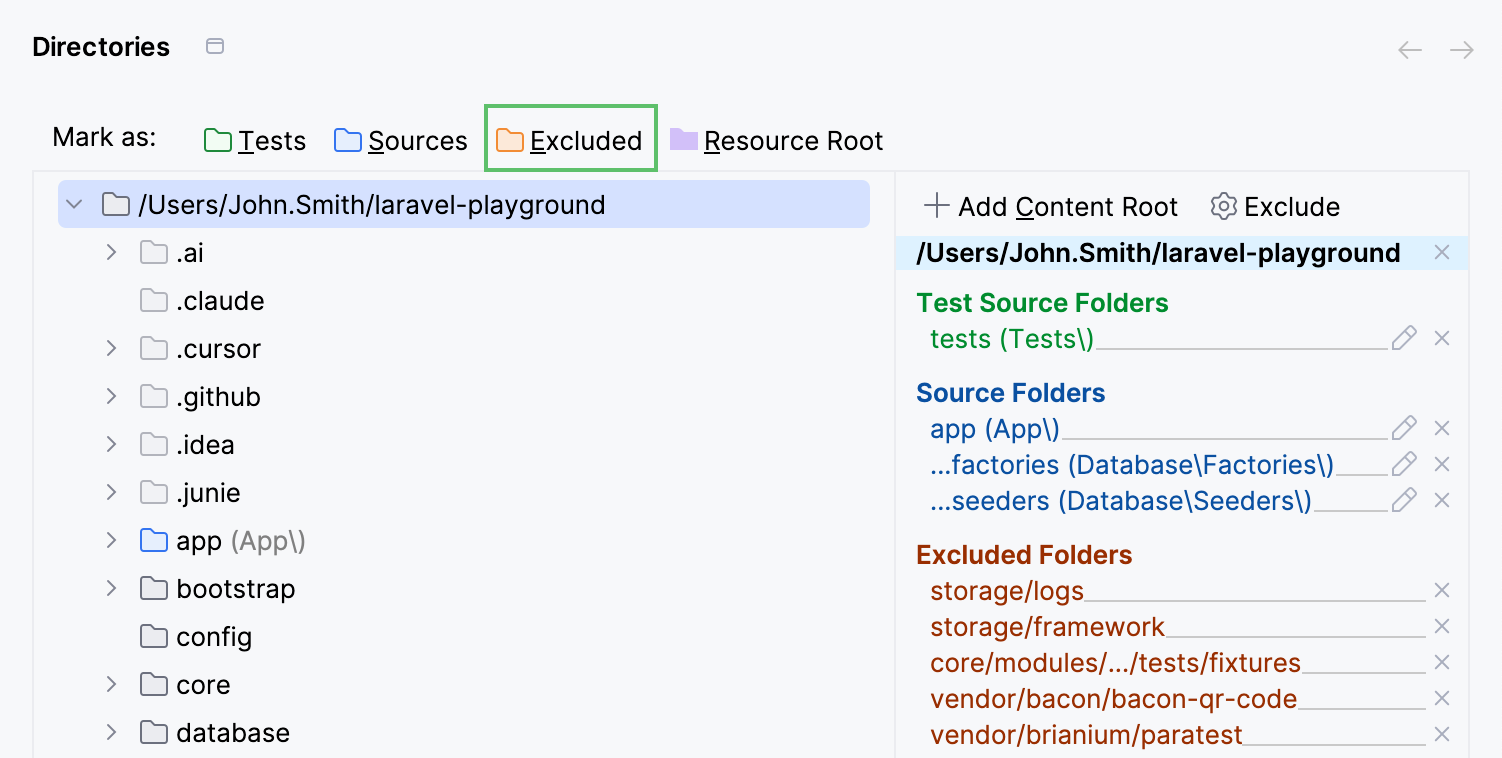
Select the directory and use its context menu or the Mark as toolbar to mark it as Excluded.
Exclude files and folders by name patterns
In the Settings dialog (Ctrl+Alt+S) , click Directories.
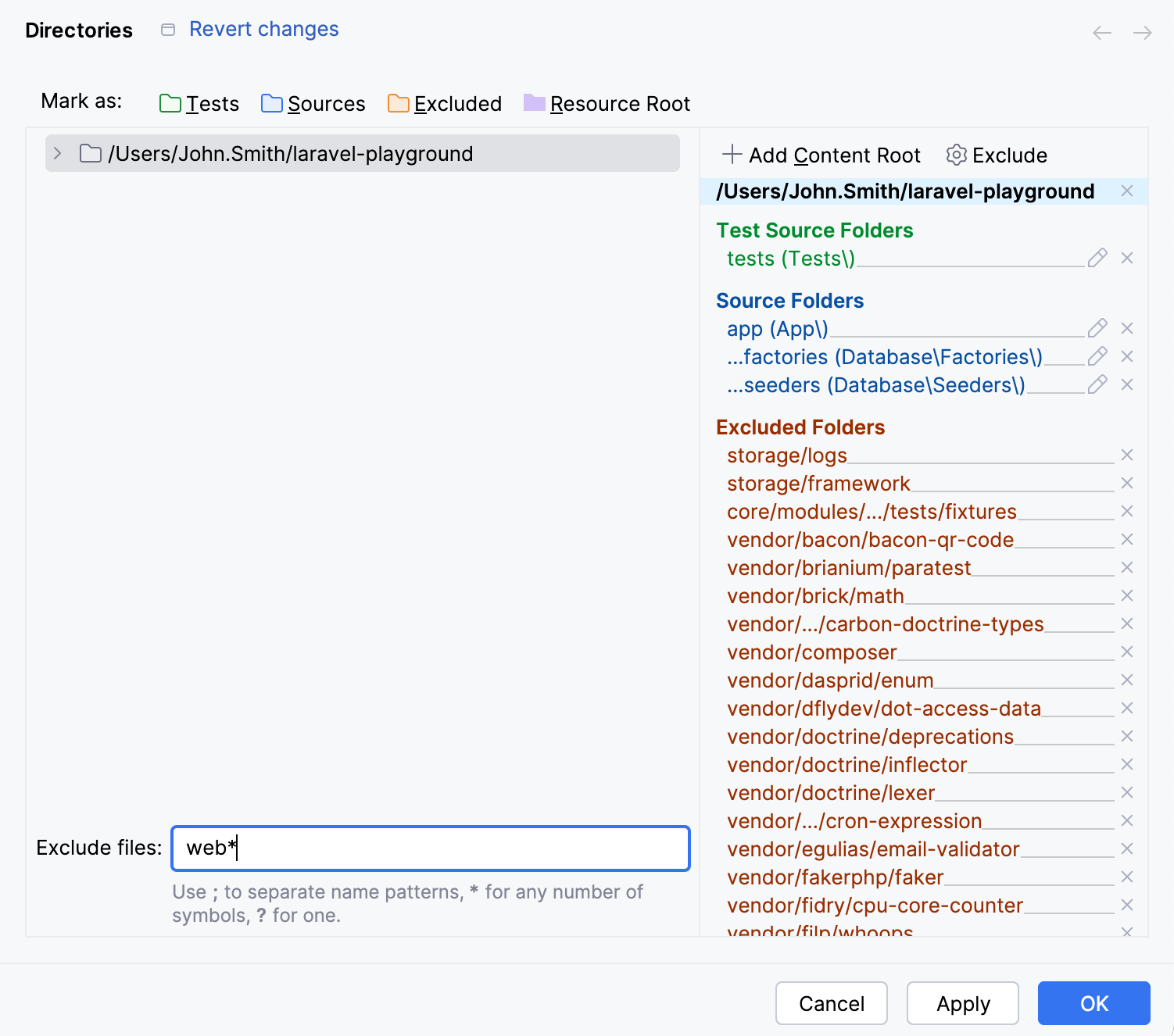
In the Exclude files field, type the masks that define the names of files and folders to be excluded, for example,
*.min.jsorlib. Use semicolons as separators.If the name of a file matches any of these patterns, the file is treated as excluded.
If the name of a folder matches a pattern, all the files in this folder and in its subfolders are excluded.
Exclude libraries from project analysis
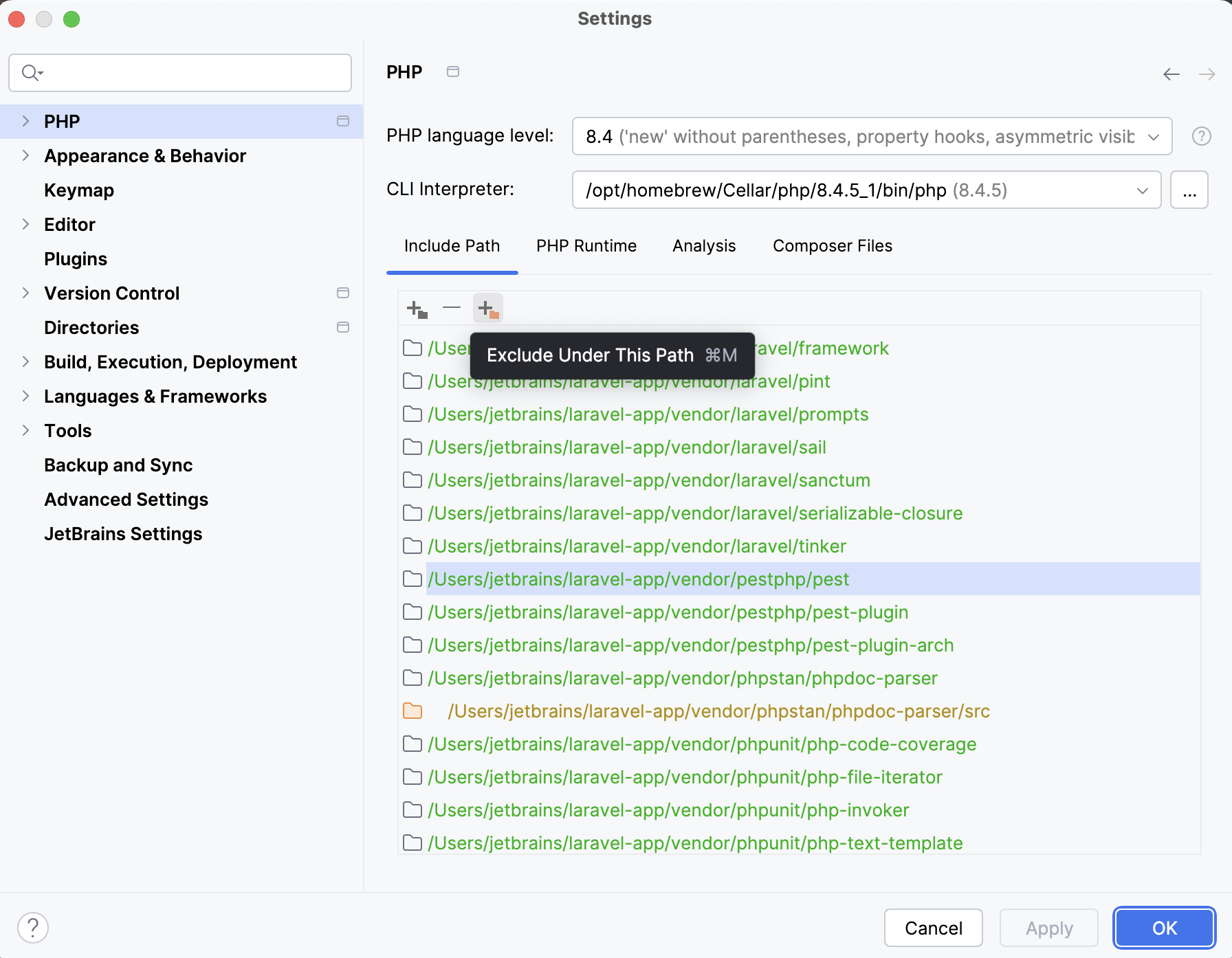
You can exclude specific folders in the vendor directory from project analysis. To do so, select the folder in the list and click  Exclude Under This Path on the tools panel.
By doing so, you exclude the selected folder or file from include paths, changing its root type from Library ( ) to Excluded (
 ).
).
Exclude a phar archive from a project
In the context of a PHP project, you can also exclude entire PHP archives (phar files) to prevent multiple declaration conflicts between classes in a phar archive and the corresponding classes in the installed vendors directory.
In the Project tool window, select the required phar archive and choose Exclude phar from project from the context menu of the selection.