Python tools support
PyCharm supports several tools to improve code quality, maintainability, and workflow efficiency:
Ruff: a high-performance linter and formatter that detects errors and enforces coding standards.
Pyright, basedpyright, and ty: fast type checkers providing real-time type analysis.
Black: an automatic code formatter that helps maintain a consistent style.
When a Python file is open, PyCharm shows the active tools at the bottom toolbar:

If Python tools are detected in your project interpreter, PyCharm displays a notification suggesting to enable the tool. Click the notification to enable the tool without opening the settings.
External Tools settings page
You configure all supported external tools on a single page: . The page shows a table with every tool currently supported by PyCharm (linters, type checkers, formatters).
For each tool, the table displays the same set of controls:
The ON/OFF switch to enable or disable the tool integration.
A per-tool Configure <tool> dialog with the Features checkboxes, where you select the capabilities that the tool provides in the editor (for example, inspections, completions, inlay hints, formatting, or import optimization). The list of available features depends on the tool.
To open the dialog, enable the required tool and click
 (Configure <tool>) in its row.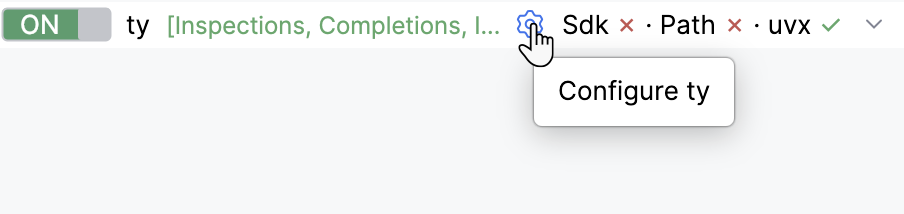
The Lookup column, which controls how PyCharm locates the tool executable. Select one of the methods:
Sdk: PyCharm tries the tool package installed in the module interpreter first, then an executable on
$PATH, and then runs the tool throughuvx.Path: PyCharm tries an executable on
$PATHfirst, and then runs the tool throughuvx.uvx: PyCharm runs the tool through uv without installing it.
The
uvxmethod requires uv. If uv is not installed, the page shows a hint with the Install uv button.The Executable Path field with the
 (Browse for executable) icon. If the tool is not installed yet, an Install the latest version icon appears next to the path. PyCharm installs the tool with
 uv tool install, or with pip through a system Python if uv is not available. It does not install the tool into the project interpreter.
Ruff
Ruff can highlight issues as you type, suggest fixes, and help maintain consistent code quality across your project. It runs quickly and provides real-time feedback directly in your editor.
Ruff support in PyCharm includes:
Formatting
Import optimization
Quick fixes
Configuration file validation
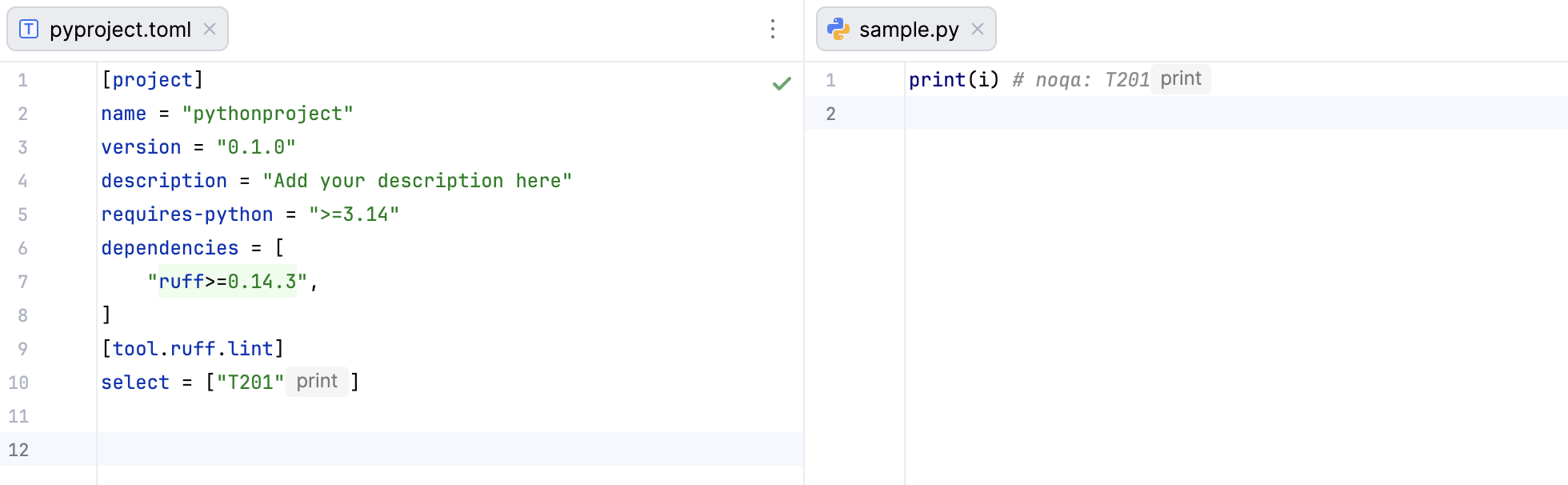
Inlay hints for rule codes
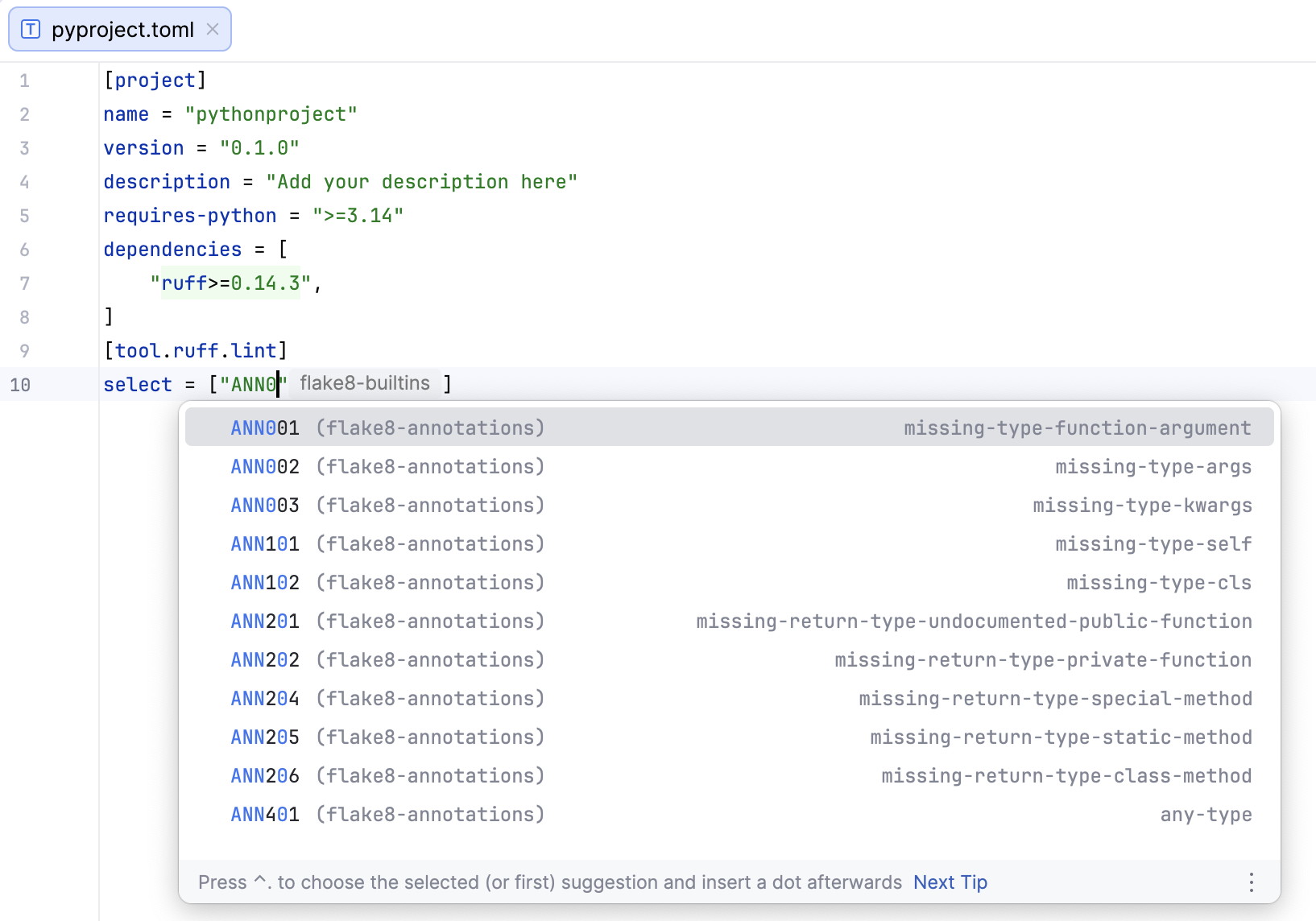
Completions for rule codes and configuration options
Web links for rule codes and configuration options
Press Ctrl (⌘ on macOS) and click a rule code or configuration option to open its page in the Ruff documentation.
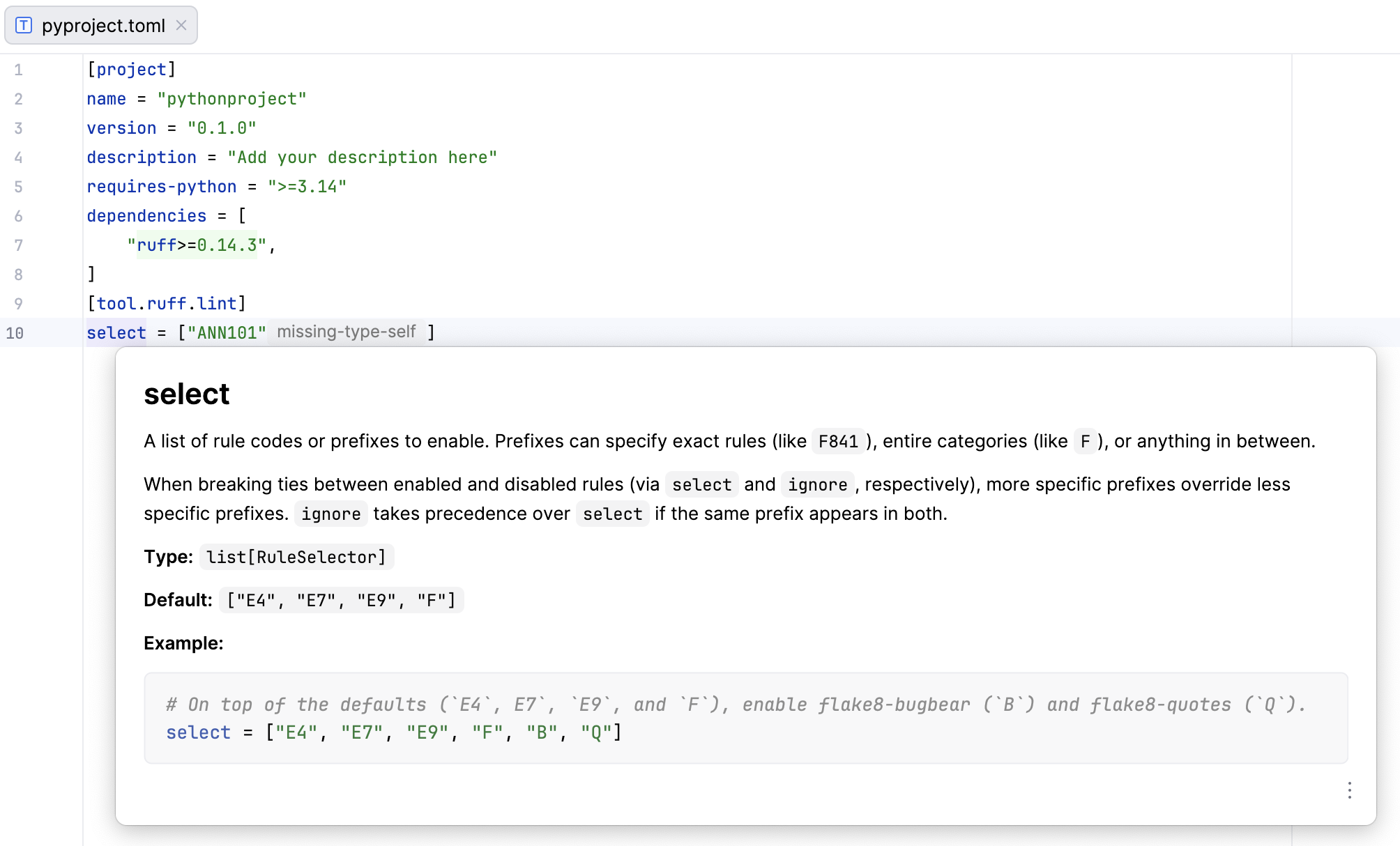
In-editor documentation preview for rule codes and configuration options
You can enable the following Ruff options:
Pyrefly
Pyrefly is a type checker and language server for Python.
You can enable the following Pyrefly options:
Pyright
Pyright is a static type checker for Python.
You can enable the following Pyright options:
basedpyright
basedpyright is a fork of Pyright with various type checking improvements.
You can enable the following basedpyright options:
Write new errors to baseline
A baseline is a way to save the current set of type-checking errors so you can prevent new ones from being introduced while you gradually improve type coverage.
To use a baseline in PyCharm:
Enable basedpyright.
Open a file in your project that contains a basedpyright type-checking error.
Go to (or press Ctrl+Shift+A), search for , and select it.
basedpyright creates a baseline.json file in the .basedpyright directory. It ignores the errors listed in this file and continues to report new type errors.
ty
ty is a fast Python type checker, written in Rust. It is currently in preview and could be incomplete.
You can enable the following ty options:
Black
You can use Black to format your Python code in PyCharm.
You can configure the settings of the Black formatter in a pyproject.toml file. For more information, refer to the Black documentation.
For more information, refer to the Black CLI reference.