# JSON
> For the complete documentation index, see [llms.txt](https://www.jetbrains.com/zh-cn/help/idea/llms.txt).
> **TL;DR**
> 必需插件 :
>
>
>
> `JavaScript 和 TypeScript` - 插件与 IntelliJ IDEA 捆绑在一起,并默认启用。
[JSON](https://www.json.org/) 格式通常用于存储数据和配置文件。 IntelliJ IDEA 帮助您处理 JSON 文件 — 它检查其语法和格式。 在常用类型的配置文件中,IntelliJ IDEA 会基于 [JSON 架构](http://json-schema.org/)验证代码并提供代码补全,JSON 架构是一种用于描述此类文件结构和内容的特殊格式。
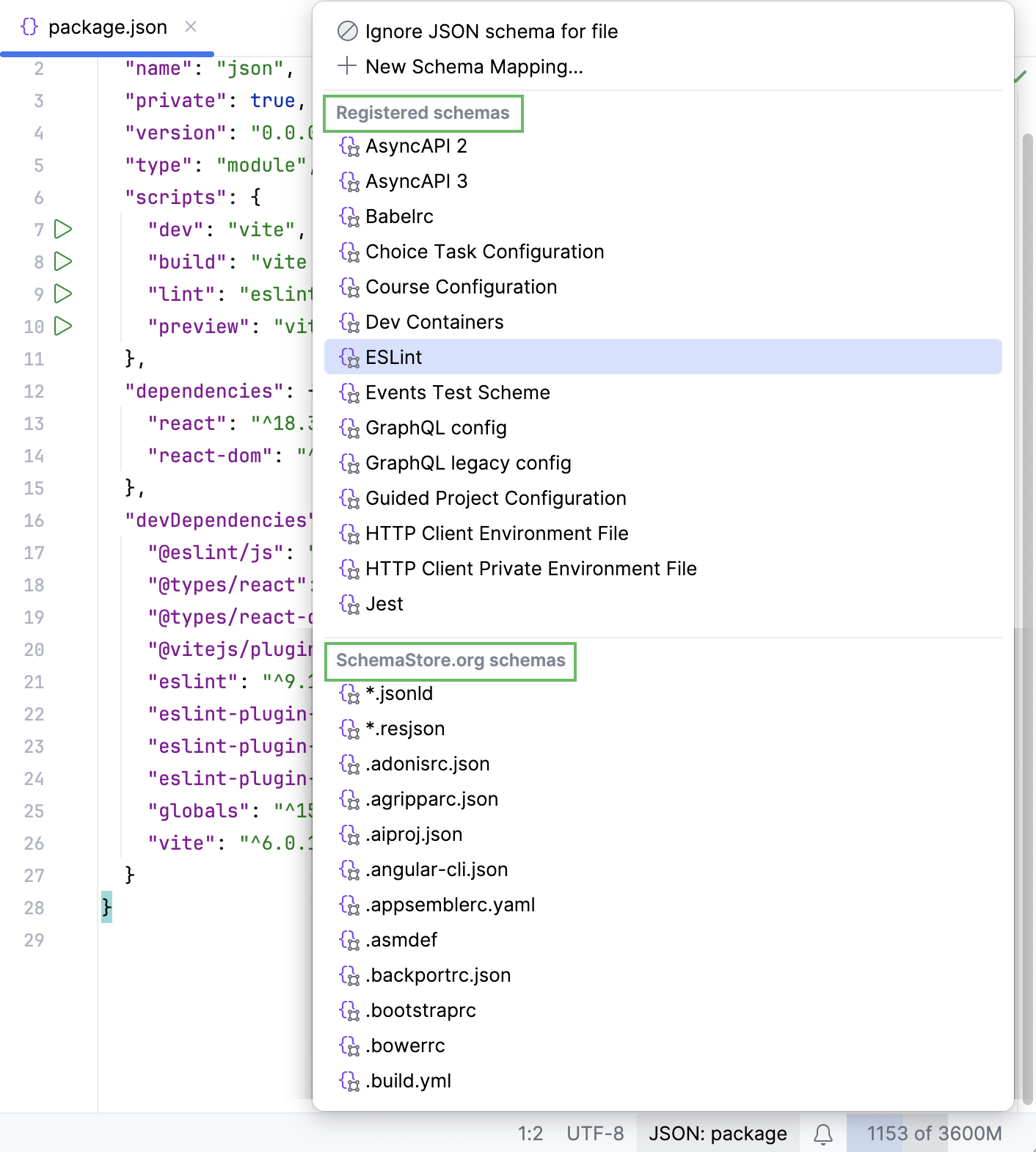
IntelliJ IDEA 随附一组适用于大多数常用格式的 已注册 架构。 您还可以 [使用来自 JSON Schema Store 的模式](#ws_json_using_schemas) 或 [自定义 JSON 模式](#ws_json_schema_add_custom)。
## 启用 JSON5
IntelliJ IDEA 可识别多种最常用的 JSON 标准,包括 [JSON5](https://json5.org/)。 IntelliJ IDEA 默认会将具有 `json5` 扩展名的文件视为 JSON5 文件,并在其中支持这种新语法。
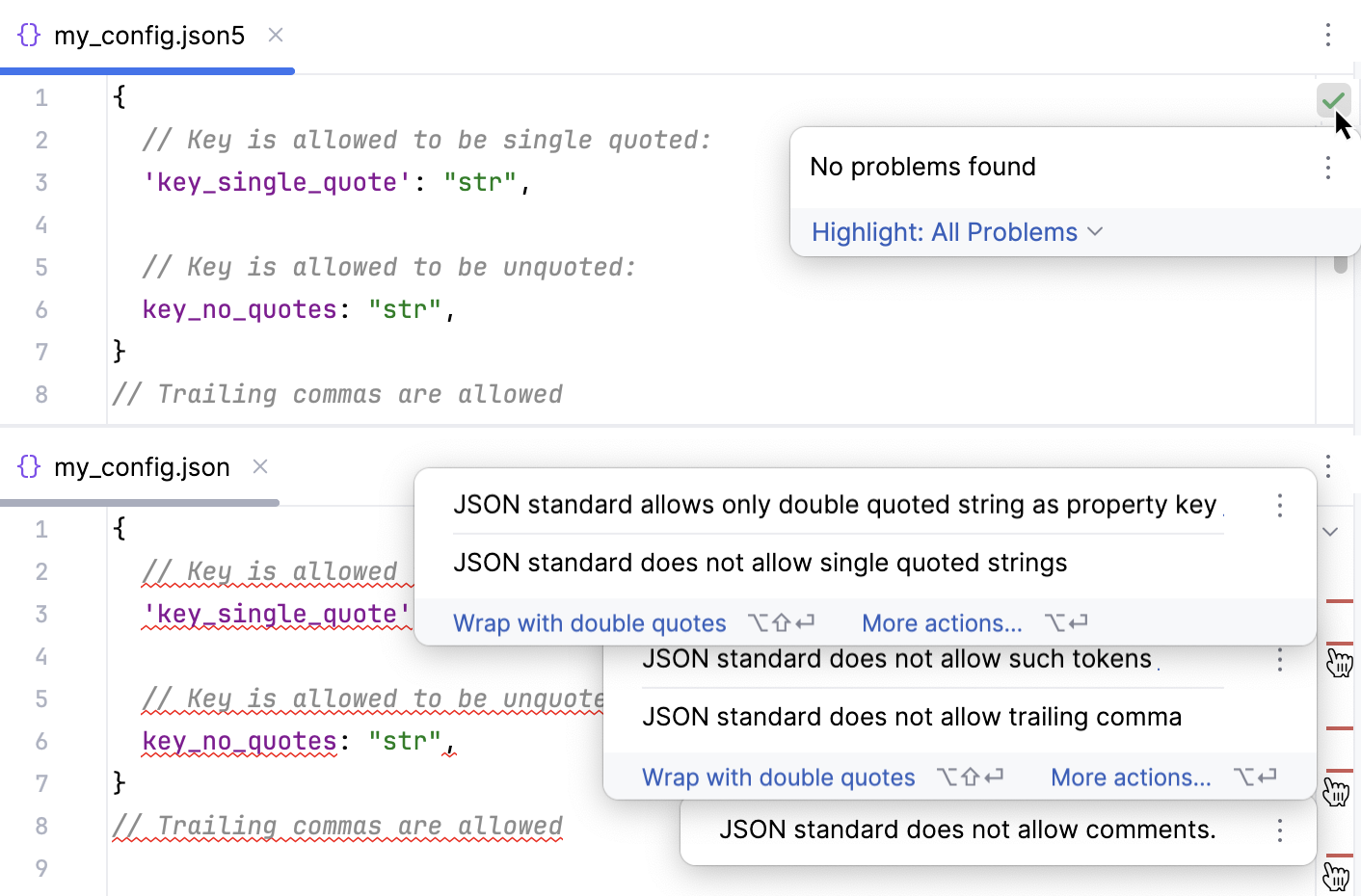
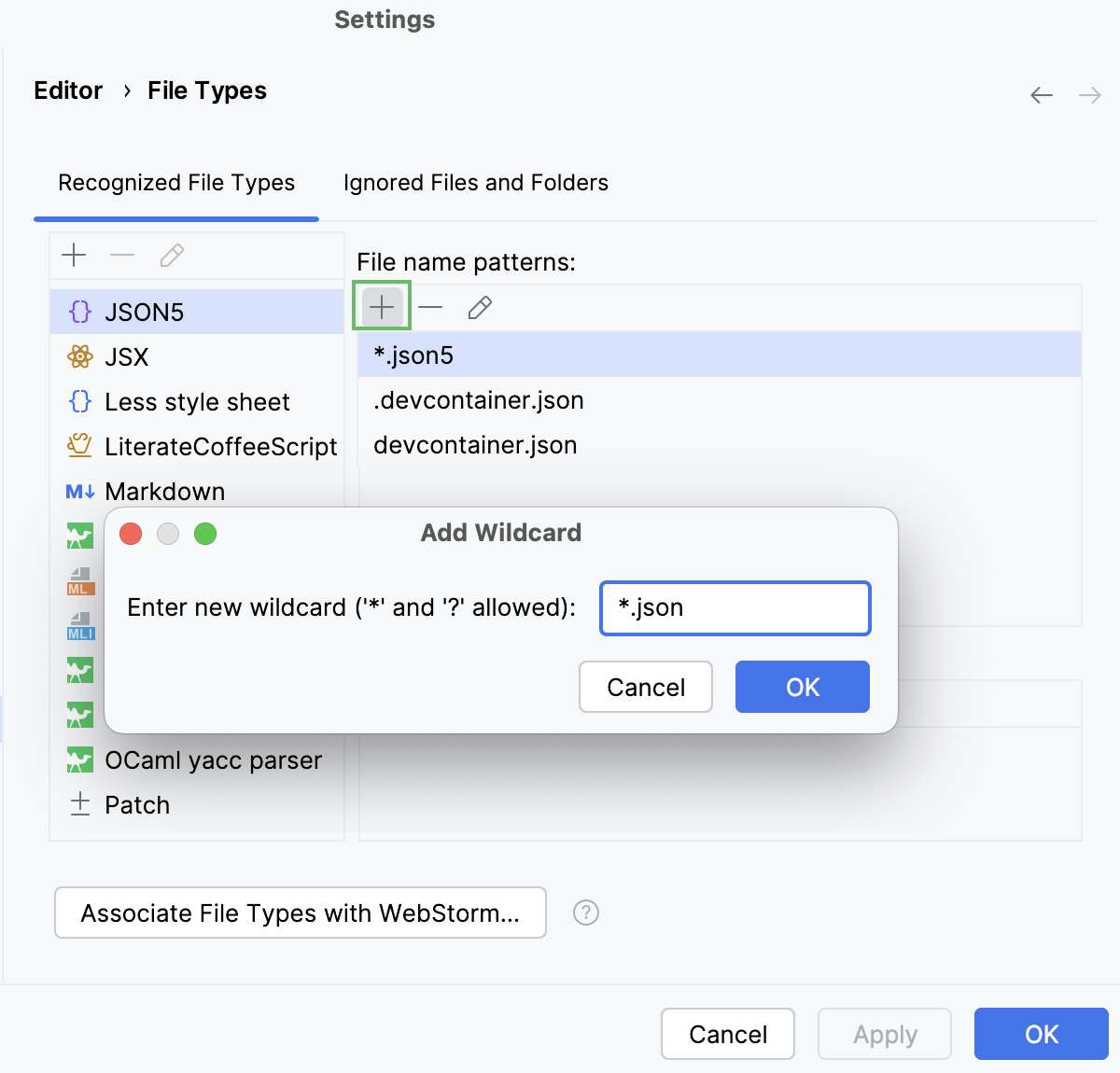
Procedure: 将 JSON5 语法扩展到所有 JSON 文件
1. 在 设置 对话框( `Ctrl+Alt+S` (Windows), `⌘ Comma` (macOS), `⌘ Comma` (IntelliJ IDEA Classic (macOS)), `⌘ Comma` (macOS System Shortcuts), `Ctrl+Alt+S` (XWin), `Ctrl+Alt+S` (GNOME), `Ctrl+Alt+S` (KDE), `Ctrl+Alt+S` (Emacs), `Ctrl+Alt+S` (Sublime Text), `⌘ Comma` (Sublime Text (macOS)), `Ctrl+Alt+S` (Visual Studio), `⌘ Comma` (Visual Studio (macOS)), `Ctrl+Alt+S` (NetBeans), `Ctrl+Alt+S` (Eclipse), `⌘ Comma` (Eclipse (macOS))),转到 `编辑器 | 文件类型` 。
2. 在 识别的文件类型 列表中,选择 JSON5 。
3. 在 文件名模式 区域,点击 并在打开的 添加通配符 对话框中键入 `*.json` 。
## 使用来自 JSON Schema Store 的模式
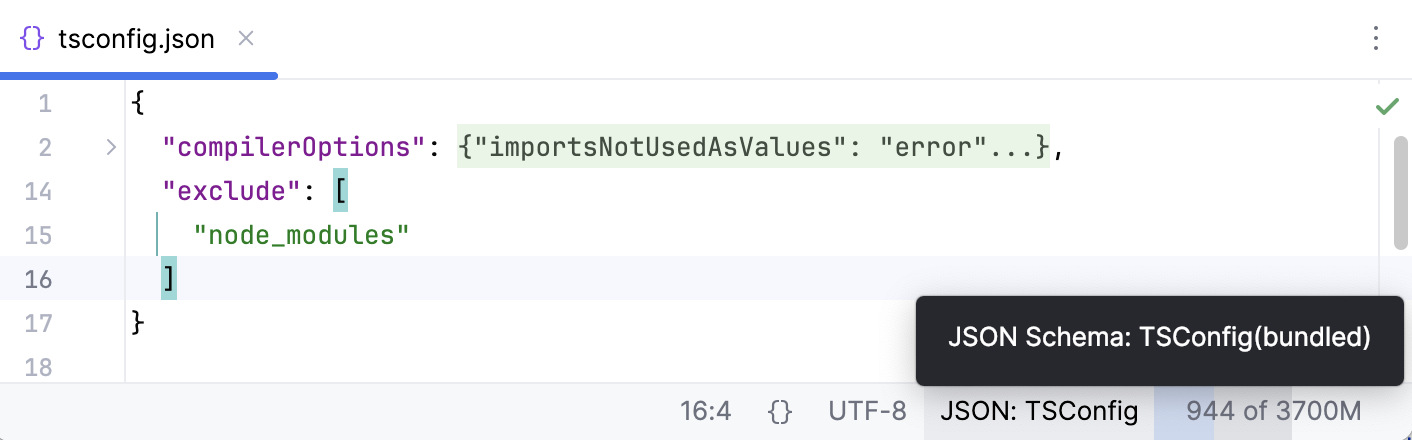
IntelliJ IDEA 可以自动下载并使用 [JSON Schema Store](http://schemastore.org/) 中的架构,该平台托管许多最受欢迎的配置文件的架构文件。 当您打开一个与可用架构之一关联的文件(例如, `tsconfig.json` )时,IntelliJ IDEA 将下载并使用此架构。 应用架构的名称显示在状态栏上。
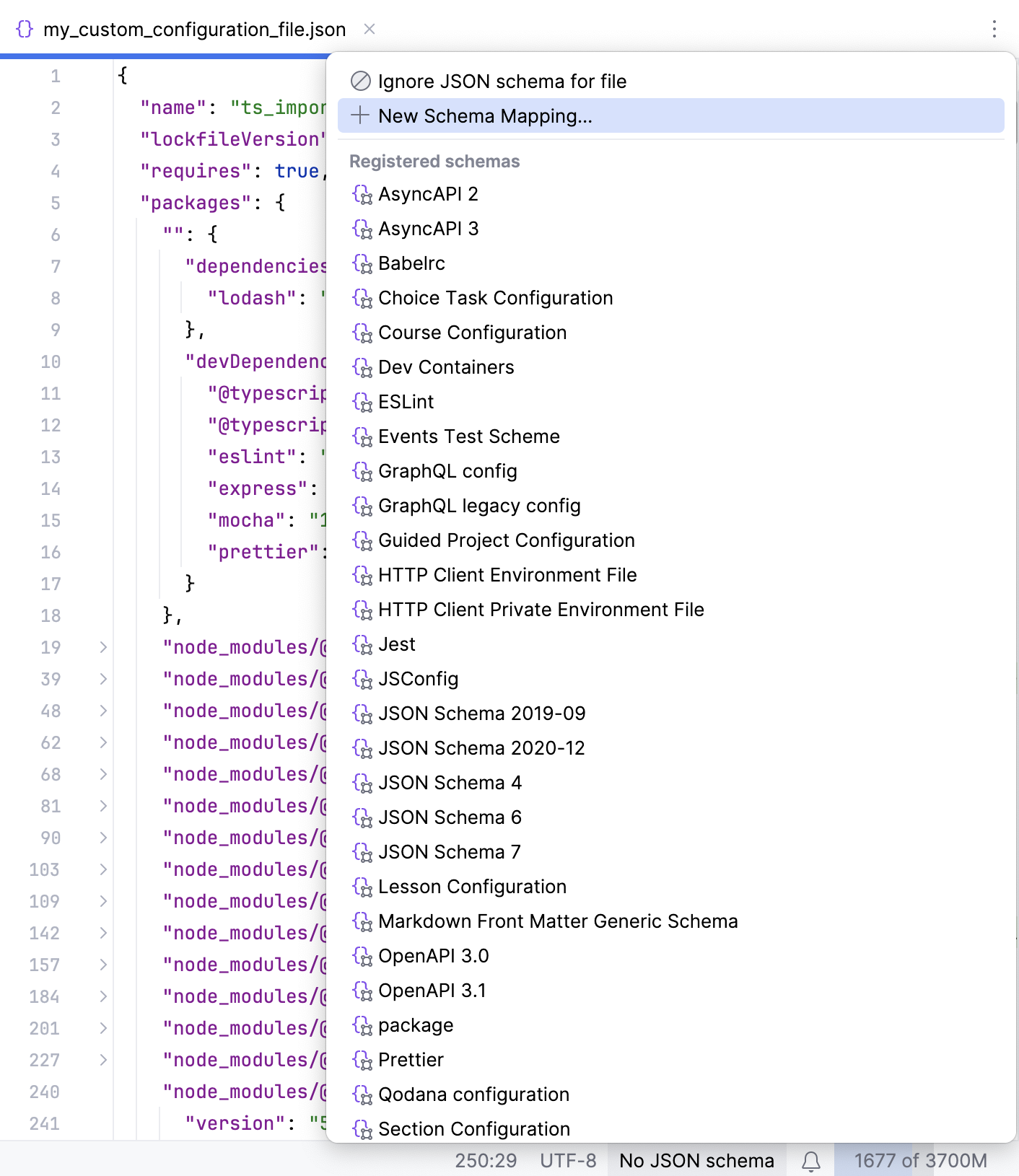
如果配置文件使用自定义名称,或者正在处理 [临时文件](scratches.html),请点击状态栏上的 无 JSON schema ,然后从列表中选择所需的架构。 IntelliJ IDEA 将当前文件与所选模式关联,并将此模式映射添加到 JSON Schema 映射 页面上的列表中。
或者,点击 新的 Schema Mapping 打开 JSON Schema 映射 页面,并 [配置新的架构关联](#ws_json_schema_add_custom)。
> **Tip:**
> JSON Schema Store 中的模式也可以应用于 [YAML](yaml.html) 文件。
默认情况下,JSON Schema Store 的模式自动下载功能处于启用状态。 如果它被关闭,您可以随时重新启用。
Procedure: 自动从 JSON Schema Store 下载模式
1. 在 设置 对话框( `Ctrl+Alt+S` (Windows), `⌘ Comma` (macOS), `⌘ Comma` (IntelliJ IDEA Classic (macOS)), `⌘ Comma` (macOS System Shortcuts), `Ctrl+Alt+S` (XWin), `Ctrl+Alt+S` (GNOME), `Ctrl+Alt+S` (KDE), `Ctrl+Alt+S` (Emacs), `Ctrl+Alt+S` (Sublime Text), `⌘ Comma` (Sublime Text (macOS)), `Ctrl+Alt+S` (Visual Studio), `⌘ Comma` (Visual Studio (macOS)), `Ctrl+Alt+S` (NetBeans), `Ctrl+Alt+S` (Eclipse), `⌘ Comma` (Eclipse (macOS))),转到 `语言与框架 | 架构和 DTD | 远程 JSON 架构` 。
2. 请选中 允许从远程源下载 JSON 架构 和 使用 schemastore.org JSON Schema 目录 复选框。
IntelliJ IDEA 捆绑了许多最受欢迎的的模式。 虽然这些模式会定期自动更新,但它们仍可能过时。
Procedure: 使用最新版本的内置模式
1. 在 设置 对话框( `Ctrl+Alt+S` (Windows), `⌘ Comma` (macOS), `⌘ Comma` (IntelliJ IDEA Classic (macOS)), `⌘ Comma` (macOS System Shortcuts), `Ctrl+Alt+S` (XWin), `Ctrl+Alt+S` (GNOME), `Ctrl+Alt+S` (KDE), `Ctrl+Alt+S` (Emacs), `Ctrl+Alt+S` (Sublime Text), `⌘ Comma` (Sublime Text (macOS)), `Ctrl+Alt+S` (Visual Studio), `⌘ Comma` (Visual Studio (macOS)), `Ctrl+Alt+S` (NetBeans), `Ctrl+Alt+S` (Eclipse), `⌘ Comma` (Eclipse (macOS))),转到 `语言与框架 | 架构和 DTD | 远程 JSON 架构` 。
2. 请选择 始终下载最新版本的模式 复选框。
## 使用自定义 JSON 模式
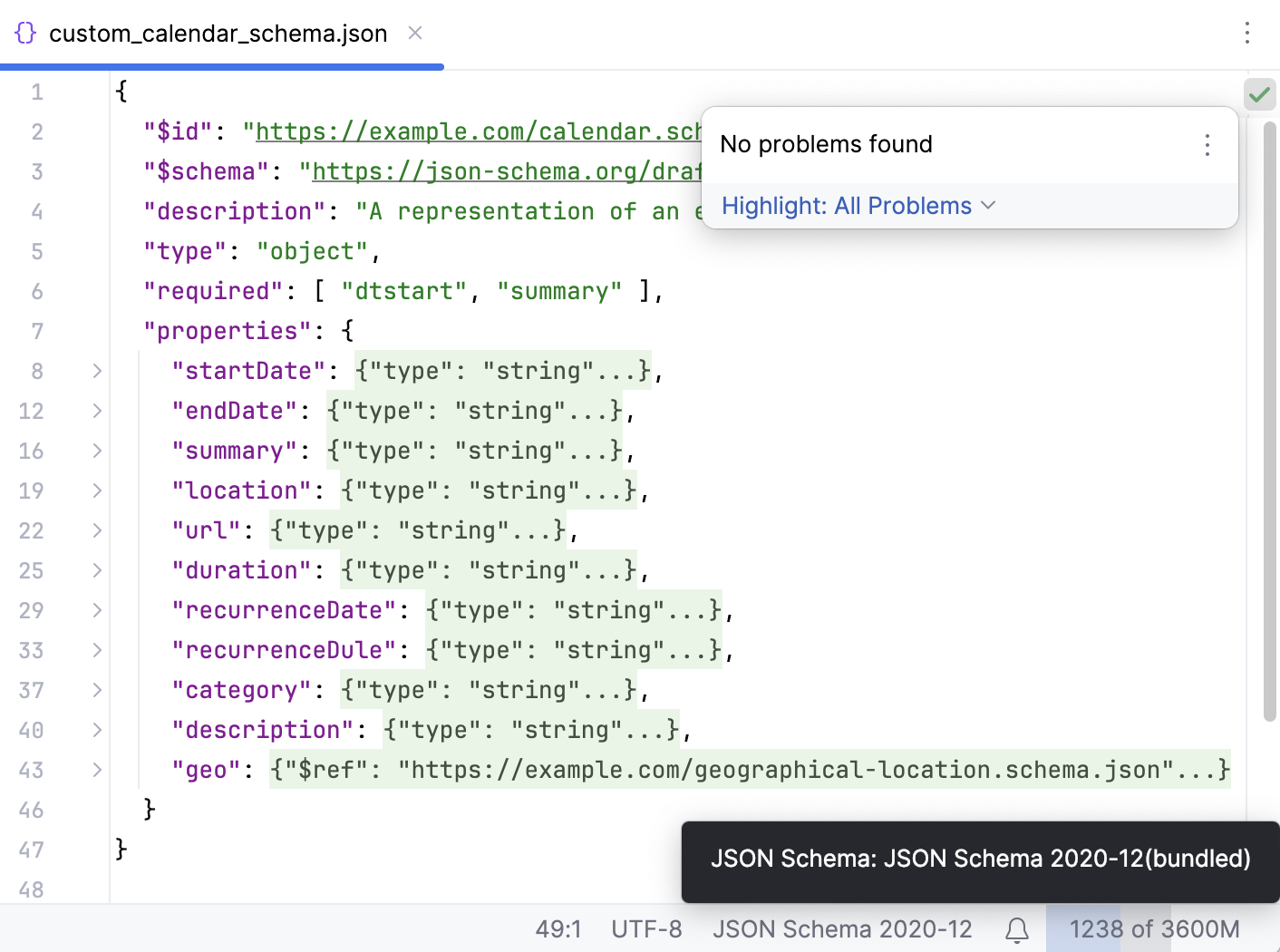
除了捆绑的已注册模式和 [来自 JSON Schema Store 的模式](#ws_json_using_schemas),IntelliJ IDEA 还允许您创建自己的模式或使用来自其他存储的自定义模式。 您可以创建或下载所需的模式,并将其存储在项目根目录下,或者指定资源的 URL,以便 IntelliJ IDEA 可以自动下载该模式。
自定义架构必须符合 JSON 架构标准。 目前,IntelliJ IDEA 支持 [2020-12](https://json-schema.org/draft/2020-12) 及更早版本的模式。
> **Note:**
> 可以通过以下两种方式添加自定义 JSON 架构:
>
>
>
> * 在 设置 对话框中,将自定义 JSON 架构与文件模式关联起来, [如下所述](#ws_json_schema_add_custom_procedure)。
>
> * [创建插件](https://plugins.jetbrains.com/docs/intellij/developing-plugins.html)来实现 `com.jetbrains.jsonSchema.extension.JsonSchemaFileProvider` 扩展点,然后按照 [管理插件](managing-plugins.html#install_plugin_from_disk)中所述安装该插件。
Procedure: 创建自定义 JSON 模式关联
1. 在 设置 对话框( `Ctrl+Alt+S` (Windows), `⌘ Comma` (macOS), `⌘ Comma` (IntelliJ IDEA Classic (macOS)), `⌘ Comma` (macOS System Shortcuts), `Ctrl+Alt+S` (XWin), `Ctrl+Alt+S` (GNOME), `Ctrl+Alt+S` (KDE), `Ctrl+Alt+S` (Emacs), `Ctrl+Alt+S` (Sublime Text), `⌘ Comma` (Sublime Text (macOS)), `Ctrl+Alt+S` (Visual Studio), `⌘ Comma` (Visual Studio (macOS)), `Ctrl+Alt+S` (NetBeans), `Ctrl+Alt+S` (Eclipse), `⌘ Comma` (Eclipse (macOS))),转到 `语言与框架 | 架构和 DTD | JSON 架构映射` 。
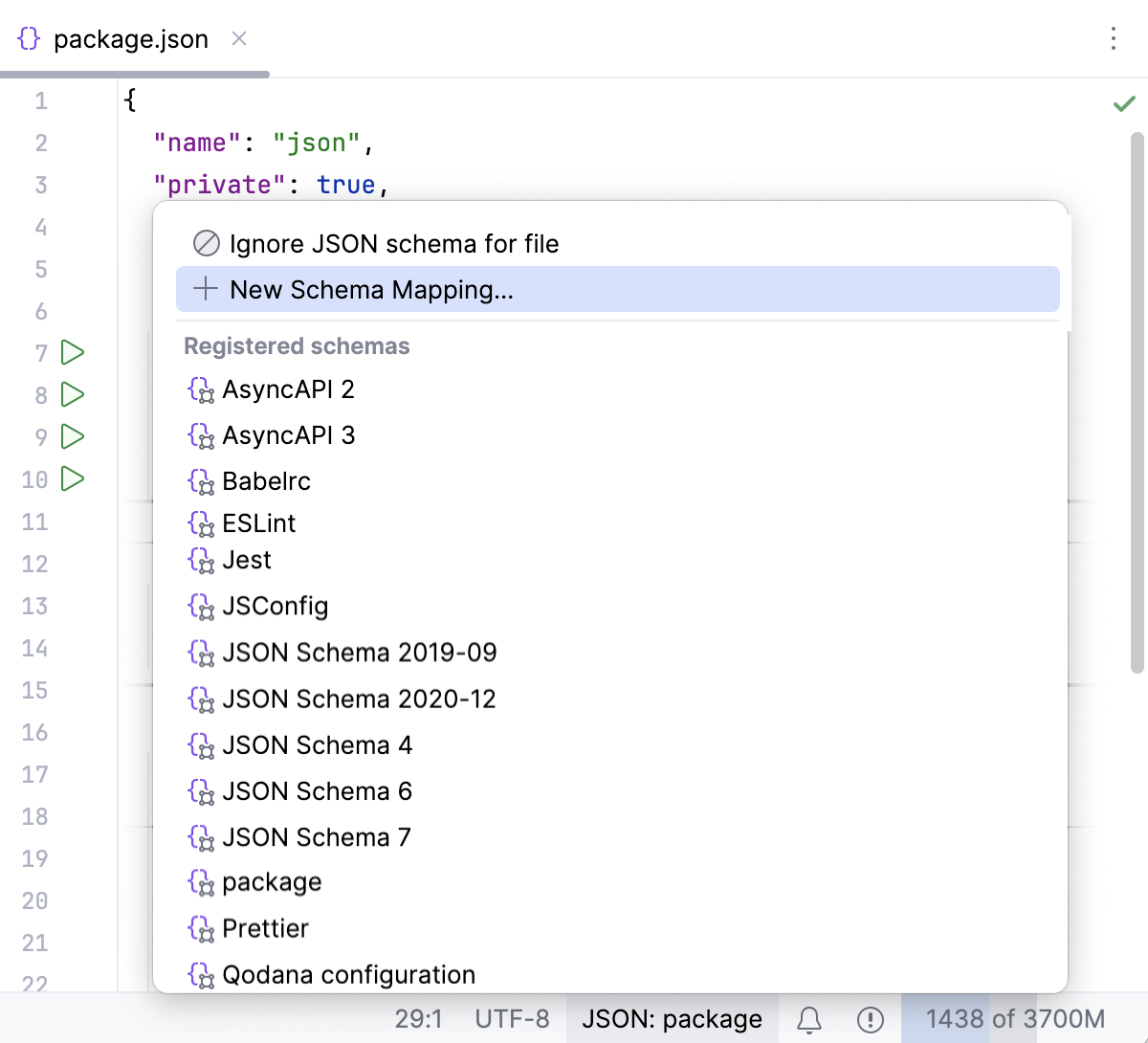
或者,点击状态栏上的 无 JSON 架构 ,然后选择 新的 Schema Mapping 。 在这种情况下,IntelliJ IDEA 会自动将文件包含在 [关联的文件、文件夹和模式列表](#ws_json_scope) 中。
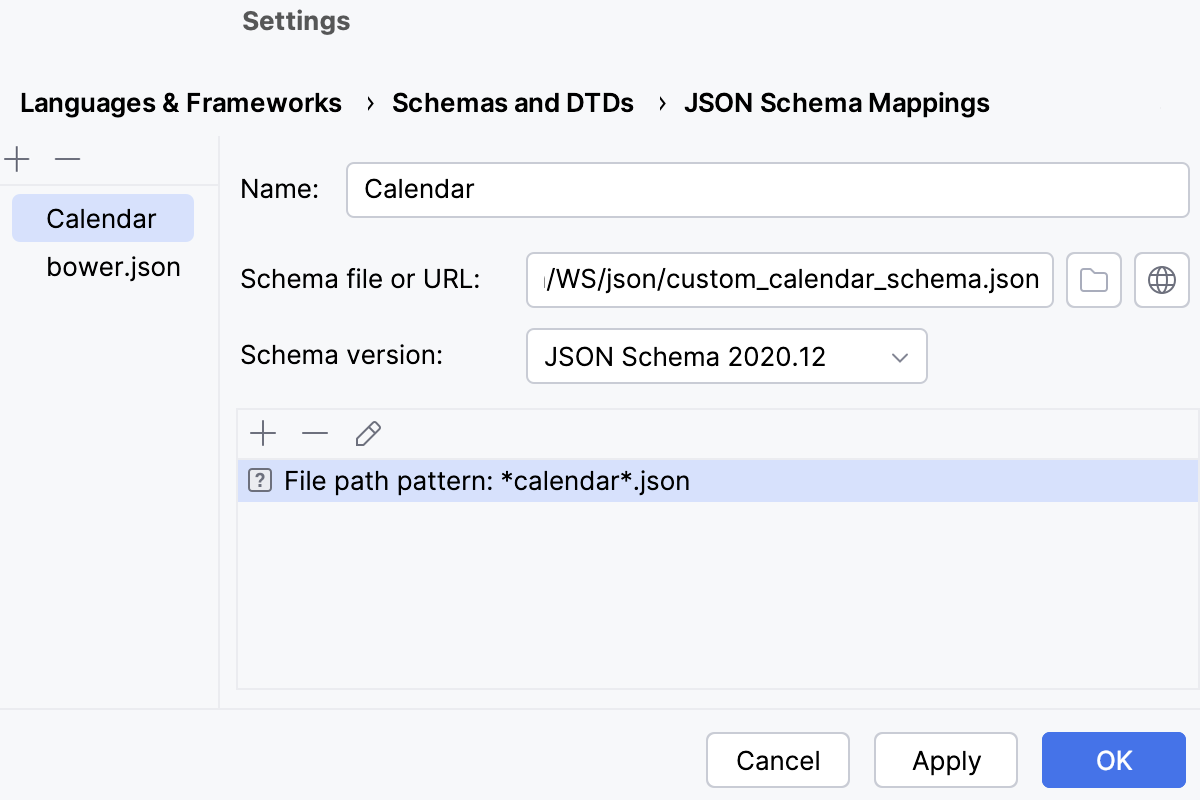
2. 在显示之前配置的所有架构的中央窗格中,点击工具栏上的 ,并指定映射的名称。
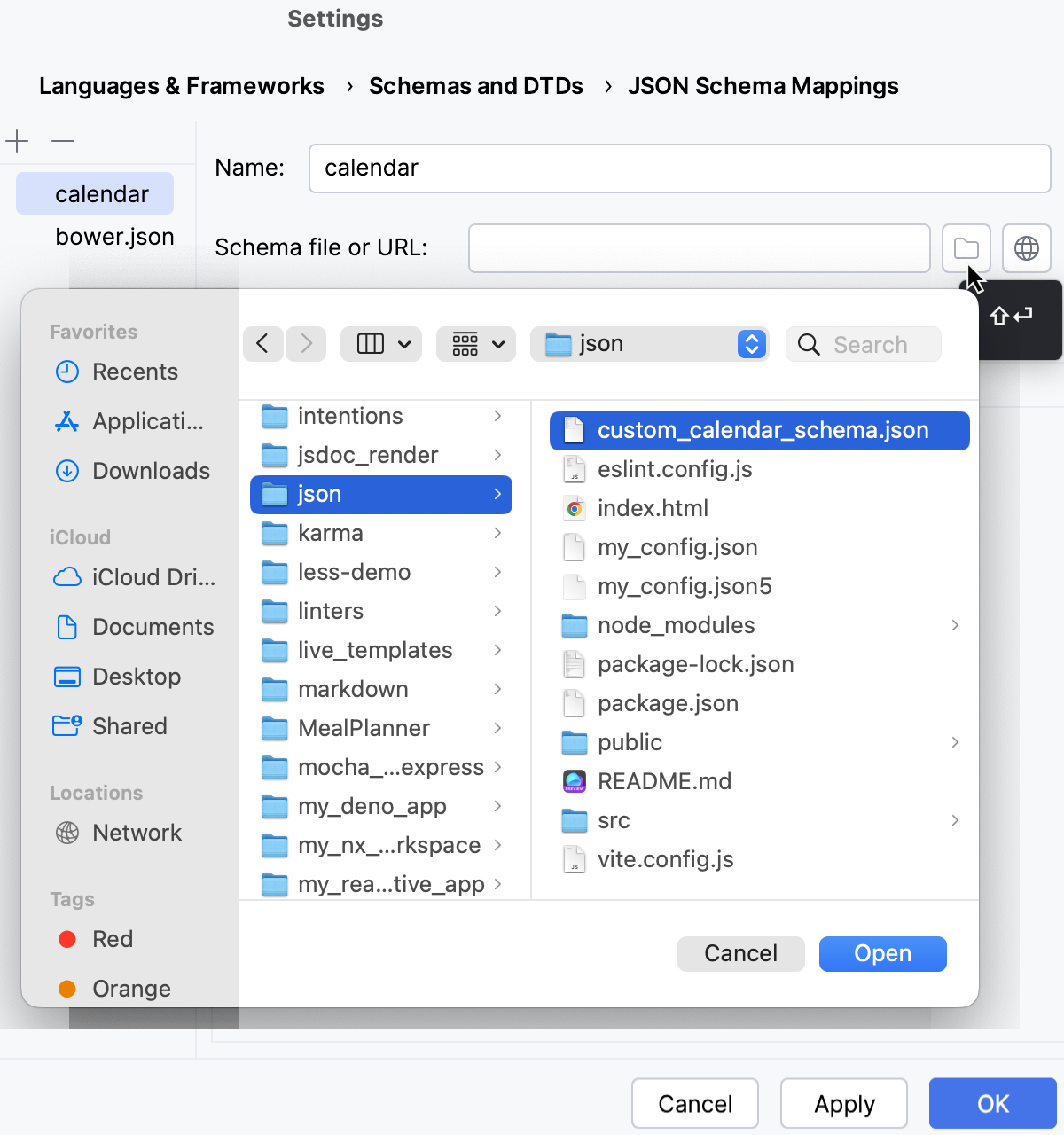
3. 在 架构文件或 URL 字段中,指定先前创建或下载的模式文件的位置,或所需模式可用的 URL。 架构文件的名称或对应的 URL 地址会显示在 架构文件或 URL 字段中。
> **Tip:**
> 如果您指定了 URL,请确保选中 允许从远程源下载 JSON 架构 页面上的 远程 JSON 架构 复选框。
4. 指定您的模式符合的 [模式规范版本](http://json-schema.org/specification-links.html)。
。
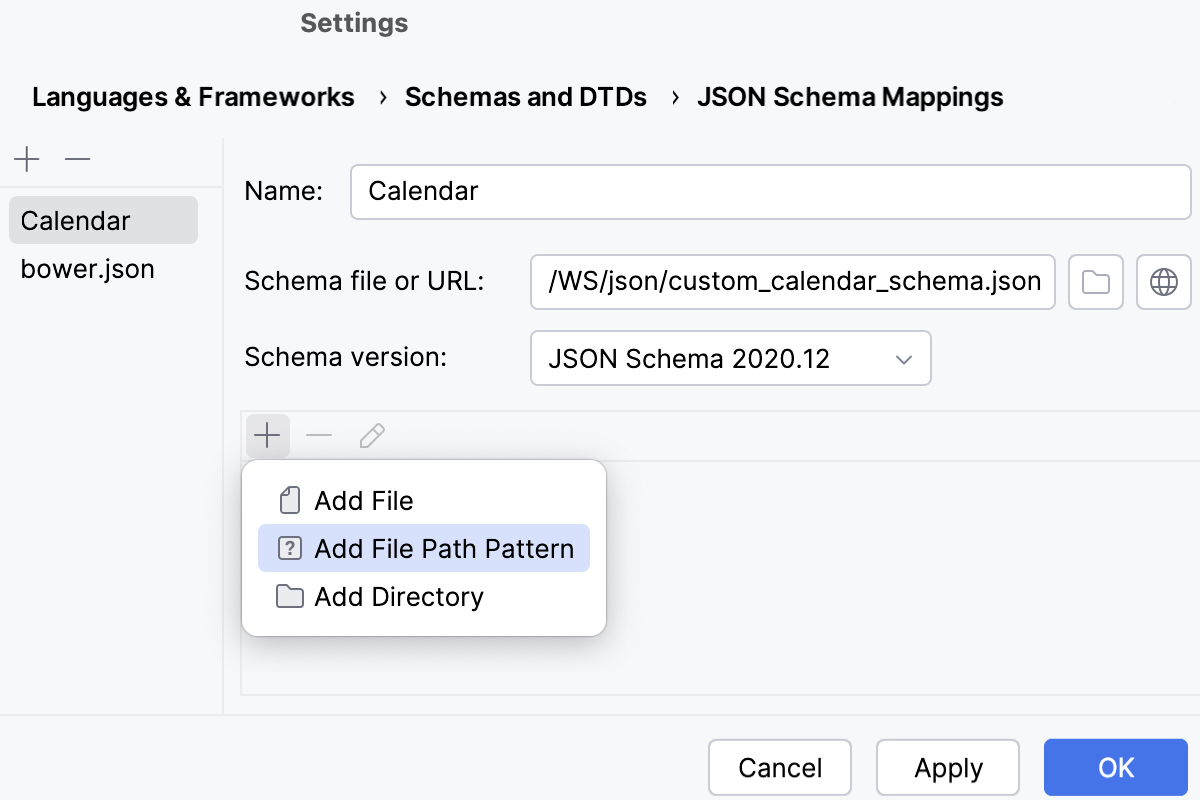
指定文件或文件夹的路径,或键入文件模式。 指定相对于项目根目录的路径。
> **Tip:**
> 如果通过为文件选择 新的 Schema Mapping 打开了 JSON Schema 映射 页面,则此文件已添加到列表中。
Procedure: 启用从远程来源自动下载 JSON 架构
1. 在 设置 对话框( `Ctrl+Alt+S` (Windows), `⌘ Comma` (macOS), `⌘ Comma` (IntelliJ IDEA Classic (macOS)), `⌘ Comma` (macOS System Shortcuts), `Ctrl+Alt+S` (XWin), `Ctrl+Alt+S` (GNOME), `Ctrl+Alt+S` (KDE), `Ctrl+Alt+S` (Emacs), `Ctrl+Alt+S` (Sublime Text), `⌘ Comma` (Sublime Text (macOS)), `Ctrl+Alt+S` (Visual Studio), `⌘ Comma` (Visual Studio (macOS)), `Ctrl+Alt+S` (NetBeans), `Ctrl+Alt+S` (Eclipse), `⌘ Comma` (Eclipse (macOS))),转到 `语言与框架 | 架构和 DTD | 远程 JSON 架构` 。
2. 请选择 允许从远程源下载 JSON 架构 。
当该复选框被清除时,关于 JSON Schemas 的任何网络活动,包括来自 JSON Schema Store 的架构,将被禁用。
## 禁用 JSON 模式
Procedure:
* 要为文件禁用架构,请点击状态栏上的 JSON 架构 微件,然后从弹出列表中选择 忽略该文件的 JSON 架构 。
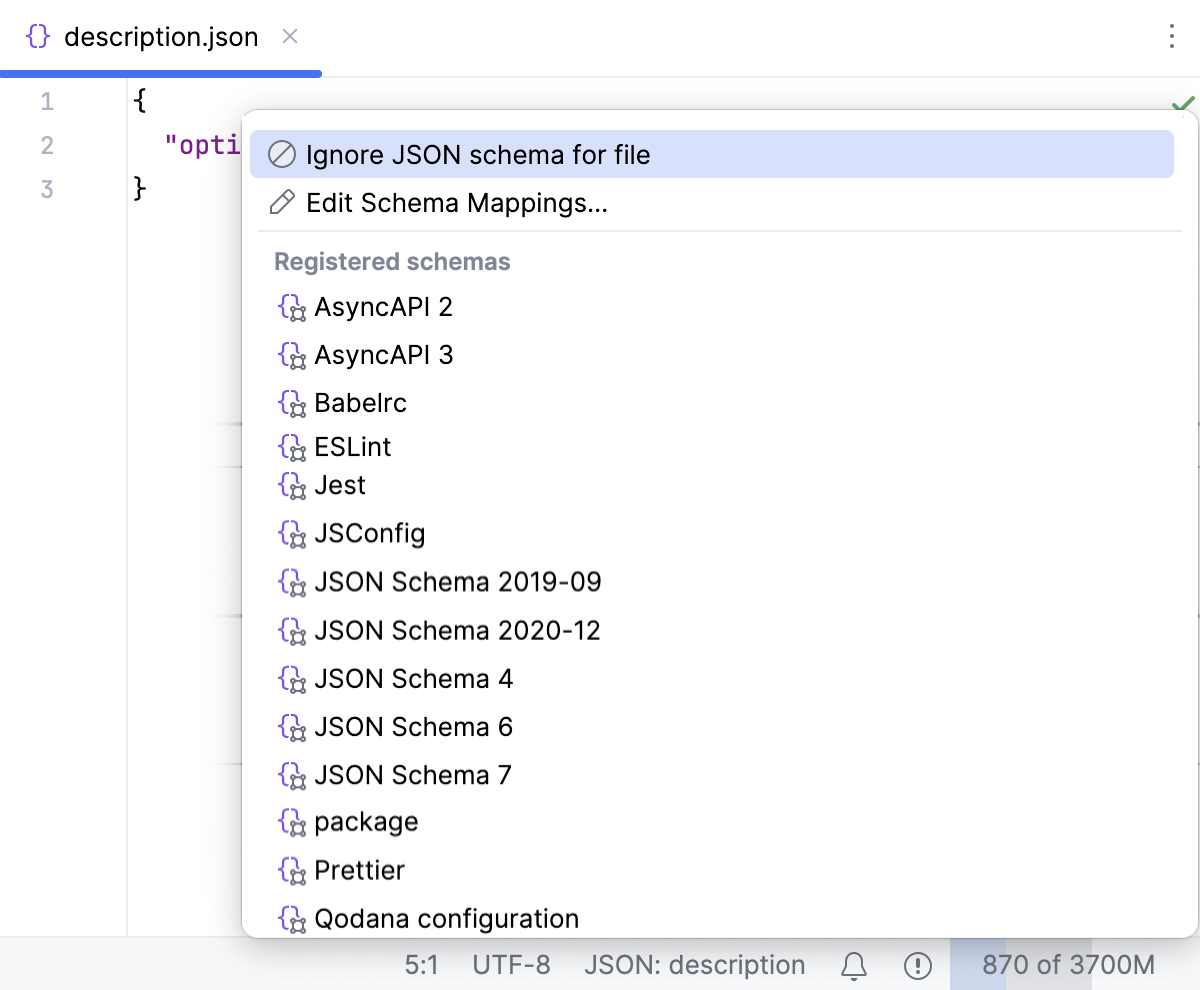
或者,选择 编辑架构映射 并 [编辑模式的范围](#ws_json_scope)。 例如,如果已明确指定文件名称,可以编辑相应的模式,或从列表中移除该文件。
最后,您可以选择 新的 Schema Mapping 并配置模式关联, [如上所述](#ws_json_schema_add_custom_procedure)。
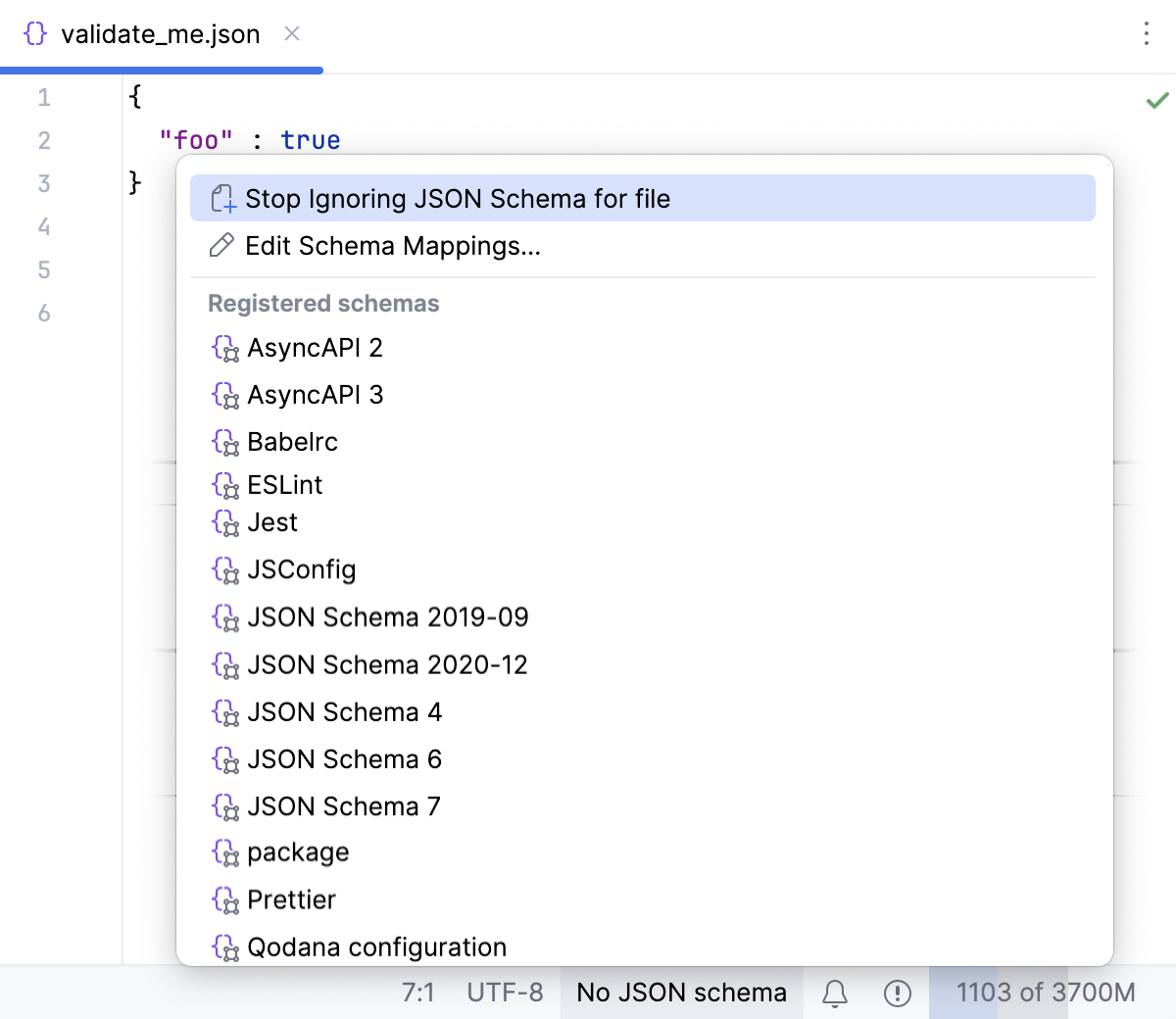
* 要恢复当前文件与架构的关联,请点击状态栏上的 无 JSON 架构 ,并从弹出列表中选择 停止忽略文件的 JSON 架构 。
* 要为整个当前项目禁用自定义模式,请打开 设置 对话框( `Ctrl+Alt+S` (Windows), `⌘ Comma` (macOS), `⌘ Comma` (IntelliJ IDEA Classic (macOS)), `⌘ Comma` (macOS System Shortcuts), `Ctrl+Alt+S` (XWin), `Ctrl+Alt+S` (GNOME), `Ctrl+Alt+S` (KDE), `Ctrl+Alt+S` (Emacs), `Ctrl+Alt+S` (Sublime Text), `⌘ Comma` (Sublime Text (macOS)), `Ctrl+Alt+S` (Visual Studio), `⌘ Comma` (Visual Studio (macOS)), `Ctrl+Alt+S` (NetBeans), `Ctrl+Alt+S` (Eclipse), `⌘ Comma` (Eclipse (macOS))),转到 `语言与框架 | 架构和 DTD | JSON 架构映射` ,选择中央窗格中的模式关联,然后点击工具栏上的 。
## 处理模式范围之间的冲突
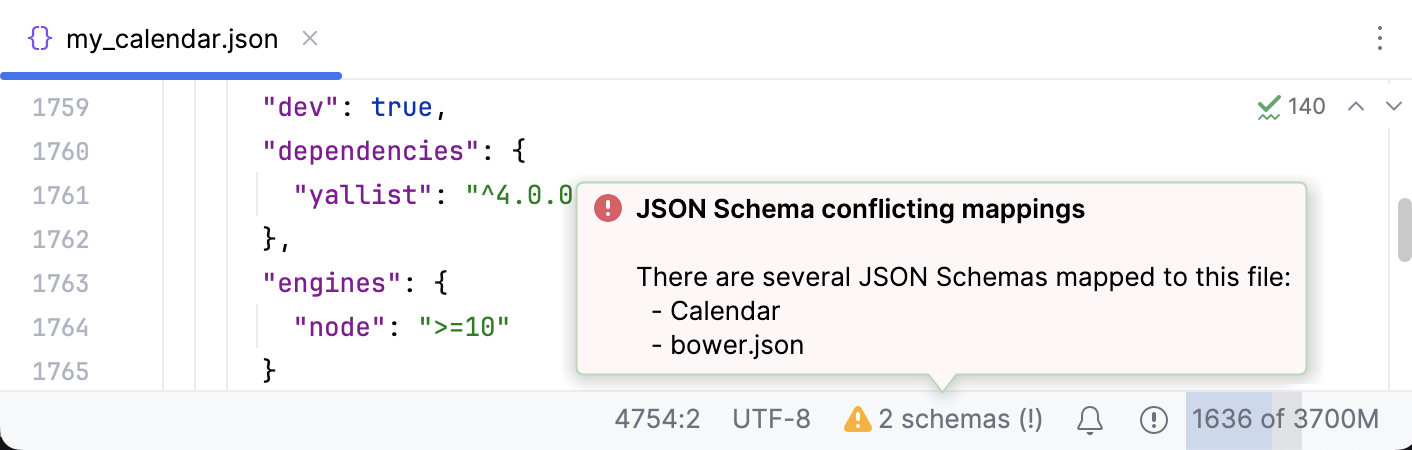
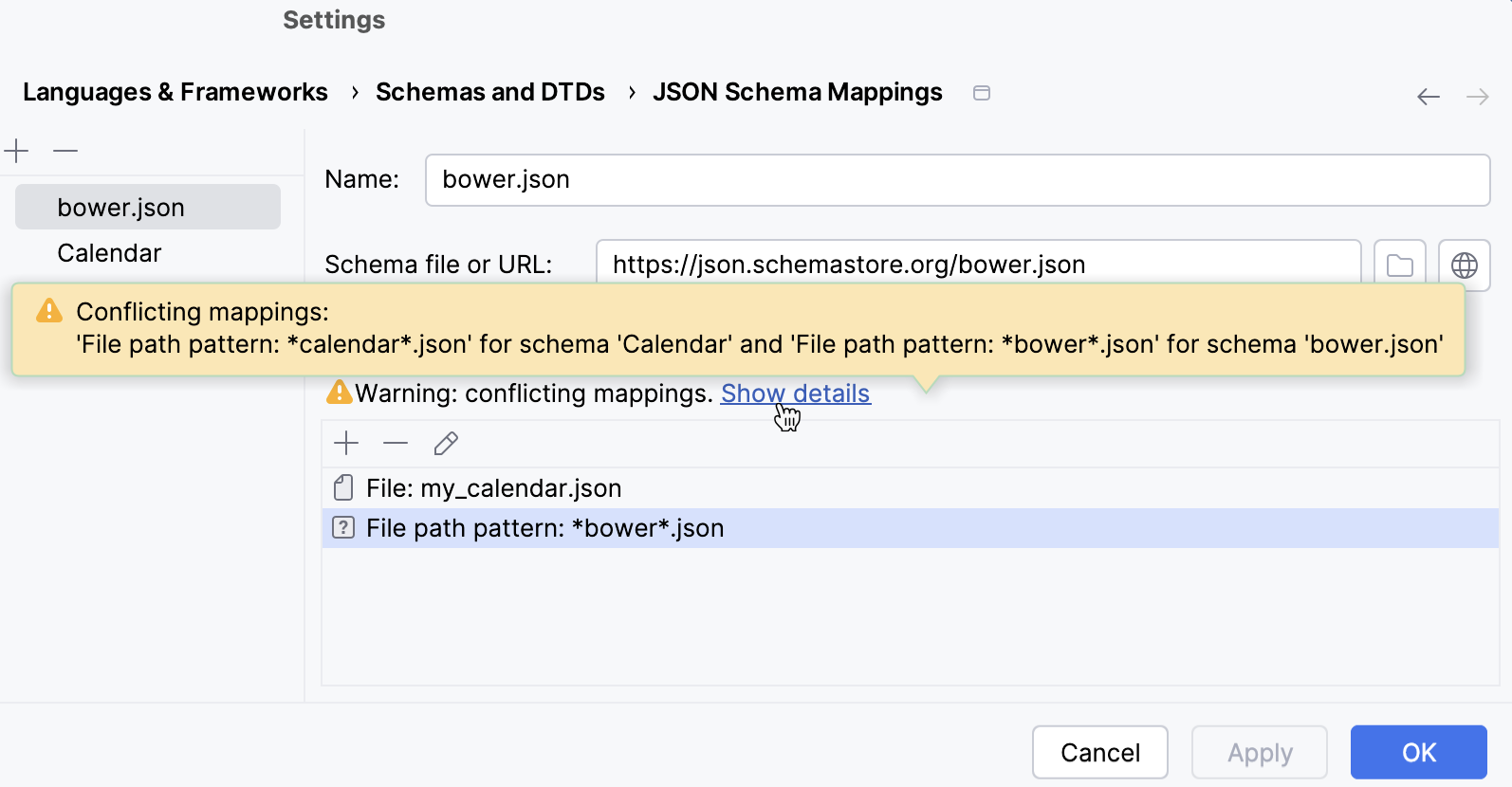
如果文件、文件夹或模式属于两个或更多架构的范围,IntelliJ IDEA 会检测到此冲突,并在编辑器以及 设置 对话框的 JSON Schema 映射 页面上显示警告。
在编辑器中,当您打开属于多个范围的文件时,会显示警告。
在 设置 对话框的 JSON Schema 映射 页面上,当多个映射的范围重叠时,会显示警告。
## 在 JSON 模式中使用 HTML 描述
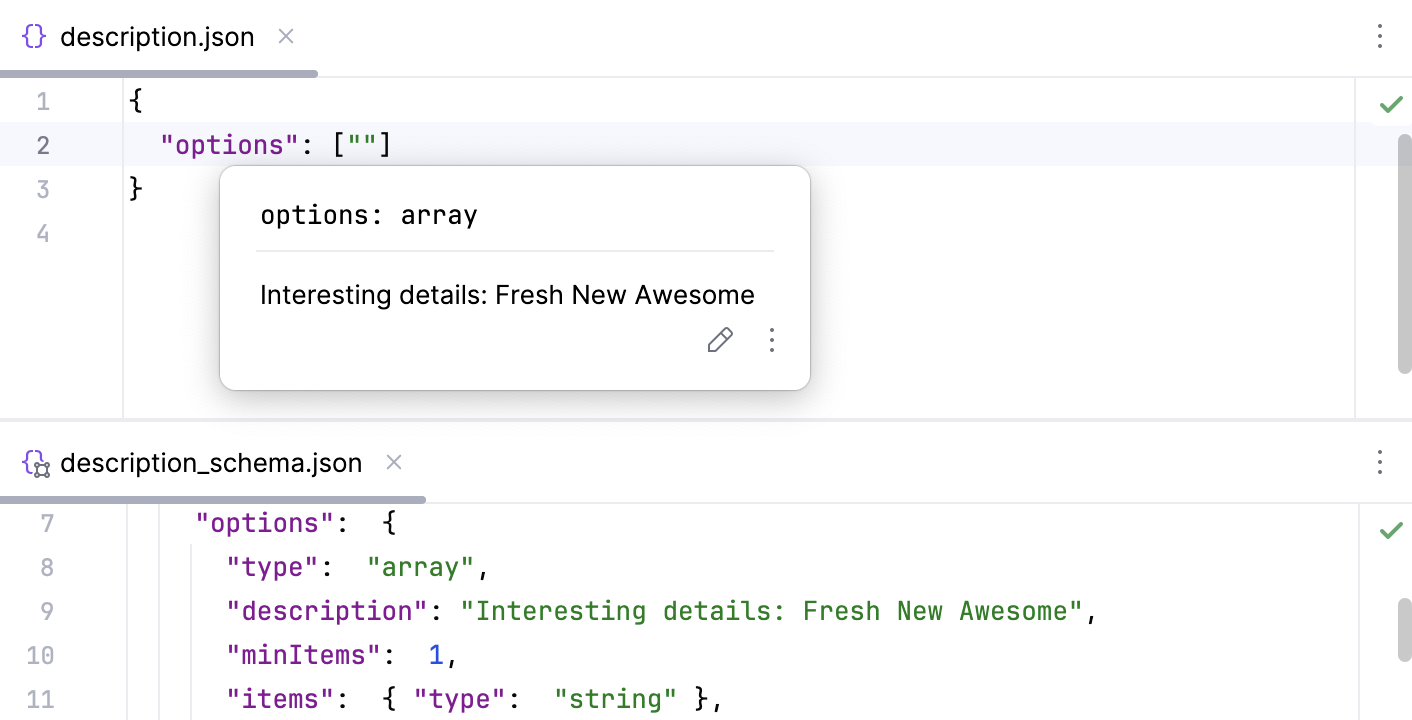
默认情况下,IntelliJ IDEA 会在文档弹出窗口中显示 JSON schema 定义的文档时转义 HTML 字符。
假设您的模式使用了 `描述` 属性:
```JSON
{
"id": "http://some.site.somewhere/entry-schema#",
"$schema": "https://json-schema.org/draft/2020-12/json-schema-core",
"type": "object",
"required": [ "options" ],
"properties": {
"options": {
"type": "array",
"description": "Interesting details: Fresh New Awesome",
"minItems": 1,
"items": { "type": "string" },
"uniqueItems": true
},
"readonly": { "type": "boolean" }
}
}
```
随后 快速文档 弹出窗口将如下所示:
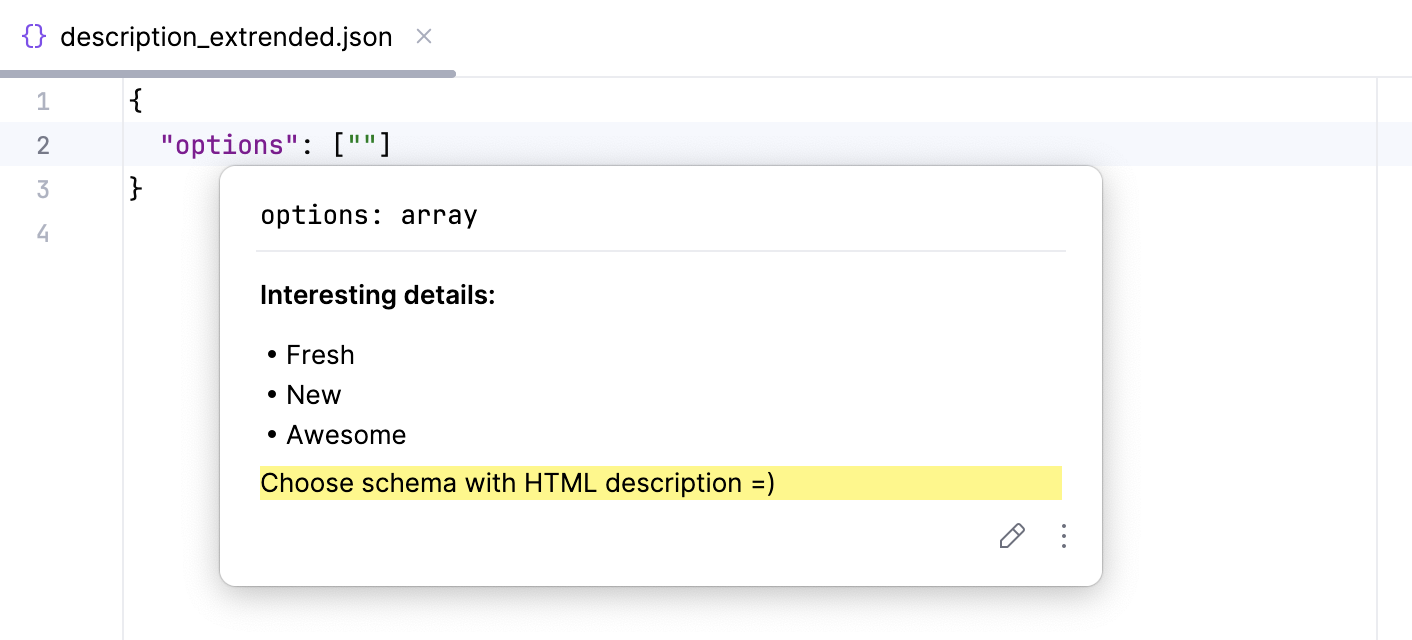
要获得带有丰富 HTML 标记的美观文档,请将 HTML 描述存储在 `x-intellij-html-description` 扩展属性中,而不是 `描述` :
```JSON
{
"id": "http://some.site.somewhere/entry-schema#",
"$schema": "https://json-schema.org/draft/2020-12/json-schema-core",
"type": "object",
"required": [ "options" ],
"properties": {
"options": {
"type": "array",
"x-intellij-html-description": "Interesting details:
\n
\n
Choose schema with HTML description =)
",
"minItems": 1,
"items": { "type": "string" },
"uniqueItems": true
},
"readonly": { "type": "boolean" }
}
}
```
现在 快速文档 弹出窗口如下所示:
## 配置语法高亮
您可以根据自己的偏好和习惯配置 JSON 感知语法高亮。
Procedure:
1. 在 设置 对话框( `Ctrl+Alt+S` (Windows), `⌘ Comma` (macOS), `⌘ Comma` (IntelliJ IDEA Classic (macOS)), `⌘ Comma` (macOS System Shortcuts), `Ctrl+Alt+S` (XWin), `Ctrl+Alt+S` (GNOME), `Ctrl+Alt+S` (KDE), `Ctrl+Alt+S` (Emacs), `Ctrl+Alt+S` (Sublime Text), `⌘ Comma` (Sublime Text (macOS)), `Ctrl+Alt+S` (Visual Studio), `⌘ Comma` (Visual Studio (macOS)), `Ctrl+Alt+S` (NetBeans), `Ctrl+Alt+S` (Eclipse), `⌘ Comma` (Eclipse (macOS))),转到 `编辑器 | 颜色方案 | JSON` 。
2. 选择配色方案,接受从默认设置继承的高亮设置,或按照 [颜色与字体](configuring-colors-and-fonts.html) 中的说明进行自定义。