Code Vision
Code Vision 收集类型和类型成员的各种指标,并将这些信息显示在其声明的上方或后方。 指标的位置、最大数量及其他偏好设置可以在 JetBrains Rider 设置 的 页面上进行配置 Ctrl+Alt+S。

您可以点击每个指标以查看更多详细信息,或者将鼠标悬停在指标上,然后点击 展开 查看隐藏的指标或访问 Code Vision 设置。
如果您希望通过键盘访问代码指标的详细信息,可以使用 Navigate To 快捷键 Ctrl+Shift+G 来访问所有与导航相关的指标,或者您可以为 显示 Code Vision 操作 配置自定义快捷键。
Code Vision metric providers
Code Vision 依赖于两个子系统来预先计算指标:
解决方案范围分析 用于计算导航指标(符号的用法、 继承者、 返回的 API 等)。
如果禁用了全局解决方案分析,这些指标将不会被计算,您可以通过清除 JetBrains Rider 设置 的 当 Solution-Wide 分析被禁用或未准备好时显示不可用的指标 页面上的复选框 来隐藏它们 Ctrl+Alt+S。 如果未隐藏,这些指标将以问号的形式显示。 不过,您仍然可以点击这些指标以启动所需的计算并获取相应的结果。
集成的 VCS 客户端 用于显示代码贡献者。 This metric appears for all supported VCS clients (Git, Mercurial, Subversion, TFVC, and so on) provided that version control integration is enabled for the current solution — you can check it on the page of JetBrains Rider 设置 Ctrl+Alt+S.
VCS Info behavior
The VCS Info metric displays the latest contributor of the current type or member. Click this metric to further investigate the edit history of the symbol.
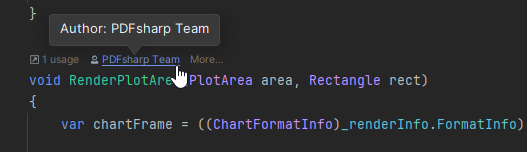
On the page of JetBrains Rider 设置 Ctrl+Alt+S, you can use the VCS 操作 option to choose the desired behavior:
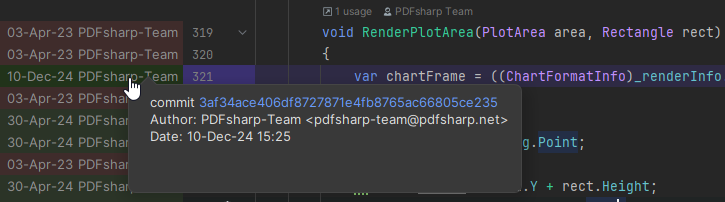
注释: toggles VCS annotations in the left margin that show edit history information for each line of code. To hide the annotations, click the VCS Info metric, or right-click the annotations panel and choose 关闭注释.
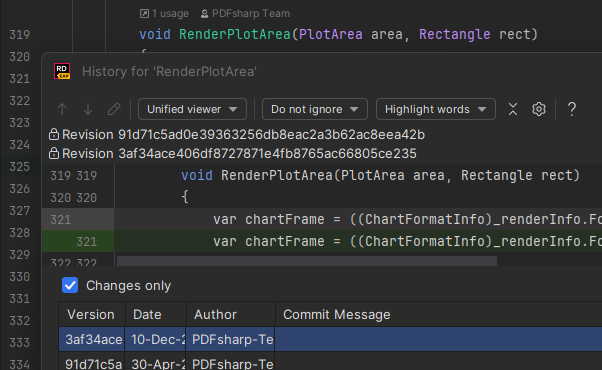
历史记录: shows a popup with the edit history of the current symbol.