教程:将 Node.js Express 应用与 Redis 数据库进行 Docker 容器化
可以使用 WebStorm 在多个 Docker 容器下通过 Docker Compose 运行和调试 Node.js Express 应用程序。
本教程介绍如何在同一个虚拟网络中的容器内运行两个 Docker Compose 服务:一个简单的 Node.js Express 应用程序和一个 Redis 数据库。
在本教程中,我们将:
创建一个 Node.js Express 应用程序,实现 HTTP 请求计数器并在数据库中递增该计数。
为此应用程序编写一个 Dockerfile 。
创建一个 DockerCompose 文件,将计数器应用程序和 Redis 数据库两个服务连接起来。
构建、部署并在 docker 容器中运行我们的应用程序镜像和 Redis 镜像。
在浏览器中访问应用程序,并检查在刷新页面时计数器是否实际递增。
开始之前
创建 Node.js 应用程序
请点击 新建项目 在 欢迎屏幕或从主菜单中选择 。
在打开的对话框中,在左侧窗格中选择 Node.js。
指定应用程序的位置及其名称,例如:
counter。指定要使用的本地 Node.js 运行时。 接受建议的安装,或从列表中选择另一个,或者如果您的计算机尚未安装 Node.js,可点击 下载 进行安装。 详细了解 创建新的 Node.js 应用程序。
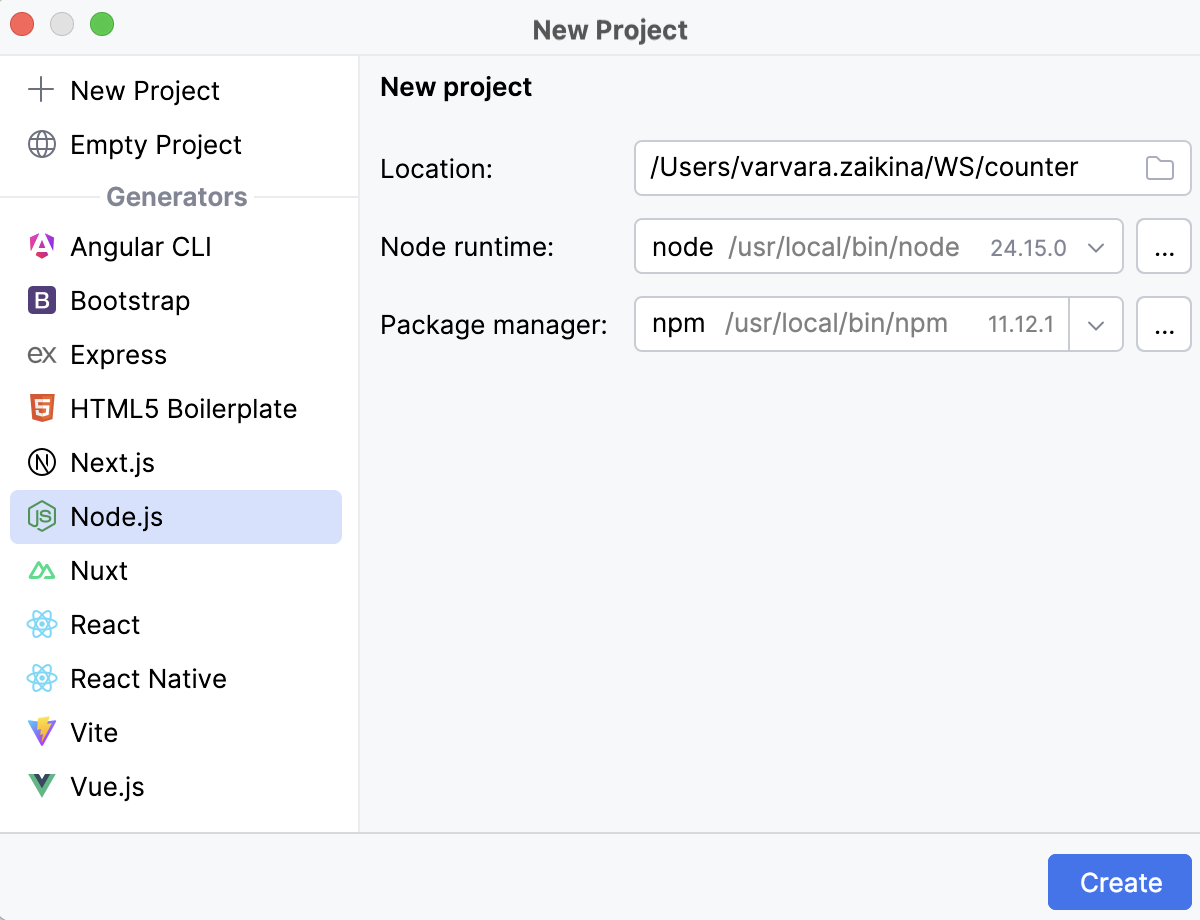
点击 创建。
WebStorm 生成项目存根并在编辑器中打开。
填充应用程序
我们的应用程序将包含一个 JavaScript 文件 index.js 。
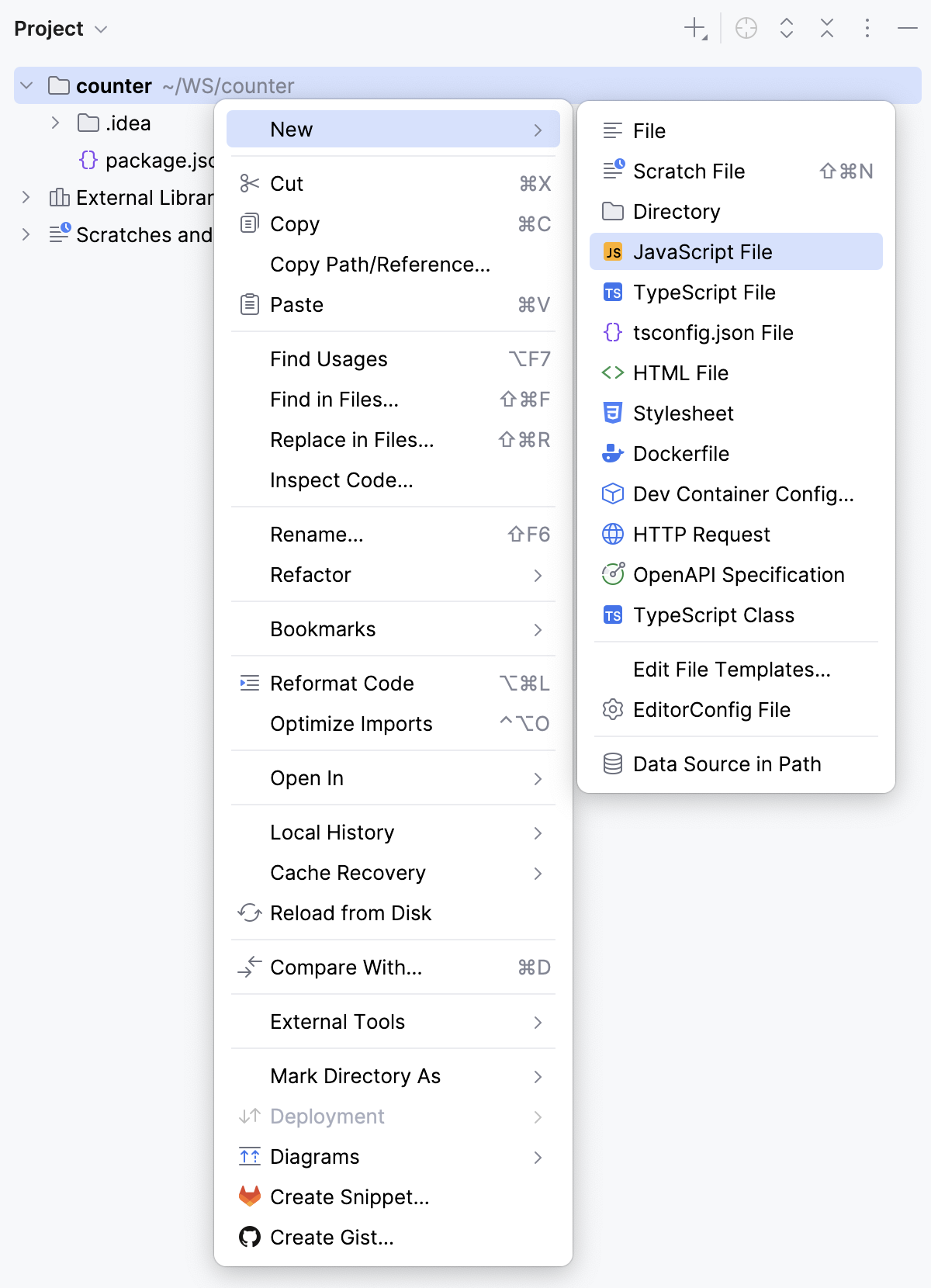
打开 项目 工具窗口 Alt+1 ,右键点击项目文件夹,从上下文菜单选择 ,然后选择 。
在弹出的对话框中,指定文件名称,例如: index.js 。
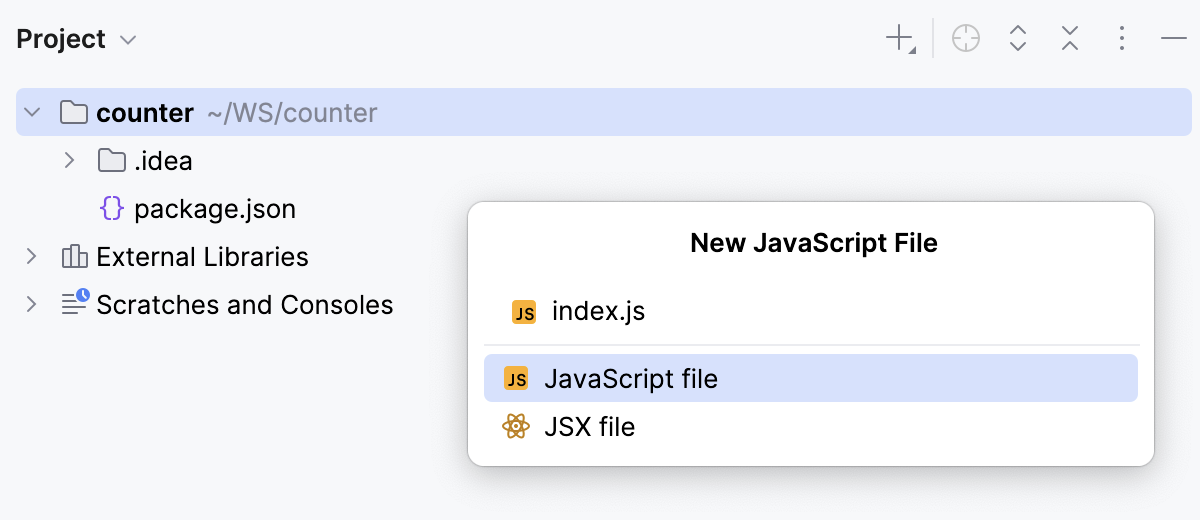
WebStorm 创建一个 index.js 文件并在编辑器中打开它。
在 index.js 文件内,输入以下代码:
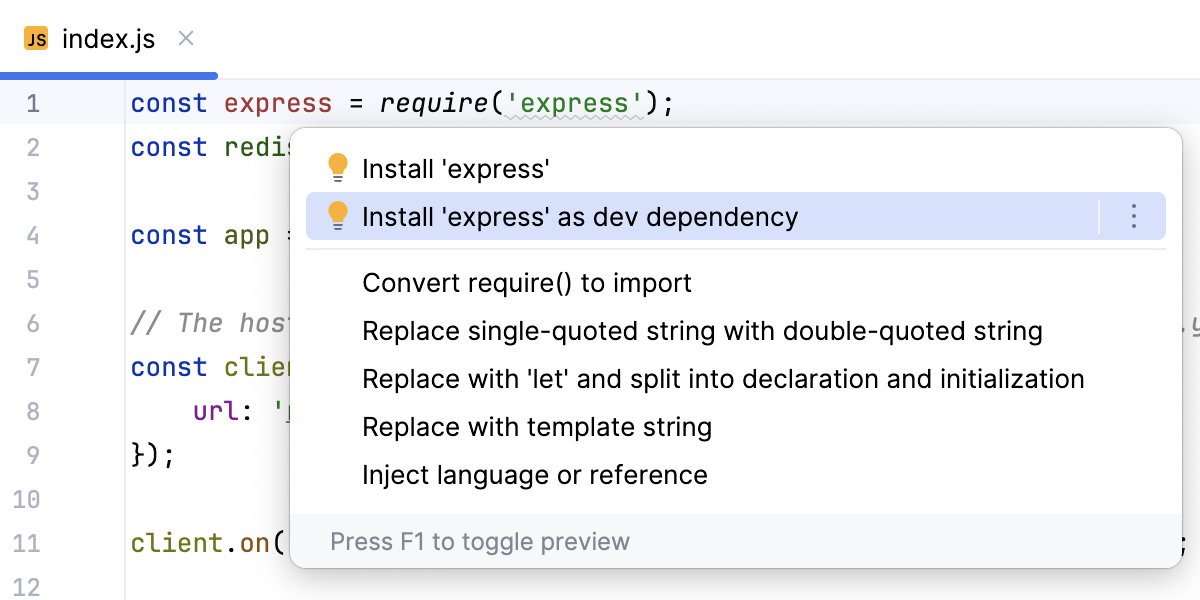
const express = require('express'); const redis = require('redis'); const app = express(); // The host name 'redis-server' will be specified in docker-compose.yml const client = redis.createClient({ url: 'redis://redis-server:6379' }); client.on('error', (err) => console.log('Redis Client Error', err)); app.get('/', async (req, res) => { try { // The `incr` command atomically increments the value stored at the key by 1. // If the key does not exist, it is created with the value 0 before the increment. const visits = await client.incr('visits'); res.send(`The number of visits is ${visits}`); } catch (err) { res.status(500).send('Error while accessing Redis'); } }); // First we connect to Redis, and then we run the server app.listen(3000, async () => { await client.connect(); console.log('Server running at port 3000'); });WebStorm 检测到缺少 Express 框架和用于连接 Redis 的客户端,并将其引用高亮显示为未解析。
将光标放置到未解析的引用处,按 Alt+Enter ,然后选择 或 。
容器化应用程序
对于 Redis,我们将使用现成的镜像,而应用程序 Web 部分需要我们自己编写 Dockerfile 。
创建 Dockerfile
在项目文件夹的上下文菜单中选择 ,然后选择 。
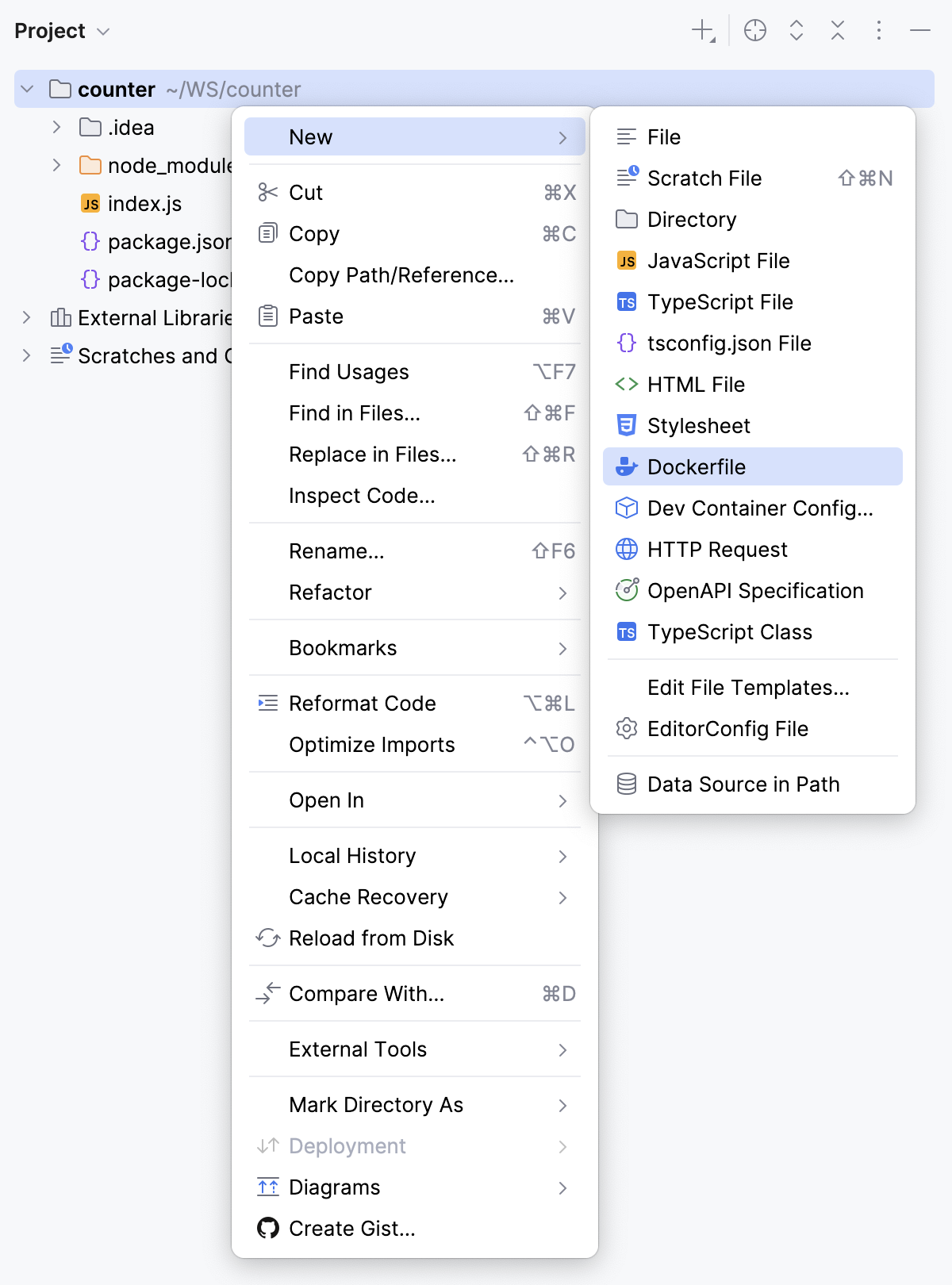
打开新创建的 Dockerfile ,并输入以下代码:
# Specify a light-weight Node.js image FROM node:22-alpine # Specify the working directory inside the container WORKDIR /usr/src/app COPY package*.json ./ RUN npm install --production COPY . . # Expose the container's port EXPOSE 3000 # Specify the command to launch application CMD ["node", "index.js"]
现在需要通过 docker-compose.yml 文件将应用程序的两个部分绑定起来。
创建一个 docker-compose.yml 文件
在项目文件夹的上下文菜单中选择 ,然后选择 。
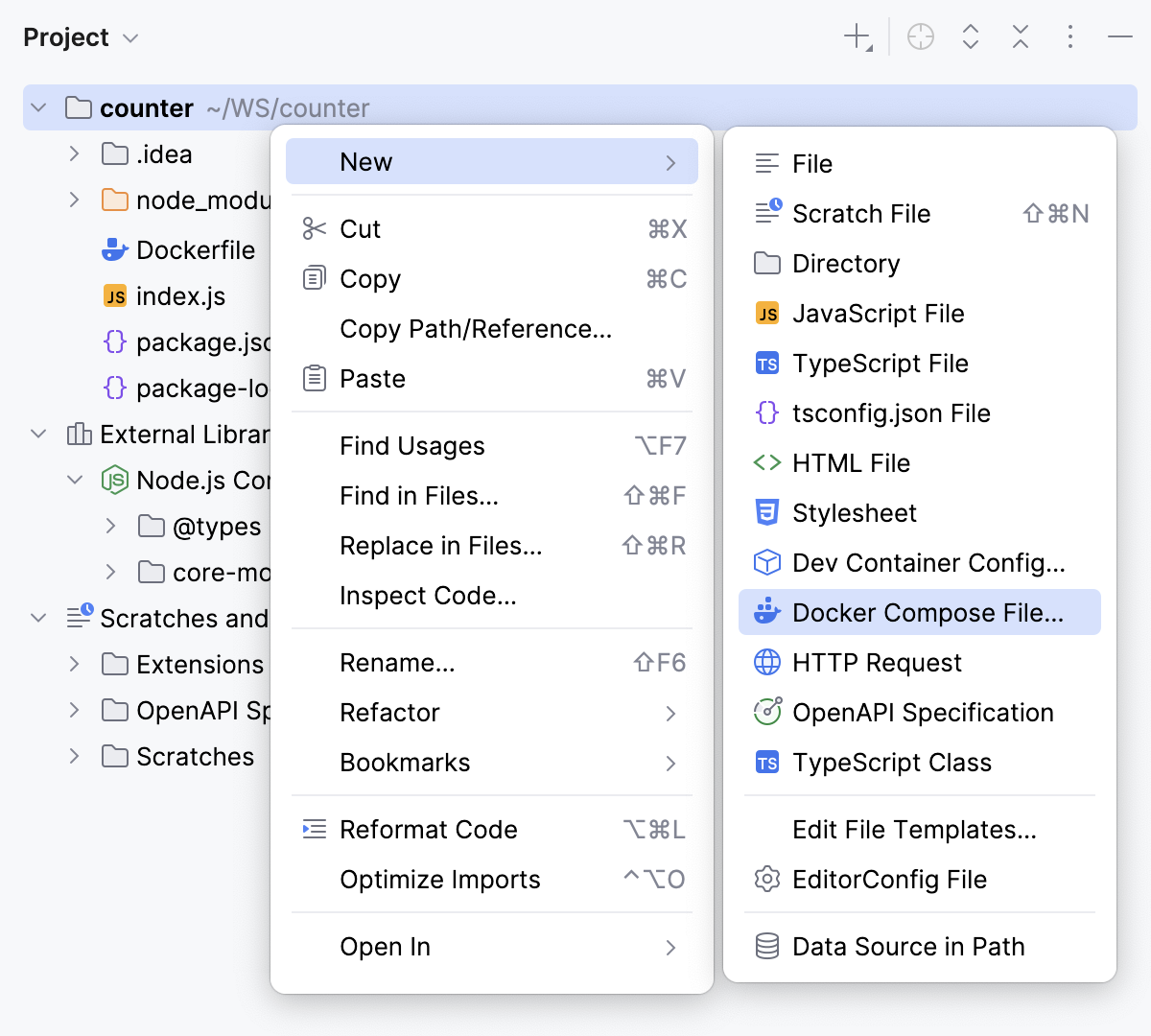
在弹出的窗口中,接受默认的 Docker Compose 文件名或指定自定义名称,然后按下 Enter。
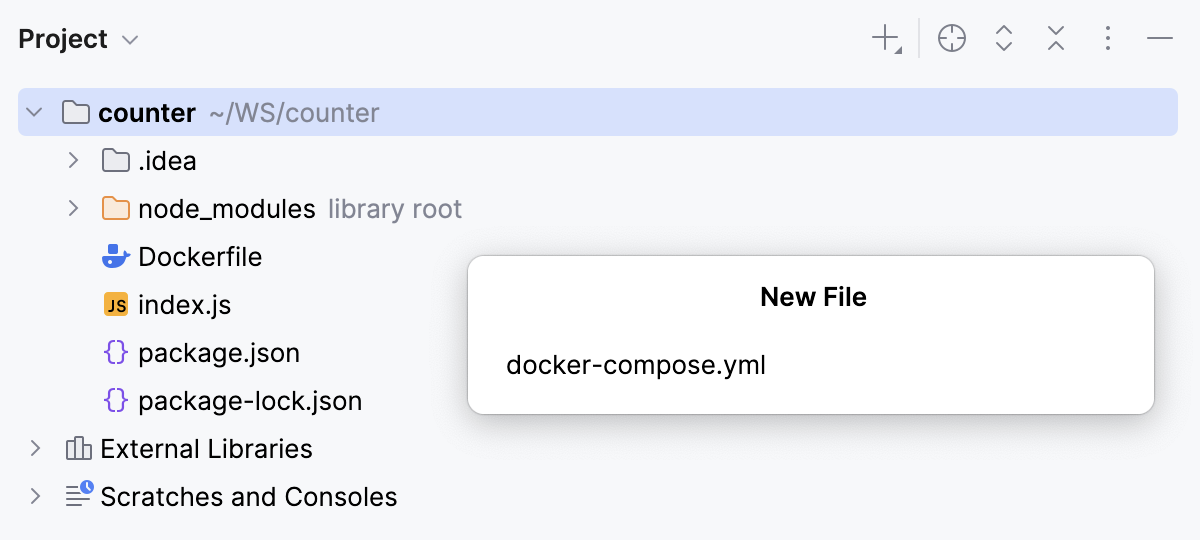
打开新创建的 docker-compose.yml ,并输入以下代码:
services: redis-server: image: redis:alpine web: # The build directive instructs Docker Compose to build # an image of our application based on the Dockerfile # from the current folder build: . # Bind the local port with port inside the container ports: - "3000:3000" # The depends_on directive ensures that # the container starts after the redis-server depends_on: - redis-server
运行应用程序
在 docker-compose.yml 中,点击
 ,在
,在 services旁边,然后从上下文菜单中选择 ,以运行docker compose up -d命令。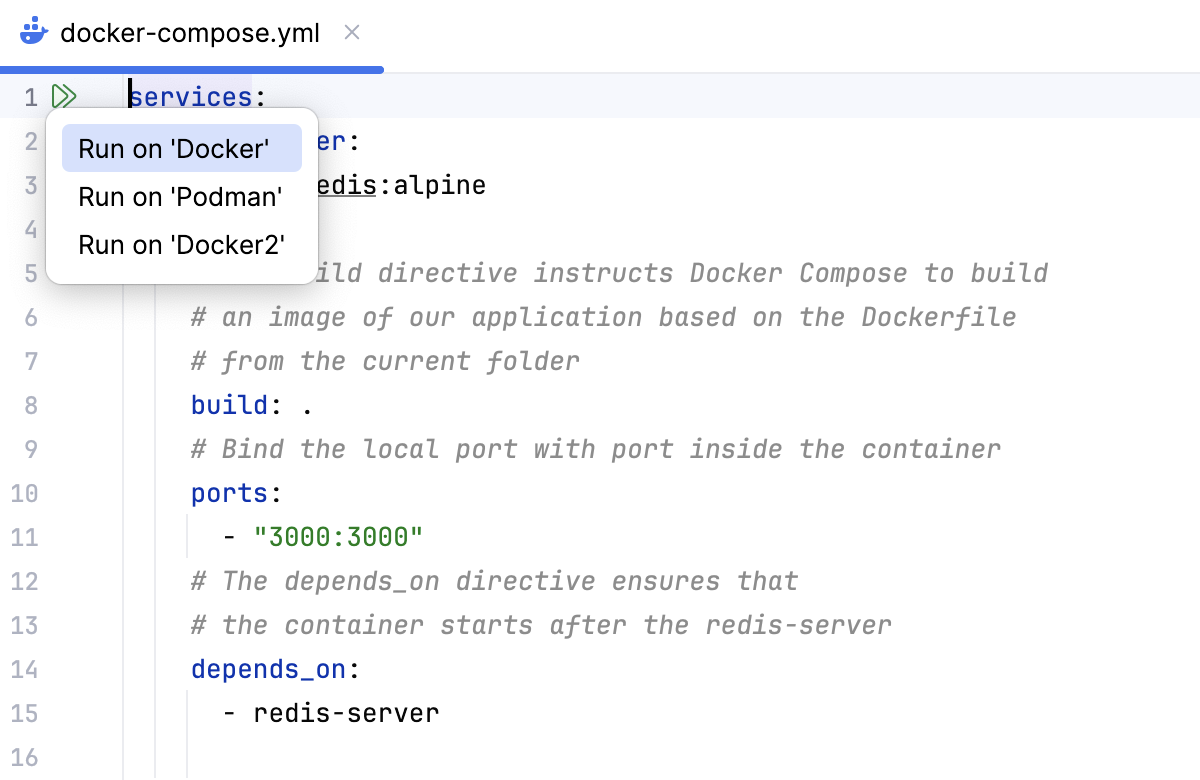
WebStorm 首先启动 redis-server Docker Compose 服务,并确保数据库健康。 然后启动 web 服务。 如果一切正常,将在 服务 工具窗口中看到如下内容:
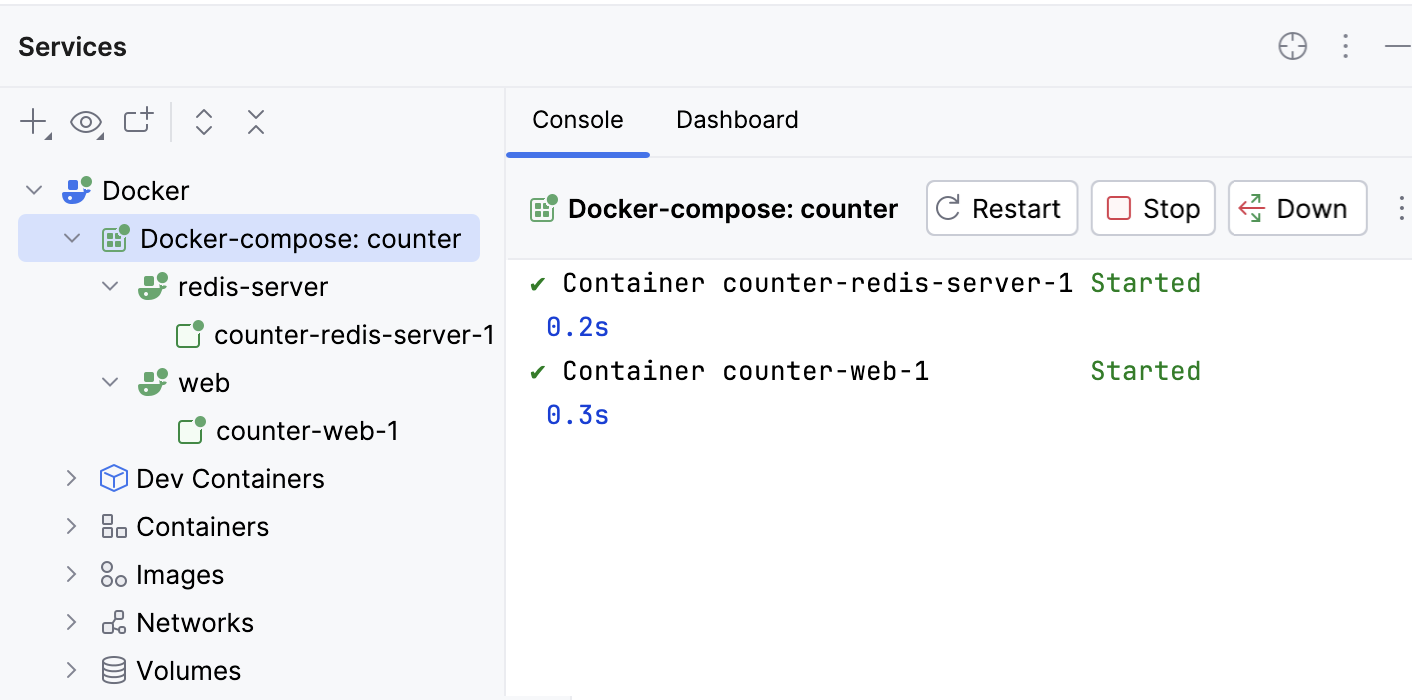
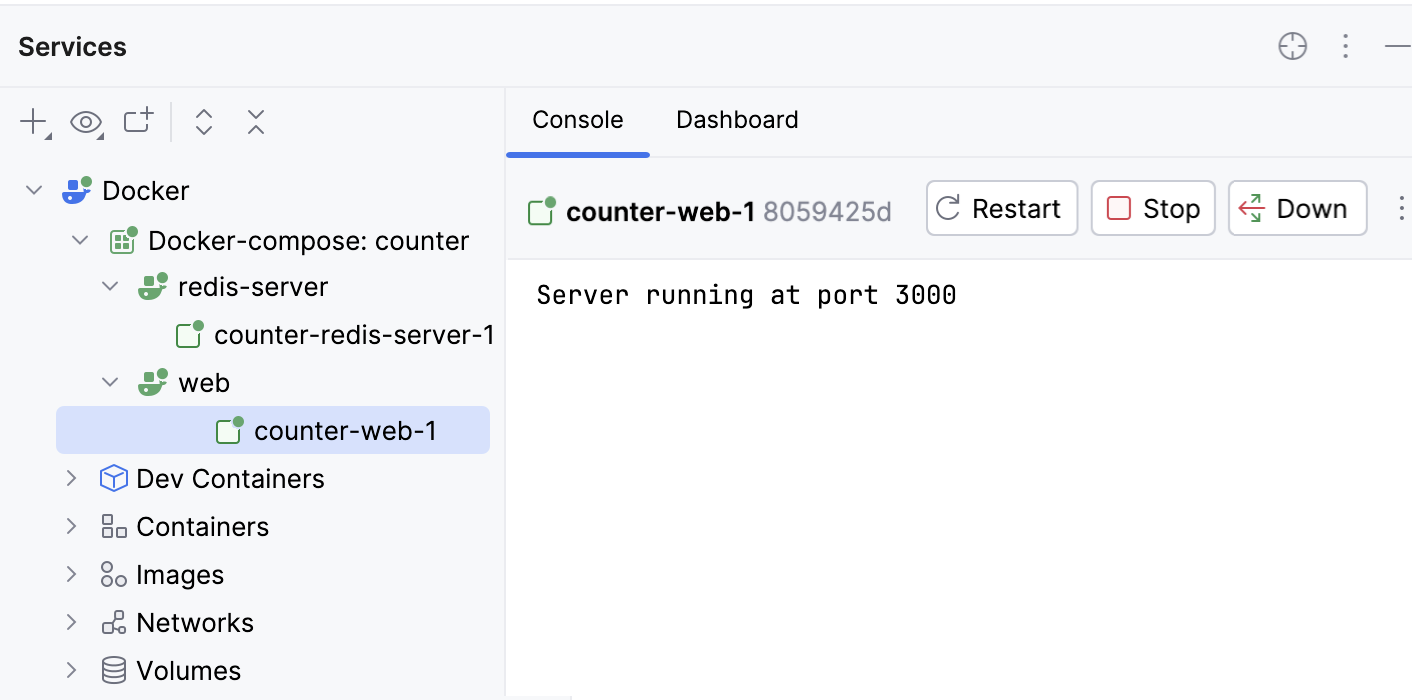
如果在 web 节点下点击 counter-web-1 ,将会看到 Server running at port 3000 输出:
检查应用程序是否按预期工作
在浏览器中打开
http://localhost:3000。 页面打开后显示The number of visits is 1。多次刷新页面,查看计数器是否递增。