Search Coverage Tree
The coverage tree displayed in the Coverage Results Browser window or in the Unit Test Coverage window provides a quick-search option for all items included in the tree.
Search the coverage tree
Set the application focus to the Coverage Results Browser window or in the Unit Test Coverage window.
Start typing a search string.
The Search box will appear under the toolbar displaying your search string and the coverage tree will be filtered according to the search string.
Click Show matching rows only
.png "ThemedIcon.Filter.Screen.(Gray).png") to enable or disable filtering.
to enable or disable filtering.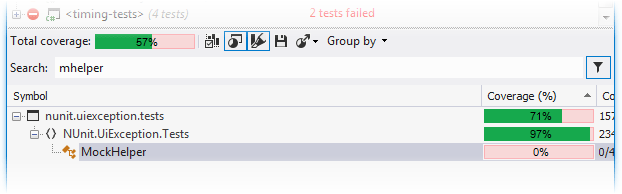
Unlike Exclude Nodes from Coverage Snapshot, applying search filters does not recalculate total coverage.
11 February 2024