WebStorm Features
This page will give you an overview of the key features available in WebStorm, the JetBrains IDE for JavaScript and TypeScript.
Code editing
Get straight to coding with everything for JavaScript and TypeScript development available right out of the box.
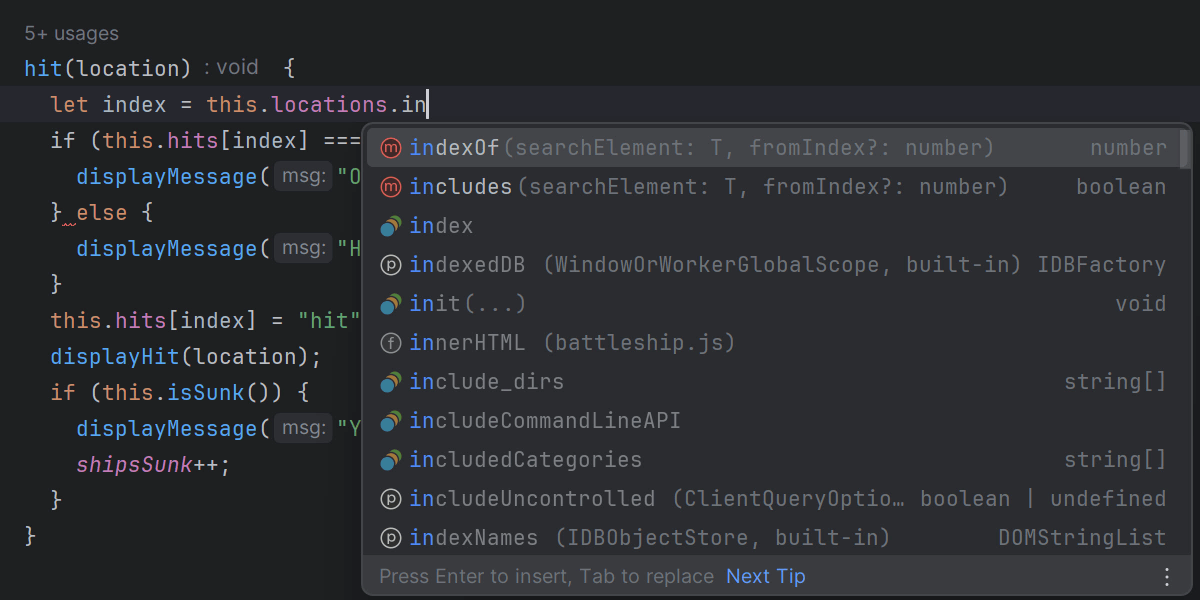
Code completion
Code faster with relevant keyword and symbol suggestions shown as you type. All suggestions are context and type-aware and work across different languages – i.e. class names from CSS will be completed in your .js files with support from machine learning.
You can also use postfix completion, live templates, and Emmet to increase your productivity.
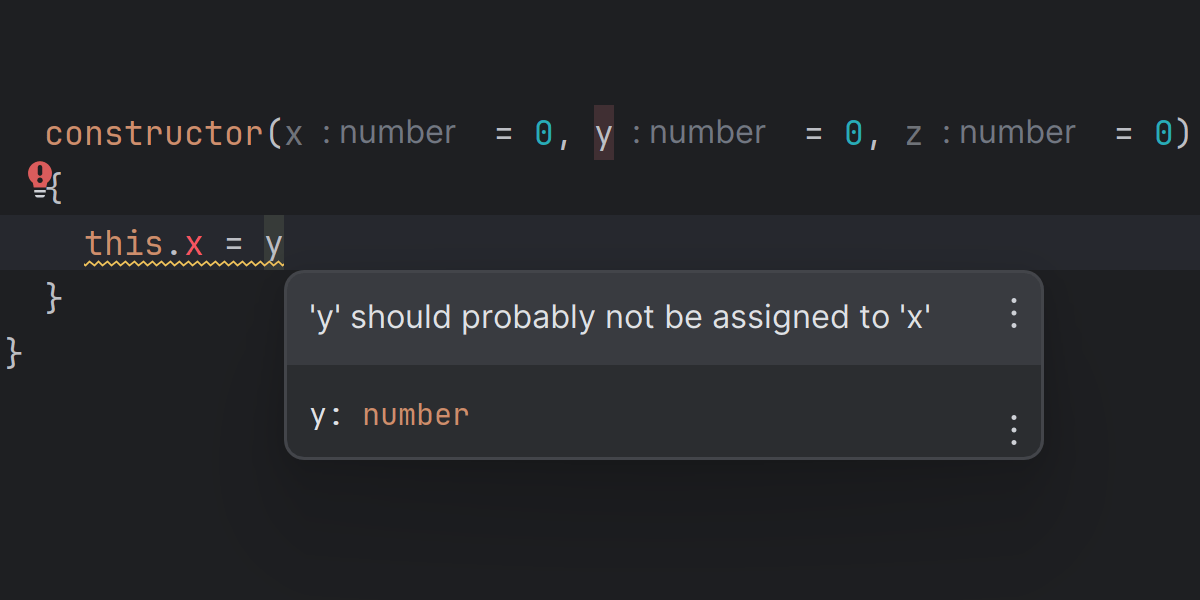
Code quality analysis
WebStorm makes it easy to detect errors and typos in your code. It includes hundreds of inspections for all supported languages and a built-in spelling and grammar checker. It also integrates with Stylelint and ESLint for greater flexibility. WebStorm will run them against your code as you type and highlight any issues right in the editor.
All errors and warnings are reported in the editor as you type, with plenty of quick-fix options available.
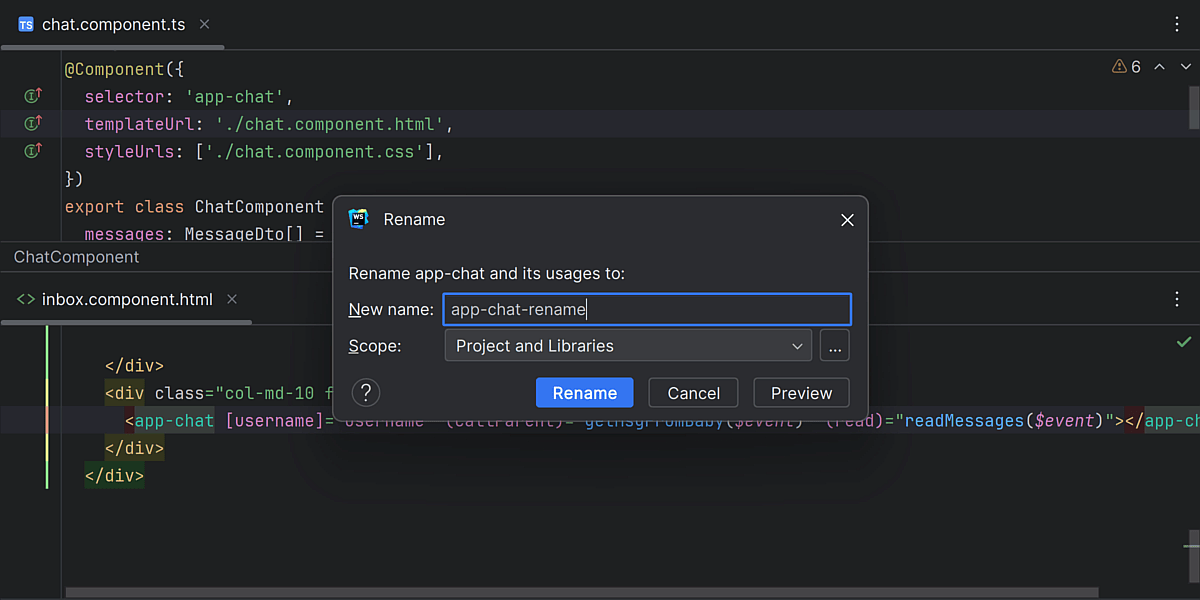
Safe refactorings
Let WebStorm help you with what it is best at – refactoring code safely across the entire codebase. You can rename files, folders, and symbols as well as extract components, methods, or variables without worrying about breaking anything – WebStorm will tell you about any potential problems.
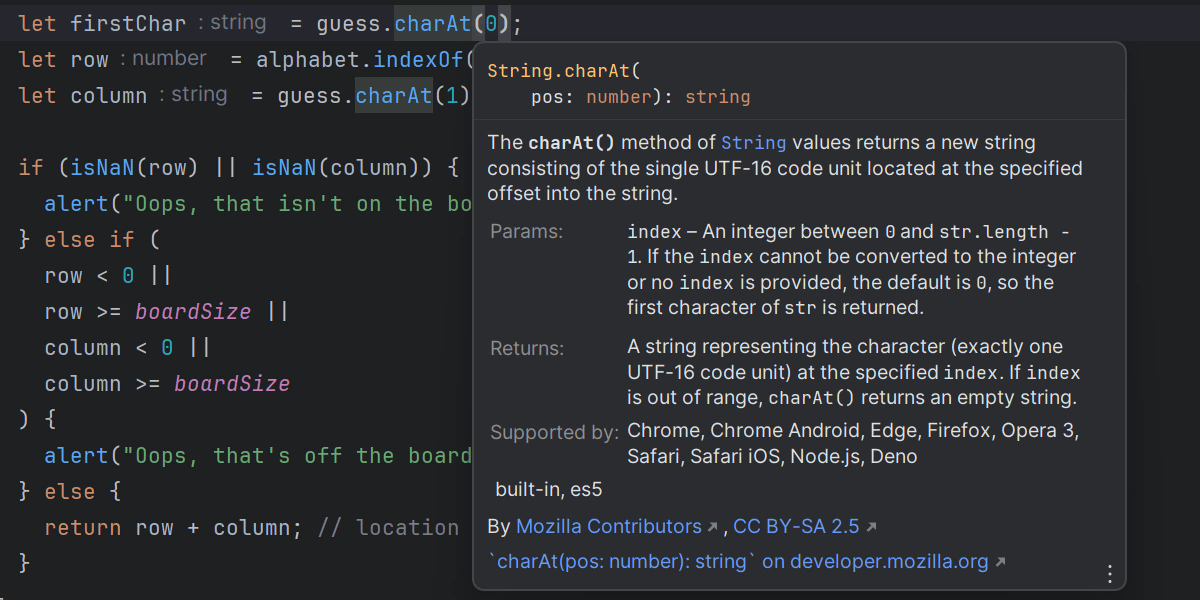
Quick documentation
Want to look up the documentation for a symbol? There’s no need to leave your IDE! Just hover over that symbol or place the caret on it and press Ctrl+Q to see all the relevant information. Additionally, WebStorm can show you parameter hints in calls of methods and functions.
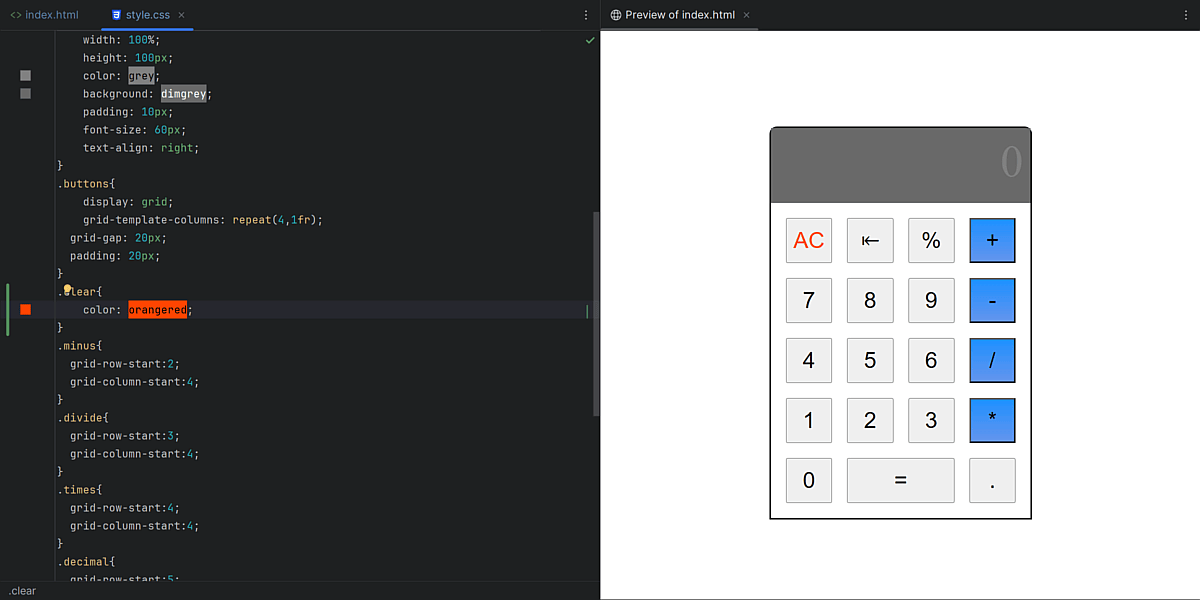
Built-in HTML preview
You can preview static HTML files right in WebStorm. The changes you make to an HTML file or the linked CSS and JavaScript files will be saved, with the preview reloaded automatically so you can see the changes.
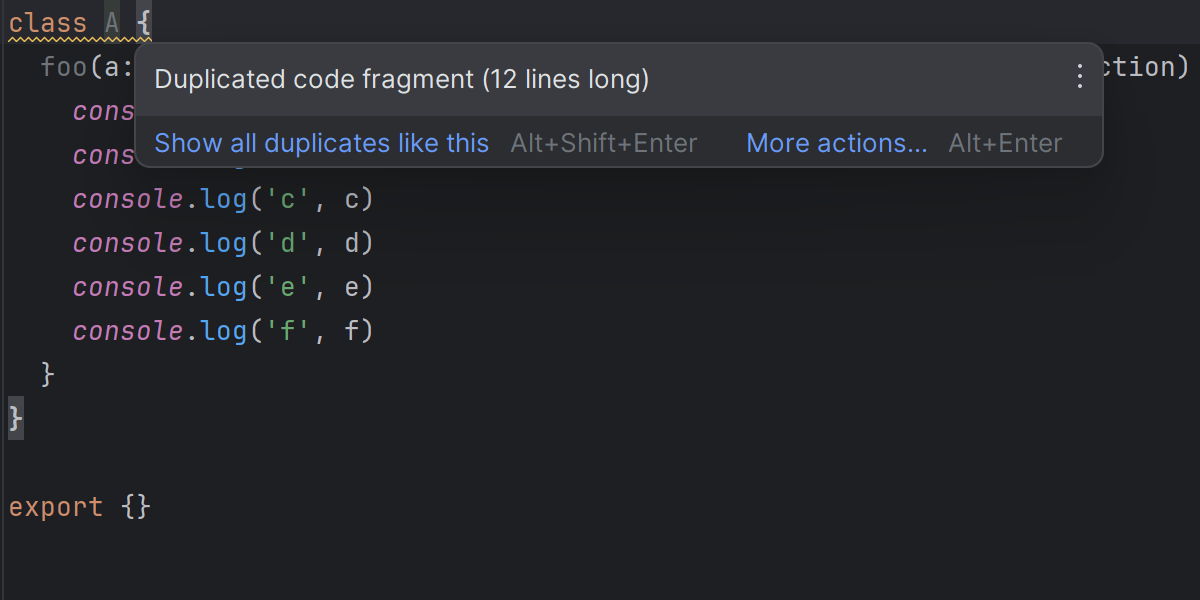
Efficiency-boosting features
WebStorm is built with productivity in mind, so there is a lot more to help you code faster. Multiple carets, line editing actions, and duplicate code detection – these are just a few of the time-saving features you can try.
Navigation and search
Save time moving around in your codebase as your projects grow in size and complexity.
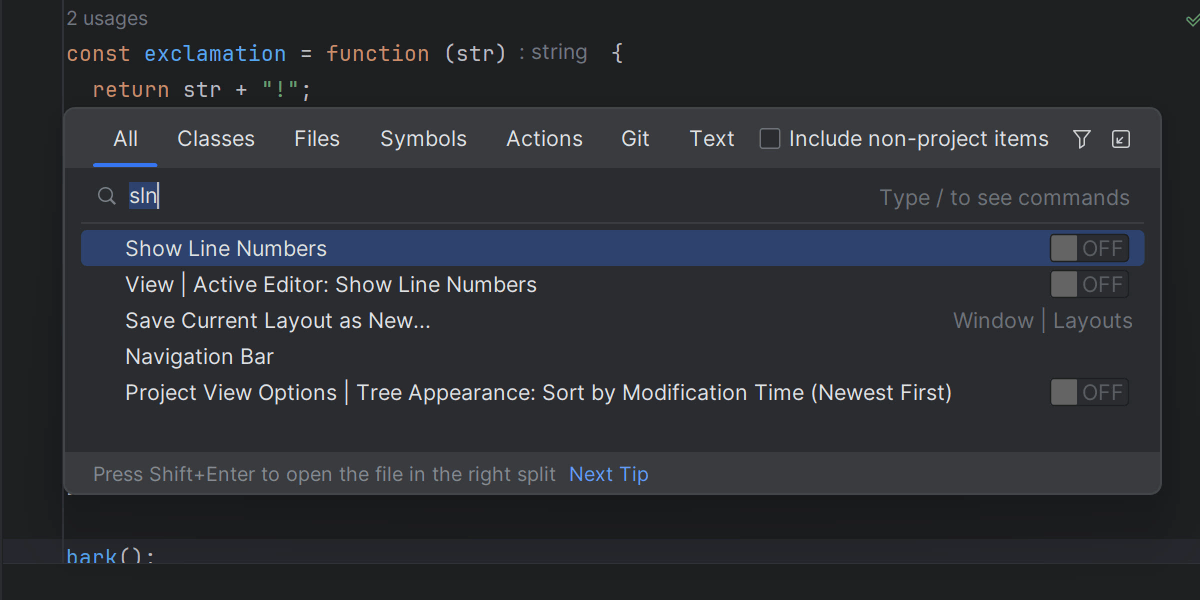
Search Everywhere
Don’t know where to start? The Search Everywhere popup (Shift+Shift) will help you find almost anything in WebStorm. Use it to look for IDE actions, files, classes, symbols, or text strings and see all the matches in one place.
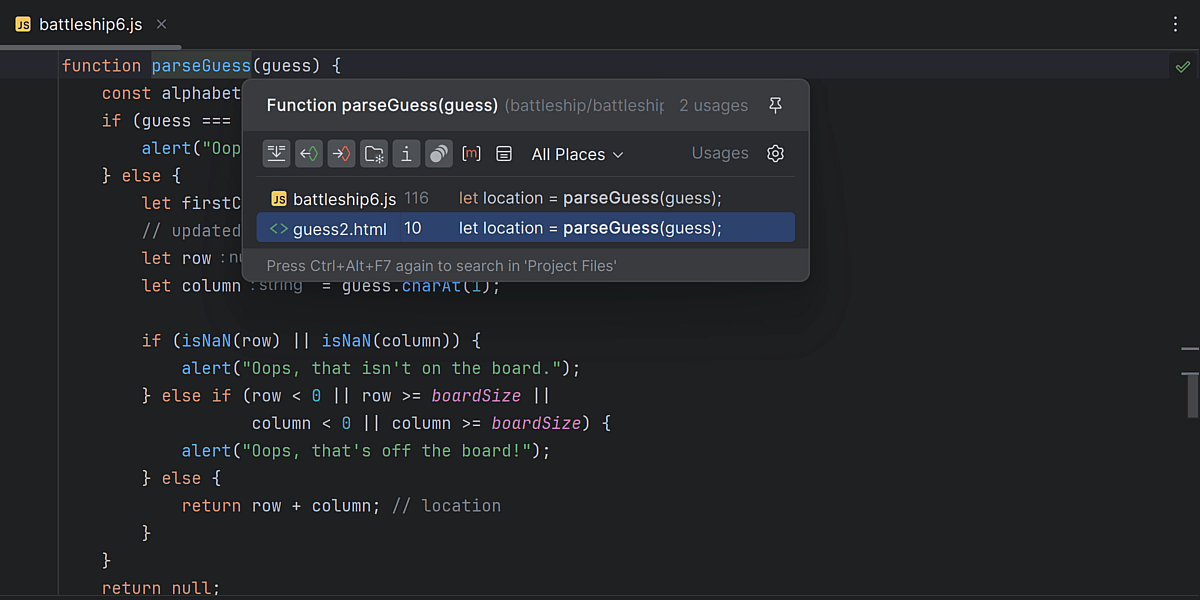
Code navigation
WebStorm can quickly take you to symbol declarations and show you their usages across the entire project. Simply place the caret at a variable, field, method, or any other symbol and press Ctrl+B.
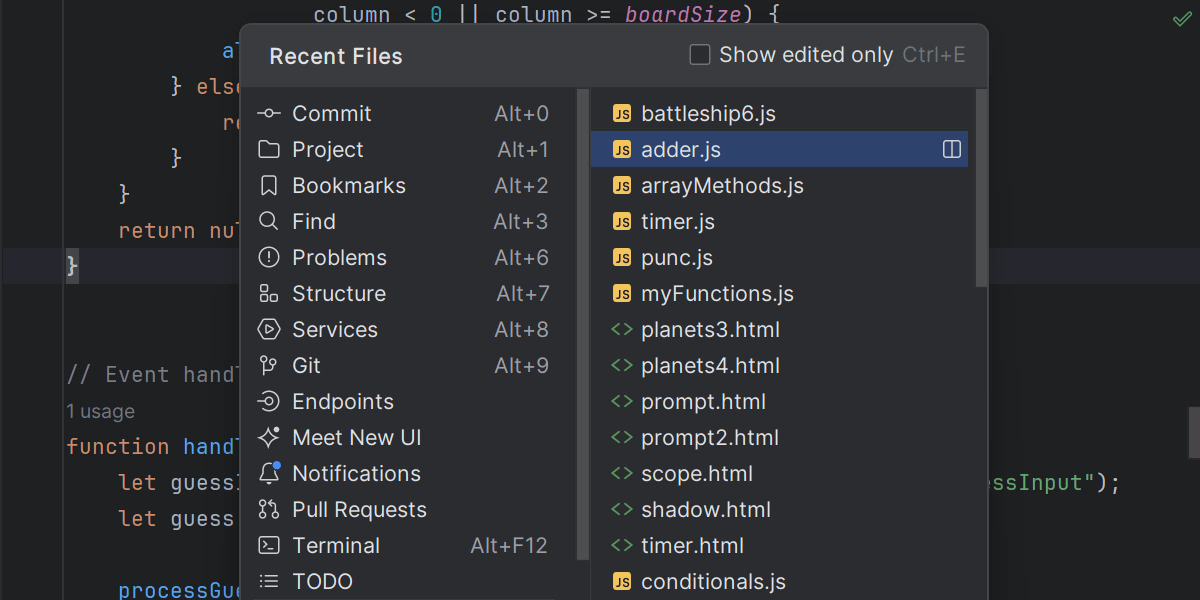
Project navigation
Browse through all project files or jump only between your recent files or modified parts of code – WebStorm will remember what you worked with, and you can get back to it quickly. Use tabs for navigation, or turn them off and rely on shortcuts instead.
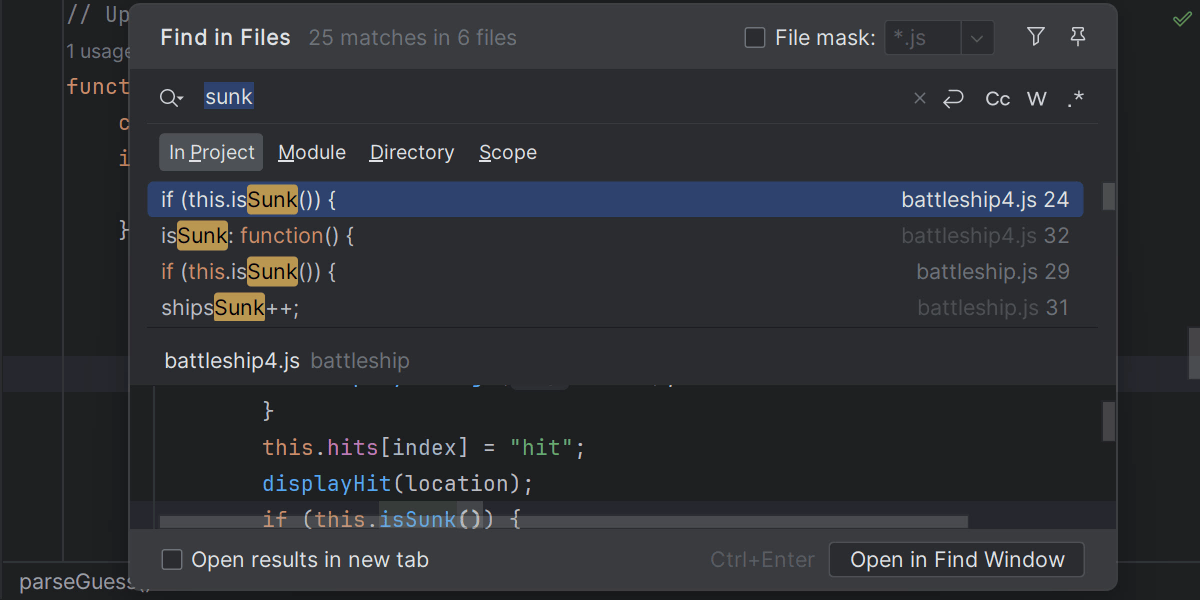
File search
You can use a dedicated search for text strings. It lets you find and replace text strings both within specific files and entire projects. You can narrow the search down to a selected code fragment in a file using various project scopes and filters.
Integrated developer tools
Make it easy to resolve merge conflicts in Git, run and debug unit tests, and perform other everyday tasks.
Version control integration
Worried about breaking something during a complex operation with Git? You can compare branches, view diff, resolve merge conflicts, and more using WebStorm’s UI to support your daily workflows. You can also manage projects hosted on GitHub directly from the IDE.
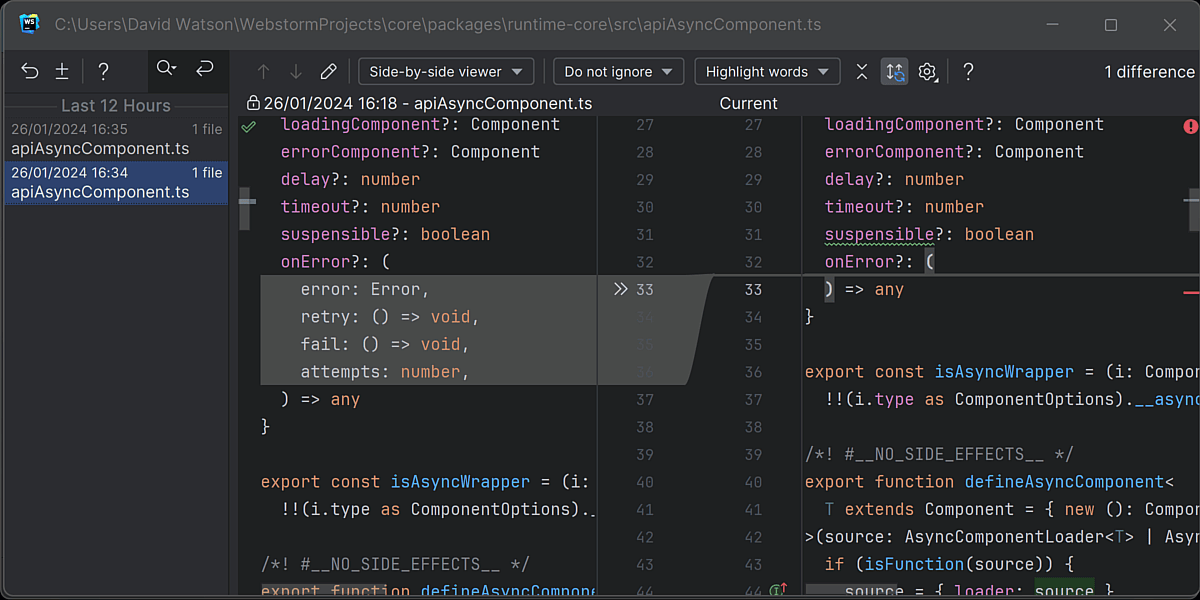
Local history
What if you forget to commit a change to version control or accidentally delete a bunch of files? WebStorm has a solution: a built-in Local History. It tracks all changes made to your project files and lets you roll them back, even if you are not using version control for your project yet.
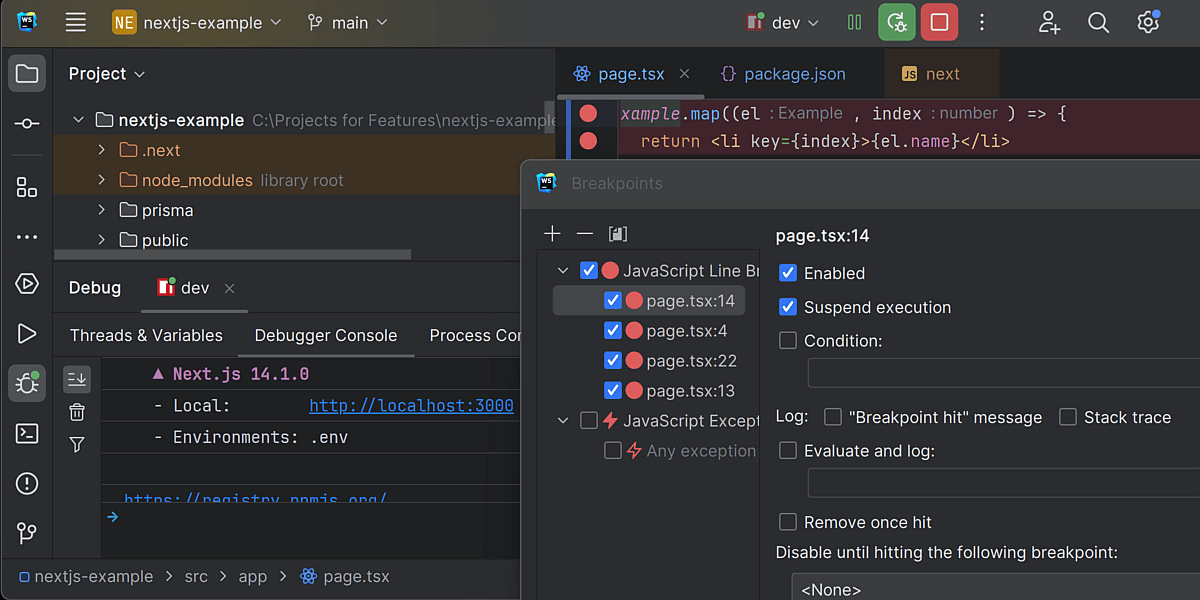
JavaScript debugging
Run and debug client-side and Node.js applications right where you edit the code. Add breakpoints, step through the program, set watches, and more – all with a unified experience across different kinds of applications.
Unit testing
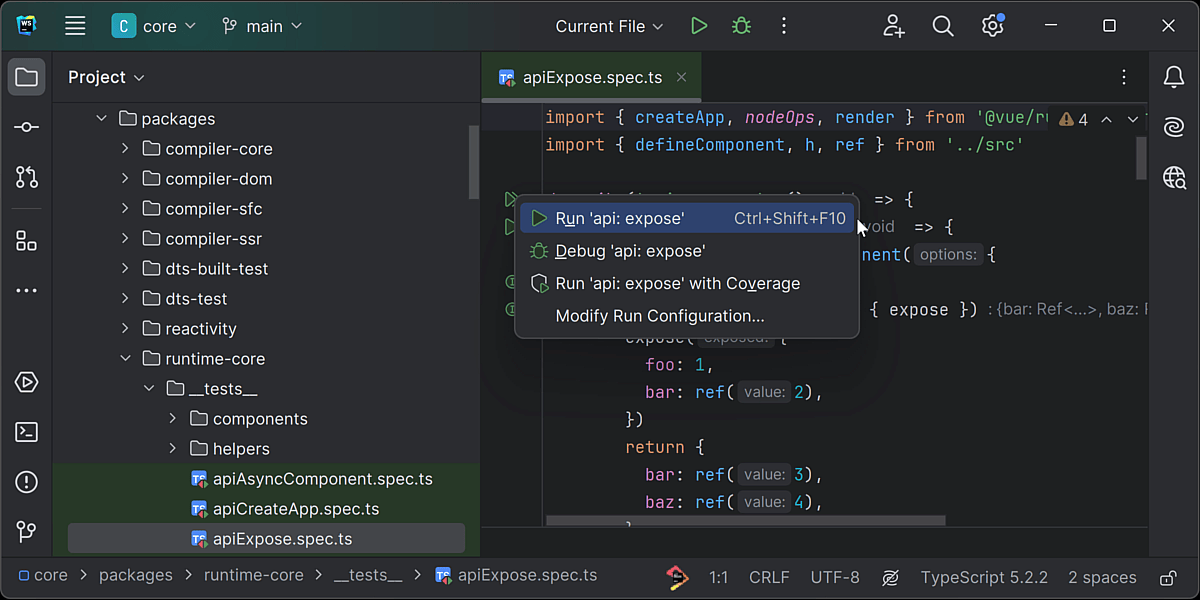
Write, run, and debug your unit tests using Jest, Mocha, Protractor, and Vitest. Review the test results in a tree view and navigate to the test source from there. For Jest, Vitest, and Mocha, you can also see a code coverage report right in WebStorm.
Prettier integration
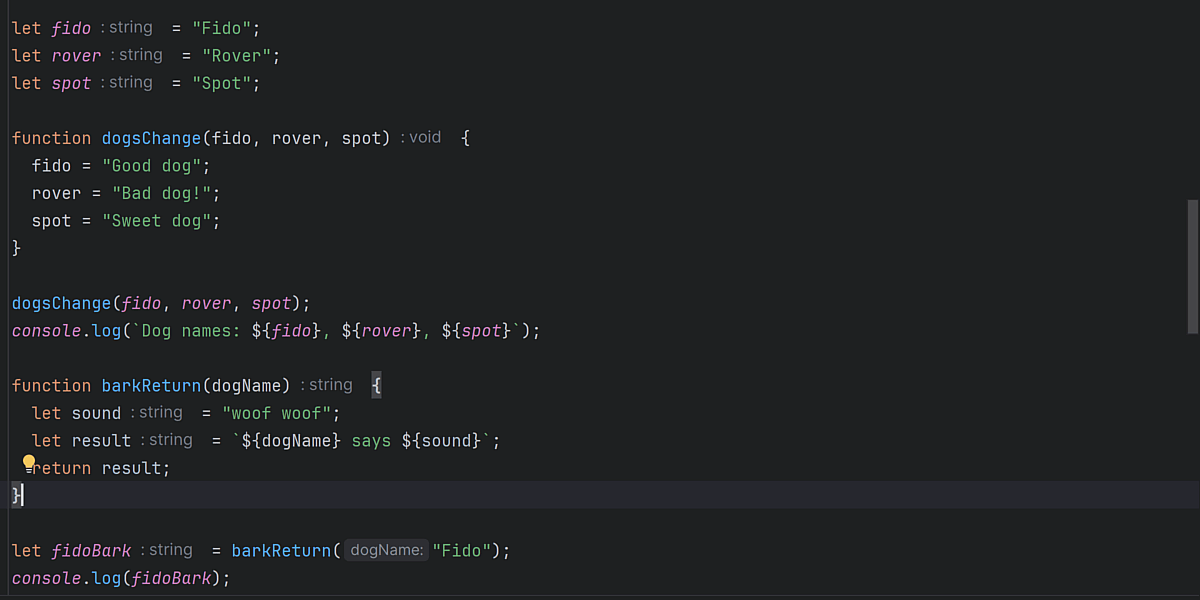
Use Prettier to format selected code fragments as well as entire files or directories. You can configure WebStorm to run Prettier automatically on save and set it as the default formatter.
Docker support
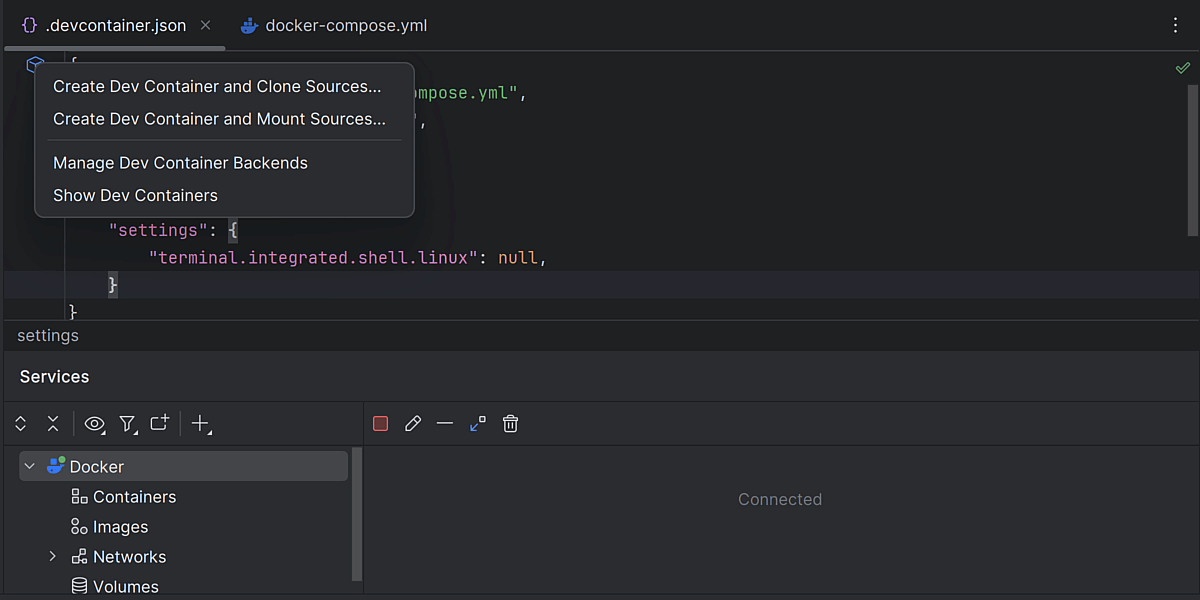
You can run and debug your applications in Docker containers, download and build images, run multi-container applications using Docker Compose, and more, all from the IDE.
Terminal
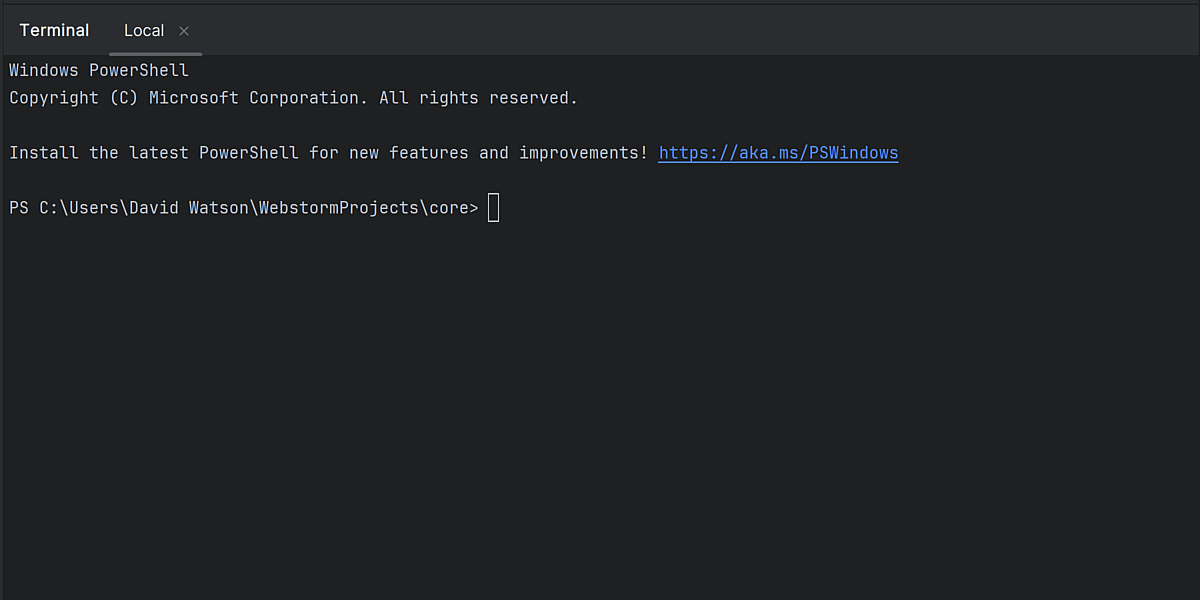
Prefer to use the command line for certain tasks? WebStorm’s built-in terminal lets you work with the command-line shell without leaving the IDE. You can navigate to files from it, and it supports all the same commands as your operating system.
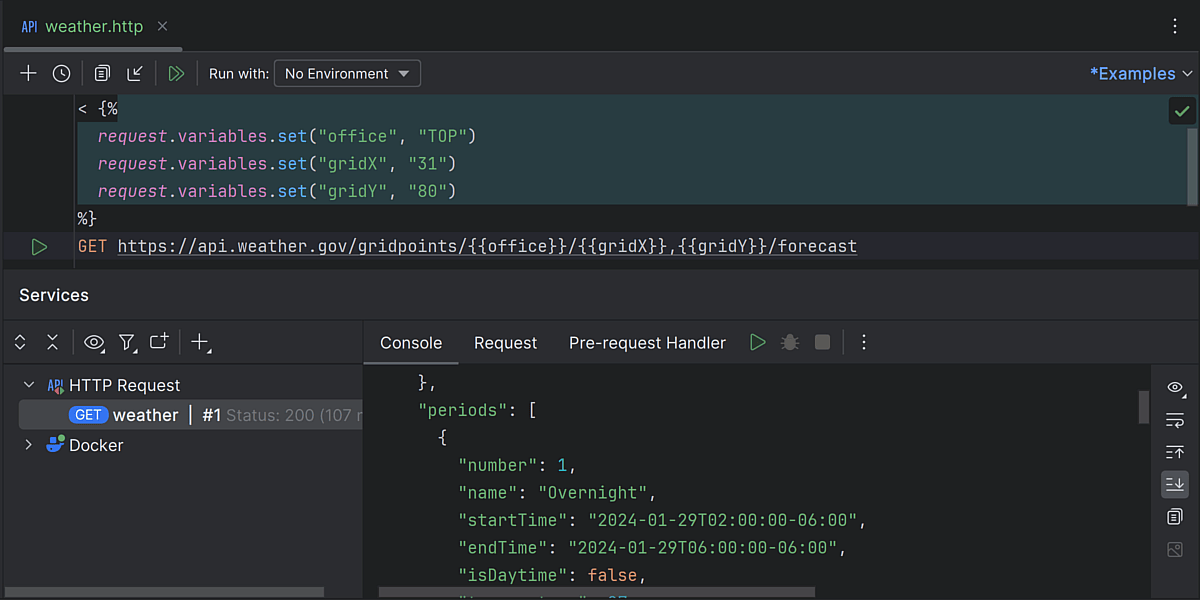
Built-in HTTP Client
Test your web services using the HTTP Client integrated with WebStorm. You can create, edit, and run HTTP requests right in the editor and share them with your entire team.
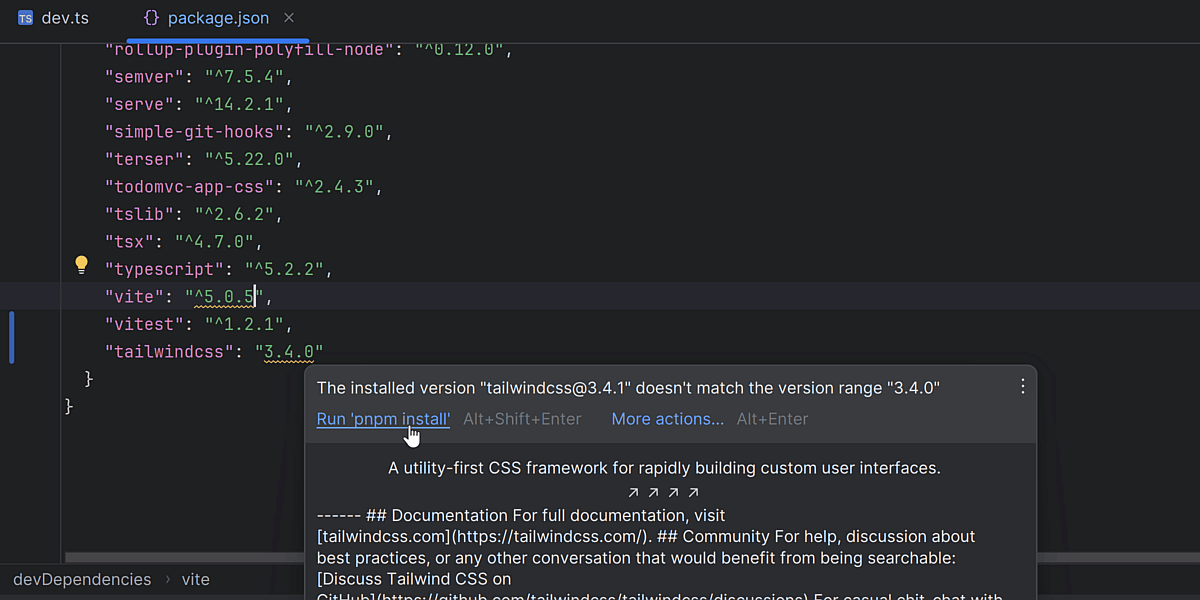
Package managers
WebStorm integrates with npm, Yarn, and pnpm, which lets you use your preferred package manager to install, locate, update, and remove packages from inside the IDE.
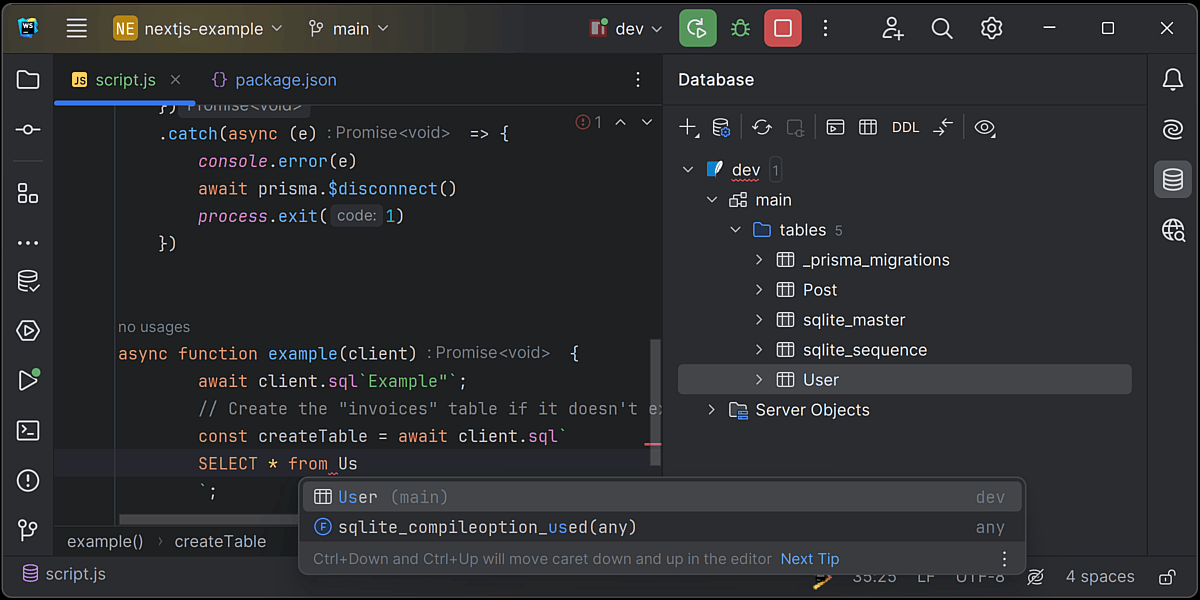
Support for database tools and SQL
Database tools and full SQL support is bundled with WebStorm at no extra cost. You can query, create, and manage databases directly in the IDE. See this blog post for more information.
JetBrains AI Assistant Paid
Work faster with built-in, context-aware AI features.
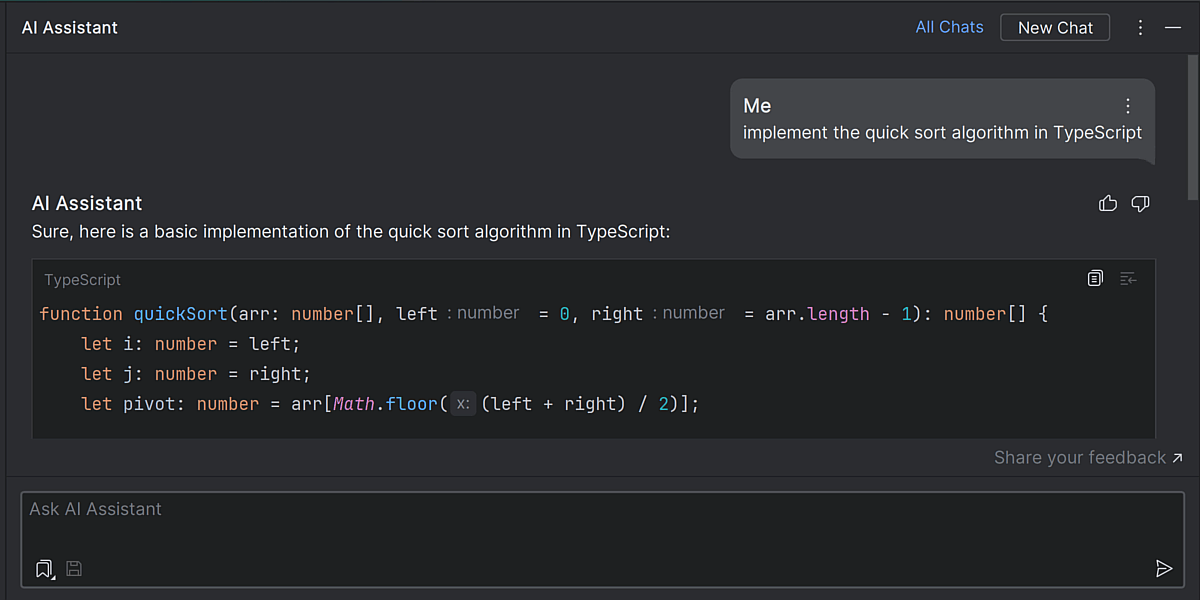
Chat with AI
Ask AI questions about your project or iterate on tasks without leaving the IDE or having to copy and paste code fragments.
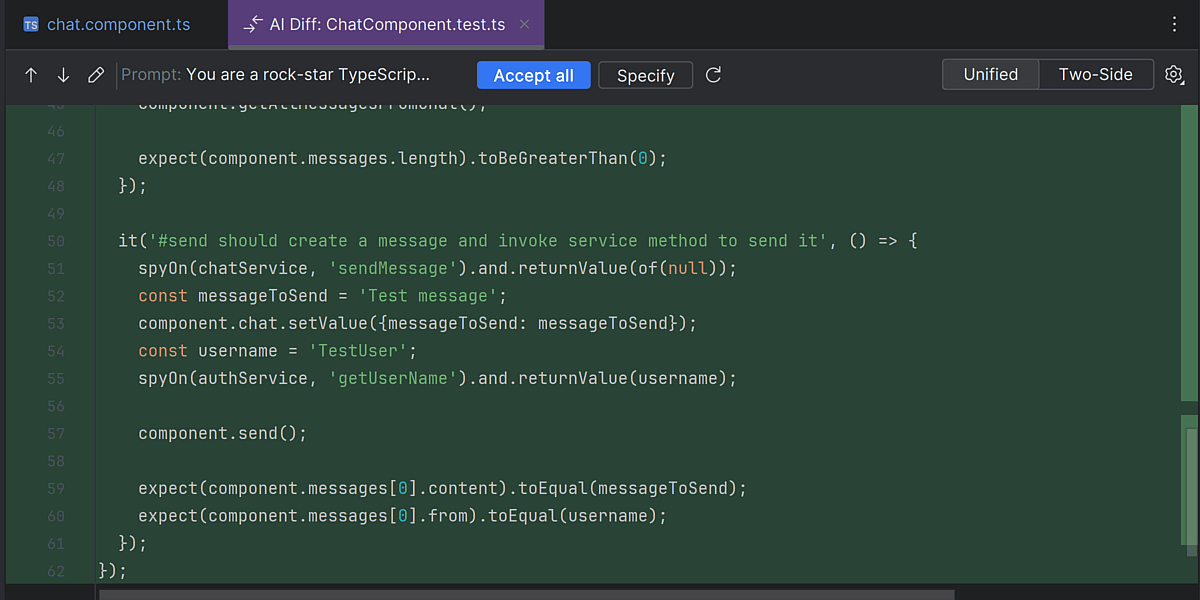
Test and documentation generation
AI Assistant analyzes both your code and documentation to generate tests for your code. It can also write the documentation for a declaration.
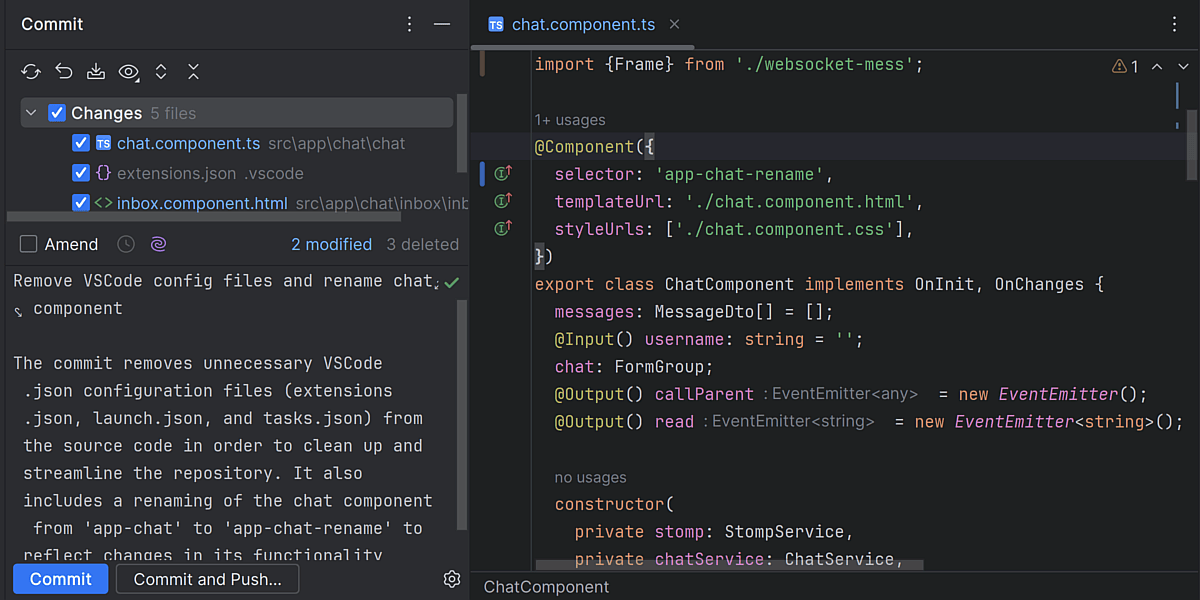
VCS assistance
AI Assistant can summarize and explain the contents of diffs in commits in natural language and generate commit messages describing your changes.
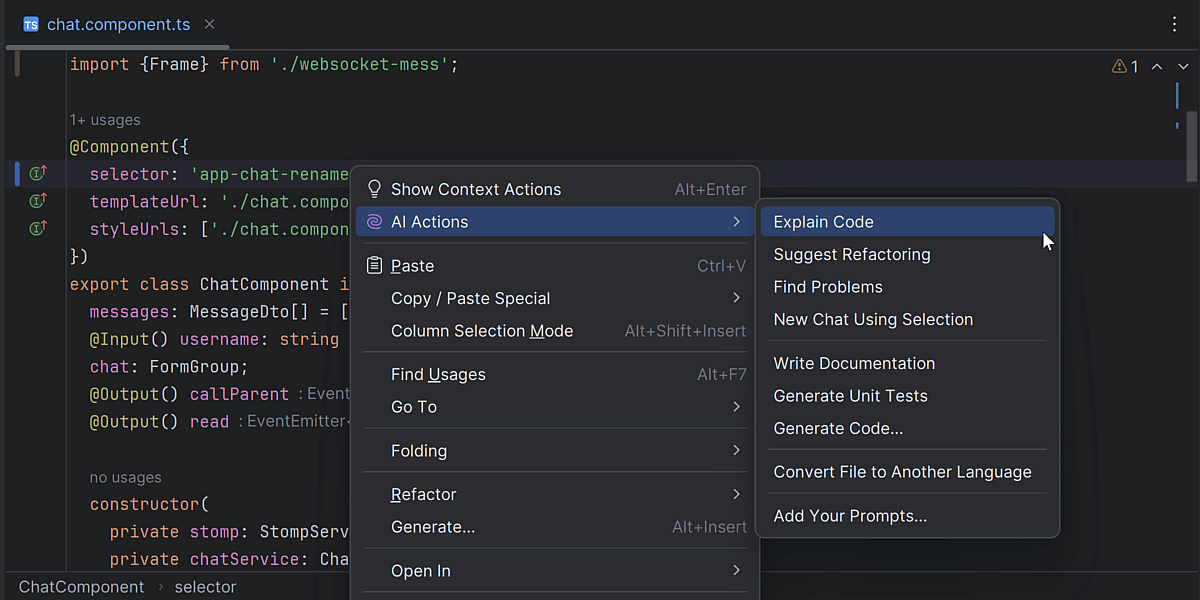
Project-aware AI actions
Use custom AI prompts that take into consideration the language and technologies used in your project, as well as local changes and version control system commits.
Remote development
Support for remote development workflows.
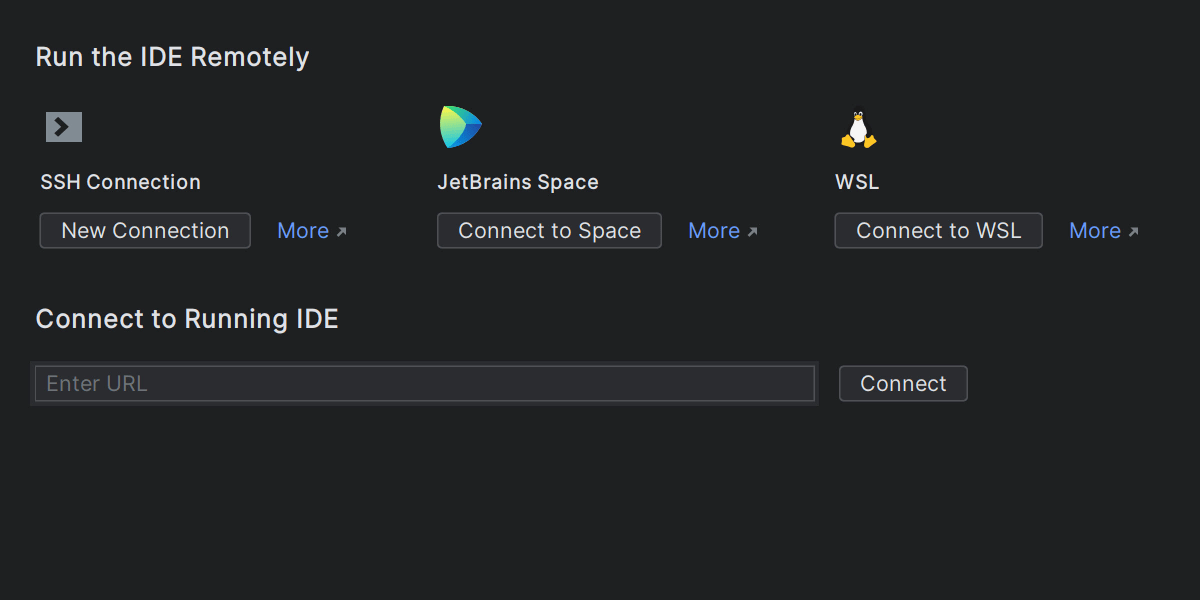
Remote development
Boost your productivity with the remote development functionality. You can use a local lightweight client that provides you with a responsive IDE to work on any machine and a remote server to handle all the heavy processing.
Customization
Set up your workspace the way you like with UI themes, customizable shortcuts, and plugins.
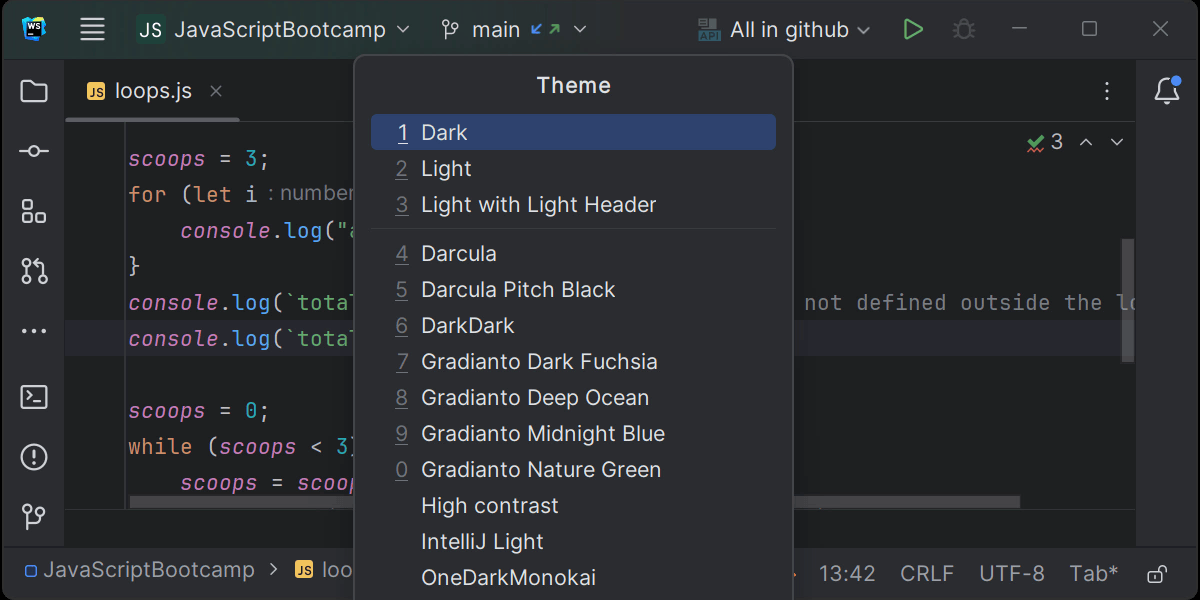
Customizable UI
WebStorm comes with a few predefined themes, but there are a variety of custom options to choose from. You can also toggle the visibility of many UI elements and change their position, or even switch to Zen mode to focus on your code.
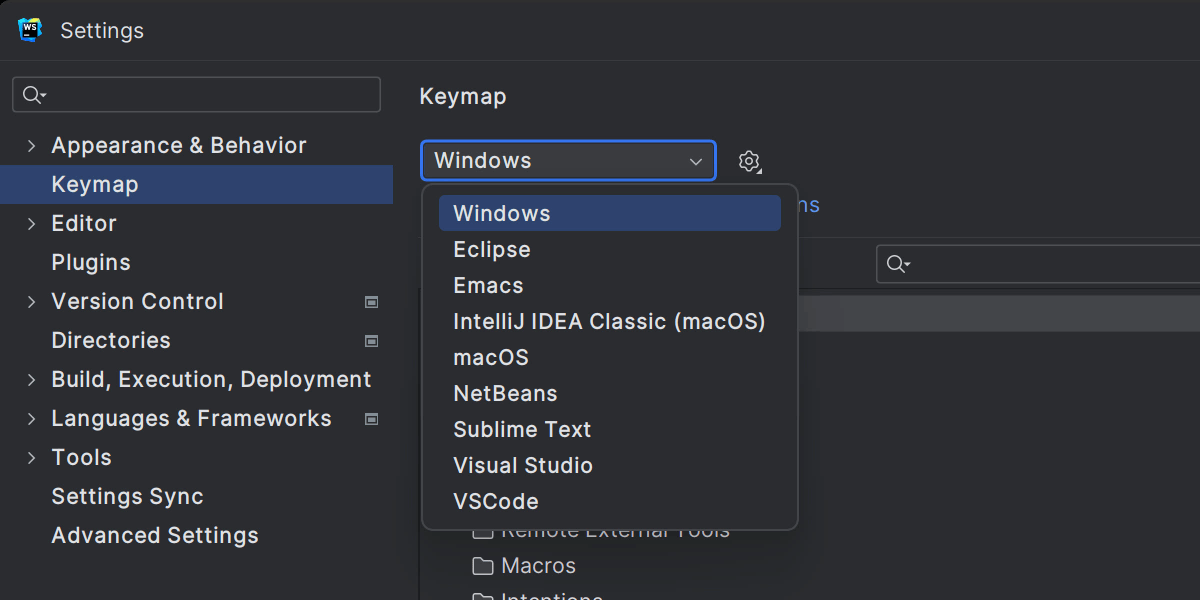
Keymaps
To help you stay productive, WebStorm has shortcuts for almost every action. You can use predefined keyboard layouts or create your own. Some of the available keymaps include VS Code and Sublime Text.
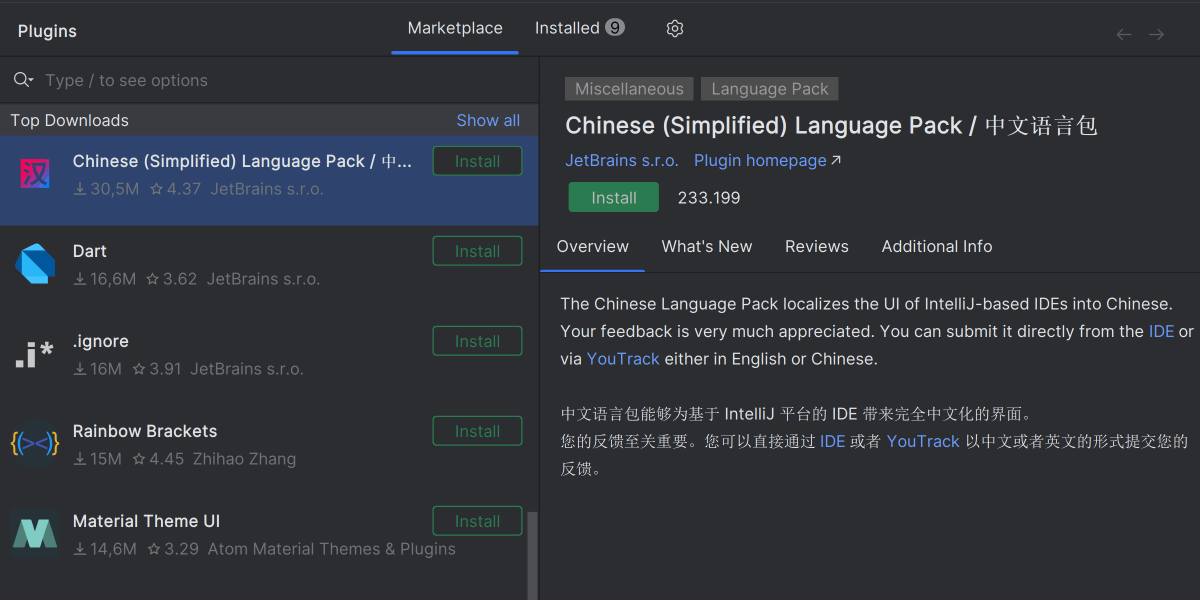
Plugins
Extend the core functionality of your IDE and add more customization options on top of what is already available. Visit our JetBrains Marketplace to discover all of the available WebStorm plugins.
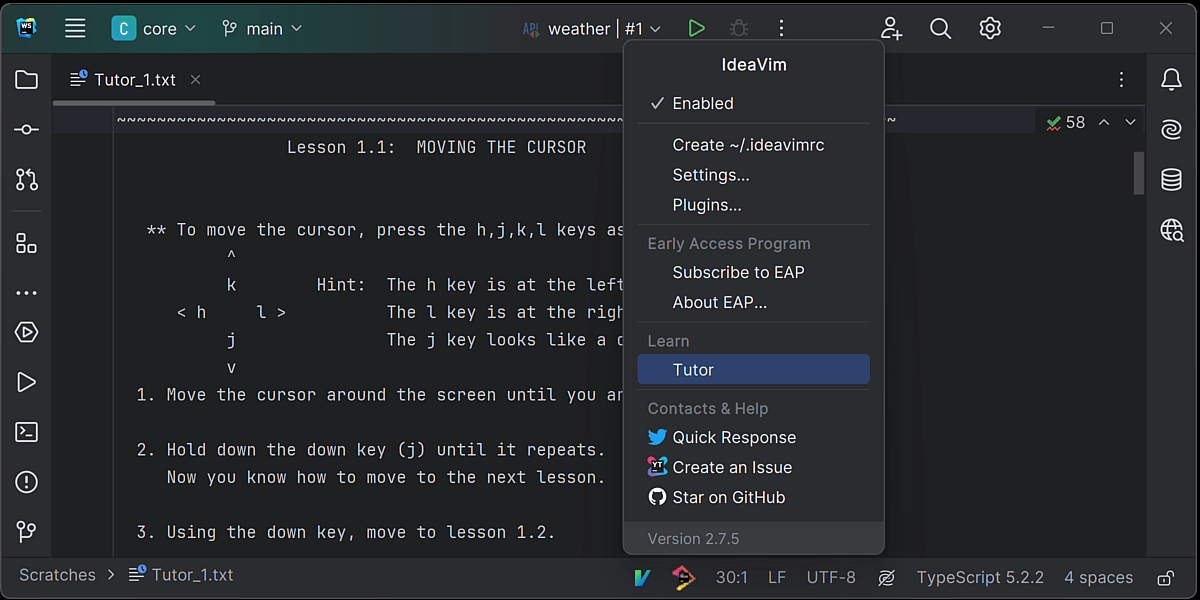
Accessibility features
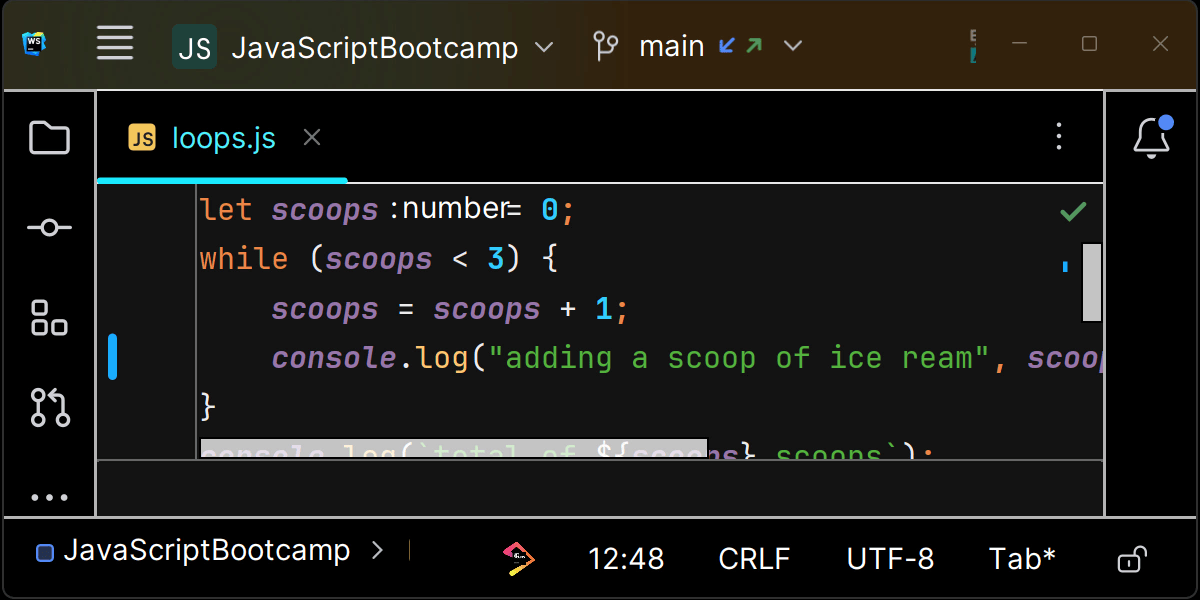
WebStorm incorporates features designed to meet your accessibility requirements. You have the flexibility to adjust tool window sizes, text sizes in the editor, customize colors, personalize shortcuts, and more. In addition to these features, support for screen readers is also available.
Settings Sync
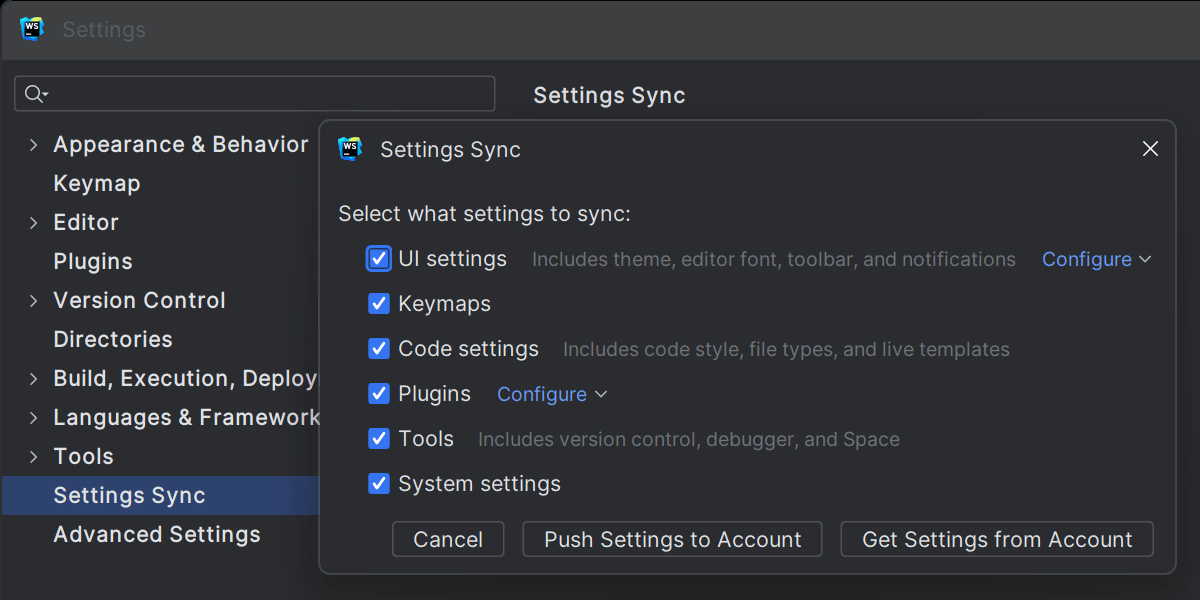
You can share settings between your JetBrains IDEs, for a consistent and familiar working environment. You can choose which settings to sync, including UI, code and system settings, keymaps, plugins, and tools.