Web Application
Select the check box to enable generic Web application
development support.
See also, Enabling Web Application Support.
| Item | Description |
|---|---|
| Version | Select the version of the Servlet specification to be supported. |
| Create web.xml |
For version 3.0: select this check box to have the
deployment descriptor file
web.xml created.
(For earlier versions, this file is always created.) |
Struts
Select the check box to enable Apache Struts
1.x support.
See also, Enabling Struts Support.
| Item | Description |
|---|---|
| Version |
Select the Struts version to be supported.
If you also choose to download the library files that implement Struts (the Download option), the selected version will define which files you will be able to download. |
| Libraries |
Specify your intention in relation to
a library that implements Struts.
You can choose to use an existing library, create and use a new one,
download the library files if they are not yet available on your computer,
or postpone setting up the library until a later time.
Configure. Click this button to edit the settings for the library selected next to Use library or the one that is about to be downloaded. |
WebServices
Select the check box to enable Web Services
development support.
See also, Enabling Web Service Development Support.
| Item | Description |
|---|---|
| Generate sample server code | Select this check box to have a sample HelloWorld class created in your source folder (e.g. src). |
| Configure | Click this link to specify the settings for WS engines that you want to use. (The Web Services dialog will open.) |
JSF
Select the check box to enable JavaServer Faces
(JSF) support.
See also, Enabling JSF Support.
| Item | Description |
|---|---|
| Version | Select the JSF version to be supported. |
| Libraries |
Specify your intention in relation to
a library that implements JSF.
You can choose to use an existing library, create and use a new one,
download the library files if they are not yet available on your computer,
or postpone setting up the library until a later time.
Configure. Click this button to edit the settings for the library selected next to Use library or the one that is about to be downloaded. |
Primefaces, Richfaces, Openfaces, or Icefaces
Select the check box to be able to use the corresponding JSF component library
(PrimeFaces
, RichFaces
,
OpenFaces
, or ICEfaces
).
See also, Enabling JSF Support.
-
Use library.
Select the library to be used from the list
(if the corresponding library is already defined in IntelliJ IDEA).
Create. If the corresponding library files (.jar) are already available on your computer, you can arrange those files in a library and use that new library. To do that, click Create and select the necessary files in the dialog that opens. (Use the Ctrl key for multiple selections.)
Optionally, click Configure to edit the selected library. (For an existing library the Edit Library dialog will open, for the library that you have just created - the Create Library dialog.)
-
Download.
Select this option to download
the corresponding JSF component library files.
(The downloaded files will be arranged in an IntelliJ IDEA library.)
Optionally, click Configure to edit the library settings and contents. (The Downloading Options dialog will open.)
Configure. Click this button to edit the settings for the library selected next to Use library or the one that is about to be downloaded.
Struts 2
Select the check box to enable Apache Struts 2
support.
See also, Enabling Struts 2 Support.
Specify your intention in relation to a library that implements Struts 2. You can choose to use an existing library, create and use a new one, download the library files if they are not yet available on your computer, or postpone setting up the library until a later time.
-
Use library.
Select the library to be used from the list
(if the corresponding library is already defined in IntelliJ IDEA).
Create. If the corresponding library files (.jar) are already available on your computer, you can arrange those files in a library and use that new library. To do that, click Create and select the necessary files in the dialog that opens. (Use the Ctrl key for multiple selections.)
Optionally, click Configure to edit the selected library. (For an existing library the Edit Library dialog will open, for the library that you have just created - the Create Library dialog.)
-
Download.
Select this option to download
the library files that implement Struts 2.
(The downloaded files will be arranged in an IntelliJ IDEA library.)
Optionally, click Configure to edit the library settings and contents. (The Downloading Options dialog will open.)
- Set up library later. Select this option to postpone setting up the Struts 2 library until a later time.
Configure. Click this button to edit the settings for the library selected next to Use library or the one that is about to be downloaded.
Google App Engine
Select the check box to be able to use Google App Engine
.
See also, Creating Google App Engine Project.
| Item | Description |
|---|---|
| Google App Engine SDK |
Specify the path to the Google App Engine SDK for Java installation directory.
You can click and select the corresponding directory in
the dialog that opens. |
| Persistence |
If necessary, select the
App Engine Datastore implementation
to be supported (JDO or JPA). |
| Download |
If the path to Google App Engine SDK is not specified, you can click this link to open the
Google App Engine Downloads page .
(This page lets you download the latest version of Google App Engine SDK for Java.) |
WebServices Client
Select the check box to enable Web Services client development support. See also, Enabling Web Service Client Development Support.
| Item | Description |
|---|---|
| Generate sample client code |
Select this check box
to have sample client code generated in your source folder
(e.g. src).
To generate the code, IntelliJ IDEA will ask you to specify the corresponding
WSDL |
| Configure | Click this link to specify the settings for WS engines that you want to use. (The Web Services dialog will open.) |
Application Server
Select the check box and specify the application server that you are going to use to deploy and run your application. As a result, IntelliJ IDEA will create a run/debug configuration for the specified server.
| Item | Description |
|---|---|
| Application Server |
Select a server which IntelliJ IDEA is already aware of, or specify another "new" server.
To specify a new server, select New <Server Name> from the list. Then, in the field or fields that appear underneath, specify the server settings:
|
Enterprise JavaBeans
Select the check box to enable Enterprise JavaBeans
(EJB) support.
See also, Enabling EJB Support.
| Item | Description |
|---|---|
| Version |
Select the EJB version to be supported.
If you also choose to download the library files that implement EJB (the Download option), the selected version will define which files you will be able to download. |
| Libraries |
Specify your intention in relation to
a library that implements EJB.
You can choose to use an existing library, create and use a new one,
download the library files if they are not yet available on your computer,
or postpone setting up the library until a later time.
Configure. Click this button to edit the settings for the library selected next to Use library or the one that is about to be downloaded. |
JavaEE Application
Select the check box to enable Java EE application
development support.
See also, Enabling Java EE Application Support.
| Item | Description |
|---|---|
| Version | Select the Java EE version to be supported. |
JavaEE Persistence
Select the check box to enable Java Persistence API
(JPA) support.
See also, Enabling JPA Support.
| Item | Description |
|---|---|
| persistence.xml version |
Select the version of the persistence.xml file that you want to use.
If you also choose to download the library files that implement JPA (the Download option), the selected version will define which files you will be able to download. |
| Import database schema | Select this check box to have a database schema imported automatically. Optionally, select the JPA implementation-specific database scheme to be imported from the list above the check box. |
| Libraries |
Specify your intention in relation to
a library that implements JPA.
You can choose to use an existing library, create and use a new one,
download the library files if they are not yet available on your computer,
or postpone setting up the library until a later time.
Configure. Click this button to edit the settings for the library selected next to Use library or the one that is about to be downloaded. |
CDI: Contexts and Dependency Injection
Select the check box to enable Contexts and Dependency Injection
(CDI) support.
Specify your intention in relation to a library that implements CDI. You can choose to use an existing library, create and use a new one, or download the library files if they are not yet available on your computer.
-
Use library.
Select the library to be used from the list
(if the corresponding library is already defined in IntelliJ IDEA).
Create. If the corresponding library files (.jar) are already available on your computer, you can arrange those files in a library and use that new library. To do that, click Create and select the necessary files in the dialog that opens. (Use the Ctrl key for multiple selections.)
Optionally, click Configure to edit the selected library. (For an existing library the Edit Library dialog will open, for the library that you have just created - the Create Library dialog.)
-
Download.
Select this option to download
the library files that implement CDI.
(The downloaded files will be arranged in an IntelliJ IDEA library.)
Optionally, click Configure to edit the library settings and contents. (The Downloading Options dialog will open.)
Configure. Click this button to edit the settings for the library selected next to Use library or the one that is about to be downloaded.
DM Server
Select the check box to be able to use SpringSource dm Server
and
develop dm Server-targeted applications.
| Item | Description |
|---|---|
| Server |
Select the server to be used from the list
(if the corresponding server is already defined in IntelliJ IDEA).
To define a server in IntelliJ IDEA, click Add and specify the server settings in the Spring dmServer dialog that opens. |
| Facet |
Select the deployment artifact type that the module will implement
(the Spring DM facet type in IntelliJ IDEA terms):
For more information on dm Server deployment artifacts, see "Deployment Architecture" and
"Developing Applications" in
SpringSource dm Server Programmer Guide |
| Bundle options | |
| Spring DM Support |
Select this check box to enable Spring support
(to create a Spring facet in IntelliJ IDEA terms).
As a result, IntelliJ IDEA will create the following files:
At this step you are not suggested to download the library files that implement Spring. However, you will be able to do that after the module has been created by using the corresponding quick fix in the Project Structure dialog. For more information, see Adding a Spring facet to an existing module. |
| Web module |
Select this check box to enable generic
Web application development support
(to create a Web facet in IntelliJ IDEA terms). Specify the associated settings:
As a result, IntelliJ IDEA will create web\WEB-INF\web.xml (for version 3.0 - if so specified). |
| PAR or Plan options | |
| Name | For a PAR, this is the application identifier (Application-SymbolicName), for a plan - the plan name (the name attribute of the <plan> element). |
| Version | The application or the plan version (Application-Version or the version attribute of the <plan> element). |
| Plan |
Select this option to create a plan. IntelliJ IDEA will create:
|
| Platform Archive (PAR) |
Select this option to create a PAR. IntelliJ IDEA will create:
|
| Scoped | For a plan: select this check box to make the plan scoped (corresponds to scoped="true" within the <plan> element). |
| Atomic | For a plan: select this check box to make the plan atomic (corresponds to atomic="true" within the <plan> element). |
| Nested bundles |
Use the controls in this area to manage other dm Server deployment artifacts within the PAR or plan.
(In IntelliJ IDEA, these are represented by other modules within the same project if those modules have suitable dm Server facets.
A PAR may include OSGi bundles and configuration artifacts;
a plan - OSGi bundles, configuration artifacts, PARs and other plans).
|
| Configuration option | |
| Name | Specify the OSGi name of the artifact (at the deployment stage, corresponds to the name of the file). |
Google Web Toolkit
Select the check box to be able to use Google Web Toolkit
(GWT).
See also, Enabling GWT Support.
| Item | Description |
|---|---|
| GWT SDK |
Specify the path to the GWT SDK installation directory.
You can click and select the corresponding directory in
the dialog that opens. |
| Create sample application | Select this check box to have a sample application created. Specify the package for the application classes in the field underneath. |
| Download GWT |
If the path to GWT SDK is not specified: you can click this link to open the
Google Web Toolkit Downloads page .
(This page lets you download a GWT SDK.) |
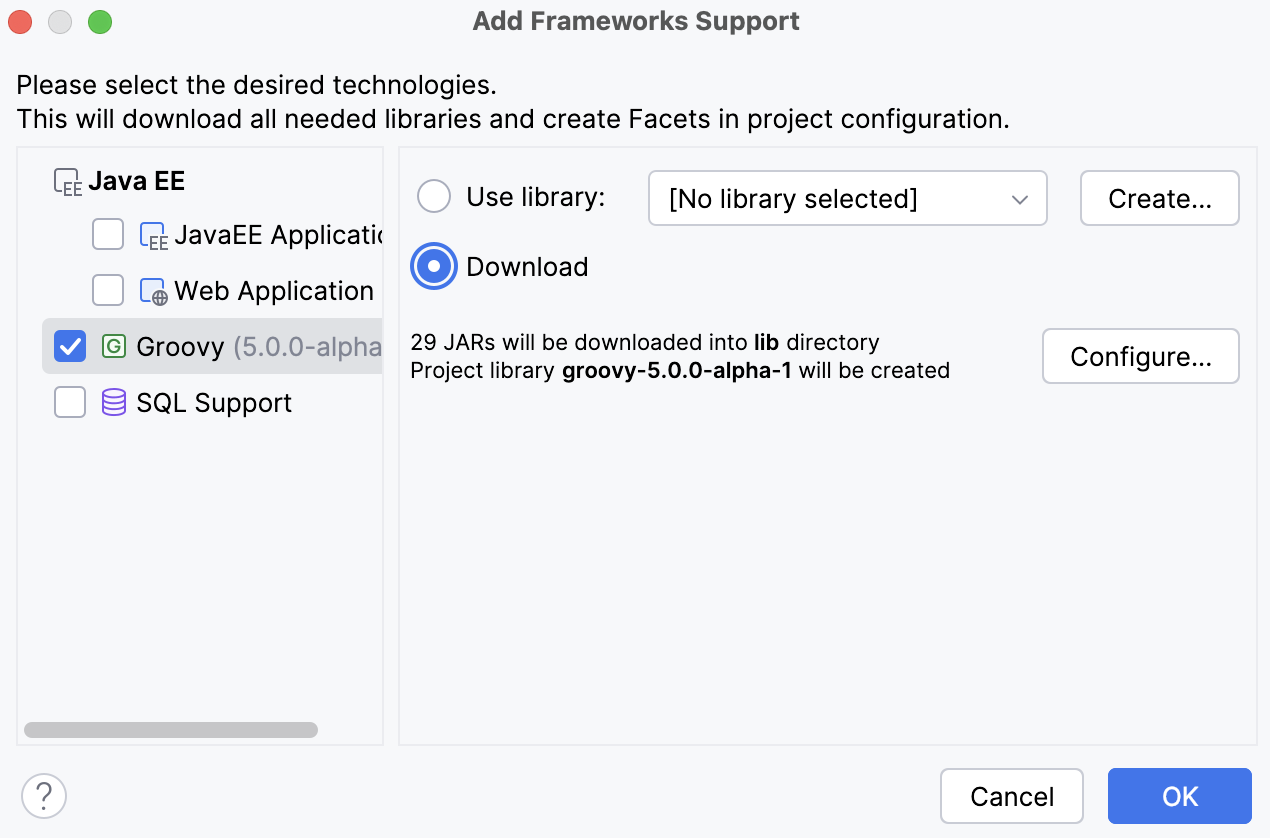
Groovy
Select the check box to enable Groovy
support.
See also, Creating Modules with Groovy and Groovy-Based Frameworks Support.
Select an existing Groovy library or create a new library for Groovy:
- Use library. Select the Groovy library to be used from the list (if the corresponding library is already defined in IntelliJ IDEA).
- Create. If Groovy is already installed on your computer, you create a Groovy library and use that new library. To do that, click Create and select the Groovy installation directory in the dialog that opens.
Optionally, click Configure to edit the selected library. (For an existing library the Edit Library dialog will open, for the library that you have just created - the Create Library dialog.)
Hibernate
Select the check box to enable Hibernate
support.
See also, Enabling Hibernate Support.
| Item | Description |
|---|---|
| Create default hibernate configuration and main class | Select this check box to have a Hibernate configuration file hibernate.cfg.xml and a class with the main() method created. |
| Import database schema | Select this check box to have a database schema imported automatically. |
| Libraries |
Specify your intention in relation to
a library that implements Hibernate.
You can choose to use an existing library, create and use a new one,
download the library files if they are not yet available on your computer,
or postpone setting up the library until a later time.
Configure. Click this button to edit the settings for the library selected next to Use library or the one that is about to be downloaded. |
RESTful WebServices
Select the check box to enable RESTful
Web Services (client and server) development support.
See also, RESTful WebServices.
| Item | Description |
|---|---|
| Generate server code | Select this check box to have a sample HelloWorld server class created in your source folder (e.g. src). |
| Generate client code | Select this check box to have a sample HelloWorldClient class created in your source folder (e.g. src). |
| Libraries |
Specify your intention in relation to
a library that implements RESTful WebServices.
You can choose to use an existing library, create and use a new one,
download the library files if they are not yet available on your computer,
or postpone setting up the library until a later time.
Configure. Click this button to edit the settings for the library selected next to Use library or the one that is about to be downloaded. |
Spring
Select the check box to enable Spring
support.
See also, Enabling Spring Support.
Specify your intention in relation to a library that implements Spring. You can choose to use an existing library, create and use a new one, download the library files if they are not yet available on your computer, or postpone setting up the library until a later time.
-
Use library.
Select the library to be used from the list
(if the corresponding library is already defined in IntelliJ IDEA).
Create. If the corresponding library files (.jar) are already available on your computer, you can arrange those files in a library and use that new library. To do that, click Create and select the necessary files in the dialog that opens. (Use the Ctrl key for multiple selections.)
Optionally, click Configure to edit the selected library. (For an existing library the Edit Library dialog will open, for the library that you have just created - the Create Library dialog.)
-
Download.
Select this option to download
the library files that implement Spring.
(The downloaded files will be arranged in an IntelliJ IDEA library.)
Optionally, click Configure to edit the library settings and contents. (The Downloading Options dialog will open.)
- Set up library later. Select this option to postpone setting up the Spring library until a later time.
Configure. Click this button to edit the settings for the library selected next to Use library or the one that is about to be downloaded.
Spring MVC, Spring Batch, or other Spring framework
Select a check box to add support for a particular Spring framework
(e.g. Spring MVC
,
Spring Batch
, etc.).
See also, Enabling Spring Support.
Specify your intention in relation to a library that implements the selected framework. You can choose to use an existing library, create and use a new one, or download the library files if they are not yet available on your computer.
-
Use library.
Select the library to be used from the list
(if the corresponding library is already defined in IntelliJ IDEA).
Create. If the corresponding library files (.jar) are already available on your computer, you can arrange those files in a library and use that new library. To do that, click Create and select the necessary files in the dialog that opens. (Use the Ctrl key for multiple selections.)
Optionally, click Configure to edit the selected library. (For an existing library the Edit Library dialog will open, for the library that you have just created - the Create Library dialog.)
-
Download.
Select this option to download
the library files that implement the selected Spring framework.
(The downloaded files will be arranged in an IntelliJ IDEA library.)
Optionally, click Configure to edit the library settings and contents. (The Downloading Options dialog will open.)
Configure. Click this button to edit the settings for the library selected next to Use library or the one that is about to be downloaded.
SQL Support
Select the check box to enable SQL
support.
| Item | Description |
|---|---|
| Default Dialect | Select the SQL dialect to be used by default for the module. Select Project Default to use the default project SQL dialect. |
Tapestry
Select the check box to enable Apache Tapestry
support.
See also, Enabling Tapestry Support.
Specify your intention in relation to a library that implements Tapestry. You can choose to use an existing library, create and use a new one, download the library files if they are not yet available on your computer, or postpone setting up the library until a later time.
-
Use library.
Select the library to be used from the list
(if the corresponding library is already defined in IntelliJ IDEA).
Create. If the corresponding library files (.jar) are already available on your computer, you can arrange those files in a library and use that new library. To do that, click Create and select the necessary files in the dialog that opens. (Use the Ctrl key for multiple selections.)
Optionally, click Configure to edit the selected library. (For an existing library the Edit Library dialog will open, for the library that you have just created - the Create Library dialog.)
-
Download.
Select this option to download
the library files that implement Tapestry.
(The downloaded files will be arranged in an IntelliJ IDEA library.)
Optionally, click Configure to edit the library settings and contents. (The Downloading Options dialog will open.)
- Set up library later. Select this option to postpone setting up the Tapestry library until a later time.
Configure. Click this button to edit the settings for the library selected next to Use library or the one that is about to be downloaded.

and select the corresponding directory in
the