Appearance
Use this page to change the overall look and feel of your IDE.
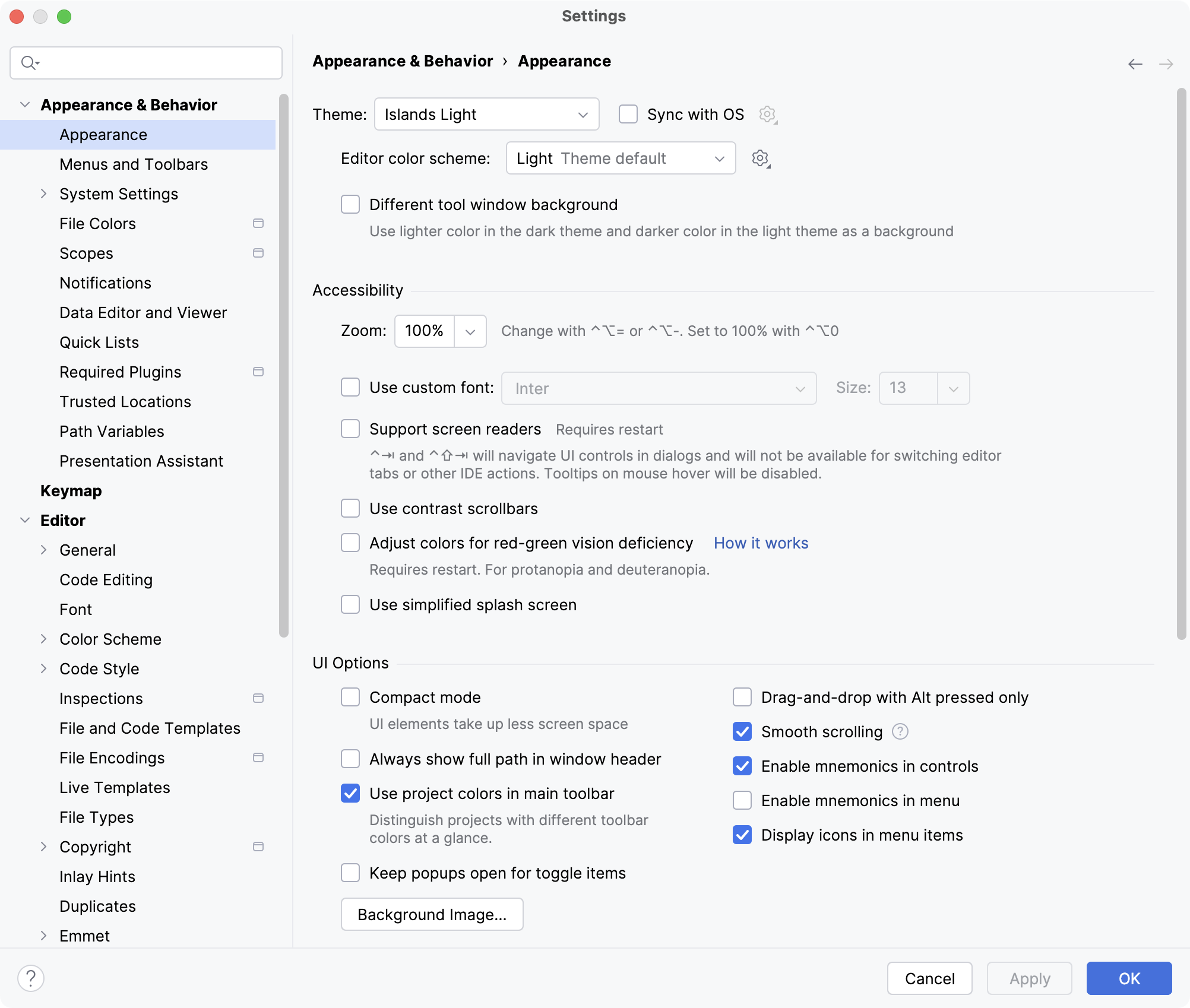
Option | Description |
|---|---|
Theme | Select the UI theme from the list. By default, you can choose between a light, a dark, and a high-contrast theme. You can install other themes as plugins. For more information, refer to User interface themes. |
Different tool window background (available only for Islands themes) | To improve editor focus in Islands themes, select Different tool window background. This applies a lighter shade in dark themes and a darker shade in the light theme for your tool windows. |
Sync with OS | Detect the current system settings and use a dark or light theme accordingly. Click |
Editor color scheme | Select a color scheme that defines the colors, fonts, and syntax highlighting for various text resources. The default color scheme for the current theme is indicated in the list. Click |
 to select the
 Accessibility
Option | Description |
|---|---|
Zoom | Zoom in and out the entire IDE, increasing or decreasing the size of all UI elements at once. You can also access this setting from the main menu: select . |
Use custom font | Specify custom font family and size to use in the IntelliJ IDEA UI. |
Support screen readers | Enable screen reader support for IntelliJ IDEA. For more information, refer to Accessibility. |
Use contrast scrollbars | Make the editor scrollbar more visible. |
Adjust colors for red-green vision deficiency | Adjust UI colors to better perceive colors in case of protanopia and deuteranopia. |
Use simplified splash screen | The simplified splash screen provides an alternative to the standard startup image, minimizing visual triggers such as bright colors or complex graphics for users with photosensitivity or sensory preferences. |
UI Options
Option | Description |
|---|---|
Compact mode | In this mode, the IDE has the reduced heights for toolbars and tool window headers, scaled-down spacings and paddings, and smaller icons and buttons. This mode is suitable for smaller screens. |
Always show full path in window header | Show the full path to the project and to the current file in the main window header. When disabled, the header will show only the name of the project and file. |
Use project colors in main toolbar | Use colored headers to simplify navigation between several open projects. For more information, refer to Configure the toolbar color. |
Drag-and-drop with Alt pressed only | Avoid accidentally moving files, editor tabs, tool window buttons, and other UI components. When enabled, hold the Alt key to move things around. Keep the modifier key pressed until you complete the drop: releasing it before dropping may change the operation. By default, this option is disabled, and you can move everything without any extra keys. |
Smooth scrolling | Scroll the UI smoothly, pixel-by-pixel, instead of line-by-line. This also enables animated smooth scrolling for Windows and Linux by default. You can disable it to use precise scrolling instead: press Ctrl+Shift+A, find and open the Smooth Scroll Options dialog, and disable the Animated smooth scrolling checkbox. 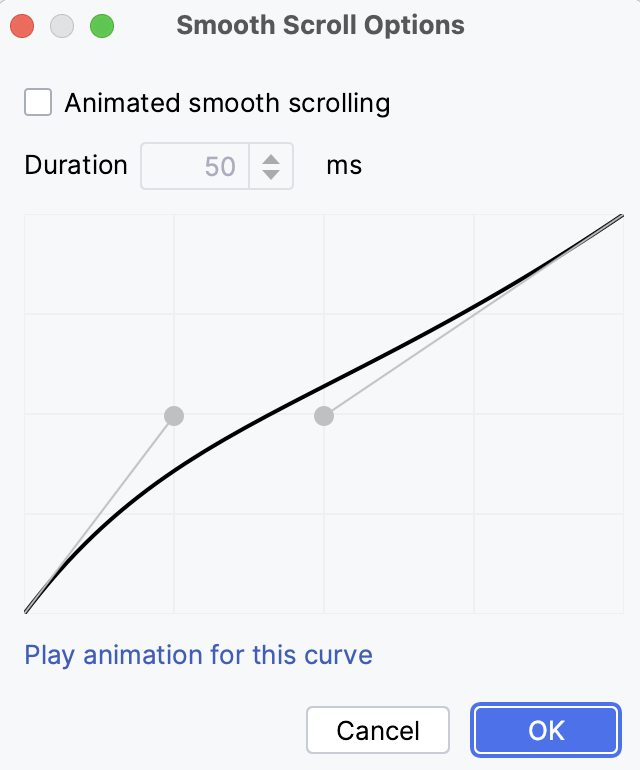 In this dialog, you can also set the duration of the scroll animation and change the appearance of the animation based on https://cubic-bezier.com/#.17,.67,.83,.67. |
Enable mnemonics in controls | Underline hotkeys that you can press to use controls in dialogs. |
Enable mnemonics in menu | Underline hotkeys that you can press to execute a menu action. |
Display icons in menu items | Show icons to the left of the items in the main menu and context menus. |
Main menu | (Windows and Linux) The main menu is the standard menu bar of the application window with File, Edit, View, and other menus. Select how you want the main menu to be displayed:
|
Keep popups open for toggle items | When this feature is enabled, menus stay open while you enable or disable options. Menus will close after you switch focus to another UI element or press Escape. |
Background Image… | Configure a custom background image for the IDE. |
Tree Views
Item | Description |
|---|---|
Show indent guides | Display vertical lines that mark indent levels in tree views, for example, in the Project tool window (Alt+1) . These lines can help you better understand the hierarchy of the components in your project. 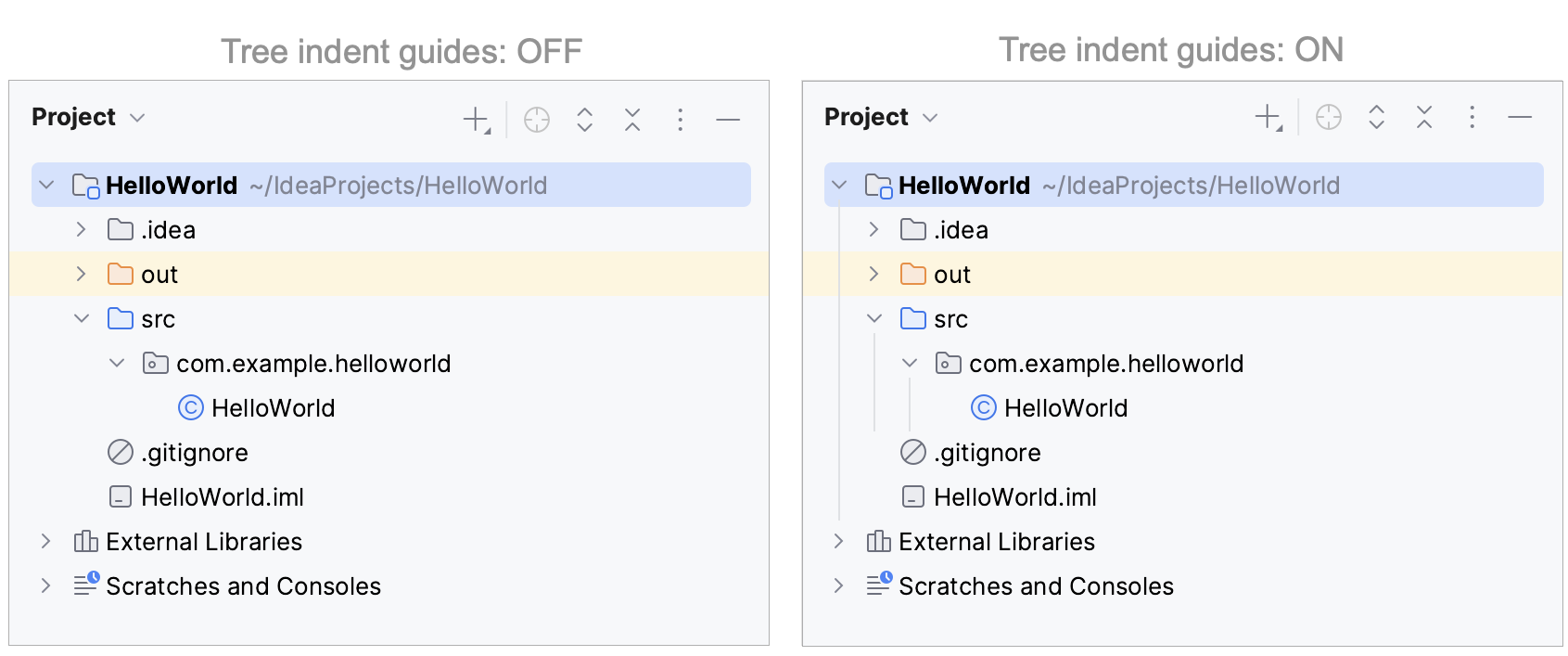 |
Use smaller indents | Decrease the amount of space between the tool window border and the text in tree views, for example, in the Project tool window (Alt+1) . |
Tool Windows
Item | Description |
|---|---|
Show tool window bars | Show the tool window bars around the edges of the main window. For more information, refer to Tool window bars and buttons. |
Show tool window names | Display tool window names on the tool window bars. |
Widescreen tool window layout | Optimize the layout of tool windows for wide-screen displays: maximize the height of vertical tool windows by limiting the width of horizontal tool windows. For more information, refer to Optimize for wide-screen monitors. |
Side-by-side layout on the left | Show the tool windows that are attached to the top and bottom edges on the left side in two columns. For more information, refer to Optimize for wide-screen monitors. |
Side-by-side layout on the right | Show the tool windows that are attached to the top and bottom edges on the right side in two columns. For more information, refer to Optimize for wide-screen monitors. |
Remember size for each tool window | Remember individual width of every tool window when you reopen or switch between them. When this option is disabled, tool windows have the unified default width, and their sizes remain constant when you switch between them. |
Presentation Mode
Item | Description |
|---|---|
Zoom | Zoom in or out the entire IDE in the presentation mode. |
Antialiasing
Option | Description |
|---|---|
IDE | Select which antialiasing mode you want to apply to the IDE (including menus, tool windows, and so on):
|
Editor | Select which antialiasing mode you want to apply to the editor:
|