Inspection Profile
When you inspect your code, you have to tell IntelliJ IDEA which types of problems you would like to search for and get reports about. Such configuration can be preserved as an inspection profile.
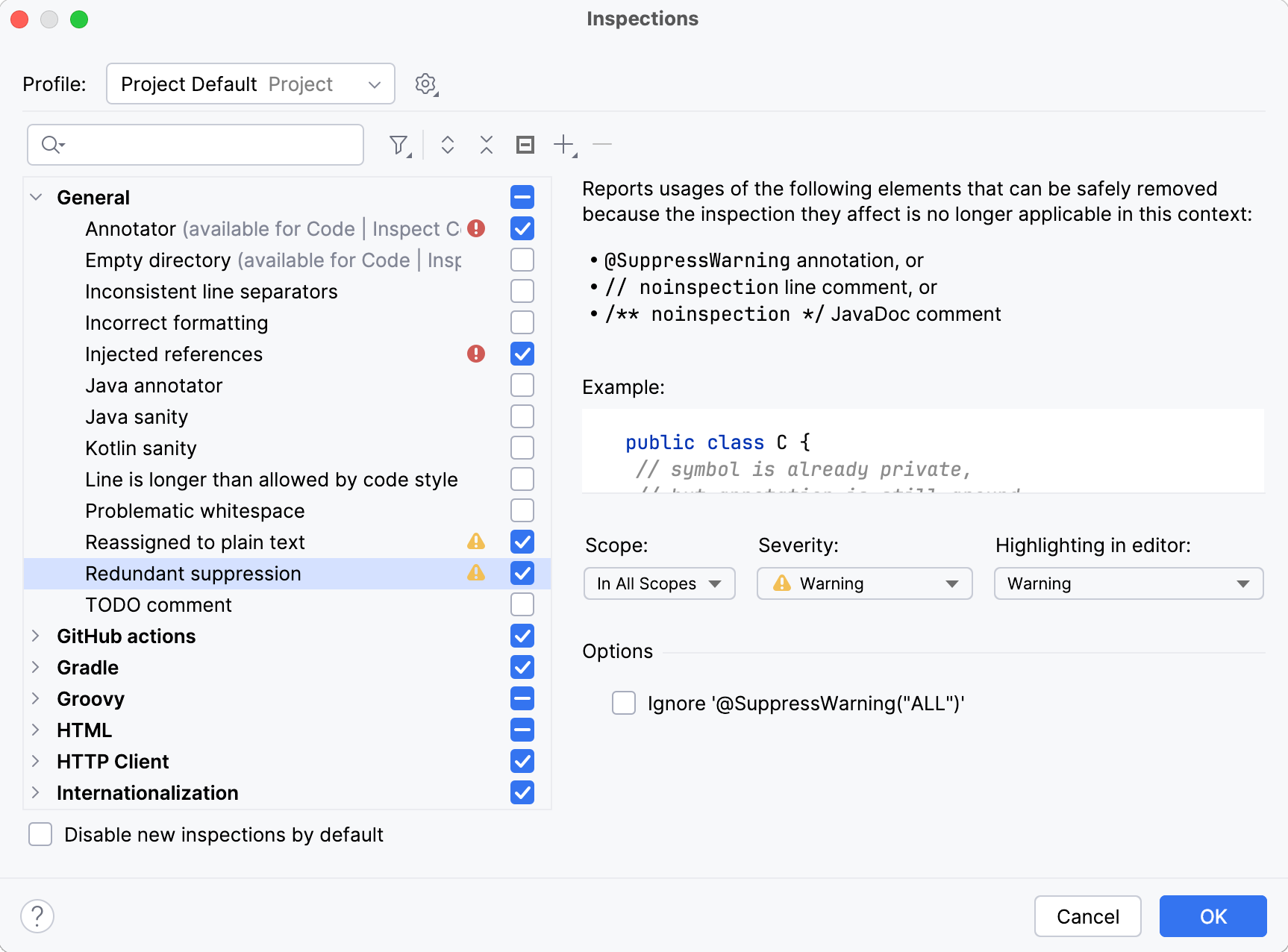
Inspection profile defines the types of problems to be sought for, severity of these problems, and color scheme of alerts. Profiles are configurable in the Inspections dialog box.
Inspection profiles can be stored on the IDE or project level:
- Project profiles are shared and accessible for the team members. They are stored in project.
- IDE profiles are intended for personal use only and are stored locally in XML files under the USER_HOME/.<IntelliJ IDEA version>/config/inspection directory.
IntelliJ IDEA comes with the following pre-defined inspection profiles:
- Default: This local (IDE level) profile is intended for personal use only and is stored locally in the file Default.xml under the USER_HOME/.<IntelliJ IDEA version>/config/inspection directory.
- Project Default: When a new project is created, its Project Default
profile is copied from the settings of a template project. This profile is shared by default.
After that, any modifications to the project default profile will pass unnoticed to any other project.
When the settings of the Project Default profile are modified in the Template Project settings, then the changed profile will apply to all newly created projects, but the existing projects will not be affected.
Project Default profile is stored in the file Project_Default.xml, in the directory <project>/.idea/inspectionProfiles.
One can have as many inspection profiles as required. Whenever a new profile is created, it is in fact a copy of the Default profile (Add), or the currently selected profile (Copy). The newly created profiles are stored in XML files, located depending on the type of the base profile .
The files <profile_name>.xml representing inspection profiles appear whenever some changes to the profiles are done and applied. The files store only differences against the base profile.
In case of the file-based project format, the shared profiles are stored in the project file <project name>.ipr.
Refer to the section Customizing Profiles for details.
Inspection Scope
A project can be divided into several areas of inspections, or scopes, where different inspections should apply. Associating an inspection profile with a scope is described in the section Defining Scope-Profile Combination.
Examples of Code Inspections
Numerous automated Code Inspections help you easily detect different inconsistencies. In IntelliJ IDEA you will find that all inspections are grouped by their goals and sense. Every inspection has an appropriate description. The most common tasks that are covered by the static code analysis are:
- Finding probable bugs.
- Locating dead code.
- Detecting performance issues.
- Improving code structure and maintainability.
- Conforming to coding guidelines and standards.
- Conforming to specifications.
Finding probable bugs
IntelliJ IDEA analyzes the code you are typing and is capable of finding probable bugs as non compilation errors right on-the-fly. Below are the examples of such situations.
Example. Potential NPE that can be thrown at runtime
Before

Here the first if condition may lead to a NullPointer exception being thrown in the second if, as not all situations are covered. At this point adding an assertion in order to avoid a NullPointer being thrown during the application runtime would be a good idea.
After

So, this is exactly what we get from the intention action.
Locating dead code
IntelliJ IDEA highlights in the editor pieces of so-called dead code. This is the code that is never executed during the application runtime. Perhaps, you don't even need this part of code in your project. Depending on situation, such code may be treated as a bug or as a redundancy. Anyway it decreases the application performance and complicates the maintenance process. Here is an example.
So-called constant conditions - conditions that are never met or are always true, for example. In this case the responsible code is not reachable and actually is a dead code.

IntelliJ IDEA highlights the if condition as it's always true. So the part of code surrounded with else is actually a dead code because it is never executed.
Highlighting unused declarations
IntelliJ IDEA is also able to instantly highlight Java classes, methods and fields which are unused across the entire project via Unused declarations inspection. All sorts of Java EE @Inject annotations, test code entry points and other implicit dependencies configured in the Unused declarations inspection are deeply respected.
For more examples of code inspections use, refer to
http://www.jetbrains.com/idea/documentation/static_code_analysis.html
Unresolved JavaScript Function or Method
This inspection detects references to undefined JavaScript functions or methods.

Examples of PHP Code Inspections
Unresolved include
This inspection detects attempts to include not actually existing files and suggests two quick fixes: to create a file with the specified name or use a PHPDOC annotation.

Dynamic method is called as static
This inspection checks whether a call to a static function is actually applied to a static function.

The function do_something() is called as static while actually it is dynamic.
Unimplemented abstract method in class
This inspection checks whether classes inherited from abstract superclasses are either explicitly declared as abstract or the functions inherited from the superclass are implemented.

The class ConcreteClass is inherited from an abstract class AbstractClass and has not been explicitly declared as abstract. At the same time, the function GetValue(), which is inherited from AbstractClass, has not been implemented.
Parameter type
PHP variables do not have types, therefore basically parameter types are not specified in definitions of functions. However, if the type of a parameter is defined explicitly, the function should be called with parameters of the appropriate type.

The function do_something has the parameter of the type integer but is called with a string.
Undefined class constant
This inspection detects references to constants that are not actually defined in the specified class.

The constant NotExistingConst is referenced to as a constant of the class Animal, while actually it is not defined in this class.
Undefined constant inspection
This inspection detects references to constants that are not actually defined anywhere within the inspection scope.

The referenced constant UndefinedConst is not defined anywhere within the inspection scope.
Undefined class
This inspection detects references to classes that are not actually defined anywhere within the inspection scope.

The referenced class NotExistingClass is not defined.
Undefined field
This inspection detects references to fields of a class that are not actually defined in this class.

The $obj variable is an instance of the class Animal. The declaration of the $var contains a reference to the field field of the class Animal, which is not defined on this class.
Call of undefined function
This inspection detects references to functions that are not defined anywhere within the inspection scope.

The called function undefined_function() is not defined anywhere within the inspection scope.
Undefined variable
This inspection detects references to variables that are not declared and initialized anywhere within the inspection scope. PHP does not require that each variable should be declared and initialized. PHP can initialize such variable on the fly and assign it the zero value. However, this inspection allows you to detect discrepancies of this kind.

Note
In the PHP context, the Undefined field and Undefined method inspections may erroneously report severe problems when actually no problems take place. This happens when you attempt to access a property or to assign a value to a property that is not explicitly defined while the referenced class contains the _get() or _set() magic methods. No error should be reported because these methods are invoked every time an undefined property is referenced, however, IntelliJ IDEA still treats them as errors or warnings, depending on the severity you have specified for the inspection in general.
To suppress reporting errors in such cases, re-configure the inspection severity. To do that, open the Inspections page of the Settings dialog box, click the inspection name in the list and select the Downgrade severity if __magic methods are present in class check box in the Options area. After that undefined properties in such cases will be indicated one step lower than specified fir inspections in general, by default, Info instead of Warning.