Code Style. PHP
Use this page to configure formatting options for PHP files. When you change these settings, the Preview pane shows how this will affect your code.
Set from...
Click this link and choose the language to be used as the base for the current language code style. The list contains two options:
Language: choose this option to inherit the coding style settings from another language. Select the source language from the list, that opens. Only the settings that are applicable to the current language are taken. All the other settings are not affected.
Predefined code style: choose this option to use the coding standards defined for a specific framework. Select one of the following frameworks from the list:
Symfony2. IntelliJ IDEA supports the official Symfony2 code style for Twig and automatically inserts one space after an opening pair of curvy braces and before a closing pair of curvy braces in Twig templates:
{{ some_variable }}.PSR-12. If the PSR-12 code style is set, IntelliJ IDEA will prompt you to automatically enable the PSR-12-related code inspections.
This link appears in the upper-right corner of the language-specific code style page, when applicable.
Click Reset to discard changes and return to the initial set of code style settings.
Tabs and Indents
Item | Description |
|---|---|
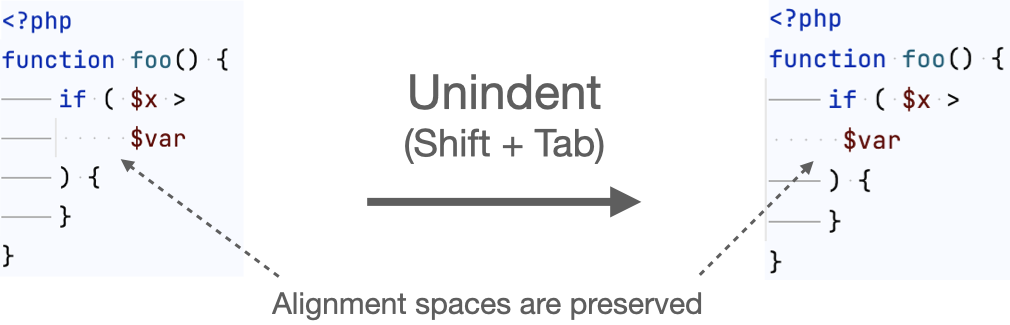
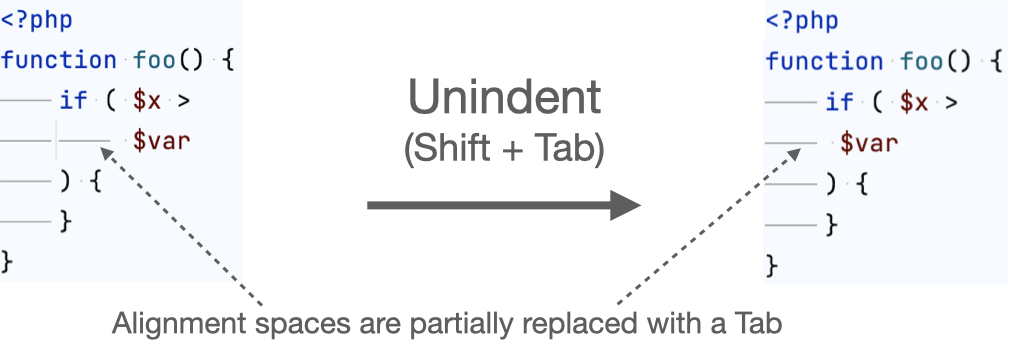
Use tab character | Use the Tab key for indentation. When the checkbox is cleared, IntelliJ IDEA uses spaces instead of tabs. |
Smart tabs |
The Smart tabs checkbox is available if the Use tab character option is enabled. |
Tab size | In this field, specify the number of spaces included in a tab. |
Indent | In this field, specify the number of spaces to be inserted for each indent level. |
Continuation indent | Specify the indentation for lines that continue from the previous line, making it clear that they are part of the same statement or block of code. Continuation indents are used when a single statement is too long to fit on one line. |
Keep indents on empty lines | If this checkbox is selected, IntelliJ IDEA will keep indents on the empty lines as if they contained some code. If this checkbox is cleared, IntelliJ IDEA will delete the tab characters and spaces. |
Indent code in PHP tags | Select this checkbox to have the code enclosed in |
Spaces
Select or clear the checkboxes to have spaces inserted, not inserted, or removed in various PHP contexts.
Before parentheses
Item | Description |
|---|---|
Function declaration parentheses | If selected, a space is inserted before the opening parenthesis in function declarations. Otherwise, no space is inserted.
function foo ($x, $z) {}
function foo($x, $z) {}
|
Function call parentheses | If selected, a space is inserted before the opening parenthesis in function calls. Otherwise, no space is inserted.
$obj->foo ()->bar ();
$obj->foo()->bar();
|
Anonymous function parentheses | If selected, a space is inserted before the opening parenthesis in anonymous function declarations. Otherwise, no space is inserted.
$example = function () {};
$example = function() {};
|
'if' parentheses | If selected, a space is inserted before the opening parenthesis in
if ($x) {
echo $x;
}
if($x) {
echo $x;
}
|
'for' parentheses | If selected, a space is inserted before the opening parenthesis in
for ($i = 0; $i < $x; $i++) {
$y += $i;
}
for($i = 0; $i < $x; $i++) {
$y += $i;
}
|
'while' parentheses | If selected, a space is inserted before the opening parenthesis in
while ($x != $y) {
echo ($x * 2);
}
while($x != $y) {
echo ($x * 2);
}
|
'switch' parentheses | If selected, a space is inserted before the opening parenthesis in
switch ($i) {
case 0:
echo "i equals 0";
break;
case 1:
echo "i equals 1";
break;
}
switch($i) {
case 0:
echo "i equals 0";
break;
case 1:
echo "i equals 1";
break;
}
|
'catch' parentheses | If selected, a space is inserted before the opening parenthesis in
try {
get($x);
} catch (Exception $e) {
}
try {
get($x);
} catch(Exception $e) {
}
|
Array initializer parentheses | If selected, a space is inserted before the opening parenthesis in array declarations. Otherwise, no space is inserted.
$array = array (0 => "zero", 1 => "one");
$array = array(0 => "zero", 1 => "one");
|
Arrow function parentheses | If selected, a space is inserted before the opening parenthesis in anonymous function declarations. Otherwise, no space is inserted.
$double = fn ($x) => $x * 2;
$double = fn($x) => $x * 2;
|
Around operators
Item | Description |
|---|---|
Assignment operators (=, +=, ...) | If selected, spaces are inserted around assignment operators in assignment expressions. Otherwise, no spaces are inserted.
$var = f($a);
$var=f($a);
|
Logical operators (&&, ||) | If selected, spaces are inserted around logical operators in logical expressions. Otherwise, no spaces are inserted.
$var = $a && $b;
$var = $a&&$b;
|
Equality operators (==, !=) | If selected, spaces are inserted around equality operators in comparison expressions. Otherwise, no spaces are inserted.
if ($a == $b) {};
if ($a==$b) {};
|
Relational operators (<, >, <=, >=) | If selected, spaces are inserted around relational operators in comparison expressions. Otherwise, no spaces are inserted.
if ($a > $b) {};
if ($a>$b) {};
|
Bitwise operators (&, |, ^) | If selected, spaces are inserted around bitwise operators. Otherwise, no spaces are inserted.
$var += ($var ^ 0x123);
$var += ($var^0x123);
|
Additive operators (+, -) | If selected, spaces are inserted around additive operators. Otherwise, no spaces are inserted.
$var = $a + $b;
$var = $a+$b;
|
Multiplicative operators (*, /, %, **) | If selected, spaces are inserted around multiplicative operators. Otherwise, no spaces are inserted.
$var = $a * $b;
$var = $a*$b;
|
Shift operators (<<, >>, >>>) | If selected, spaces are inserted around bit shifting operators. Otherwise, no spaces are inserted.
$var = $a << 1;
$var = $a<<1;
|
Unary additive operators (+,-,++,--) | If selected, spaces are inserted around unary additive operators. Otherwise, no spaces are inserted.
for ($i = 0; $i < $x; $i ++) {}
for ($i = 0; $i < $x; $i++) {}
|
Concatenation (.) | If selected, spaces are inserted around the
echo "The result is " . $i;
echo "The result is ".$i;
|
Object access operator (->) | If selected, spaces are inserted around the
$obj -> foo() -> bar();
$obj->foo()->bar();
|
Null coalescing operator (??) | If selected, spaces are inserted around the
foo() ?? bar();
foo()??bar();
|
Assignment in declare statement | If selected, spaces are inserted around the assignment operator in the
declare(strict_types = 1);
declare(strict_types=1);
|
Before left brace
Item | Description |
|---|---|
Class left brace | If selected, a space is inserted between the class name and the opening brace in class declarations. Otherwise, no space is inserted.
class Class1 {
function Foo() {}
}
class Class1{
function Foo() {}
}
Selecting or clearing the checkbox is relevant only when Braces placement for In class declaration is set to End of line on the Wrapping and Braces tab. |
Method left brace | If selected, a space is inserted between the method parameters' list closing parenthesis and the opening brace in method declarations. Otherwise, no space is inserted.
function foo() {}
function foo(){}
Selecting or clearing the checkbox is relevant only when Braces placement for In method declaration is set to End of line on the Wrapping and Braces tab. |
'if' left brace | If selected, a space is inserted between the conditional expression's closing parenthesis and the opening brace in
if ($x) {
echo $x;
}
if ($x){
echo $x;
}
Selecting or clearing the checkbox is relevant only when Braces placement for Other is set to End of line on the Wrapping and Braces tab. |
'else' left brace | If selected, a space is inserted between the
if ($x) {
echo $x;
} else {
echo $y;
}
if ($x) {
echo $x;
} else{
echo $y;
}
Selecting or clearing the checkbox is relevant only when Braces placement for Other is set to End of line on the Wrapping and Braces tab. |
'for' left brace | If selected, a space is inserted between the conditional expression's closing parenthesis and the opening brace in
for ($i = 0; $i < $y; $i++) {
$str = $arr[$i];
}
for ($i = 0; $i < $y; $i++){
$str = $arr[$i];
}
Selecting or clearing the checkbox is relevant only when Braces placement for Other is set to End of line on the Wrapping and Braces tab. |
'while' left brace | If selected, a space is inserted between the conditional expression's closing parenthesis and the opening brace in
while ($var != $x) {
$var++;
}
while ($var != $x){
$var++;
}
Selecting or clearing the checkbox is relevant only when Braces placement for Other is set to End of line on the Wrapping and Braces tab. |
'do' left brace | If selected, a space is inserted between the
do {
echo $var;
} while ($var > 0);
do{
echo $var;
} while ($var > 0);
Selecting or clearing the checkbox is relevant only when Braces placement for Other is set to End of line on the Wrapping and Braces tab. |
'switch' left brace | If selected, a space is inserted between the conditional expression's closing parenthesis and the opening brace in
switch ($i) {
case 0:
$var = 'zero';
break;
default:
$var = 'other';
}
switch ($i){
case 0:
$var = 'zero';
break;
default:
$var = 'other';
}
Selecting or clearing the checkbox is relevant only when Braces placement for Other is set to End of line on the Wrapping and Braces tab. |
'try' left brace | If selected, a space is inserted between the
try {
get($x);
} catch (Exception $e) {
}
try{
get($x);
} catch (Exception $e) {
}
Selecting or clearing the checkbox is relevant only when Braces placement for Other is set to End of line on the Wrapping and Braces tab. |
'catch' left brace | If selected, a space is inserted between the
try {
get($x);
} catch (Exception $e) {
}
try{
get($x);
} catch (Exception $e){
}
Selecting or clearing the checkbox is relevant only when Braces placement for Other is set to End of line on the Wrapping and Braces tab. |
'finally' left brace | If selected, a space is inserted between the
try {
get($x);
} catch (Exception $e) {
} finally {
}
try {
get($x);
} catch (Exception $e) {
} finally{
}
Selecting or clearing the checkbox is relevant only when Braces placement for Other is set to End of line on the Wrapping and Braces tab. |
Before keywords
Item | Description |
|---|---|
'else' keyword | If selected, a space is inserted between the closing brace of an
if ($x) {
echo $x;
} else {
echo $y;
}
if ($x) {
echo $x;
}else {
echo $y;
}
|
'while' keyword | If selected, a space is inserted between the closing brace of a
do {
echo $var;
} while ($var > 0);
do {
echo $var;
}while ($var > 0);
|
'catch' keyword | If selected, a space is inserted between the closing brace of a
try {
get($x);
} catch (Exception $e) {
}
try{
get($x);
}catch (Exception $e) {
}
|
'finally' keyword | If selected, a space is inserted between the closing brace of a
try {
get($x);
} catch (Exception $e) {
} finally {
}
try {
get($x);
} catch (Exception $e) {
}finally {
}
|
Within
Item | Description |
|---|---|
Brackets | If selected, spaces within brackets are always inserted. Otherwise, spaces are never inserted. |
Brackets around variable/expression | If selected, IntelliJ IDEA inserts spaces inside brackets during reformatting only if the brackets enclose a variable or an expression. This setting affects reformatting only if you have not configured force insertion of spaces inside brackets by selecting the Brackets checkbox under the Within node in the Spaces tab. This option helps you keep your code in accordance with the WordPress PHP Coding Standards. If the checkbox is cleared, the spaces insertion policy depends on the Brackets setting regardless of the type of content inside brackets. |
Array initializer parentheses | If selected, spaces inside parentheses in array initializer expressions are always inserted. Otherwise, no spaces are inserted.
$array = array( 0 => "zero", 1 => "one" );
$array = array(0 => "zero", 1 => "one");
|
Grouping parentheses | If selected, spaces inside grouping parentheses in complex expressions are always inserted. Otherwise, no spaces are inserted.
$var += ( $var ^ 0x123 ) << 2;
$var += ($var ^ 0x123) << 2;
|
Function declaration parentheses | If selected, spaces inside parentheses in function declarations are always inserted. Otherwise, no spaces are inserted.
function foo( $x, $z ) {}
function foo($x, $z) {}
|
Function call parentheses | If selected, spaces inside parentheses in function calls are always inserted. Otherwise, no spaces are inserted.
foo( $x, $z );
foo($x, $z) {};
|
'if' parentheses | If selected, spaces inside parentheses in
if ( $x ) {
echo $x;
}
if ($x) {
echo $x;
}
|
'for' parentheses | If selected, spaces inside parentheses in
for ( $i = 0; $i < $x; $i++ ) {
$y += $i;
}
for ($i = 0; $i < $x; $i++) {
$y += $i;
}
|
'while' parentheses | If selected, spaces inside parentheses in
while ( $x != $y ) {
echo ($x * 2);
}
while ($x != $y) {
echo ($x * 2);
}
|
'switch' parentheses | If selected, spaces inside parentheses in
switch ( $i ) {
default:
echo "i equals 0";
break;
}
switch($i) {
default:
echo "i equals 0";
break;
}
|
'catch' parentheses | If selected, spaces inside parentheses in
try {
get($x);
} catch ( Exception $e ) {
}
try {
get($x);
} catch (Exception $e) {
}
|
<?= and ?> | If selected, spaces inside the opening and closing PHP tags (<?= and ?>) are always inserted. Otherwise, no spaces are inserted.
<div><?= echo foo(); ?></div>
<div><?=echo foo();?></div>
|
In ternary operator (?:)
Item | Description |
|---|---|
Before '?' After '?' Before ':' After ':' Between '?' and ':' | Select the checkboxes in this section to have spaces automatically inserted around For example, if Before '?' and After ':' are selected, IntelliJ IDEA automatically inserts spaces before
$var = $x > 0 ?1: 2;
$var = $x > 0?1:2;
|
Other
Item | Description |
|---|---|
Before comma/After comma | If selected, spaces are automatically inserted before/after commas in parameter lists, argument lists, array declarations, and so on. Otherwise, no spaces are inserted.
function foo ($x , $z) {}
function foo ($x,$z) {}
|
Before 'for' semicolon/After 'for' semicolon | If selected, spaces are automatically inserted before/after semicolons in
for($i = 0 ; $i < $x ; $i++) {
$y += $i;
}
for($i = 0;$i < $x;$i++) {
$y += $i;
}
|
After type cast | If selected, a space is automatically inserted after the closing parenthesis of a cast. Otherwise, no space is inserted and the casted variable sticks to the cast.
$fst = (string) $foo;
$fst = (string)$foo;
|
Before colon in return type/After colon in return type | If selected, spaces are automatically inserted before/after colons in function return type declarations. Otherwise, no spaces are inserted.
function foo() : int {}
function foo():int {}
|
Around | in union type | If selected, spaces are automatically inserted around the pipe symbol
function returnNumber (
int | float $number)
: int | float {}
function returnNumber (
int|float $number)
: int|float {}
|
Before colon in named argument/After colon in named argument | If selected, spaces are automatically inserted before/after colons in named arguments. Otherwise, no spaces are inserted.
foo(start : $a, end : $b);
foo(start:$a, end:$b);
|
Before colon next to type declaration in backed enum/After colon next to type declaration in backed enum | If selected, spaces are automatically inserted before/after colons in backed enums' type declarations. Otherwise, no spaces are inserted.
enum Suit : string {
case Hearts = 'H';
case Diamonds = 'D';
case Clubs = 'C';
case Spades = 'S';
}
enum Suit:string {
case Hearts = 'H';
case Diamonds = 'D';
case Clubs = 'C';
case Spades = 'S';
}
|
Before unary Not (!)/After unary Not (!) | If selected, spaces are automatically inserted before/after unary Not
if ( ! 0 > $x && ! $x < 10) {}
if (!0 > $x && !$x < 10) {}
|
Wrapping and Braces
Common options
Item | Description |
|---|---|
Hard wrap at | Use this field to specify a margin space required on the right side of an element. If you select the Default option, then a value of the right margin from the global settings is used. |
Wrap on typing | Use these settings to specify how the edited text is fitted in the specified Hard wrap at:
|
Visual guides | Use this field to specify multiple right margins. You can leave a default value or enter the number of spaces for your margin. If you want to specify several margins, enter numbers separated by comma. |
Keep when reformatting
Use these settings to configure exceptions that IntelliJ IDEA will make when reformatting the source code.
Item | Description |
|---|---|
Line breaks | If selected, line breaks will be kept after reformatting the code. Otherwise, the lines that are shorter than a standard convention will be merged into one line. |
Comment at first column | If selected, comments placed at the first column won't change their position after reformatting the code. Otherwise, such comments will align with the next line of code. |
Control statement in one line | If selected, control statements will be placed in line after reformatting the code. Otherwise, they will be placed on multiple lines.
if (true) $x = 10;
elseif ($y < 10) $x = 5;
else if (true) $x = 5;
if (true)
$x = 10;
elseif ($y < 10)
$x = 5;
else if (true)
$x = 5;
|
Simple methods in one line | If selected, simple methods will be kept in line after reformatting the code. Otherwise, they will expand into multiple lines.
class Foo() {
public function bar() { }
}
class Foo() {
public function bar() {
}
}
|
Simple classes in one line | If selected, simple classes will be kept in line after reformatting the code. Otherwise, they will expand into multiple lines.
class Foo() { }
class Foo() {
}
|
Braces placement
In this section, choose the position for opening braces in declarations of namespaces, classes, and functions, in loops, and in other constructs.
Option | Description |
|---|---|
End of line | If selected, the opening brace is placed at the declaration line end. |
Next line if wrapped | If selected, the opening brace is placed at the beginning of the line after the multiline declaration line. |
Next line | If selected, the opening brace is placed at the beginning of the line after the declaration line. |
Next line shifted | If selected, the opening brace is placed at the line after the declaration line being shifted to the corresponding indent level. |
Next line, each shifted | If selected, the opening brace is placed at the line after the declaration line being shifted to the corresponding indent level, and have the next line shifted to the next indent level as well. |
To configure the position of braces in empty classes or functions/methods, use the Place braces for empty classes on one line and Place braces for empty functions/methods on one line checkboxes.
Extends/implements list
Item | Description |
|---|---|
Common wrapping options |
|
Align when multiline | If selected, each item in an When the checkbox is cleared, the position of each item in a wrapped list is determined by the chosen indentation level. The status of the checkbox affects the formatting only if you have chosen to wrap lists, if the Do not wrap option is chosen, selecting or clearing the checkbox has no effect.
class Foo extends
Class1 implements Class2,
Class3,
Class4 {
}
class Foo extends
Class1 implements
Class2,
Class3,
Class4 {
}
|
Extends/implements keyword
In this section, configure wrapping for the extends and implements keywords in class declarations.
If you select Do not wrap, no wrapping will be applied; if you select Wrap if long or Wrap always, each keyword and each item in an extends or implements list will be displayed on a new line.
Function declaration parameters
Item | Description |
|---|---|
Common wrapping options |
|
Align when multiline | If selected, each parameter in the parameter list which after wrapping starts on a new line, is aligned by the first parameter, which remains unwrapped. When the checkbox is cleared, the position of each item in a wrapped list is determined by the chosen indentation level. The status of the checkbox affects the formatting only if you have chosen to wrap lists, if the Do not wrap option is chosen, selecting or clearing the checkbox has no effect.
function bar($x,
$y,
int $z = 1) {}
function bar($x,
$y,
int $z = 1) {}
|
New line after '(' | If selected, parameters in function/method declarations are displayed on a new line after the opening parenthesis. Otherwise, they are displayed on the same line. When the checkbox is cleared, the position of each item in a wrapped list is determined by the chosen indentation level. The status of the checkbox affects the formatting only if you have chosen to wrap lists, if the Do not wrap option is chosen, selecting or clearing the checkbox has no effect.
function bar(
$x,
$y,
int) {}
function bar($x, $y, $z) {}
|
Place ')' on new line | If selected, the closing parenthesis in a function/method declaration is placed on a new line. Otherwise, it is displayed on the same line with the last parameter.
function bar(
$x,
$y,
int
) {}
function bar(
$x,
$y,
int) {}
|
Keep ')' and '{' on one line | If selected, the opening curly brace is displayed on the same line as the function parameters. Otherwise, the opening curly brace is moved to the next line.
function Foo() {
}
function Foo()
{
}
|
Function/constructor call arguments
Item | Description |
|---|---|
Common wrapping options |
|
Align when multiline | If selected, each argument in a function call which after wrapping starts on a new line, is aligned by the first argument, which remains unwrapped. When the checkbox is cleared, the position of each item in a wrapped list is determined by the chosen indentation level. The status of the checkbox affects the formatting only if you have chosen to wrap lists, if the Do not wrap option is chosen, selecting or clearing the checkbox has no effect.
$result = foo("arg1",
"arg2", true);
$result = foo("arg1",
"arg2", true);
|
New line after '(' | If selected, arguments in function calls are displayed on a new line after the opening parenthesis. Otherwise, they are displayed on the same line.
$result = foo("arg1", "arg2", true);
$result = foo(
"arg1", "arg2", true);
|
Place ')' on new line | If selected, the closing parenthesis in a function call is placed on a new line. Otherwise, it is displayed on the same line with the last argument.
$result = foo("arg1",
"arg2",
true
);
$result = foo("arg1",
"arg2",
true);
|
Place '()' for constructor | Choose whether IntelliJ IDEA should automatically add braces in construct statements without parameters during reformatting the code.
$var = new ExampleClass();
$var = new ExampleClass;
|
Align named arguments | If selected, named arguments in a function call are aligned against the rightmost one. Otherwise, they are aligned according to the indentation settings.
foo(
start : $a,
end : $b
);
foo(
start : $a,
end : $b
);
|
Chained method calls
Item | Description |
|---|---|
Common wrapping options |
|
Align when multiline | If selected, each called method, which after wrapping is positioned on a new line, is aligned by the first one, which remains unwrapped. When the checkbox is cleared, the position of each item in a wrapped list is determined by the chosen indentation level. The status of the checkbox affects the formatting only if you have chosen to wrap lists, if the Do not wrap option is chosen, selecting or clearing the checkbox has no effect.
$x = $x->one( "a", "b" )
->two( "c", "d", "e" )
->three( "fg" )
->four();
$x = $x->one( "a", "b" )
->two( "c", "d", "e" )
->three( "fg" )
->four();
|
Place ';' on new line | If selected, the semicolon
$x = $x->one( "a", "b" )
->two( "c", "d", "e" )
->three( "fg" )
->four()
;
$x = $x->one( "a", "b" )
->two( "c", "d", "e" )
->three( "fg" )
->four();
|
'if()' statement
Item | Description |
|---|---|
New line before first element | If selected, conditional expressions are moved to the next line after the opening parenthesis in
if (
$var == "one") { }
if ($var == "one") { }
|
New line after last element | If selected, closing braces of conditional expressions in
if ($var == "one"
) { }
if ($var == "one") { }
|
Force braces | Choose the braces introduction method for
|
'else' on new line | If selected, the
if ($var == "one") { }
else $var = true;
if ($var == "one") { } else $var = true;
|
Special 'else if' treatment | If selected, The status of the checkbox affects formatting only if you have chosen to force braces in
if (true) $x = 10;
else if ($y < 10) $x = 5;
else $x = 0;
if (true) {
$x = 10;
} else {
if ($y < 10) {
$x = 5;
}
else $x = 0;
|
for()/foreach() statements
Item | Description |
|---|---|
Common wrapping options |
|
Align when multiline | When the checkbox is selected and the New line before first element checkbox is cleared, each item in a
for ($i = 0;
$i < $x;
$i++) {
$y += $i;
}
for ($i = 0;
$i < $x;
$i++) {
$y += $i;
}
|
New line after '(' | If selected, expressions in
for (
$i = 0; $i < $a; $i++) {
$y += $i;
}
for ($i = 0; $i < $a; $i++) {
$y += $i;
}
|
Place ')' on new line | If selected, closing braces in
for (
$i = 0; $i < $a; $i++
) {
$y += $i;
}
for ($i = 0; $i < $a; $i++) {
$y += $i;
}
|
Force braces | Choose the braces introduction method for
|
'while()' statement
Item | Description |
|---|---|
Force braces | Choose the braces introduction method for
|
'do ... while()' statement
Item | Description |
|---|---|
Force braces | Choose the braces introduction method for
|
'while' on new line | If selected, the
do {
echo $var;
}
while ($var > 0);
do{
echo $var;
} while ($var > 0);
|
'switch' statement
Item | Description |
|---|---|
Indent 'case' branches | If selected,
switch ($i) {
case 0:
echo "i equals 0";
break;
case 1:
echo "i equals 1";
break;
}
switch ($i) {
case 0:
echo "i equals 0";
break;
case 1:
echo "i equals 1";
break;
}
|
Indent 'break' from 'case' | If selected,
switch ($i) {
case 0:
echo "i equals 0";
break;
case 1:
echo "i equals 1";
break;
}
switch ($i) {
case 0:
echo "i equals 0";
break;
case 1:
echo "i equals 1";
break;
}
|
'try' statement
Item | Description |
|---|---|
'catch' on new line | If selected,
try {
get($x);
}
catch (Exception $e) {
}
try {
get($x);
} catch (Exception $e) {
}
|
'finally' on new line | If selected,
try {
get($x);
} catch (Exception $e) {
}
finally {
}
try {
get($x);
} catch (Exception $e) {
} finally {
}
|
Binary expressions
Item | Description |
|---|---|
Common wrapping options |
|
Align when multiline | If selected, each operand in a binary operation, which after wrapping starts on a new line, is aligned by the first item, which remains unwrapped. Otherwise, operands are indented according to the indentation settings.
function foo($a, $b, $c) {
return $a +
$b +
$c;
}
function foo($a, $b, $c) {
return $a +
$b +
$c;
}
|
Operation sign on next line | If selected, operators in binary operations are moved to the next line together with the wrapped right operand. Otherwise, operators stay on the previous line together with the left operand.
function foo($a, $b, $c) {
return $a
+ $b
+ $c;
}
function foo($a, $b, $c) {
return $a +
$b +
$c;
}
|
New line after '(' | If selected, a new line is added after the opening parenthesis and the binary expression is moved to this line. Otherwise, an expression stays on the same line with the opening parenthesis.
$a = $b + (
$c + $d);
$a = $b + ($c + $d);
|
Place ')' on new line | If selected, a closing parenthesis is moved to a new line after the binary expression. Otherwise, the parenthesis stays on the same line with the expression.
$a = $b + ($c + $d
);
$a = $b + ($c + $d);
|
Assignment statement
Item | Description |
|---|---|
Common wrapping options |
|
Assignment sign on next line | If selected, assignment signs in assignment statements are moved to the next line together with the wrapped right operand. Otherwise, operators stay on the previous line together with the left operand.
var $numbers
= array("one", "two", "three");
var $numbers =
array("one", "two", "three");
|
Align consecutive assignments | If selected, the assignment signs in consecutive assignment statements are aligned by the rightmost one. Otherwise, no alignment is applied.
$y = foo( $x );
$i = foo( $i );
$result = $result . $y . $i;
$y = foo( $x );
$i = foo( $i );
$result = $result . $y . $i;
|
Class property/constant groups
Item | Description |
|---|---|
Align properties in columns | If selected, class properties' declarations are aligned by the rightmost one. Otherwise, no alignment is applied.
class Foo {
public $a;
protected $b;
private $c
}
class Foo {
public $a;
protected $b;
private $c
}
|
Align constants | If selected, grouped constants' declarations are aligned by the rightmost one. Otherwise, no alignment is applied.
class Foo {
const ONE = 1;
const TWO = 2;
const THREE = 3;
}
class Foo {
const ONE = 1;
const TWO = 2;
const THREE = 3;
}
|
Align enum cases | If selected, assigned values in backed enumerations are aligned by the rightmost one. Otherwise, no alignment is applied.
enum Suit: string {
case Clubs = '♣';
case Diamonds = '♦';
case Hearts = '♥';
case Spades = '♠';
}
enum Suit: string {
case Clubs = '♣';
case Diamonds = '♦';
case Hearts = '♥';
case Spades = '♠';
}
|
Ternary operation
Item | Description |
|---|---|
Common wrapping options |
|
'?' and ':' signs on next line | If selected, the
echo ($result == 42)
? "Passed"
: " Failed";
echo ($result == 42) ?
"Passed" :
" Failed";
|
Array initializer
Item | Description |
|---|---|
Common wrapping options |
|
Align when multiline | If selected, each array element, which after wrapping is positioned on a new line, is aligned by the first one, which remains unwrapped. Otherwise, all the elements are aligned according to the indentation settings.
$arr = [0.1,
0.2,
0.3,
0.4
];
$arr = [0.1,
0.2,
0.3,
0.4
];
Selecting or clearing the Align when multiline checkbox affects formatting only if you have chosen to wrap lists. If the Do not wrap option is chosen, the status of the checkboxes has no effect. |
Align key-value pairs | If selected, all key-value array elements are aligned against the rightmost assignment operator
$arr = [0 => "value 1",
1234 => "value 2",
56 => "value 3"
];
$arr = [0 => "value 1",
1234 => "value 2",
56 => "value 3"
];
|
New line before first element | If selected, the first element of the array is displayed on a new line and all the elements of the array are aligned according to the indentation settings, regardless of the status of the Align when multiline checkbox. Otherwise, the first element of the array remains on the same line, and the other elements are aligned according to the indentation settings.
$arr = [
"value 1",
"value 2",
"value 3"
];
$arr = ["value 1",
"value 2",
"value 3"
];
|
New line after last element | If selected, the closing parenthesis is displayed on a separate line. Otherwise, it remains on the same line together with the last element of the array.
$arr = ["value 1",
"value 2",
"value 3"
];
$arr = ["value 1",
"value 2",
"value 3"];
|
Modifier list
Item | Description |
|---|---|
Wrap after modifier list | If selected, the code is wrapped after a list of visibility modifiers. Otherwise, no wrapping is performed.
protected
function Foo() {
}
protected function Foo() {
}
|
Function return type
Item | Description |
|---|---|
Return type on new line | If selected, functions' return type declarations are placed on the next line. Otherwise, they stay on the same line.
function foo()
: int {
}
function foo() : int {
}
|
Comments
Item | Description |
|---|---|
Align inline comments | If selected, inline comments located on consecutive lines are aligned by the rightmost comment.
echo "one"; //one
echo "two"; //two
echo "three"; //three
echo "one"; //one
echo "two"; //two
echo "three"; //three
|
PHP opening tag
Item | Description |
|---|---|
New line after '<?php' tag | If selected, the code is moved to the next line after the opening
<?php
echo "Message";
<?php echo "Message";
|
'match' expression
Item | Description |
|---|---|
Align 'match' arm bodies | If selected, all expressions in
match ($i) {
0 => 'zero',
42 => 'forty-two',
default => 'none'
};
match ($i) {
0 => 'zero',
42 => 'forty-two',
default => 'none'
};
|
Heredoc and nowdoc
Item | Description |
|---|---|
Place on the same line as variable declaration | If selected, IntelliJ IDEA formats heredocs and nowdocs according to PER Coding Style 2.0. Heredocs and nowdocs are placed on the same line as the variable declarations they are being set against. Additionally, subsequent lines in the heredoc or nowdoc are indented four spaces past the scope indentation they are declared in.
$value = <<<EOD
Example of string
spanning multiple lines
using heredoc syntax.
EOD;
$value =
<<<EOD
Example of string
spanning multiple lines
using heredoc syntax.
EOD;
|
Group 'use'
Item | Description |
|---|---|
Common wrapping options |
|
Attributes
Item | Description |
|---|---|
Common wrapping options |
|
Attributes for parameters
Item | Description |
|---|---|
Common wrapping options |
|
Blank lines
Use this tab to define where and how many blank lines you want IntelliJ IDEA to retain and insert in your code after reformatting. For each type of location, specify the number of blank lines to be inserted. The results are displayed in the preview pane.
Item | Description |
|---|---|
Keep maximum blank lines | In this area, specify the number of blank lines to be kept after reformatting in the specified locations. |
Minimum blank lines | In this area, specify the number of blank lines to be present in the specified locations. |
PHPDoc
In this tab, configure the code style to be applied inside PHPDoc comments. Learn more about documenting PHP code at PHPDoc comments.
Item | Description |
|---|---|
Keep blank lines | Select this checkbox to suppress removing blank lines automatically. |
Blank line before the first tag | Select this checkbox to have a blank line inserted above the first PHPDoc tag. |
Blank lines around parameters | Select this checkbox to have a blank line inserted above and below the section with |
Wrap long lines | Select this checkbox to have the text that exceeds the right margin wrapped to the next line. |
Align parameter/property names | Select this checkbox to have the |
Align tag comments | Select this checkbox to have the |
PHPDoc '@param' spaces | In this area, set the number of spaces for separating the |
Generated PHPDoc tags | In this area, configure the code style to be applied within generated PHP documentation blocks, refer to PHPDoc comments.
|
Sort PHPDoc tags | Select this checkbox to have the PHPDoc tags automatically sorted in the defined order when you generate a PHPDoc block for a code construct.
|
 and
and  to add or remove the PHPDoc tag entries from the list.
 and
and  to arrange the PHPDoc tag entries order.
Code Conversion
In this tab, configure the code style to be applied when performing automatic code conversion.
Item | Description |
|---|---|
Convert True/False constants to | Select the desired option to have the |
Convert Null constant to | Select the desired option to have the |
Convert else if/elseif to | Select the desired option to have |
Sort 'use' statements | Select the desired option to have the |
Add a comma after last parameter in parameter list | Select this checkbox to have a trailing comma inserted after the last parameter in parameter lists. Select the When multiline option to comply with PER Coding Style 2.0 and skip adding a trailing comma if the list is contained on a single line. Allowed by the syntax in PHP 8.0 and later. |
Add a comma after last variable in closure use list | Select this checkbox to have a trailing comma inserted after the last variable in closure Select the When multiline option to comply with PER Coding Style 2.0 and skip adding a trailing comma if the list is contained on a single line. Allowed by the syntax in PHP 8.0 and later. |
Add a comma after last argument in function call | Select this checkbox to have a trailing comma inserted after the last argument in function calls. Select the When multiline option to comply with PER Coding Style 2.0 and skip adding a trailing comma if the list is contained on a single line. |
Add a comma after last match arm | Select this checkbox to have a trailing comma inserted after the last arm in |
Array/List Declaration Style |
For more information, refer to Arrays. Syntax. |
Code Generation
In this tab, configure the code style to be applied when performing certain code generation and refactoring procedures.
Item | Description |
|---|---|
Variable Naming Style | Select the desired option to have the generated variables displayed uniformly in Mixed case, camelCase, or snake_case. |
Properties Default Visibility | Select the desired option to automatically prefix the generated class properties with The selected option will correspondingly affect the behavior of the Extract field refactoring, the Change signature refactoring invoked on a class constructor, and the Initialize fields intention action. |
Getters/Setters style | In this area, use the provided options to customize the generated getters and setters:
|
Comment Code | In this area, configure the code style options to be applied to comments.
|
Arrangement
In this tab, define a set of rules to rearrange your PHP code according to your preferences.
Item | Description |
|---|---|
Grouping Rules | Use this area to set the grouping rules.
|
Matching rules | Use this area to define elements order as a list of rules, where every rule has a set of matches such as modifier or type.
|
Empty rule | Use this area to create a new matching rule or edit an existing one. You can select from the following filters:
|
| This icon appears when you select Order by Name from the Order list. The icon indicates that the items in this rule are sorted alphabetically. |
 : use this button to add a section rule. The section rule lets you move methods or variables into sections that you have defined.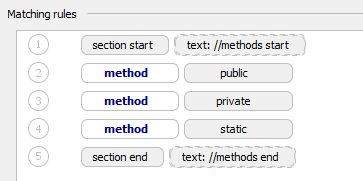
 : use this button to edit an existing rule. To see this button, navigate to the rule that you want to edit and click the button. In popup that opens, modify the rule fields.
 : use these buttons to move the selected rule up or down.