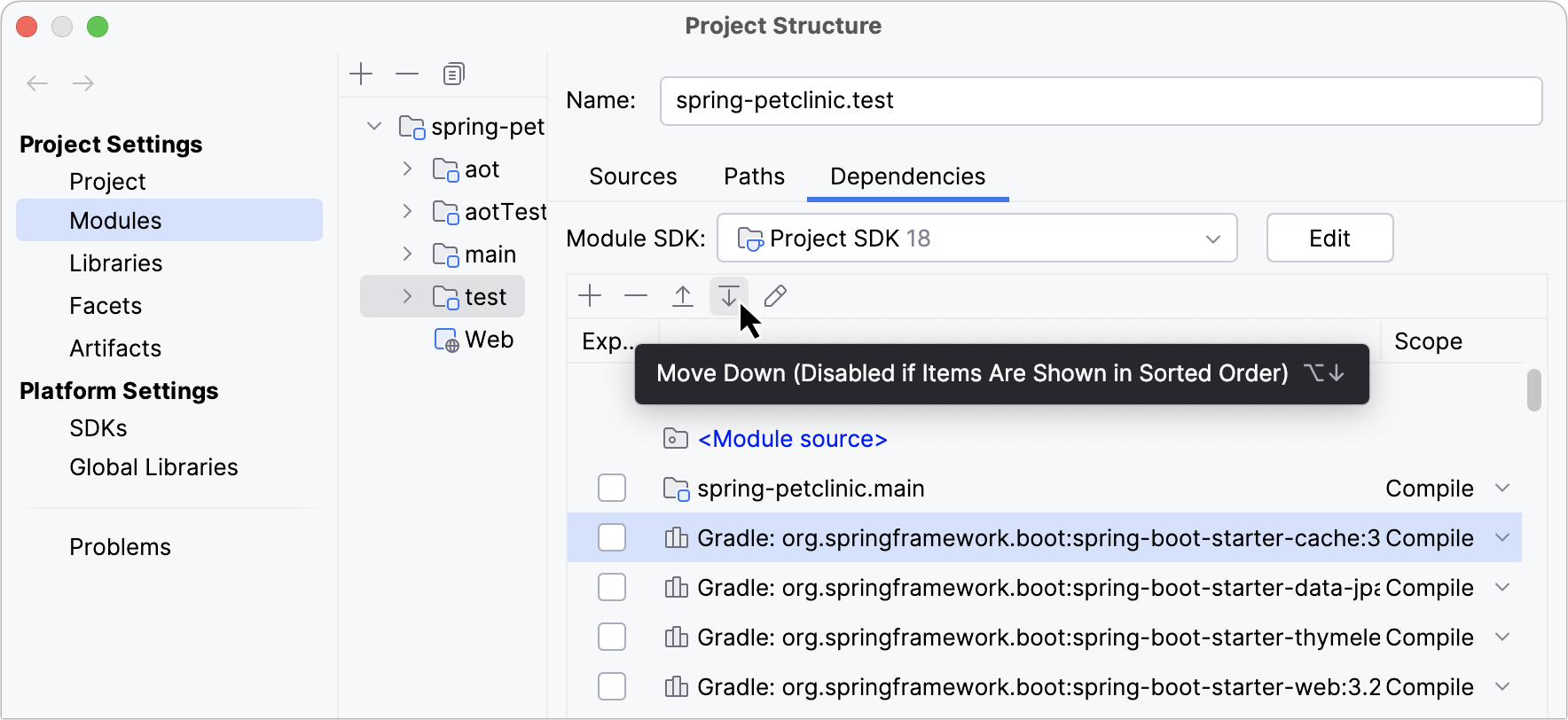
Module dependencies
Modules can depend on SDKs, JAR files (libraries) or other modules within a project. When you compile or run your code, the list of module dependencies is used to form the classpath for the compiler or the JVM.
Add a new dependency
In the main menu, go to Ctrl+Alt+Shift+S and click .
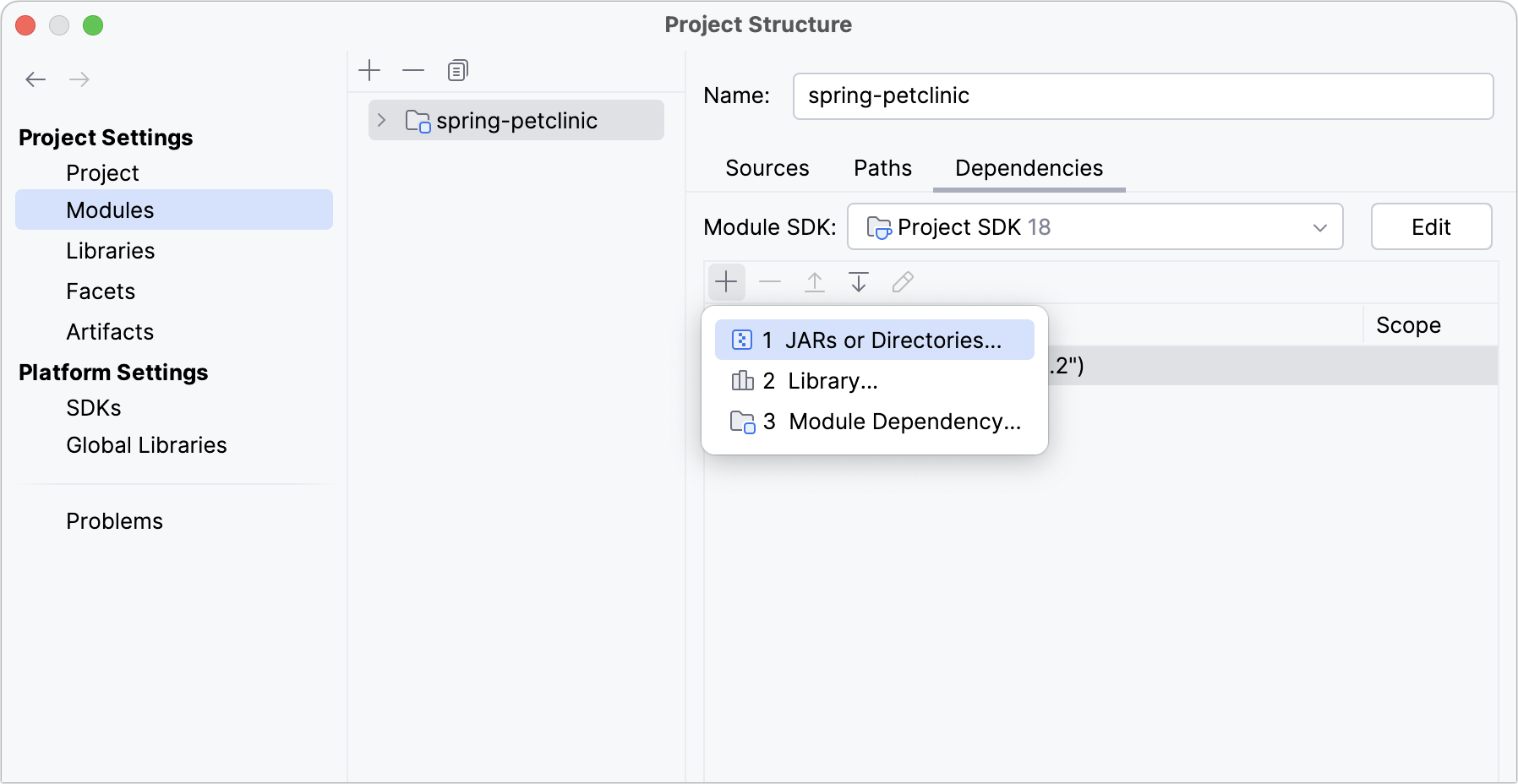
Click
 Alt+Insert and select a dependency type:
JARs or directories: select a Java archive or a directory from files on your computer.
Library: select an existing library or create a new one and then add it to the list of dependencies.
Module Dependency: select another module in the project.
Remove a dependency
Before removing a dependency, make sure that it is not used in other modules in the project. To do so, select the necessary dependency and press Alt+F7. You can also use the Find Usages option of the context menu.
Select the dependency that you want to remove and click
 or press Alt+Delete.
Analyze dependencies
If you want to check whether a dependency still exists in your project, and find its exact usages, you can run dependency analysis:
In the main menu, go to Ctrl+Alt+Shift+S and click .
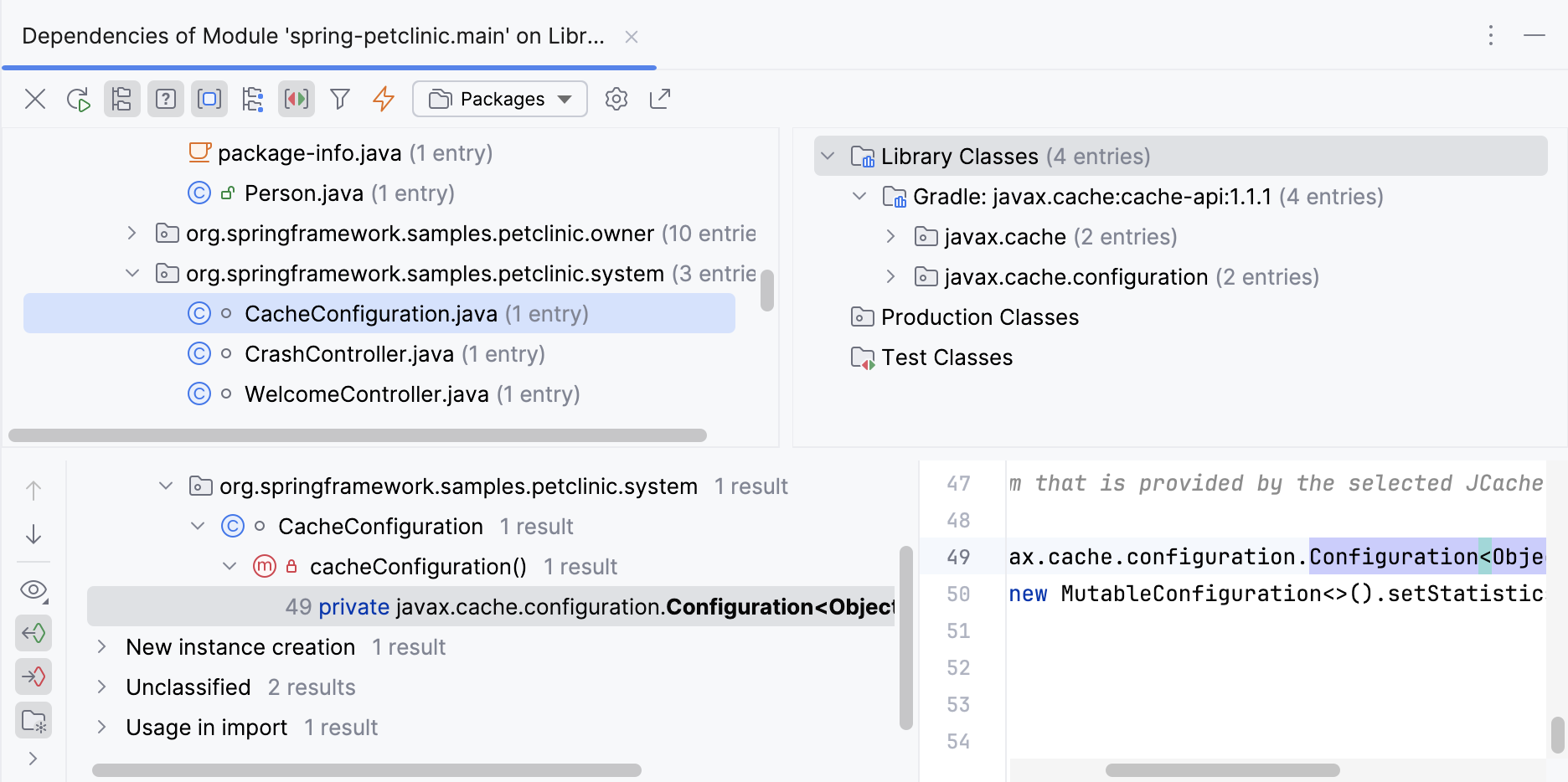
Right-click the necessary dependency and select Analyze This Dependency.
You can analyze several dependencies one by one without closing the dialog. The result of each analysis will be opened in a separate tab of the Dependency Viewer tool window. After you analyze all necessary dependencies, you can close the Project Structure dialog and view the results.
If IntelliJ IDEA finds no dependency usages in the project, you will be prompted to remove this dependency.
Configure a dependency scope
Specify a dependency scope
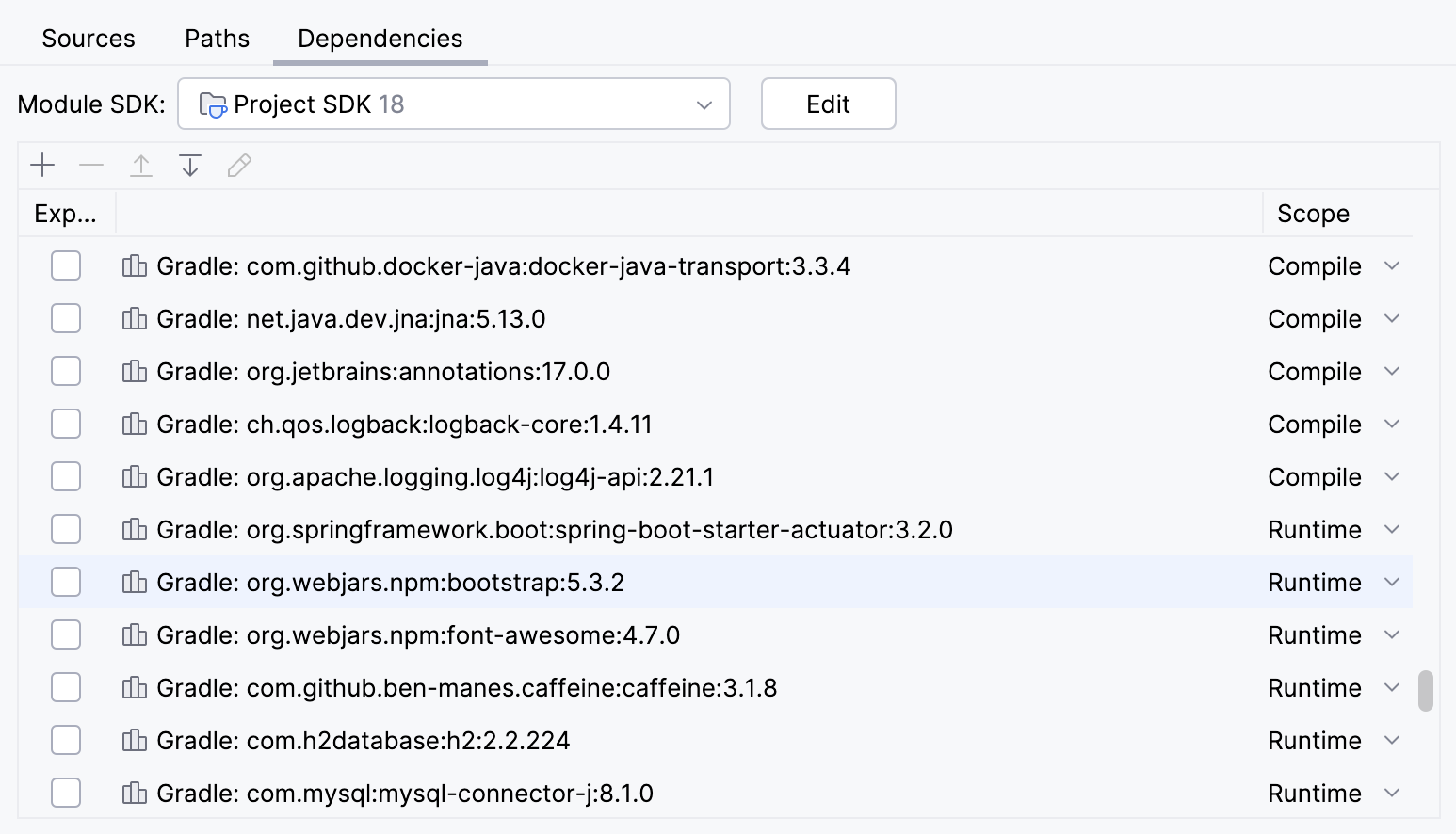
Specifying a dependency scope allows you to control at which step of the build the dependency should be used. The classpath may be different when your sources are compiled, your test sources are compiled, your compiled sources are run, your tests are run.
In the main menu, go to Ctrl+Alt+Shift+S and click .
Select the necessary scope from the list in the Scope column:
Compile: required to build, test, and run a project (the default scope).
Test: required to compile and run unit tests.
Runtime: included in the classpath for your sources and test sources but only at the run phase.
Provided: used for building and testing a project.
The Export option lets you control the compilation classpath for the modules that depend on this one: the marked items will be included in the compilation classpath of the dependent module.
IntelliJ IDEA processes dependencies for test sources differently from other build tools (for example, Gradle and Maven).
If your module (say, module A) depends on another module (module B), IntelliJ IDEA assumes that the test sources in A depend not only on the sources in B but also on its own test sources. Consequently, the test sources of B are also included in the corresponding classpaths.
The following table summarizes the classpath information for the possible dependency scopes.
Scope | Sources, when compiled | Sources, when run | Tests, when compiled | Tests, when run |
Compile | + | + | + | + |
Test | - | - | + | + |
Runtime | - | + | - | + |
Provided | + | - | + | + |
Sort dependencies
The order of dependencies is important as IntelliJ IDEA will process them in the same order as they are specified in the list.
During compilation, the order of dependencies defines the order in which the compiler (javac) looks for classes to resolve the corresponding references. At runtime, this list defines the order in which the JVM searches for the classes.
To sort dependencies, select Ctrl+Alt+Shift+S and click
You can sort dependencies by their names and scopes. You can also use  and
and  to move the items up and down the list.