Write and edit source code
When you work with code, IntelliJ IDEA ensures that your work is stress-free. It offers various shortcuts and features to help you add, select, copy, move, edit, fold, find occurrences, and save code.
For navigation inside the editor, refer to Editor basics.
Transpose characters
In the editor, place the caret at the characters you want to swap.
Go to .
There is no default shortcut for this action. You can assign a custom shortcut.
Floating toolbar
The floating toolbar contains various actions for code editing. It appears when you hover over a selected code fragment in Java, Kotlin, JSON, XML, YAML, and SQL files in the editor.
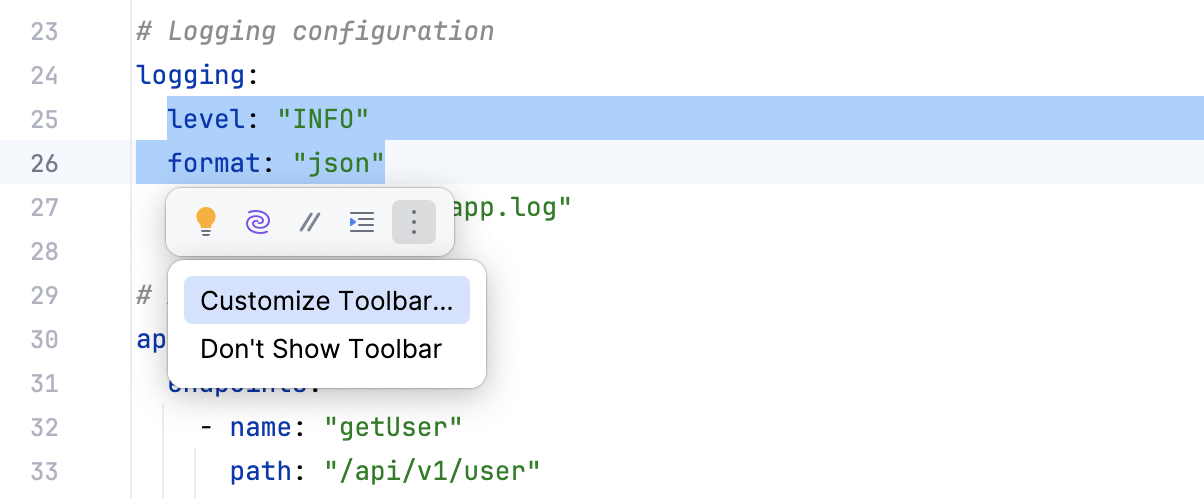
 : View intention actions
 : AI actions (only if AI Assistant is enabled)
 :
:  :
: Enable the toolbar
Press Ctrl+Alt+S to open settings and then select .
In the Editor section, disable the Hide floating toolbar for code editing option.
Apply the changes and close the dialog.
Customize the toolbar
Press Ctrl+Alt+S to open settings and then select .
Alternatively, click
 on the toolbar and select Customize Toolbar.
Add or remove actions under Floating Code Toolbar.
For more information, refer to Menus and toolbars.
Apply the changes and close the dialog.
Lines of code
IntelliJ IDEA offers several useful shortcuts for manipulating code lines.
To add a line after the current one, press Shift+Enter. IntelliJ IDEA moves the caret to the next line.
To add a line before the current one, press Ctrl+Alt+Enter. IntelliJ IDEA moves the caret to the previous line.
To duplicate a line, press Ctrl+D.
To sort lines alphabetically in the whole file or in a code selection, go to or . These actions might be helpful when you work with property files, data sets, text files, log files, and so on. If you need to assign shortcuts to those actions, refer to Configure keyboard shortcuts for more information.
To delete a line, place the caret at the line you need and press Ctrl+Y.
To join lines, place the caret at the line to which you want to join the other lines and press Ctrl+Shift+J. Keep pressing the keys until all the needed elements are joined.
You can also join string literals, a field or variable declaration, and a statement. Note that IntelliJ IDEA checks the code style settings and eliminates unwanted spaces and redundant characters.
To split string literals into two parts, press Enter.
IntelliJ IDEA splits the string and provides the correct syntax. You can also use the Break string on '\n' intention to split string literals. Press Alt+Enter or click
to select this intention.To comment a line of code, place the caret at the appropriate line and press Ctrl+/. Press Ctrl+/ again on the same line to uncomment it.
To move a line up or down, press Alt+Shift+Up or Alt+Shift+Down respectively.
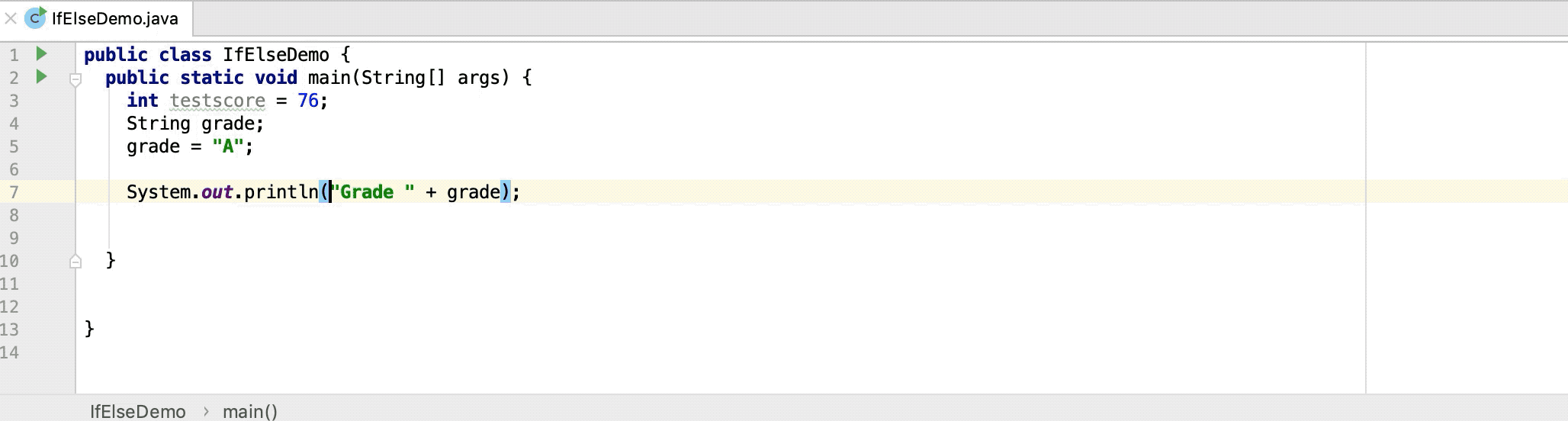
To move (swap) a code element to the left or to the right, place the caret at it, or select it and press Ctrl+Alt+Shift+Left for left or Ctrl+Alt+Shift+Right for right.
For example, for Java you can use these actions for method invocation or method declaration arguments, enum constants, array initializer expressions. For XML or HTML, use these actions for tag attributes.
Copy and paste code
You can use the standard shortcuts to copy Ctrl+C and paste Ctrl+V any selected code fragment. If nothing is selected, IntelliJ IDEA automatically copies as is the whole line where the caret is located.
By default, when you paste anything in the editor, IntelliJ IDEA performs "smart" paste, for example, pasting multiple lines in comments will automatically add the appropriate markers to the lines you are pasting. If you need to paste just plain text, press Ctrl+Alt+Shift+V.
When you copy (Ctrl+C) or cut (Ctrl+X) a line without any code selected, the paste action will add the contents of the clipboard to above the current line, not at your caret.
If you want to paste your copied code at the caret, select the Paste at the caret position option in the advanced settings.
Place the caret at a line or a symbol, right-click to open the context menu, select . When you select the Copy Reference (Ctrl+Alt+Shift+C) option, IntelliJ IDEA creates a reference string that includes the line number of the selected line or symbol. You can press Ctrl+V to paste the copied reference anywhere.
IntelliJ IDEA keeps track of everything you copy to the clipboard. To paste from history, in the editor, from the context menu, select (Ctrl+Shift+V). In the dialog that opens, select your entry and click Paste.
When you copy and paste code to the editor, IntelliJ IDEA displays the hidden (special) characters represented by their Unicode name abbreviation.

Code selection
Select code constructs
In the editor, place the caret at the item you want to select and press Ctrl+W/Ctrl+Shift+W to extend or shrink your selection.
For example, in a plain text file, the selection starts within the whole word then extends to the sentence, paragraph, and so on.
In a Java file, if you start by selecting an argument in a method call, it will extend to all arguments, then to the whole method, then to the expression containing this method, then to a larger block of expressions, and so on.
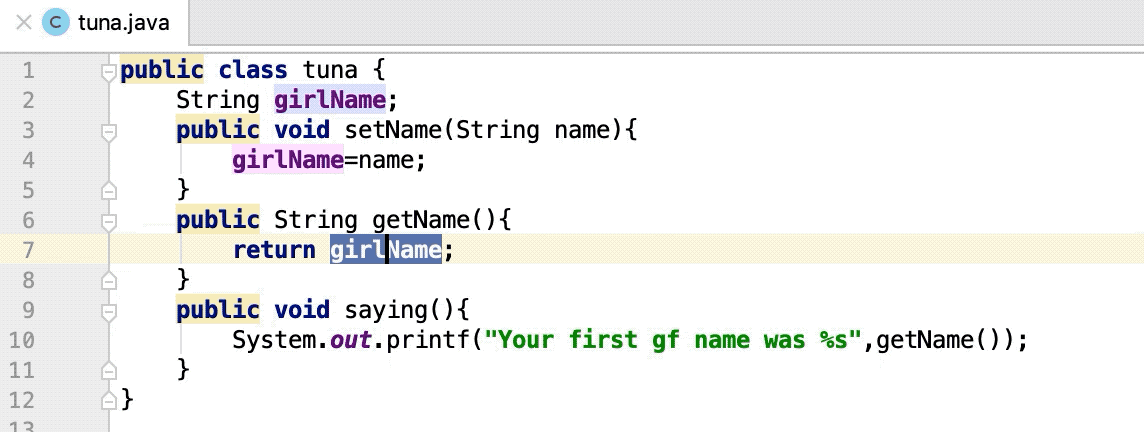
If you need to highlight your braces, place the caret immediately after the block closing brace/bracket or before the block opening brace/bracket.
Select code according to capitalization
In the Settings dialog (Ctrl+Alt+S) , go to .
Select the Use "CamelHumps" words checkbox.
If you want to select words with a double click according to capitalization, make sure that the Honor "CamelHumps" words settings when selecting on double click checkbox right below is also selected.
Code statements
Move statements
In the editor, place the caret at the needed statement and press Ctrl+Shift+Up to move a statement up or Ctrl+Shift+Down to move a statement down. IntelliJ IDEA moves the selected statement performing a syntax check.
Complete current statement
In the editor, press Ctrl+Shift+Enter or from the main menu select . IntelliJ IDEA inserts the required trailing comma automatically in structs, slices, and other composite literals. The caret is moved to the position where you can start typing the next statement.
Unwrap or remove statement
Place the caret at the expression you want to remove or unwrap.
Press Ctrl+Shift+Delete or select Code | Unwrap/Remove from the main menu.
IntelliJ IDEA shows a popup with all actions available in the current context. To make it easier to distinguish between statements to be extracted and statements to be removed, IntelliJ IDEA uses different background colors.
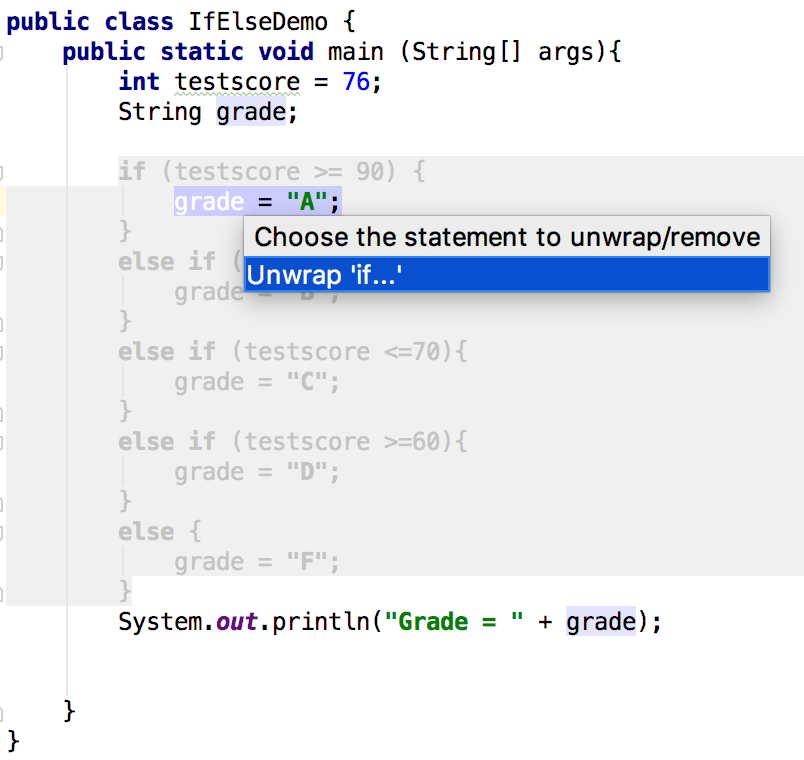
Select an action and press Enter.
Code fragments
Move and copy code fragments by dragging them in the editor.
To move a code fragment, select it and drag the selection to the target location.
To copy a code selection, keeping Ctrl pressed, drag it to the target location.
The drag functionality is enabled by default. To disable it, in the Settings dialog (Ctrl+Alt+S) , go to and clear the Move code fragments with drag-and-drop checkbox in the Mouse Control section.
To toggle between the upper and lower case for the selected code fragment, press Ctrl+Shift+U.
Note that when you apply the toggle case action to the CamelCase name format, IntelliJ IDEA converts the name to the lower case.
To comment or uncomment a code fragment, select it and press Ctrl+Shift+/.
To configure settings for where the generated line or block comments should be placed in Java, in the Settings dialog (Ctrl+Alt+S) , go to and on the Code Generation tab use options in the Comment Code section.
Code folding
IntelliJ IDEA automatically recognizes certain code structures and makes them foldable. You can also define custom folding regions.
Folded code fragments are shown as shaded ellipses ( ). If a folded code fragment has errors, IntelliJ IDEA highlights the fragment in red.
By default, folding icons in the gutter show up on hover. You can change this and configure other code folding settings in . For example, you can disable the default folding for one-line Rust methods:
Go to in the main menu (Ctrl+Shift+A) and search for folding. IntelliJ IDEA will show a popup with all folding actions with their shortcuts:
Expand or collapse code elements
To fold or unfold a code fragment, press Ctrl+NumPad -/Ctrl+NumPad +. IntelliJ IDEA folds or unfolds the current code fragment, for example, a single method.
To collapse or expand all code fragments, press Ctrl+Shift+NumPad -/Ctrl+Shift+NumPad +.
IntelliJ IDEA collapses or expands all fragments within the selection, or, if nothing is selected, all fragments in the current file, for example, all methods in a file.
To collapse or expand code recursively, press Ctrl+Alt+NumPad -/Ctrl+Alt+NumPad +. IntelliJ IDEA collapses or expands the current fragment and all its subordinate regions within that fragment.
To fold a block of code inside a pair of matching curly braces
{}, press Ctrl+NumPad -. To expand the block, press Ctrl+NumPad +.To collapse or expand doc comments in the current file, in the main menu select or Collapse Doc Comments.
To collapse or expand a custom code fragment, select it and press Ctrl+.. Alternatively, mark the code fragment as Custom folding region.
You can fold or unfold any manually selected regions in code.
Fold or unfold nested fragments
To expand the current fragment and all the nested fragments, press Ctrl+NumPad *, 1. You can expand the current fragment up to the specified nesting level (from 1 to 5).
To expand all the collapsed fragments in the file, press Ctrl+Shift+NumPad *, 1. You can expand the collapsed fragments up to the specified nesting level (from 1 to 5).
Custom folding regions
You can make any code fragment foldable by marking it as a custom folding region with dedicated comments. After that, you can expand and collapse the fragment with Ctrl+. or have it collapsed automatically on opening the file.
In the editor, select a code fragment and press Ctrl+Alt+T.
From the popup menu, select <editor-fold...> Comments or region...endregion Comments.
Optionally, specify a description under which the collapsed fragment will be hidden.
To collapse or expand the created region, press Ctrl+..
To navigate to the created custom region, press Ctrl+Alt+..
Configure code folding icons
You can select how to display folding icons that appear in the gutter or disable them completely.
Press Ctrl+Alt+S to open settings and then select .
From the Show code folding arrows list, select Always or On mouse hover.
Clear the checkbox to disable the icons.