Add frameworks (facets)
For developing framework-specific applications, IntelliJ IDEA features facets. Facets contain libraries, dependencies, and technologies, and they provide you with additional UI elements for configuring framework-specific settings.
Note that not all facets are available out of the box. To be able to use some of them, you need to install a plugin for the necessary framework first. For more information about existing plugins, refer to JetBrains Marketplace.
IntelliJ IDEA can identify a file or a directory that is typical for a certain framework and add the necessary facet for you. Once the facet is detected and added, IntelliJ IDEA will inform you about the missing configuration and will suggest the necessary actions.
If a facet is not detected automatically, you can add it manually. You can add more than one facet to a module.
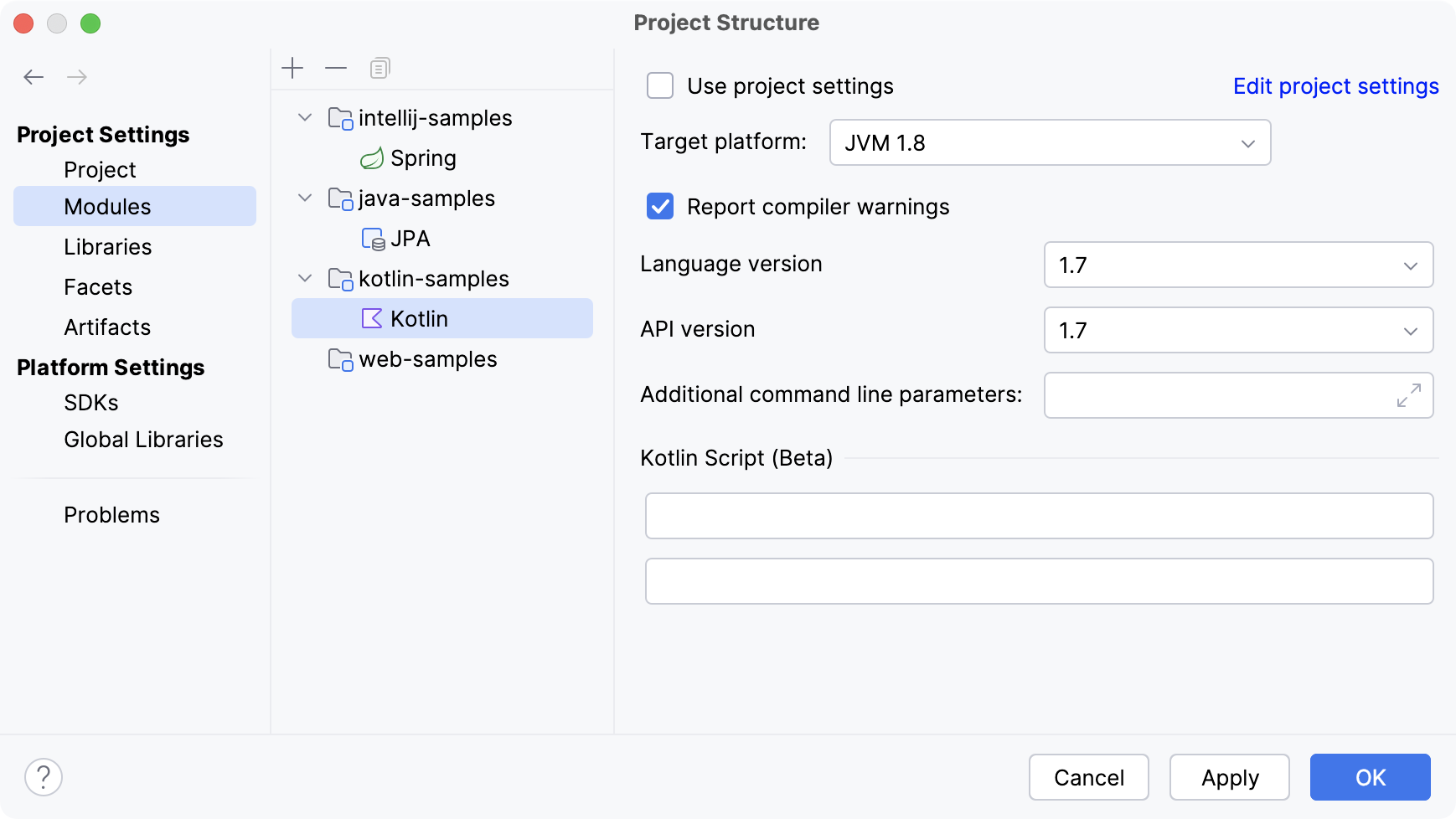
You can find all facets that are configured for modules in your project in the Project Structure dialog: in the main menu, go to (Ctrl+Alt+Shift+S) and select Modules.
If you use a build tool in your project, such as Maven or Gradle, make all changes using the build file.
Manually add a facet to a module
Press Alt+1 or go to in the main menu to open the Project tool window.
In the Project tool window, select the module to which you want to add a facet.
Press Ctrl+Shift+A and type
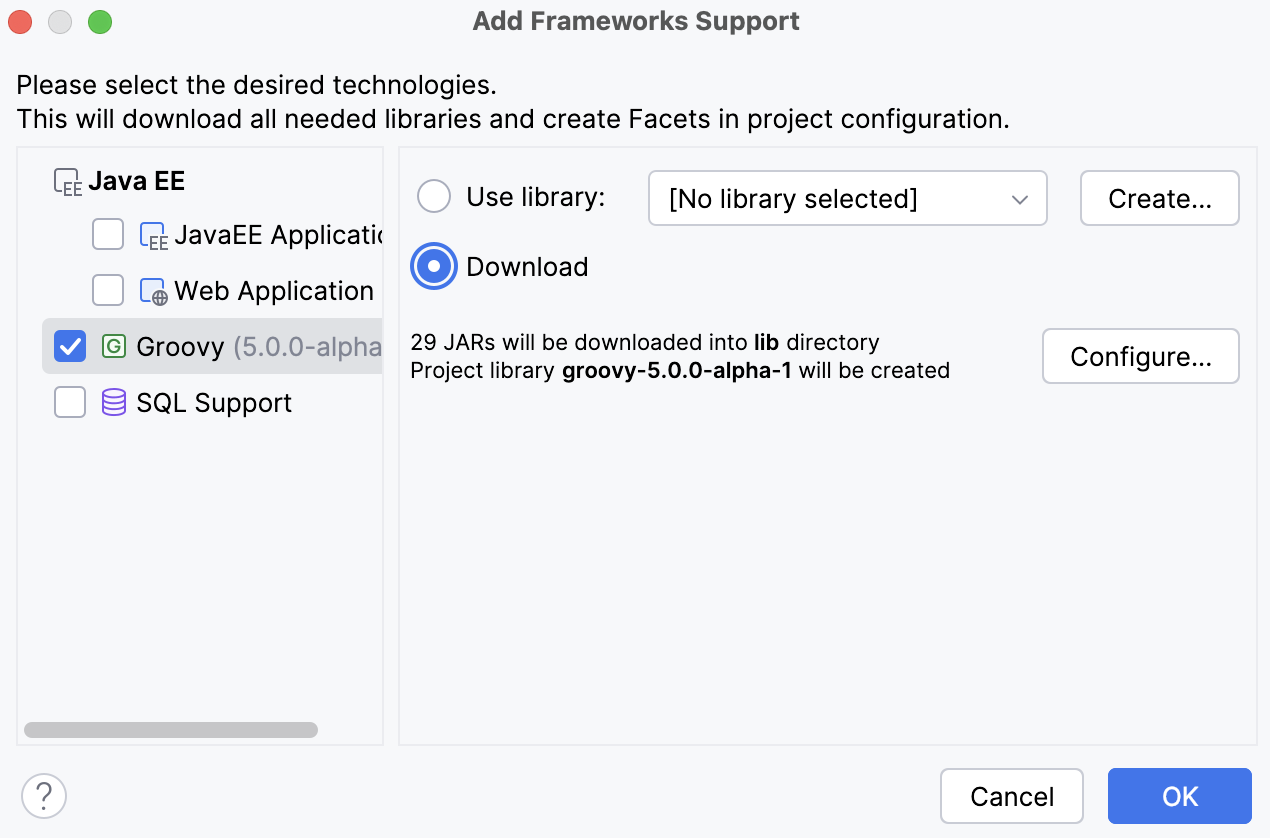
Add Framework Support.Once the action is found, click it to open the Add Framework Support dialog.
Select the necessary framework from the list.
Depending on your choice, you might be prompted to configure additional settings (for example, to configure a library).
Apply the changes and close the dialog.
Disable framework auto-detection
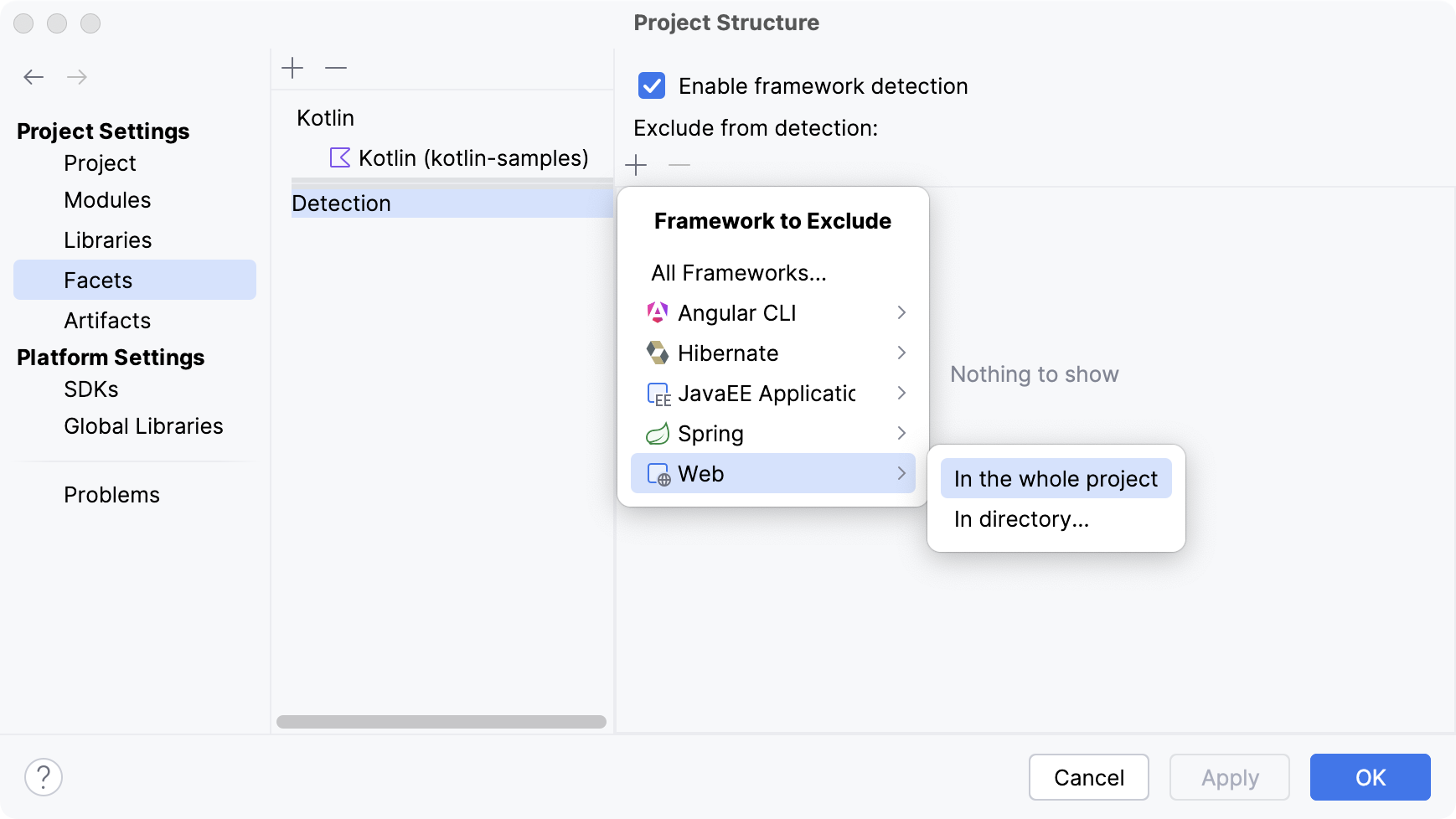
By default, auto-detection is enabled for all the supported frameworks. You can disable framework auto-detection completely, or exclude individual frameworks from auto-detection.
In the main menu, go to (Ctrl+Alt+Shift+S) and select Facets.
Select Detection and click
 Alt+Insert.
From the Framework to Exclude list, select the necessary option.
You can disable auto-detection of a specific framework only in one directory or in the whole project. The list also allows you to disable auto-detection of all frameworks in a specific directory.
If you want to disable auto-detection of all frameworks in the whole project, deselect the Enable framework detection checkbox.
To re-enable auto-detection everywhere, select the Enable framework detection checkbox and remove all entries from the Exclude from detection list.