| Web Application |
Select this check box to have a Web facet created.
With the Web support enabled, specify the technologies to be supported in a new module. The available options depend on the
installed plugins; for example:
- Version
If Web Application is currently selected, the Version list contains the supported versions of the web application
deployment descriptor (web.xml). (Select the required version.)
For Struts/Struts2, JSF, WebServices,
WebServices Client, Enterprise JavaBeans, JavaEE Persistence,
Spring, and Tapestry, the Version list contains the
libraries that you can download and use in your projects or modules.
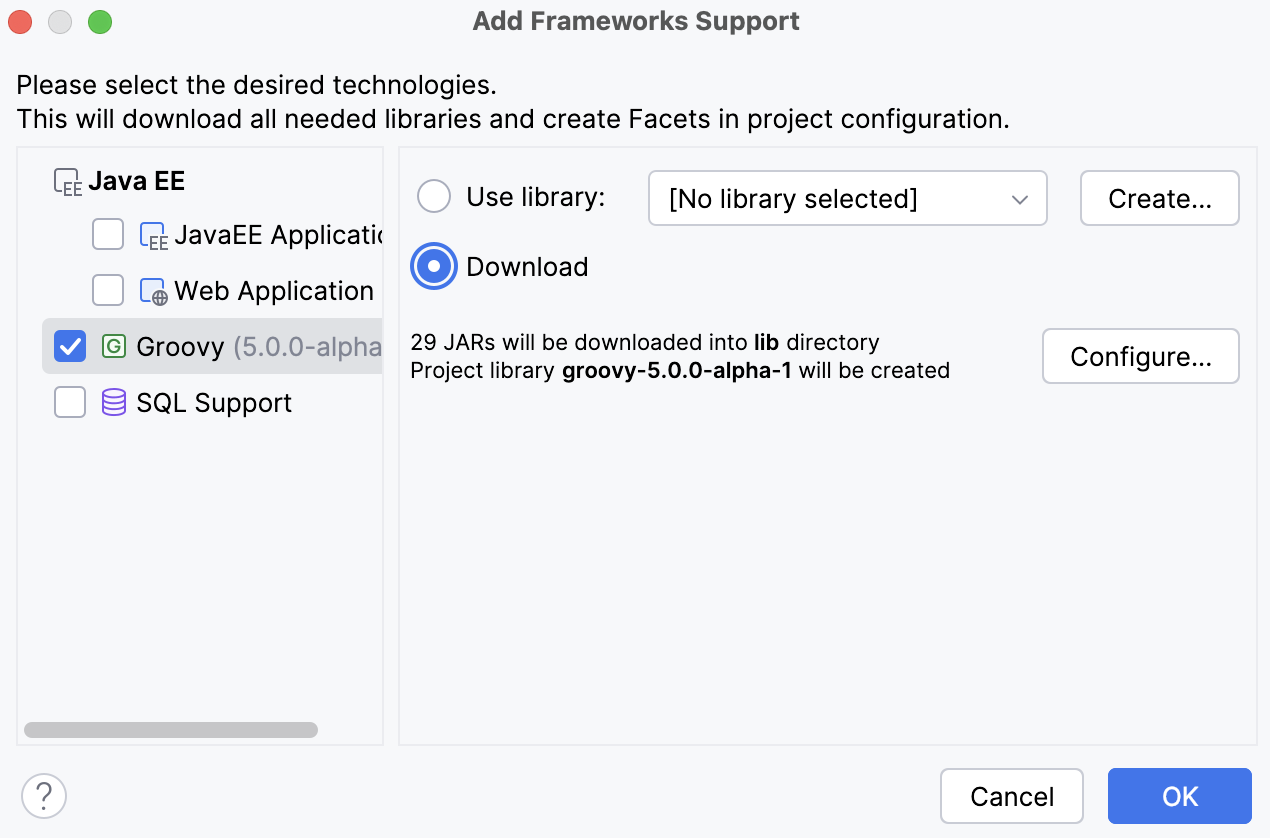
- Libraries
Use the controls in this area, and also the Version list above to configure the libraries necessary
for your module.
Note
For certain technologies, the library options are not available.
- Version. Select the library to be downloaded. (Used in combination with the Download option.)
- Use library. Select the library already available in the current context or create a new library
using the appropriate JAR files available on your computer. Do one of the following:
- Select the required library from the list. The list contents may be different depending on the situation:
-
If you are creating a new project, this list contains the libraries already defined in IntelliJ IDEA as
global libraries.
-
If your are adding a new module to an existing project, this list contains the libraries defined as
the project-level libraries for the current project.
-
Click Create and select the JAR files containing the required library classes in the Select Path dialog.
To enable multiple selection, keep the CtrlCtrl key pressed.
- Download the library selected in the Version list (above the Libraries area).
- Set up library later means "postpone setting up the library till a later time".
- Configure the library. The available options are different depending on whether you have chosen to download
the library, use an existing library, or create a new one:
-
If you've chosen to download the library, the Downloading Options dialog opens in which you can:
-
Specify the library name in the Name field.
-
Select the hierarchical level the library should be assigned to (global, project or module) from the
Level list.
-
Select which files you want to download (and include in the library) by selecting and clearing the check boxes in the area
under Files to download.
-
Specify the directory in which the downloaded files should be stored in the field under
Copy downloaded files to. If you want to change the default location, click the
Browse button
and select the required
directory location in the Select Path dialog.
-
If you've chosen to use an existing library, the Edit Library dialog opens in which you can change
the library name and also perform standard library management routines.
See the descriptions of the corresponding controls.
-
If you've chosen to create a new library, the Create Library dialog opens in which you can change the library name,
select the hierarchical level the library should be associated with (global, project or module)
as well as perform standard library management routines. See the descriptions of the corresponding controls.
|
| WebServices Client |
Select this check box to have a WebServices Client facet created and, if necessary,
select the library to be downloaded from the Version list.
|
| Application Server |
Select this check box to specify a particular application server to deploy and run your application on.
To specify the target application server for your application, select the Application Server check box,
choose the required server from the Application Server drop-down list, and specify the server installation directory.
Based on the selected application server, IntelliJ IDEA creates a default run/debug configuration of the corresponding type.
Tip
IntelliJ IDEA remembers the specified location and will suggest using this installation next time you specify this type of
application server for a module.
Application Server Settings: In this area, specify the application server to use.
- Application Server - from this drop-down list, choose the required server.
- <server name> home - in this text box, specify the server installation directory. Type the path to the directory manually
or click the Browse button
and choose the directory from the Select Path
dialog box that opens.
|
| Enterprise JavaBeans |
Select this check box to have an EJB facet created and thus enable the EJB support.
If necessary, select the library to be downloaded from the Version list.
|
| Java EE Application |
Select this check box to have a Java EE Application facet created and
select the desired version from the drop-down list.
|
| JavaEE Persistence |
Select this check box to have a JPA facet created. Additionally:
- Select the required version of persistence.xml.
The selected version defines the library that you can download and use in your project or module.
- Import database schema. Select this check box to have the desired database schema imported automatically.
- If you have selected to import the database schema, select the desired database scheme from the list above the
Import database schema check box. The available options are:
- Eclipse
- Hibernate
- Open JPA
- TopLink
|
| Google Web Toolkit |
Select this check box to create GWT facet.
|
| Groovy |
Select this check box to have a Groovy facet created.
In the text box, type the path to the desired Groovy SDK or click the Browse button
to open the Select Groovy SDK Path dialog box, where you can select the desired location.
|
| Hibernate |
Select this check box to have a Hibernate facet created
and configure the Hibernate support:
- Create default Hibernate configuration and main class - select this
check box to have IntelliJ IDEA automatically create a Hibernate configuration file
hibernate.cfg.xml and a class with the main() method.
- Import database schema - select this check box to have a database schema imported automatically.
|
| SQL Support |
Select this check box to enable SQL support. Use the drop-down list to specify the dialect to be used by default in the
project.
|
| Spring |
Select this check box to have a Spring facet created and, if necessary,
select the library to be downloaded from the Version list.
|
| Tapestry |
Select this check box to have a Tapestry facet created and, if necessary,
select the library to be downloaded from the Version list.
|