Placing Non-Palette Components or Forms
In addition to the GUI components from the Component Palette, you can use GUI components and forms not registered on the Palette, but available via your project's paths configuration.
A non-palette component can be associated with a GUI form, or with a class derived from JComponent. Such class should be available in your project or in the libraries. The class should be compiled, and should have a default constructor, because GUI Designer instantiates objects by calling their default constructors.
If a class does not have a default constructor, but instead has a constructor with parameters, the Custom Create property of this component is set to true, and createUIComponents() method is added to the source code, where you have to provide the form initialization.
To place non-Palette components on a GUI form
In the default Palette group, click the Non-Palette Component node.
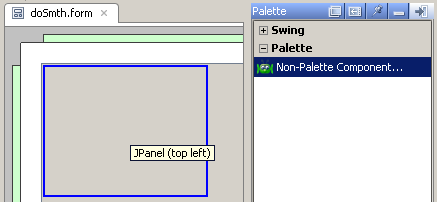
Move your pointer over the form workspace. Valid drop location highlights when the placement pointer hovers above it, the pointer changes its shape, and the drop target is described briefly in a tooltip, as shown in the following figure:
Click the form workspace at the desired location to place the component.
In the Add Non-Palette Component dialog, click the Class or Form radio button, and specify the name of the class or form in the text field. Alternatively, click the corresponding ellipsis button, or press Shift+Enter.
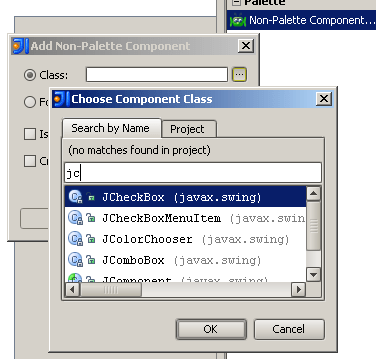
If you have selected Class option, locate the desired class, using Search by Name tab, or Project tab:
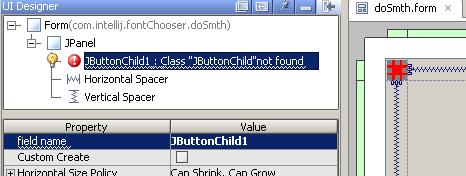
If IntelliJ IDEA cannot locate the compiled class with the specified name and the default constructor, the component is red highlighted in the form, which means that it will not show at runtime:
Compile the class Ctrl+Shift+F9 and press Reload Custom Components button on the toolbar

If you have selected Form option, locate the desired form, using Search by Name tab, or Project tab. The form should be bound to a class.
Check the option Is container, if you want the new component to be able to accommodate nested components. In this case, the component will acquire certain properties that are specific for containers.
Check the option Create binding automatically, if you want to generate a field for the component in the bound class.
Click OK.