Remote Host tool window
Use this tool window to view the folder structure of the target FTP/FTPS/SFTP servers and the data uploaded to them.
Open the Remote Host tool window
.
(available in the tool windows list only if it has previously been opened from ).
Options
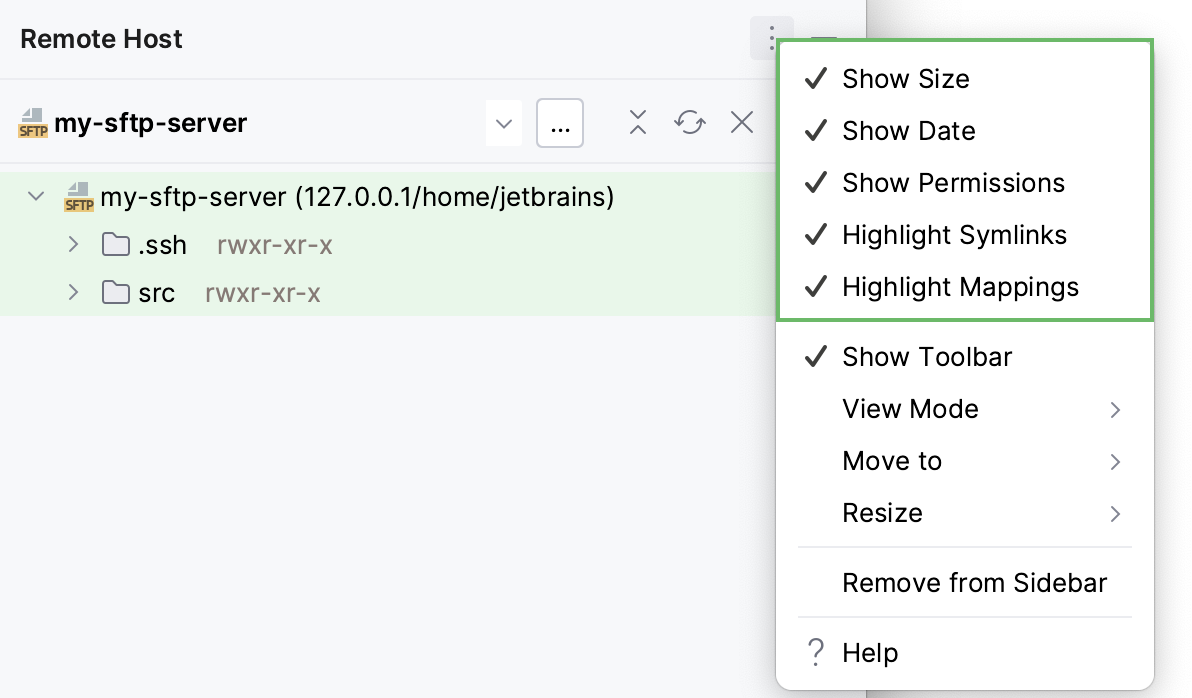
The options menu of the Remote Host tool window, besides general options, includes the options for displaying metadata about the uploaded files, such as the file size, access permissions, or the last modification date.
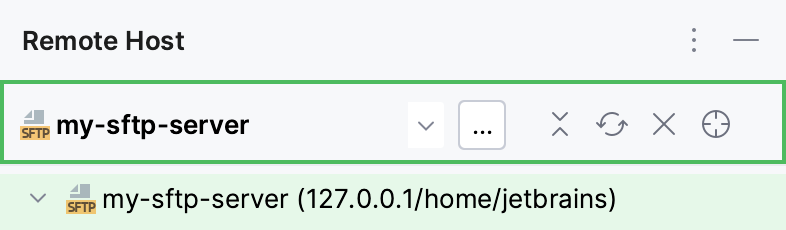
Toolbar
Item | Tooltip and Shortcut | Description |
|---|---|---|
Remote host | From this drop-down list, select the desired remote host configuration. | |
| Shift+Enter | Click the browse button to add a new server. |
| Collapse All Ctrl+NumPad - | Click this button to have all nodes in the view collapsed. |
| Refresh Ctrl+F5 | Click this button to refresh the view. |
| Close Ctrl+Shift+F4 | Click this button to close the tool window. |
| Select Opened File in Remote Host | Click this button to locate the currently opened file in the Remote Host browser. Applicable to the files in the local folders that are mapped and uploaded to the folders on a remote host. |


Context menu
Item | Description |
|---|---|
Upload Here | Choose this option to have the files from the currently opened project uploaded according to the selected configuration. If the action is invoked from the context menu of a file, the corresponding local file is uploaded. If the action is invoked from a folder, the entire folder is uploaded. |
Download from here | Choose this option to download the selected file or folder to the currently opened. The existing local files will be updated and the missing files will be created. |
New | Choose this option to create a new remote file or folder in the selected folder. The option is available only from the context menu of a folder. |
Rename | Choose this option to rename the selected file or folder. |
Delete | Choose this option to remove the selected file or folder. |
Cut | Choose this option to copy the name of the selected file or folder to the clipboard and remove the file or folder from the tree. |
Copy | Choose this option to copy the name of the selected file or folder to the clipboard. |
Paste | Choose this option to insert the previously copied name of a file or a folder into the tree. |
Edit Local File | When you select a file and choose this option, IntelliJ IDEA opens its local copy in the editor and moves the focus to the corresponding. The option is available only when the project with the corresponding local file is currently opened in the editor. |
Sync with Local | Choose this option to compare the selected remote folder with its local version. In the Diff Viewer for Folders that opens, explore the differences and synchronize the files, where applicable. See comparing two folders in the Diff Viewer. For more information, refer to Compare deployed files and folders with their local versions. |
Compare with Local Version | Choose this option to compare the selected remote file with its local version. In the Diff Viewer for Files dialog that opens, explore the differences and apply them, if necessary, using the For more information, refer to Compare deployed files and folders with their local versions. |
Edit Remote File | Choose this option to edit the selected file in the IntelliJ IDEA editor without adding it to the currently opened project. For more information, refer to Edit individual files on remote hosts. |
Exclude Path | Choose this option to exclude the selected folder from upload/download. For more information, refer to Exclude files and folders from uploading and downloading. |
Copy Path | Choose this option to copy the absolute path to the selected file or folder on the server to the clipboard. |
Start SSH Session in Directory | Choose this option to have IntelliJ IDEA start an SSH session in the Terminal tool window from the selected folder. Applicable to the remote hosts accessed via SSH (SFTP). |
 button. For more information, refer to