JPA console
Use the JPA console to write and run JPQL queries. It provides useful highlighting and completion for JPQL keywords, object, and property names.
Make sure that persistence.xml contains the necessary information for the persistence unit to be able to run JPQL queries from the corresponding JPA console: the persistence provider, a list of persistent classes, and connection properties. For example, in the case of EclipseLink and MySQL, it could be similar to the following:
Open the JPA console
Do any of the following:
In the Persistence tool window, right-click a persistence unit or entity and select JPA Console. Alternatively, you can click
 in the toolbar or press Ctrl+Shift+F10.
The JPA console input pane opens as a separate tab where you can write and execute JPQL queries.
The JPA console toolbar contains the following buttons:
| Ctrl+Enter | Run the current query. |
| Open the Database | Query execution page of the Settings dialog Ctrl+Alt+S. | |
| Open the Parameters pane to see the parameters used in your queries and set their values. | |
| Ctrl+Alt+E | Open the console history dialog that shows all the queries that you have run in this console. |
| Restore the original tool window layout after layout changes. | |
| Select the source for properties (available if a persistence unit is configured outside of | |
| Ctrl+F2 | Terminate the current console session. |
| Ctrl+Shift+F4 | Close the current console. |


Run JPQL queries
After you write a query, do one of the following:
Press Ctrl+Enter.
Click
 in the toolbar.
When you execute a query with parameters, you will need to enter their values. Alternatively, click  to open the Parameters pane.
IntelliJ IDEA stores all queries that you execute. Press Up to see the previously executed commands, starting from the most recent one. To see the full history, click  .
.
Run Spring Data query methods from the editor
With IntelliJ IDEA, you can run your Spring Data repository query methods right from the editor. This lets you verify a method's query without running the application. You can run:
Derived query methods in Spring Data JPA repositories: IntelliJ IDEA parses the method name, derives a query from it, and runs it in the JPA console.
Methods annotated with
@Queryand@NamedQuerywith an explicit JPQL query to execute.Methods annotated with
@NamedNativeQueryand methods annotated with@Queryand thenativeQuery = trueattribute — to run a native SQL query.
Open your repository source code.
In the gutter, click
 (Run query in console) next to a query method.
If a method has parameters, enter their values in the Parameters dialog that opens, press Enter, and click Execute.
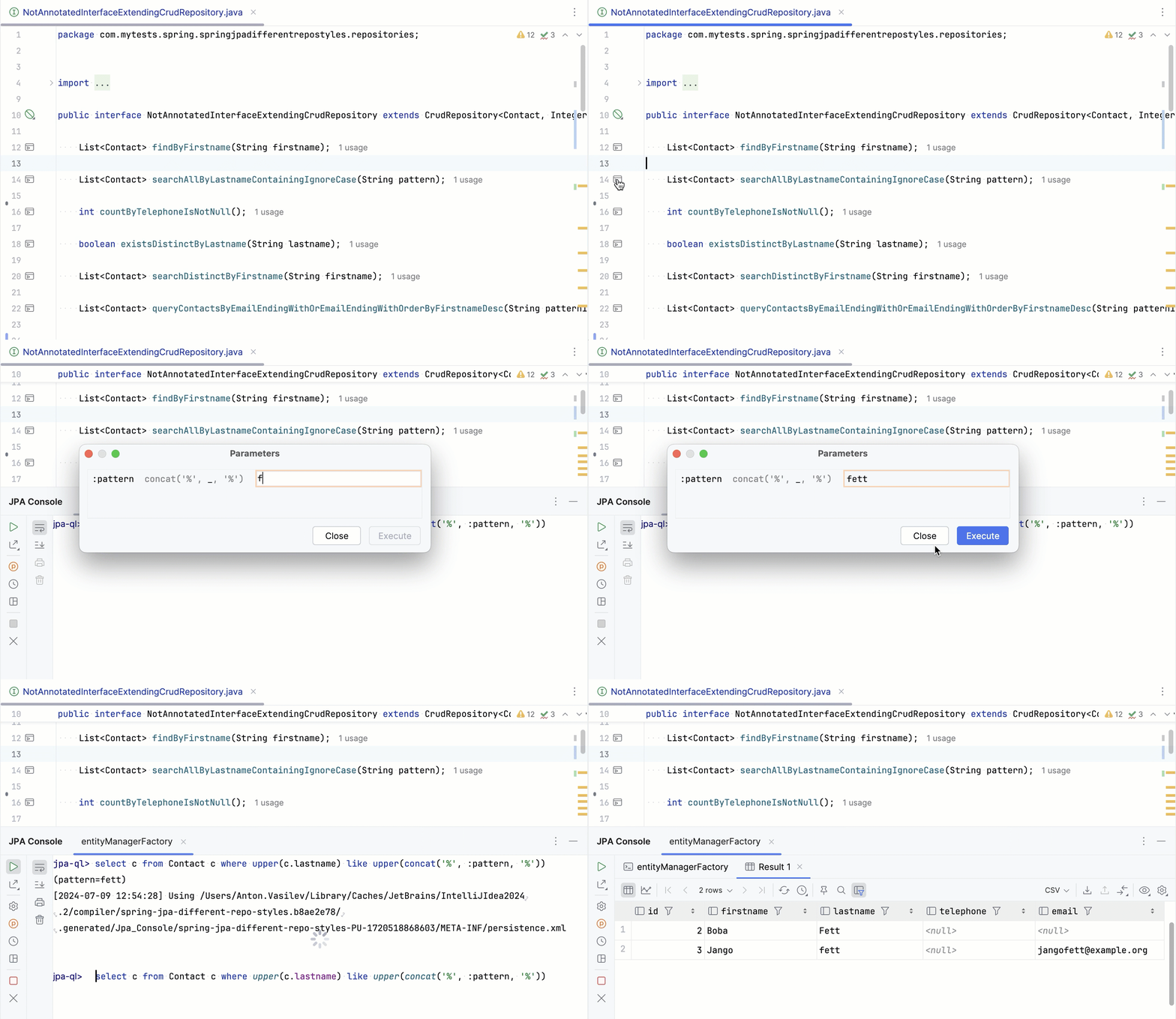
You can check the resulting query in the JPA Console tool window, which opens automatically when you run the method. For native SQL queries, the corresponding database session opens in the Services tool window. The output of the query is displayed in the Result tab of the tool window.
Navigate to the declaration of a class or field
When composing a query, it is useful to look at the declaration of the corresponding class or field.
Hold Ctrl and click the relevant object or property.
Place the caret at the name of the relevant object or property and press Ctrl+B or select from the main menu.
Use the JPA console with custom JVM options
The JPA Console runs in a separate Java process. You can run this process with custom JVM options by creating a run configuration and then selecting it when you open the console.
Open the Run/Debug Configurations dialog:
In the main toolbar, click the run widget and select Edit Configurations….
Alternatively, go to .
On the left side of the dialog, select
 Add New Configuration |
  Application.
On the right side of the dialog, select .
In the VM options field, specify the options that you want to pass to the JVM when opening the JPA Console.
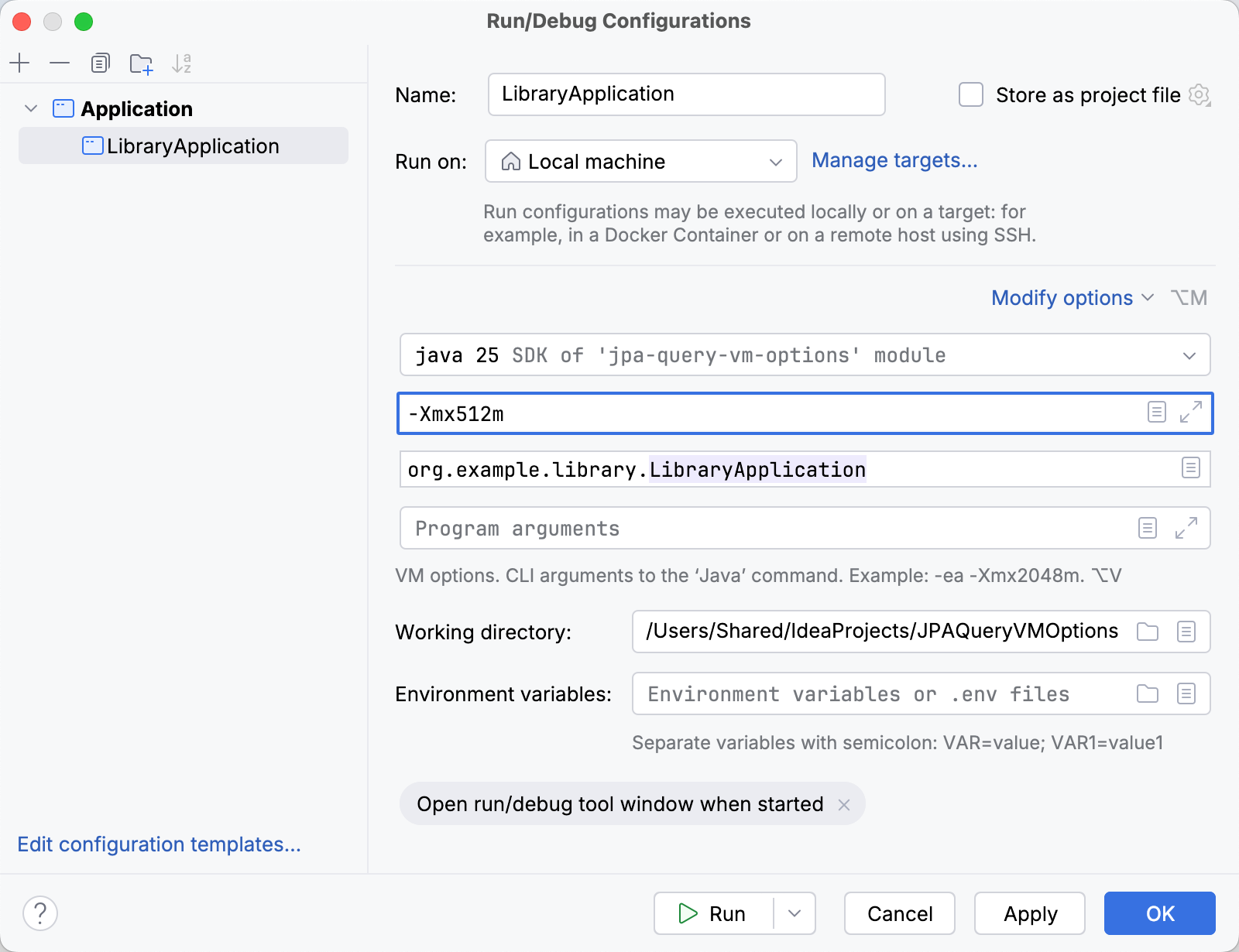
You can also set up other run configuration settings, but it is not required for the JPA Console.
Click Apply and then OK.
Go to the Persistence tool window.
In the tool window toolbar, select
JPA Console |  <Your Configuration Name>.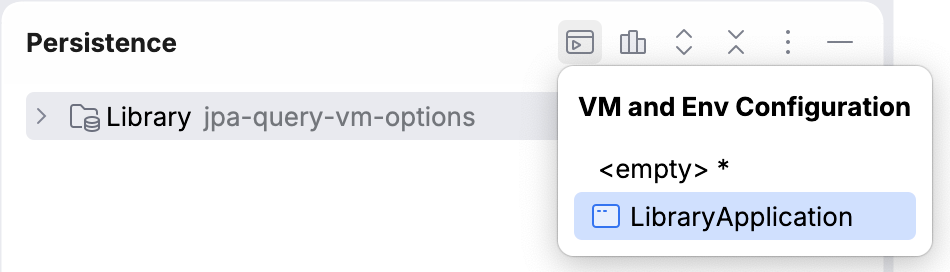
The JPA Console opens with your JVM options applied. You can now run JPQL queries.