AppCode Features
Advanced Coding Assistance
Code Completion
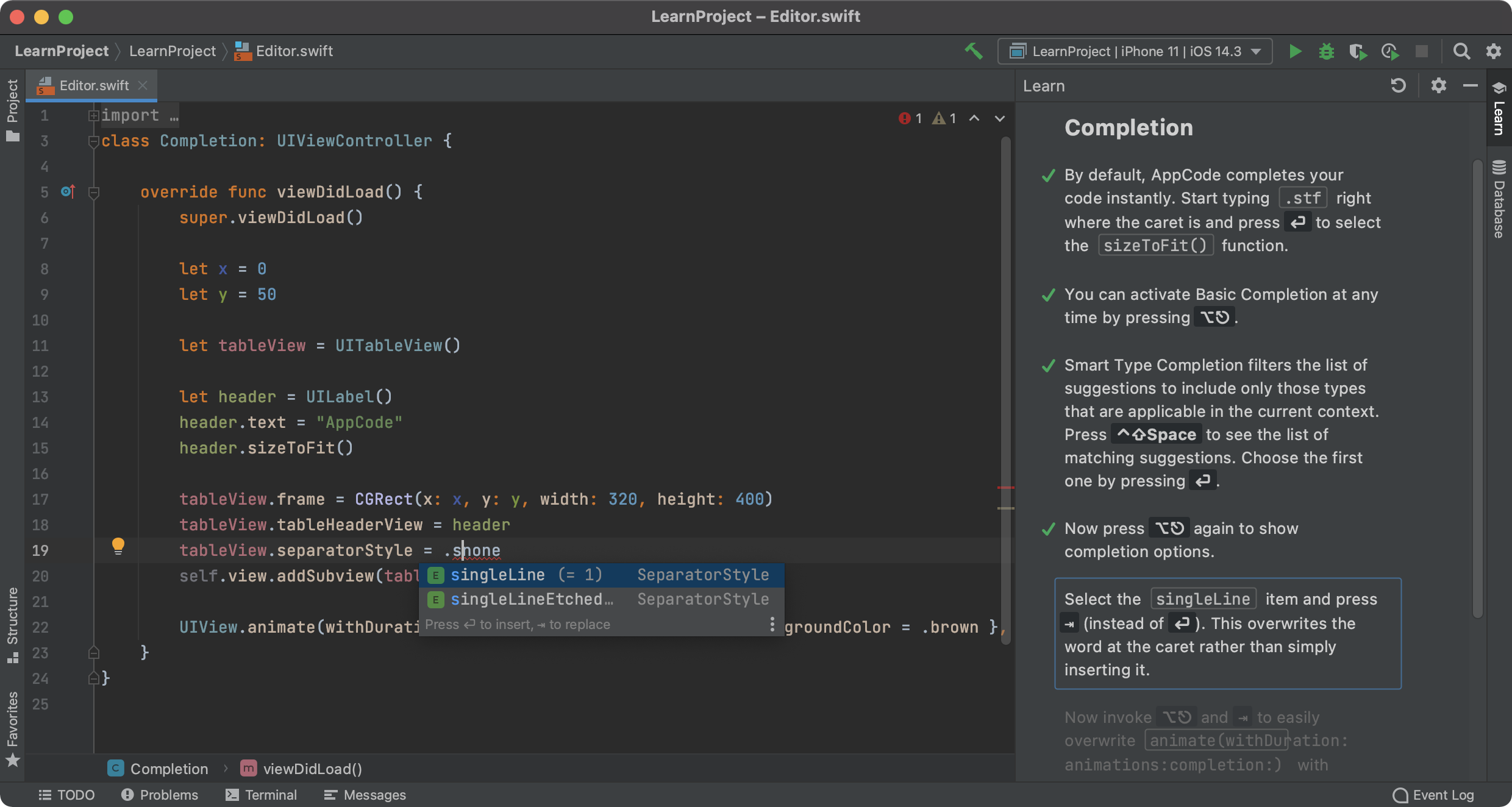
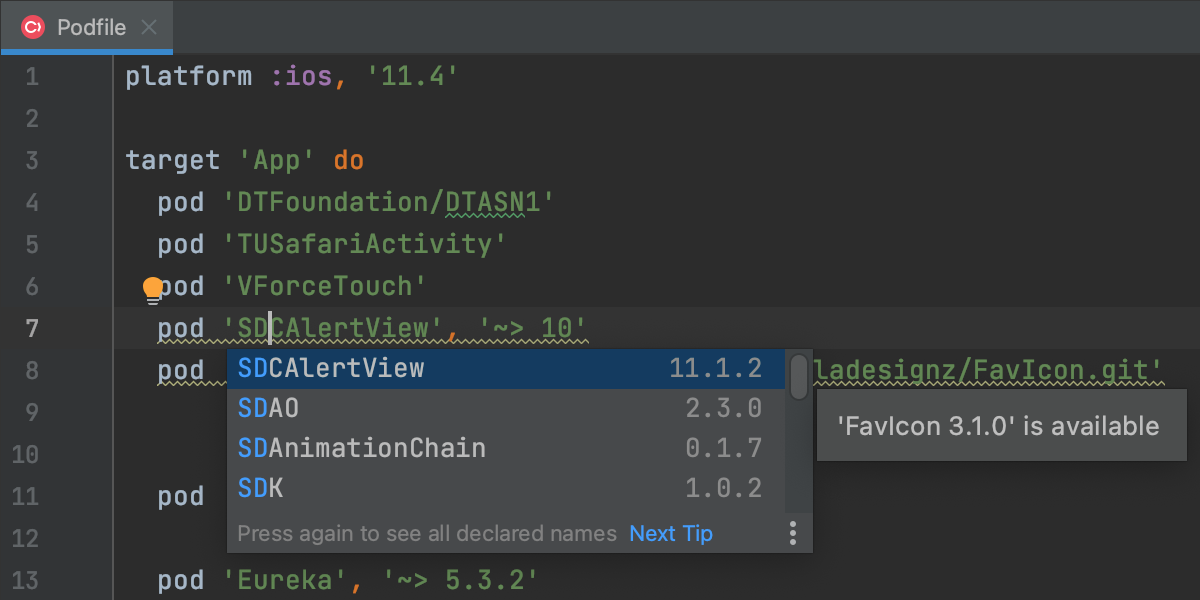
AppCode offers two kinds of code completion: basic as-you-type completion and more advanced "SmartType" completion for more precise filtering of suggestions. Both completion types support "CamelHumps" and "Middle Matching" – that is, you can either complete any item by entering only its uppercase characters, or start typing any middle part of an item.
All completion results are ranged and ordered by relevance considering the caret position and surrounding code. If you are completing something that isn't imported yet, AppCode can even add the import automatically for you.
Automatic Import and Imports Optimization
When you start using a class that is not yet imported, AppCode will suggest you to add the corresponding import automatically, or even add the import when you complete code.
With a number of code changes, some imports may become unused, these will be highlighted in the editor. To easily clean up your code, use Optimize Imports action that will remove unused, excessive and duplicating imports in your project.
Parameter Info
When you call a method or a function, sometimes you might not remember what parameters you should pass to it, that's where Parameter Info (Ctrl+P) can help you. It shows you parameter types and available function signatures.
Quick Definition/Documentation
AppCode allows you to see a method's implementation without need to navigate to it and leave current context – just position the caret on the method call and press Alt+Space.
Or, if want to see documentation for it, just hit F1. The documentation shows in a pop-up window with clickable links to other resources. As a bonus, quick documentation can show you even macro substitution.
Code Formatting
Code formatting works as you type but can also be invoked implicitly on a selected code fragment, a file, or a whole directory. You can adjust all code formatting options to meet your preferable code style, or required guideline.
Comment/Uncomment Code
To instantly comment or uncomment any block of code, select it in the editor and press Cmd+/ (for line comment) or Alt+Cmd+/ (for block comments). For a line comment, you don't even need to have the line selected.
Expand/Shrink Code Selection
AppCode has a simple shortcut to easily expand selection: from a symbol to an expression, from an expression to a line, from a line to a logical block of code, and so on. Just hit Alt+Up as many times as you need, and if you need to shrink selection to a smaller logical part, hit Alt+Down.
Code Generation and Refactorings
Create from Usage
With AppCode you can easily practice intentional programming. If you call a method or use a variable that doesn't exist yet, AppCode will suggest a quick-fix to create a definition for you. You will see a light bulb in the left editor gutter with the suggestion, or you can just hit Alt+Enter.
Intention Actions
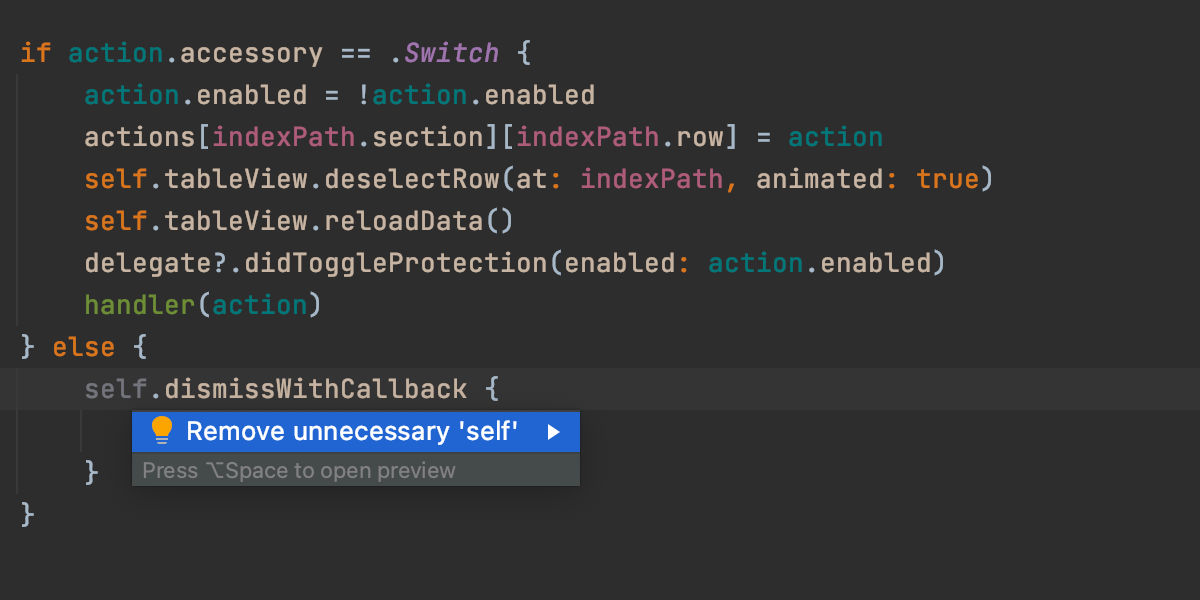
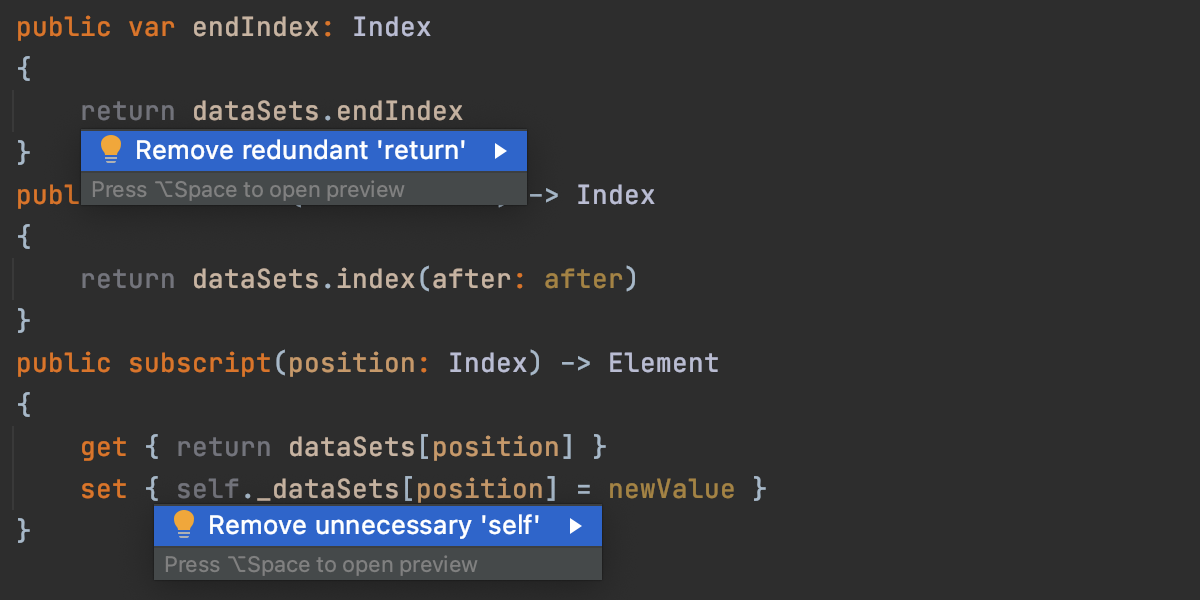
Multiple intention actions are there to improve your code, or make some routine work easier. They allow you to create symbols from usage, declare methods, swap parts of a boolean expression, merge nested 'if's, generate switch cases, and so on. When there is an intention action that can help you improve your code, you'll see a light bulb in the left editor gutter, plus you can always invoke available intention actions with Alt+Enter.
Implement/Override
Two simple shortcuts help you avoid a lot of routine work when implementing or overriding methods: Ctrl+I to implement methods, and Ctrl+O to override methods. No need to remember names of the methods to override, just hit Ctrl+O. You can also choose to implement optional protocol methods.
Generate
A great amount of code constructs can be easily generated in
AppCode using Cmd+N shortcut (or Code | Generate in the main
menu). Based on the context you are currently in, the caret
position, or selected code, AppCode will give you a list of
choices of constructs to be generated. You can opt to create
initWith and objectWith methods, declare and synthesize
properties, declare members in header file, etc.
Moreover, if you invoke Cmd+N from Project View, AppCode suggests you different set of options: you can generate a new class, protocol, category or another file.
File Templates
Adding new classes, protocols, categories, files from Xcode templates, etc. in AppCode is a snap: Select File | New... from the main menu, or press Cmd+N. Select an element from the list and enter it's name.
Live Templates
Live Templates are advanced code snippets that help creating complex language constructs with a couple of key strokes. You can create loops, NSLog calls, or even property declarations, and AppCode will look for suitable variables in the current context, and offer them automatically.
To apply a live template, you only need to type its abbreviation, and press Tab. After that, use Enter or Tab to navigate through template variables. Moreover, you can create your own live templates for the frequently used code patterns in your project.
"Surround With" Templates
Whenever you need to wrap a block of code in an if, or for,
@try/@catch, while, (expr), ((Type)expr) or something else –
you can use "Surround With" templates. Just select the code,
and press Alt+Cmd+T.
AppCode will add the surrounding construct, intelligently reformat the code, adjust the selection, and/or reposition the caret as specified by the template.
As with Live Templates, you can always create your own "Surround With" templates.
Refactorings
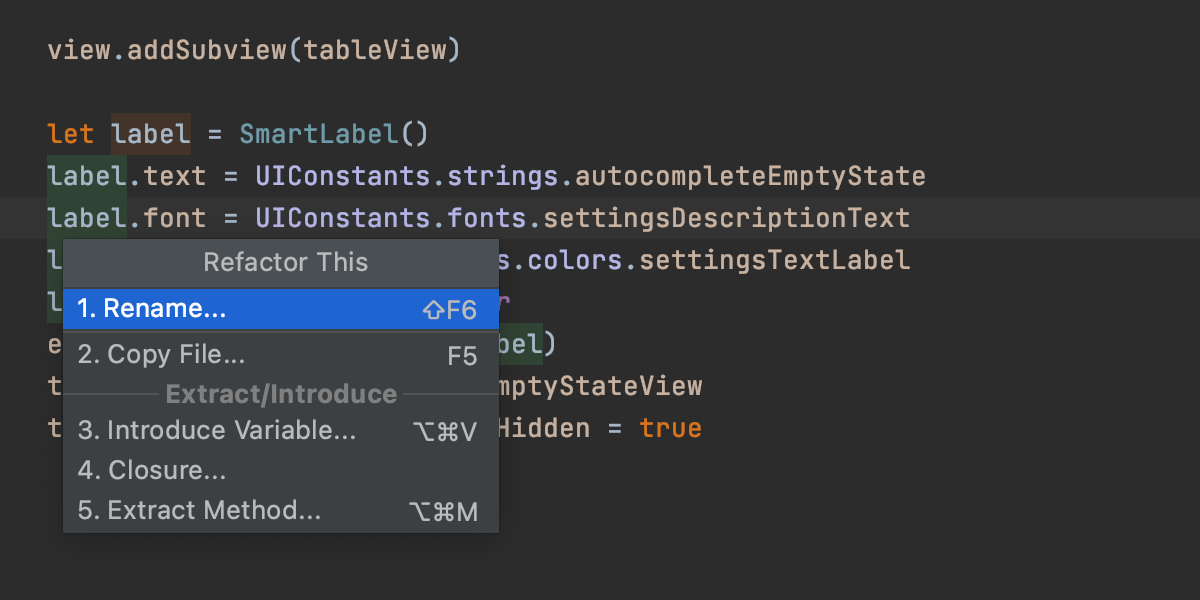
It is important to be able to easily improve code design as it evolves with time. AppCode provides a solid set of reliable code refactorings to help you. They include such vital ones as Rename, Extract Method, Introduce Variable and Inline, as well as more powerful ones e.g. Extract Block Parameter/Protocol/Category/Superclass, Change Signature, Convert Method to Function and back, Pull Members Up/Push Members Down, and others.
Code Quality
Code Analysis
AppCode constantly keeps an eye on the quality of your code. No need to run additional tools: all errors and warnings are shown right in the editor, and for most of them, the IDE knows a quick fix suggestion. You can quickly review errors in a file by navigating from one highlighted line to another by pressing F2/Shift+F2. You can also run all code analysis in a bulk mode and apply quick-fixes to a bunch of problems with one click, say, convert a project to ARC.
Code Inspections and Quick-Fixes
AppCode provides over 60 code inspections just for Objective-C, C and C++, and a number of code inspections for other supported languages that are run on the fly.
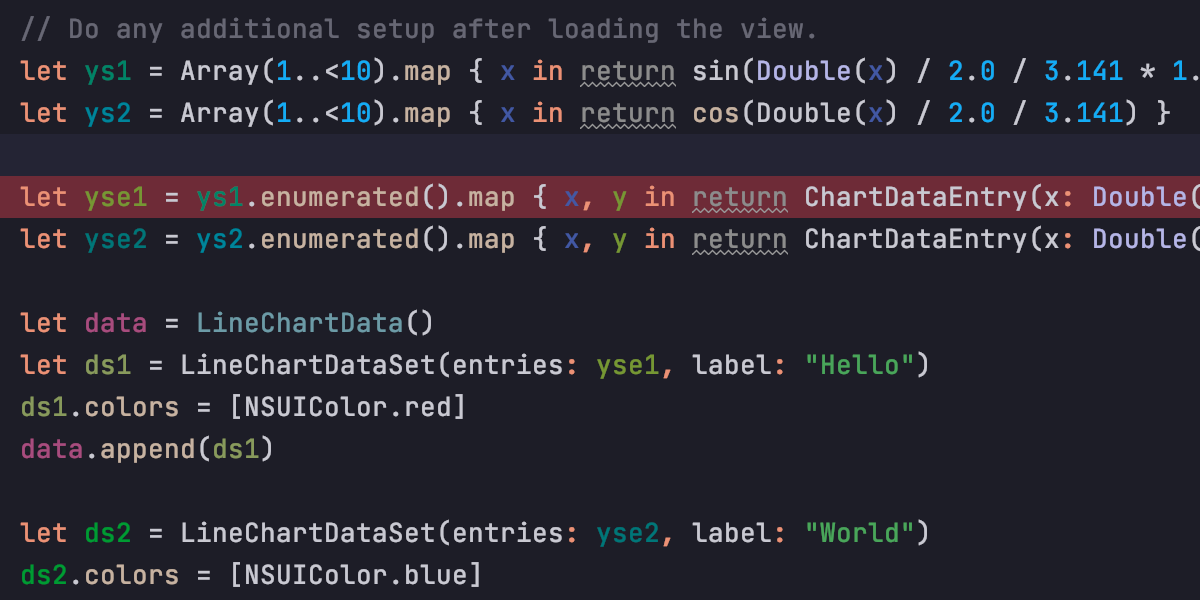
On the right side of the editor you can see the analysis status of the whole file – the icon in the top right corner changes its color when a problem is detected. Not only compiling errors are found, but also different code inefficiencies. Whenever you have some unreachable code, unused code, non-localized string, unresolved method, memory leaks or even spelling problems – you'll see it right away.
Integrated Clang Analyzer
AppCode comes with an integrated Clang Analyzer and can show you more than 2000 code inspections and error diagnostics results from Clang compiler right in the editor. Alternatively, you can review them in a bulk mode using Code | Inspect Code action.
Project and Code Navigation
Project View, Structure View, Hierarchy View
In AppCode you can find several views that help you navigate through your project and see the whole structure of it. The Project view provides convenient way of exploring your project structure, the Files view helps you see the physical project layout rather than logical groups.
Moreover, there is a Structure view that displays the structure of a file in the current editor tab and a Hierarchy view to see classes hierarchy, and even method, call and include hierarchy.
Go To
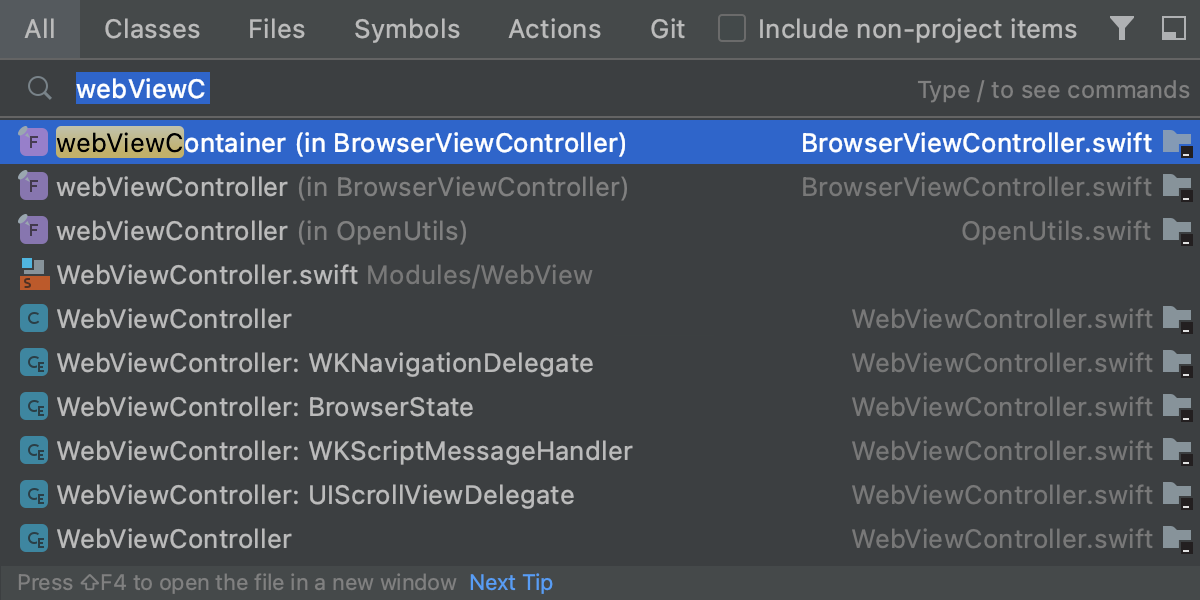
Go to Class/File/Symbol lets you quickly jump to the required place in code when you know what you need. You want to get from a method call to declaration or vice versa? Go to declaration/definition (Cmd+B) does just what you need.
Navigation to Implementation, Declaration, Definition
AppCode lets you easily navigate to the definition or declaration of a method, class, or a variable by means of special icons in the left gutter area or shortcuts. It always gets to the exact place of declaration, plus using Alt+Cmd+B you can jump around the whole class cluster with its protocols, categories, superclasses and inheriters be it an Objective-C code, or C++ templates.
Related Files, Recent Files, Last Edit
One of the things that is needed quite often is a way to easily navigate to a file that has been recently edited, or a file related to the one you have currently open.
With AppCode it's a matter of a few simple shortcuts: Cmd+E for Recent Files, Shift+Cmd+E for Recently Changed Files, Shift+Alt+C for Recent Changes, Shift+Cmd+Backspace for Last Edit Location.
Find Usages, Highlight Usages
Find Usages lets you quickly see all the places where a symbol (class, method, property, variable, etc.) is used. Just position the caret on the symbol for which you want to find usages and press Alt+F7. Unlike textual search, Find Usages in AppCode works on the semantic level and shows you actual usages, not just text matches. Moreover, it understands and can be used with localization, Core Data and xib files.
You can also highlight any reference usages in the current file by pressing Shift+Cmd+F7 and jump between them.
Bookmarks
Sometimes you might want to mark some places in code, you plan to return to again. You can place bookmarks here and there on any line of code, and later navigate between them or review all your bookmarks in a dedicated Favourites view.
TODOs
TODOs provide a convenient way to leave yourself a note right in your code. Just add a comment that contains the keyword "todo", and AppCode will recognise such comment as a TODO list item, which you can later find in the TODO view.
i18n Support
Are you developing a multi-lingual app? Very wise indeed! AppCode can simplify life for you then. The IDE allows you to easily extract inline strings into resources using the "Localize the string" quick-fix, provides a quick navigation to the resource files, plus you can use all the smart features like refactorings, usages search and so on in localization files.
All the unused keys are highlighted right in the editor, and you can also find all non-localized string throughout the project with Code | Inspect Code.
Debugger
Frames, Watches, Breakpoints, Expression Evaluation
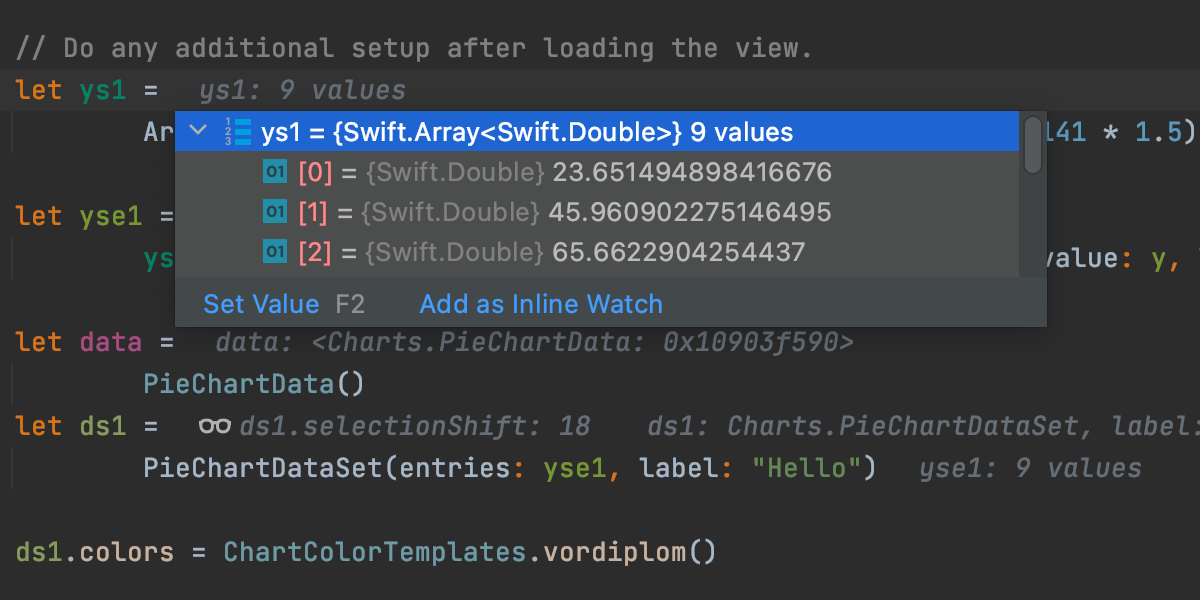
Once you stop on a breakpoint, or pause the debug session, you can see descriptions of all the variables available and even content of collections and dictionaries. AppCode provides Frames and Watches to help you investigate a problem with ease. You can also evaluate any arbitrary expression or code fragment – AppCode will display the result in a structural representation and you can dig into it right in the result view.
Conditional Breakpoints
With the help of conditional breakpoints in AppCode you can have more control over the debug process, and an option to log an evaluated message when a breakpoint is hit.
Code Data Objects
AppCode provides a convenient way to browse Core Data objects and their relationships in debugger.
Unit Testing
OCUnit and Kiwi Support
Out-of-the-box AppCode supports OCUnit and Kiwi testing frameworks. An easy-to-use and fluent unit test runner allows you get the best of test-driven development.
It doesn't require any additional configuration, and allows you not only to run all tests in one go, but also a single test as well.
Running Tests
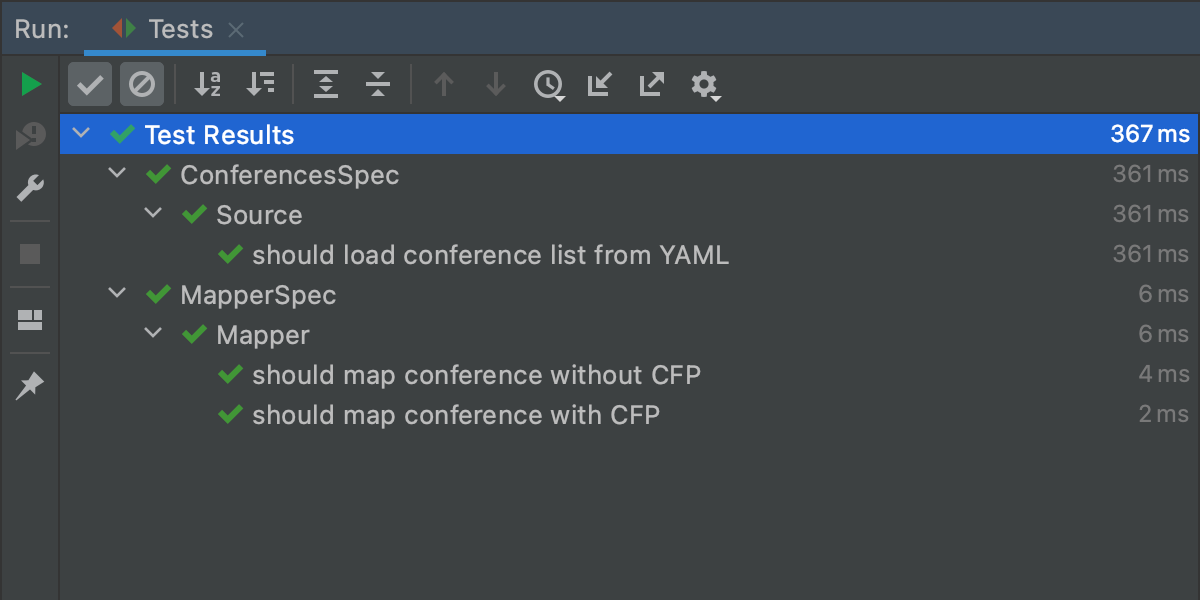
In AppCode you can have several test run configurations that you can execute from a special popup. Alternatively you can run a test right from the editor – depending on the context you are in, AppCode will run a single test, or all tests in a scope. The test runner will show you the results in the dedicated view where you can explore them, navigate to the problems and see the statistics.
Navigation Between Tests and Classes
Right in the editor you can easily jump between tests and classes using a simple shortcut Cmd+Shift+T.
iOS Development
AppCode completely supports all the latest iOS features.
Run/Debug on Device
Running and debugging are part and parcel of development process, and AppCode allows running and debugging your apps directly on a connected iOS device.
When you have no real iOS device connected, or need to try a specific configuration, no worries – AppCode can run your code in Simulator.
Running Tests and Instruments on Device
With AppCode you can run tests and Instruments to profile your application right on an iOS device.
Simulator/Device Switching
AppCode provides the easiest imaginable way to switch from Simulator to running on a device and vice versa. Just select the needed mode from the Run/Debug popup invoked with Ctrl+Alt+R/Ctrl+Alt+D.
Integration with Interface Builder
AppCode does not provide its own Interface Builder but seamlessly integrates with it instead. Just double-click a xib file in AppCode and we'll open it in the Interface Builder (or in Xcode) automatically. Close it when done and go on coding.
Core Data model files (xcdatamodel) is another file type where Xcode is used for editing.
VCS Integration and Local History
Supported VCSs
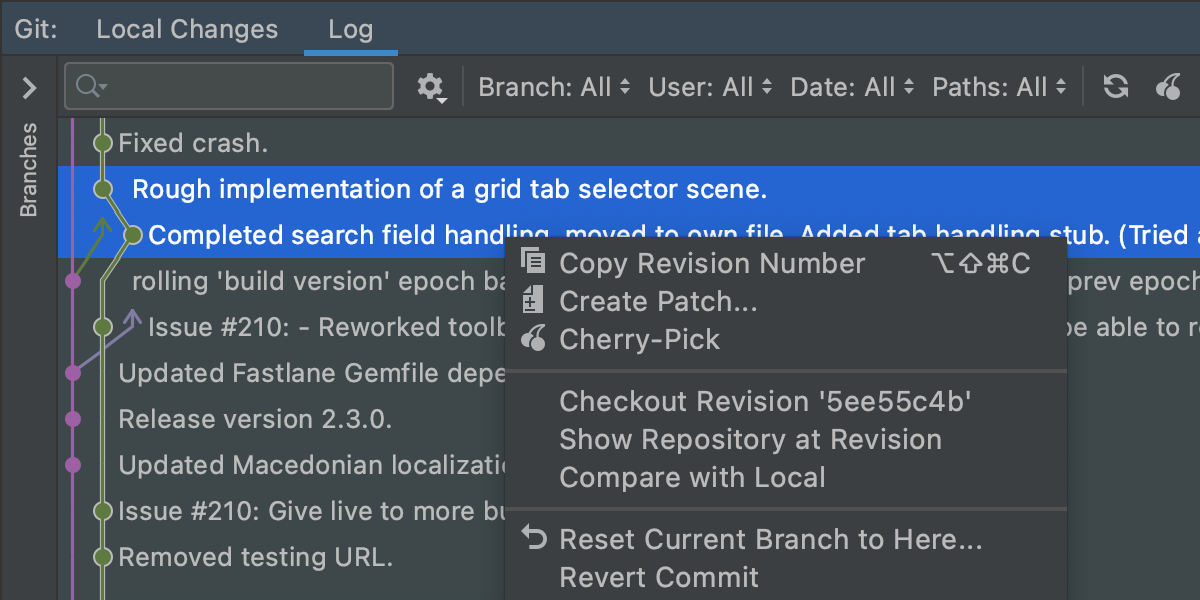
AppCode includes a complete first-class integration with the most popular Version Control Systems. This includes both support of features specific for each VCS as well as a unified interface and management for common VCS tasks.
The following VCS are supported out of the box: Subversion, Git, GitHub, Mercurial, CVS, Perforce, TFS.
All the tedious tasks are performed automatically. A built-in visual merge tool resolves all conflicts in a quick and intuitive manner. The changes made locally are highlighted as you type in the editor gutter, providing intuitive navigation and a rollback for individual changes.
Integrated Changelists
While working on several things at the same time, fixing a bug, developing a new feature, improving your code, it is convenient to group your changes into multiple change lists for better organization. That's where integrated changelists come in handy – organize your changes the way you prefer.
Shelved Changes
AppCode provides a convenient way to set aside some changes to restore them later with the help of Shelved Changes.
Repository Changes View, Incoming Changes View
If you're using Subversion, stay up-to-date with your team without leaving your IDE – see what has been committed to the version control system by other team members, and use Incoming Changes view to see the code changes not yet integrated into your local copy.
Outdated Files Notification
When a file you are working with has been changed after your last sync, AppCode will warn you about this.
Local History
Local History allows to expand VCS functionality for you, or, if you don't use a version control it'll help you keep track of everything going on with your code! With all the constant changes made to the code, version control systems can only track differences between committed versions, while local changes can slip unnoticed – and that's where Local History comes in handy and helps you avoid changes loosing disaster.
Integrations
Xcode Interoperability
AppCode is fully compatible with Xcode (even latest previews). You can open existing Xcode projects and work on a project in both IDEs in parallel. No additional configuration needed and your projects stay always 100% Xcode-compatible. AppCode can create new Xcode projects, and you can add new files to a project in AppCode based on Xcode file templates. The IDE will automatically navigate you to Xcode when working with specific files (like xib, storyboard, etc.).
Own build settings editor allows you to configure your project without leaving the IDE.
External Documentation Browsers (Dash, Ingredients)
If you prefer to use external documentation browsers, AppCode provides a convenient way to do it, since it integrates with two popular browsers: Dash and Ingredients.
Issue Trackers
When your ToDo list is in an issue tracking system, you can configure AppCode to work with the issues without switching from the IDE. Just specify your issue tracker server and:
- Select tasks to work on from the list defined by your filter
- Automatically group VCS changes under a corresponding task
- Commit to VCS with task name/ID pre-filled for you
-
Switch between tasks keeping IDE context saved (open
editor tabs, breakpoints, etc.)
AppCode supports the following bug tracking systems: Atlassian JIRA, JetBrains YouTrack, Lighthouse, Pivotal Tracker, GitHub, Redmine, Trac.
RESTful Web Services
If you're doing some web development alongside with Cocoa apps, you might find useful RESTful web services plugin bundled in AppCode.
More than Objective-C IDE
C/C++ Support
Apart from Objective-C, AppCode naturally supports C, and C++, including C++11, libc++ and Boost. Code completion, all navigation features, and most of the coding features like refactorings, find usages and code generation are also available there.
JavaScript, XML, HTML, CSS, Emmet
AppCode also fully supports JavaScript, XML, HTML, CSS and XPath including all code editing and transformation features like syntax highlighting, analysis, completion, navigation and refactoring.
All the new Zen Coding Emmet features are also supported in AppCode.
Customization and Extensibility
Customizable UI
Are there any software developers who don't like to tweak their tools? We have yet to meet one, so we've made AppCode UI customization a breeze. Have plenty of screen estate? Turn the toolbars and pin the tool windows to always show. Coding on a 13" MacBook Air? Leave only editor displayed and show the rest only when needed.
Prefer dark UI? Switch to the Darcula theme.
Editor Themes
UI customizations would be incomplete without an ability to configure the editor itself. AppCode comes with several editor color schemes bundled and allows creating own custom schemes or modifying the existing ones.
Keyboard Schemes
For a higher productivity AppCode encourages you to use the keyboard for all your tasks.
For an easier start with AppCode, try the keyboard hotkeys you already know well. AppCode's keyboard layout is designed with your convenience in mind, but you can always choose specific layouts such as those from Xcode or IntelliJ IDEA, or just create your own.
Vim Emulation
AppCode offers a powerful vi/Vim emulation mode giving you the best of both worlds.
Plugins
More than 10 years of IntelliJ platform development gives AppCode 50+ IDE plugins of different nature, including support for additional VCS, integrations with different tools and frameworks, and editor enhancements such as Vim emulation.
AppCode plugins can be browsed and managed from the Plugin Manager in IDE Settings.