Minifying JavaScript
Minification or compression means removing all unnecessary characters, such as spaces, new lines, comments, without changing the functionality of the source code. During development and debugging, these characters make code easier to read. At the production stage, they only increase the size of code to be transferred.
Most often compression is done as a step in your build process, with build tools like webpack. If you're not using build tools, you can use a stand-alone tool, such as terser.
To minify your code automatically, you need to install a minification tool and configure a File Watcher which will track changes to your files and run the minification tool.
By default, minification starts as soon as a JavaScript file in the File Watcher's scope is changed and saved. You can specify other events that invoke the tool. Learn more from File Watchers.
The generated minified code is stored in a separate file with the name of the source JavaScript file and the extension min.js. The location of this generated file is defined in the Output paths to refresh field of the New Watcher dialog. However, in the Project Tree, the file with the minified code is shown under the source JavaScript file which is displayed as a node. To change this default presentation, configure file nesting in the Project tool window (Alt+1) .
The example below shows how you can use terser to minify your JavaScript code right from PhpStorm.
Example: Compressing JavaScript with terser
To compress your code automatically, you need to install terser and configure a UglifyJS File Watcher which will track changes to your files and run the tool.
By default, minification starts as soon as a JavaScript file in the File Watcher's scope is changed and saved. You can specify other events that invoke terser. Learn more from File Watchers.
The generated minified code is stored in a separate file with the name of the source JavaScript file and the extension min.js. The location of this generated file is defined in the Output paths to refresh field of the New Watcher dialog. However, in the Project Tree, the file with the minified code is shown under the source JavaScript file which is displayed as a node. To change this default presentation, configure file nesting in the Project tool window (Alt+1) .
Before you start
Make sure you have Node.js on your computer.
Make sure the JavaScript and TypeScript bundled plugin is enabled in the settings. Press Ctrl+Alt+S to open settings and then select . Click the Installed tab. In the search field, type JavaScript and TypeScript. For more information about plugins, refer to Managing plugins.
Make sure the File Watchers bundled plugin is enabled in the settings. Press Ctrl+Alt+S to open settings and then select . Click the Installed tab. In the search field, type File Watchers. For more information about plugins, refer to Managing plugins.
Install terser
In your command-line shell or in the embedded Terminal (Alt+F12) , type:
npm install --save-dev terserLearn more from the npmjs official website.
Create a File Watcher
In the Settings dialog (Ctrl+Alt+S) , click File Watchers under Tools. The File Watchers page that opens shows the list of already configured File Watchers.
Click
 or press Alt+Insert and select the UglifyJS predefined template from the list.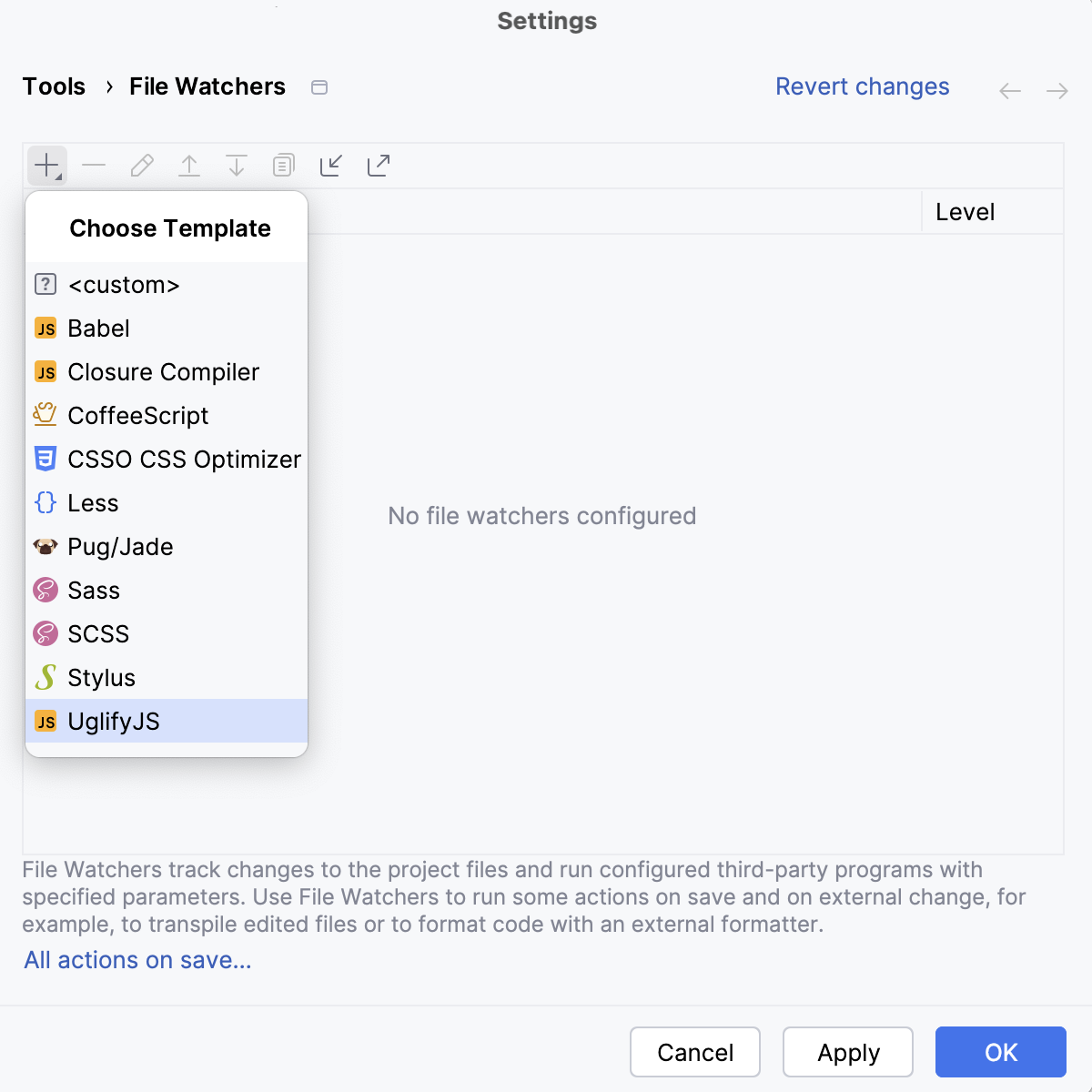
The New Watcher dialog opens.
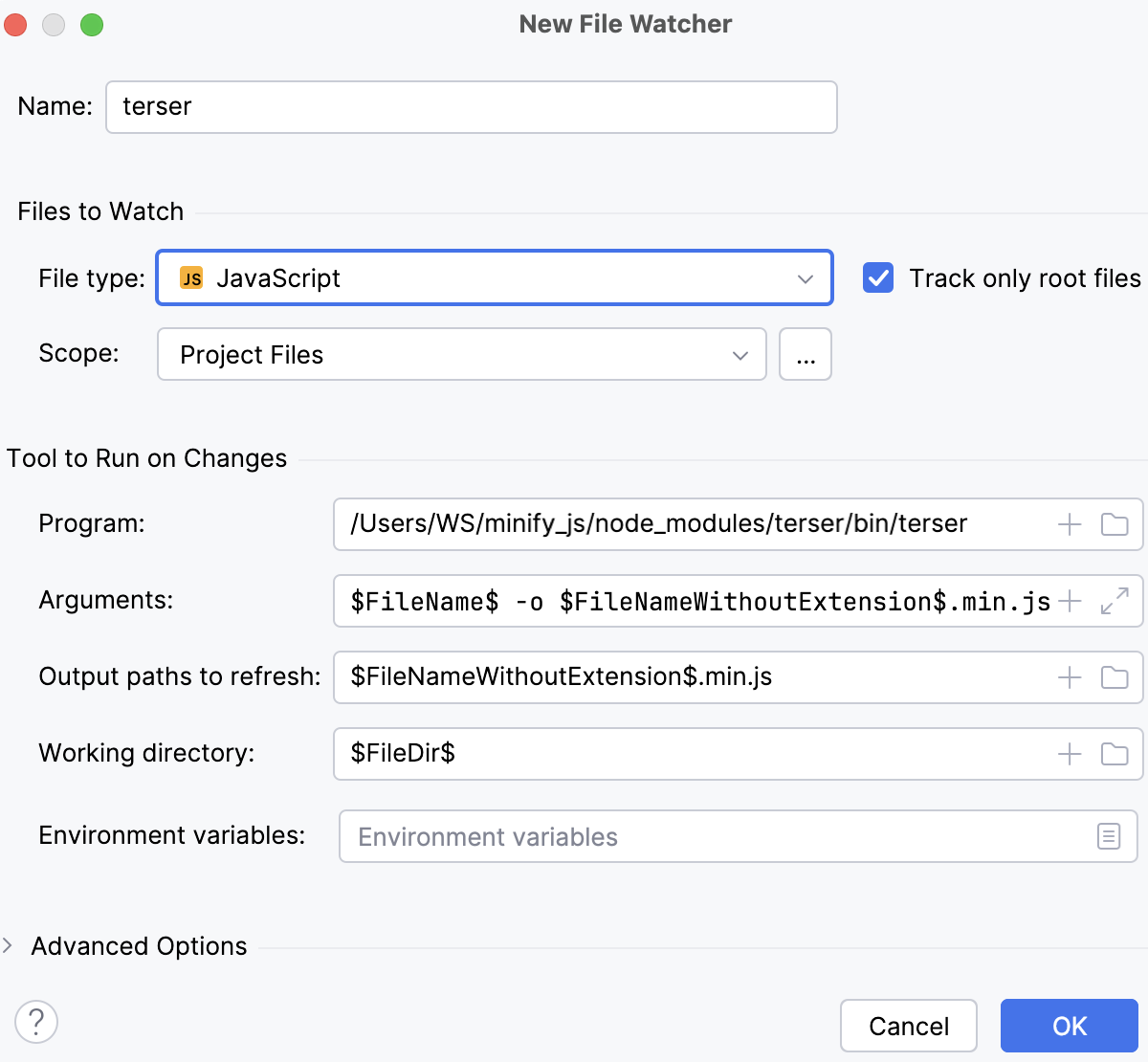
In the Program field, specify the location of the terser executable file. Type the path manually or click
 and select the file location in the dialog that opens.
By default, the Scope field shows Project Files. To avoid minification of already minified files, configure a custom scope with the
file:*js&&!file:*.min.*pattern, as described in Define a new scope.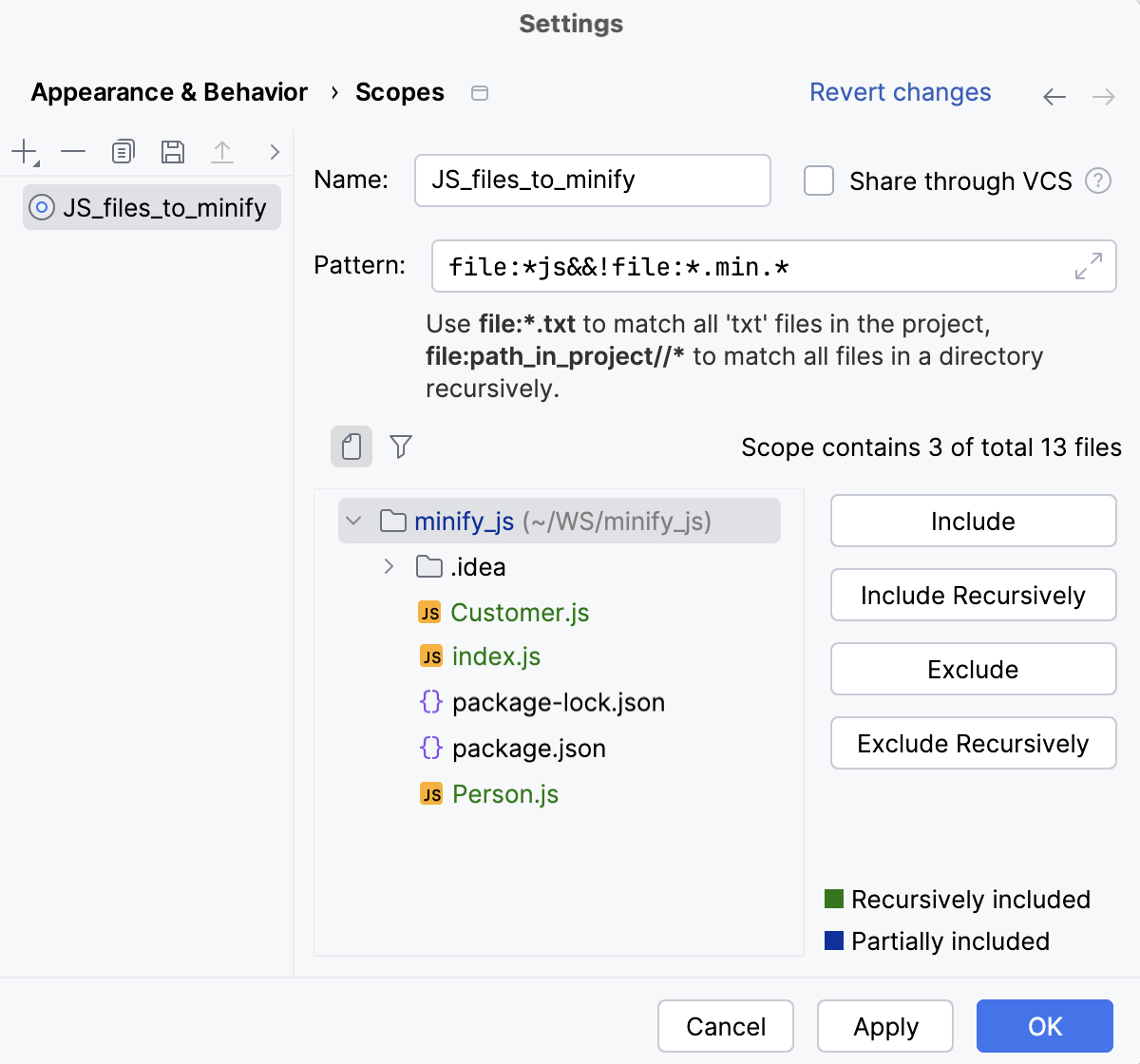
Then select the new scope from the Scopes list.
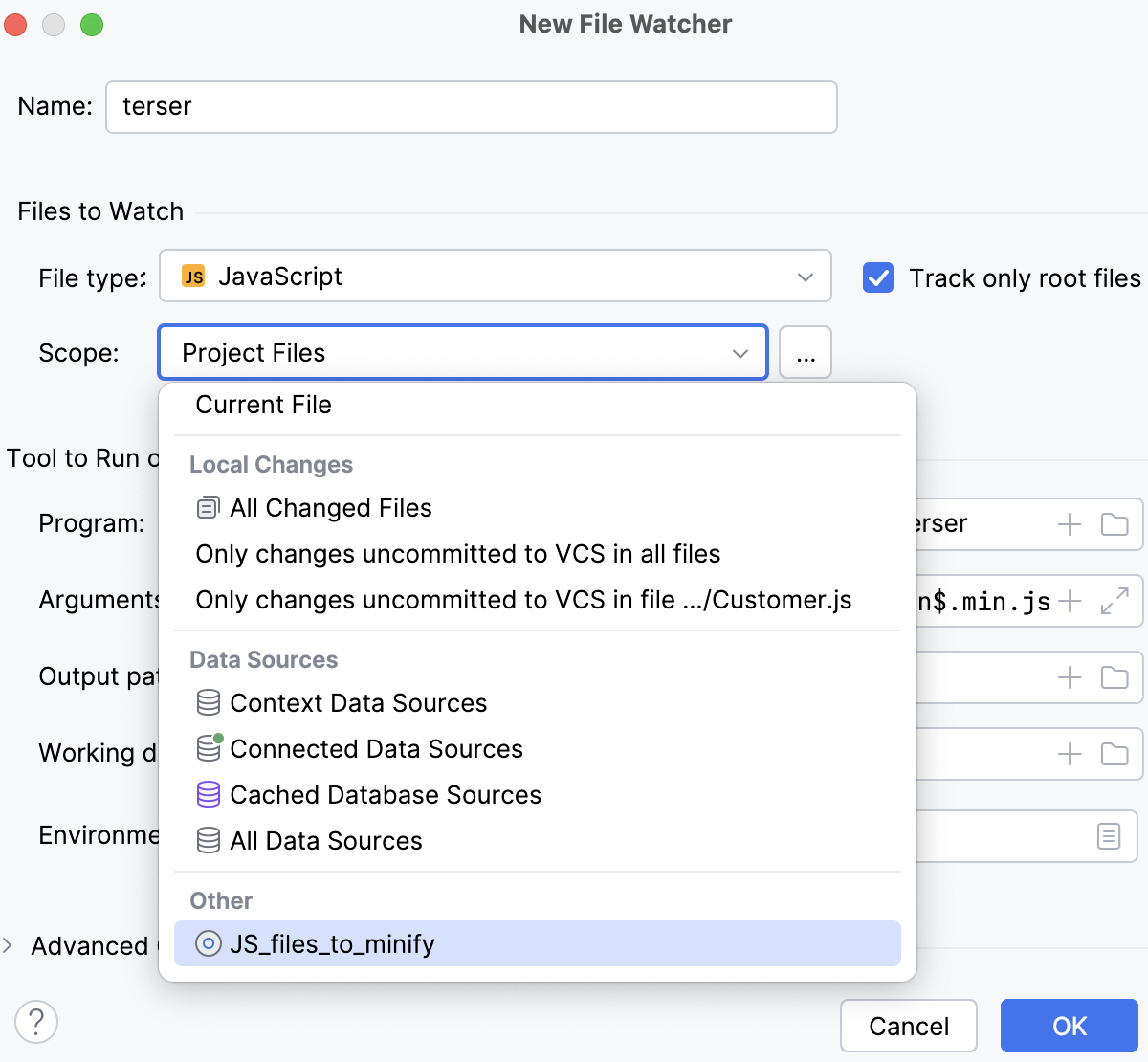
Accept the other default File Watcher settings or reconfigure them, if necessary, as described in File Watchers, and click OK. PhpStorm brings you back to the File Watchers page where the new File Watcher is added to the list:
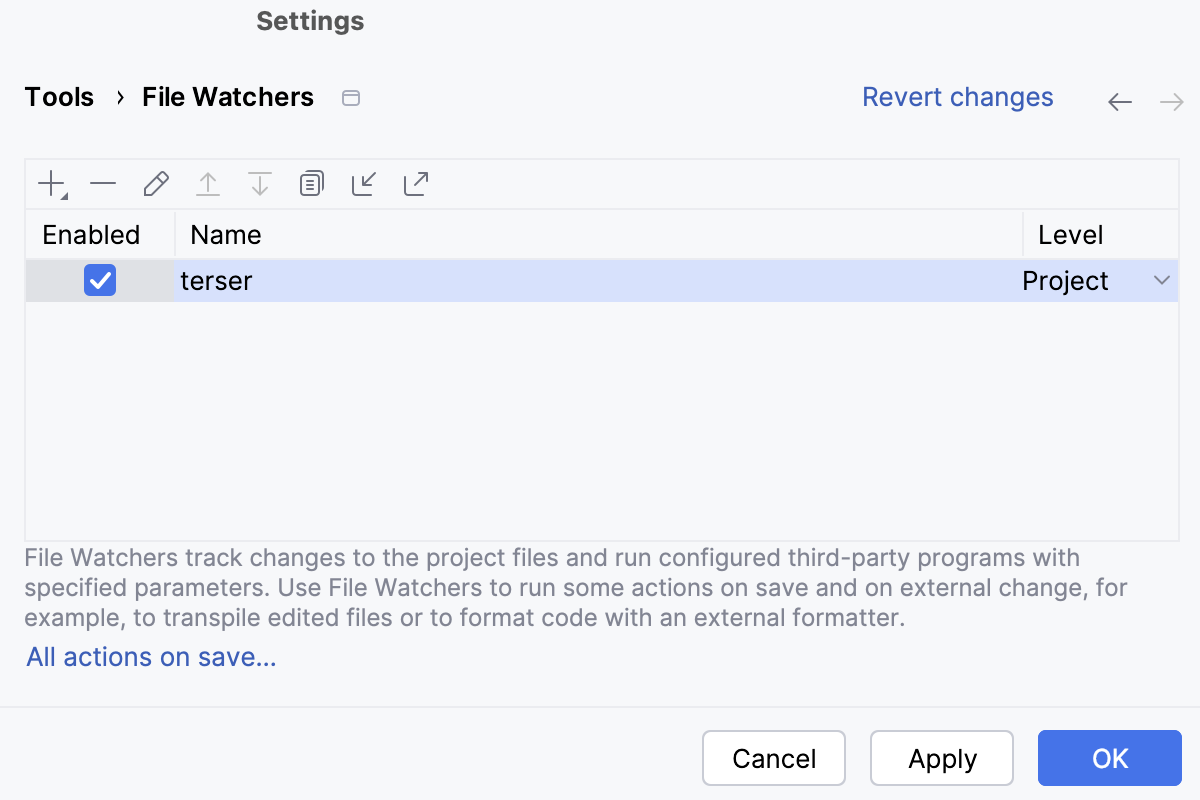
Make sure the Enabled checkbox is selected.
By default, the File Watcher will be available in the current project. To use it in other projects, select Global from the Level list.
Run terser
PhpStorm runs terser automatically when you change a JavaScript file from the selected scope.