File Watchers
A File Watcher is a PhpStorm system that tracks changes to your files and runs a third-party standalone application. PhpStorm provides predefined File Watcher templates for a number of such standard popular third-party tools (compilers, compressors, prettifiers, and others).
You can also configure a custom File Watcher to run any other third-party tool.
File Watchers have two dedicated code inspections:
The File Watcher available inspection is run in every file where a predefined File Watcher is applicable. If the project has no relevant File Watcher configured, PhpStorm suggests to add one.
The File Watcher problems inspection is invoked by a running File Watcher and highlights errors specific to it.
You can use one of the available templates or configure a File Watcher from scratch. A configured File Watcher can be saved in your project settings or in the IDE settings and used in different projects.
For more information about File Watchers for specific tools, see the corresponding pages:
Note that using some of these tools in PhpStorm requires that you install plugins on the Settings | Plugins page as described in Installing plugins from JetBrains Marketplace.
Before you start
Make sure the File Watchers plugin is enabled in the settings. Press Ctrl+Alt+S to open settings and then select . Click the Installed tab. In the search field, type File Watchers. For more information about plugins, refer to Managing plugins.
Creating a File Watcher
In the Settings dialog (Ctrl+Alt+S) , click File Watchers under Tools. The File Watchers page opens showing a list of File Watchers that are already configured in this project and in the IDE.
Click
 and choose the predefined template from which you want to create a File Watcher. The choice depends on the tool you are going to use. To use a tool that is not on the list, choose Custom.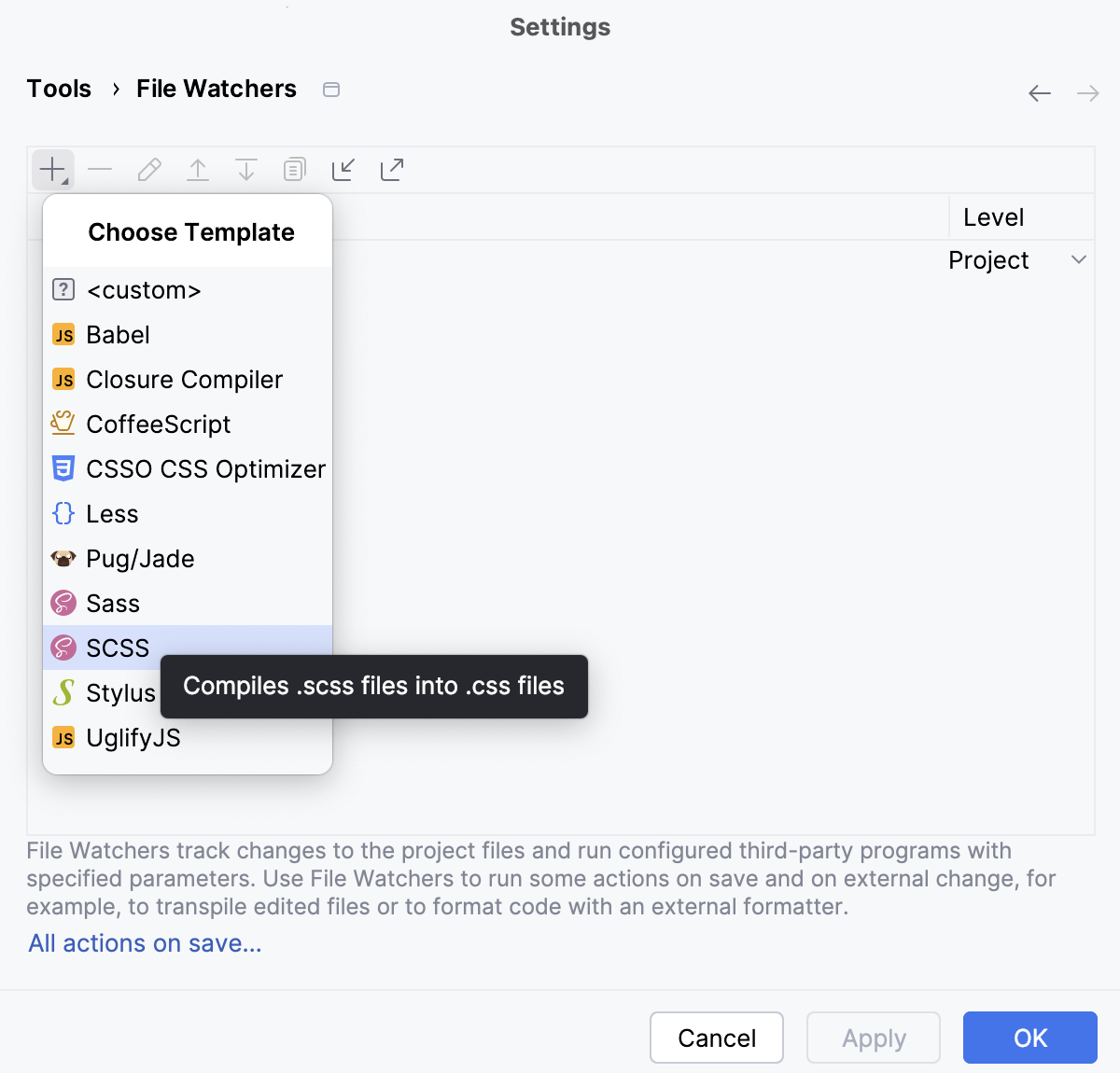
The New Watcher dialog opens.
In the Name field, type the name of the File Watcher. By default, PhpStorm suggests the name of the selected predefined template.
Configuring the expected type and location of input files
Use the controls in the Files to watch area to define the range of files where you want to apply the File Watcher.
From the File type list, choose the expected type of input files. The File Watcher will consider only files of this type as subject for analyzing and processing. File types are recognised based on associations between file types and file extensions.
By default, the field shows the file type in accordance with the chosen predefined template.
Select the Scope in which the File Watcher is applicable.
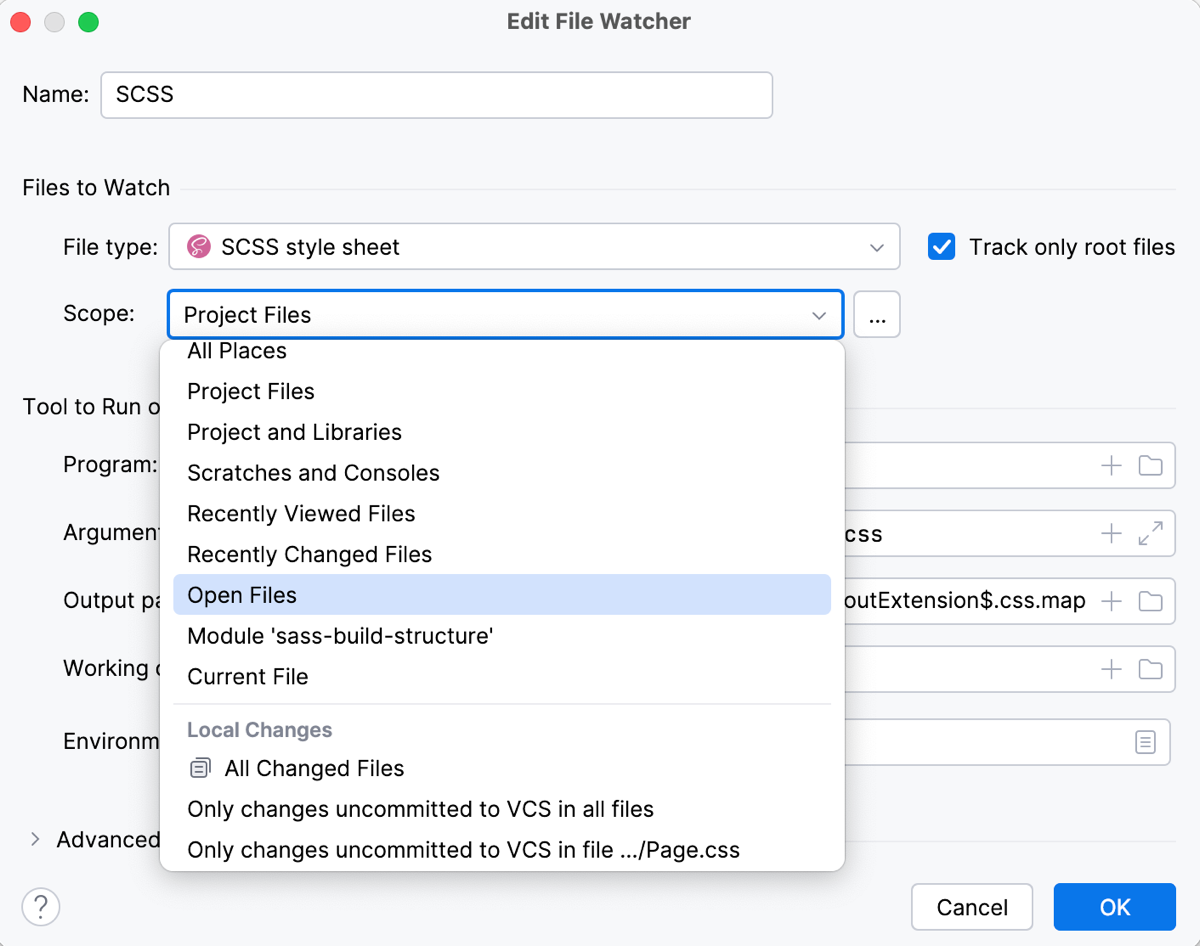
Changes in these files will invoke the File Watcher either immediately or upon save or frame deactivation, depending on the status of the Auto-save edited files to trigger the watcher checkbox.
Select one of the predefined scopes from the list. For a project-level File Watcher, you can also click
 to configure a custom scope in the Scopes dialog that opens.
All Places: all the scopes listed below.
Project Files: all the files within the project content roots (refer to Directory structure).
Project Production Files: all the files within the project content roots excluding test sources.
Project Test Files: all the files within the project test source roots.
Scratches and Consoles: all the files from the Scratches and Consoles directory located in the Project tool window.
Open Files: all the files that are currently opened in the editor.
Current File: the file opened in the active editor tab.
VCS Scopes: these scopes are only available if your project is under version control.
All Changed Files: all changed files, that is, all files associated with all existing changelists.
Default Changelist: all the files associated with the changelist 
Default.
Alternatively, click
and configure a custom scope in the Scopes dialog that opens.Optionally: specify how you want the File Watcher to deal with dependencies. A root file is a file that is not included (for example via
import) in any other file within the specified scope.To run the File Watcher only against root files, select the Track only root files checkbox.
Clear the checkbox to run the File Watcher against the file from which it is invoked and against all the files in which this file is recursively included within the specified scope.
Note that the Scope setting overrides the Track only root files checkbox setting: if a dependency is outside the specified scope, the File Watcher is not applied to it.
Configuring interaction with the external tool
In the Tool to run on changes area, specify the tool to use, the arguments to pass to it, the expected output file types, and so on.
In the Program field, specify the path to the executable file of the tool (.exe, .cmd, .bat, or other depending on the specific tool).
In the Arguments field, define the arguments to pass to the tool.
Arguments are usually specified using macros, for example,
$FileName$or$FileNameWithoutExtension$, that will be replaced with the actual filenames.Type the macros manually or click
 and select the relevant pattern fom the list in the Macros dialog that opens.
In the Output paths to refresh field, specify the files where the tool stores its output: the resulting source code, source maps, and dependencies. Based on these settings, PhpStorm recognizes the files generated through compilation.
Output paths are usually specified using macros. You can type them manually or click
and select the relevant one from the list in the dialog that opens.To specify several macros, use colons
:as separators, for example,$FileNameWithoutExtension$.css:$FileNameWithoutExtension$.css.map.Expand the Working Directory and Environment Variables hidden area.
Define the environment variables. For example, specify the
PATHvariable for the tools that are required for starting the tool you are configuring but are not referenced in the path to it. In most cases, it is Node.js or ruby.exe. Such situation may result from custom manual installation instead of installation through the Node Package Manager (npm) or gem manager.In the Working directory field, specify the directory to which the tool will be applied.
Because the tool is always invoked in the context of a file, the default working directory is the directory of the current file. The default working directory is specified in all predefined templates with the
$FileDir$macro. To specify a custom working directory, type the path to it in the field, or click and select the directory in the Select Path dialog, or click and select the desired macro from the list in the Macros dialog.
Configuring advanced options
In the Advanced Options area, customize the default behaviour of the File Watcher.
Specify the events that will invoke the File Watcher:
To invoke the File Watcher as soon as any changes are made to the source code, select the Auto-save edited files to trigger the watcher checkbox.
When the checkbox is cleared, the File Watcher starts upon save () or when you move the focus from PhpStorm (on frame deactivation).
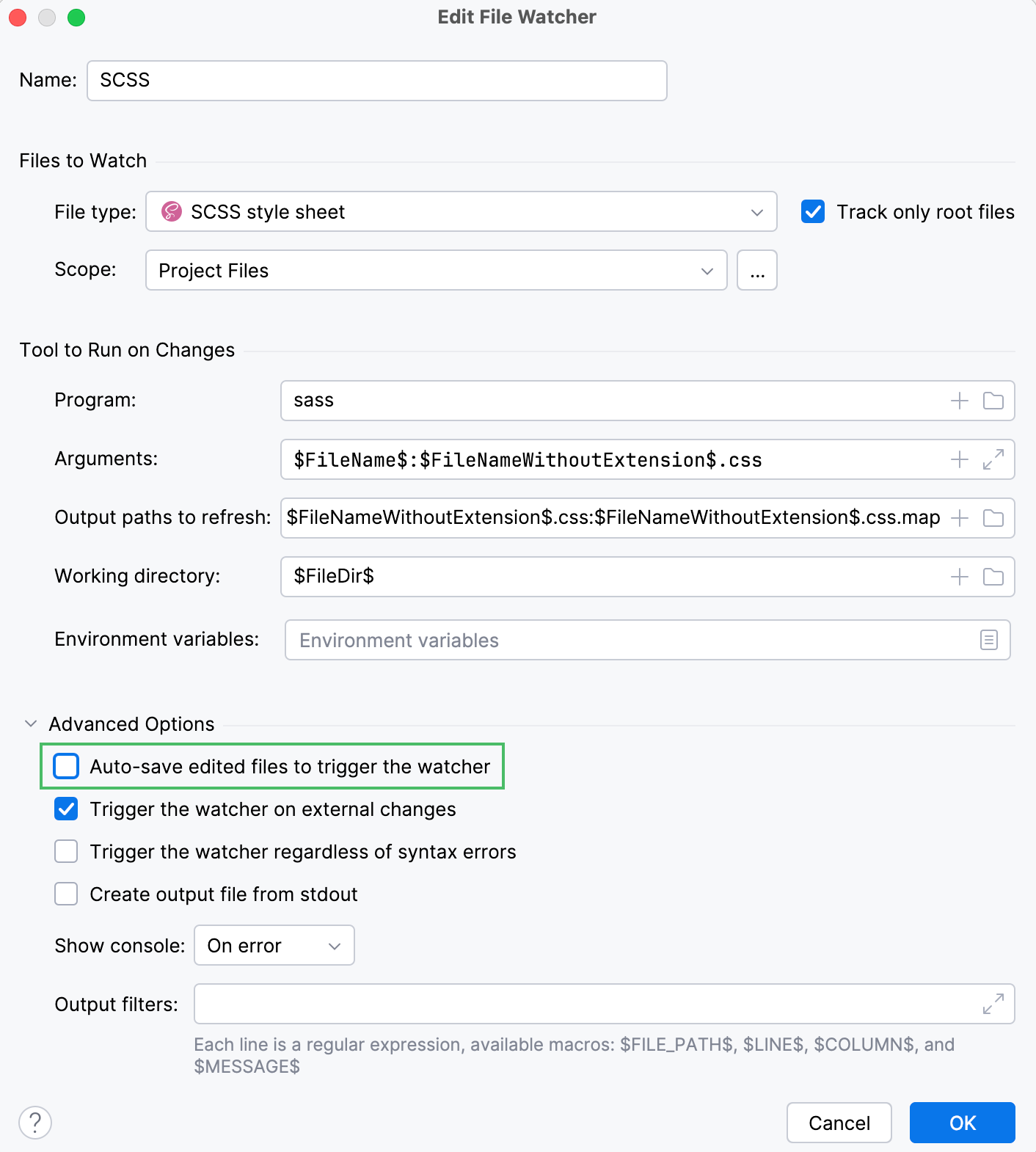
By default, the File Watcher wakes up on any saved change, including the updates received from your version control system when you, for example, check out a branch. To ignore such changes and invoke the File Watcher only when you update your code in PhpStorm, clear the Trigger the watcher on external changes checkbox.
Specify whether you want the File Watcher to interact with the PhpStorm syntax parser:
When the Trigger watcher regardless of syntax errors checkbox is selected, the File Watcher start regardless of the syntactical correctness of a file. The File Watcher will start upon update, save, or frame deactivation, depending on the status of the Auto-save edited files to trigger the watcher checkbox.
When the Trigger watcher regardless of syntax errors checkbox is cleared, the File Watcher ignores all triggers in files that are syntactically invalid and starts only in error-free files.
Use the Create output file from stdout checkbox to specify how you want to generate the output file.
When the checkbox is selected, PhpStorm reads the native tool's output
standard output stream (stdout)and generates the resulting files from it.When the checkbox is cleared, the tool writes its output directly to the files specified in the Output paths to refresh field.
In the Show console list, choose when you want the File Watcher to open the console.
Always: with this option, the console always opens after the tool execution is completed.
On error: with this option, the console opens after the tool execution only when the
Exit codeis different from0.Never: choose this option to suppress opening the console at all.
Showing information reported by File Watcher in the editor
If the tool configured in the File Watcher reports errors or warnings about your code with the links to the files and specific lines, you can see this information right in the editor:
In , enable the inspection File Watcher Problems.
In the Output Filters field of the Edit Watcher dialog, describe the format of the output you want to match. Use the macros
$FILE_PATH$,$LINE$, and$MESSAGE$for that. You need to avoid using special symbols like braces and dot with\. The text matched with the$MESSAGE$macro will be shown in the editor.
Example
The tool reports errors in the following format:
Use the following regex as an output filter to see the error highlighted in the editor:
Saving, enabling, and disabling File Watchers
Once you’ve saved the new File Watcher, you can decide if it’s going to be available only in the current project (select Project from the Level list) or for all projects (select Global).
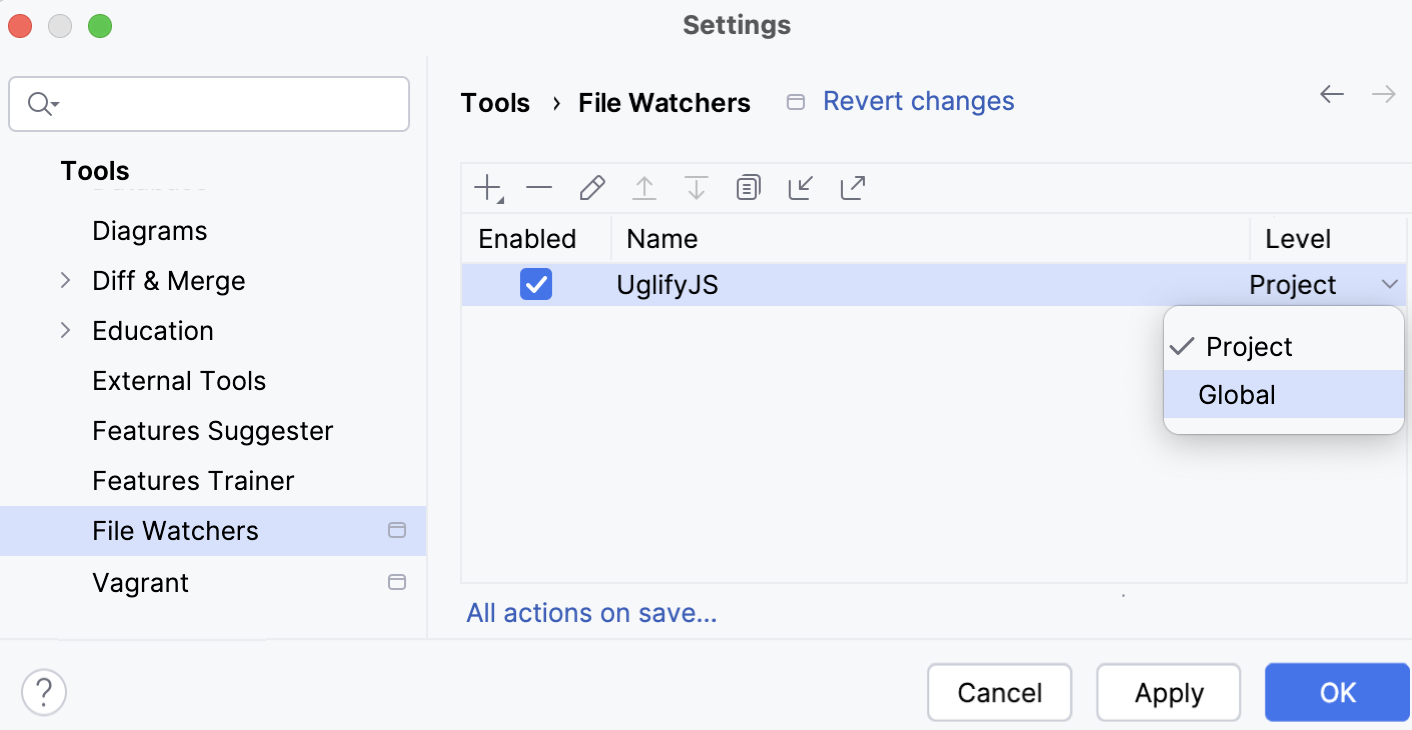
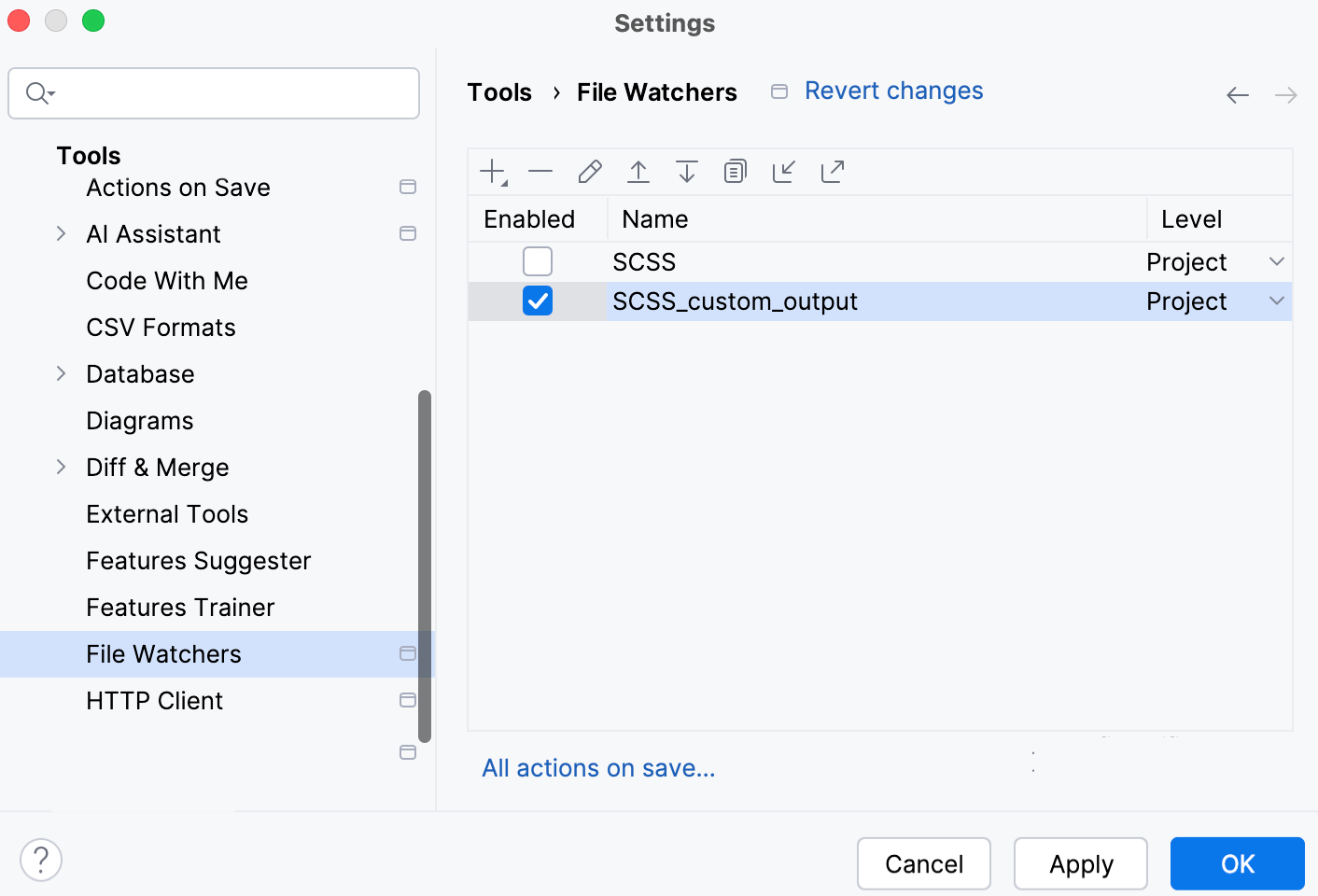
To enable or disable a File Watcher, open the Settings dialog (Ctrl+Alt+S) , go to , and select or clear the checkbox next to it.
When you open a file to which a predefined File Watcher is applicable, PhpStorm suggests enabling the File Watcher:
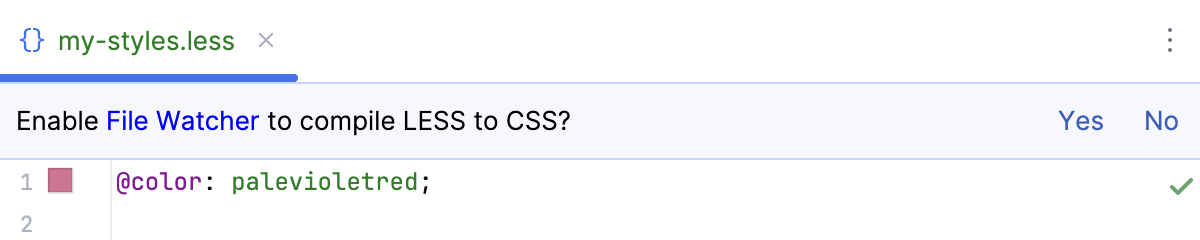
When a File Watcher is enabled, it starts automatically as soon as a file of the selected type and in the selected scope is changed or saved, refer to Configuring advanced options.
If an error occurs while a File Watcher is running, the File Watcher is automatically disabled. To restore the status, enable the File Watcher manually.
Automatically run File Watchers on save
You can configure the IDE to run File Watchers in modified files automatically when your changes are saved.
Press Ctrl+Alt+S to open settings and then select .
Enable the File Watcher option and apply the changes.
Enable global File Watchers for new projects
Global File Watchers can be automatically enabled in all new projects that you create in the future.
Open the Settings for New Projects dialog () , go to , and select the checkboxes next to the required File Watchers.
Alternatively, on the Welcome Screen, select Settings from the Configure list. In the dialog that opens, select the checkboxes next to the relevant File Watchers.
Examples of customizing the behavior of an external tool in a File Watcher
The only way to influence a third-party tool is to pass arguments to it just as if you were working in the command-line mode. These arguments are specific to each tool. Below are two examples of customizing the default output location for the SCSS compiler.
Customize the SCSS compiler
Suppose your project is structured as follows:
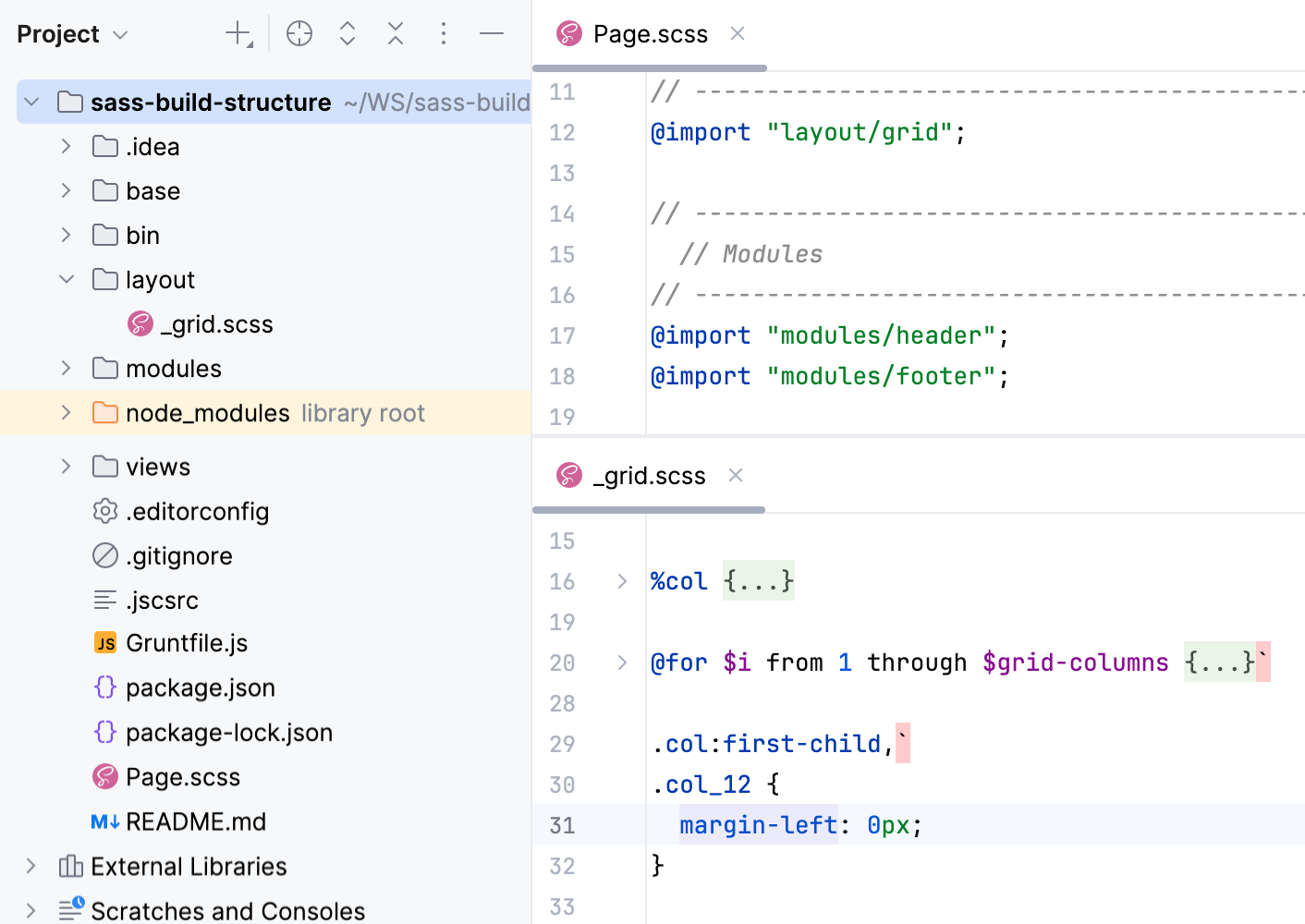
As you can see, _grid.scss is imported in Page.scss. The example below shows how Page.scss is compiled into CSS when you save your project manually or automatically and how the changes to _grid.scss are reflected in the generated CSS file.
Create a File Watcher of the type SCSS: open the Settings dialog (Ctrl+Alt+S) , go to , click
on the toolbar, and select SCSS from the list.In the New File Watcher dialog that opens, all the mandatory fields are already filled in.
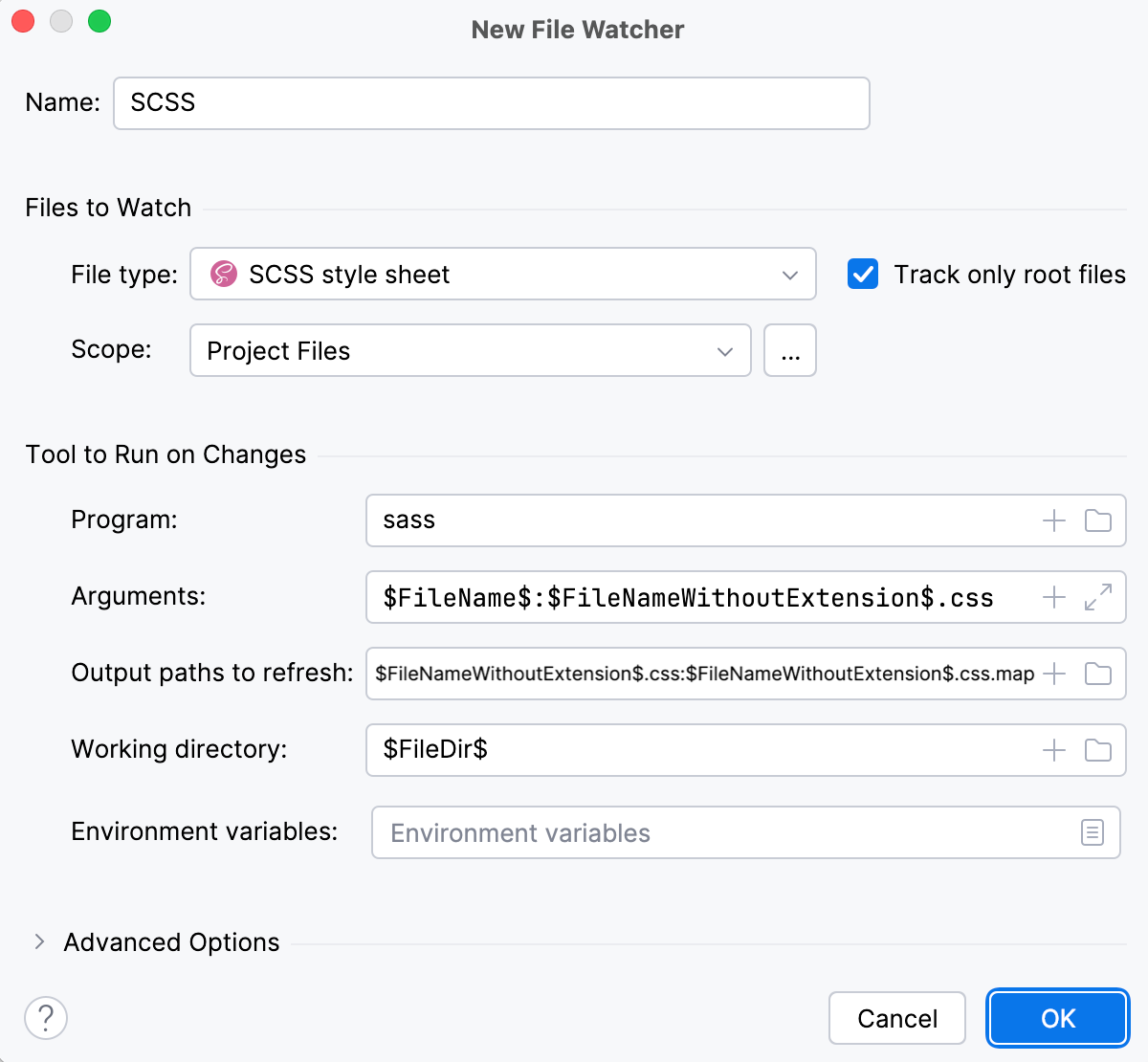
Actually, these settings are sufficient to run the compiler successfully.
Let's change grid.scss, for example, replace
margin-left: 0;at line 31 withmargin-left: 12px;. This triggers our File Watcher and the compiler processes Page.scss. As a result, two files are generated and shown nested under Page.scss:Page.css with compiled CSS code
Page.css.map with source maps that let you step through your app during a debugging session.
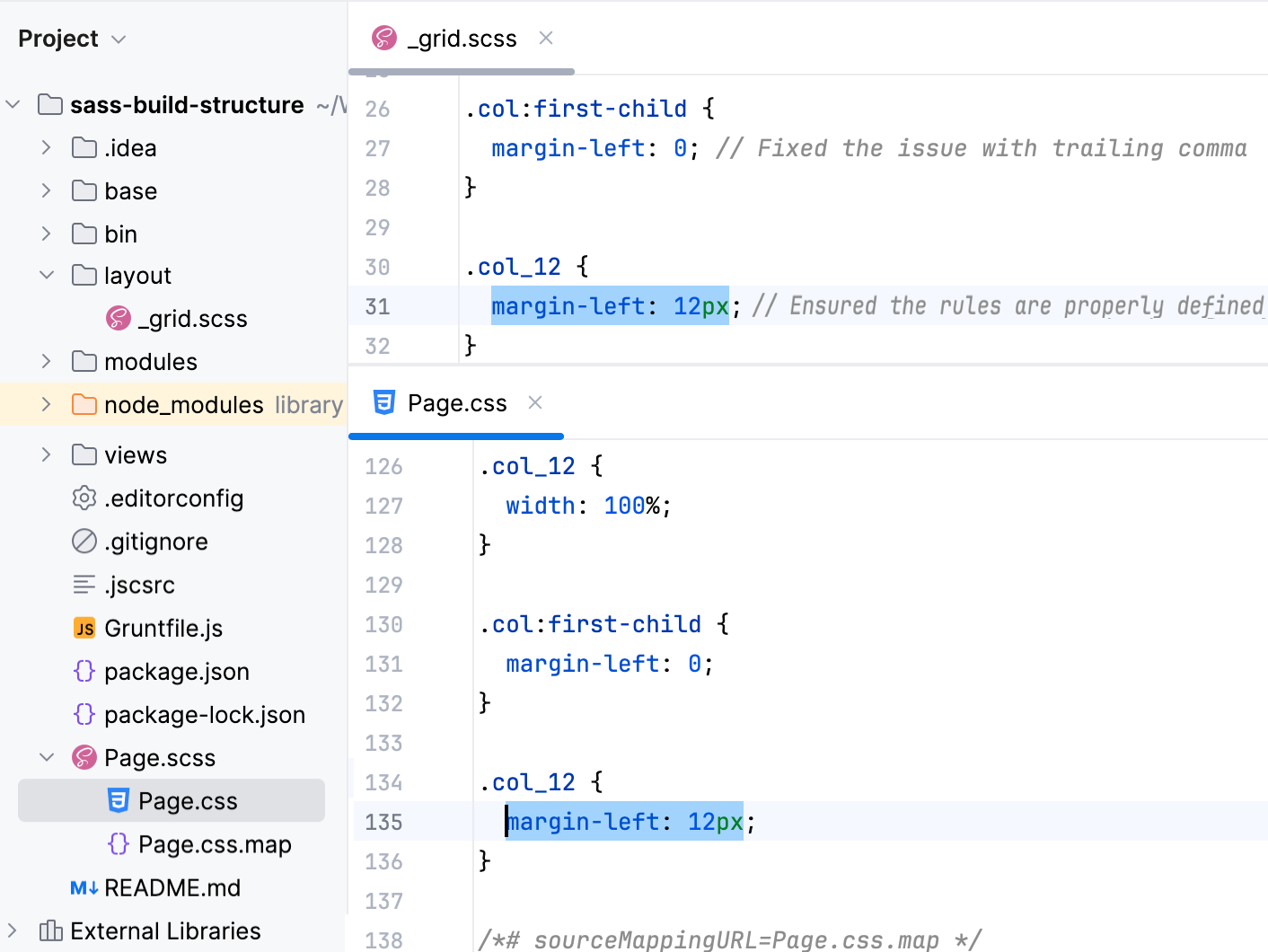
Although the default settings are sufficient to run the compiler successfully, let's still take a closer look at them to see how the File Watcher's behavior can be customized.
Change the action that triggers the File Watcher
The File Watcher wakes up and launches the transpiler as soon as your project is saved manually ( or Ctrl+S) or automatically.
In general, your code is saved automatically when you move the focus from PhpStorm (on frame deactivation). With File Watchers, auto-save is also performed when you edit a file from the File Watcher's scope. As a result, the transpiler may be running all the time you type, which may cause performance issues. To solve the problem, suppress saving edited files automatically.
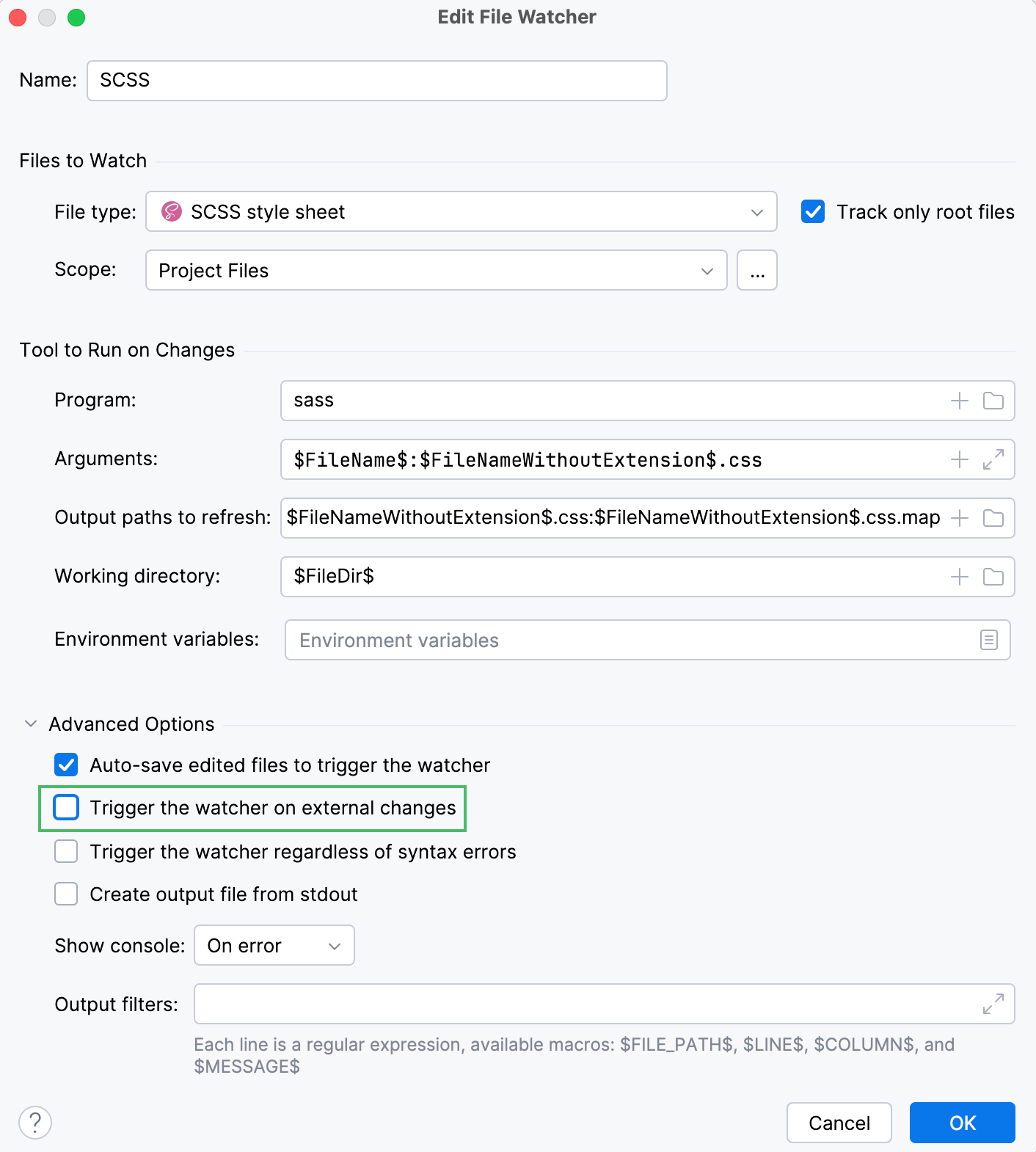
Press Ctrl+Alt+S to open settings and then select . Select the required File Watcher (SCSS in our example) and click  on the toolbar. In the Edit File Watcher dialog, expand the Advanced Options area and clear the Auto-save edited files to trigger the watcher checkbox.
By default, the File Watcher wakes up even when a file from its scope is edited from outside PhpStorm. To override this behavior and transpile files only on editing internally, clear the Trigger the watcher on external changes checkbox.
Change the scope
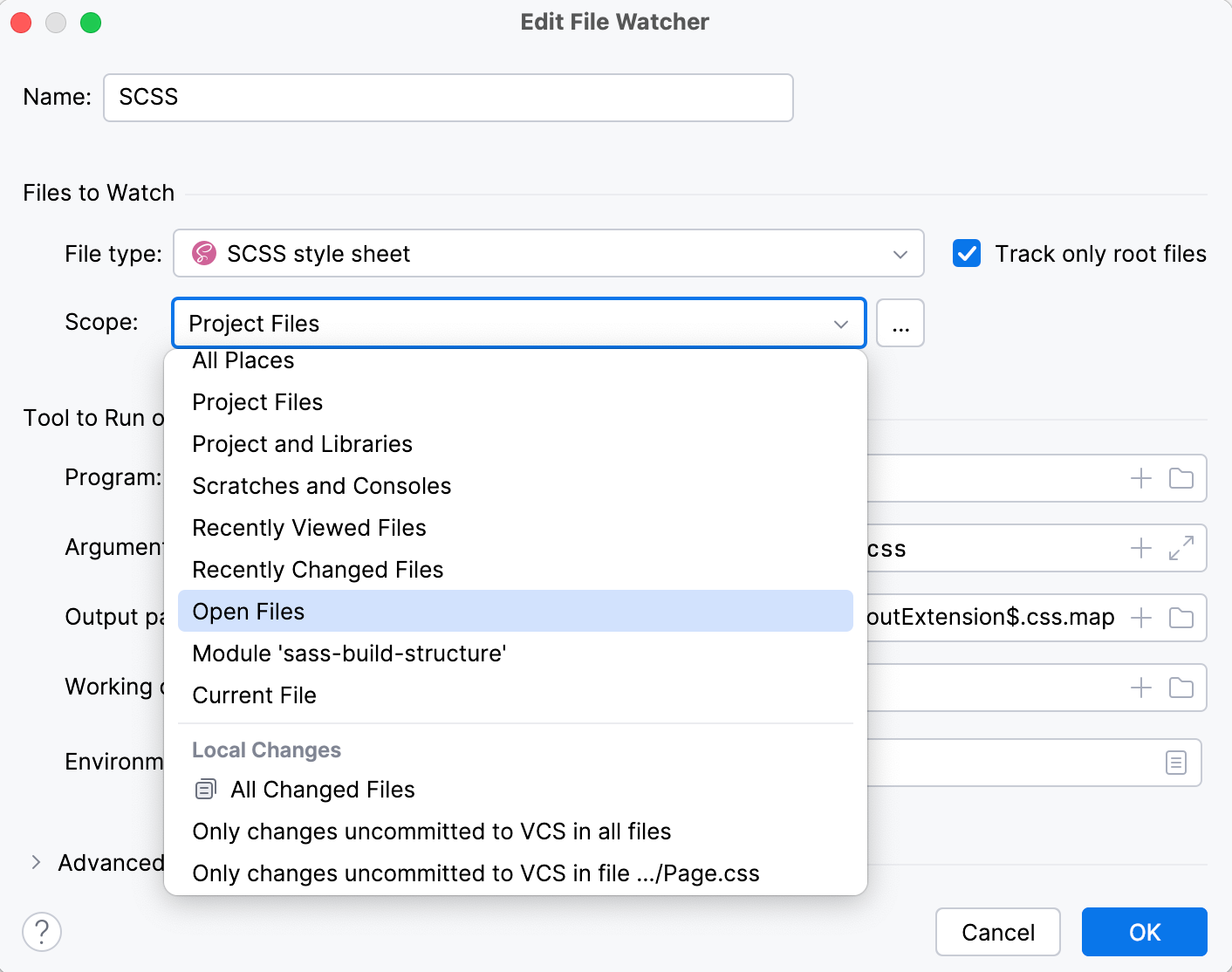
By default, PhpStorm monitors changes in all files with the .scss extension in the entire project. This works for our example. However, you can change the scope to process, for example, only uncommitted changes. In a large project, this will save time.
Press Ctrl+Alt+S to open settings and then select . Select the required File Watcher (SCSS in our example) and click on the toolbar. In the Edit File Watcher dialog, select the applicable scope from the list. Learn more from Scopes and file colors.
Custom output location
By default, the generated .css and .css.map files are stored in the folder where the original file is and are shown as its children in the Project tool window (Alt+1) . You can change this default behavior to store all generated .css and .css.map files in a separate folder.
Let's start with a simple case. Suppose you have a custom_output.scss file in the project root.
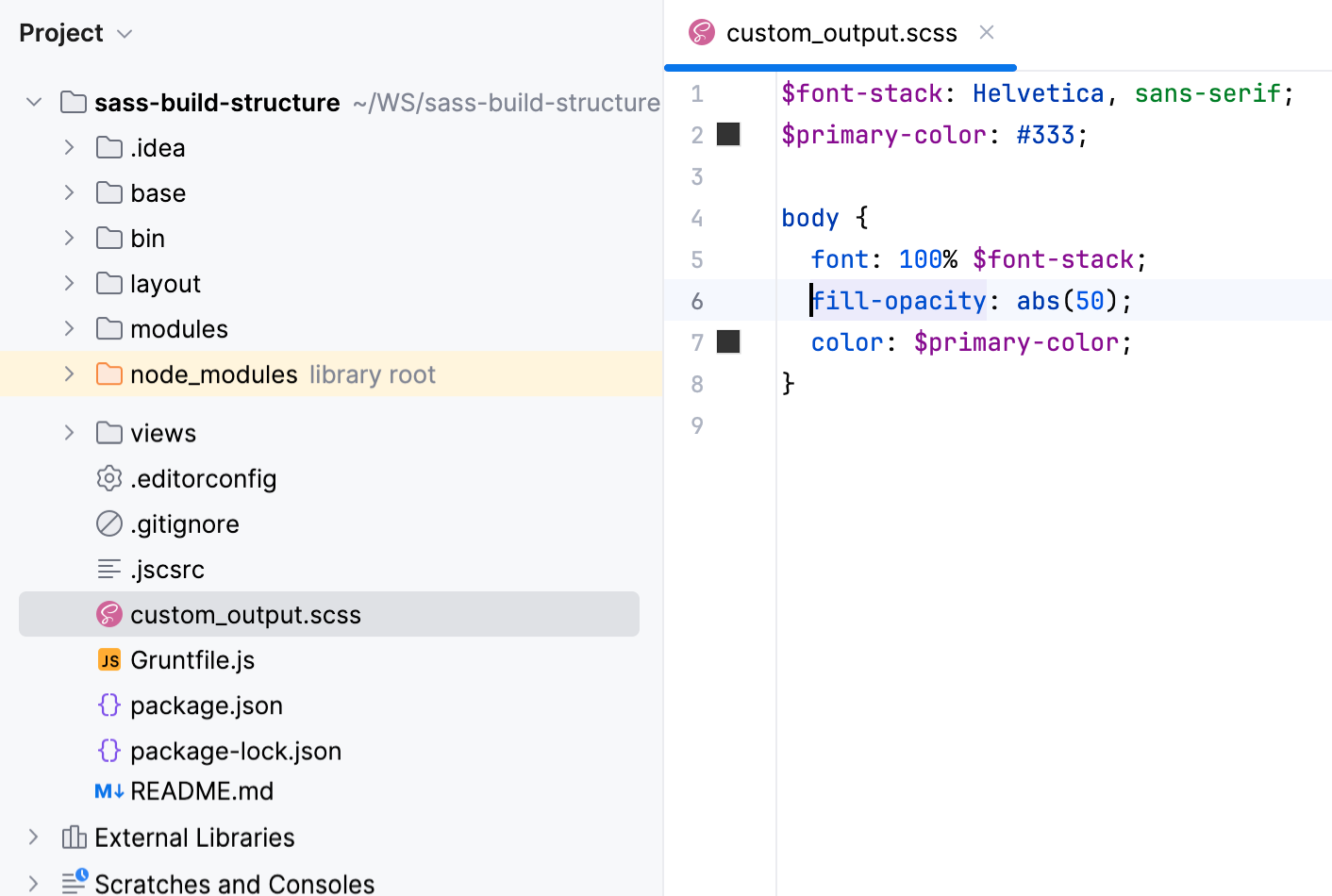
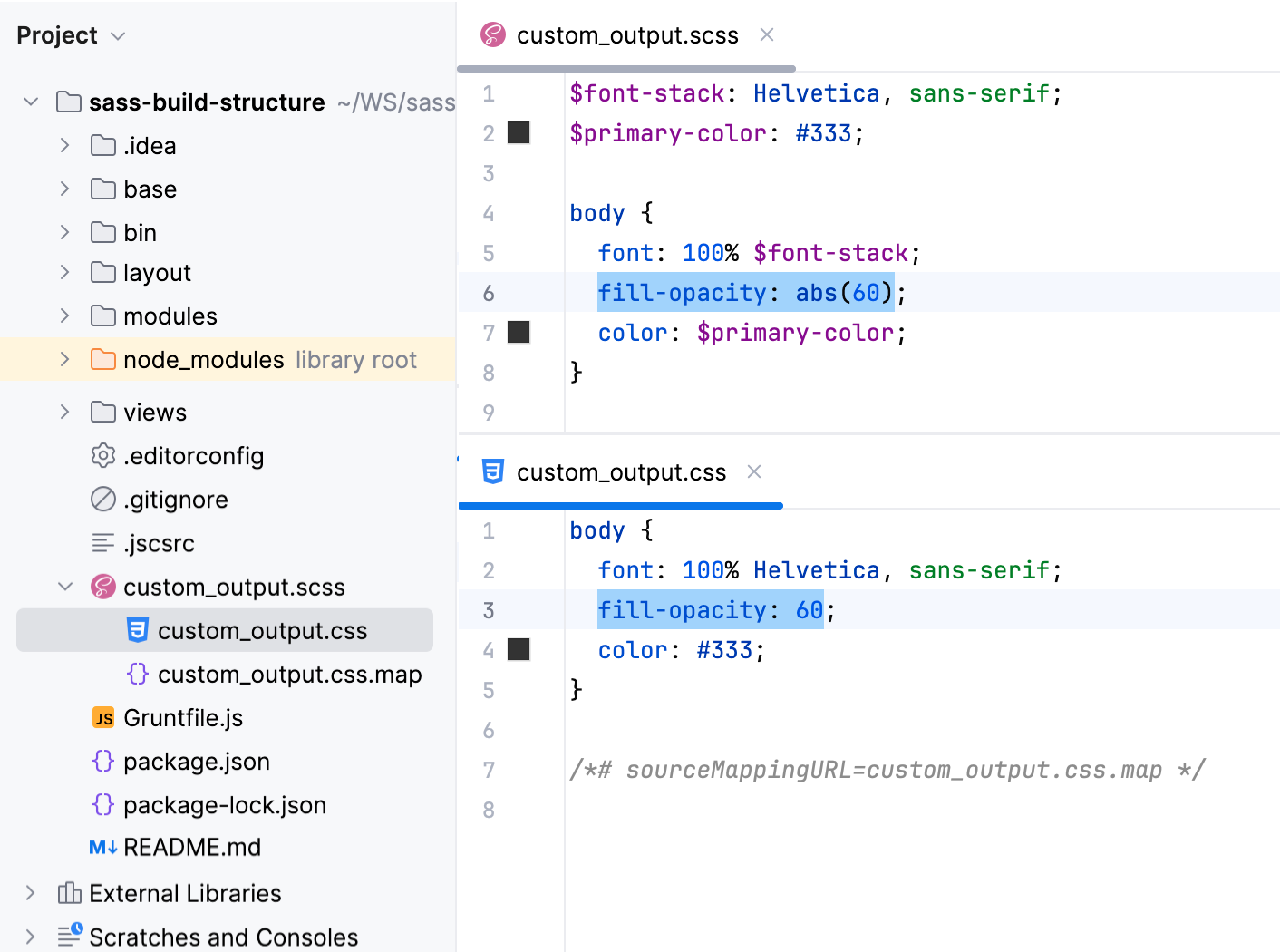
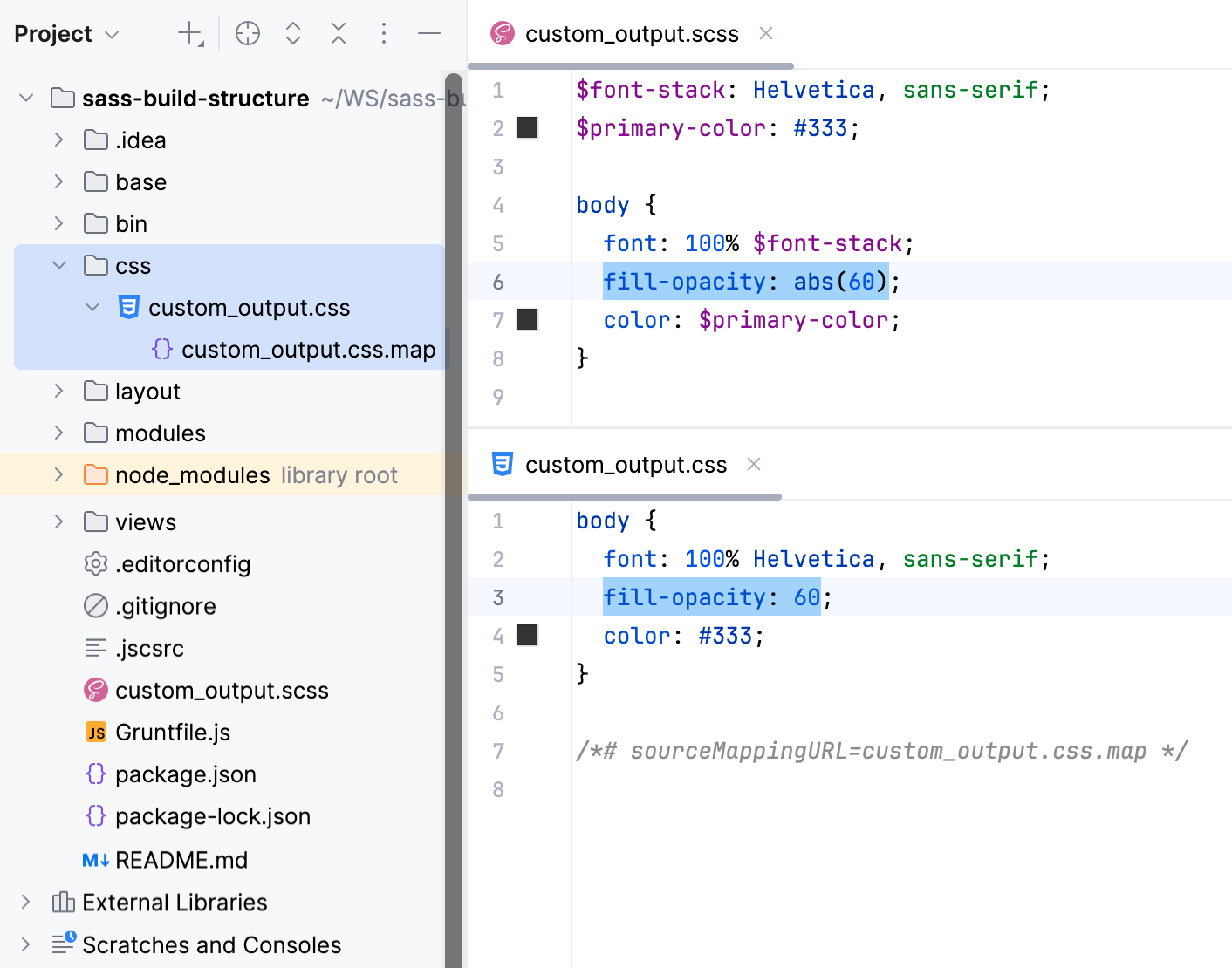
Let's edit custom_output.scss, for example, replace fill-opacity: abs(50); at line 6 with fill-opacity: abs(60);. With the default File Watcher configuration, the generated files custom_output.css and custom_output.css.map will be stored in the project root and shown as children of custom_output.scss.
It would be convenient to store all the output in a separate folder, for example, css. Let's create a custom SCSS_custom_output File Watcher with the css folder as the output location.
Press Ctrl+Alt+S to open settings and then select . Then create a SCSS File Watcher as described above.
Update the default settings as follows:
In the Arguments field, type:
$FileName$:$ProjectFileDir$/css/$FileNameWithoutExtension$.cssIn the Output paths to refresh field, type:
$ProjectFileDir$/css/$FileNameWithoutExtension$.css:$ProjectFileDir$/css/$FileNameWithoutExtension$.css.map
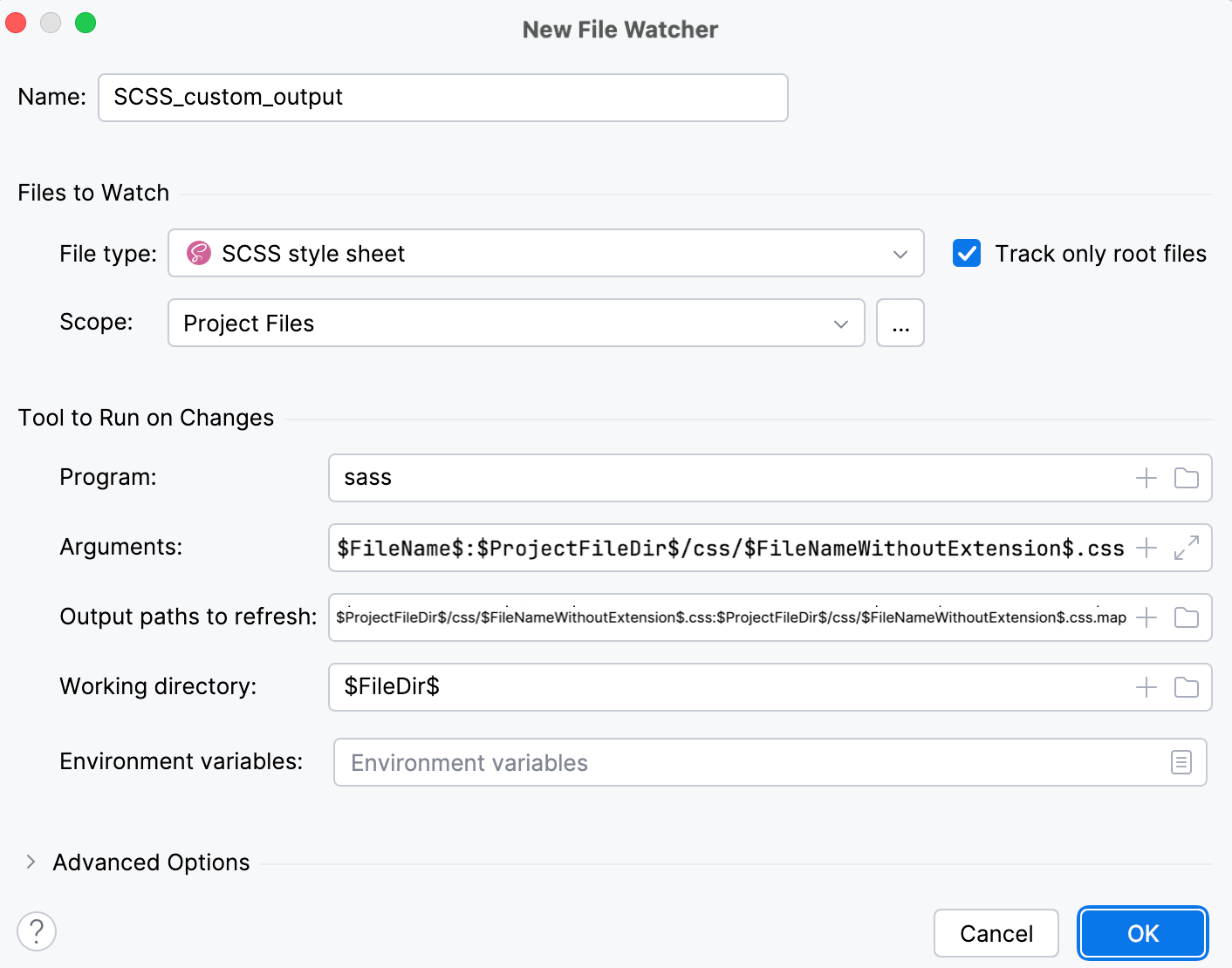
Save the new File Watcher and make sure it is enabled.
Now, if you edit custom_output.scss, for example, replace fill-opacity: abs(50); at line 6 with fill-opacity: abs(60);, PhpStorm creates a css folder and stores the generated custom_output.css and custom_output.css.map files in it.
Custom output location: preserve the original folder structure
Let's now consider an example where .scss files are stored in a folder structure, for example:
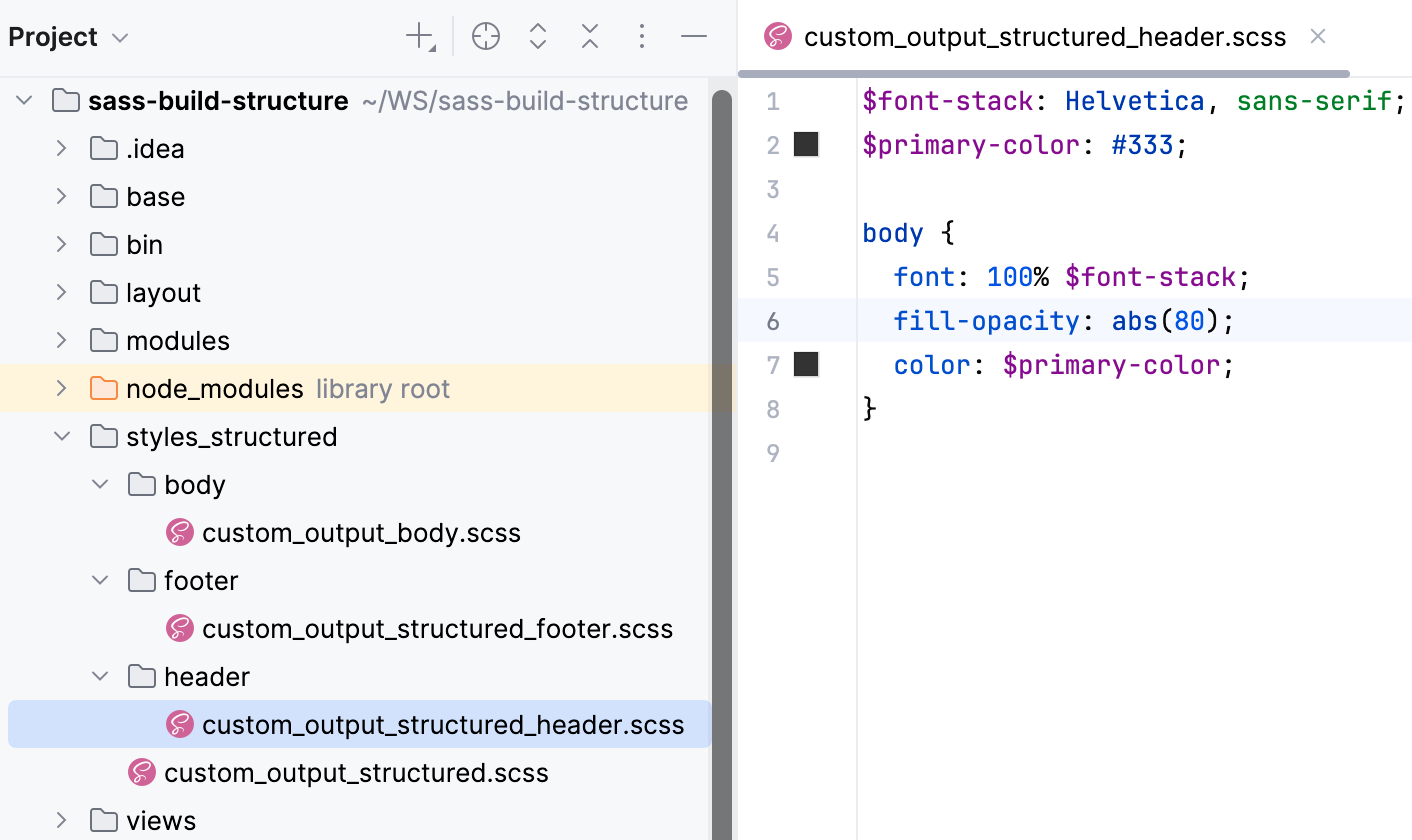
With the default File Watcher, the generated files will be stored next to the original .scss files.
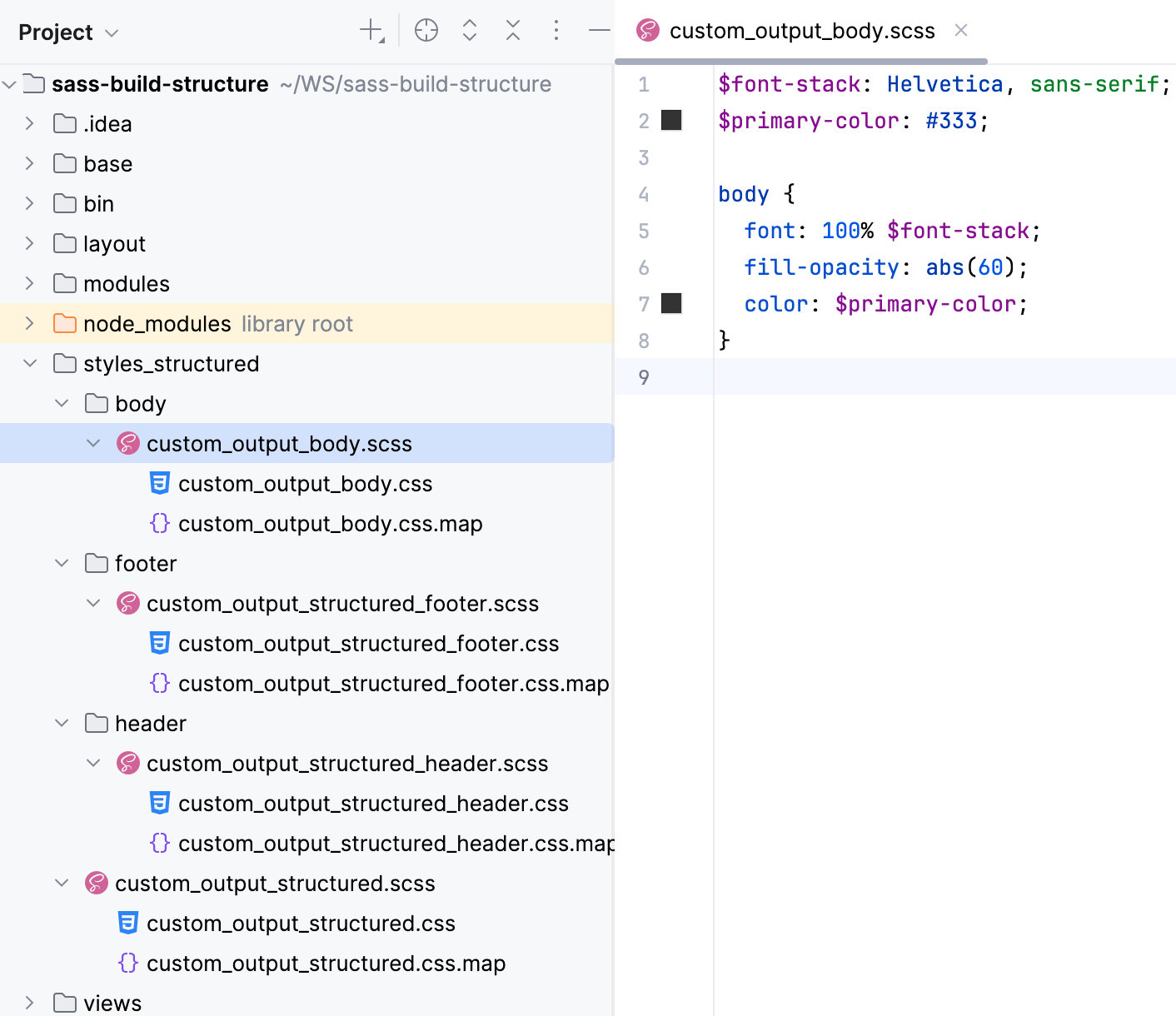
If we use the custom File Watcher as described above, all the generated files will be stored in one same css folder:
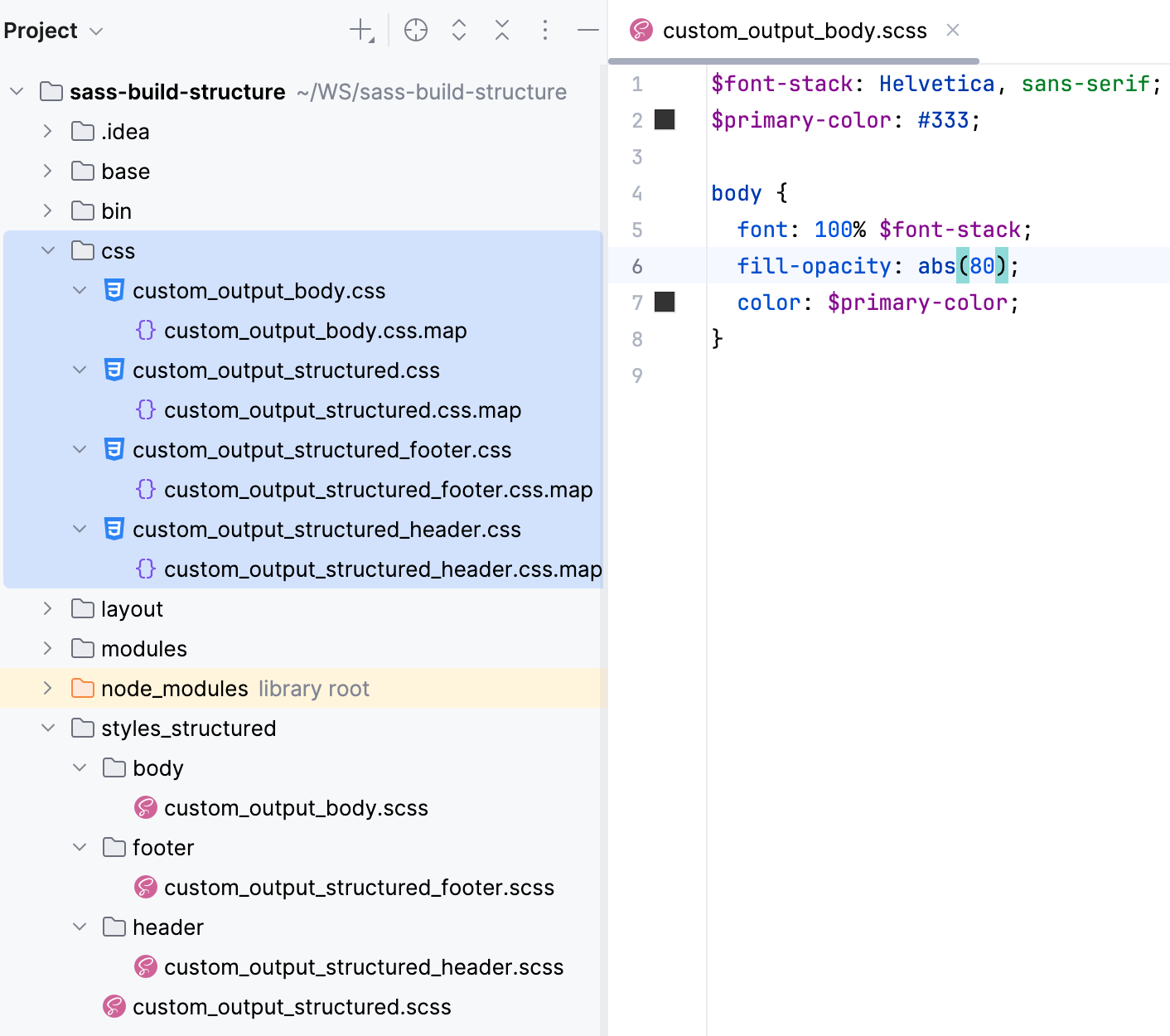
To have PhpStorm preserve the folder structure, let's create another custom File Watcher.
Press Ctrl+Alt+S to open settings and then select . Then create a SCSS File Watcher as described above.
Update the default settings as follows:
In the Arguments field, type:
$FileName$:$ProjectFileDir$/css/$FileDirRelativeToProjectRoot$/$FileNameWithoutExtension$.cssIn the Output paths to refresh field, type:
$ProjectFileDir$/css/$FileDirRelativeToProjectRoot$/$FileNameWithoutExtension$.css:$ProjectFileDir$/css/$FileDirRelativeToProjectRoot$/$FileNameWithoutExtension$.css.map
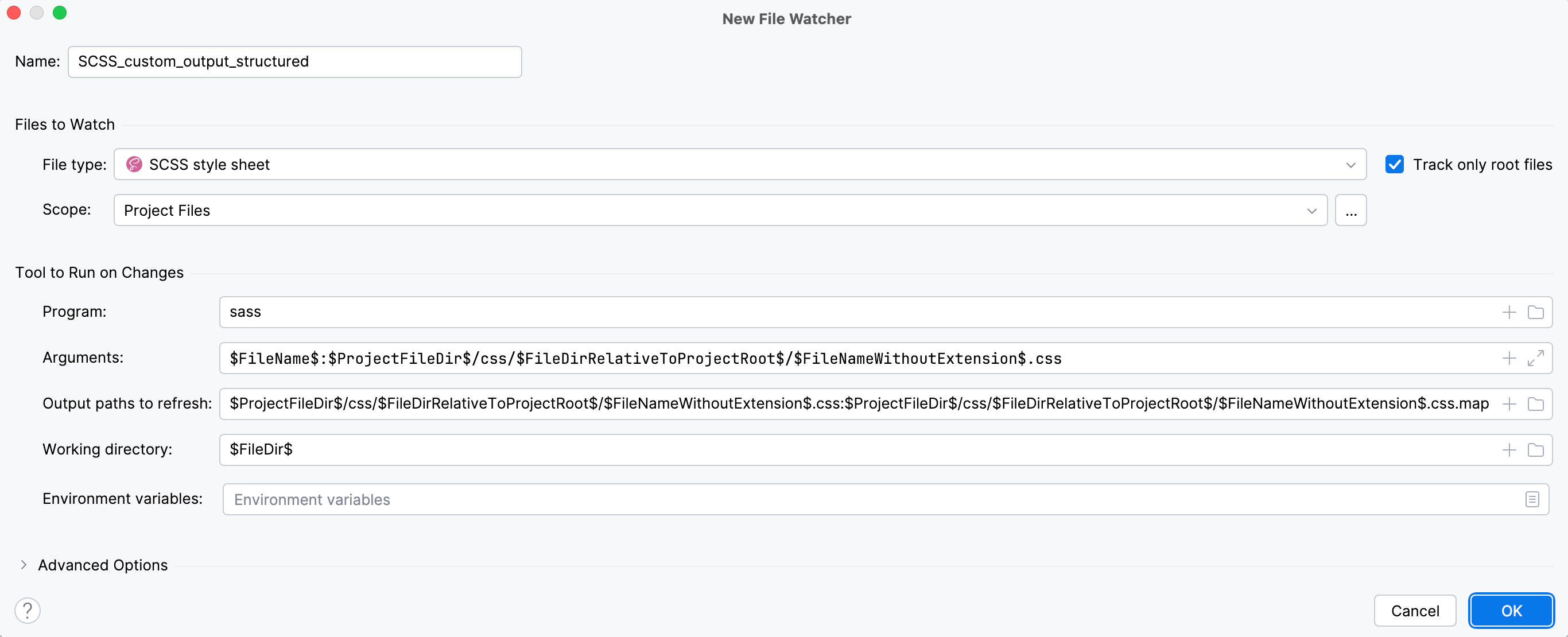
Save the new File Watcher and make sure it is enabled.
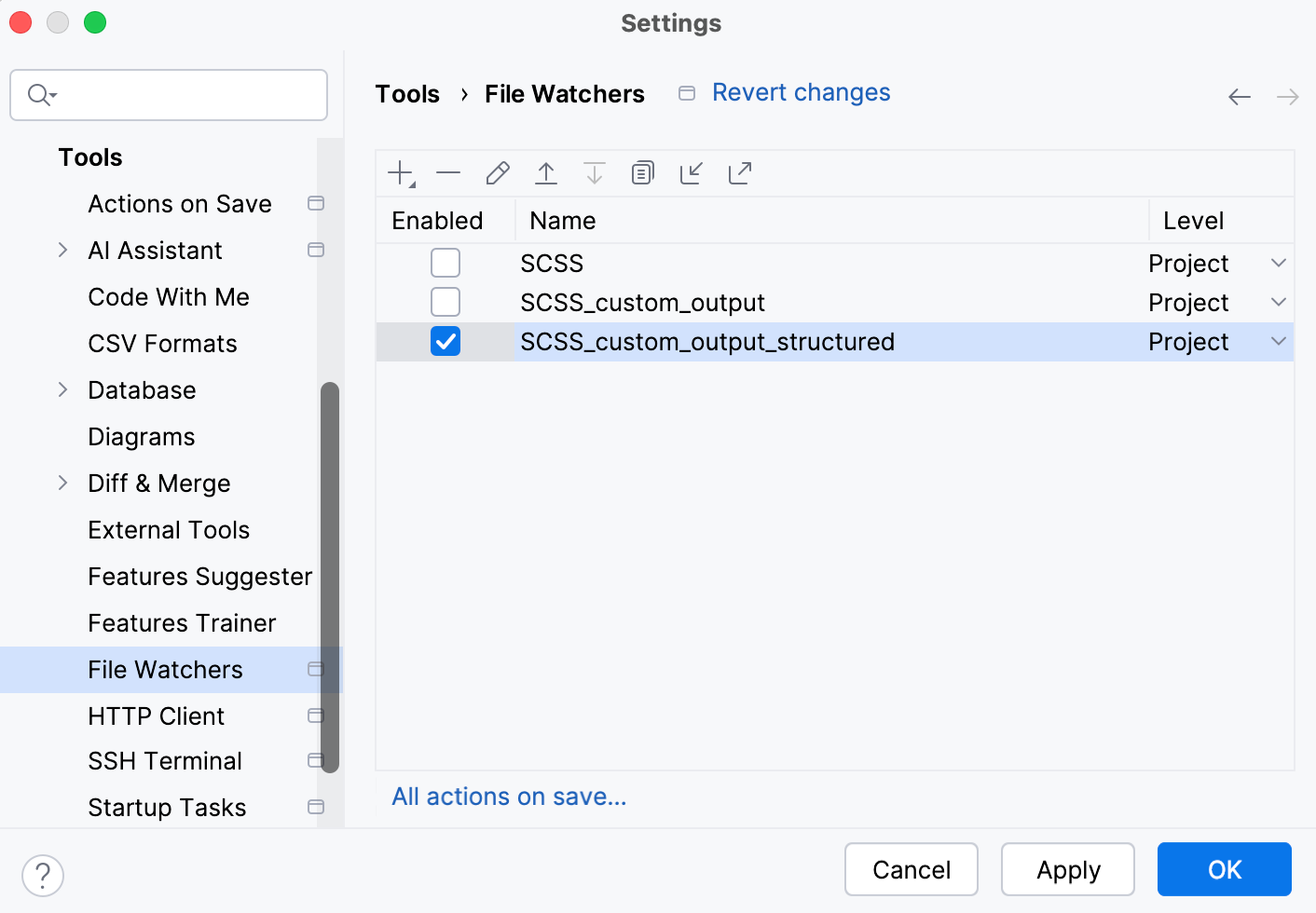
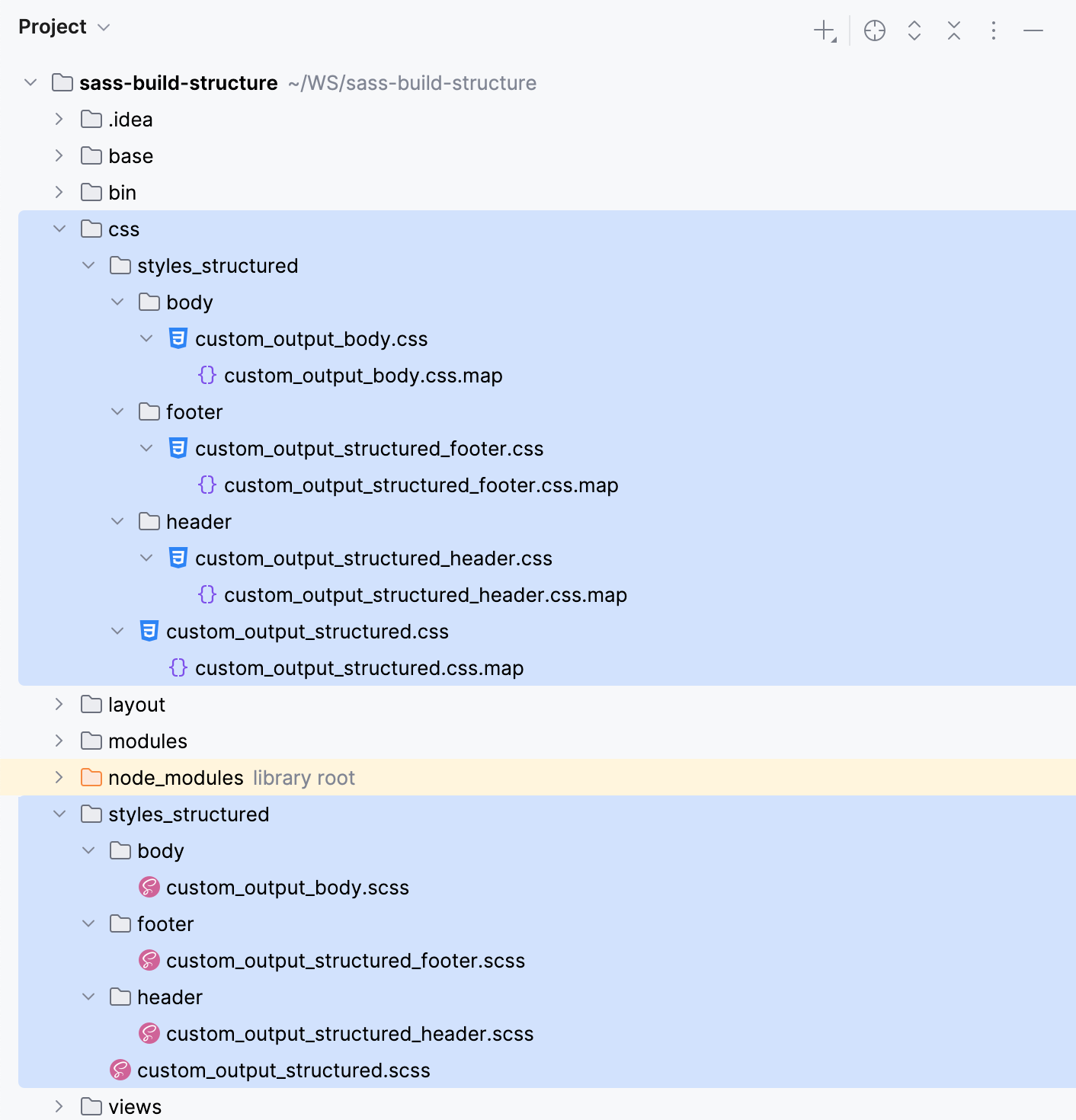
Now, if you edit custom_output_body.scss, custom_output_header.scss, or custom_output_footer.scss, PhpStorm creates a css folder with the subfolders' structure that preserves the structure of styles_structured.
Customize the CoffeeScript compiler
Suppose, you have a project with the following folder structure:
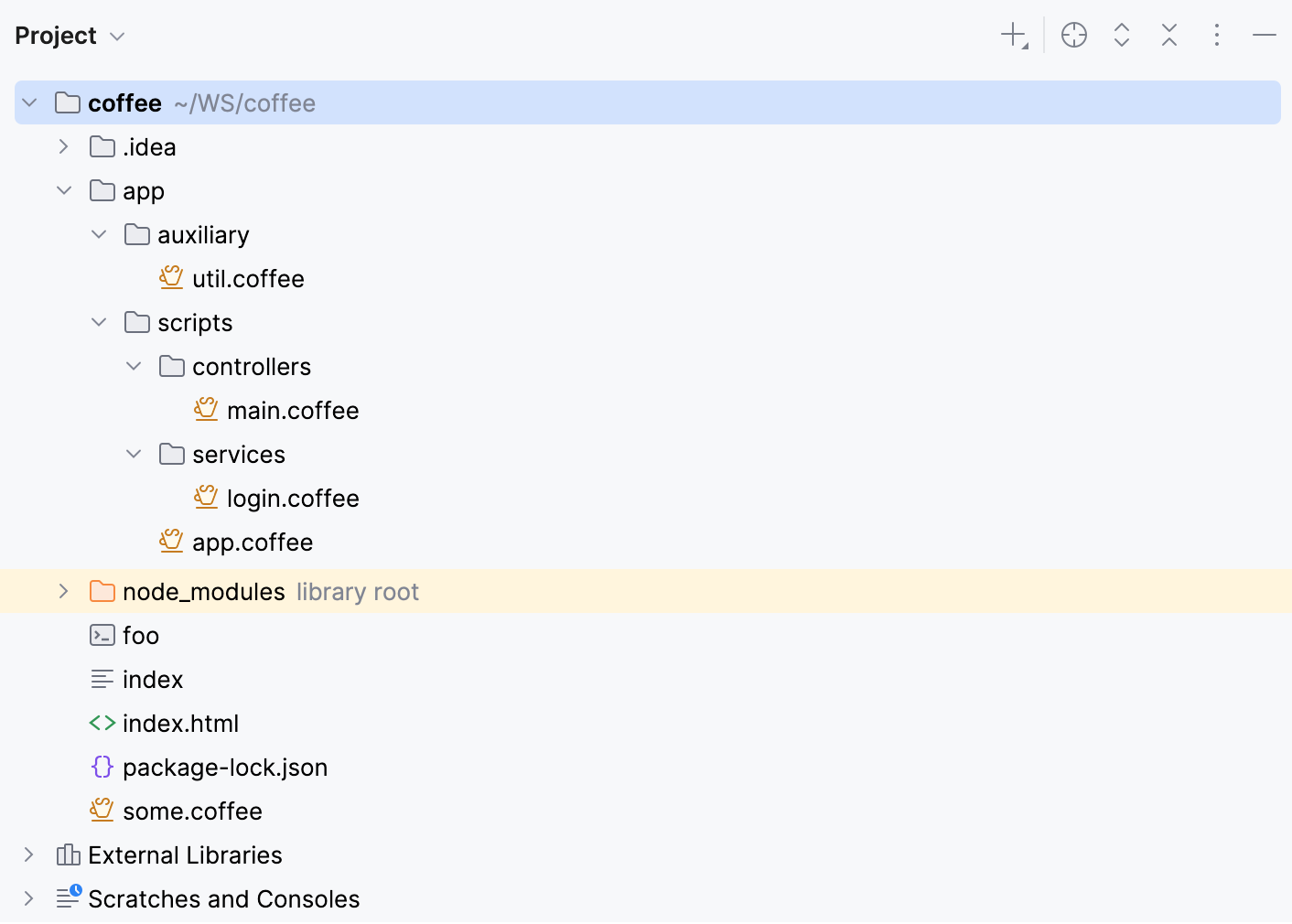
With the default File Watcher, the generated files will be shown as children of their original files.
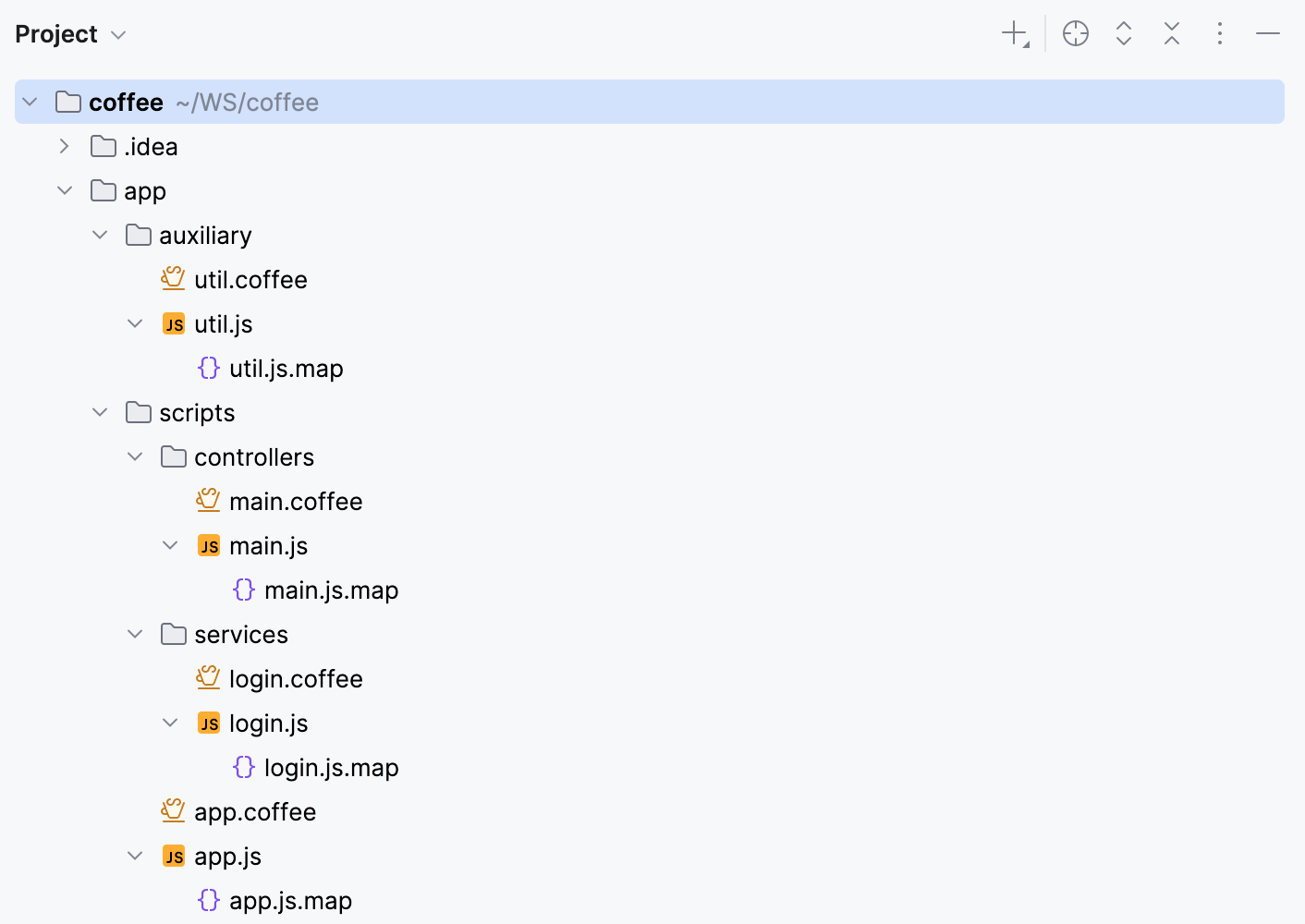
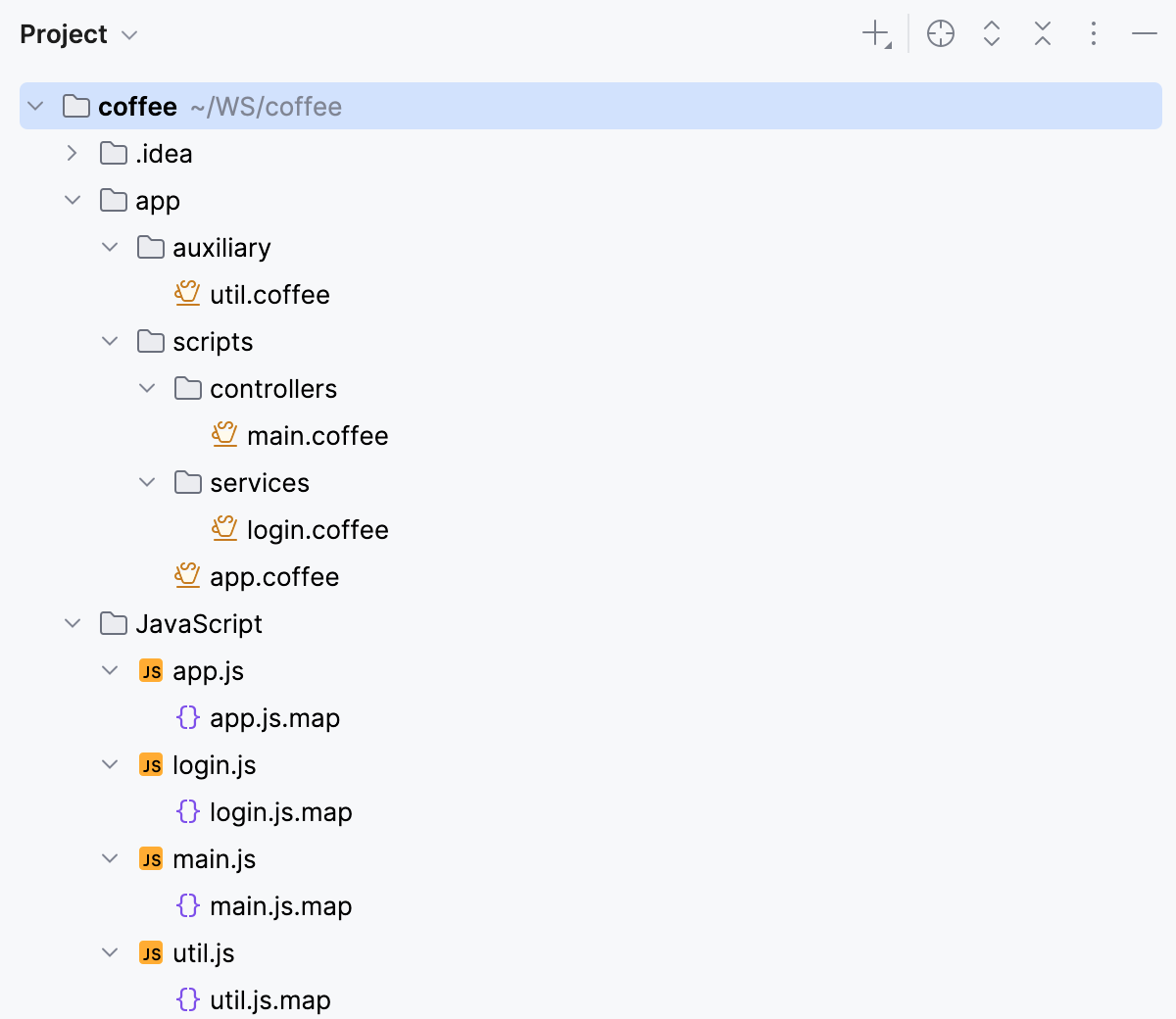
You can change this default location and have the generated files stored in a separate JavaScript folder.
Store all the generated files in the output JavaScript folder
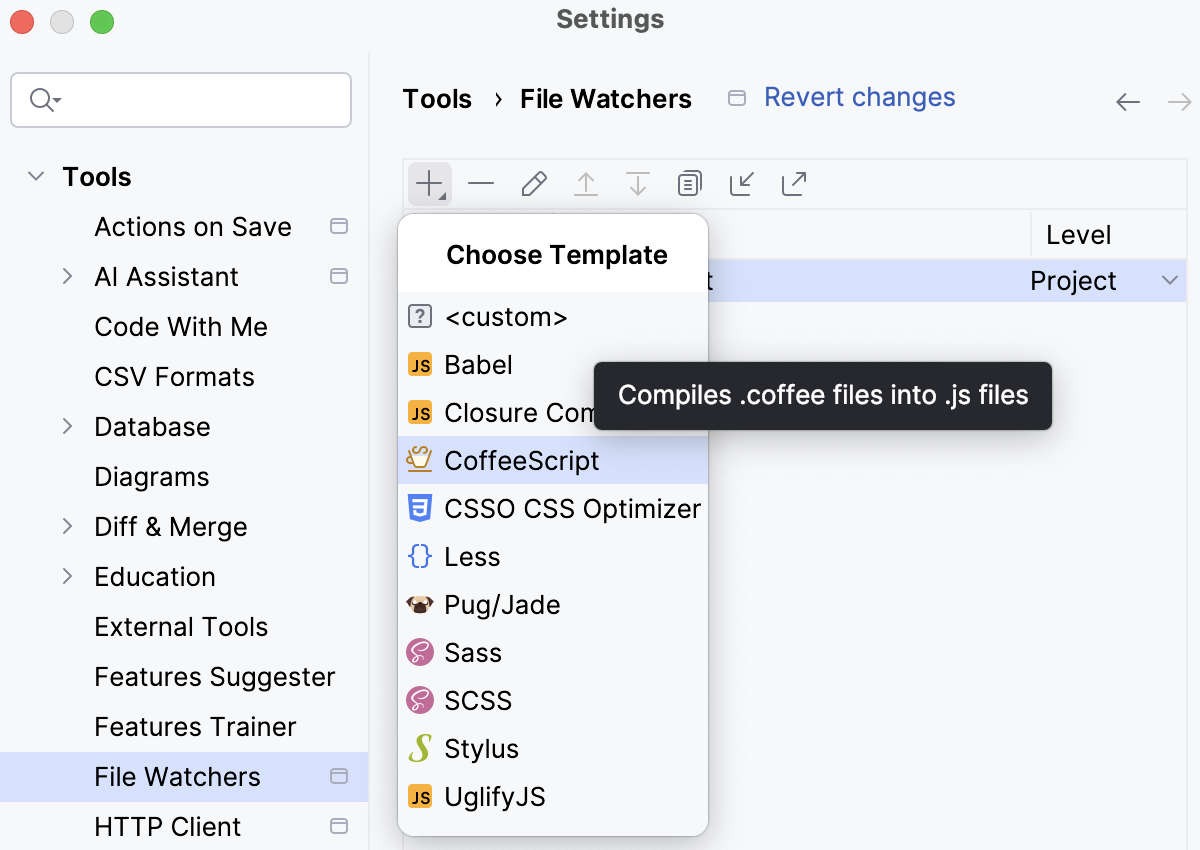
Create a CoffeeScript File Watcher.
In the Arguments field, type:
--map --compile -o $ProjectFileDir$/JavaScript $FileName$In the Output paths to refresh field, type:
$ProjectFileDir$/JavaScript/$FileNameWithoutExtension$.js:$ProjectFileDir$/JavaScript/$FileNameWithoutExtension$.map:$FileNameWithoutExtension$.js.map
As a result, the project tree looks as follows:
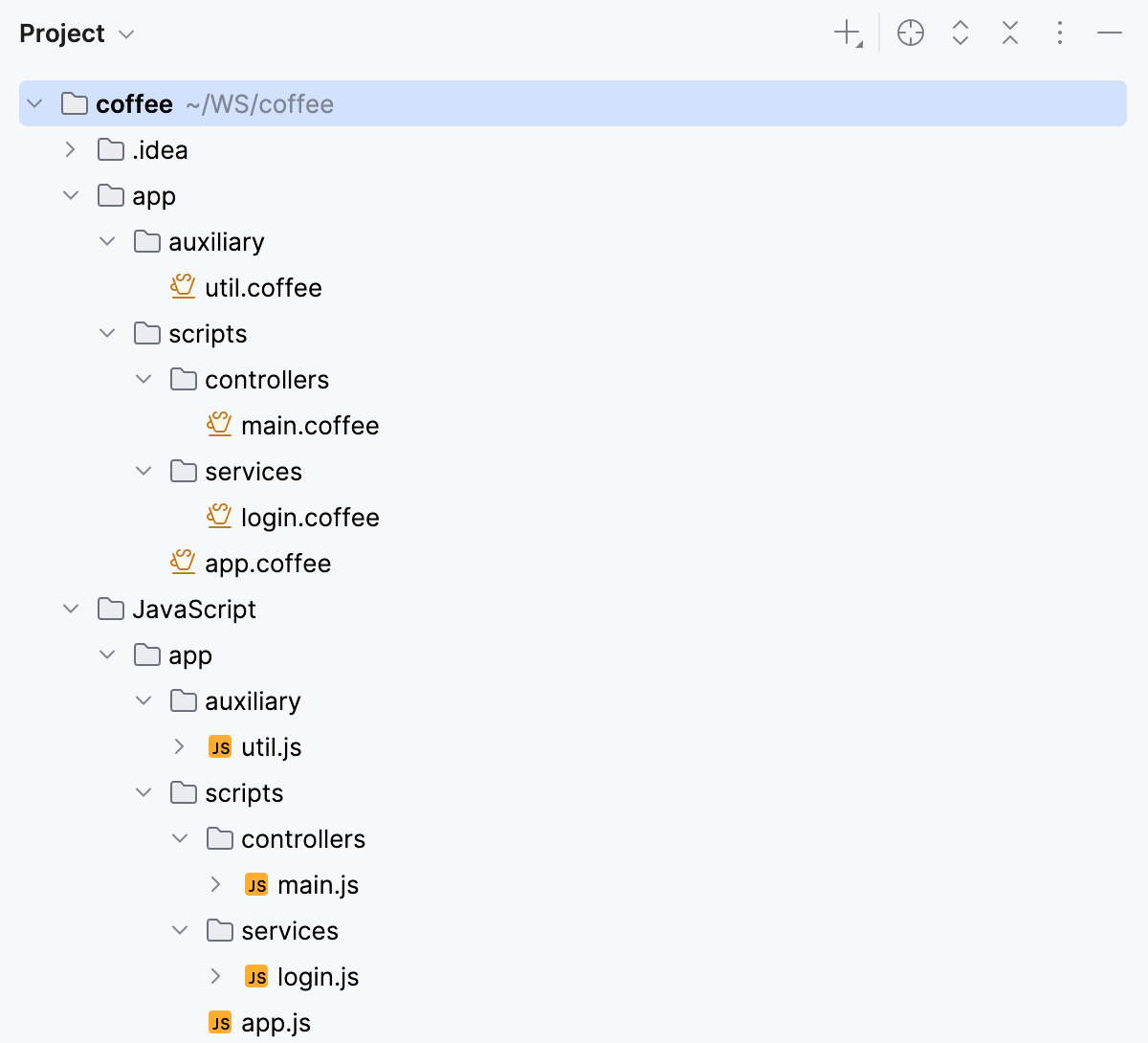
You can also have the generated files stored in the folder structure that repeats the original structure under the app node.
Preserve the original folder structure in the output folder
Create a CoffeeScript File Watcher.
In the Arguments field, type:
--map --compile -o $ProjectFileDir$/JavaScript/$FileDirRelativeToProjectRoot$ $FileName$In the Output paths to refresh field, type:
$ProjectFileDir$/JavaScript/$FileDirRelativeToProjectRoot$/$FileNameWithoutExtension$.js:$ProjectFileDir$/JavaScript/$FileDirRelativeToProjectRoot$/$FileNameWithoutExtension$.map:$FileNameWithoutExtension$.js.map
As a result, the project tree looks as follows:
Troubleshooting File Watchers
There might be displayed a popup with an error message also informing you that the File Watcher was disabled
Here is a list of possible errors:
Reported Problem | Problem Description | Workaround |
|---|---|---|
| The File Watcher uses a scope that is not defined in this project. | Double-click the watcher and select an available scope or create a new one. |
| The project uses a global File Watcher that was removed. | Delete the watcher from the list using the Remove button |
PhpStorm runs numerous identical File Watcher tasks | After a bulk update, for example, from your VCS, PhpStorm runs a separate File Watcher task for each saved file. | Add a file-specific macro (like |
 or edit it to create a new global watcher with the same name.