Editor basics
The PhpStorm editor is the main part of the IDE that you use to create, read, and modify code.
The editor consists of the following areas:
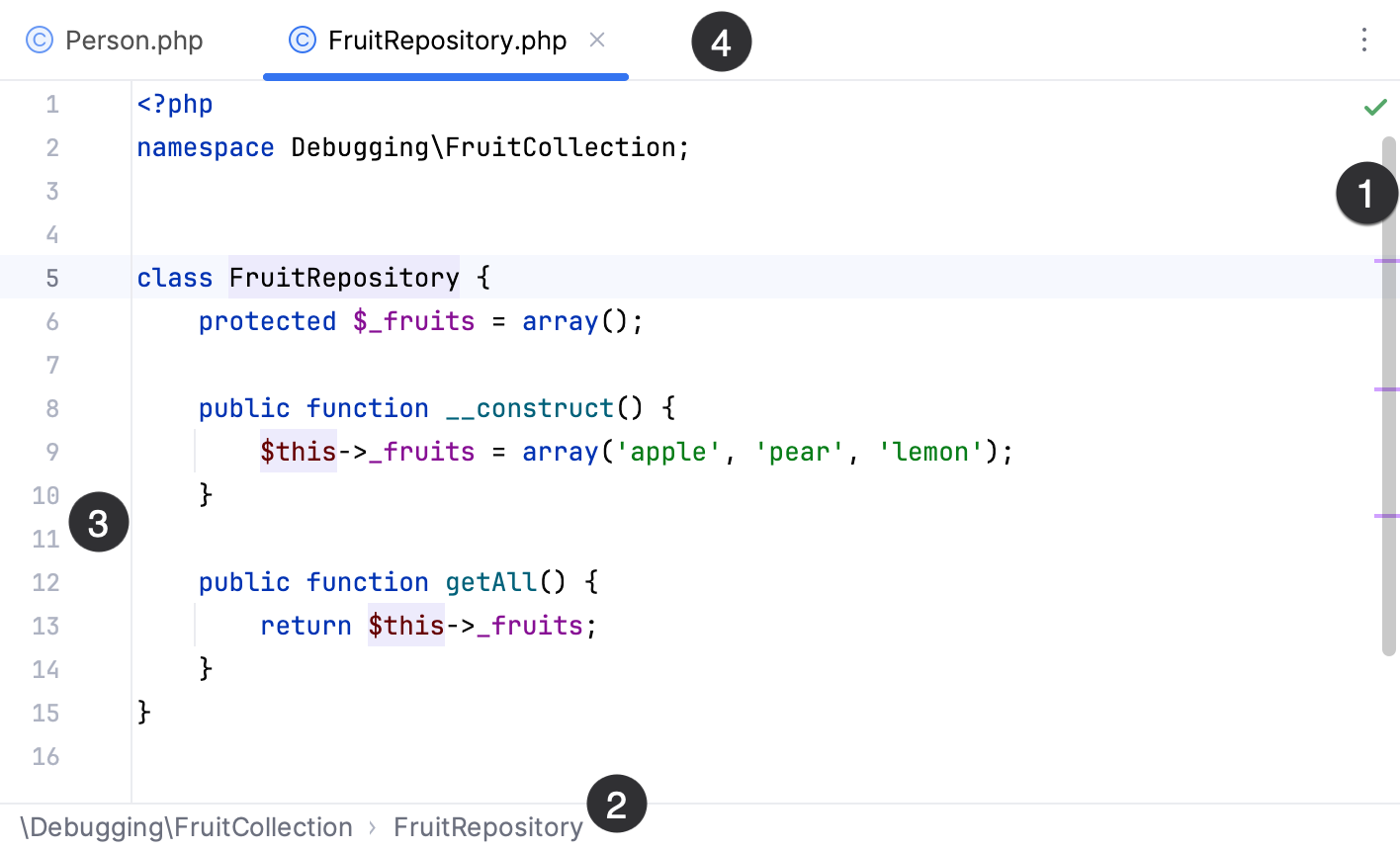
The scrollbar shows errors and warnings in the current file.
Breadcrumbs help you navigate inside the code in the current file.
The gutter shows line numbers, annotations, and context-dependent action icons.
Tabs show the names of the currently opened files.
Navigation
You can use various shortcuts to switch between the editor and different tool windows, change the editor size, switch focus, or return to the original layout.
Maximize editor pane
In the editor, press Ctrl+Shift+F12. PhpStorm hides all windows except the active editor.
You can maximize a split screen as well. In this case, the active screen is maximized, and other screens are moved aside.
Switch the focus from a window to the editor
Press Escape. PhpStorm moves the focus from any window to the active editor.
Return to the editor from the command-line terminal
Press Alt+F12. PhpStorm closes the terminal window.
If you need to keep the terminal window open when you switch back to the active editor, press Ctrl+Tab.
Jump to the last active window
Press F12.
Use the switcher for navigation
To jump between the opened files and tool windows with the switcher, press Ctrl+Tab.
Keep Ctrl pressed to leave the switcher popup open.
Press Tab to move between elements. Press Backspace to remove the selected file from the list and close it in the editor.
Change the IDE appearance
You can switch between schemes, keymaps, and viewing modes.
Press Ctrl+`.
In the Switch menu, select the option you need and press Enter. Use the same shortcut Ctrl+` to undo your changes.
You can adjust the color scheme settings, including the High contrast color scheme for people with eyesight deficiency, in . To adjust the keymap settings, go to .
Jump to the navigation bar
Press Alt+Home.
Scrollbar
When you work with code in the editor, PhpStorm displays code analysis results, that include errors and warnings, on the scrollbar. You can check whether your code has issues and quickly navigate to them.
The top of the scrollbar has the Inspections widget that gives you a brief summary of the code problems. Click the widget to get more information on each detected problem in the Problems tool window.
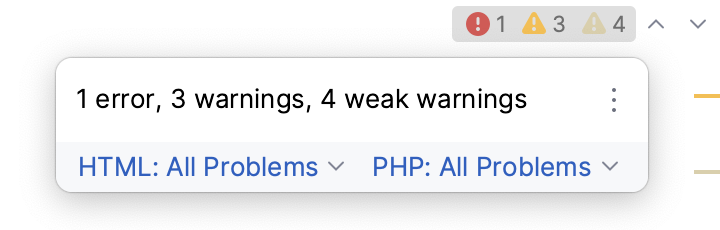
For more information, refer to Instant analysis of the current file.
The stripes on the scrollbar indicate places where PhpStorm found a problem. Hover over a stripe to see a tooltip describing the problem, or click the stripe for quick navigation.
It is normal to see many stripes while you are working on a file. Many of these errors, warnings, and suggestions are eventually resolved as you complete the code. Should any errors remain when you feel your code is complete, we recommend that you explore and resolve them before compiling your project.
The different colors of stripes indicate the severity of the problems from an error marked in red to a TODO comment marked in blue, but you can change the displayed colors if you need. For more information, refer to Change inspection severity.
Use lens mode
Lens mode lets you preview your code without scrolling to it. It is available by default when you hover over the editor scrollbar. The preview shows code highlighting, including warnings and errors, which can be helpful when you are working with large files.
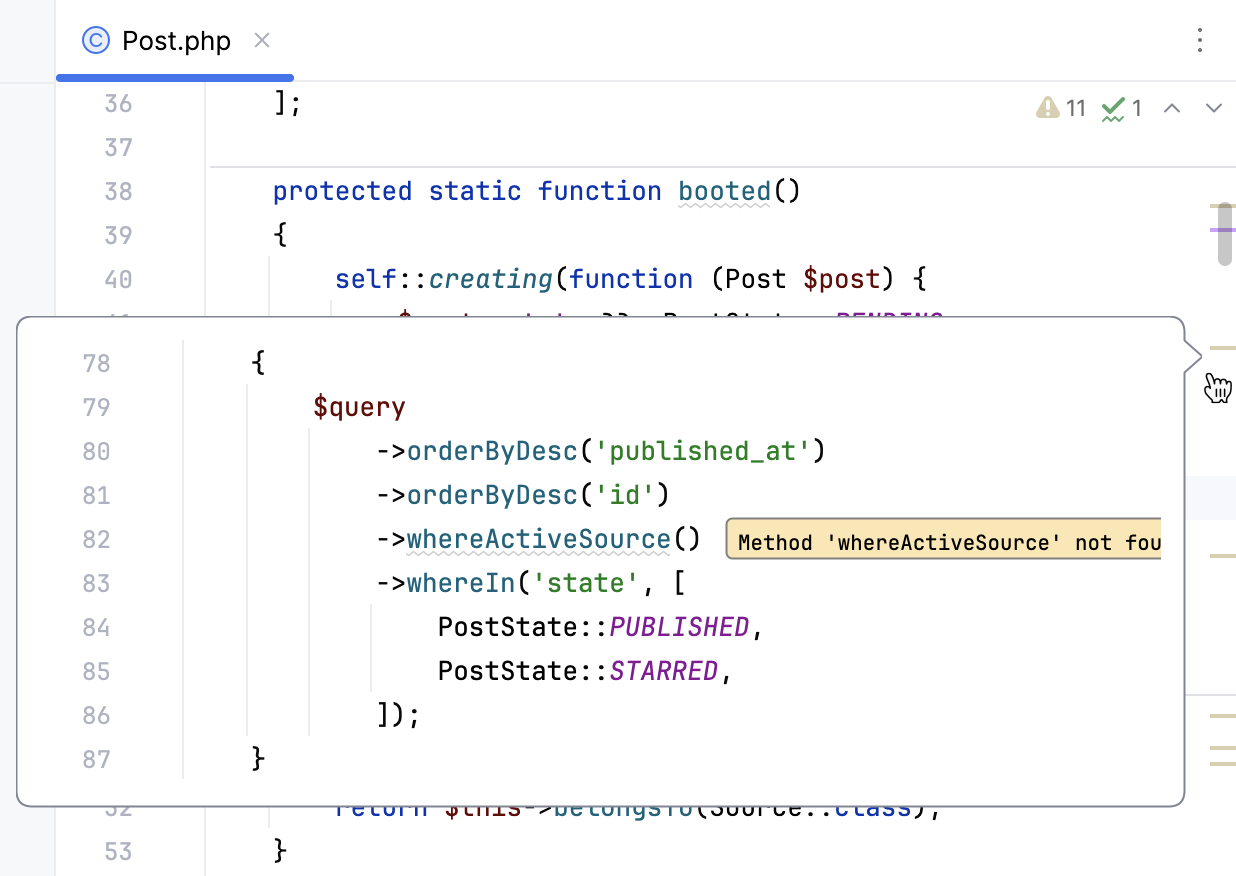
To disable lens mode, right-click the editor scrollbar and clear the Show code lens on scrollbar hover checkbox in the context menu.
Alternatively, in the Settings dialog (Ctrl+Alt+S) , go to and clear the Show code lens on scrollbar hover checkbox.
Sticky lines
The sticky lines feature pins key structural elements, such as class or function declarations, to the top of the editor as you scroll, keeping scopes visible for quick navigation in large files and codebases.
You can also click any of the sticky lines to scroll the editor to the corresponding declaration.
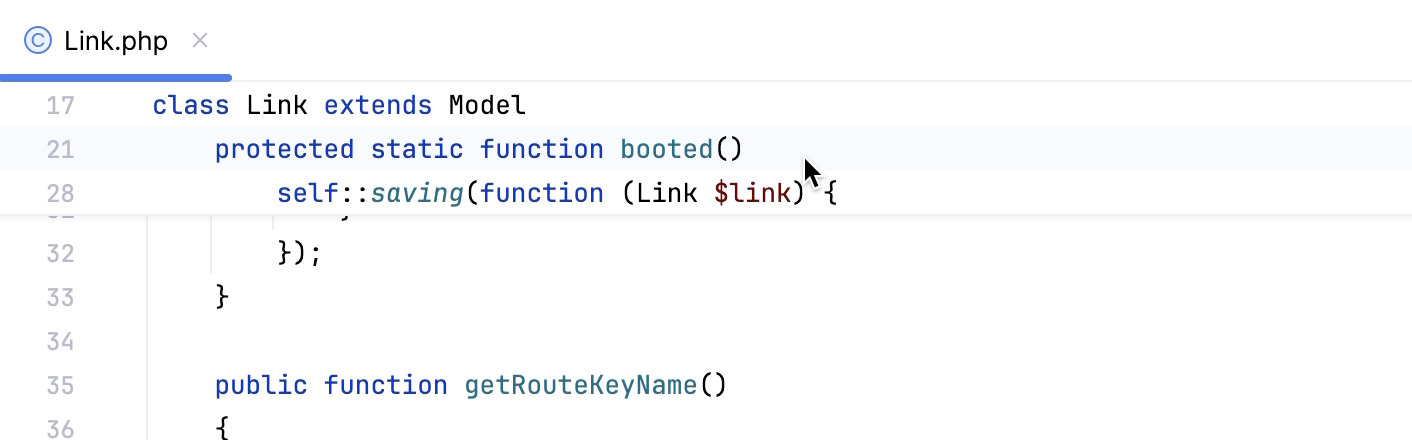
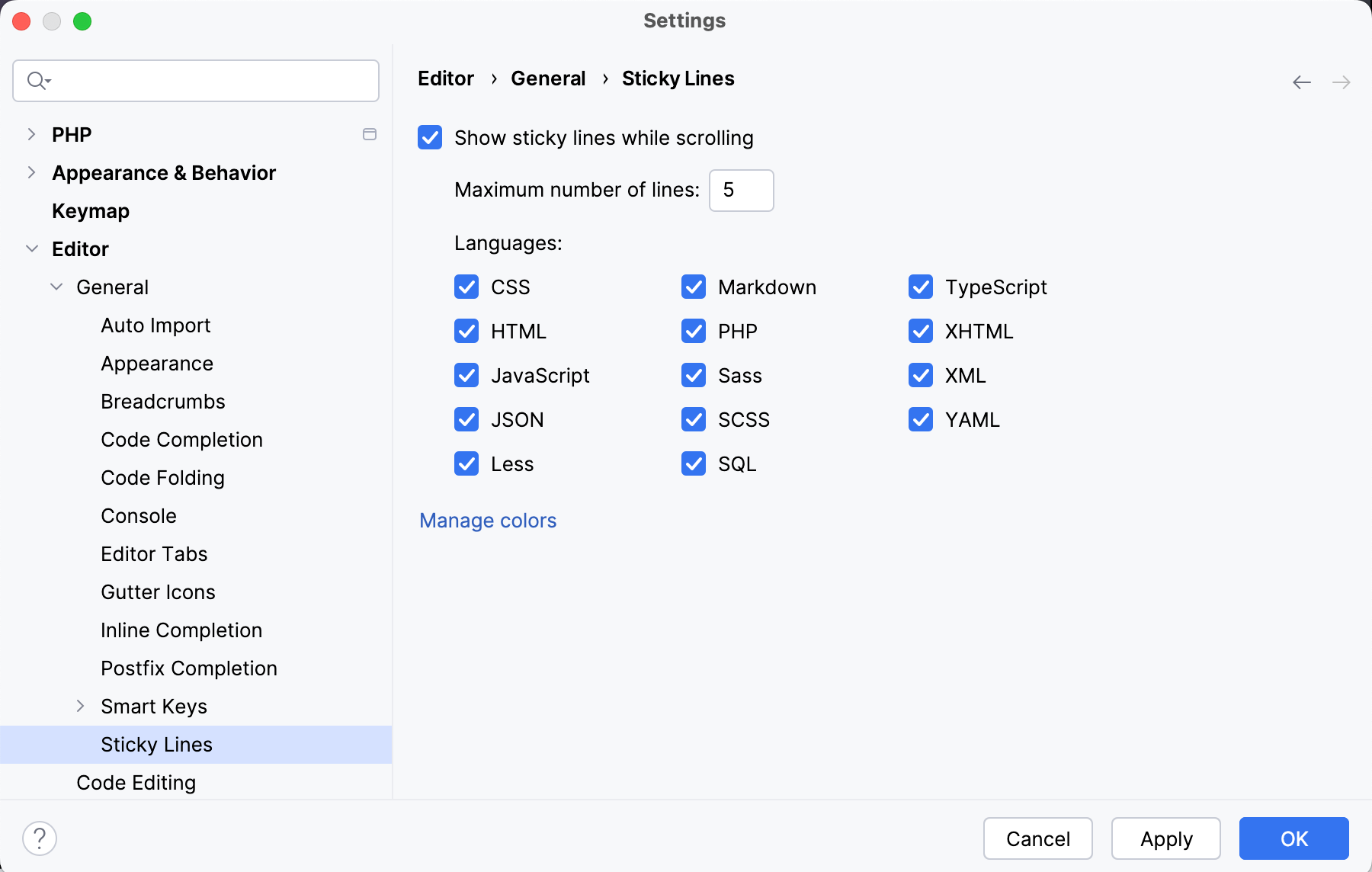
By default, the maximum number of sticky lines is set to 5.
Configure number of sticky lines
Right-click the sticky lines in the editor and click Configure Sticky Lines….
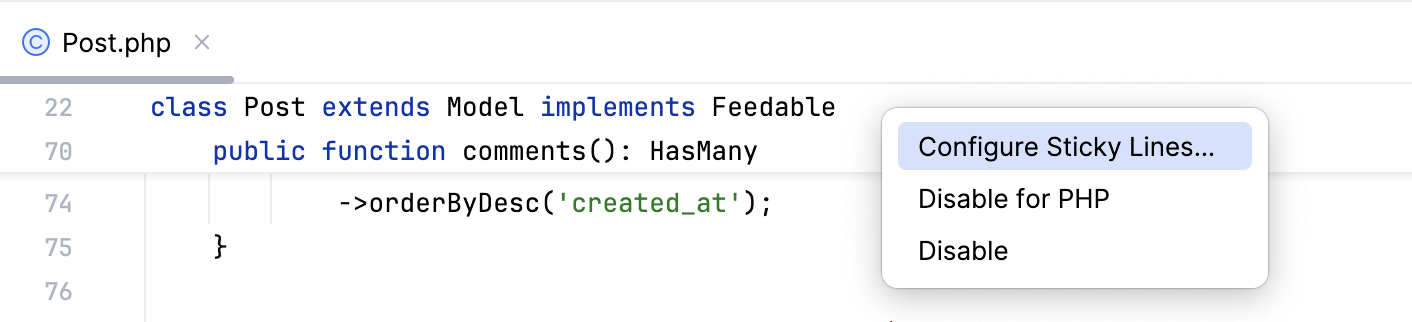
Press Ctrl+Alt+S to open settings and then select . Next to the Maximum number of lines field, enter the desired number of sticky lines.
By default, the Show sticky lines feature is enabled. You can choose to disable the feature either completely or for some of the supported languages.
Disable sticky lines
Right-click the sticky lines in the editor and click Disable or Disable for <language>.

Right-click the gutter, select Appearance, and then deselect Show Sticky Lines.
Press Ctrl+Alt+S to open settings and then select .
Clear the Show sticky lines while scrolling checkbox to disable the feature completely, or unselect only the checkboxes for specific languages.
Change sticky lines color settings
Press Ctrl+Alt+S to open settings and then select . Edit the color for the background, border, or hovered state.
Editor tabs
You can close, hide, and detach editor tabs. Every time you open a file for editing, a tab with its name is added next to the active editor tab.
To configure the settings for editor tabs, use the page. Alternatively, right-click a tab and select Configure Editor Tabs… from the list of options.
Open or close tabs
To close all opened tabs, select from the main menu.
To close all inactive tabs, press Alt and click
 on the active tab. In this case, only the active tab stays open.
To close all tabs except the active one and the pinned tabs, right-click any tab and select Close Other Tabs.
To close only the active tab, press Ctrl+F4. You can also click the mouse's wheel button anywhere on a tab to close it.
To reopen the closed tab, right-click any tab and select Reopen Closed Tab from the context menu.
To open a new tab and place it to the right of all opened tabs, select Open new tabs at the end in the tab settings.
Copy path or file name
Right-click the tab.
From the list that opens, select Copy Path/Reference….
From the list that opens, select your copy option.
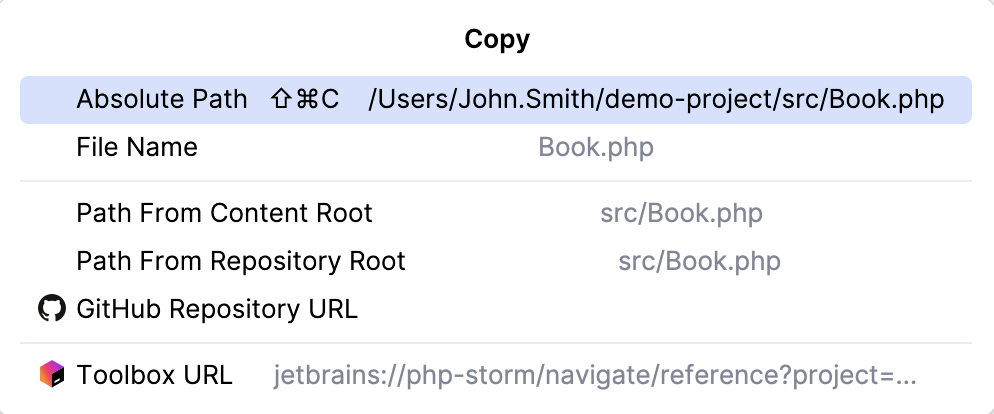
PhpStorm copies the item to the clipboard, and you can paste it (Ctrl+V) wherever you need.
Move, remove, or sort tabs
To move or remove the
icon on a tab, in the Settings dialog (Ctrl+Alt+S) , go to , and select the appropriate option in the Close button position field.To place the editor tabs in a different part of the editor frame or hide the tabs, right-click a tab and select Configure Editor Tabs… to open the Editor Tabs settings. In the Appearance section, select the appropriate option from the Tab placement list.
To see hidden editor tabs, click
 next to the last visible tab in the editor.
To sort the editor tabs alphabetically, right-click a tab and select Configure Editor Tabs… to open the Editor Tabs settings. In the Tab order section, select Sort tabs alphabetically.
Pin or unpin a tab
You can pin an active editor tab so that it stays open when the tab limit is reached or when you use the Close Other Tabs command.
To pin or unpin an active tab, right-click it and select Pin Tab or Unpin Tab from the context menu.
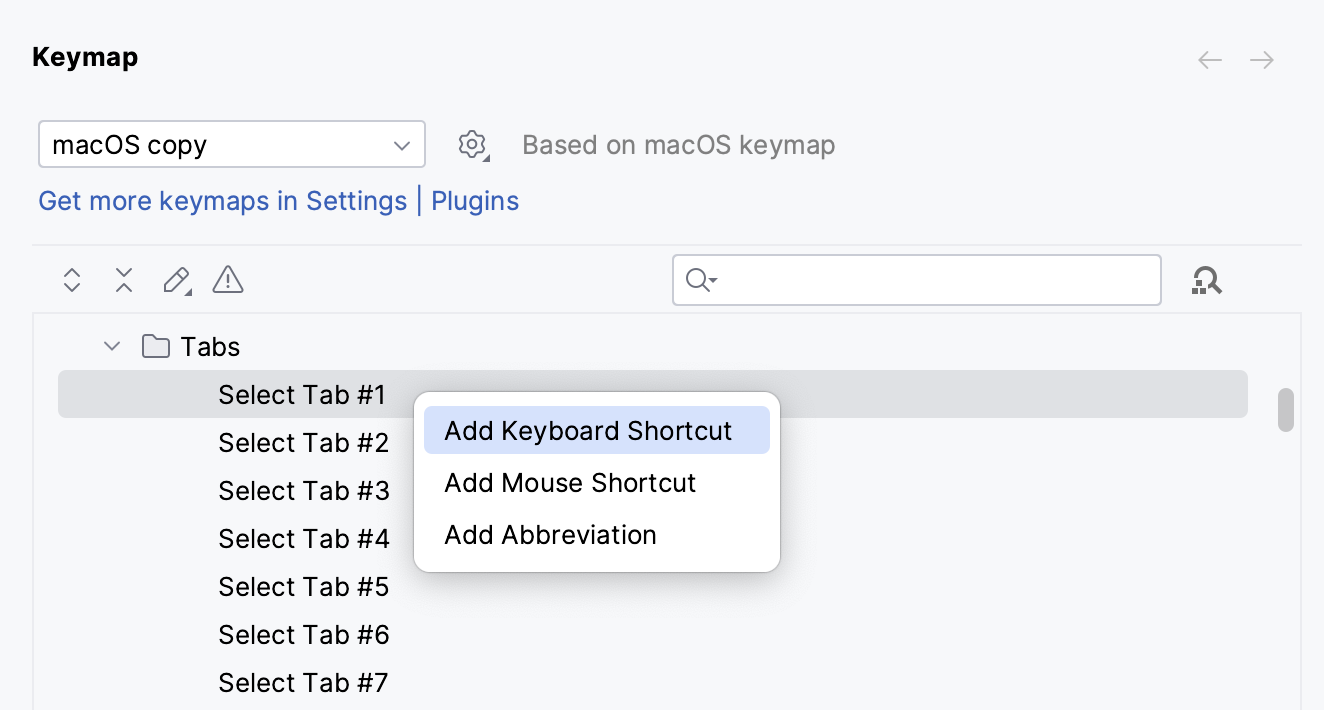
To assign a keyboard shortcut for the Pin Tab action, in the Settings dialog (Ctrl+Alt+S) , go to , find the Pin Active Tab action, right-click it, select Add Keyboard Shortcut, and press the key combination you want to use.
To keep pinned tabs on the left side, in the Settings dialog (Ctrl+Alt+S) , go to Advanced Settings, locate the Editor Tabs section, and select the Keep pinned tabs on the left option.
Detach a tab
When you detach a tab, the tab opens in a separate window, and the window becomes reserved for the detached tab.
If you try to detach another tab from the main frame, it will be opened in its own separate window. You can position the newly detached tab anywhere you like (on the left, right, bottom, or top). You can also drag different tool windows to that frame.
Drag the tab you need outside the main window. If you want to re-attach the tab, drag it back over the main window or click Dock
 .
.To detach an active tab, press Shift+F4.
You can also use Alt+mouse for the same action.
Switch between tabs
To move between tabs, press Alt+Right or Alt+Left.
You can also switch between recently viewed tabs or files.
In the editor, press Ctrl+Tab and keep holding Ctrl to keep the Switcher window open. Use Tab to select the necessary tab or file.
Assign a shortcut for the opened tab
In the Settings dialog (Ctrl+Alt+S) , go to .
In the list of directories, click and select the directory for which you want to add a shortcut. The maximum number of tabs to which you can assign shortcuts is 9.
Change the default tab limit
PhpStorm limits the number of tabs that you can open in the editor simultaneously (the default tab limit is 10).
In the Settings dialog (Ctrl+Alt+S) , go to .
In the Closing Policy section, adjust the settings according to your preferences and click OK.
Open files in the preview tab
The preview tab allows you to view files in a single tab one by one without opening each file in a new tab. This is helpful if you need to look through several files without exceeding the tab limit.
In the Project tool window (Alt+1) , click
 and select .
You can also enable the preview tab in .
In the Project tool window (Alt+1) , select a file that is not open in any other tab yet.
The name of the file is written in italics to indicate preview mode. Any other file that you select will replace the previous one in the preview tab.
Start editing the file or double-click the file's tab to exit preview mode and convert the preview tab into a regular tab.
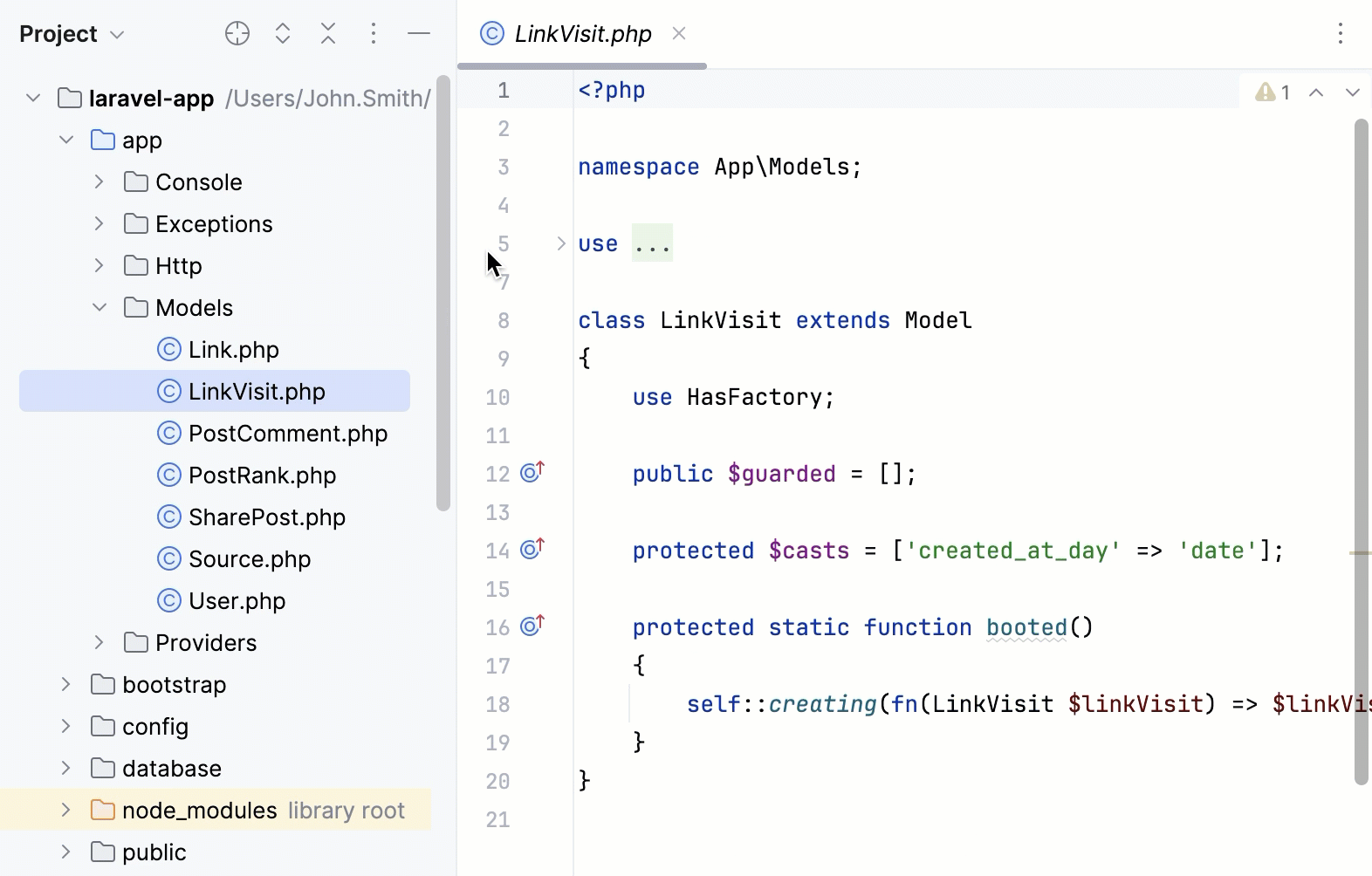
Note that when the preview tab is enabled, the Open Files with Single Click option is ignored. Double-click a file to open it in a regular tab.
Display multiple tabs
When you open more tabs than your screen can fit, you can place them in one or several rows.
Press Ctrl+Alt+S to open settings and then select .
In the Show tabs in section, select one of the following options:
One row, and if tabs don't fit: place all tabs in one row, and if the tabs do not fit:
Scroll the tabs panel: hover over the tab row and use the scroll bar that appears or the mouse wheel to scroll the tabs. Alternatively, use the drop-down list (
) on the right to open tabs that are outside the viewport.Squeeze tabs: shrink tabs to fit them on the screen.
Multiple rows: place tabs in several rows.



Change the font size in tabs
In the Settings dialog (Ctrl+Alt+S) , go to .
In the Size field, specify the font size and click OK to save the changes.
Keep in mind that the font size will change not only for the tabs but for tool windows as well.
Breadcrumbs
Breadcrumbs display the path from the code element where your caret is placed to the root element of the file. They help you track your location within a file structure.
Each part of the breadcrumb is clickable, allowing for easy navigation to parent code elements. For additional information, you can also use tooltips which appear on hover over a breadcrumb section.
Use breadcrumbs for navigation
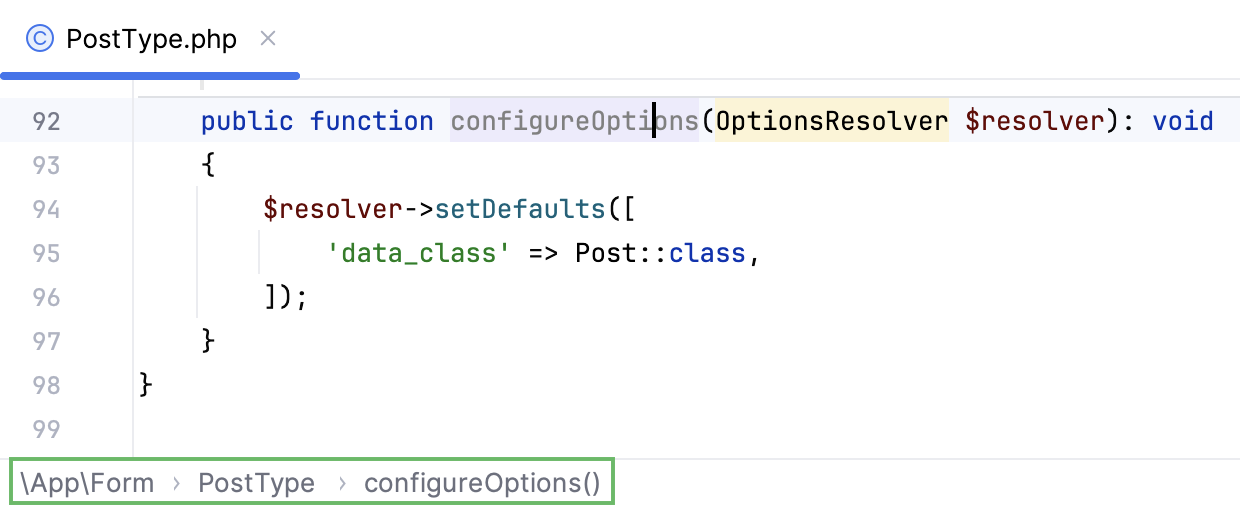
Click a breadcrumb in the editor to navigate to the necessary code element.
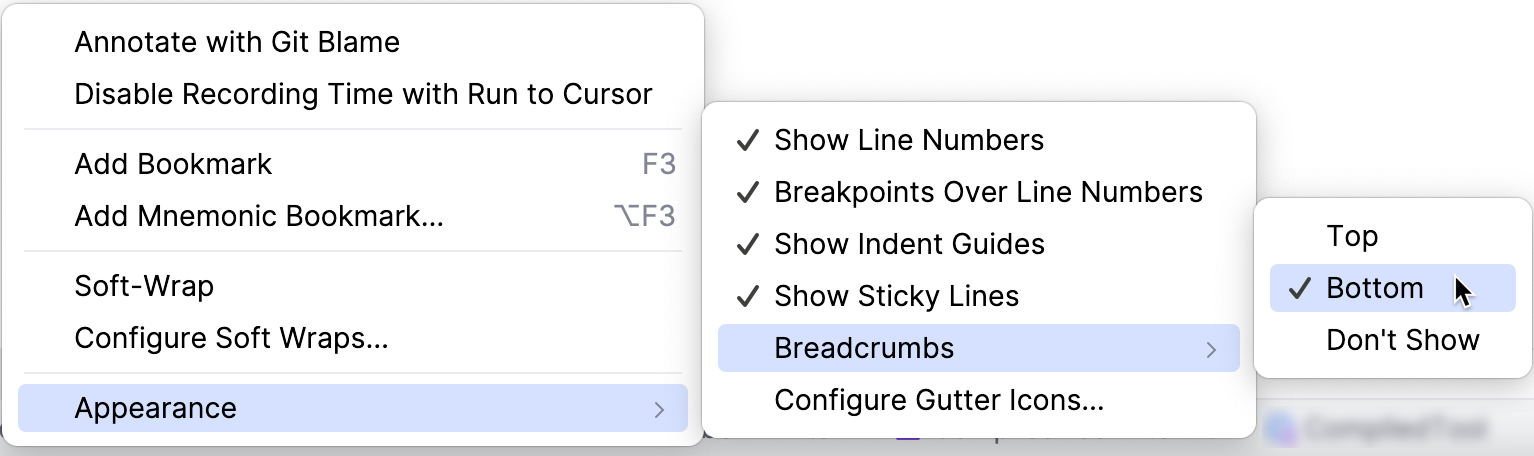
To change the location of breadcrumbs, right-click a breadcrumb in the editor, go to , and select a new location: at the top or at the bottom of the editor.
To edit the settings for breadcrumbs, enable or disable breadcrumbs for other languages, or change their appearance, press Ctrl+Alt+S to open settings and then select .
Clear the Show breadcrumbs option to hide breadcrumbs in the editor.
Split screen
PhpStorm offers various actions that you can invoke from the main or context menu, the editor, or the Project tool window to split the editor screen.
In the editor, right-click the desired editor tab and select how you want to split the editor window (Split Right or ). PhpStorm creates a split view of the editor and places it according to your selection.
As an alternative, go to and the Split and Move Right or Split and Move Down option.
You can drag a tab vertically or horizontally in order to split the editor, and drag the tab back to unsplit the screen.
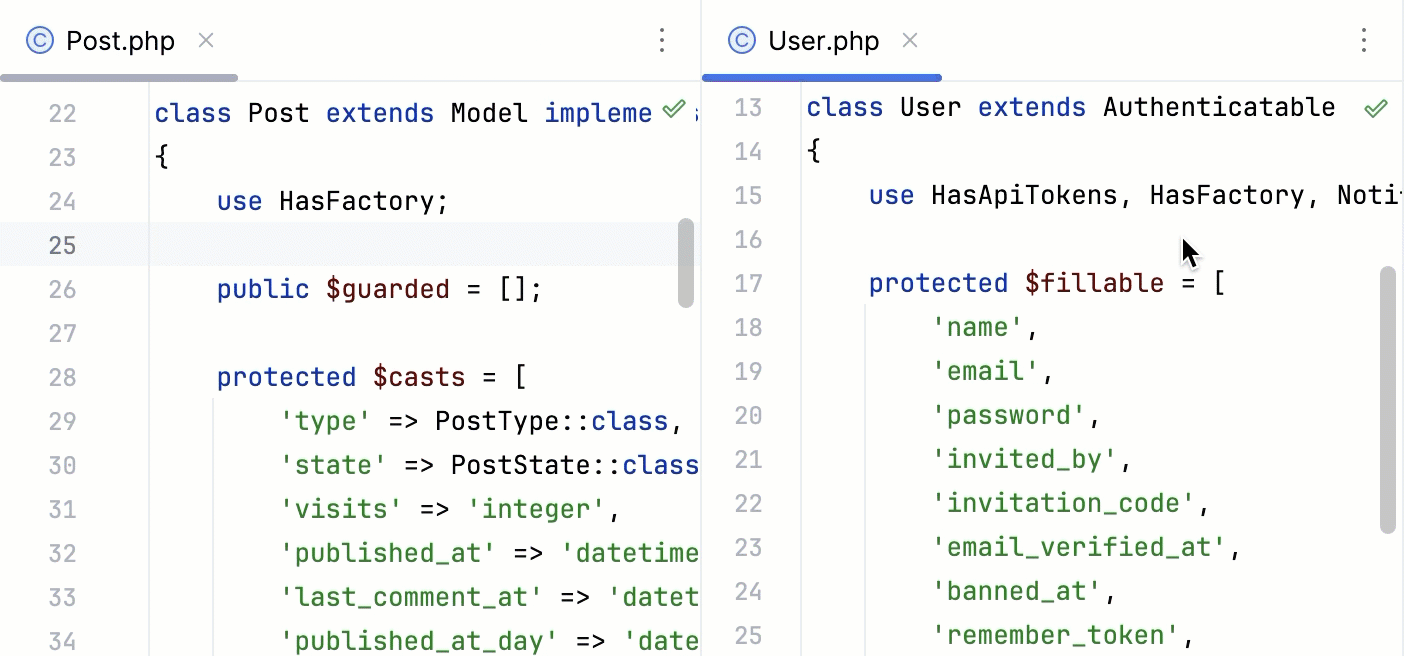
You can open a file in the editor in the split on the right.
In the Project tool window, right-click the file and select Open in Right Split from the context menu. PhpStorm will open the file in the split on the right of the editor.
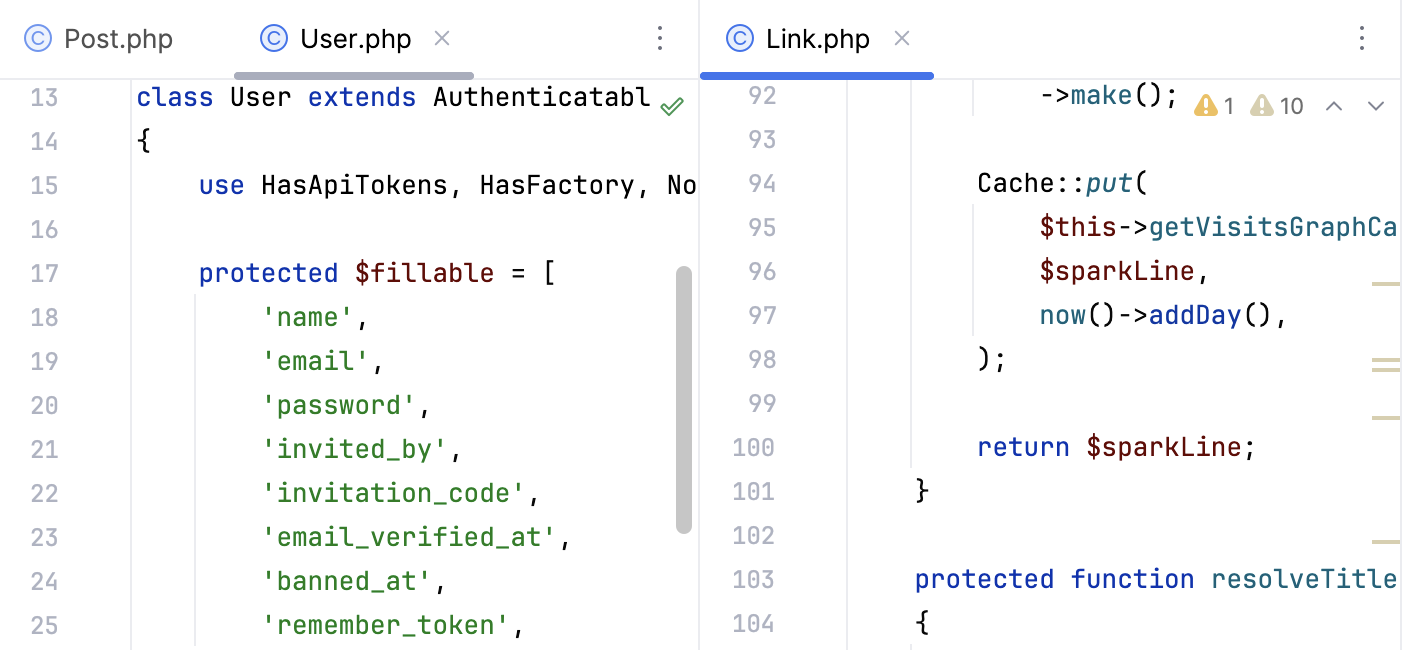
If there are two splits and focus is in the left split, the file will be opened in the existing right split. If the focus is in the right split, the file will be opened in the next right split.
You can move files between split screens. Right-click the necessary file tab in the editor and select Move To Opposite Group or Open In Opposite Group from the context menu.
You can close all the open tool windows at once and thus enlarge the split screens. Place the caret at an editor tab and press Ctrl+Shift+F12 or double-click the tab. PhpStorm hides all the open tool windows, so all the space is shared by split screens.
You can split the editor equally multiple times with the Equalize proportions in nested splits option.
To unsplit the screen, from the context menu, select Unsplit or Unsplit All to unsplit all the split frames.
Move the split screen
Place the caret inside the desired split frame.
In the main menu, go to .
From the list of options, select one of the following options:
Stretch Editor to Top
Stretch Editor to Left
Stretch Editor to Bottom
Stretch Editor to Right
You can assign a shortcut to each option and use the keyboard to stretch the split frame.
To move between the split frames, go to . From the list of options, select Goto Next Splitter ⌥ ⇥ or Go to Previous Splitter ⌥ ⇧ ⇥, respectively.
Font
You can configure and change the font, its size, and font ligatures. The font size change can be applied to one editor tab only or globally.
Configure the font and font ligatures
In the Settings dialog (Ctrl+Alt+S) , go to .
Select the desired font from the list, specify its Size and Line height. You can also enable ligatures and configure typography settings.
Click OK to save the changes.
Change font size from the editor
In the Settings dialog (Ctrl+Alt+S) , go to (Mouse Control section).
Select the Change font size with Ctrl+Mouse Wheel in option.
Return to the editor, press and hold Ctrl, and adjust the font size using the mouse wheel.
Increase or decrease font size in all tabs
In the editor, press Alt+Shift+. to increase the font size globally, and Alt+Shift+Comma to decrease it.
PhpStorm displays a zoom indicator on the bottom of the editor that shows the current font size and the default one, which you can roll back.
The zoom indicator is enabled by default. To disable it, open the Settings dialog (Ctrl+Alt+S) , go to , and clear the Show zoom indicator option in the Editor section.
Useful editor configurations
You can use the Editor section of the Settings dialog (Ctrl+Alt+S) to customize the editor's behavior.
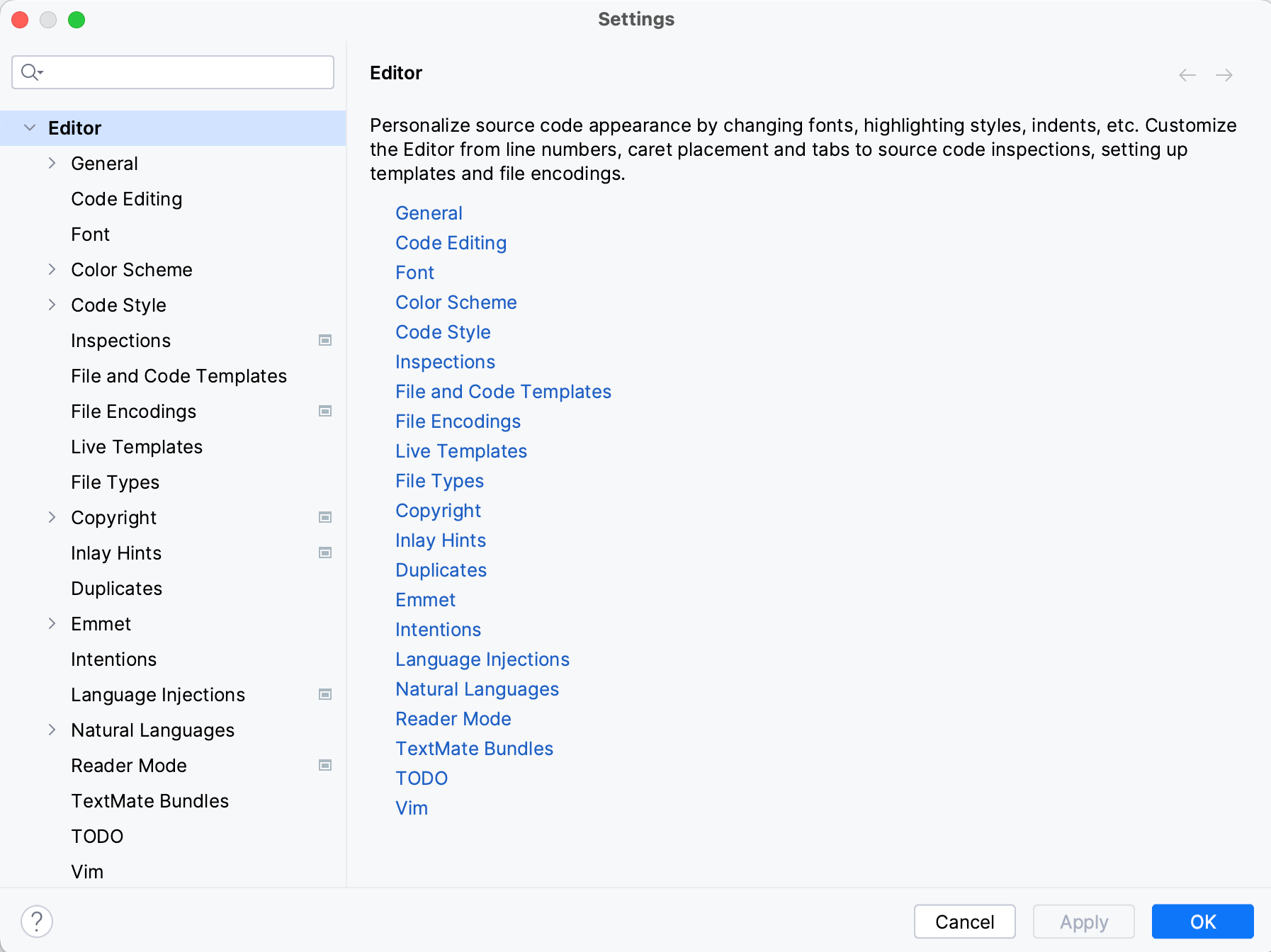
Check the following popular configurations:
Configure code formatting
In the Settings dialog (Ctrl+Alt+S) , go to .
From the list of languages, select the appropriate one, and configure settings for tabs and indents, spaces, wrapping and braces, hard and soft margins, and so on.
Configure color scheme settings for different languages and frameworks
In the Settings dialog (Ctrl+Alt+S) , go to .
Open the Color Scheme node and select the necessary language or framework. You can also select the General option to configure the color scheme settings for general items, such as code, editor, errors and warnings, popups and hints, search results, and so on.
Configure code completion options
In the Settings dialog (Ctrl+Alt+S) , go to . Here you can configure case-sensitive completion, auto-display options, code sorting, and so on.
Configure caret placement
In the Settings dialog (Ctrl+Alt+S) , go to . In the Virtual Space section, configure the caret placement options.
Select the Allow placement of caret after end of line option to place the caret at the next line in the same position as the end of the previous line. If this option is cleared, the caret at the next line is placed at the end of the actual line.
Select the Allow placement of caret inside tabs option to help you move the caret up or down inside the file while keeping it in the same position.
Configure the behavior of trailing spaces on save
In the Settings dialog (Ctrl+Alt+S) , go to . In the Other section, configure options for trailing spaces.
For example, when you save your code, either manually or automatically, and want to preserve trailing spaces on the caret line regardless of what option is selected in the Strip trailing spaces on save list, select the Always keep trailing spaces on caret line option.
Configure the editor appearance options
In the Settings dialog (Ctrl+Alt+S) , go to .
For example, you can configure the IDE to show the hard wrap guide or parameter hints.
Manage the appearance of long lines
In the Settings dialog (Ctrl+Alt+S) , go to .
In the Soft Wraps section, specify the appropriate options.
For example, you can specify file types to which you want to apply soft wraps. It might be helpful when you write documentation in markdown files.
Configure smart keys
You can configure the behavior of basic editor actions to differ depending on the language you use.
In the Settings dialog (Ctrl+Alt+S) , go to .
For example, you can select the Jump outside closing bracket/quote with Tab option to enable navigation outside the closing brackets or quotes with Tab when you type your code.